

For detailed API specifications in Swagger/OpenAPI format, see Platform APIs.
UI components required to implement the Platform Signals API
Two values you need to use the Platform Signals API are the Signals Store ID and embed token. This section provides the steps in the necessary order to create and obtain those values from the UI.1. Create a Signals Store
-
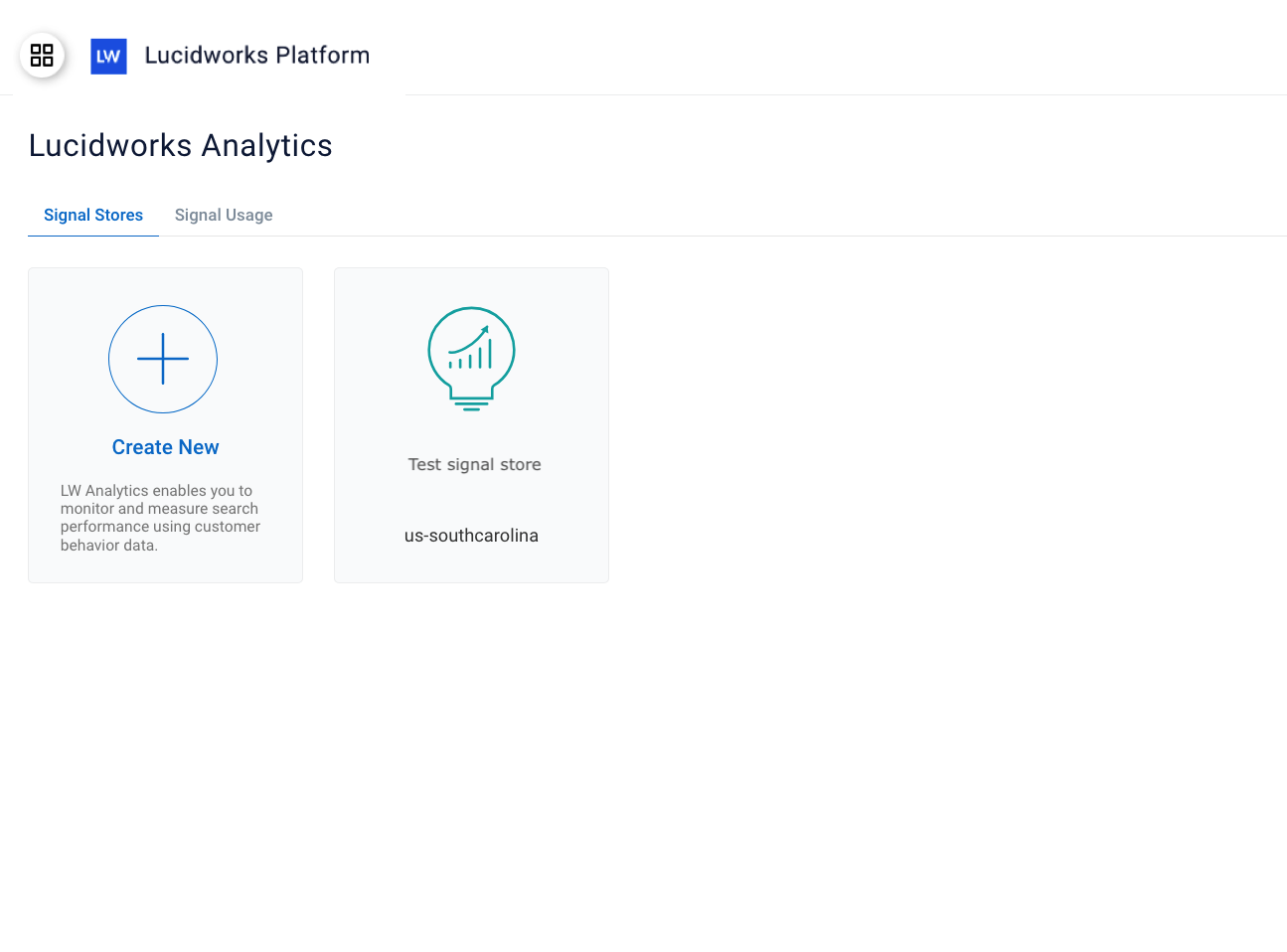
Navigate to the megamenu and click Signals.
-
Click Create New.
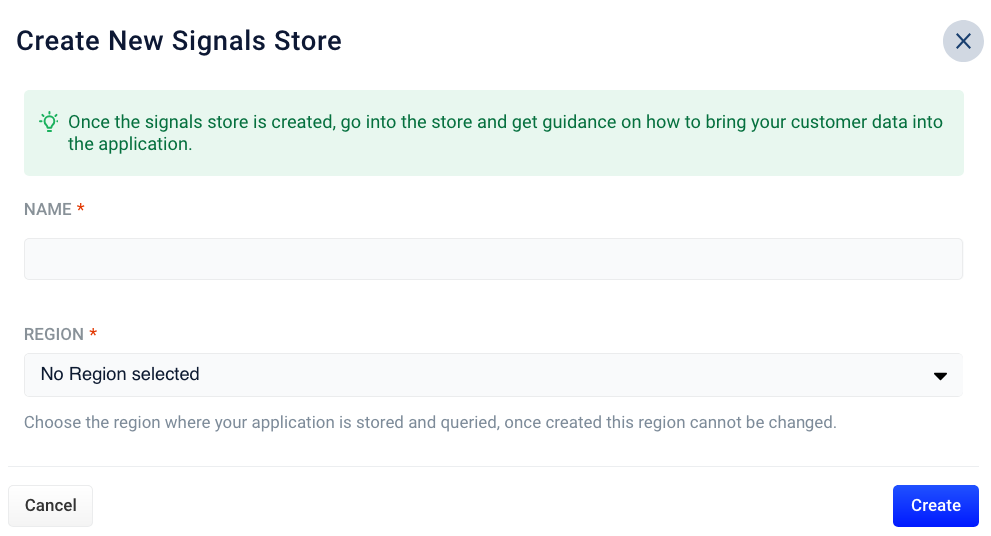
- In the Name field, enter a unique user-defined for the Signals Store.
-
In the Region field, select the geographical area for the Signals Store.
This selection cannot be changed. If you need a Signals Store in a different region, you need to create another Signals Store with the other region specified.
- Click Create.
2. Generate and copy the embed token to your codebase
To generate the embed token, navigate to the megamenu and click Signals.- Click the Signals Store where you want to configure the signals beacon and then click Integrations > Signals Using Embed Token.
-
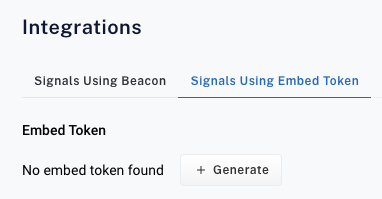
If you haven’t configured embeds for this Signals Store, the “No embed token found” message displays.
-
Click Generate. It may take a few moments to generate the token.
The generated embed token for the Signals Store is permanent and cannot be changed.
-
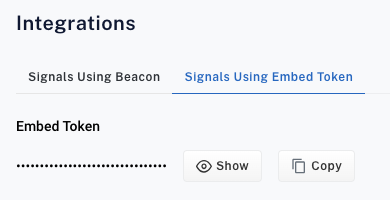
In the Embed Token section, click Copy and then paste the token into your codebase. To view the token, click Show or click Hide to prevent it from displaying.
The embed token also displays in asterisks in the Authorization header line of all of the cURL examples. When you copy and then paste the cURL example, the value of the embed token displays instead of the asterisks. For example:
3. Obtain the Signals Store ID
To obtain the Signals Store ID, navigate to the megamenu and click Signals.- Click the Signals Store where you want to configure the signals beacon and then click Integrations > Signals Using Embed Token.
-
The Signals Store ID displays in first line of all of the cURL examples. Copy that ID to paste into your codebase. For example:
4. Copy or create code to collect signals
Lucidworks provides cURL command examples for the query, click, cart-add, and purchase complete signals that you can copy into your backend codebase and modify based on the language you use, such as Java, C#, Python, or Nodejs.For detailed API specifications in Swagger/OpenAPI format, see Platform APIs.
- Click the Signals Store where you want to configure the signals beacon and then click Integrations > Signals Using Embed Token.
- Click Copy to copy the cURL command example for the signal you want to add to your codebase.
- Paste the command in your codebase and modify based on your organizational needs. If you choose not to use the examples Lucidworks provides, enter code into your codebase manually.
Example user flow and signal events
This section provides a typical user interaction flow for browsing and purchasing a product by describing the required API signals and UUID generation necessary for event tracking. You can program your site to generate UUIDs using any standards-compliant method. Each signal depends on proper UUID generation and tracking. Consistent IDs are necessary for signal integrity and accurate metrics for analytics. To successfully create signals and ensure complete signal tracking, your site must generate and persist the following UUIDs:sessionIdis required in every signal (query, click, cartadd, and purchase complete) to identify the session.visitorIdidentifies the user. It’s required in the purchase complete signal and optional in the other signals, but send it in every signal so Lucidworks can track each visitor’s activity.queryIdis required in the query, click, and cartadd signals to identify the query. Each facet refinement is a new query and requires a newqueryId.queryIdis optional in the purchase complete signal.searchTermsis required in the query signal to return results.cartIdis required in the cartadd and purchase complete signals. Use the samecartIdfor every cartadd signal in a cart and for the purchase complete signal, then replace it with a new UUID after the purchase.orderIdis optional, and is used on the purchase_complete signal and identifies an actual purchase as opposed to an attempted purchase.
visitorId is typically stored in localStorage to persist across sessions, and sessionId is usually stored in sessionStorage to reset between sessions.
Other parameters are detailed in the Platform Signals API specification.
Sample user interaction flow
The following example provides typical interactions when a customer searches for and purchases a refrigerator.1. Site entry and ID generation
When a user visits your site, the site must generate thevisitorId and sessionId universal unique identifiers (UUIDs).
2. Search query and initial query signal
When the user searches for “silver french door bottom freezer refrigerator,” your site must generate a newqueryId UUID and send a query signal.
Generate queryID
3. Product click and click signal
When the user clicks a product, your site must generate a click signal that uses the samequeryId generated in the query request that returned the results on which the user clicks.
Click signal
The
selectedPosition field is critical for calculating Average Click Position analytics. Use one-based indexing where the first item in the search results is 1, the second is 2, and so on. Do not use zero-based indexing.4. Cart addition and cart-add signal
When the user adds a product to their cart, your site must send a cart-add signal that includes thequeryId of the search that led to the product and a cartId.
If the user doesn’t have a cart ID yet, generate one.
Reuse it for every product added to that cart.
Cart add signal
5. Purchase complete and purchase signal
When the user completes the purchase, your site sends a purchase complete signal with the samecartId used in the cart-add signals and an optional orderId.
After the purchase, replace that cartId with a new UUID for the next cart.
Purchases are attributed to queries by cartId and the productId of each item in productDetails, not by queryId.
Each item is credited to the query in the cart-add signal that added it to the cart.
If the cart was built from several searches, the purchase is split across those queries by product.
If the same product is added to the cart more than once, the most recent cart-add’s query gets the credit.
Each productId in productDetails must match the productId sent in its cart-add signal.
queryId is optional in the purchase complete signal and isn’t used to attribute purchases to queries.
You can omit it.
Lucidworks uses orderId to drop duplicate purchase signals.
Send the purchase complete signal as soon as the purchase completes.
Lucidworks keeps the query for each cart item for a limited time after that item’s last cart-add signal.
After that time, the item can’t be attributed to a query.
Session and product metrics are still recorded.
revenue to the total price of the purchased products only. Don’t include tax, shipping, or other fees.
Purchase complete signal
Additional signal information
Facet refinement and query signal generation
A facet refinement is a new query, not a separate signal type. When the user applies a facet, your site must send a new query signal with the following values:- A new
queryIdUUID. - The same
visitorIdandsessionId, so the refinement stays attached to the same visitor and session. - A
selected_facetsarray that lists each applied facet bynameand its selectedvalues. The Facet Usage metric in Analytics Studio uses this array to count facet selections. - A
productDetailsarray that lists the filtered results returned after the facet is applied. - A
urithat is the URL of the refined search results page.
Facet signal
If you use the signals beacon, it captures selected facets from the URL automatically.
To configure which URL parameters contain facets, see the
facets property in BeaconQueryProps.
If facets aren’t in the URL, add selected_facets to the query signal with a signal handler.