Display search results with sorting, pagination, conditional row coloring, and dynamic row linking
The Results component displays search results from your datastore in a table format. Use this component to present search findings, product listings, data tables, or any collection of records. The component supports sorting, pagination, conditional row coloring, and dynamic page linking.
UI Studio: Crafting the Discovery Experience
Learn how to configure the Results List with Grid or Document layouts, set up facets with human-legible field names, and enable search-within-results refinement.
Add a Results component to your UI Studio page to display search results. The component typically works alongside a Search Bar component and Facets component to display and filter query results, but can also work standalone.
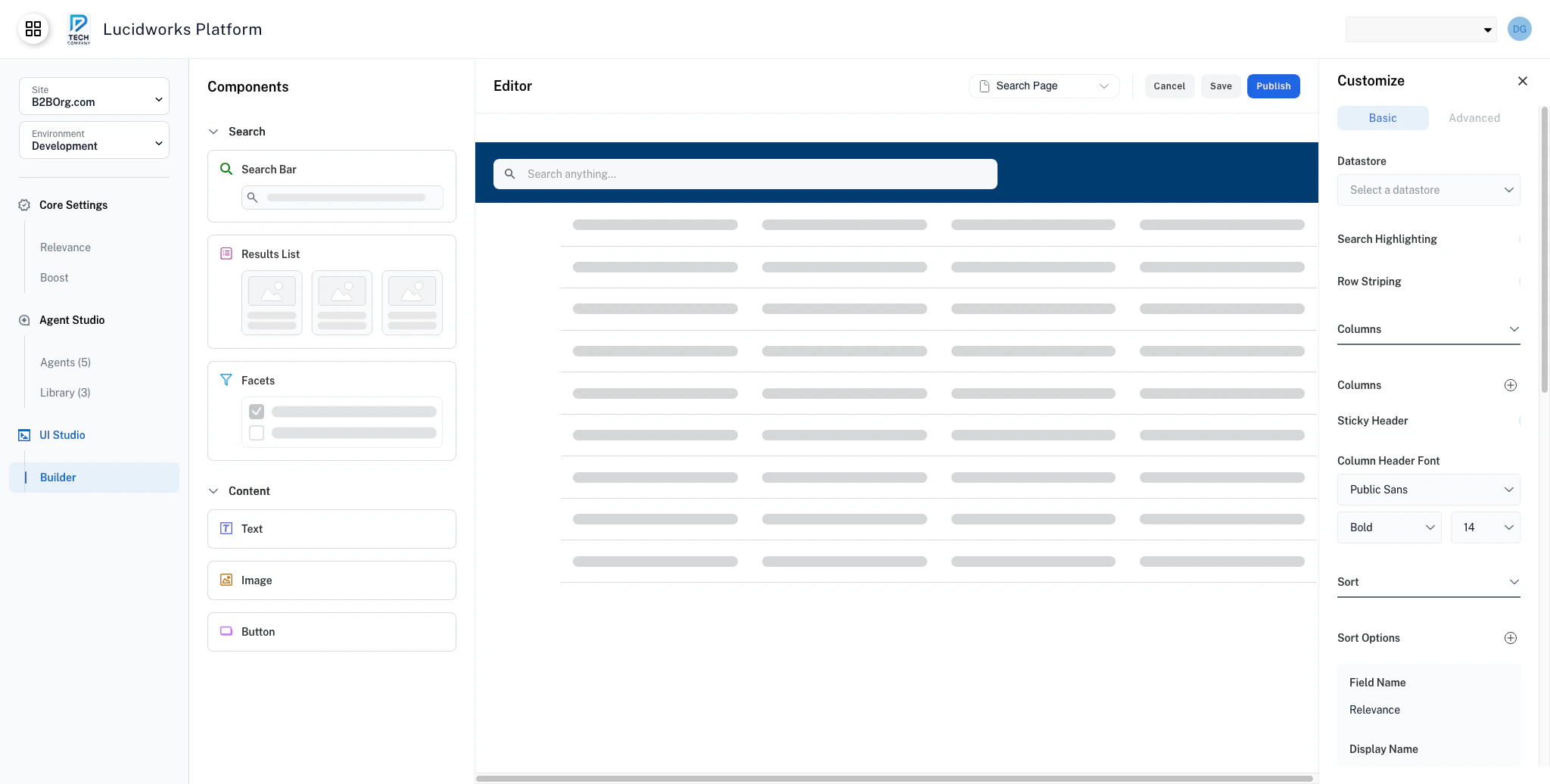
Results component in the canvas
When no search query is active, the component displays all records by default. The Results component updates when users apply filters or perform searches.The Results component supports a variety of content types and layouts. Common use cases include:
Product listings: A catalog of items for sale, such as an ecommerce store. Create results listings with images, prices, and “Add to Cart” buttons.
Search results: A display of documents or records matching a user query. Create results listings with titles, descriptions, and snippets.
Data tables: A structured view for tabular data users need to compare or filter. Create results listings with sorting and conditional coloring for status.
User directory: A browsable list of users or contacts with role information. Create results listings with profile links and role-based coloring.
Document library: A collection of files organized for browsing and download. Create results listings with file types, dates, and download links.
The table view displays results as a structured data table with columns and rows. This layout is best for structured data and sortable datasets, as the table view is optimized for dense information display.Click the + next to Columns to display a column in the results. Columns display in the order that they are added.To keep column headers visible while you scroll through results, turn on the Sticky Header toggle.
Configure the sort criteria for users. Use these options so that users can sort the results by preset criteria, such as price, name, or quantity.The sort options display in a dropdown menu above the search results. Sorting by relevance is included by default.
The sort options display in the order that you added them. The default Relevance option always appears first in the user-facing dropdown, even though it is listed last in the configuration panel.
Use pagination to configure the number of results per page and how many results the user can choose to display per page.When pagination is turned off, only the first page of results displays.When you enable pagination, you can set the default number of results to display per page in the Default Results Count field. The default value is 10 results.You can also configure the number of results to display per page for users to select. Set these values in the Results Count fields, listed from lowest to highest.
Use conditional row coloring to apply background and text color to rows based on field values, making it easy to surface important information at a glance. Use this feature to flag inventory items with low stock, highlight tasks that are past due, distinguish active records from inactive ones, or draw attention to high-priority items without requiring users to sort or filter the table themselves.Each rule evaluates a field against a condition and a value, then applies the configured colors to any matching row. When you configure multiple rules, the component evaluates them in the order listed and applies the first matching rule. Rows that match no rule use the default table styling.
Because the component evaluates rules top to bottom and applies the first match, you can order rules from most critical to least critical status to ensure proper highlighting.
Inventory alerts
Status highlighting
Priority indicators
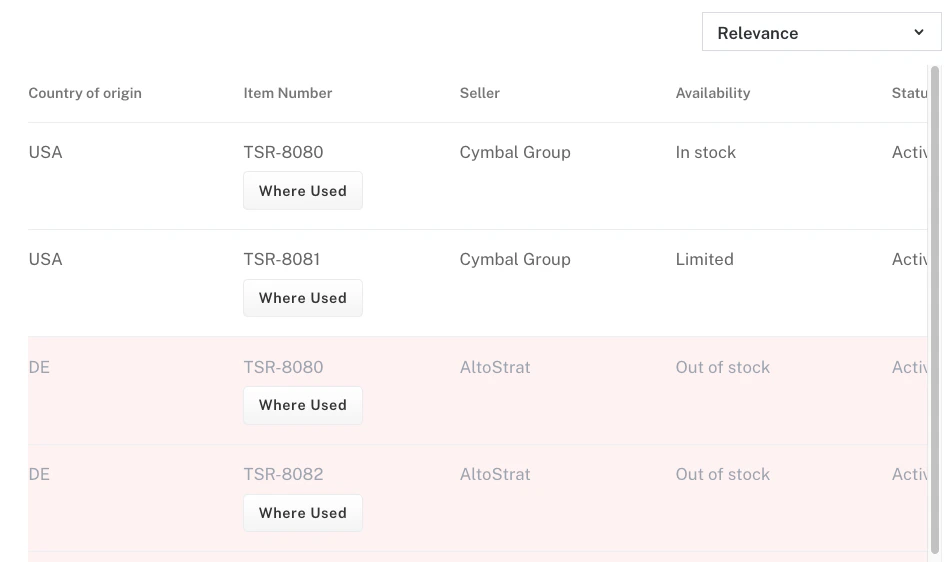
An ecommerce catalog uses a stock_status field to alert buyers and staff about inventory availability. The rule checks whether stock_status equals Out of stock and applies a red background to signal that the item is unavailable.
Conditional row formatting based on availability
That same approach extends to any number of statuses. A second rule can check whether stock_status equals Low stock and apply a yellow background to indicate limited availability, and a third can check whether stock_status equals In Stock and apply a green background to indicate healthy inventory levels. You can continue adding rules for any status value your catalog defines.
In stock
#f0fdf4
Limited
#fefce8
Out of stock
#fef2f2
A task management table uses a status field to communicate record state at a glance. One rule checks whether status equals Active and applies a green background. Another checks whether status equals Inactive and applies a gray background. A third checks whether status equals Error and applies a red background with white text.Use subtle background tints rather than saturated colors so that text remains readable across all rows.
A support queue uses a priority field to help agents triage incoming requests. One rule checks whether priority equals High and applies red text. Another checks whether priority equals Medium and applies orange text. A third checks whether priority equals Low and applies green text.Text color changes alone work well when you want to signal priority without overwhelming the table with heavy background coloring.
Use dynamic page links to navigate users directly from a table row to a detail page, connecting your results table to the rest of your application. Use this feature to build product catalog tables where rows link to product detail pages, user directories where names link to profile pages, or document lists where entries open document viewers.When Link Mode is set to Action, the Display Type setting controls how the link appears in the table. Choose Link when the field value is a natural, recognizable label that users expect to click, such as a username or a document title. Choose Button when the field value is an internal ID or technical string you do not want to display, and the action should appear as a labeled button.To use a redirect button, define the destination URL with the Page base path and a URL Template that combines the page path with a placeholder for the field value. Wrap the placeholder in curly braces to mark where the field value is injected. The template /products/PRODUCT_ID resolves to /products/ABC123 when the PRODUCT_ID field contains ABC123. You can position the placeholder anywhere in the template path, such as /users/{username}/profile or /documents/{doc_id}.You can configure multiple dynamic links on the same table, assigning one link configuration per column. This lets you create multi-action rows with a mix of link types, such as a “View” redirect button in one column alongside an “Edit” button in another.
Product detail link
User profile link
Document with action button
A product catalog table links each row to its corresponding product detail page. Set Column to PRODUCT_ID, Link Mode to Action, Display Type to Button, Button Label to “View Product”. Set the URL Template to /products/PRODUCT_ID. A row where PRODUCT_ID contains ABC123 navigates the user to /products/ABC123.
A user directory makes the username itself a clickable link to the user profile page. Set Column to username, Link Mode to Inline, and URL Template to /users/{username}/profile. The displayed username becomes a link without a separate button.
A document library hides the internal document ID and exposes only a labeled action button. Set Column to doc_id, Link Mode to Action, Display Type to Button, Button Label to “Open Document”, and URL Template to /documents/{doc_id}/view. The document ID is not shown to users. Only the button is displayed.
When creating URL templates for Dynamic Page Links, test with sample data to ensure links resolve correctly. Invalid templates result in broken navigation.