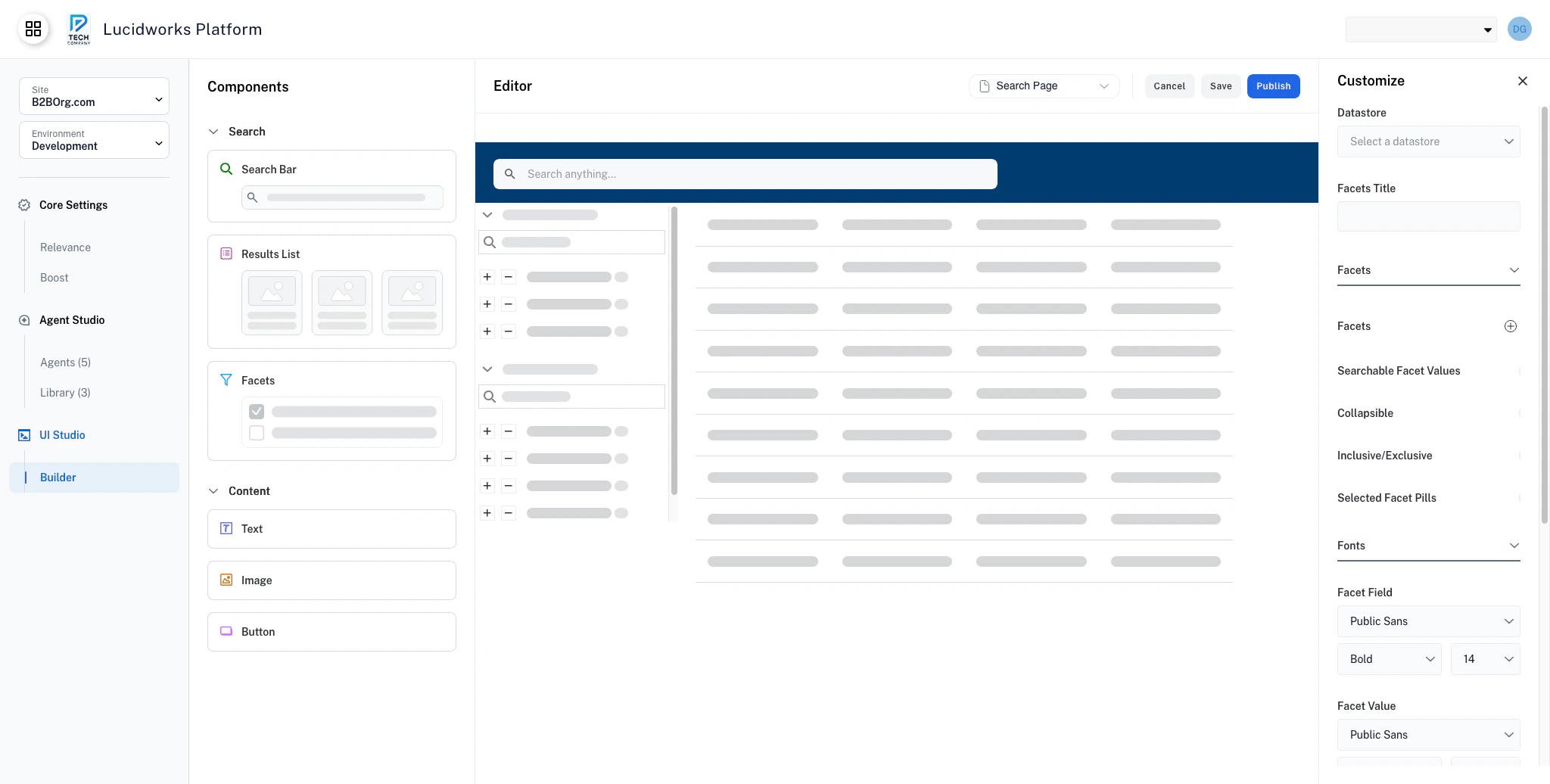
Interactive filtering component for refining search results by categories and attributes in UI Studio applications
The Facets component in UI Studio provides interactive filters that allow users to refine search results by selecting categories, attributes, and values. Use facets to narrow down large datasets by criteria like manufacturer, category, price range, or any custom field from your data.
UI Studio: Crafting the Discovery Experience
Learn how to configure the Results List with Grid or Document layouts, set up facets with human-legible field names, and enable search-within-results refinement.
Add a facets component to your UI Studio page to enable filtering capabilities. To build a minimal facets component, you must set a value for the Datastore field and a facet category to display.
Facets component in the canvas
If no facets are available for the provided datastore, the component displays an empty state message: “No facets found. Please try adjusting your search criteria.”To add a facet, click the + next to the Facets selector. Facets display in a vertical list.
Enable search within facet values for categories with many options. When enabled, a search box appears within each facet category, allowing users to quickly find specific values. This is especially useful for facets with many values, for example, cities or product models.Toggle the Searchable Facet Values switch to turn this feature on or off.
Collapsible facets let users show or hide individual facet categories to reduce visual clutter.
Collapsible facet categories
When enabled, each facet category displays a chevron icon. Users can click to collapse categories they’re not using, creating a cleaner interface. The collapsed state persists during the user’s session.Enabling collapsible facets is recommended when you have many facet categories. Users can focus on the filters they’re actively using while hiding others.Toggle the Collapsible switch to turn collapsible facet categories on or off.
Enable advanced filtering with inclusion and exclusion operators. These filters let users include or exclude a facet from their search results and create complex filter combinations such as “show products from Sony or Samsung, but not refurbished items.”When enabled, each facet value displays plus and minus icons:
+ (Plus): Include results that match this facet value.
- (Minus): Exclude results that match this facet value.
Use inclusive and exclusive filtering for complex filtering through many facets. For simpler interfaces, turn this setting off to avoid overwhelming users with additional controls.Toggle the Inclusive/Exclusive switch to turn this setting on or off.
Use facet pills to display selected filters as removable pills before the facet categories. These facet pills provide a visual indicator to users about the facets they’re actively filtering by.Users can select individual facet pills to remove that filter from their current search results.A Clear All link also appears, letting users remove all active filters at once.
Selected facet pills display
Toggle the Selected Facet Pills switch to turn this feature on or off.
When enabled, displays + and - icons next to facet values for inclusive or exclusive filtering. This allows complex filter combinations like “include Sony or Samsung, but exclude refurbished”.
When enabled, displays active filters as removable pills at the top with a Clear All option. Shows inclusive (+) or exclusive (-) indicators when Inclusive/Exclusive mode is enabled.