

Prerequisites
To ensure a successful migration of your datasource data from the FTP V1 connector to the FTP Pro connector, verify that you have the following prerequisites:- Access credentials for your FTP server
- Fusion 5.9.0 or later
Make a plan for removed fields in the Pro connector
The FTP Pro connector does not reproduce the field mapping settings from the V1 connector. In the V1 connector, these settings provided mapping of fields before the documents were sent to an index pipeline. These fields display in the Field Mapping section when the advanced settings are displayed. These fields and settings must be manually recreated as stages in your Fusion index pipeline. The following table displays the relevant fields in the V1 connector.
The Crawl Bounds field has been removed in the FTP Pro connector. This field allowed limiting crawls to a specific directory sub-tree, hostname, or domain. To replicate this behavior in the Pro connector, use the Inclusive regexes and Exclusive regexes fields to control which paths are crawled.
Two other fields have been removed from the Pro connector that require no action from you.
The Solr Commit on Finish field has been removed from the FTP Pro connector.
The Validate access field is built into the FTP Pro connector as a core feature.
No action is required for configuring these settings during the migration process.
New fields
There are several new fields available in the FTP Pro connector to improve security, reliability, and performance.Enhanced authentication options
The Pro connector introduces new authentication methods, particularly for SFTP connections. If you are using an SFTP connection, edit these settings to make sure you are connecting securely to your SFTP server.object
string
SSH host key fingerprint to verify server identity for SFTP connections. Supports MD5 and SHA256 formats. If empty, verification is disabled. This is not recommended for production environments. Get your fingerprint in the command line with:
ssh-keyscan hostname | ssh-keygen -E md5 -lf -Additional document filtering
The Pro connector adds new filtering capabilities:array
A set of file extensions to be skipped from the fetch. This complements the existing Included file extensions field to provide both allow-list and deny-list capabilities.
integer
default:"0"
Specifies the minimum file size for content download (bytes). This field complements the existing Maximum File Size field. When set to a positive value, files below the minimum file size are indexed with metadata only. The default (0) means no minimum size.
Connection and retry settings
The FTP Pro connector automatically detects and retries the connection when transient errors happen (for example, 4xx connection errors or timeouts) and does not attempt a retry in the case of permanent errors (for example, 5xx connection errors or permission failures). New connection management fields provide better control over timeouts and error handling.object
object
Changes to connection settings
The FTP Pro connector has restructured the server configuration settings. In the V1 connector, you provided a single Start link URL (for example,ftp://ftp.example.com:21/example_folder/), and the FTP V1 connector used the URL scheme to detect the connection type. The Pro connector separates the connection settings into discrete fields, and now you explicitly select the connection type.
object
required
array
List of directory or file paths to retrieve. If empty, the crawl starts from the root directory (
/). In the V1 connector, you could only specify one starting path in the URL. The Pro connector allows multiple starting paths.Fetch settings
Some fetch settings that were previously hardcoded into the V1 connector are now exposed and configurable in the Pro connector. These fetch settings provide configuration options at the system level to control fetch behavior and performance. Click the Advanced toggle to expose these settings. Then select the checkbox next to Core Properties, and select the checkbox next to Fetch Settings. To enable asynchronous parsing for the FTP Pro connector, the Async Parsing field is also available in the Fetch Settings section.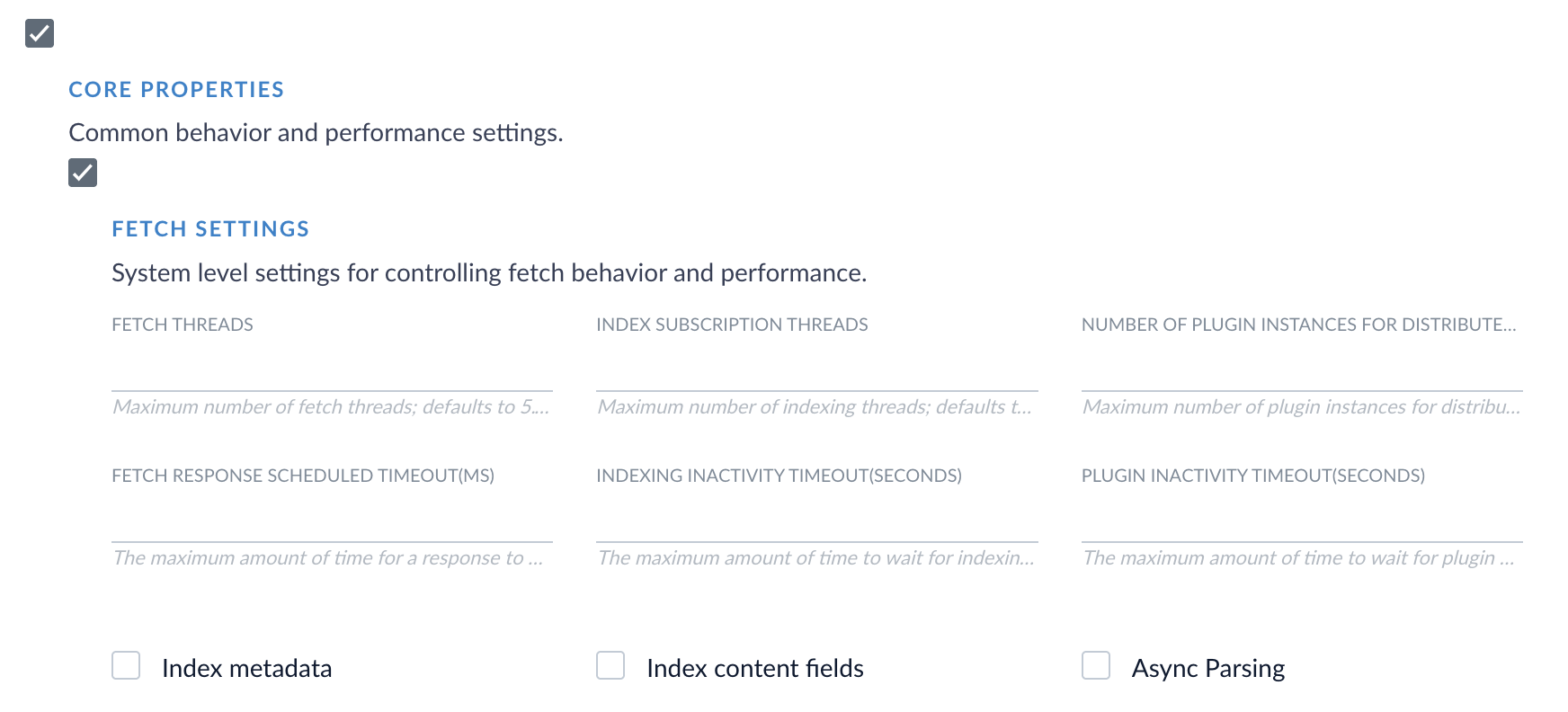
FTP Pro fetch settings
The default number of fetch threads has changed from 1 in the V1 connector to 5 in the Pro connector. This means the Pro connector creates five concurrent connections to your FTP server by default. Review your FTP server’s connection limits and adjust the Fetch Threads setting if necessary to avoid connection errors or rate limiting.