• Latest version: v1.0.0
  • Compatible with Fusion version: 5.4.0 and later
The Slack connector does not function due to Slack disabling crawling access.

Authentication

You must install a Slack application in the workspace that will be indexed before using the Slack V2 connector. See Slack’s Basic app setup for more information about installing a Slack application. Once the app is correctly installed in the workspace, Slack will provide an access token, which you will then use in the Slack V2 connector configuration.

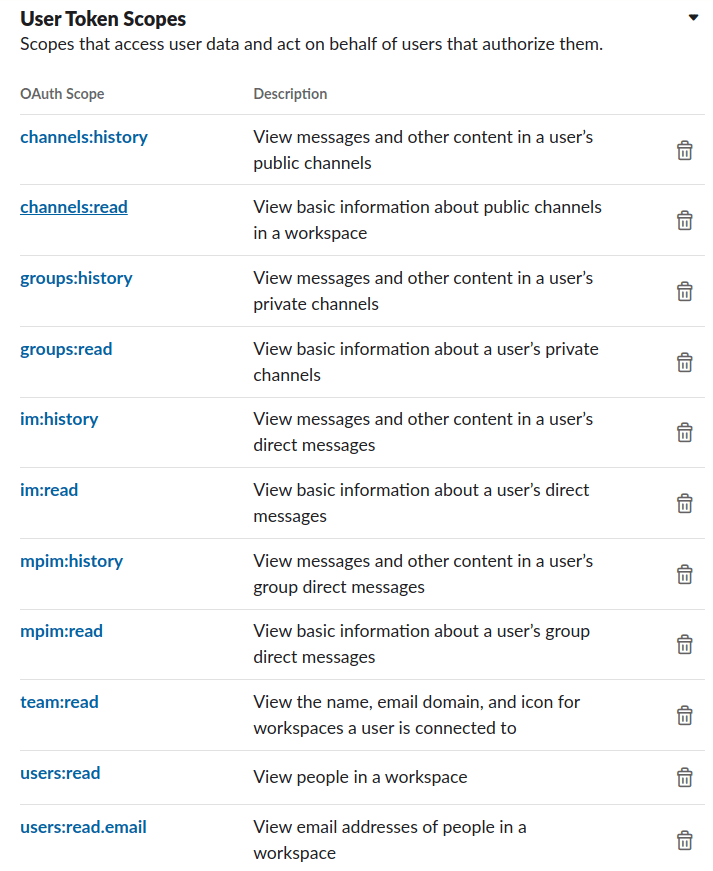
Required application scopes

The Slack application must provide access to the following User Token Scopes in order to work with Slack V2 connector: Slack User Token Scopes

Initial actions

The Slack V2 connector will perform the following actions at the beginning of each job:
  • Load all users in the users cache. This information will be used later to resolve user names when processing mentions in messages.
    It will also be useful for avoiding requests to retrieve user’s metadata.
  • Load the channels to be processed using the channel filtering properties from the configuration.
    This will be useful to establish a source of truth when determining whether a channel should be indexed or deleted on each job.

Document filtering

Crawling process

Due to limitations in the Slack Web API, edited and deleted messages cannot be retrieved. You must clear the datasource and start a new connectors job to index edited messages and/or remove deleted messages.

Crawl process diagram

Crawl process diagram

Endpoints used in the crawling process

Message mentions processing

The Slack V2 connector retrieves messages from the Slack API in the following format:
In this example, @U01U580HSDN is the user Id. The connector will resolve the user Id with the user’s display name, if it exists. Otherwise, it will use the full name in the user’s profile.

Incremental Crawling processors

Incremental crawling process Each incremental job will re-index the User ACL to update all users in the Access Control Collection, and the Channel ACL to update the members of each channel.

Security filtering

Security filtering processors

Access Control Document links

Security trimming rules

Security trimming uses the following rules:
  • All users (regular and guest) can see the profile of any user in the Slack workspace.
  • All regular users can access public channels and messages, even if they are not members of the channel.
  • Guest users can only access the public or private channels they are members of.
  • Only the members of private channels can access the channel and messages.
  • Only the users involved can access direct messages and multi-party direct messages.

Remote connectors

V2 connectors support running remotely in Fusion versions 5.7.1 and later.
If you need to index data from behind a firewall, you can configure a V2 connector to run remotely on-premises using TLS-enabled gRPC.

Prerequisites

Before you can set up an on-prem V2 connector, you must configure the egress from your network to allow HTTP/2 communication into the Fusion cloud. You can use a forward proxy server to act as an intermediary between the connector and Fusion.The following is required to run V2 connectors remotely:
  • The plugin zip file and the connector-plugin-standalone JAR.
  • A configured connector backend gRPC endpoint.
  • Username and password of a user with a remote-connectors or admin role.
  • If the host where the remote connector is running is not configured to trust the server’s TLS certificate, you must configure the file path of the trust certificate collection.
If your version of Fusion doesn’t have the remote-connectors role by default, you can create one. No API or UI permissions are required for the role.

Connector compatibility

Only V2 connectors are able to run remotely on-premises. You also need the remote connector client JAR file that matches your Fusion version. You can download the latest files at V2 Connectors Downloads.
Whenever you upgrade Fusion, you must also update your remote connectors to match the new version of Fusion.
The gRPC connector backend is not supported in Fusion environments deployed on AWS.

System requirements

The following is required for the on-prem host of the remote connector:
  • (Fusion 5.9.0-5.9.10) JVM version 11
  • (Fusion 5.9.11) JVM version 17
  • Minimum of 2 CPUs
  • 4GB Memory
Note that memory requirements depend on the number and size of ingested documents.

Enable backend ingress

In your values.yaml file, configure this section as needed:
  • Set enabled to true to enable the backend ingress.
  • Set pathtype to Prefix or Exact.
  • Set path to the path where the backend will be available.
  • Set host to the host where the backend will be available.
  • In Fusion 5.9.6 only, you can set ingressClassName to one of the following:
    • nginx for Nginx Ingress Controller
    • alb for AWS Application Load Balancer (ALB)
  • Configure TLS and certificates according to your CA’s procedures and policies.
    TLS must be enabled in order to use AWS ALB for ingress.

Connector configuration example

Minimal example

Logback XML configuration file example

Run the remote connector

The logging.config property is optional. If not set, logging messages are sent to the console.

Test communication

You can run the connector in communication testing mode. This mode tests the communication with the backend without running the plugin, reports the result, and exits.

Encryption

In a deployment, communication to the connector’s backend server is encrypted using TLS. You should only run this configuration without TLS in a testing scenario. To disable TLS, set plain-text to true.

Egress and proxy server configuration

One of the methods you can use to allow outbound communication from behind a firewall is a proxy server. You can configure a proxy server to allow certain communication traffic while blocking unauthorized communication. If you use a proxy server at the site where the connector is running, you must configure the following properties:
  • Host. The hosts where the proxy server is running.
  • Port. The port the proxy server is listening to for communication requests.
  • Credentials. Optional proxy server user and password.
When you configure egress, it is important to disable any connection or activity timeouts because the connector uses long running gRPC calls.

Password encryption

If you use a login name and password in your configuration, run the following utility to encrypt the password:
  1. Enter a user name and password in the connector configuration YAML.
  2. Run the standalone JAR with this property:
  3. Retrieve the encrypted passwords from the log that is created.
  4. Replace the clear password in the configuration YAML with the encrypted password.

Connector restart (5.7 and earlier)

The connector will shut down automatically whenever the connection to the server is disrupted, to prevent it from getting into a bad state. Communication disruption can happen, for example, when the server running in the connectors-backend pod shuts down and is replaced by a new pod. Once the connector shuts down, connector configuration and job execution are disabled. To prevent that from happening, you should restart the connector as soon as possible.You can use Linux scripts and utilities to restart the connector automatically, such as Monit.

Recoverable bridge (5.8 and later)

If communication to the remote connector is disrupted, the connector will try to recover communication and gRPC calls. By default, six attempts will be made to recover each gRPC call. The number of attempts can be configured with the max-grpc-retries bridge parameters.

Job expiration duration (5.9.5 only)

The timeout value for irresponsive backend jobs can be configured with the job-expiration-duration-seconds parameter. The default value is 120 seconds.

Use the remote connector

Once the connector is running, it is available in the Datasources dropdown. If the standalone connector terminates, it disappears from the list of available connectors. Once it is re-run, it is available again and configured connector instances will not get lost.

Enable asynchronous parsing (5.9 and later)

To separate document crawling from document parsing, enable Tika Asynchronous Parsing on remote V2 connectors.
Below is an example configuration showing how to specify the file system to index under the connector-plugins entry in your values.yaml file:
You may also need to specify the user that is authorized to access the file system, as in this example:

Configuration