- Latest version: v2.8.0
- Compatible with Fusion version: 5.9.0 and later
Add a JDBC driver to Fusion
Perform these prerequisites to ensure the connector can reliably access, crawl, and index your data. Proper setup helps avoid configuration or permission errors, so use the following guidelines to keep your content available for discovery and search in Fusion. Before creating your datasource, ensure Fusion can load your JDBC driver. These steps let the connector pull in the driver automatically at runtime. Fusion UI:- Navigate to
System > Blobs. - Click
Add > JDBC Driver. - Choose your JAR file and click
Upload.
ID with the name of your JAR file.
PUTyour driver JAR file to/api/blobs/ID?resourceType=driver:jdbc.- Verify with
GET /api/blobs/ID/manifest.
Upload a JDBC Driver to Fusion
Upload a JDBC Driver to Fusion
The JDBC V2 connector is supported, and fetches documents from a relational database via SQL queries. Under the hood, this connector implements the Solr DataImportHandler (DIH) plugin.Fusion stores JDBC drivers in the blob store. You can upload a driver using the Fusion UI or the Blob Store API.
How to upload a JDBC driver using the Fusion UI
- In the Fusion UI, navigate to System > Blobs.
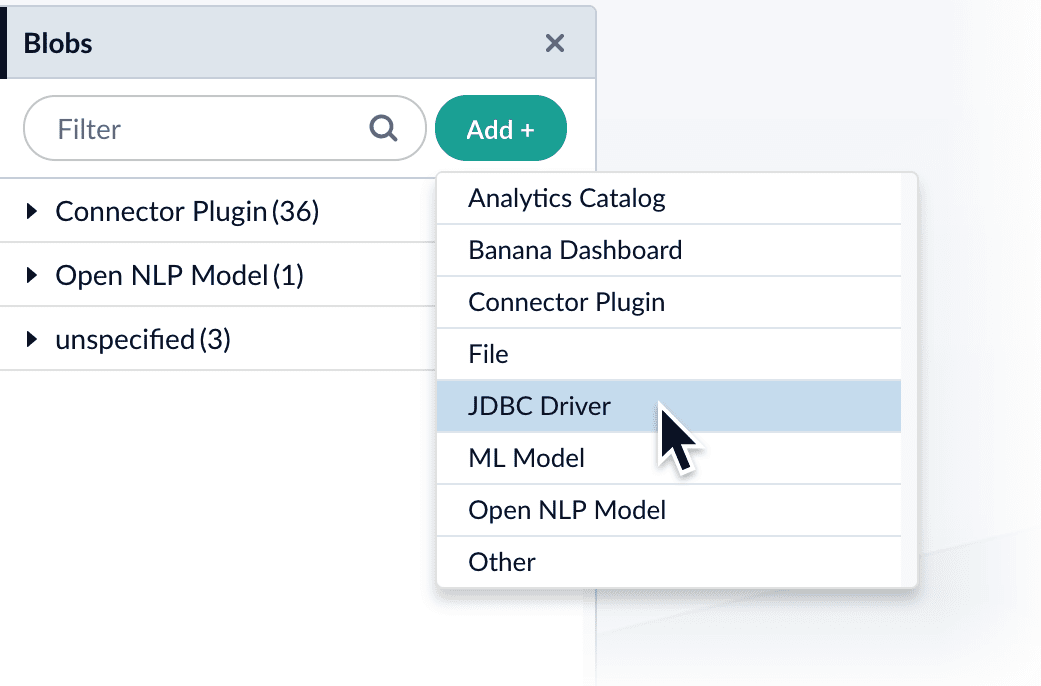
- Click Add.
-
Select JDBC Driver.
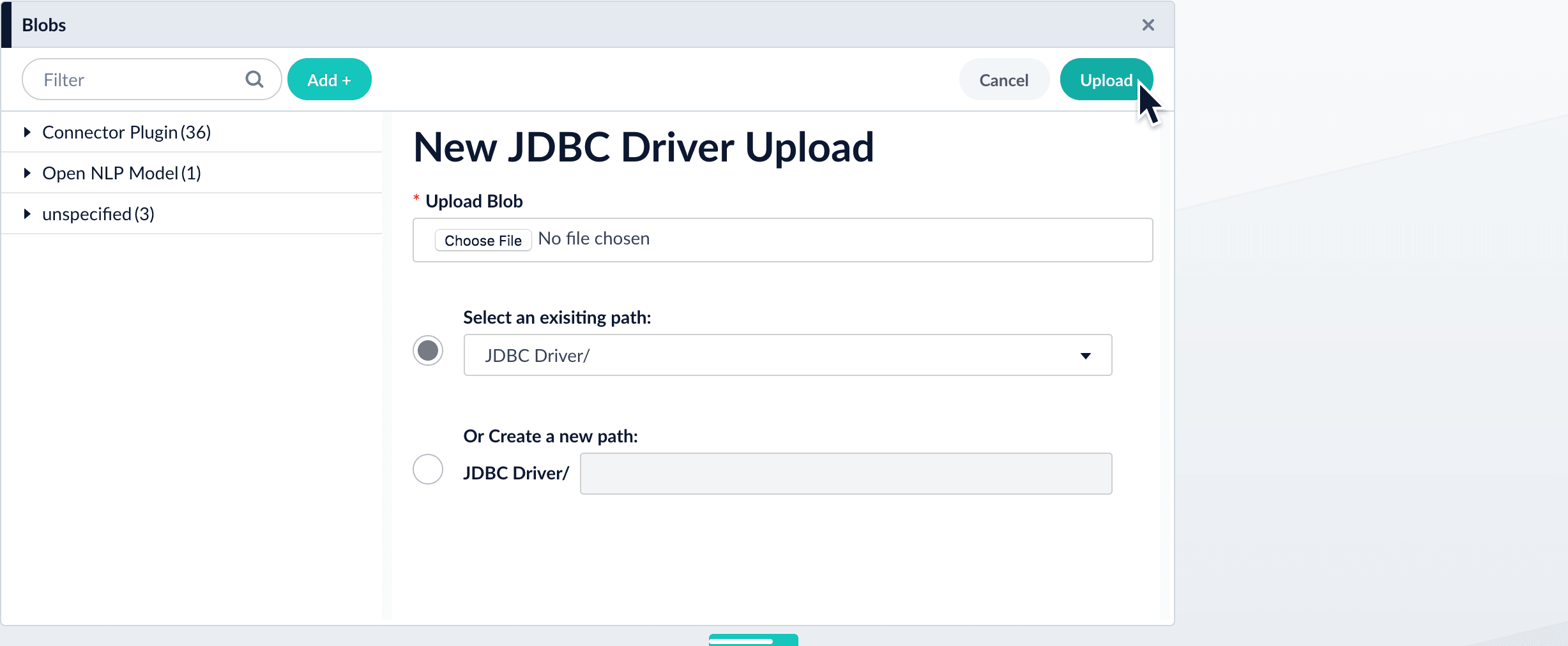
The “New ‘JDBC Driver’ Upload” panel appears.
-
Click Choose File and select the .jar file from your file system.
-
Click Upload.
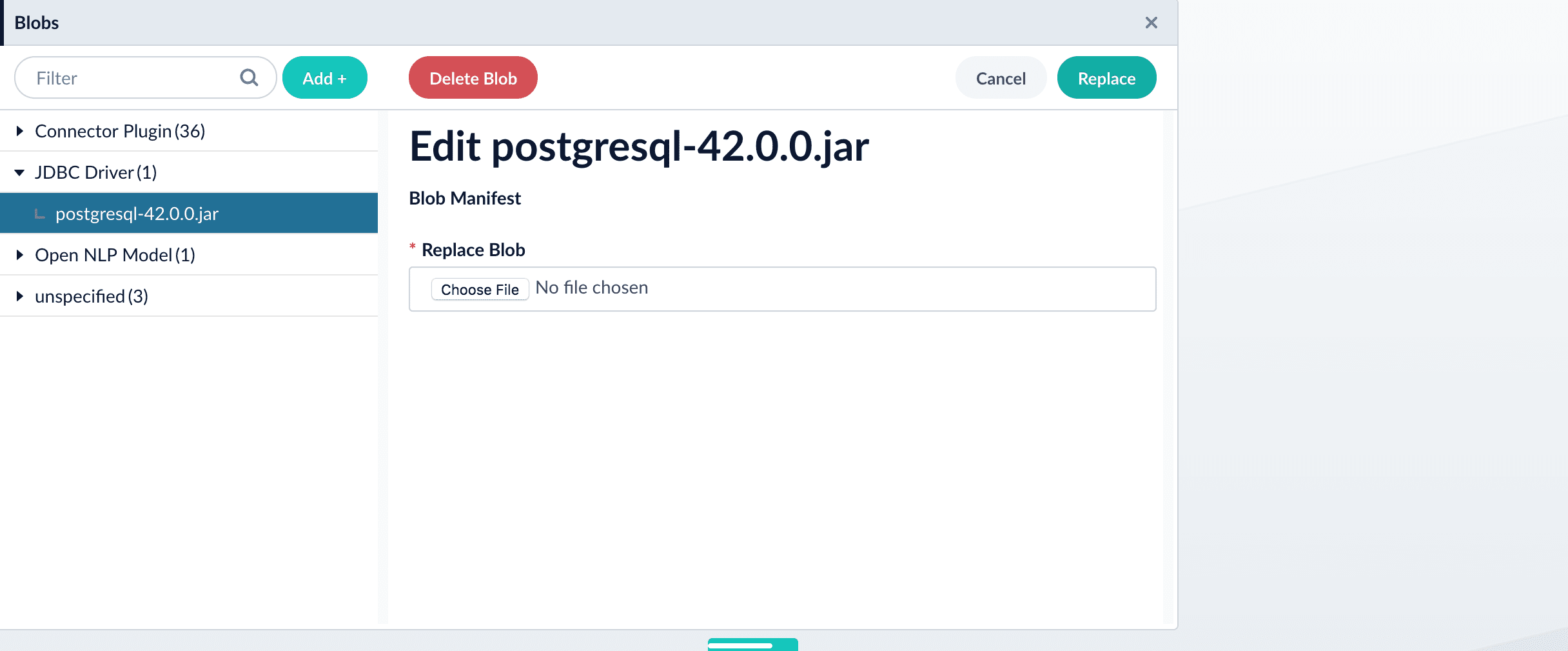
The new driver’s blob manifest appears.
How to install a JDBC driver using the API
-
Upload the JAR file to Fusion’s blob store using the
/blobs/{id}endpoint. Specify an arbitrary blob ID, and aresourceTypevalue ofplugin:connector, as in this example:Success response:Fusion automatically publishes the event to the cluster, and the listeners perform the driver installation process on each node. -
To verify the uploaded driver, run:
Where the
BLOB_IDis the name specified during upload, such as “mydriver” above. A success response looks like this:
Supported JDBC drivers
This section contains a list of supported JDBC drivers that are compatible with any driver/database that implements a SQL standard.Authentication parameters may be provided as part of the connection string. It is not necessary to include a username and password in the datasource configuration.
MySQL
- Download driver
- Default driver class name:
com.mysql.cj.jdbc.Driver - Connection URL specification
- Example:
jdbc:mysql://mysql:3306/testdb
- Example:
Postgresql
- Download driver
- Default driver class name:
org.postgresql.Driver - Connection URL specification
- Example:
jdbc:postgresql://postgres:5432/testdb
- Example:
Microsoft SQL Server and Azure SQL Service
- Download driver
- Default driver class name:
com.microsoft.sqlserver.jdbc.SQLServerDriver - Connection URL specification
- Example (SQL Server):
jdbc:sqlserver://mssql:1433 - Example (cloud-based Azure SQL Service):
jdbc:sqlserver://azure-test.database.windows.net:1433;database=testdbencrypt=true;trustServerCertificate=false;hostNameInCertificate=*.database.windows.net;loginTimeout=30;
- Example (SQL Server):
Oracle database
- Download driver
- Default driver class name:
oracle.jdbc.OracleDriver - Connection URL specification
- Example:
jdbc:oracle:thin:@oracledb:1521:orc1
- Example:
IBM DB2
- Download driver
- Default driver class name:
com.ibm.db2.jcc.DB2Driver - Connection URL specification
- Example:
jdbc:db2://db2:50000/testdb
- Example:
Authentication
Setting up the correct authentication according to your organization’s data governance policies helps keep sensitive data secure while allowing authorized indexing. If authentication is required to access your data, the JDBC V2 connector uses standard database credentials to log in. In your datasource configuration, supply:usernameusing the database account’s username.passwordusing the corresponding password.
Remote connectors
V2 connectors support running remotely in Fusion versions 5.7.1 and later. For more information, see Configure remote V2 connectors. Below is an example configuration showing how to specify the file system to index under theconnector-plugins entry in your values.yaml file:
Crawl behavior
The JDBC V2 connector retrieves data based on the user-supplied SQL query. The SQL implementation allows full use of all features, but for best results, structure the SQL query to utilize pagination.Pagination
Automatic pagination
Automatic pagination is enabled by default. You can disable it by settingenableAutomaticPagination to false.
The batchSize field sets the number of documents displayed per page of query results.
When a SQL query includes pagination terms such as OFFSET, LIMIT, or ROWS ONLY, the SQL query terms override automatic pagination.
DB2 notes
When crawling an IBM DB2 database, the pagination method depends on your database version:- IBM DB2 version < 11.5 - Pagination is performed using subqueries.
- IBM DB2 version >= 11.5 - Pagination is performed using rows and offsets.
Appending--subqueryto the SQL query statement forces the connector to paginate using subqueries regardless of the IBM DB2 database version.
Special variables for pagination
The connector uses placeholders for pagination that are updated based onbatchSize:
${limit}: used as theLIMITparameter in native SQL${offset}: used as theOFFSETparameter in native SQL
- MySQL, postgresql, and DB2:
- Microsoft, Azure, and Oracle:
Nested queries
The connector supports nested queries. Nested queries are a set of SQL queries performed on each row returned by the main query. Because they are executed on every row returned, nested queries can significantly degrade performance. Use the${id} variable to retrieve items associated with a specific primary key:
Incremental crawl
In addition to the main SQL query, users can also specify an optional delta SQL query that returns only new and modified items to increase performance during recrawls. The special${limit} and ${offset} pagination variables are the same as in normal crawls.
Special incremental crawl variable
Use the${last_index_time} for an incremental crawl as a placeholder variable that contains the time the last crawl completed.
This variable is used to filter results for items added or modified since the last time the datasource job was run and is stored as a timestamp in the format of yyyy-MM-dd HH:mm:ss.SSS
The format may not be compatible with all driver date math implementations without additional conversion steps.
${last_index_time} in single quotes. For example, '${last_index_time}'.
Stray content deletion
Stray content deletion is a plugin feature that deletes documents from a content collection that are not rediscovered on subsequent crawls after the first crawl. This process removes stale documents from the content collection and is enabled by default. Stray content deletion must be configured by the user because native SQL does not provide the ability to retrieve rows that have been deleted from a table. If you are using Fusion 5.18.0 or later, stray content deletion behavior is determined by the Enable Stray Content Deletion settings built into Fusion’s core datasource settings, available on every V2 and Pro connector. If system-level stray content deletion is enabled and you have a delta query configured, saving the datasource fails with a validation error. Resolve the conflict by adjusting the system setting or removing the delta query. If you are using the JDBC V2 2.8.0 connector or later with a Fusion version earlier than 5.18.0, then the stray content deletion behavior is automatically determined by your delta query configuration.- When no delta query is configured, stray content deletion is enabled by default.
- When a delta query is configured, stray content deletion is disabled because delta queries only track changes, not deletions.
Binary content indexing
The JDBC V2 connector supports binary content indexing, which enables full-text search of documents, images, and other binary data stored in database BINARY, VARBINARY, IMAGE, or BLOB columns. To use binary content indexing:- Navigate to the JDBC connector.
- In the Query field, ensure that your SQL query specifies the columns explicitly with primary keys. A query such as
SELECT *is not supported in binary content indexing. The queries are case-sensitive. - Select Binary content settings. Two more text boxes display.
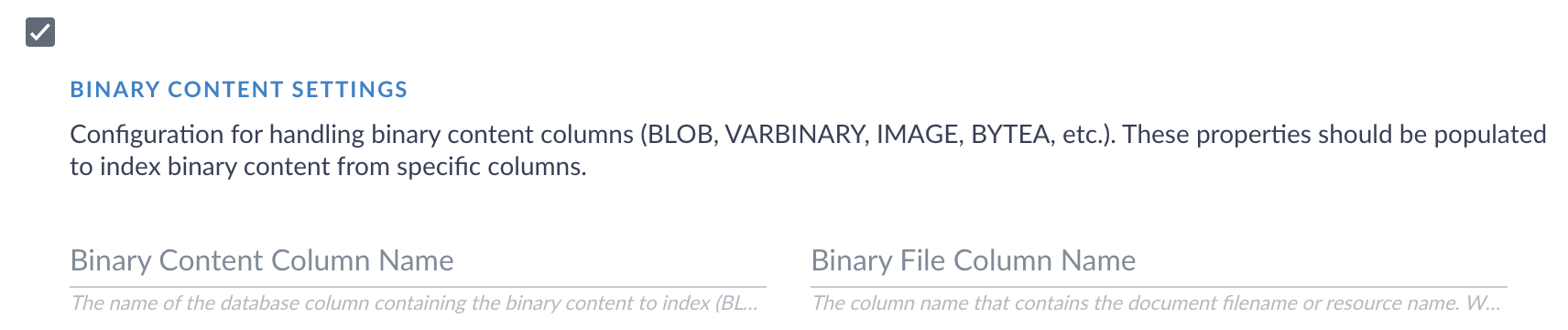
Binary content indexing settings
- In the Binary content column name field, enter the database column that contains your binary content. This field is required if you are using binary content indexing. The value is case sensitive.
- If your database contains a separate column with file names, enter that column name in the Binary file column name field.
- Click Save.
- Start another crawl to begin indexing the binary content.
- Navigate to the Query Workbench
- A list of documents displays. Click Show fields next to a document to view the indexing results.
- The binary content is stored in a text field. The format varies depending on the type of binary content that was indexed. Verify that the contents display.
Processor flow diagram
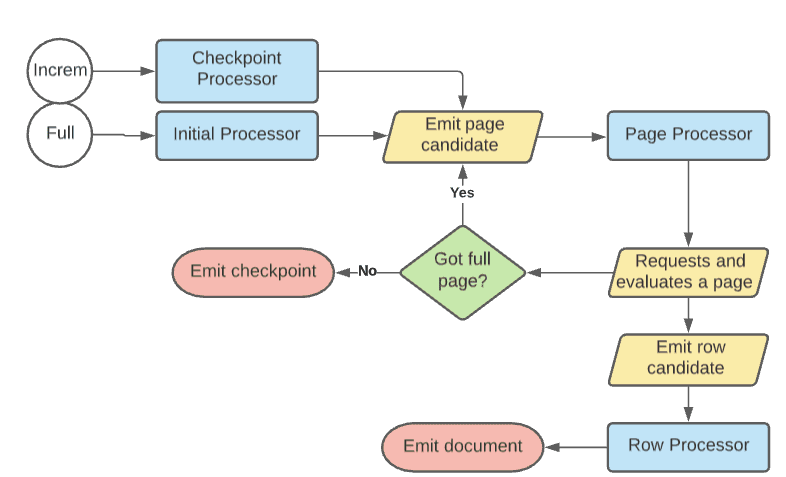
The following diagram represents the flow for crawls. Incremental crawls follow the same basic flow as full crawls, except that they emit a page candidate from a delta SQL query if provided. If no delta query is provided, then incremental crawls use the original query.