- Latest version: v2.1.1
- Compatible with Fusion version: 5.9.1 and later
Verify your connector versionThis connector depends on specific Fusion versions. See the following table for the required versions:
For connector downloads, see Download Connectors.
Prerequisites
Perform these prerequisites to ensure the connector can reliably access, crawl, and index your data. Proper setup helps avoid configuration or permission errors, so use the following guidelines to keep your content available for discovery and search in Fusion. The LDAP server must use a supported authentication method:- Simple bind with a username and password.
- (Optional) Anonymous bind for open LDAP servers, but this is discouraged in production environments for security reasons.
- For users: Have access for
uid,cn,sAMAccountName, or an equivalent for the unique user ID. - For groups: Have access for
cnor equivalent for group ID, plusmember, oruniqueMemberfor users or subgroups assigned to that group.
User.Read.Allto read profile properties and group memberships.GroupMember.Read.Allto read memberships and basic group properties.
Remote mode prerequisites (optional)
If running in remote mode, there are additional considerations:- Ensure your network allows outbound HTTP/2 traffic from the remote host to the Fusion gRPC endpoint.
- You need a Fusion user account with the
remote-connectorsoradminrole to authenticate the connector. - If the standalone host doesn’t trust Fusion’s TLS cert, point it to your truststore file path.
Authentication
Setting up the correct authentication according to your organization’s data governance policies helps keep sensitive data secure while allowing authorized indexing. You will need to enter the following in Fusion:- LDAP host and port.
- Bind DN username for the Login User Principal field in Fusion.
- Bind password for the Login Password in Fusion.
- Base DN, such as
dc=example,dc=com. - User and group filters are prepopulated and you can adjust these as needed.
- If crawling Azure AD, enter the Azure credentials in the Azure AD Properties section.
- Bind to the LDAP server.
- Search users and groups.
- Fetch ACL data for security trimming.
Full recrawls
Starting in Fusion 5.7, subsequent crawls work differently with the LDAP ACLs V2 connector than other connectors. Crawls follow this process:- Every time the connector crawl runs, all documents are indexed.
- Each document is assigned a new field,
_lw_job_id_s. - The connector job assigns the
jobIDvalue to this field. - When the crawl finishes, the job deletes documents that do not have the latest
jobIDvalue.
Remote connectors
You can configure the LDAP ACLs V2 connector (v2.0.0 and later) to running remotely in Fusion versions 5.9.1 and later. For more information, see Configure remote V2 connectors.Security trimming
Starting in Fusion 5.9, you can configure the LDAP ACLs V2 connector with the SharePoint Optimized V2 connector to support security trimming. Starting in Fusion 5.18.0, you can use a sidecar collection to store ACL documents separately from your content collection.You can configure the SharePoint Optimized V2 connector to use security trimming so that query results are filtered based on the roles and permissions assigned to the user.To configure security trimming, you’ll need to set up and run a SharePoint Optimized V2 datasource, an LDAP ACLs V2 datasource, and a Graph Security Trimming query stage in the same app and collection.When a crawl is run, the SharePoint Optimized V2 and LDAP ACLs V2 datasources must index the content documents and ACL documents to the same collection.Recreate or update the datasources. If only updated, it is not possible to go back to the configuration of a previous plugin version.
- ACL documents: Users, Groups, and their Role Assignments.
- Content documents: The SharePoint objects with metadata and content (Sites, Lists, Items). These documents have
_lw_acl_ssfields which determines who can see the docs when searching.
Set up the SharePoint datasource
- Navigate to Indexing > Datasources.
- Install the datasource connector if not already installed.
- Click Add and select SharePoint Optimized V2.
- Fill in all required fields.
- Configure only one authentication method. Enable NLTM Authentication Settings or SharePoint Online Authentication and configure the fields as explained below.
NTLM Authentication
This method connects to SharePoint on-premises server instances, such as SharePoint Server 2013, 2016, and 2019. When using this authentication method, the connector will indexcontentDocuments and the following aclDocuments: sharepointGroups, siteAdmins, roleDefinition, and roleAssignment.To use this authentication method, in your SharePoint Optimized V2 datasource, select the NTLM Authentication Settings checkbox and configure the following fields:- User
- Password
- Domain
- Workstation
SharePoint Online Authentication
These methods connect to SharePoint Online server instances. When using one of these methods, the connector will indexcontentDocuments and the following aclDocuments: sharepointGroups, siteAdmins, roleDefinition, roleAssignment and sharepointUsers in which loginName ends with onmicrosoft.com.Basic
To use this authentication method, in your SharePoint Optimized V2 datasource, select the SharePoint Online Authentication checkbox and configure the following fields:- SharePoint online account
- Password
App only (OAuth protocol)
To use this authentication method, in your SharePoint Optimized V2 datasource, select the SharePoint Online Authentication checkbox and configure the following fields:- Azure AD client ID
- Azure AD tenant
- Azure AD Client Secret
- Azure AD login endpoint (advanced)
- Azure AD Refresh Token (advanced)
App only with private key
To use this authentication method, in your SharePoint Optimized V2 datasource, select the SharePoint Online Authentication checkbox and configure the following fields:- Azure AD client ID
- Azure AD tenant
- Azure AD login endpoint
- Azure AD PKCS12 Base64 Keystore
- Azure AD PKCS12 Keystore Password
Set up the LDAP datasource
- Navigate to Indexing > Datasources.
- Install the datasource connector if not already installed.
- Click Add and select LDAP and Azure ACLs Connector (V2).
- Fill in all required fields.
- Configure authentication methods. Enter LDAP login credentials and/or enable Azure AD Properties and configure the fields as explained below.
LDAP Authentication
This method connects to an LDAP AD server. When using this method, the connector will index the followingaclDocuments: ldapUsers, and ldapGroups.To use this authentication method, in your LDAP and Azure ACLs Connector (V2) datasource, configure the following fields:- Login User Principal
- Login Password
Azure AD Authentication
This method connects to an Azure AD server. When using this method, the connector will index the followingaclDocuments: azureUsers, and azureGroupsTo use this authentication method, in your LDAP and Azure ACLs Connector (V2) datasource, select the Azure AD Properties checkbox and configure the following fields:- Azure AD Tenant ID
- Azure AD Client ID
- Azure AD Client Secret
Supported authentication methods for security trimming
Configure ACL collection
By default, SharePoint Optimized V2 and LDAP ACLs V2 datasources index the content documents and ACL documents to the same collection. Ensure both datasources use the same value,contentCollection, for the field ACL Collection ID.If you are using Fusion 5.18.0 or later, you may store ACL documents in a sidecar collection. You must also use SharePoint Optimized V2 and LDAP-ACLs V2 versions 2.0.0 or later to use a separate sidecar collection. Use a separate sidecar collection if you need to manage ACL data independently of the rest of your content.If using SharePoint-Optimized and LDAP-ACLs < v2.0.0
If you are using SharePoint Optimized V2 and LDAP-ACLs V2 versions before 2.0.0, you must store the content documents and ACL documents in the same collection. Update the ACL Collection Id in the datasource configuration.The SharePoint-Optimized and LDAP-ACLs datasources must index theircontent_documents and acl_documents to the same collection. Make sure the property Security -> ACL Collection in both datasources have the same value. In both datasources, SharePoint-Optimized and LDAP-ACLs, check the property Security -> ACL Collection Id and make sure it points to the same content-collection.- Navigate to Indexing > Datasources.
- Open your SharePoint Optimized V2 or LDAP ACLs V2 datasource.
-
Under Security, update the configuration to use
contentCollectionas the ACL Collection ID.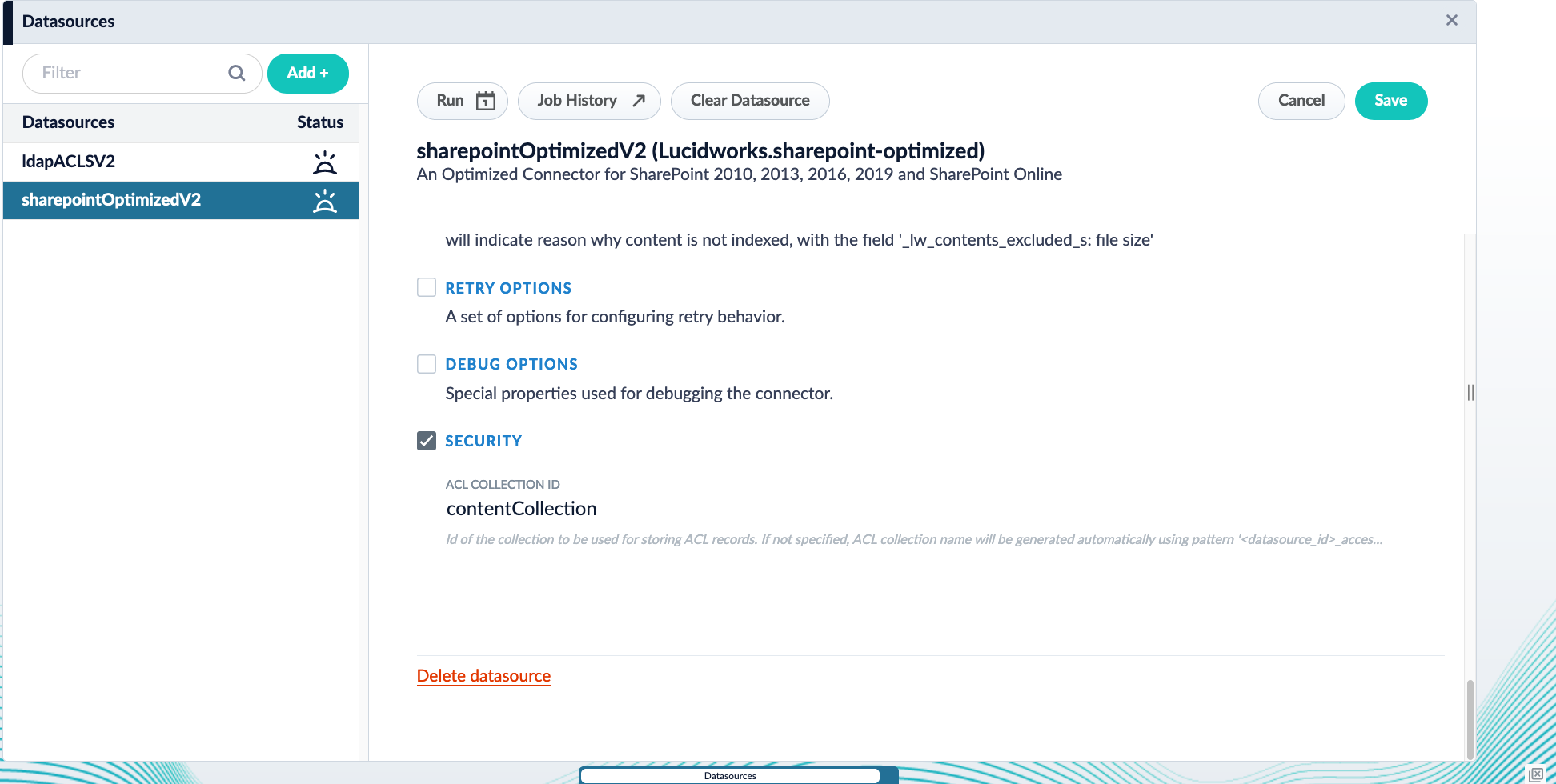
- Save the configuration.
If using SharePoint-Optimized and LDAP-ACLs >= v2.0.0 with the same collection
Recreate or update the datasources. If only updated, it is not possible to go back to the configuration of a previous plugin version.By default, the LDAP-ACLs and SharePoint-Optimized V2 datasources index thecontent_documents and acl_documents to the same collection.- Navigate to Indexing > Datasources.
- Open your SharePoint Optimized V2 or LDAP ACLs V2 datasource.
- Under Graph Security Filtering Configuration, select Enable security trimming.
If using SharePoint-Optimized and LDAP-ACLs >= v2.0.0 with a sidecar collection
Using a sidecar collection for ACL documents requires Fusion 5.18.0 or later.
- Create a dedicated ACL collection (for example,
acl_collection). - Navigate to Indexing > Datasources.
- Open your SharePoint Optimized V2 or LDAP ACLs datasource.
- Under Security, set ACL Collection ID to your ACL collection name (for example,
acl_collection). - Under Graph Security Filtering Configuration, select Enable security trimming.
- Save your changes.
Set up Graph Security Trimming
A Graph Security Trimming stage is used to pull all nested groups for a user. Then the Solr join query takes those ACL IDs found in the graph query and filters out everything that does not match one of the ACLs.- Navigate to Querying > Query Pipelines.
- Open the query pipeline associated with your SharePoint Optimized V2 or LDAP ACLs V2 data.
- Click Add a new pipeline stage and select Graph Security Trimming.
-
Configure the stage with the following settings:
- If you are using Fusion 5.9.3 or earlier, configure the following additional fields, which were removed in Fusion 5.9.4:
- If you are using a sidecar collection in Fusion 5.18.0 or later that contains your access control lists, configure the following additional fields, replacing
acl_collectionwith the name of your dedicated ACL collection:
- Save your changes.
Test the configuration
To confirm that security trimming works as configured, run the following test:- First, run the SharePoint Optimized V2 and LDAP ACLs V2 datasources.
- Run a series of queries to test user permissions are working as intended:
- Run a query using a User ID key with no permissions. You should see no search results.
- Run a query using a User ID key that has access to some documents. You should see some search results.
-
Run a query using a User ID key that has access to all documents. You should see all documents.
Facet by
_lw_document_type_s: contentDocumentto see only the SharePoint docs, otherwise aclDocuments will be also shown.
Learn more
Fetch Azure Groups with the AD Connector for ACLs
Fetch Azure Groups with the AD Connector for ACLs
The Active Directory Connectors for ACLs has the ability to fetch Azure groups and index them into the ACL collection. The connector utilizes the Microsoft Graph API’s group-list service.The resulting ACL document contains IDs that are GUID strings, such as
45b7d2e7-b882-4a80-ba97-10b7a63b8fa4, and they have inbound_ss relationship to the ldapGroup-sid record’s SID identifier.Configuration parameters
In order to crawl Azure groups from the AD Connector for ACLs, you will need the values for the following parameters:- Azure AD Tenant ID
- Azure AD Client ID
- Azure AD Client Secret
Find your Tenant ID and Client ID
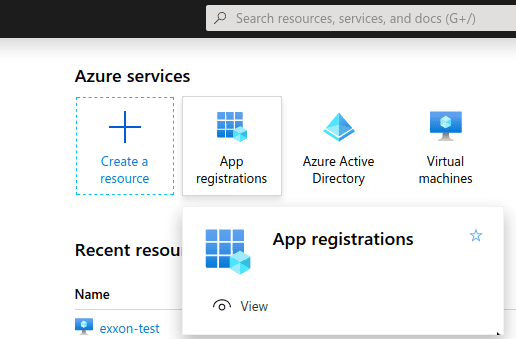
Begin by registering your application:- Visit the Azure portal.
-
Click App registrations.
-
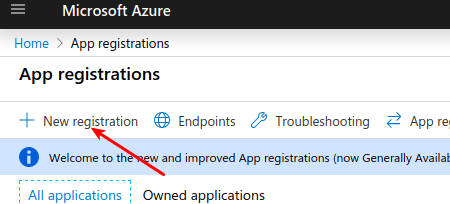
Click New registration.
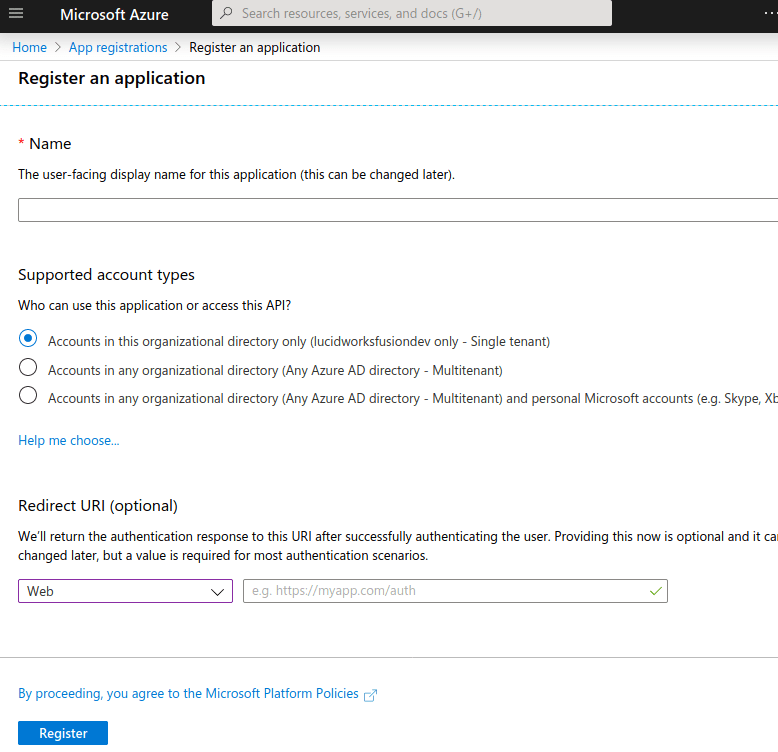
- Enter a name for the application.
- Choose the Single Tenant supported account type.
- Leave the Redirect URI value blank.
- Click Register.
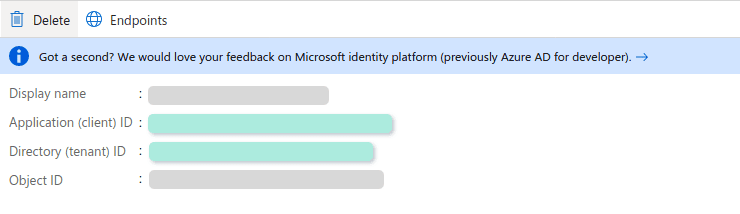
- Azure AD Tentant ID. Listed as “Directory (tenant) ID”
-
Azure AD Client ID. Listed as “Application (client) ID”
Configure your application permissions
-
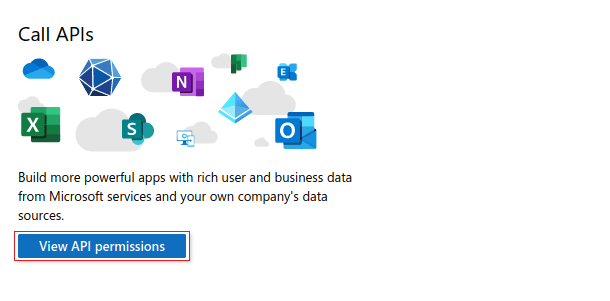
Click View API permissions.
-
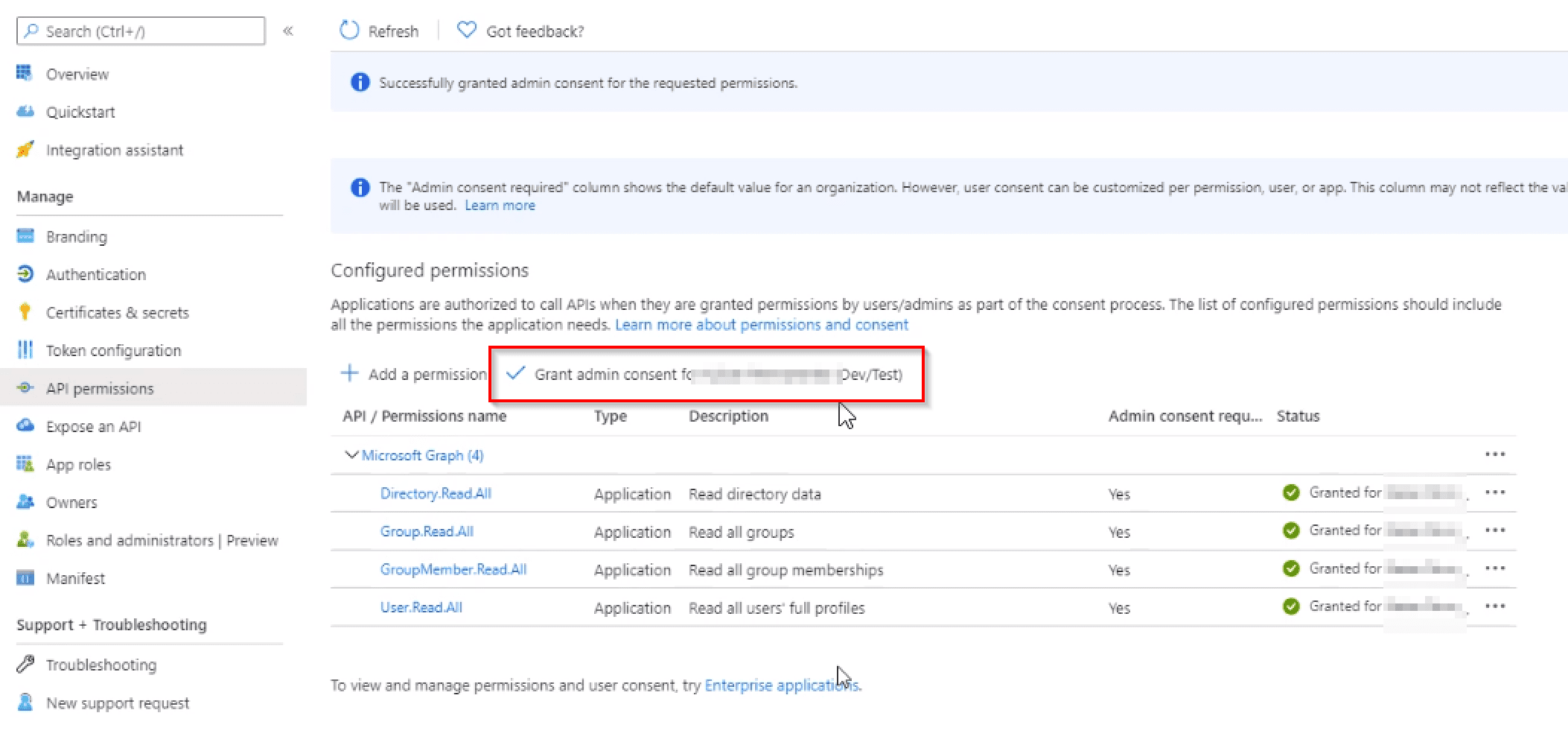
Add the following as Application permissions under Microsoft Graph.
-
GroupMember.Read.AllAllows the application to read general information about associated groups, such as the list of members and basic group properties. See Microsoft Graph Group Application permissions for more information. -
User.Read.AllAllows the application to read all user profile information, such as properties and group membership. See Microsoft Graph User Application permissions for more information.
-
-
Select Grant admin consent.
Find your Client Secret
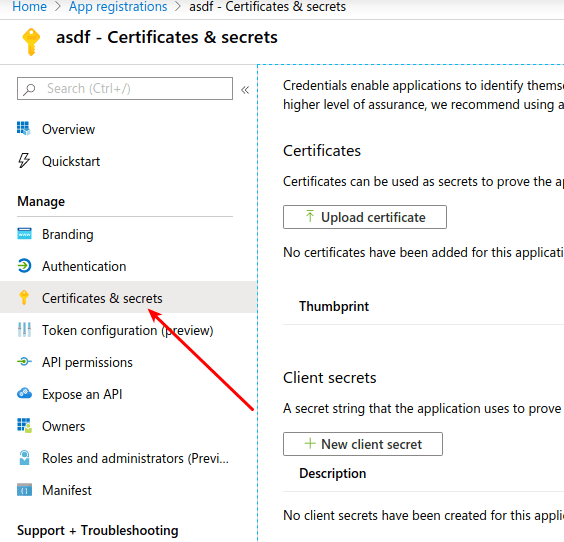
- Click Clients & Secrets.
-
Create a New client secret.