

B2C
Imagine your business has 1 million products distributed through 5,000 stores, and each store’s pricing varies.
That’s 5 billion pricing permutations you need to access on demand.By storing those permutations in Dynamic Index, you keep your main index lean and fast, so customers get accurate pricing instantly on every product in every store.
B2B
Imagine your company sells industrial components to 50,000 accounts, each with custom pricing and contract terms.
That’s 50,000 distinct permutations of product data.By storing those variations in Dynamic Index, you keep your product index streamlined while ensuring that every customer sees accurate pricing based on their unique account.
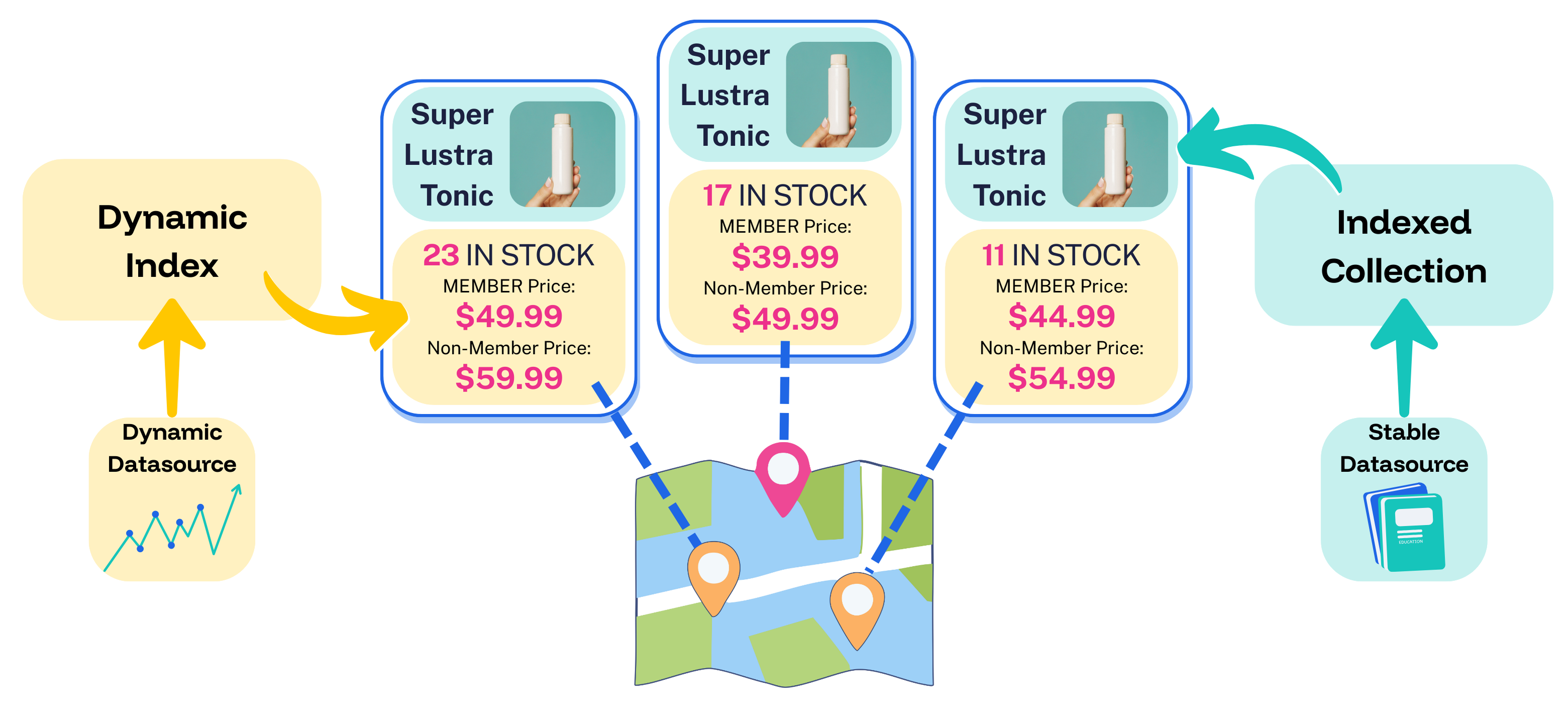
- Data that changes rapidly comes from Dynamic Index, including the number of items in stock and the latest prices for members and non-members at each store location.
- Data that seldom changes comes from an indexed collection, including the product name, photo, description, and so on.
- Both types of data are united to compose an individual product listing that includes up-to-the-moment pricing and inventory data, without impacting response times.
Benefits
For end users
- Users see up-to-the-moment pricing and inventory every time.
- Bespoke experiences that reflect each user’s specific entitlements, location, customer segment, and more.
- Even complex permutations are delivered with no impact on query response times.
For your team
- Bespoke experiences drive higher conversions.
- More control over data visibility.
- Faster performance due to less index bloat.
- Dynamic data is easier and less expensive to scale.
How it works
Dynamic Index supports millions of dynamic permutations of attributes and entitlements, all scaled to suit your evolving data and traffic. With Dynamic Index enabled, the query flow works like this:A user submits a query
- Fusion looks up the user’s profile, contract, store, segment, or other context.
- Dynamic Index identifies the correct prices, inventory, or entitlements for the user’s attributes.
Lucidworks composes the response
- Fusion fetches relevant search results from an indexed collection.
- Dynamic Index attaches the correct prices, inventory, or entitlements to the results.
When to use Dynamic Index
Dynamic Index works well for rapidly updating these types of data:
- Different prices for different accounts, locations, or contract terms
- Different inventory for each store, warehouse, or distribution center
- Different entitlements for users, groups, or segments
- Frequent updates across thousands or millions of SKUs
Dynamic Index is not recommended for these scenarios:
- Multi-list joins at query time
- Multi-currency in a single price list
- Self-hosted environments
- Non-GCS implementations
- Infrequently-updated data
Requirements
- Managed Fusion
- Google Cloud Storage (GCS)
- A prebuilt JAR, provided by Lucidworks, that includes the required utility that syncs your local external files to cloud storage
Enabling Dynamic Index
To enable Dynamic Index, you need to prepare your data, create the directory structure, then upload the data to GCS. The Lucidworks team then initiates synchronization and your Dynamic Index goes live.Enable Dynamic Index in Managed Fusion
Enable Dynamic Index in Managed Fusion
Prepare your data
Your data must be formatted as
.txt files using one of these formats:-
With ID and float values (one per line):
-
For sharded collections, use ID, route key, and float:
Create the directory structure
Your raw files must be contained in a directory structure like this:An example path might look like this:
- Directory structure
- Example
EXTERNAL_FILES_ROOT
COLLECTION
BUCKET (For best performance, use 8 or more of these)
BASENAME (Matches the filename, without extension)
SEQUENCE_ID (A positive number representing the version)
RAW_DATA.txt (A single file per sequence directory)
Upload to GCS
Use the provided RawPush utility to upload your files like this:This tool automatically generates the required
manifest files in each directory, enabling fast, reliable replication to Fusion.Lucidworks enables Dynamic Index
When your data is ready, open a ticket to request Dynamic Index enablement.Your Lucidworks representative will work with you to determine the correct replica multiplier to achieve high availability and performance.
Updating your dynamic data
Dynamic Index supports two methods for updating your dynamic data. Updates take effect instantly so users see the latest values in real time.Full replacement
Full replacement
Use this method when you’re doing a complete replacement of all of the values for a dynamic field.
Incremental updates
Incremental updates
You can use an incremental update to modify the data in an existing
SEQUENCE_ID.Compile your incremental updates into an include file (
.inc), using the same format as your full files. You only need to include the lines you want to change.Place the
.inc file inside the BASENAME directory, like this:- Directory structure
- Example
EXTERNAL_FILES_ROOT
COLLECTION
BUCKET
BASENAME (Place .inc files here)
BASENAME-SEQUENCE_ID.inc (This file will be merged)