

Platform versions
V1 connectors
The SharePoint V1 connectors were deprecated in Fusion 5.2. However, the:- SharePoint V1 connector can be used in Fusion 4.x and Fusion 5.1 - Fusion 5.4.
- SharePoint Online V1 connector can be used in Fusion 4.x and Fusion 5.1 - Fusion 5.3.
V1 Optimized connectors
SharePoint V1 Optimized connectors can only be used in Fusion 4.2.- To retrieve data from on-premises SharePoint installation, SharePoint V1 Optimized connector and datasource configuration
- To retrieve content from cloud-based SharePoint repositories, SharePoint Online V1 Optimized connector and datasource configuration
V2 connectors
The SharePoint V2 connector can be used in Fusion 5.1 - Fusion 5.5. This connector is deprecated as of June 19, 2023 and is no longer available in Fusion 5.6 and later. However, the SharePoint Optimized V2 Connector can be used in Fusion 5.6 and later.Key differences between V1 and V1 Optimized
This section is only relevant to Fusion 4.x and earlier.
CSOM REST API
V1 platform version The V1 platform version uses SOAP API. This API style was deprecated as of SharePoint 2013. V1 Optimized platform version The V1 Optimized platform version uses CSOM REST API. This API style provides a variety of benefits not found with SOAP API:- CSOM REST API supports bulk operations for faster crawl operations.
- CSOM REST API uses traffic decorating and is therefore less susceptible to throttling.
- CSOM REST API is considerably more efficient, resulting in less data being transferred during crawl operations.
Active Directory Connector for ACLs dependency
V1 platform version The V1 platform version has a key limitation in regard to LDAP/ActiveDirectory access. In order to look up user group memberships, each SharePoint datasource was required to perform LDAP queries. If multiple SharePoint datasources utilized a single LDAP/ActiveDirectory backend, however, multiple LDAP lookup operations took place unnecessarily, and the user would suffer from excessive LDAP overhead. V1 Optimized platform version In Fusion 4.2.4, the Active Directory (AD) Connector for ACLs was introduced. The SharePoint V1 Optimized connector works in tangent with the AD Connector for ACLs to create a sidecar collection which is used in graph security trimming queries. As a result, all LDAP/ActiveDirectory operations are fully dependent on the AD Connector for ACLs.Changes API
V1 platform version The V1 platform version does not use the SharePoint Changes API. As a result, the recrawl process required all items to be revisited in order. For large SharePoint collections, incremental crawls took an excessive amount of time. V1 Optimized platform version The V1 Optimized platform version is able to take advantage of the Changes API to perform incremental crawls. The Changes API tracks all additions, updates, and deletions since the previous crawl operation for a collection. This improved crawl operation process significantly improves incremental crawl speed.Graph security trimming
V1 platform version The security trimming approach used by the V1 platform version had notable drawbacks:- LDAP/ActiveDirectory information is stored in an inefficient manner. When a document is fetched for indexing, it returns the users and groups with permission to view the document. However, SharePoint does not explicitly list these users and groups. The security trimming approach requires that all nested LDAP/ActiveDirectory groups be fetched and added to the document ACLs.
As a result, if the nested LDAP/ActiveDirectory group relationships change, the content is sometimes required to be reindexed despite not changing in SharePoint. This can lead to massive reindexing operations. - Each SharePoint datasource requires a separate Solr filter. With the V1 platform version, SharePoint datasources are unable to share the same security filter, even if they are pointing to the same SharePoint farm. This restriction can be Severely inefficient.
In a use case with five SharePoint datasources, for example, five Solr filter queries (fqs) would be required. The more fqs you have, the more work is required from Solr while performing queries, resulting in slower queries. This inefficiency scales with the number of SharePoint datasources, and it is not uncommon to have 30-50 datasources in an application. - SharePoint security filters cannot be shared with other connectors. For example, if a SharePoint datasource and an SMB2 datasource are backed by the same ActiveDirectory, you are still required to have an individual security filter for both datasources. Again, this inefficiency scales with the number of datasources you have.
- LDAP/ActiveDirectory information is not stored in nested groups on the content document ACL fields.
- ACLs in SharePoint content documents are stored in a field. Each SharePoint document that you crawl contains ACLs. As the document is indexed by Fusion, a field is populated with any role assignments attached to the document to ensure only users with appropriate permissions can view it. For example when doing a security trimmed query, you can input the username that is performing the search, and a Solr fq is formed with the values that match the ACL field on each document. The documents that are returned are restricted to what the user is permitted to view.
- A single filter can perform a security trimming query against datasources backed by the same ActiveDirectory instance. This is not restricted to the SharePoint V1 Optimized connector. Other connectors, such as the SMB2 connector, can use the same filter.
-
Group membership lookups (LDAP queries) are separated from the SharePoint connector. Now, the AD Connector for ACLs is used to create a separate ACL Solr sidecar collection. First, a Solr graph query is performed to obtain a user’s groups and nested groups from the sidecar collection. Then, a join query is used to match the ACL fields on the content documents.
This process is performed behind-the-scenes. The V1 Optimized connector uses the security trimming stage like all other connectors.
Multiple crawl phases
V1 platform version The V1 platform version does not support multiple crawl phases. V1 Optimized platform version The V1 Optimized platform version performs crawl operations in two phases:-
Pre-fetch phase - This phase:
- Utilizes the CSOM REST API to fetch all relevant metadata in large batches. This creates a pre-fetch database, which is exported for use by the post-fetch phase.
- Does not download the file content of list items. It only fetches the metadata.
- Is saved in
$FUSION_HOME/var/log/connectors/connectors-classic/connectors-classic.logand$FUSION_HOME/var/log/connectors/connectors-classic/sharepoint-exporter-DSID.logwhereDSIDis the SharePoint optimized datasource ID.
The counters in the data source job status window only increase when the content documents begin to index. - Post-fetch phase - After the pre-fetch phase has completed, the crawl operation is ready to index documents during the post-fetch phase. The crawl will iterate through all items identified in the pre-fetch phase and index them into the pipeline. If there is file content associated with a pre-fetch list item, that content will be downloaded and parsed using the Fusion parser.
The SharePoint connector retrieves content and metadata from an on-premises SharePoint repository.When a crawl is performed with the V1 Optimized connector, a SharePoint export database file is created. This file contains various metadata related to the SharePoint data. It does not store file contents from the SharePoint data.A Java web viewer, For example, the:The files are viewed by navigating the directory with any browser.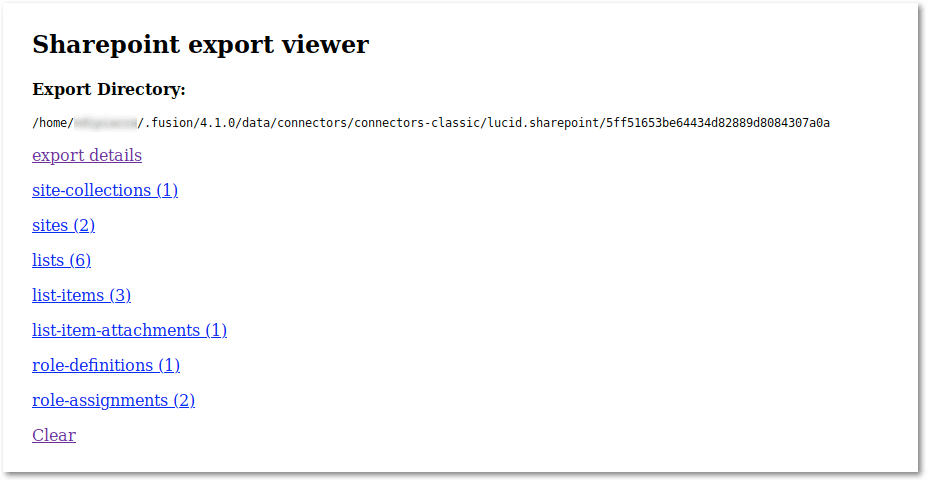
sharepoint-exporter.jar, is included to browse the export database file. The web viewer is located in the following directory:-
SharePoint optimized connector export viewer utility is located at:
${FUSION_HOME}/apps/connectors/connectors-classic/plugins/lucidworks.sharepoint-optimized/assets/sharepoint-exporter/sharepoint-exporter.jar -
SharePoint online optimized connector export viewer utility is located at:
${FUSION_HOME}/apps/connectors/connectors-classic/plugins/lucidworks.sharepoint-online-optimized/assets/sharepoint-exporter/sharepoint-exporter.jar
-exportDirectoryPath- The full path to the export database file.-port- The port which the web viewer server will run on. If unassigned, a random port will be selected.
SharePoint (on-premises)
This connector can access a SharePoint repository running on the following platforms:- Microsoft SharePoint 2013
- Microsoft SharePoint 2016
- Microsoft SharePoint 2019
Understanding incremental crawls
After you have performed your first successful crawl (it successfully completed with no errors), all subsequent crawls are “incremental crawls”. Incremental crawls use SharePoint’s Changes API. For each site collection, this uses the change token (timestamp) to get all additions, updates, and deletions since the full crawl was started. If the Limit Documents > Fetch all site collections checkbox selected, you are crawling an entire SharePoint Web application, and a site collection was deleted since the last crawl, then the incremental crawl removes it from your index.Throttling or rate limiting
SharePoint Online is a cloud API. As such, it necessarily has rate limiting policies, which can be an issue during crawling. Ideally, you want to have a SharePoint Online crawl that runs as fast as possible. But practically, this is not always possible. The SharePoint Online documentation has some important information about this.429. Too many requests
This is by far the most common rate limiting error you will see in the logs. This is SharePoint Online’s main mechanism to protect itself from service interruptions due to denial-of-service (DOS) attacks.503. Server too busy
This error is less common, but the result is the same.
User permission configuration options
The SharePoint connectors provide a variety of configuration options for accessing SharePoint and SharePoint Online. Permissions settings should follow the principle of least privilege, as described in the Microsoft SharePoint docs:Follow the principle of least-privileged: Users should have only the permission levels or individual permissions they must have to perform their assigned tasks.
SharePoint
| Account type | Account config | Description |
|---|---|---|
| Active Directory Service Account | Account is set up as a Site Collection Auditor | Allows you to list all site collections. |
| Active Directory Service Account | Account is set up with limited permissions | Does not allow you to list site collections in your SharePoint web application. You must list each site collection you want to crawl manually. Additionally, noindex tags are ignored. Sites will always be indexed regardless of their noindex settings. |
Decide what to crawl
Determine what to crawl and select one of the following:- An entire SharePoint Web application (all site collections in a specific SharePoint URL).
- A subset of SharePoint site collections.
- A specific sub-site, list, or list item.
How to crawl an entire SharePoint Web application
- Verify the Limit Documents > Fetch all site collections option is selected (default).
-
Specify the Web application URL as a site.
For example:
https://lucidworks.sharepoint.local/
Administrative access to SharePoint is required to crawl an entire SharePoint Web application.
How to crawl a subset of SharePoint site collections
- Uncheck the Limit Documents > Fetch all site collections option.
-
Specify a “Start Link” for each site collection to crawl.
Examples include:
https://lucidworks.sharepoint.local/sites/site1https://lucidworks.sharepoint.local/sites/site2https://lucidworks.sharepoint.local/sites/site3
How to crawl a specific sub-site, list, or list item:
- Uncheck the Limit Documents > Fetch all site collections option.
- Specify a “Start Link” for each site collection that contains the item to fetch.
-
Specify a non-wildcard Inclusive Regular Expression for each parent.
For example, if you want to crawl
https://lucidworks.sharepoint.local/sites/mysitecol/myparentsite/somesite, then you must include inclusive regexes for all parents:If you exclude a parent item of the site, the connector does not crawl the site because it will not spider down to it during the crawl process.
Create permission and user policy for the crawl
The options are:- Set up an on-prem crawl account with only as much permission as it needs. This approach has the security advantage of providing minimal access to Fusion. However, the crawl account cannot retrieve the list of site collections behind a Web application URL.
- Set up an online crawl account with only as much permission as it needs. This approach has the security advantage of providing minimal access to Fusion. However, the crawl account cannot retrieve the list of site collections behind a Web application URL.
- Provide administrative access to crawl
How to set up an on-prem crawl account
Create a permission policy level
- Navigate to Central Administration > Manage web application > Permission Policy.
- Select Add permission policy level. In this example, the permission level is named fusion_crawl_policy.
-
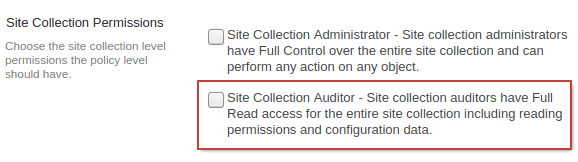
If you need to list all site collections in a SharePoint web application, select the Site Collection Auditor option.
-
Grant the following permissions:
- View Items - View items in lists and documents in document libraries.
- Open Items - View the source of documents with server-side file handlers.
- View Versions - View past versions of a list item or document.
- View Application Pages - View forms, views, and application pages. Enumerate lists.
- Browse Directories - Enumerate files and folders in a Web site using SharePoint Designer and Web DAV interfaces.
- View Pages - View pages in a Web site.
- Enumerate Permissions - Enumerate permissions on the Web site, list, folder, document, or list item.
- Browse User Information - View information about users of the Web site.
- Use Remote Interfaces - Use SOAP, Web DAV, the Client Object Model or SharePoint Designer interfaces to access the Web site.
- Open - Allows users to open a Web site, list, or folder in order to access items inside that container.
Grant user permission to the user policy
- Navigate to Central Administration > Manage web application > User Policy > Add Users.
-
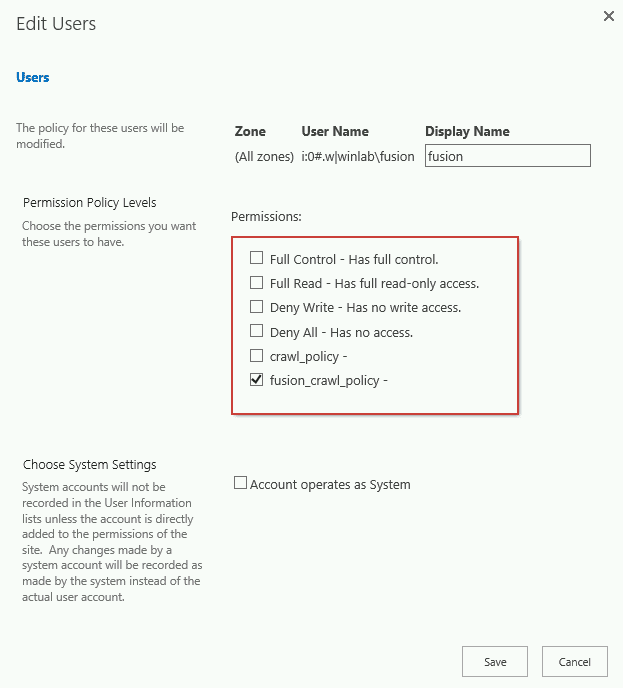
Create a new user with the new fusion_crawl_policy permission level selected:
How to set up an online crawl account
Create a permission policy level
- Navigate to Site settings > Site permissions > Advanced Permission Settings.
- Select New permission level. In this example, the permission level is named fusion_crawl_policy.
-
Grant the following permissions:
- View Items - View items in lists and documents in document libraries.
- Open Items - View the source of documents with server-side file handlers.
- View Versions - View past versions of a list item or document.
- View Application Pages - View forms, views, and application pages. Enumerate lists.
- Browse Directories - Enumerate files and folders in a Web site using SharePoint Designer and Web DAV interfaces.
- View Pages - View pages in a Web site.
- Enumerate Permissions - Enumerate permissions on the Web site, list, folder, document, or list item.
- Browse User Information - View information about users of the Web site.
- Use Remote Interfaces - Use SOAP, Web DAV, the Client Object Model or SharePoint Designer interfaces to access the Web site.
- Open - Allows users to open a Web site, list, or folder in order to access items inside that container.
Grant user permission
- Navigate to Site settings > Site permissions > Advanced Permission Settings.
- Select Grant permissions.
- Enter the new user name and add the user.
- Select a value in the Select a permission level field.
- Select Share.
-
In the Edit Permissions > Choose Permissions section, select the following check boxes:
- Read. Can view pages and list items and download documents.
- LW Fusion.
- Select OK to save the information.
If you grant the service account the Site Collection Auditor permission, the Lucidworks Fusion SharePoint connector has write-level permission and can list: * Sites in Site Collections * SharePoint Site Collection site metadata
How to provide admin access to crawl
See the SharePoint documentation for instructions.Test user permissions
The following PowerShell script verifies permissions on the user account created to crawl SharePoint from Fusion.The script must be run by the user account on which the permissions were set. If rights were granted: * On your account, you must run the script to verify the user rights are set correctly. * On a different user account, the owner of that account must run the script.
- Save the script with following file name:
test-sharepoint-permissions.ps1. - Enter the first of the site collection URLs to crawl in the
$site_col_urlfield of the script. - Save the changes.
Permission verification script
Successful query response
If the test script executes successfully, metadata is returned. The following is a sample of a successful response:Failed query response
If the test script fails, either:- An error code is generated. For example, an error code 401.
- An error message with explanatory information is returned. The following is a sample of a failed response:
The SharePoint connector retrieves content and metadata from an on-premises SharePoint repository.
Decide what you need to crawl
The first and most important thing to do is determine what you are trying to crawl, and to pick your “Start Links” accordingly.Choose one of the following:- An entire SharePoint Web application (all site collections in a specific SharePoint URL).
- A subset of SharePoint site collections.
- A specific sub-site, list, or list item.
How to crawl an entire SharePoint Web application
- Leave the Limit Documents > Fetch all site collections option checked (as it is by default).
-
Specify the Web application URL as a site.
For example:
https://lucidworks.sharepoint.local/
Crawling an entire SharePoint Web application requires administrative access to SharePoint.
How to crawl a subset of SharePoint site collections
- Uncheck the Limit Documents > Fetch all site collections option.
-
Specify a “Start Link” for each site collection that you want to crawl.
Examples:
https://lucidworks.sharepoint.local/sites/site1,https://lucidworks.sharepoint.local/sites/site2,https://lucidworks.sharepoint.local/sites/site3
How to crawl a specific sub-site, list, or list item:
- Uncheck the Limit Documents > Fetch all site collections option.
- Specify a “Start Link” for each site collection that contains the item you want to fetch.
-
Specify a non-wildcard Inclusive Regular Expression for each parent.
For example, if you want to crawl
https://lucidworks.sharepoint.local/sites/mysitecol/myparentsite/somesitethen you must include inclusive regexes for all parents along the way:If you exclude a parent item of the site, the connector will not crawl the site because it will never spider down to it during the crawl process.
Set up permissions for the crawl
You have two options here:- Set up a crawl account with only as much permission as it needs. This approach has the security advantage of providing minimal access to Fusion. However, the crawl account cannot retrieve the list of site collections behind a Web application URL. It cannot access the SharePoint Tenant Admin API to list all the site collections on your tenant. If you use this authentication method, you must enter each site collection to crawl in Start Links.
- Provide administrative access to crawl
How to set up a crawl account
1. Create a Lucidworks Fusion crawl permission
- Navigate to Central Administration > Manage web application > Permission Policy.
- Click Add permission policy level. In this example, the permission level is named “fusion_crawl_policy”.
-
If you need to list all site collections in a SharePoint web application, select the option Site Collection Auditor:
-
Grant the following permissions:
- View Items - View items in lists and documents in document libraries.
- Open Items - View the source of documents with server-side file handlers.
- View Versions - View past versions of a list item or document.
- View Application Pages - View forms, views, and application pages. Enumerate lists.
- Browse Directories - Enumerate files and folders in a Web site using SharePoint Designer and Web DAV interfaces.
- View Pages - View pages in a Web site.
- Enumerate Permissions - Enumerate permissions on the Web site, list, folder, document, or list item.
- Browse User Information - View information about users of the Web site.
- Use Remote Interfaces - Use SOAP, Web DAV, the Client Object Model or SharePoint Designer interfaces to access the Web site.
- Open - Allows users to open a Web site, list, or folder in order to access items inside that container.
2. Grant user permission to the user policy
- Navigate to Central Administration > Manage web application > User Policy > Add Users.
-
Create a new user with the new policy permission level, “fusion_crawl_policy”, selected:
How to provide admin access to crawl
See the SharePoint documentation for instructions.Test user permissions
The following PowerShell script verifies permissions on the user account created to crawl SharePoint from Fusion.The script must be run by the user account on which the permissions were set. If rights were granted: * On your account, you must run the script to verify the user rights are set correctly. * On a different user account, the owner of that account must run the script.
- Save the script with following file name:
test-sharepoint-permissions.ps1. - Enter the first of the site collection URLs to crawl in the
$site_col_urlfield of the script. - Save the changes.
Permission verification script
Successful query response
If the test script executes successfully, metadata is returned. The following is a sample of a successful response:Failed query response
If the test script fails, either:- An error code is generated. For example, an error code 401.
- An error message with explanatory information is returned. The following is a sample of a failed response:
SharePoint Online
| Account type | Account config | Description |
|---|---|---|
| Full Admin | Azure App Only | Allows you to list all site collections in tenant. |
| Full Admin | OAuth App Only | Removed April 2, 2026. Does not allow you to list site collections in your SharePoint web application. You must list each site collection you want to crawl manually. |
| ADFS Account | Account is set up as a Site Collection Auditor | Allows you to list all site collections if the user is a tenant administrator. |
| ADFS Account | Account is set up with limited permissions | Does not allow you to list site collections in your SharePoint web application. You must list each site collection you want to crawl manually. Use this option if your deployment requires the Lucidworks crawl account to have the fewest privileges possible. |