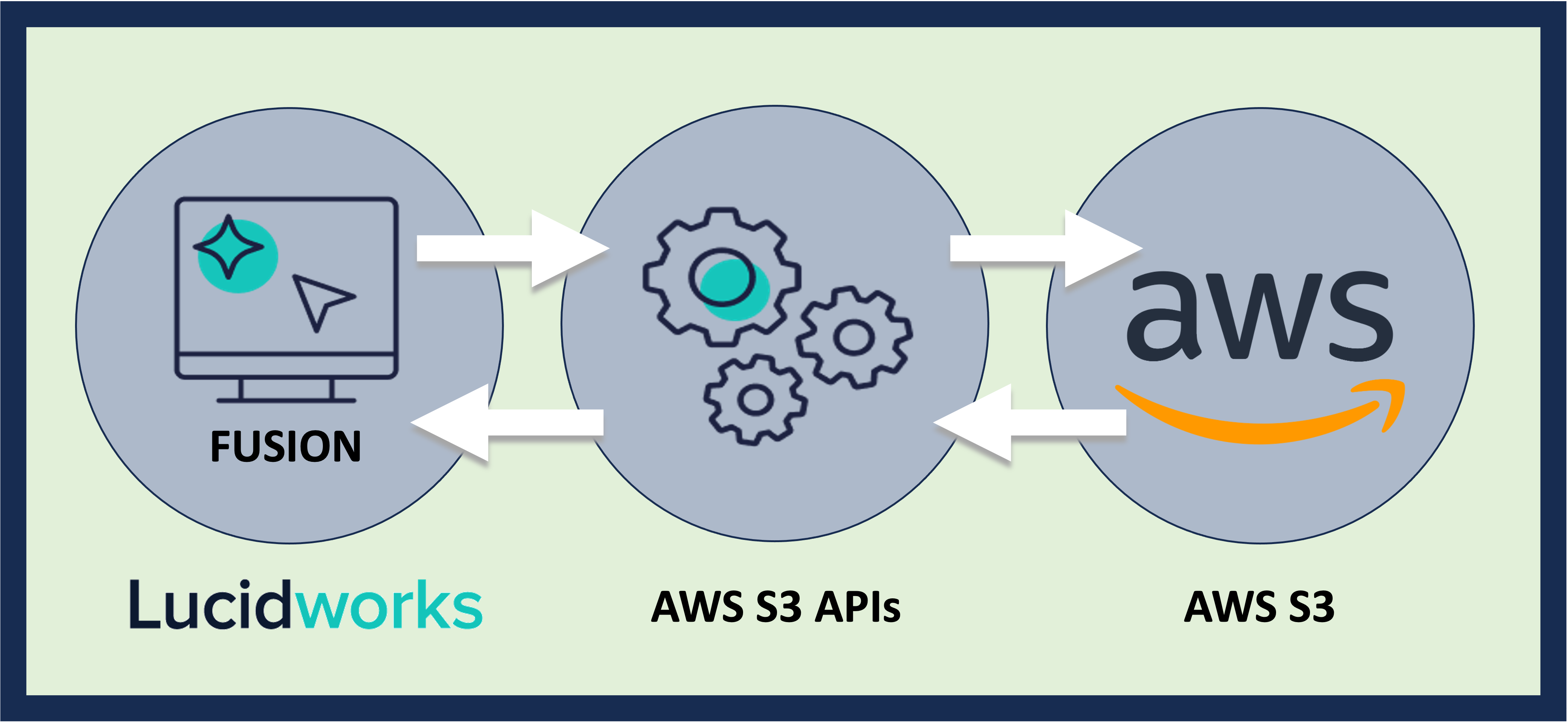
The AWS S3 Pro connector enables Fusion to crawl and index content stored in Amazon S3 buckets.
Latest version: v2.0.0
Compatible with Fusion version: 5.9.0 and later
The AWS S3 Pro connector crawls items in a single bucket. You must specify the bucket name and the AWS region in which that bucket is located.You may crawl specific items in a bucket. If no items are specified, the entire bucket will be crawled.Stray content deletion is enabled by default. When stray content deletion is enabled, content removed from the data source is deleted from the index in Fusion. When stray content deletion is disabled, content that was removed from the datasource is not deleted from the index in Fusion. When using this connector with Fusion 5.18.0 or later, the connector also includes a configurable circuit breaker setting that prevents accidental mass deletion by blocking the operation when deletions exceed a configurable threshold. Existing datasources created with previous versions of the connector retain their existing settings.The connector can recursively crawl files and folders to retrieve content and metadata such as object size and the time it was last modified.
You can also filter objects by file extension, object metadata, or by using regex.
Perform these prerequisites to ensure the connector can reliably access, crawl, and index your data.
Proper setup helps avoid configuration or permission errors, so use the following guidelines to keep your content available for discovery and search in Fusion.
The AWS S3 Pro connector in Fusion is named ‘S3 Pro’ and is not preceded by ‘Amazon’ or ‘AWS.’When creating an S3 datasource using the UI, Fusion automatically verifies that the user information supplied has access to the bucket defined in the URL property. If the bucket is not in the list returned by S3, datasource creation may fail. At crawl time, if the bucket is not in the list returned by S3, the crawl will fail.Permission errors when trying to create or crawl the datasource may be caused by incorrect username or password, or they may be due to user account permissions. The user account must have List Bucket permissions for the account which owns the bucket that the crawler is trying to access.
Setting up the correct authentication according to your organization’s data governance policies helps keep sensitive data secure while allowing authorized indexing.The AWS S3 Pro connector supports multiple authentication methods to access your Amazon S3 bucket.Choose one of the following based on your environment and security model:
Basic authentication using an access key and secret access key
AWS session authentication using temporary credentials provided by AWS Security Token Service (STS)
AWS instance credentials for role-based authentication if Fusion is running inside AWS
Session authentication uses temporary security credentials obtained from AWS STS.
Enable AWS Basic Authentication Settings and enter your AWS access key, AWS secret key, and session token.
These credentials must be unexpired at runtime.
If Fusion or the remote connector is running on an EC2 instance or ECS task with an attached IAM role, do not enter credentials in the connector configuration as the connector will automatically use the role assigned to the host.
Enable AWS Instance Credentials Authentication Settings and Use Instance Credentials.
Make sure the IAM role has permissions to read objects from the S3 bucket and access any required prefixes or object paths.
The retryCount field sets the number of times the S3 client connection should retry when a document fails to index. Issues with AWS connectivity might result in the S3 connector being unable to crawl all of the data. The default for this field is retrying three times. If you are having trouble with AWS connectivity, try setting this field to a higher value, for example, 10 retries.
V2 connectors support running remotely in Fusion versions 5.7.1 and later.For more information, see Configure remote V2 connectors.Below is an example configuration showing how to specify the file system to index under the connector-plugins entry in your values.yaml file:
When entering configuration values in the UI, use unescaped characters, such as \t for the tab character. When entering configuration values in the API, use escaped characters, such as \\t for the tab character.