

This feature is available starting in Fusion 5.9.5 and in all subsequent Fusion 5.9 releases.
To process documents in batches in Fusion 5.9.15 and later, use the LWAI Batch Vectorize index stage.
Use cases
LWAI Vectorize Field converts text into vectors as you index, so Fusion can understand meaning and not only keywords. That powers more relevant results in both B2B and B2C scenarios.B2B use cases
By understanding the meaning behind a query, employees can more quickly find the right document or ticket. Here are some examples:- A query for “reset SSO after IdP change” surfaces the exact runbook even if the word “reset” is not included in that runbook.
- Support tickets can be resolved more quickly by semantically matching new tickets to past resolutions and knowledge articles. A “VPN times out on hotel Wi-Fi” ticket can auto-suggest a workaround article plus several resolved cases.
B2C use cases
For consumer experiences, the LWAI Vectorize Field stage improves product and content discovery, increases click-through rates, and reduces zero-results by understanding natural-language intent. Here are some examples:- A search for “comfy summer shoes for walking” returns breathable walking sneakers even when product titles lack those exact words.
- A search for “black backpack for travel” can return carry-on backpacks with laptop sleeves.
Prerequisites
Lucidworks AI Gateway
Make sure you have configured a Lucidworks AI Gateway integration before you begin. Lucidworks AI Gateway provides a secure, authenticated connection between Fusion and your hosted models.Permissions
To use this stage, non-admin Fusion users must be granted thePUT,POST,GET:/LWAI-ACCOUNT-NAME/** permission in Fusion, which is the Lucidworks AI API Account Name defined in Lucidworks AI Gateway when this stage is configured.
Configurable vector quantization method
In Fusion 5.9.13 and up, you can configure the vector quantization method. Quantization converts high-precision float vectors into compact 8-bit integer vectors, significantly lowering storage and compute costs. By default, no quantization is performed; you enable it by selecting a method. To select the quantization method, go to Model Configuration in the stage configuration and enter thevectorQuantizationMethod parameter with the value for the desired method:
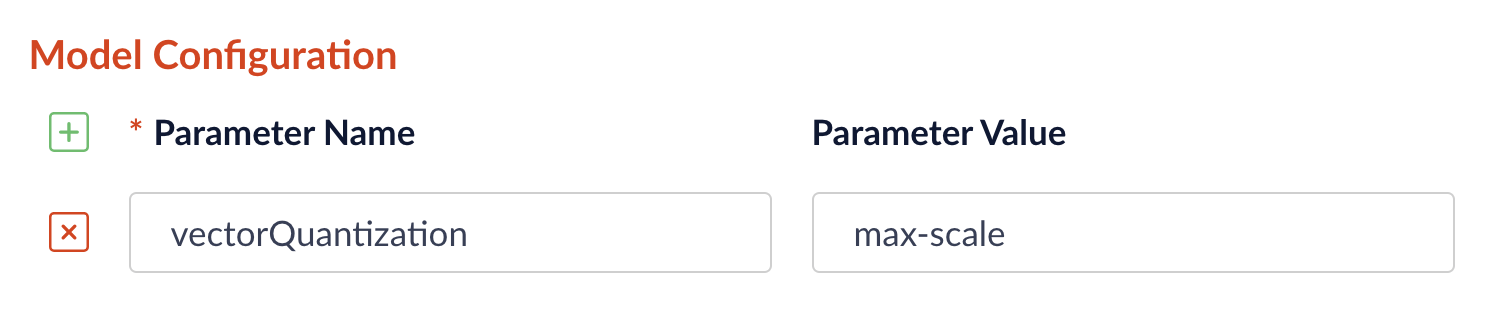
min-maxcreates tensors of embeddings and converts them to uint8 by normalizing them to the range [0, 255].
This method loses precision when evaluated against non-quantized vectors.
Test it against your data to see if the loss is acceptable.max-scalefinds the maximum absolute value along each embedding, normalizes the embeddings by scaling them to a range of -127 to 127, and returns the quantized embeddings as an 8-bit integer tensor.
This method has no loss at up to the ten-thousandths place during evaluation against non-quantized vectors.
Matryoshka vector dimension reduction configuration
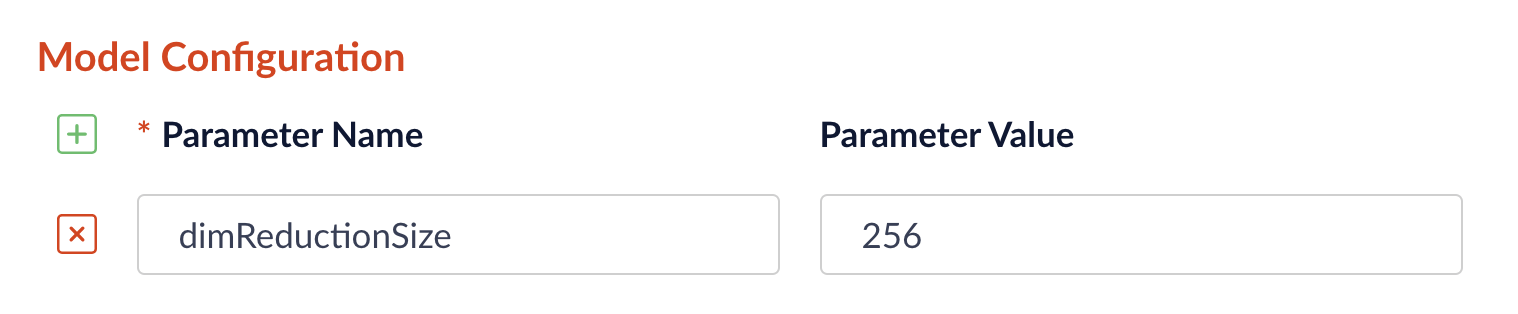
Vector dimension reduction is the process of making the default vector size of a model smaller. The purpose of this reduction is to lessen the burden of storing large vectors while still achieving the good quality of a larger model. The technique is called Matryoshka Representation Learning (MRL) and lets you reduce vector size while maintaining good quality. To select the vector dimension reduction method, go to Model Configuration in the stage configuration and enter thedimReductionSize parameter with the value for the desired method:
Configuration
Configure Neural Hybrid Search
Configure Neural Hybrid Search
Neural Hybrid Search combines lexical-semantic search with semantic vector search.To use semantic vector search in Fusion, you need to configure Neural Hybrid Search.
Then you can choose the balance between lexical and semantic vector search that works best for your use case.Before you begin, see Neural Hybrid Search for conceptual information that can help you understand how to configure this feature.Lucidworks recommends setting up Neural Hybrid Search with Lucidworks AI, but you can instead use Ray or Seldon vector search. If using Lucidworks AI, you may use the default LWAI Neural Hybrid Search pipeline.This query stage must be placed before the Solr Query stage.Construct a KNN exclusion query where topK is higher than the number of vectors in your collection
If the number of vectors in your collection exceeds 999,999 then increase the value to be at least equal to that value.If any are documents returned, there are orphans, and the
This feature is currently only available to clients who have contracted with Lucidworks for features related to Neural Hybrid Search and Lucidworks AI.
This feature is available starting in Fusion 5.9.5 and in all subsequent Fusion 5.9 releases.
Configure vector search
This section explains how to configure vector search using Lucidworks AI, but you can also configure it using Ray or Seldon.Before you set up the Lucidworks AI index and query stages, make sure you have set up your Lucidworks AI Gateway integration.Configure the LWAI Vectorize Field index stage
To vectorize the index pipeline fields:- Sign in to Fusion and click Indexing > Index Pipelines.
- Click the pipeline you want to use.
- Click Add a new pipeline stage.
- In the AI section, click LWAI Vectorize Field.
- In the Label field, enter a unique identifier for this stage.
- In the Condition field, enter a script that results in true or false, which determines if the stage should process.
-
Select Asynchronous Execution Config if you want to run this stage asynchronously. If this field is enabled, complete the following fields:
-
Select Enable Async Execution. Fusion automatically assigns an Async ID value to this stage. Change this to a more memorable string that describes the asynchronous stages you are merging, such as
signalsoraccess_control. -
Copy the Async ID value.
For detailed information, see Asynchronous query pipeline processing.
-
Select Enable Async Execution. Fusion automatically assigns an Async ID value to this stage. Change this to a more memorable string that describes the asynchronous stages you are merging, such as
- In the Account Name field, select the Lucidworks AI API account name defined in the Lucidworks AI Gateway service. If you do not see your account name, check that your Lucidworks AI Gateway integration is correctly configured.
-
In the Model field, select the Lucidworks AI model to use for encoding.
If you do not see any models names and you are a non-admin Fusion user, check that you have these permissions:
PUT,POST,GET:/LWAI-ACCOUNT-NAME/**Your Fusion account name must match the name of the account that you selected in the Account Name dropdown. For more information about models, see: - In the Source field, enter the name of the string field where the value should be submitted to the model for encoding. If the field is blank or does not exist, this stage is not processed. Template expressions are supported.
- In the Destination field, enter the name of the field where the vector value from the model response is saved.
{Destination Field}is the vector field.{Destination Field}_bis the boolean value if the vector has been indexed.
- In the Use Case Configuration section, click the + sign to enter the parameter name and value to send to Lucidworks AI. The
useCaseConfigparameter that is common to embedding use cases isdataType, but each use case may have other parameters. The value for the query stage isquery. - Optionally, you can use the Model Configuration section for any additional parameters you want to send to Lucidworks AI.
Several
modelConfigparameters are common to generative AI use cases. For more information, see Prediction API. - Select the Fail on Error checkbox to generate an exception if an error occurs while generating a prediction for a document.
- Click Save.
- Index data using the new pipeline. Verify the vector field is indexed by confirming the field is present in documents.
Configure the LWAI Vectorize Query stage
To vectorize the query in the query pipeline:- Sign in to Fusion and click Querying > Query Pipelines.
- Select the pipeline you want to use.
- Click Add a new pipeline stage.
- Click LWAI Vectorize Query.
- In the Label field, enter a unique identifier for this stage.
- In the Condition field, enter a script that results in true or false, which determines if the stage should process.
-
Select Asynchronous Execution Config if you want to run this stage asynchronously. If this field is enabled, complete the following fields:
-
Select Enable Async Execution. Fusion automatically assigns an Async ID value to this stage. Change this to a more memorable string that describes the asynchronous stages you are merging, such as
signalsoraccess_control. -
Copy the Async ID value.
For detailed information, see Asynchronous query pipeline processing.
-
Select Enable Async Execution. Fusion automatically assigns an Async ID value to this stage. Change this to a more memorable string that describes the asynchronous stages you are merging, such as
- In the Account Name field, select the name of the Lucidworks AI account.
-
In the Model field, select the Lucidworks AI model to use for encoding.
If you do not see any model names and you are a non-admin Fusion user, verify with a Fusion administrator that your user account has these permissions:
PUT,POST,GET:/LWAI-ACCOUNT-NAME/**Your Fusion account name must match the name of the account that you selected in the Account Name dropdown. For more information about models, see: - In the Query Input field, enter the location from which the query is retrieved.
- In the Output context variable field, enter the name of the variable where the vector value from the response is saved.
-
In the Use Case Configuration section, click the + sign to enter the parameter name and value to send to Lucidworks AI. The
useCaseConfigparameter that is common to embedding use cases isdataType, but each use case may have other parameters. The value for the query stage isquery. -
Optionally, you can use the Model Configuration section for any additional parameters you want to send to Lucidworks AI.
Several
modelConfigparameters are common to generative AI use cases. For more information, see Prediction API. - Select the Fail on Error checkbox to generate an exception if an error occurs during this stage.
- Click Save.
The Top K setting is 100 by default, but a value as high as 1000 provides better recall if you have fewer than one million indexed documents.
You can raise it even higher, but keep in mind that higher recall also causes higher latency.
When raising this value, we recommend also setting a higher Min Return Vector Similarity value, in the 0.7-0.85 range.
When raising this value, we recommend also setting a higher Min Return Vector Similarity value, in the 0.7-0.85 range.
Modify Solr managed-schema (5.9.4 and earlier)
This step is required if you’re migrating a collection from a version of Fusion that does not support Neural Hybrid Search. If creating a new collection in Fusion 5.9.5 and later, you can continue to Configure Hybrid Query stage.- Go to System > Solr Config and then click managed-schema to edit it.
-
Comment out
<copyField dest="\_text_" source="*"/>and add<copyField dest="text" source="*_t"/>below it. This will concatenate and index all*_t fields. -
Add the following code block to the managed-schema file:
This example uses 512 vector dimension. If your model uses a different dimension, modify the code block to match your model. For example,
_1024v. There is no limitation on supported vector dimensions.
Configure neural hybrid queries
In Fusion 5.9.10 and later, you use the Neural Hybrid Query stage to configure neural hybrid queries. In Fusion 5.9.9 and earlier, you use the Hybrid Query stage.Configure Neural Hybrid Query stage (5.9.10 and later)
- In the same query pipeline where you configured vector search, click Add a new pipeline stage, then select Neural Hybrid Query.
- In the Label field, enter a unique identifier for this stage or leave blank to use the default value.
- In the Condition field, enter a script that results in true or false, which determines if the stage should process, or leave blank.
- In the Lexical Query Input field, enter the location from which the lexical query is retrieved. For example, <request.params.q>. Template expressions are supported.
- In the Lexical Query Weight field, enter the relative weight of the lexical query. For example, 0.3. If this value is 0, no re-ranking will be applied using the lexical query scores.
- In the Lexical Query Squash Factor field, enter a value that will be used to squash the lexical query score. The squash factor controls how much difference there is between the top-scoring documents and the rest. It helps ensure that documents with slightly lower scores still have a chance to show up near the top. For this value, Lucidworks recommends entering the inverse of the lexical maximum score across all queries for the given collection.
- In the Vector Query Field, enter the name of the Solr field for k-nearest neighbor (KNN) vector search.
-
In the Vector Input field, enter the location from which the vector is retrieved. Template expressions are supported. For example, a value of
<ctx.vector>evaluates the context variable resulting from a previous stage, such as the LWAI Vectorize Query stage. - In the Vector Query Weight field, enter the relative weight of the vector query. For example, 0.7.
- In the Min Return Vector Similarity field, enter the minimum vector similarity value to qualify as a match from the Vector portion of the hybrid query.
- In the Min Traversal Vector Similarity field, enter the minimum vector similarity value to use when walking through the graph during the Vector portion of the hybrid query.
- When enabled, the Compute Vector Similarity for Lexical-Only Matches setting computes vector similarity scores for documents in lexical search results but not in the initial vector search results. Select the checkbox to enable this setting.
-
If you want to use pre-filtering:
-
Uncheck Block pre-filtering.
In the Javascript context (
ctx), thepreFilterKeyobject becomes available. -
Add a Javascript stage after the Neural Hybrid Query stage and use it to configure your pre-filter.
The
preFilterobject adds both the top-levelfqandpreFilterto the parameters for the vector query. You do not need to manually add the top levelfqin the javascript stage. See the example below:
-
Uncheck Block pre-filtering.
In the Javascript context (
- Click Save.
solrconfig.xml within the <config> tag:Configure Hybrid Query stage (5.9.9 and earlier)
If you’re setting up Neural Hybrid Search in Fusion 5.9.9 and earlier, use the Hybrid Query stage. If you’re using Fusion 5.9.10 or later, use the Neural Hybrid Query stage.- In the same query pipeline where you configured vector search, click Add a new pipeline stage, then select Hybrid Query.
- In the Label field, enter a unique identifier for this stage or leave blank to use the default value.
- In the Condition field, enter a script that results in true or false, which determines if the stage should process, or leave blank.
- In the Lexical Query Input field, enter the location from which the lexical query is retrieved. For example, <request.params.q>. Template expressions are supported.
- In the Lexical Query Weight field, enter the relative weight of the lexical query. For example, 0.3. If this value is 0, no re-ranking will be applied using the lexical query scores.
- In the Number of Lexical Results field, enter the number of lexical search results to include in re-ranking. For example, 1000. A value is 0 is ignored.
- In the Vector Query Field, enter the name of the Solr field for k-nearest neighbor (KNN) vector search.
- In the Vector Input field, enter the location from which the vector is retrieved. Template expressions are supported. For example, a value of
<ctx.vector>evaluates the context variable resulting from a previous stage, such as the LWAI Vectorize Query stage. - In the Vector Query Weight field, enter the relative weight of the vector query. For example, 0.7.
- Select the Use KNN Query checkbox to use the knn query parser and configure its options. This option cannot be selected if Use VecSim Query checkbox is selected. In addition, Use KNN Query is used if neither Use KNN Query or Use VecSim Query is selected.
- If the Use KNN Query checkbox is selected, enter a value in the Number of Vector Results field. For example, 1000.
- Select the Use VecSim Query checkbox to use the vecSim query parser and configure its options. This option cannot be selected if Use KNN Query checkbox is selected.
- Min Return Vector Similarity. Enter the minimum vector similarity value to qualify as a match from the Vector portion of the hybrid query.
- Min Traversal Vector Similarity. Enter the minimum vector similarity value to use when walking through the graph during the Vector portion of the hybrid query. The value must be lower than, or equal to, the value in the Min Return Vector Similarity field.
- In the Minimum Vector Similarity Filter, enter the value for a minimum similarity threshold for filtering documents. This option applies to all documents, regardless of other score boosting such as rules or signals.
- Click Save.
Perform hybrid searches
After setting up the stages, you can perform hybrid searches using theknn query parser as you would with Solr.
Specify the search vector and include it in the query.
For example, change the q parameter to a knn query parser string.You can also preview the results in the Query Workbench.
Try a few different queries, and adjust the weights and parameters in the Hybrid Query stage to find the best balance between lexical and semantic vector search for your use case.
You can also disable and re-enable the Neural Hybrid Query stage to compare results with and without it.XDenseVectorField is not supported in Fusion 5.9.5 and above. Instead, use DenseVectorField.Troubleshoot inconsistent results
Neural Hybrid Search leverages Solr semantic vector search, which has known behaviors which can be inconsistent at query time. These behaviors include score fluctuations with re-querying, documents showing and disappearing on re-querying, and (when SVS is configured without Hybrid stages) completely unfindable documents. This section outlines possible reasons for inconsistent behavior and resolutions steps.NRT replicas and HNSW graph challenges
Lucidworks recommends using PULL and TLOG replicas. These replica types copy the index of the leader replica, which results in the same HNSW graph on every replica. When querying, the HNSW approximation query will be consistent given a static index.In contrast, NRT replicas have their own index, so they will also have their own HNWS graph. HNSW is an Approximate Nearest Neighbor (ANN) algorithm, so it will not return exactly the same results for differently constructed graphs. This means that queries performed can and will return different results per HNWS graph (number of NRT replicas in a shard) which can lead to noticeable result shifts. When using NRT replicas, the shifts can be made less noticeable by increasing thetopK parameter. Variation will still occur, but it should be lower in the documents. Another way to mitigate shifts is to use Neural Hybrid Search with a vector similarity cutoff.For more information, refer to Solr Types of Replicas.In the case of Neural Hybrid Search, lexical BM25 & TF-IDF score differences that can occur with NRT replicas because of index differences for deleted documents, can also affect combined Hybrid score.
If you choose to use NRT replicas then it is possible that any lexical and/or semantic vectors variations can and will be exacerbated.Orphaning (Disconnected Nodes)
Solr’s implementation of dense vector search depends on the Lucene implementation of HNSW ANN. The Lucene implementation has a known issue where, in some collections, nodes in the HNSW graph become unreachable using graph traversal, essentially becoming disconnected or “orphaned.”Identify orphaning
Run the following command to identify orphaning:If the collection doesn’t have a vector for every document, include a filter so only the documents that have vectors are included. Filter on the boolean vector, as in this example:
--form-string 'fq=VECTOR_FIELD_b:true' \ids you see are the orphans.
Proceed to Resolving orphans.
If no documents are returned, there are likely no orphans.
You can try a few varying vectors to be certain.Resolving orphans
To resolve orphans, do the following:- Increase the HNSW Solr schema parameters
hnswBeamWidthandhnswMaxConnectionsper the Suggested values below. - Save the schema.
- Clear the index.
- Re-index your collection.