

file:js-query.
See also: Custom JavaScript Stages For Query Pipelines.
Uploading a JavaScript blob
In Fusion 5.9, JavaScript blobs must be uploaded using the Blob Store API, like this:curl -u USERNAME:PASSWORD -X PUT -H 'Content-Type: text/javascript' --data-binary @query-pipeline-js-stage.js http://FUSION_HOST:FUSION_PORT/api/apps/APP_NAME/blobs/query-pipeline-js-stage.js?resourceType=file:js-query
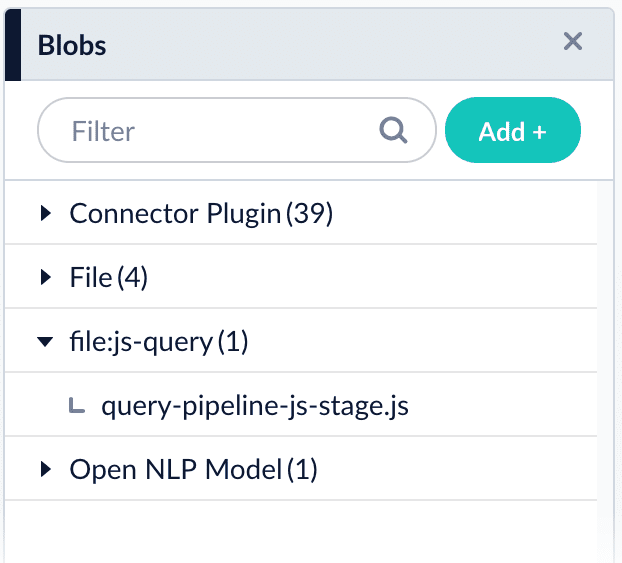
Referencing a JavaScript blob
Use any of the following formats for theref/Script Reference configuration field:
query-pipeline-js-stage.js
blob:query-pipeline-js-stage.js
urn:x-fusion:blob:query-pipeline-js-stage.js
The examples above use
query-pipeline-js-stage.js as the blob ID.Edit JavaScript
For Fusion 5.4.x and later, select Edit in the Script Reference field to edit JavaScript directly in the Fusion UI.JavaScript examples
When reusing a script in both Managed JavaScript index stages and Managed JavaScript query stages, you need to upload it twice: once as a
file:js-index blob and once as a file:js-query blob.Set up a reusable library
This is an example of a reusable JavaScript library that provides various utility functions for string processing, date handling, and type conversion. To reuse Javascript functions, create a stage like this one that defines them, then place it before any of the stages that use it./* globals Java, logger*/
//JavaScript (ES5.1)
/**
* UtilitiesDemoLib - A stripped-down demo utility library for Fusion Pipeline scripts
*
* Contains essential utility functions for demonstration purposes:
* - Debug logging
* - Type checking
* - String manipulation
*
* This library is designed to work in both Index and Query pipelines
* and automatically registers itself in the pipeline context.
*/
(function () {
"use strict";
var libName = 'UtilitiesDemoLib'
var exports = {};
/** Debug flag for conditional logging */
var isDebug = false;
/**
* Conditional debug logging function
* @param {string} m - Primary message to log
* @param {...*} args - Additional arguments to log
*/
function logIfDebug(m) {
if (isDebug && m) {
logger.info(m, Array.prototype.slice.call(arguments).slice(1));
}
}
/**
* Enables or disables debug logging for this library
* @param {boolean} debug_b - true to enable debug logging, false to disable
*/
function setDebugLogging(debug_b) {
isDebug = debug_b;
logIfDebug("Debug logging {} for {}", isDebug ? "enabled" : "disabled", libName);
}
/**
* Returns the name of this library
* @return {string} The library name
*/
function getLibName() {
return libName;
}
/**
* Tests whether an object is a Java object by checking for standard Java methods
* @param {*} obj - Object to test
* @return {boolean} true if the object appears to be a Java object
*/
function isJavaType(obj) {
if (obj === null || obj === undefined) {
return false;
}
// Check for common Java object methods
return (typeof obj.getClass === 'function' ||
typeof obj.hashCode === 'function' ||
typeof obj.toString === 'function' && obj.constructor.name !== 'String');
}
/**
* Returns a simplified type name for both Java and JavaScript objects
* For Java objects: returns simple class name (e.g., 'String' for java.lang.String)
* For JavaScript objects: returns lowercase type name (e.g., 'string')
* @param {*} obj - Object to get type information for
* @param {boolean} [verbose=false] - If true, return full Java class name
* @return {string} Type name of the object
*/
function getTypeOf(obj, verbose) {
if (obj === null) return 'null';
if (obj === undefined) return 'undefined';
if (isJavaType(obj)) {
try {
var className = obj.getClass().getName();
if (verbose) {
return className;
} else {
// Return simple class name (last part after final dot)
return className.substring(className.lastIndexOf('.') + 1);
}
} catch (e) {
return 'JavaObject';
}
} else {
// JavaScript object
return typeof obj;
}
}
/**
* Remove whitespace from start and end of str. Also remove redundant whitespace (set to space).
* @param {string} str - String to trim
* @return {string} Trimmed string with normalized whitespace
*/
function trimWhitespace(str) {
if (!str || typeof str !== 'string') {
return str;
}
// Trim leading/trailing whitespace and normalize internal whitespace
return str.trim().replace(/\s+/g, ' ');
}
// Export all utility functions for external use
exports.setDebugLogging = setDebugLogging;
exports.getLibName = getLibName;
exports.isJavaType = isJavaType;
exports.getTypeOf = getTypeOf;
exports.trimWhitespace = trimWhitespace;
/**
* Auto-registration function for pipeline contexts
* Detects pipeline type (Index vs Query) and registers this library in the context
*
* For Index Pipelines: arguments are (doc, ctx, collection, solrClient, solrFactory)
* For Query Pipelines: arguments are (request, response, ctx, ...)
*
* The function identifies the context object by checking argument types and
* registers the library functions under the library name for easy access
*
* @return {*} Returns the document object for Index pipelines, undefined for Query pipelines
*/
return function main() {
var doc, ctx;
// Detect pipeline type by argument pattern
if (arguments.length >= 3) {
if (arguments[0] && typeof arguments[0].getId === 'function') {
// Index Pipeline: (doc, ctx, collection, solrClient, solrFactory)
doc = arguments[0];
ctx = arguments[1];
} else if (arguments[0] && typeof arguments[0].getParam === 'function') {
// Query Pipeline: (request, response, ctx, collection, solrClient, solrFactory)
ctx = arguments[2];
}
}
if (ctx && typeof ctx.put === 'function') {
// Register this library in the context
var lib = {
setDebugLogging: setDebugLogging,
getLibName: getLibName,
isJavaType: isJavaType,
getTypeOf: getTypeOf,
trimWhitespace: trimWhitespace
};
ctx.put(libName, lib);
logIfDebug("Registered {} in pipeline context", libName);
}
// Return doc for Index pipelines (required), undefined for Query pipelines
return doc;
};
})();
Call reusable JavaScript functions
This example demonstrates how to call reusable JavaScript functions from a library like the one in the example above. A JavaScript stage that calls these functions must be placed after the one that loads the library into the context. This example also adds debug logging to the context so that it can be appended to the response and viewed in Query Workbench./* globals Java, logger*/
//JavaScript (ES5.1)
(function () {
"use strict"; // avoid globals!
var isDebug = false
var libDebug = false // isDebug sets debug level for this file. libDebug sets debug for loaded libraries
var ArrayList = Java.type("java.util.ArrayList");
function logIfDebug(m){if(isDebug && m)logger.info(m, Array.prototype.slice.call(arguments).slice(1));}
function loadLib(l, c, b) { var L = c.get(l); if (L) { logIfDebug("Loaded {} library from ctx", l); L.setDebugLogging(null == b ? libDebug : b) } else { logger.error("No {} Lib in ctx. Check prior stages!", l) } return L }
//TODO: add library declarations here. UtilitiesDemoLib is an example and can be changed or removed.
var UtilitiesDemoLib;
/*
For this to work, a prior stage which loads the UtilitiesDemoLib.js into the ctx is required.
It can be a Managed JS stage or a regular JS stage but it must be in the pipeline before this stage.
*/
return function main(request,response , ctx, collection, solrServer, solrServerFactory) {
//TODO: adjust list of libraries and load them as shown in the commented line below
UtilitiesDemoLib = UtilitiesDemoLib || loadLib("UtilitiesDemoLib",ctx, false)
// Demonstrate UtilitiesDemoLib functionality
if (UtilitiesDemoLib) {
logIfDebug("UtilitiesDemoLib demonstration starting");
// === Library Information ===
var libName = UtilitiesDemoLib.getLibName();
logIfDebug("getLibName:: Library name: {}", libName);
// === Type Checking Demonstrations ===
var jsArray = ["apple", "banana", "cherry"];
var jsObject = { name: "test", value: 123 };
// Test JavaScript types
logIfDebug("isJavaType:: Is jsArray a Java type? {}", UtilitiesDemoLib.isJavaType(jsArray));
logIfDebug("isJavaType:: Is jsObject a Java type? {}", UtilitiesDemoLib.isJavaType(jsObject));
// Test pipeline objects
logIfDebug("isJavaType:: Is request a Java type? {}", UtilitiesDemoLib.isJavaType(request));
// Get type information
logIfDebug("getTypeOf:: Type of jsArray: {}", UtilitiesDemoLib.getTypeOf(jsArray));
logIfDebug("getTypeOf:: Type of jsObject: {}", UtilitiesDemoLib.getTypeOf(jsObject));
// Get pipeline object types
logIfDebug("getTypeOf:: Type of request: {}", UtilitiesDemoLib.getTypeOf(request));
logIfDebug("getTypeOf:: Type of request (verbose): {}", UtilitiesDemoLib.getTypeOf(request, true));
// === String Processing Demonstrations ===
var messyTexts = [
" This has lots of whitespace ",
"\t\tTabbed\t\ttext\t\twith\t\tspaces\t\t",
"\n\nNewlines\n\nand\n\nspaces\n\n",
" Mixed \t\n whitespace \t\n types "
];
for (var i = 0; i < messyTexts.length; i++) {
var messy = messyTexts[i];
var trimmed = UtilitiesDemoLib.trimWhitespace(messy);
logIfDebug("trimWhitespace:: Original[{}]: '{}'", i, messy);
logIfDebug("trimWhitespace:: Trimmed[{}]: '{}'", i, trimmed);
}
// Test trimWhitespace edge cases
logIfDebug("trimWhitespace:: Empty string result: '{}'", UtilitiesDemoLib.trimWhitespace(""));
logIfDebug("trimWhitespace:: Null input result: '{}'", UtilitiesDemoLib.trimWhitespace(null));
logIfDebug("trimWhitespace:: Number input result: '{}'", UtilitiesDemoLib.trimWhitespace(123));
logIfDebug("UtilitiesDemoLib demonstration completed successfully");
}
};
})();
Bury documents in search results
This example enables aproductsToBury parameter that allows you to specify a list of product IDs to “bury” or demote in search results.
/* globals Java, logger*/
//JavaScript (ES5.1)
(function () {
    "use strict"; // avoid globals!

    // Configuration constants for bury behavior
    var BURY_LIST_PARAM_NAME = 'productsToBury'    // Input parameter name containing comma-separated product IDs
    var BURY_FIELD_NAME = 'id'                     // Solr field name to apply negative boost against
    var BURY_MAX = 0.1;  // First item in the list gets this boost value (most buried)
    var BURY_MIN = 0.5;  // Last item in the list gets this boost value (least buried)

    var isDebug = false
    function logIfDebug(m){if(isDebug && m)logger.info(m, Array.prototype.slice.call(arguments).slice(1));}

    /**
     * FUSION QUERY PIPELINE STAGE: Parameter List to Bury Documents
     *
     * Converts a comma-separated list of product IDs into multiplicative boost
     * parameters with values less than 1.0 to bury/demote documents in search results.
     *
     * BOOST METHODOLOGY:
     * Uses the 'boost' parameter instead of 'bq' because:
     * - boost: Applies multiplicative scoring (score = original_score * boost_value)
     * - bq: Applies additive scoring (score = original_score + boost_value)
     *
     * The eDisMax query parser (Fusion's default) does not support negative boost values.
     * By using multiplicative boost with values < 1.0, we can reduce document scores
     * to a percentage of their original relevance score, effectively burying them
     * without using prohibited negative values.
     *
     * SCORING IMPACT:
     * - boost=0.1 reduces score to 10% of original (most buried)
     * - boost=0.5 reduces score to 50% of original (moderately buried)
     * - boost=1.0 leaves score unchanged (no effect)
     *
     * EXAMPLE TRANSFORMATION:
     * Input:  productsToBury=ABC123,DEF456,GHI789
     * Output: boost=query({!lucene q.op=OR v='id:("ABC123"^=0.100 "DEF456"^=0.300 "GHI789"^=0.500)'},1.0)
     *
     * Result: ABC123 documents score at 10% of original relevance,
     *         DEF456 documents score at 30% of original relevance,
     *         GHI789 documents score at 50% of original relevance
     */
    return function main(request, response, ctx, collection, solrServer, solrServerFactory) {
        var paramVal = request.getFirstParam(BURY_LIST_PARAM_NAME)

        if (!paramVal || "" == paramVal) {
            return
        }

        var buryList = paramVal.split(',')
        var gap = (BURY_MIN - BURY_MAX) / Math.max(buryList.length - 1, 1)
        var buryAmount = BURY_MAX

        // Build multiplicative boost query using lucene syntax
        // The boost parameter applies multiplicative scoring (score * boost_value)
        // Values < 1.0 reduce the score to a percentage of original relevance
        var boostQuery = 'query({!lucene q.op=OR v=\'' + BURY_FIELD_NAME + ':('

        for (var i = 0; i < buryList.length; i++) {
            var productId = buryList[i].trim()
            // ^= syntax creates multiplicative boost: score = original_score * boost_value
            boostQuery += '"' + productId + '"^=' + buryAmount.toFixed(3) + ' '
            buryAmount += gap
        }

        boostQuery += ')\'}, 1.0)'
        // Add to 'boost' parameter (multiplicative) not 'bq' parameter (additive)
        request.addParam('boost', boostQuery)
    };
})();
Manipulate the response object
This example demonstrates how to add a new field to the response that contains the lowercase version of an existing field. It uses theAbstractResponse class to manipulate response documents, which works for both XML and JSON responses for versatility.
/* globals Java, logger*/
//JavaScript (ES5.1)
(function () {
    "use strict"; // avoid globals!
    var isDebug = true
    function logIfDebug(m){if(isDebug && m)logger.info(m, Array.prototype.slice.call(arguments).slice(1));}

    var List = Java.type("java.util.List");

    /**
     * FUSION QUERY PIPELINE STAGE: Manipulate Response Fields
     *
     * Copies the contents of sampleField_s into sampleUPCASE_s after converting
     * the content to uppercase. Demonstrates how to manipulate response document
     * fields using AbstractResponse API.  This will work for either XML or JSON responses.
     *
     * See: https://javadoc.lucidworks.com/fusion-pipeline-javadocs/5.9/com/lucidworks/apollo/solr/response/AbstractResponse.html
     *
     * @param {Request} request - Query request object
     * @param {Response} response - Query response object to manipulate
     * @param {Context} ctx - Pipeline context object
     * @param {String} collection - Collection name
     * @param {SolrClient} solrServer - Solr client instance
     * @param {SolrClientFactory} solrServerFactory - Solr client factory
     */
    return function main(request, response, ctx, collection, solrServer, solrServerFactory) {
        // Get the AbstractResponse from the response wrapper
        var abstractResponse = response.getInnerResponse()

        // Get all documents from the response
        var documents = abstractResponse.getDocuments()

        // Process each document
        for (var i = 0; i < documents.size(); i++) {
            var doc = documents.get(i)
            logIfDebug("looking for Category_name_s")
            // Check if the source field exists
            if (doc.containsField('Category_Name_s')) {
                var sourceValue = doc.getField('Category_Name_s')

                // Handle different field value types (single value vs array)
                var lowercaseValue
                if (sourceValue instanceof List) {
                    // Handle multi-valued field
                    lowercaseValue = []
                    for (var j = 0; j < sourceValue.size(); j++) {
                        var val = sourceValue.get(j)
                        lowercaseValue.push(val ? val.toString().toLowerCase() : val)
                    }
                } else {
                    // Handle single-valued field
                    lowercaseValue = sourceValue ? sourceValue.toString().toLowerCase() : sourceValue
                }

                // Set the new field with uppercase content
                doc.putField('Category_name_lc_s', lowercaseValue)

                logIfDebug("Converted field for doc {}: {} -> {}",
                          doc.getField('id'), sourceValue, lowercaseValue)
            }
        }

        // Update the response with modified documents
        abstractResponse.updateDocuments(documents)

        logIfDebug("Processed {} documents for field manipulation", documents.size())
    };
})();
Boost the products in a list
This example demonstrates how to boost specific products in search results based on a comma-separated list of product IDs. It uses thebq parameter to apply boosts, which allows for precise ranking control in search results.
The boost values are linearly distributed between a maximum and minimum value, allowing for a smooth decrease in boost as the list progresses.
This is useful for merchandising control, promotional campaigns, or A/B testing different product arrangements.
/* globals Java, logger*/
//JavaScript (ES5.1)
//Nashorn 1.8.0_132
(function () {
    "use strict";

    // Configuration constants for boost behavior
    var BOOST_LIST_PARAM_NAME = 'productsToBoost'  // Input parameter name containing comma-separated product IDs
    var BOOST_FIELD_NAME = 'id'                    // Solr field name to boost against
    var BOOST_MAX = 1000000; // First item in the list gets this boost value
    var BOOST_MIN = 700000;  // Last item in the list gets this boost value

    /**
     * FUSION QUERY PIPELINE STAGE: Parameter List to Boost Query Converter
     *
     * PURPOSE:
     * Converts a comma-separated list of product IDs into individual Solr boost queries (bq parameters)
     * with linearly decreasing boost values. This enables merchandising control by boosting specific
     * products in search results with precise ranking control.
     *
     * FUNCTIONALITY:
     * - Reads the 'productsToBoost' parameter from the request
     * - Splits comma-separated values into an array
     * - Calculates linear boost gap: (BOOST_MAX - BOOST_MIN) / list_length
     * - Generates individual bq parameters for each product ID
     * - First item gets maximum boost (1,000,000)
     * - Last item gets minimum boost (700,000)
     * - Intermediate items get linearly decreasing boost values
     *
     * EXAMPLE TRANSFORMATION:
     * Input:  productsToBoost=ABC123,DEF456,GHI789
     * Output: bq=(id:ABC123)^1000000
     *         bq=(id:DEF456)^850000
     *         bq=(id:GHI789)^700000
     *
     * USE CASES:
     * - Product merchandising and promotional campaigns
     * - A/B testing different product arrangements
     * - Personalization based on user preferences
     * - Inventory management (promoting high-stock items)
     *
     * PIPELINE PLACEMENT:
     * Should be placed before the Solr Query stage to ensure boost queries are included
     * in the final query execution.
     *
     * DEBUG OUTPUT:
     * - aDebug.gap: Shows the calculated boost gap between items
     * - aDebug.listLen: Shows the number of items in the boost list
     *
     * @param {Request} request - Query request object containing boost parameters
     * @param {Response} response - Query response object (not modified by this stage)
     * @param {Context} ctx - Pipeline context object for state management
     * @param {String} collection - Collection name being queried
     * @param {SolrClient} solrServer - Solr client instance
     * @param {SolrClientFactory} solrServerFactory - Solr client factory
     */
    return function(request, response, ctx, collection, solrServer, solrServerFactory) {
        // Extract the comma-separated product list from request parameters
        var paramVal = request.getFirstParam(BOOST_LIST_PARAM_NAME)

        // Exit early if parameter is missing or empty
        if (!paramVal || "" == paramVal) {
            return
        }

        // Split the comma-separated values into an array
        var boostList = paramVal.split(',')

        // Calculate the linear boost gap between items
        // Using Math.max to avoid division by zero
        var gap = (BOOST_MAX - BOOST_MIN) / Math.max(boostList.length, 1)

        // Add debug parameters to track boost calculation
        request.addParam('aDebug.gap', gap)
        request.addParam('aDebug.listLen', boostList.length)

        // Start with maximum boost value for first item
        var boostAmount = BOOST_MAX

        // Generate individual boost queries for each product ID
        for (var i = 0; i < boostList.length; i++) {
            // Add boost query parameter: (field:value)^boostAmount
            request.addParam('bq', '(' + BOOST_FIELD_NAME + ':' + boostList[i] + ')^' + (boostAmount))

            // Decrease boost amount for next item
            boostAmount -= gap
        }
    };

})();
Boost products using Solr’s Query Elevation Component (QEC)
This example demonstrates how to elevate specific products in search results using the Query Elevation Component (QEC) in Solr. It converts a comma-separated list of product IDs into theelevateIds parameter format required by Solr’s QEC, allowing specific documents to be promoted to the top of search results.
This is useful for merchandising control, promotional campaigns, or editorial control over search result ranking.
/* globals Java, logger*/
//JavaScript (ES5.1)
//Nashorn 1.8.0_132
(function () {
    "use strict";

    // Configuration constant for input parameter name
    var BOOST_LIST_PARAM_NAME = 'productsToBoost'; // Parameter containing comma-separated product IDs

    /**
     * FUSION QUERY PIPELINE STAGE: Parameter List to Solr Query Elevation Component
     *
     * PURPOSE:
     * Converts a comma-separated list of product IDs from the 'productsToBoost' parameter
     * into the 'elevateIds' parameter format required by Solr's Query Elevation Component (QEC).
     * This enables merchandising control by promoting specific documents to the top of
     * search results regardless of their relevance scores.
     *
     * SOLR QEC INTEGRATION:
     * Works with Solr's Query Elevation Component (QEC) which allows administrators to
     * configure the top results for a given query. Documents specified in 'elevateIds'
     * will appear at the top of search results in the order specified.
     *
     * Reference: https://solr.apache.org/guide/solr/latest/query-guide/query-elevation-component.html
     *
     * FUNCTIONALITY:
     * - Reads the 'productsToBoost' parameter from the request
     * - Appends the product IDs to any existing 'elevateIds' parameter
     * - Adds the '[elevated]' pseudo-field to the field list (fl) for result identification
     * - Maintains existing elevated IDs if already present in the request
     *
     * EXAMPLE TRANSFORMATION:
     * Input:  productsToBoost=ABC123,DEF456,GHI789
     * Output: elevateIds=ABC123,DEF456,GHI789
     *         fl=[elevated] (added to existing fl parameter)
     *
     * If elevateIds already exists:
     * Input:  elevateIds=XYZ999
     *         productsToBoost=ABC123,DEF456
     * Output: elevateIds=XYZ999,ABC123,DEF456
     *
     * QEC BEHAVIOR:
     * - Elevated documents appear at the top of results in the specified order
     * - The '[elevated]' field in results indicates which documents were elevated
     * - Original relevance scoring is preserved for non-elevated documents
     * - Elevated documents maintain their relative order regardless of query relevance
     *
     * USE CASES:
     * - Product merchandising and promotional campaigns
     * - Editorial control over search result ranking
     * - Featured content promotion
     * - Seasonal or time-sensitive product placement
     * - A/B testing with guaranteed top placement
     *
     * PIPELINE PLACEMENT:
     * Should be placed before the Solr Query stage to ensure elevated IDs are
     * processed by the Query Elevation Component during query execution.
     *
     * SOLR CONFIGURATION REQUIREMENTS:
     * - Query Elevation Component must be configured in solrconfig.xml
     * - QEC should be included in the request handler chain
     * - elevate.xml file may be used for static elevations
     *
     * @param {Request} request - Query request object containing elevation parameters
     * @param {Response} response - Query response object (not modified by this stage)
     * @param {Context} ctx - Pipeline context object for state management
     * @param {String} collection - Collection name being queried
     * @param {SolrClient} solrServer - Solr client instance
     * @param {SolrClientFactory} solrServerFactory - Solr client factory
     */
    return function(request, response, ctx, collection, solrServer, solrServerFactory) {
        // Get existing elevateIds parameter, if any
        var eids = request.getFirstParam('elevateIds') || "";

        // Determine delimiter based on whether elevateIds already has content
        var FIRST_DELIM = eids.length > 0 ? "," : "";

        // Extract the comma-separated product list from request parameters
        var ptb = request.getFirstParam(BOOST_LIST_PARAM_NAME);

        // Process elevation if products to boost are specified
        if (ptb) {
            // Append new product IDs to existing elevateIds
            eids += (FIRST_DELIM + ptb);

            // Set the combined elevateIds parameter for QEC processing
            request.putSingleParam("elevateIds", eids);

            // Add [elevated] pseudo-field to field list for result identification
            // This allows clients to identify which documents were elevated
            request.addParam('fl', '[elevated]');
        }
    };

})();
Query pipeline stage condition examples
Stages can be triggered conditionally when a script in the Condition field evaluates to true. Some examples are shown below. Run this stage only for mobile clients:params.deviceType === "mobile"
params.debug === "true"
params.q && params.q.includes("sale")
request.hasParam("fusion-user-name") && request.getFirstParam("fusion-user-name").equals("SuperUser");
!request.hasParam("isFusionPluginQuery")
Configuration
When entering configuration values in the UI, use unescaped characters, such as
\t for the tab character. When entering configuration values in the API, use escaped characters, such as \\t for the tab character.