

Benefits
KEDA provides these advantages for Fusion workloads:- Event-driven autoscaling - Scale in response to external signals such as Prometheus metrics, queue depth, or pipeline execution load.
- Scheduled scaling - Automatically scale workloads based on predictable traffic patterns, such as business hours or peak usage windows.
- Scale-to-zero capability - Reduce infrastructure costs by scaling workloads down to zero during off-hours or periods of inactivity.
- Improved operational efficiency - Align infrastructure capacity with real business demand instead of relying solely on CPU or memory thresholds.
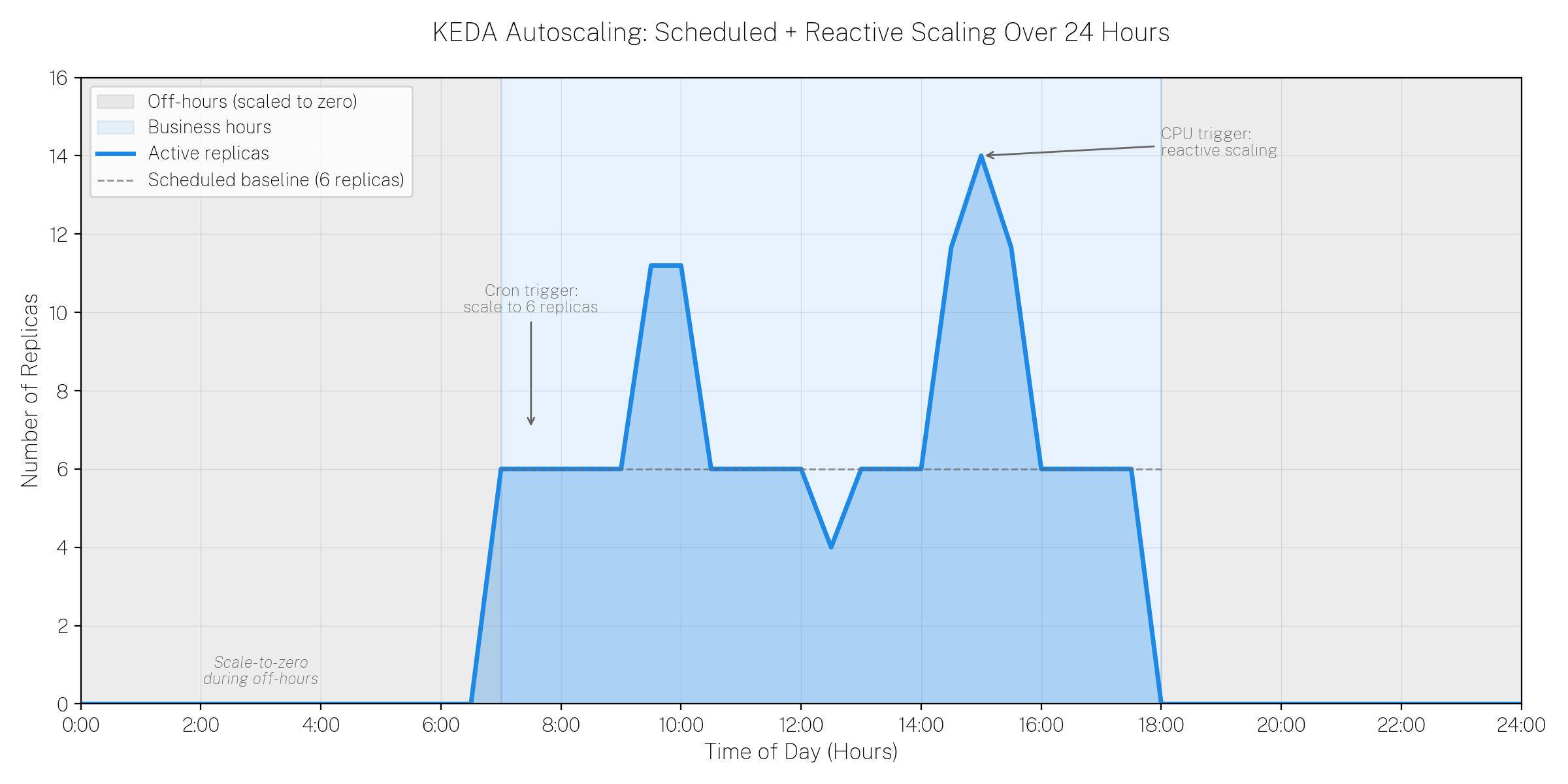
KEDA combines scheduled scaling (cron trigger) with reactive scaling (CPU trigger) to align infrastructure capacity with actual demand throughout the day.
Supported services
The following Fusion services support KEDA autoscaling:api-gatewayquery-pipelinefusion-indexing
Before you begin
Before configuring KEDA for Fusion services, ensure you have:- KEDA version 2.18.3 or later installed in your Kubernetes cluster
- Access to the Fusion Helm charts
- Ability to provide a custom values file for your Fusion deployment
How KEDA autoscaling works
Fusion Helm charts support two mutually exclusive autoscaling mechanisms per workload:- Kubernetes HPA (default) - Scales based on CPU and memory metrics.
- KEDA ScaledObject - Scales based on events, schedules, and custom metrics.
api-gateway and KEDA for query-pipeline.
Autoscaling parameters
Each Fusion service has three key autoscaling parameters:Default behavior
Whenautoscaling.enabled is true and you don’t modify other settings, Fusion creates an HPA by default. This preserves backward compatibility with existing deployments.
Mutual exclusion
The Helm chart enforces these rules:- If
autoscaling.enabledisfalse→ No autoscaling (neither HPA nor KEDA) - If
hpa.enabledistrueandkeda.enabledisfalse→ HPA autoscaling - If
hpa.enabledisfalseandkeda.enabledistrue→ KEDA autoscaling - If both
hpa.enabledandkeda.enabledaretrue→ No autoscaling (conflict resolution)
When KEDA creates a ScaledObject with certain trigger types, it may create its own HPA prefixed with
keda-hpa-. This is expected behavior and indicates that KEDA is managing autoscaling correctly.Enable KEDA
You can enable KEDA for theapi-gateway, query-pipeline, or fusion-indexing services by editing the Fusion values file before a Fusion deployment or upgrade, as explained in the next section below.
Update the Fusion values file
The configuration for each Fusion service is the same, as shown below:Deploy or upgrade Fusion
After preparing your custom values file (for example,fusion-values.yaml), deploy or upgrade Fusion:
<RELEASE_NAME> and <FUSION_CHART_PATH> with your specific values.
Verify the configuration
After deployment, verify that KEDA is active for the configured services.Verify api-gateway
Verify api-gateway
Check for the ScaledObject:The No HPA should exist for
api-gateway ScaledObject should appear in the output.Verify that no conflicting HPA exists:api-gateway, except those prefixed with keda-hpa- (which are managed by KEDA).Verify query-pipeline
Verify query-pipeline
Check for the ScaledObject:The No HPA should exist for
query-pipeline ScaledObject should appear in the output.Verify that no conflicting HPA exists:query-pipeline, except those prefixed with keda-hpa- (which are managed by KEDA).Verify fusion-indexing
Verify fusion-indexing
Check for the ScaledObject:The No HPA should exist for
fusion-indexing ScaledObject should appear in the output.Verify that no conflicting HPA exists:fusion-indexing, except those prefixed with keda-hpa- (which are managed by KEDA).KEDA may create an HPA prefixed with
keda-hpa- followed by your release name and service name. For example: keda-hpa-fusion-query-pipeline. This is expected when KEDA uses certain trigger types.Custom configuration parameters
You can customize the scaling behavior, metadata, and the triggers KEDA monitors using the parameters in the table below. For theapi-gateway, query-pipeline, or fusion-indexing services, replace [service-name] with the name of the service.
This example demonstrates a custom KEDA configuration for
query-pipeline with these components:
- Cron trigger - Scales to 6 replicas during business hours (Monday-Friday, 7:00 AM - 6:00 PM Central Time).
- CPU trigger - Scales up to 15 replicas when CPU utilization exceeds 60%.
Troubleshooting
This section provides troubleshooting steps for some common issues with KEDA configuration.No ScaledObject created
No ScaledObject created
- Verify that
autoscaling.enabledistrue. - Verify that
autoscaling.keda.enabledistrue. - Verify that
autoscaling.hpa.enabledisfalse. - Check that KEDA is installed:
kubectl get pods -n keda. - Review Helm deployment logs for errors.
Both HPA and ScaledObject exist for the same workload
Both HPA and ScaledObject exist for the same workload
- Check your configuration for conflicting settings.
- Ensure that both
hpa.enabledandkeda.enabledaren’t set totrue. - Delete the unwanted resource manually if necessary.
KEDA not scaling as expected
KEDA not scaling as expected
- Verify that triggers are configured correctly.
- Check KEDA operator logs:
kubectl logs -n keda -l app=keda-operator - Describe the ScaledObject to see its status:
kubectl describe scaledobject <name> -n <namespace> - Verify that the trigger source (metrics endpoint, queue, and so on) is accessible.