

The new Admin UI is a preview.
Some capabilities may not be available yet, and screen locations may change before general availability.
What’s changing
The new UI uses the screen more efficiently and helps you see where you are and what matters. A labeled sidebar groups screens by area, replacing the icon menus and their flyouts, and a breadcrumb in the header shows your location. Every screen is one click away and opens in place, instead of stacking up as tabs along the bottom of the window. Content fills the page in clearly separated panels, and size, color, and grouping draw your eye to what’s important, such as summary figures with trend lines and color-coded object types.Drag to compare the legacy and new Admin UI
Clearer Object Explorer
Object Explorer now groups objects by type and color-codes each type, so you can tell datasources, pipelines, and collections apart at a glance. Select an object to see its linked objects in a panel next to the list, instead of switching between the list and a separate links view.Drag to compare the legacy and new Object Explorer
Status and details at a glance
Lists such as datasources, jobs, and pipelines are now tables that show key information for every object, so you don’t have to open each one. Status labels show which datasources are running and which jobs succeeded or failed, so you can see what needs attention. Select a row to see its details and actions, such as Stop, Edit, or Delete, in a panel next to the table. A notifications panel collects events such as failed queries, stopped jobs, and finished datasource runs.Drag to compare the legacy and new Datasources screen
Visual stage explanations
When you select a stage in Index Workbench, Query Workbench, or a parser, a diagram at the top of its configuration panel shows what the stage does. It traces a sample input through the stage to the result, such as the boost that the Boost with Signals stage adds from click signals. Each stage in the pipeline list also shows a short description, so you can see what a stage does without opening it.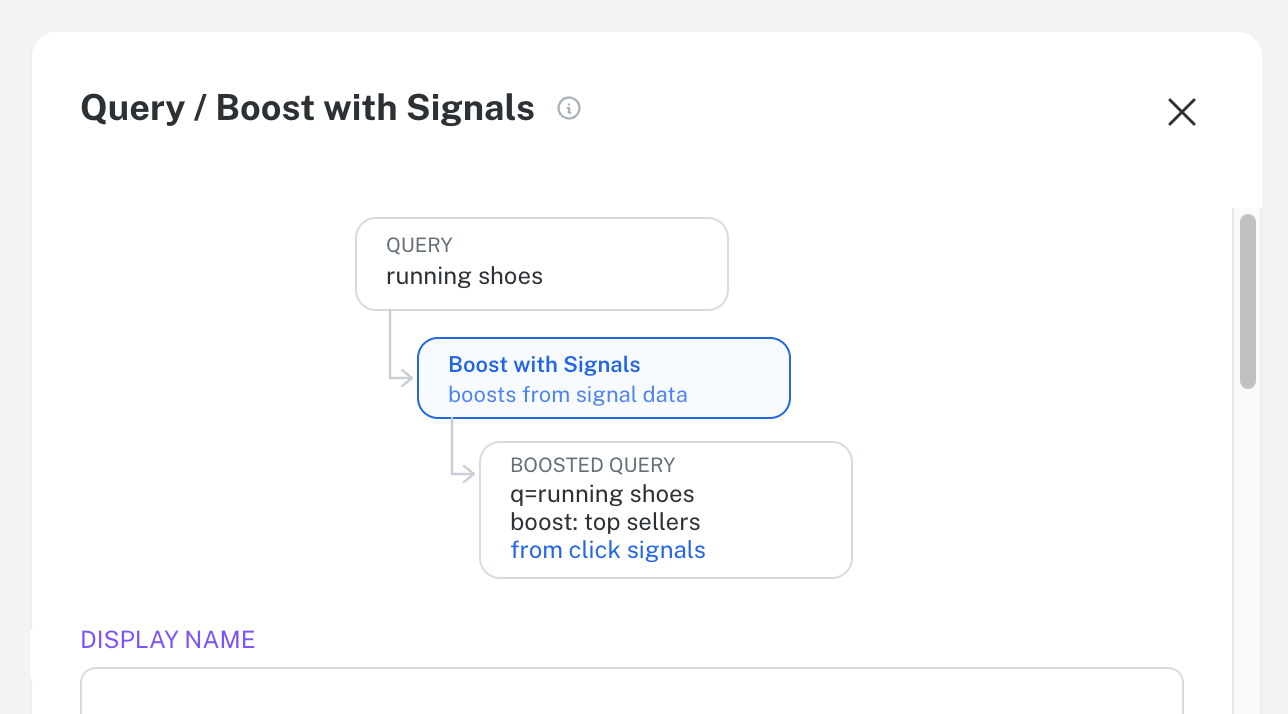
More detailed jobs catalog
Browse all available job types in a more detailed catalog with full descriptions to help you find the right job type.Faster Quickstart
Quickstart walks you through creating an app and a collection, then indexing sample data or your own. As soon as Fusion indexes the first few documents, you can search them and inspect what the index pipeline parsed, without leaving Quickstart. Open Quickstart from the app launcher.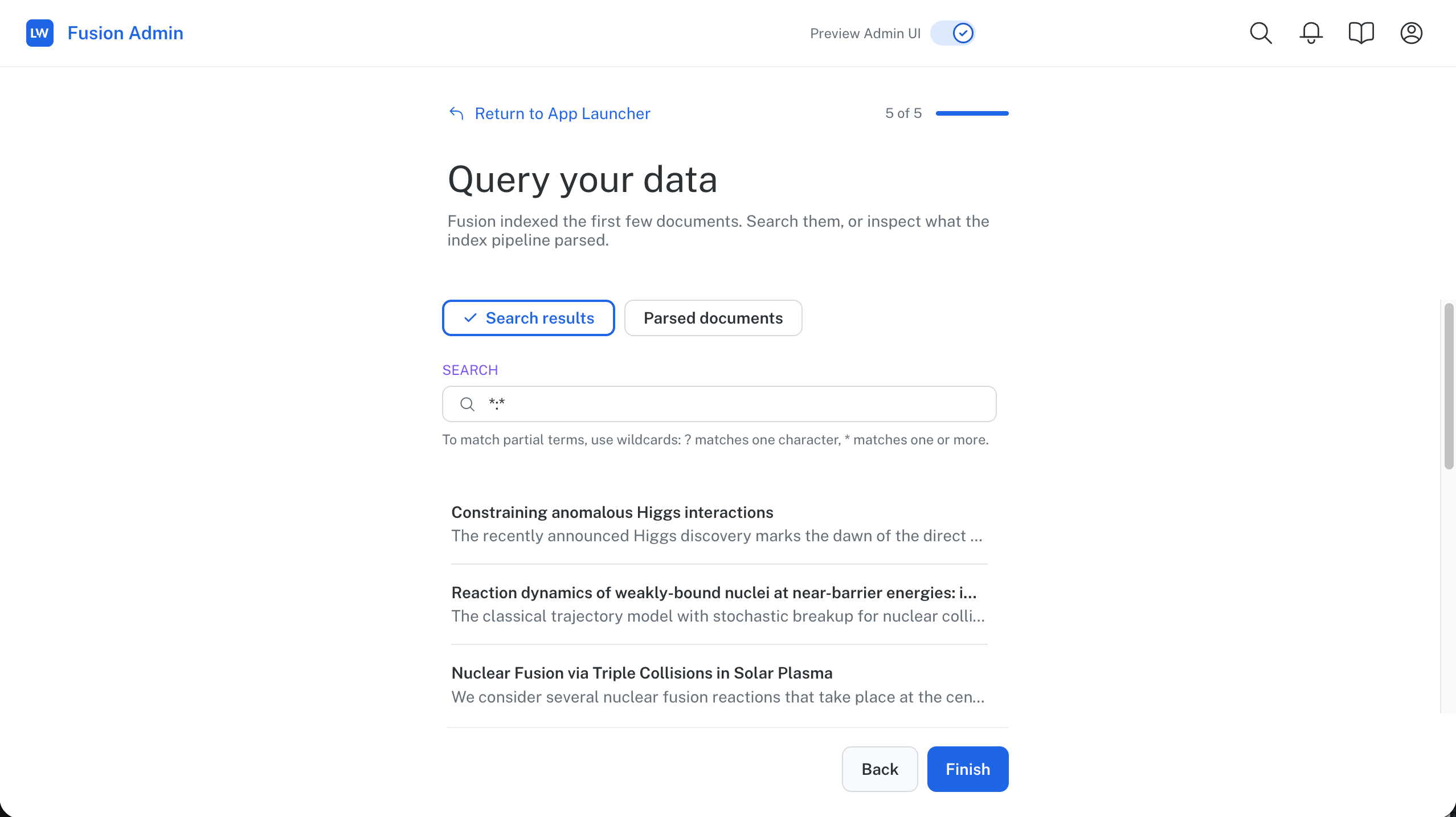
Enable the new Admin UI
The toggle for the new Admin UI appears only after the new UI is enabled in your Fusion deployment. By default, Fusion 5.19 deploys the new UI but doesn’t turn it on.Prerequisites
- Fusion 5.19 or later.
- cert-manager installed in your Kubernetes cluster. Fusion’s feature flag operator requires it.
Turn on the new Admin UI
1
Update your values file
Add these settings to the custom values file you use for your Fusion deployment:These settings turn on feature flags, install the operator that manages them, and turn on the flag that serves the new Admin UI.
2
Apply the change
Run your upgrade script, or run
helm upgrade with all of your custom values files.
See Fusion 5 Upgrades.3
Refresh the Admin UI
Log in to Fusion and refresh the page.
The toggle appears at the top of the screen.
If you don't see the toggle
If you don't see the toggle
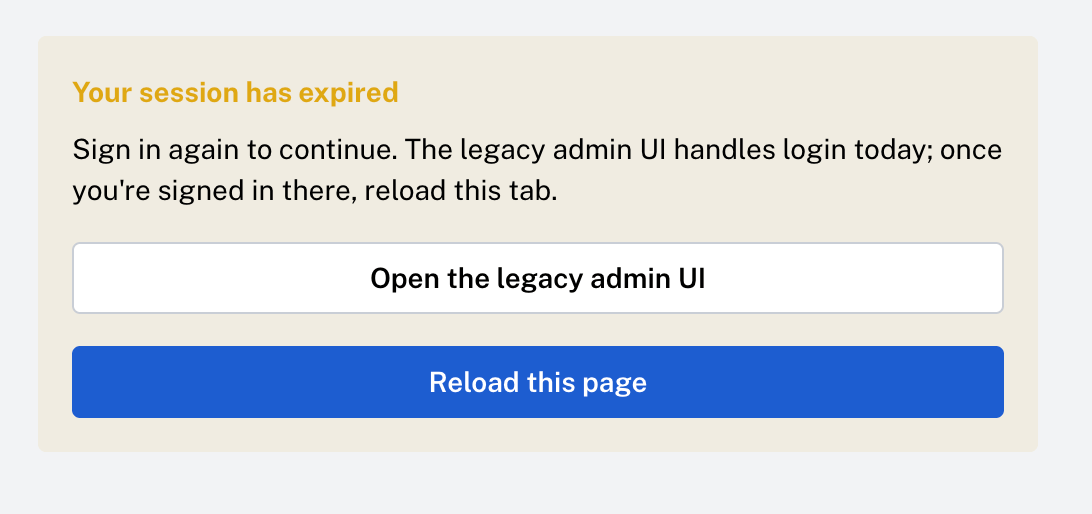
Fusion hides the toggle, without showing an error, when it can’t serve the new Admin UI.
Check the following:
- You’re logged in. The toggle appears only for signed-in users. Do a hard refresh of the page.
-
The new UI is running. Replace
NAMESPACEwith your Fusion namespace: -
The feature flag operator is running:
If the command returns nothing, confirm that
open-feature-operator.enabledistrueand that cert-manager is installed. -
The flag is on:
The output should include
defaultVariant: "on". If the resource doesn’t exist, confirm thatglobal.featureFlagsEnabledistrue.
Access the new UI
Switch to the new Admin UI
Switch to the new Admin UI
To switch to the new Admin UI, click the toggle at the top of the screen:
Switch back to the legacy Admin UI
Switch back to the legacy Admin UI
To switch back to the legacy Admin UI, click the toggle at the top of the screen again:
Where did it go?
Most menu items are in the same group with the same name. These items have moved or changed:
A few items aren’t in the new UI yet: