

Benefits
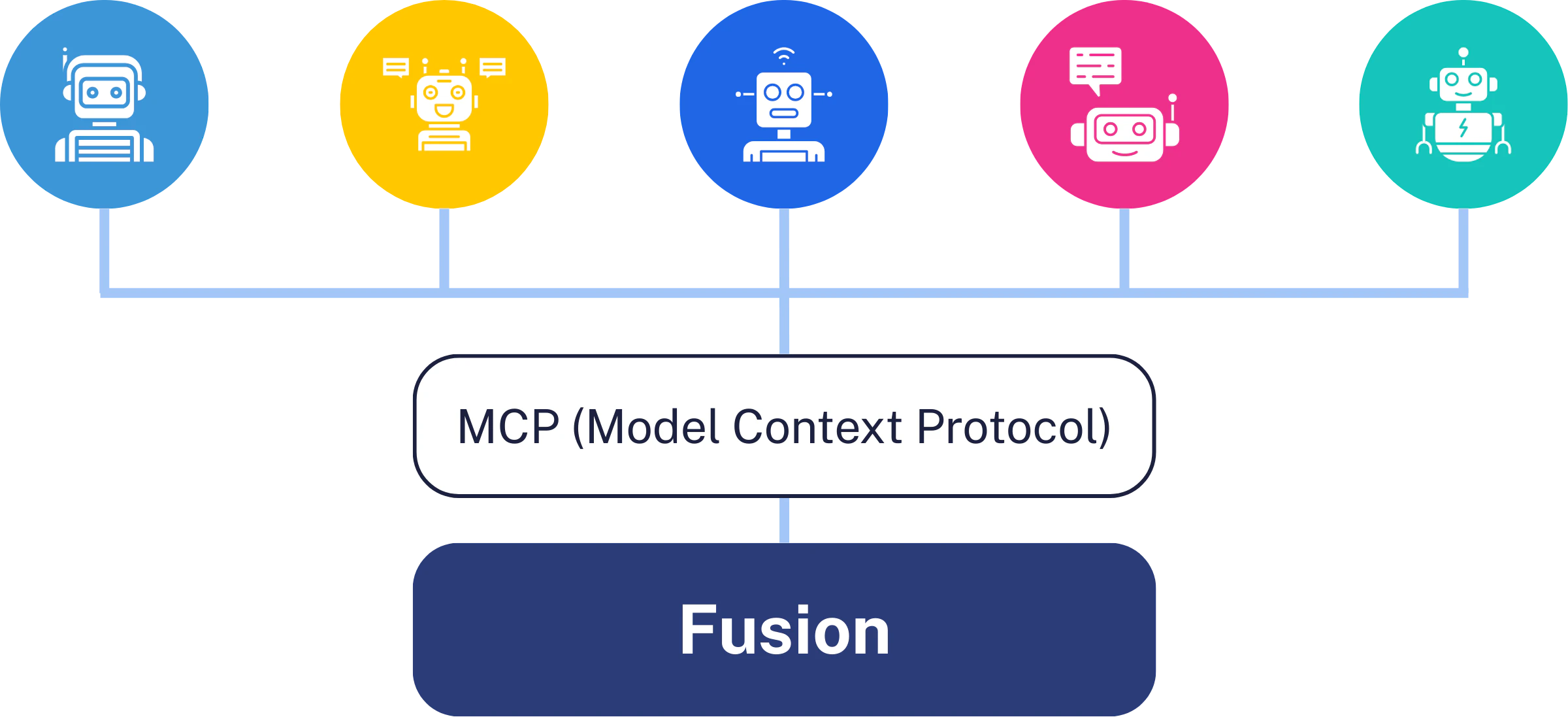
Lucidworks MCP server provides these advantages:- Self-service integration: Configure Claude to access Lucidworks Search data without custom API development.
- Enterprise security: Leverages Lucidworks Search’s existing security controls, including field-level security, role-based access, and audit logging.
- Multi-tenant architecture: Support multiple use cases with different data access patterns using query profiles and collection isolation.
- Query pipeline integration: Claude benefits from your custom query pipelines, ML models, and relevance tuning.
- Extensible tool framework: Add custom tools programmatically that automatically become available to Claude.
Supported AI clients
Lucidworks MCP works with any MCP-compatible AI client, including these popular clients:- Claude Code - Command-line AI agent with built-in MCP support (recommended for easiest setup).
- Claude Desktop - Desktop application for conversational AI.
MCP server setup
Before you begin
Before configuring MCP access, ensure you have the following:- Lucidworks Search 5.17 or later with the MCP Server service running
- A Lucidworks Search app configured with indexed content
- A query profile created for MCP access
- Claude Code (recommended) or Claude Desktop
https://FUSION_HOST/mcp.Set up authentication
Lucidworks Search MCP Server supports two authentication methods:API key authentication
API key authentication
OAuth 2.1 authentication (Lucidworks Search 5.18 and later)
OAuth 2.1 authentication (Lucidworks Search 5.18 and later)
- User-specific access control tied to authenticated users
- Automatic token expiration and refresh (access tokens expire after 30 minutes)
- Immediate revocation when users are deleted
- Standard protocol support for all OAuth 2.1-compliant AI clients
Configure the MCP server
For any query profile, you can configure an MCP search experience in the Query Profiles panel of the Lucidworks Search UI. Repeat these steps for each query profile that you want to make available as an MCP search experience.Open the query profile
Enable the search experience
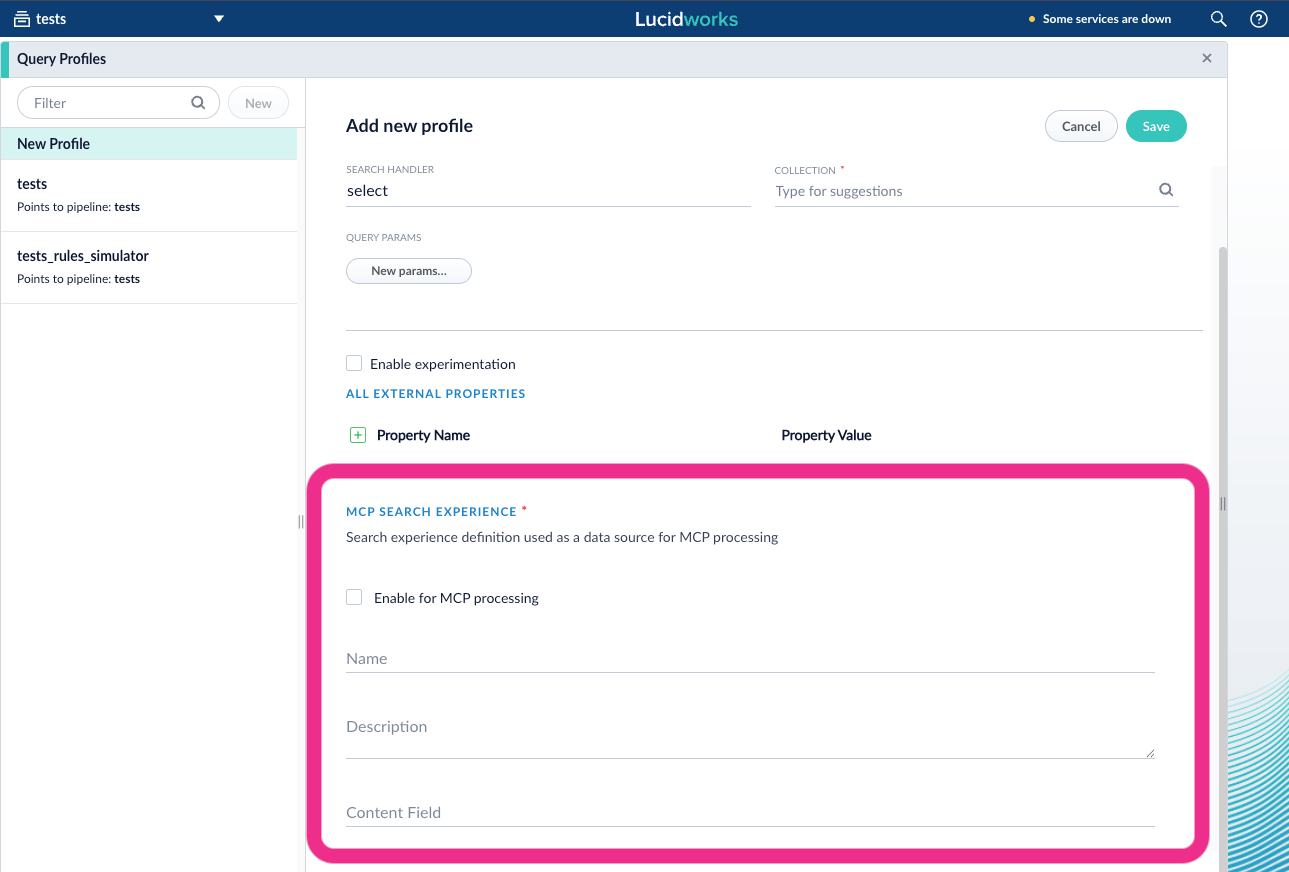
Configure search experience metadata
- Name: Display name for this search experience (required)
- Description: Description that helps Claude understand when to use this search experience (required)
- Content Field: Optional field name to use as the document description source
- If the field contains a value in the Query Profile response, that value is used.
- If the field is empty, the MCP server falls back to checking default fields like
body_t.
- The MCP server checks default fields like
body_tto generate document descriptions.
Save the query profile
Connect an AI agent
Connect your AI agent using the authentication method you configured in the previous step: API key or OAuth 2.1.Connect Claude Code
Connect Claude Code
- OAuth 2.1 (Lucidworks Search 5.18+)
- API key (Lucidworks Search 5.17+)
Add the Lucidworks MCP server
FUSION_HOST with your Lucidworks Search host.
Claude Code opens a browser window to complete the OAuth flow with your identity provider.--transport flag requires a recent version of Claude Code.Verify the configuration
fusion listed, with the HTTP transport.Connect Claude Desktop
Connect Claude Desktop
.mcpb) file; this is the recommended method.
Alternatively, you can configure Claude Desktop manually by editing the JSON configuration file.- MCP Bundle (Recommended)
- Manual JSON Configuration
- Make sure Claude Desktop is already installed.
-
Download the MCPB file that matches your Lucidworks Search version from the fusion-cloud-native
mcpdirectory:- Lucidworks Search 5.17.x:
fusion-5-17-0.mcpb - Lucidworks Search 5.18.x:
fusion-5-18-0.mcpb
- Lucidworks Search 5.17.x:
- Double-click the downloaded file. The file opens in Claude Desktop, where you can review the file’s details.
-
In Claude Desktop, click Install:
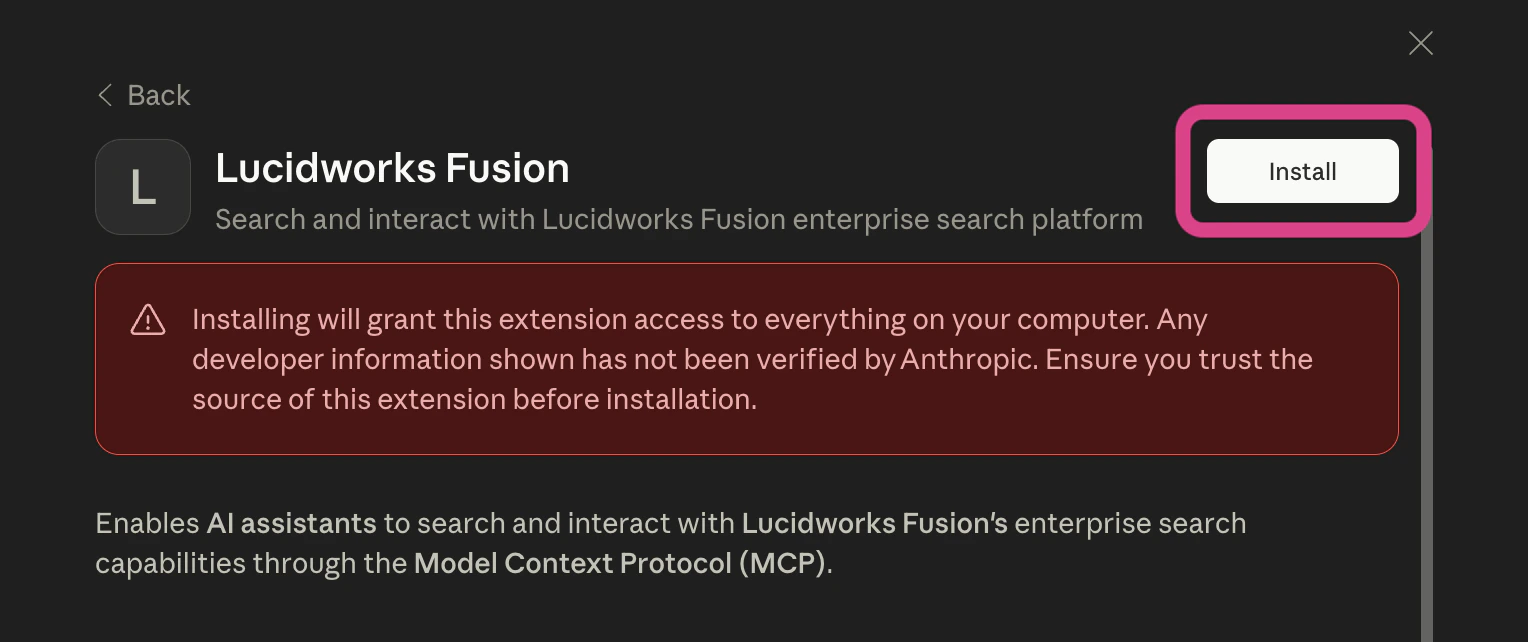
- In the next modal, Claude Desktop prompts you to confirm that you want to install this MCP server. Click Install to confirm.
-
Enter your MCP server URL (as in
https://FUSION_HOST/mcp) and your API key: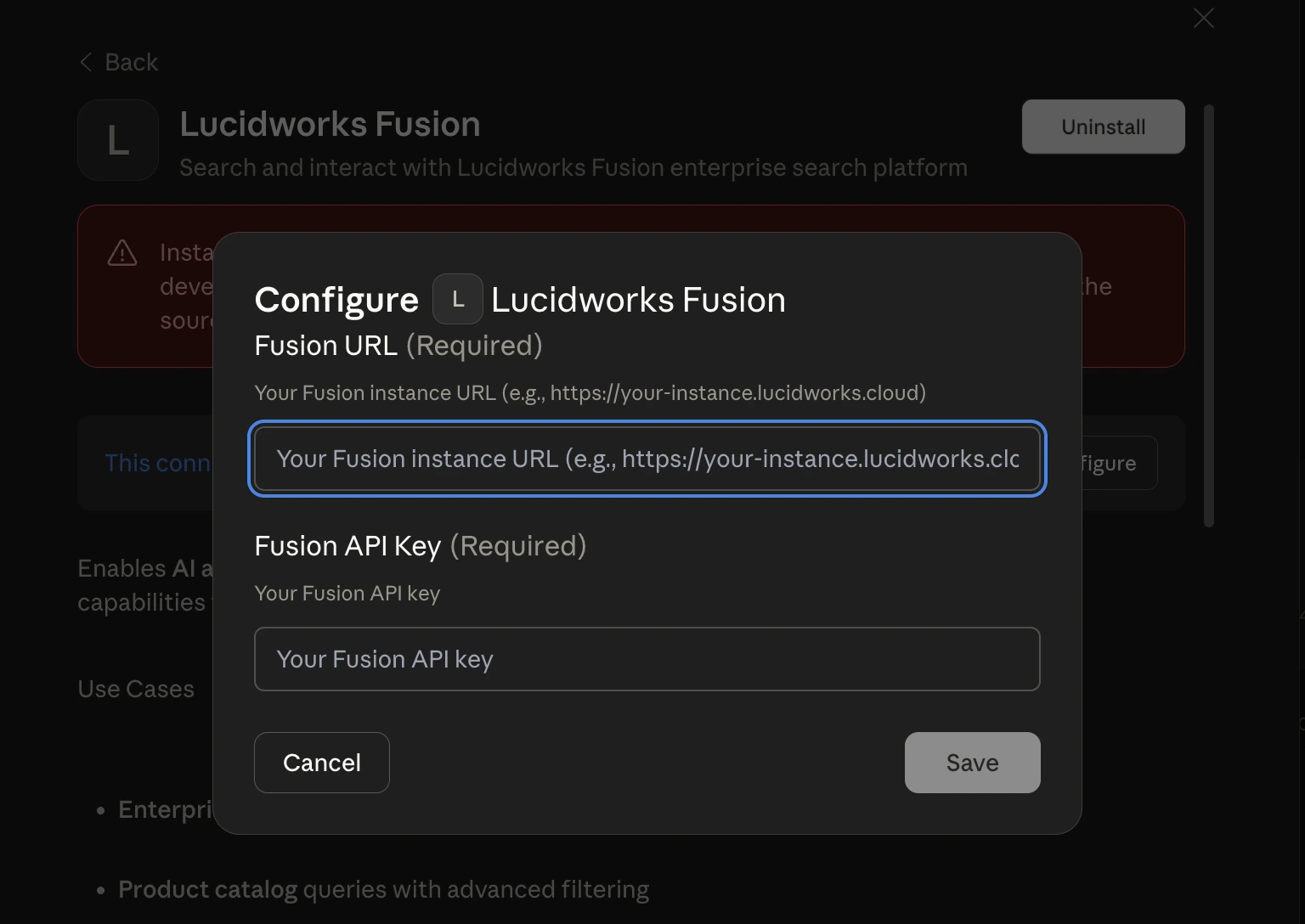
- Click Save.
-
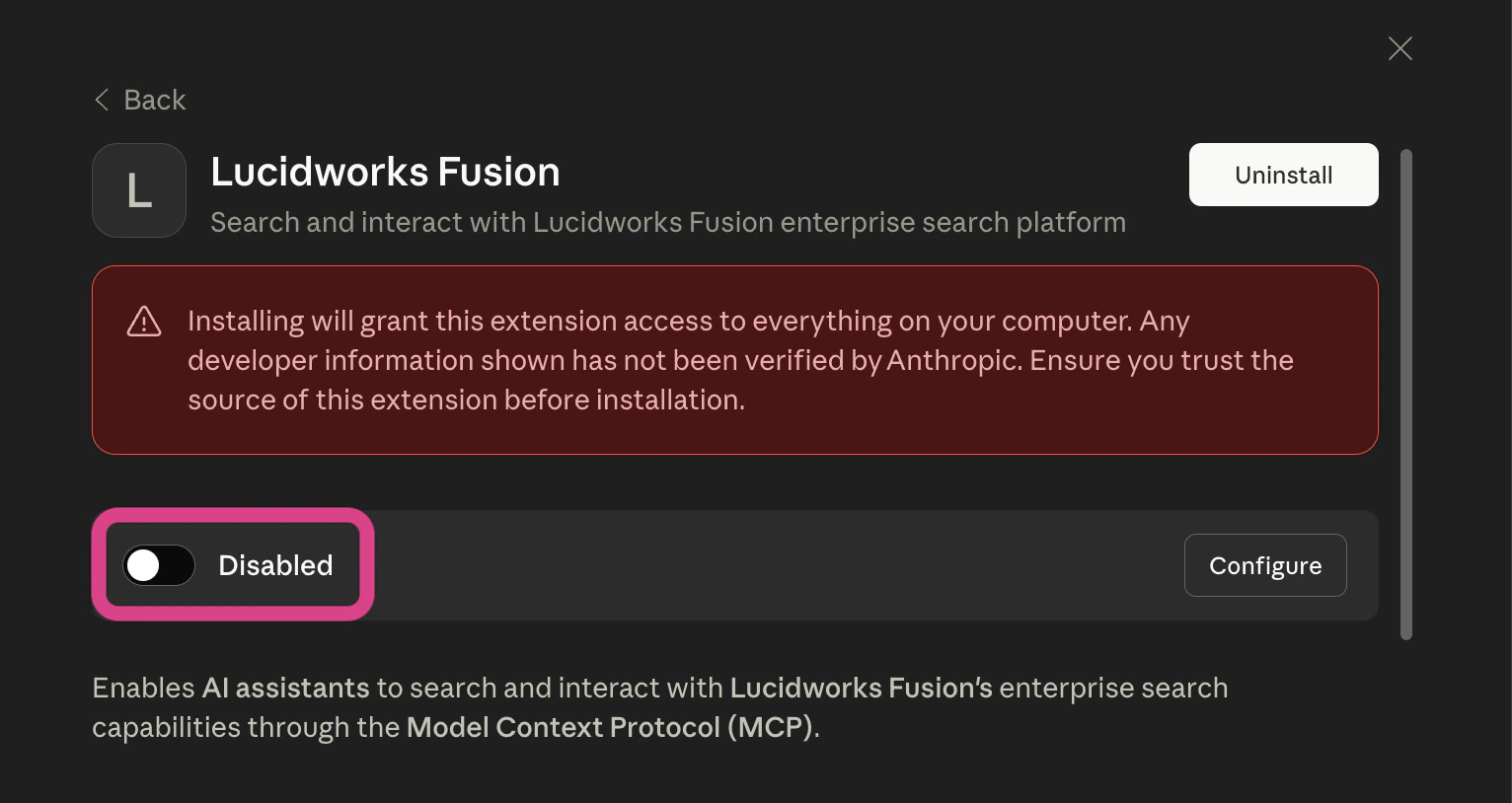
Click the Disabled switch to toggle it to Enabled:
- Close the modal in Claude Desktop.
- Verify the connection.
Test the connection
After configuring your AI agent, test the connection with these example prompts. These prompts verify that the MCP server is working correctly and that Claude can discover and use the configured search experiences.Retrieve search experiences
What search experiences are available?
Search by name
Search the Product Catalog for wireless headphones
Test multi-experience routing
Find recent HR policies in Employee Resources
Match natural language queries
What information can I find about benefits and time off policies?
Search with MCP
Lucidworks MCP server provides four tools that work together in a discovery-to-execution pattern. Claude automatically determines which tool to call based on the user’s query.List search experiences
Thelist_search_experiences tool discovers available search experiences configured in Lucidworks Search.
You can use this tool in the following situations:
- You need to see what search experiences are available.
- You need to determine which search experience to use for a specific query.
- You need to help users who don’t know what they can search for.
Search documents
Thesearch_documents tool searches for documents and returns relevant results from Lucidworks Search collections.
Based on user input, it automatically selects a search experience and can optionally filter and sort results.
For example, a user can input “Find all reports from the last six months and sort them with the newest ones first” to trigger a query that uses filters to specify the document type and date range and sort to order the results by date, newest to oldest.
Get a document
Theget_document tool fetches a specific document by its ID.
This is useful when search_documents has already been called and the user inquires about a specific document returned in those results.
The tool returns complete details about the document, such as its title, description, URL, similar documents (if MoreLikeThis is implemented), and highlighted fields (if highlighting is implemented).
Get the field schema
Theget_schema tool retrieves available fields within a specific search experience and returns schema information with sortable and searchable capability flags.
You can use this tool in the following situations:
- You need to discover what fields exist within a particular search experience.
- You need to determine which fields can be used for sorting.
- You need to determine which fields can be used for filtering.
- You need to display field information to users with human-readable names.
sort or filters parameters when searching documents, or when users ask questions like “What fields can I sort by?” or “What can I filter by?”.
The tool returns field names with their display values and capability flags.
By default, the tool returns only populated fields.
Set includeEmptyFields=true to retrieve the complete schema.
How the tools work together
Claude uses these tools in the following order:- When a user asks a question without specifying a search experience, Claude calls
list_search_experiencesto discover available options. - Claude analyzes the search experiences and matches them to the user’s query intent.
- Claude calls
search_documentswith the appropriate search experience. - Claude returns results to the user.
-
Calls
list_search_experiencesand receives the following data: - Identifies the “Product Catalog” search experience as the one that best matches the prompt.
-
Calls
search_documentswithsearchExperience: "Product Catalog"and the user’s query. - Returns the product results.
Example use cases
The following examples demonstrate common MCP integration patterns.Enterprise knowledge search
Enterprise knowledge search
Multi-language search
Multi-language search
Response with highlighting and MoreLikeThis
Response with highlighting and MoreLikeThis
Example multi-tenant configurations
Lucidworks MCP server supports multi-tenant architectures where different users or use cases access different data subsets.Employee vs. contractor access
Employee vs. contractor access
- The employee API key accesses a server with search experiences configured for full access to all collections.
- The contractor API key accesses a server with search experiences limited to public documentation and shared resources.
Public vs. authenticated access
Public vs. authenticated access
Troubleshooting
Connection failures
Connection failures
-
Verify the endpoint is accessible:
If the endpoint is accessible, it returns output similar to the example below. Any other result means that the endpoint is not accessible.The protocol version in this example (
2025-11-25) may differ from your installed version. See the MCP schema specification for the current version.
-
Check the URL path is exactly
/mcp(no trailing slash, not/api/mcp). -
Test with verbose logging:
400 Bad Request - Missing Required Header
400 Bad Request - Missing Required Header
x-api-key header is required for authentication:No results returned
No results returned
-
Verify the Lucidworks Search app contains indexed content:
- Check that the query profile has access to the expected collections.
- Test the same query directly in Lucidworks Search’s Query Workbench to confirm results exist.
- Review security trimming rules that might filter out documents for the API key’s role.
Slow response times
Slow response times
- Check the query profile’s pipeline stages for expensive operations.
- Review the query complexity (complex filter queries can impact performance).
- Monitor Lucidworks Search’s query logs for slow queries.
- Consider optimizing ML model execution or caching strategies.
- Verify network latency between Claude and Lucidworks Search instance.
- Contact Lucidworks if performance tuning is needed.
Expected search experience doesn't appear in list
Expected search experience doesn't appear in list
list_search_experiences returns fewer search experiences than you configured, follow these steps.Solution:-
Check server startup logs for:
INFO - Found N valid search experience(s): [names] - Compare logged names with your configuration.
-
Verify all required fields are populated (
name,description,application-name,query-profile). - Fix configuration and restart.
Search returns 'Search experience is not configured'
Search returns 'Search experience is not configured'
-
Call
list_search_experiencesto get exact names. - Use the exact name (case-sensitive).
- ❌ “engineering docs” (wrong case)
- ✅ “Engineering Docs” (exact match)
Connection errors - Unable to process request
Connection errors - Unable to process request
- Verify Lucidworks Search is running and accessible.
-
Check that
application-nameexists in Lucidworks Search (case-sensitive). -
Verify
query-profileexists and is enabled in Lucidworks Search. - Check authentication and network connectivity.
- Review MCP server logs for detailed error messages.
Empty search results (No documents found)
Empty search results (No documents found)
- Verify documents are indexed in Lucidworks Search (check Collections in Lucidworks Search UI).
-
Try omitting the query parameter to return all documents (defaults to
*:*): - Try a broader query.
- Test the same query directly in Query Workbench.
-
Verify
application-namepoints to the correct Lucidworks Search application. - Check query profile settings for permission filters.