

Fusion Applications and Collections
The course for Fusion Applications and Collections focuses on the features of Fusion apps and collections and best practices when working with them.
Learn more
Create and manage Lucidworks Search apps
Create and manage Lucidworks Search apps
You can delete an app in the Lucidworks Search UI or with the Apps API.
Manage apps in the Lucidworks Search UI
Create an app
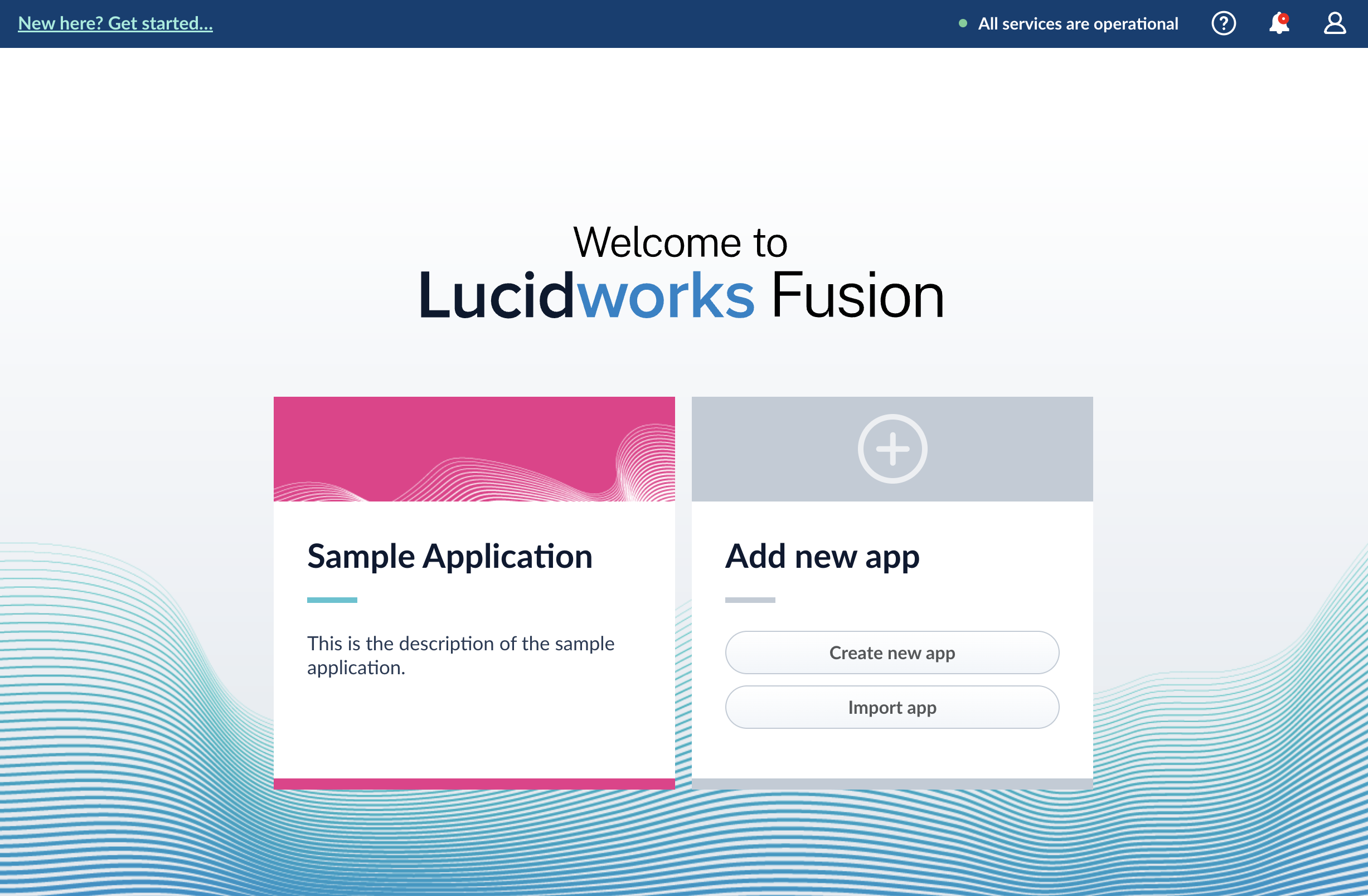
Lucidworks Search prompts you to create an app the first time you log in. You can create additional apps at anytime from Fusion’s home page.- Log into Fusion and navigate to the home screen.
-
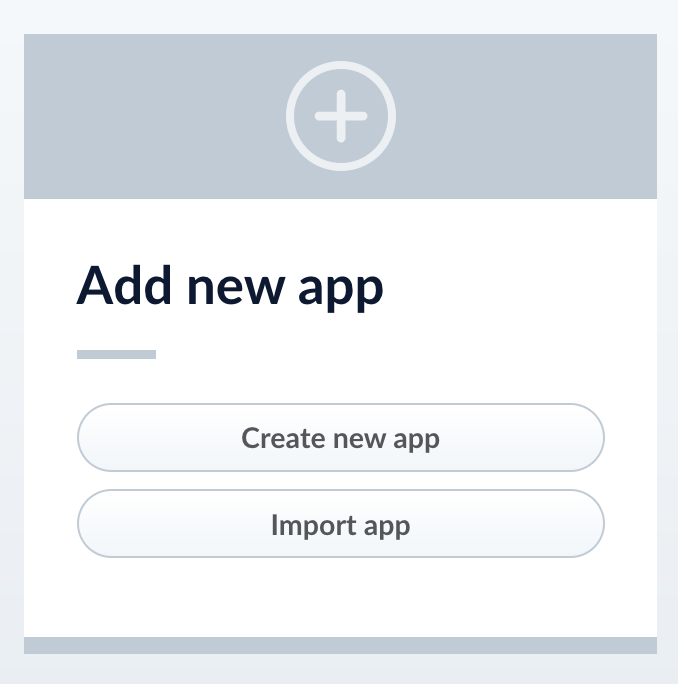
Click Create new app.
-
Enter a Name, Description, and select an App tile color.
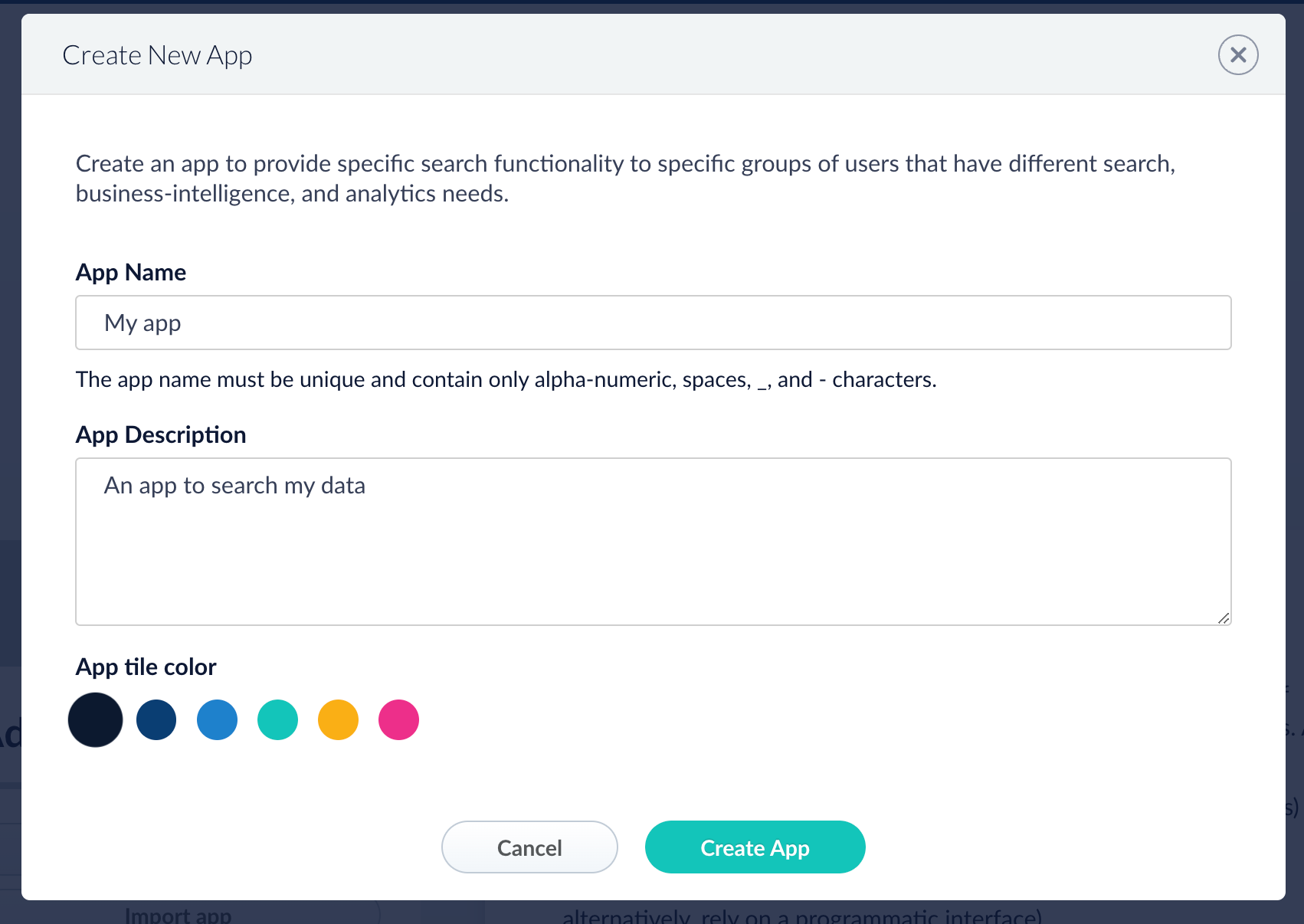
- Click Create App.
Modify or delete an app
- Log into Fusion and navigate to the home screen.
-
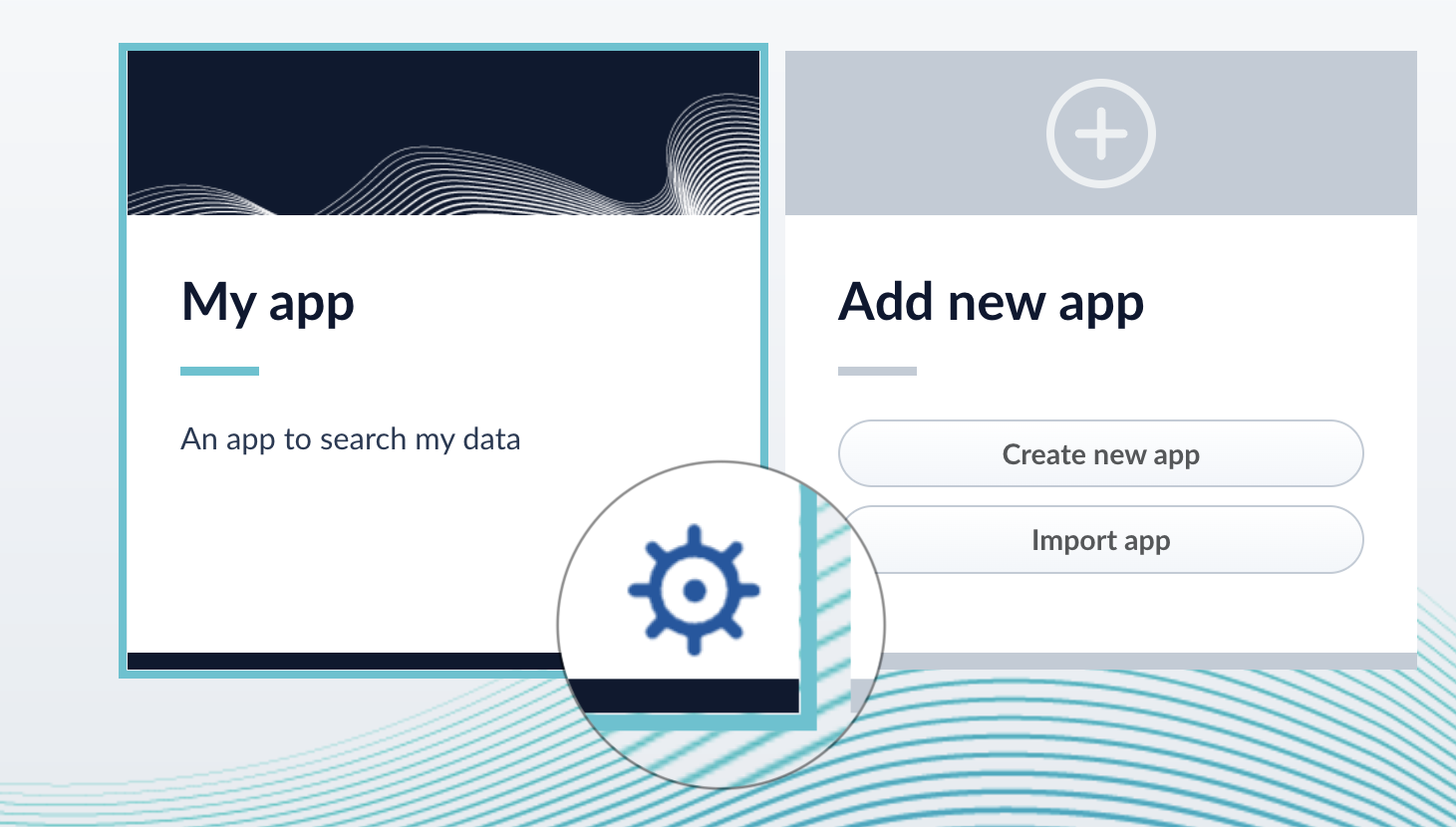
Click the Configure icon on the app you want to modify or delete.
-
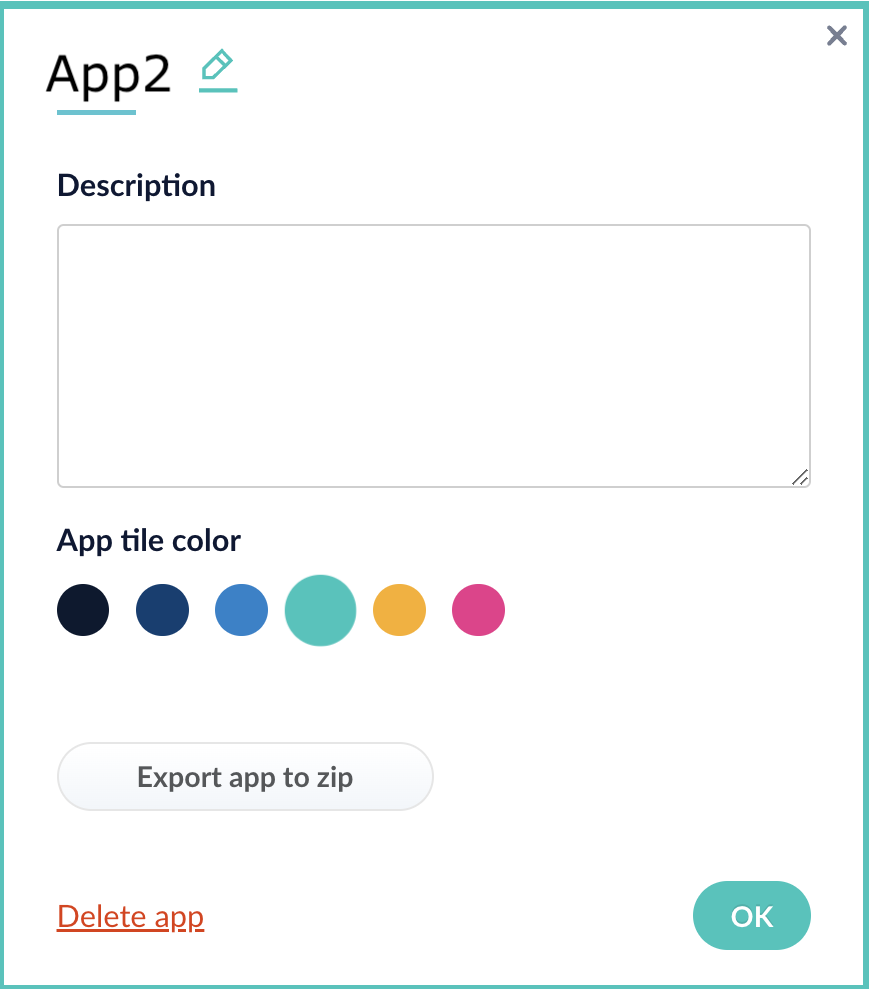
To modify the app, click the edit icon
 .
.
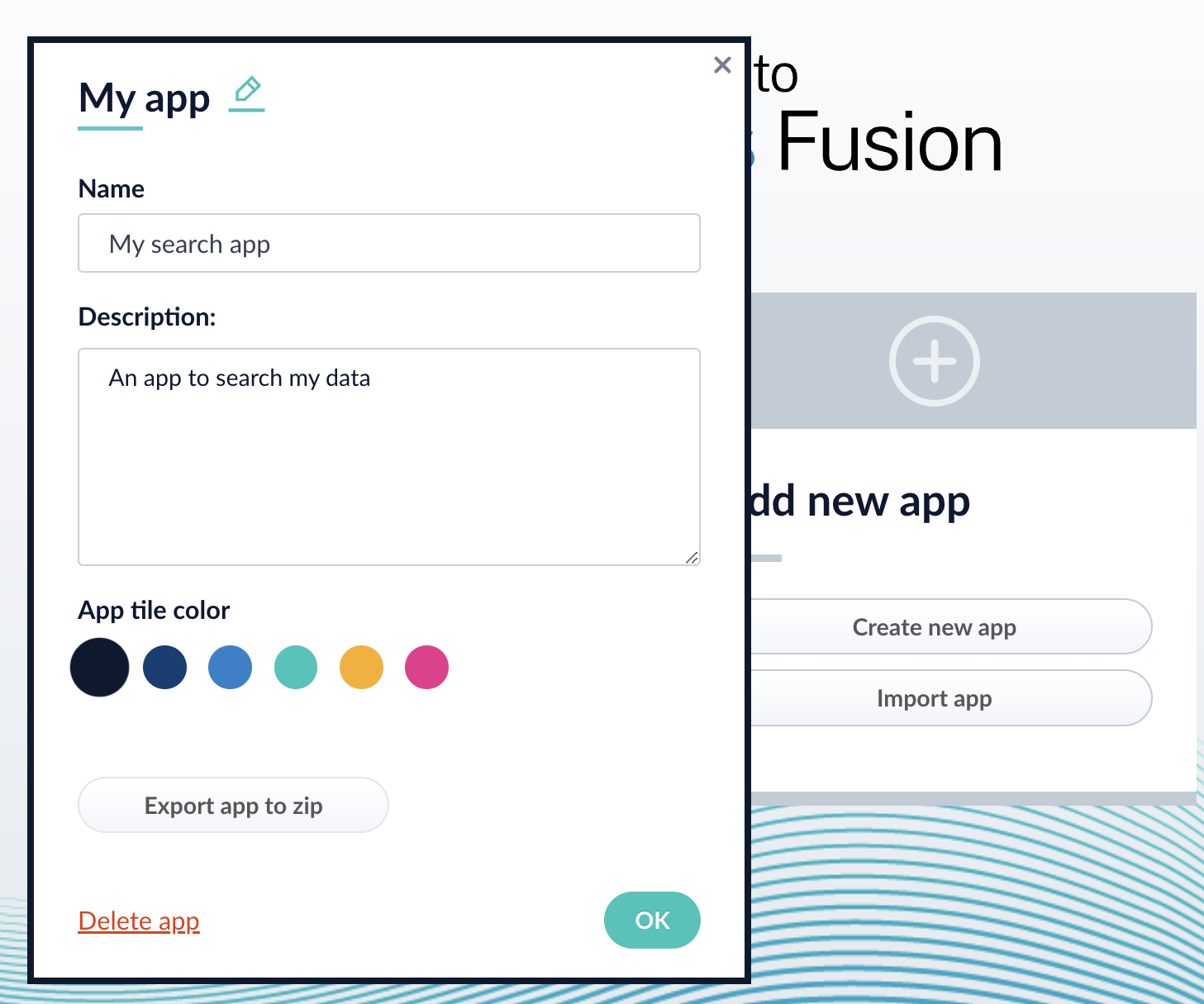
- Edit the Name or Description.
- Click OK.
-
To delete the app, click Delete app.
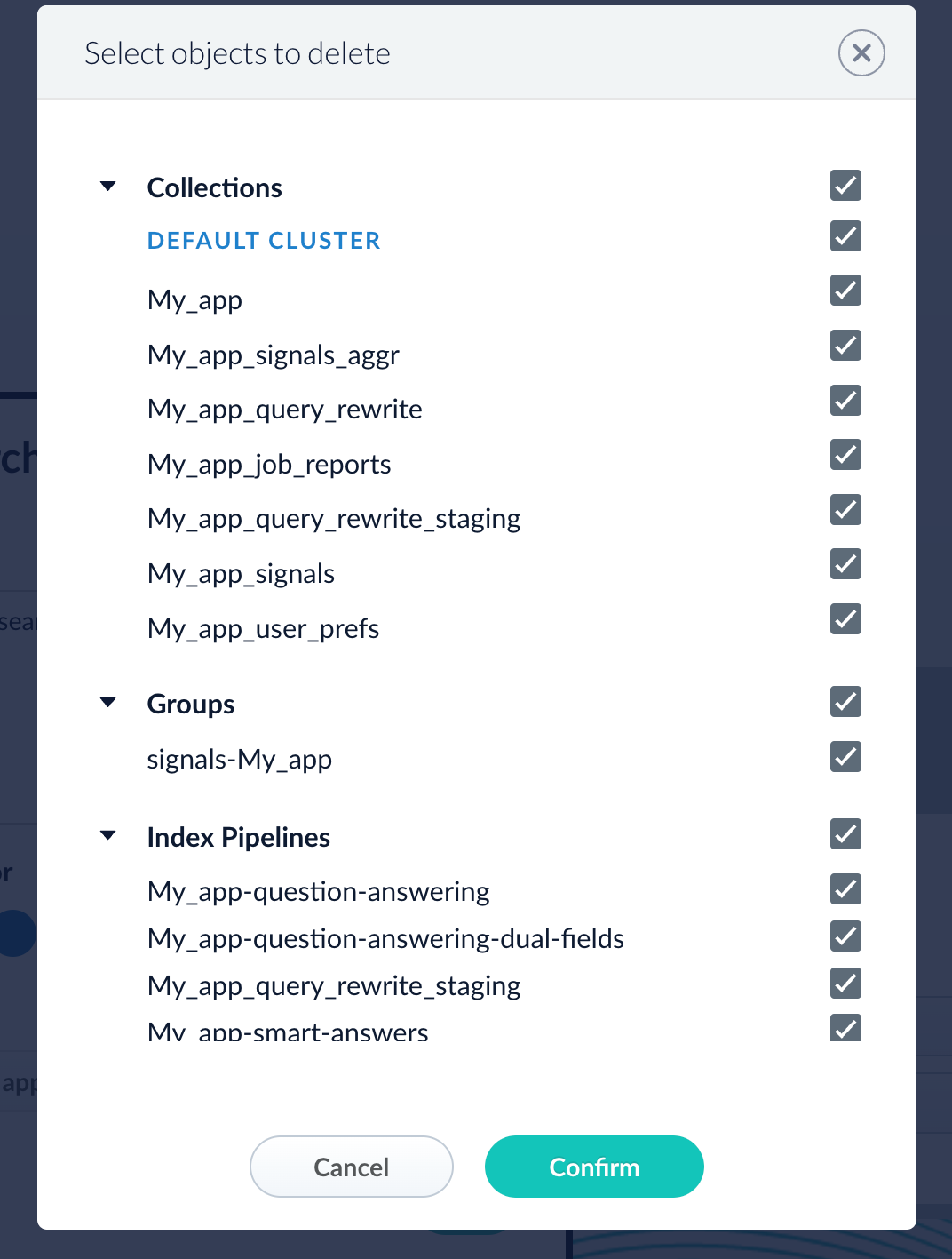
- A dialog box appears where you can choose which associated objects to delete or retain. Only objects not associated with other objects are displayed. All objects are selected by default.
-
Click Confirm.
Manage apps with the Apps API
Create an app
Delete an app
Run the following command, replacing{id} with the name of your app. This operation take about a minute to complete.Export a Lucidworks Search App
Export a Lucidworks Search App
To export a Lucidworks Search app, you can use either the Lucidworks Search UI or the Objects API.Get all app IDs, then export one app by IDExport two apps by ID
Export an app with the Lucidworks Search UI
- How to export an app with the Lucidworks Search UI
- Navigate to the launcher.
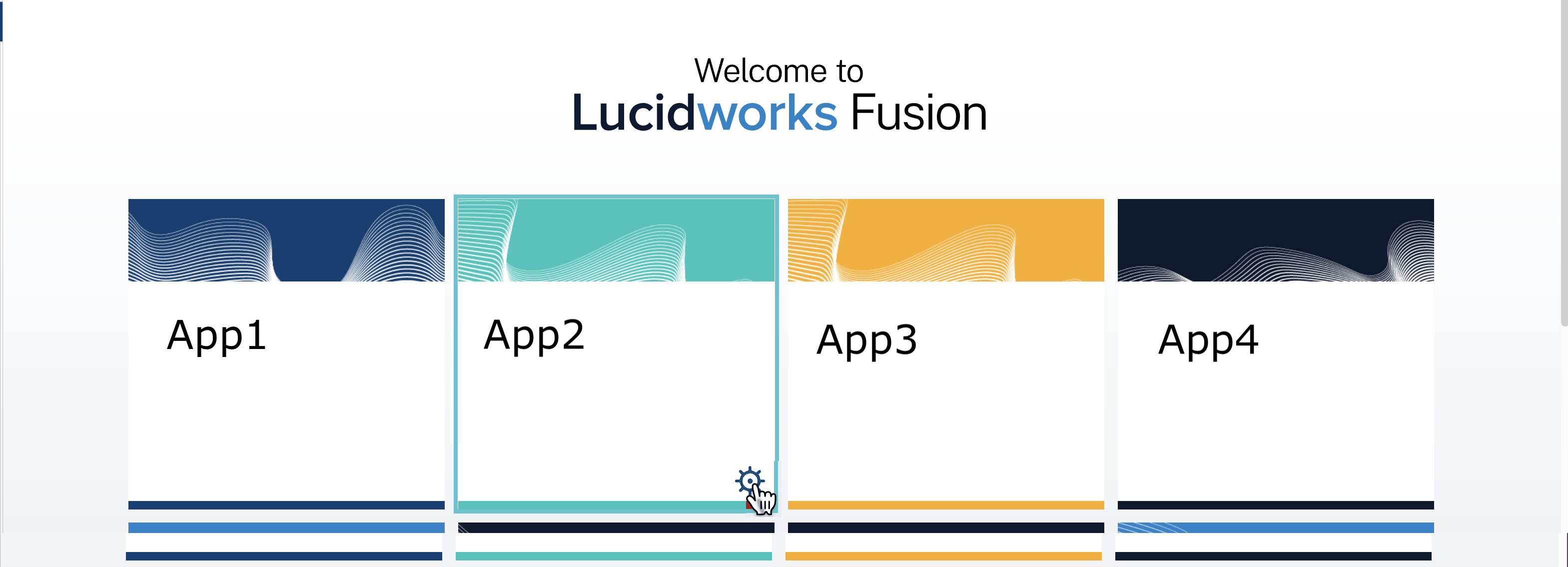
- Hover over the app you want to export and click the Configure icon:
- In the app config window, click Export app to zip:
Export an app with the Objects API
The examples below show how to export one or more apps:Export all appsWhen you export an app that includes objects that are shared with other apps, then all apps linked to that object are also exported.
Import a Lucidworks Search App
Import a Lucidworks Search App
To import an app, you can use either the Lucidworks Search UI or the Objects API.Import objects, substitute the password variables, and merge any conflictsImport a zip file of Lucidworks Search objects and merge any conflicts
Import an app with the Lucidworks Search UI
- How to import an app with the Lucidworks Search UI
- Sign in to Lucidworks Search.
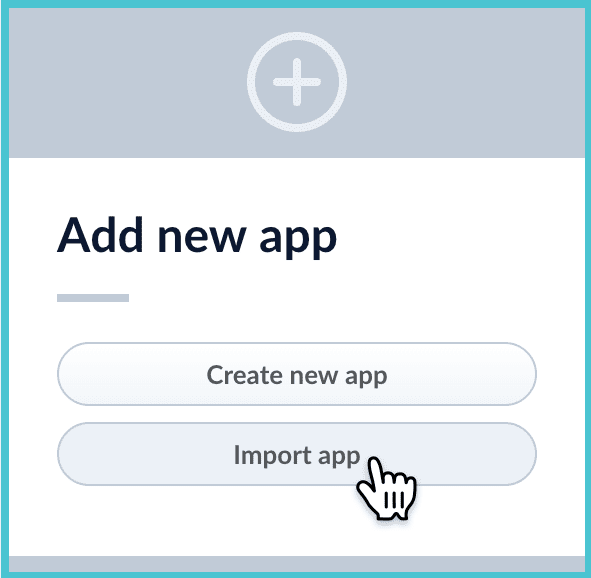
- In the Add new app screen, click Import app.
- Under Data File, click Choose File and select the zip file containing the app you want to import.
- If your app has usernames and passwords in a separate file, select it under Variables File.
If the Variables File is needed, it must be a separate file that is not in a .zip file. It is a .json map of variables to values. The following is an example:
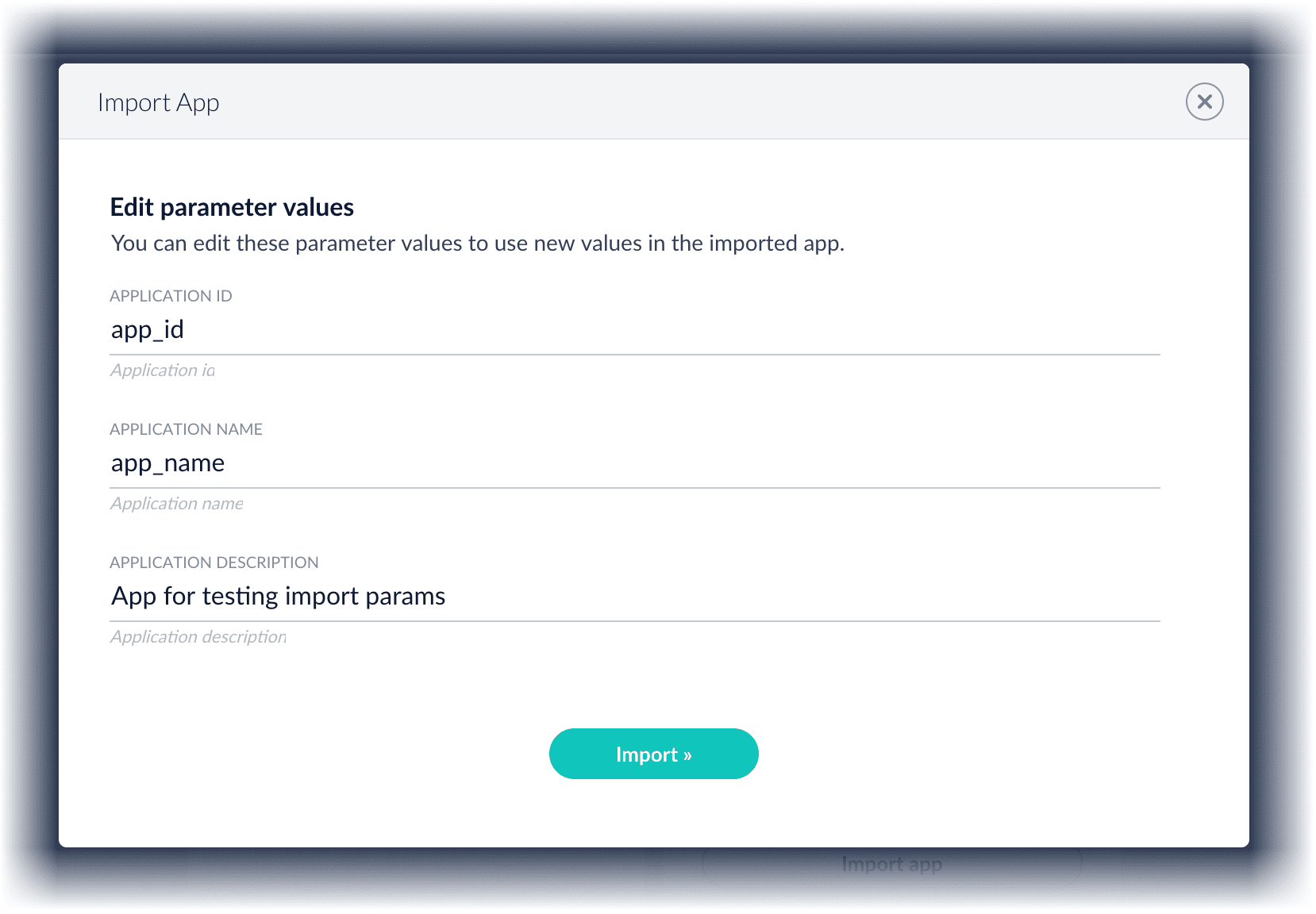
- You can sometimes edit parameter values to use the new values in the imported app. If this is the case, Lucidworks Search displays a dialog box that lets you edit the parameter values.\
Import an app with the Objects API
Like any other Lucidworks Search object, an exported app is contained in a zip file which Lucidworks Search can consume upon import. The zip file does not need to be expanded first.Import objects from a file and stop if there are conflictspassword_file.json must contain plaintext passwords.Sharing objects between apps lets you reuse parts of apps and synchronize apps without duplicating objects. For example, after you have developed a query pipeline that is well-suited to your data and search application, you can reuse it in another app with a different set of datasources.To share an object between apps:
When a shared object is modified in one app, the changes affect all other apps that share the object.
- Navigate to the app that does not yet include the object.
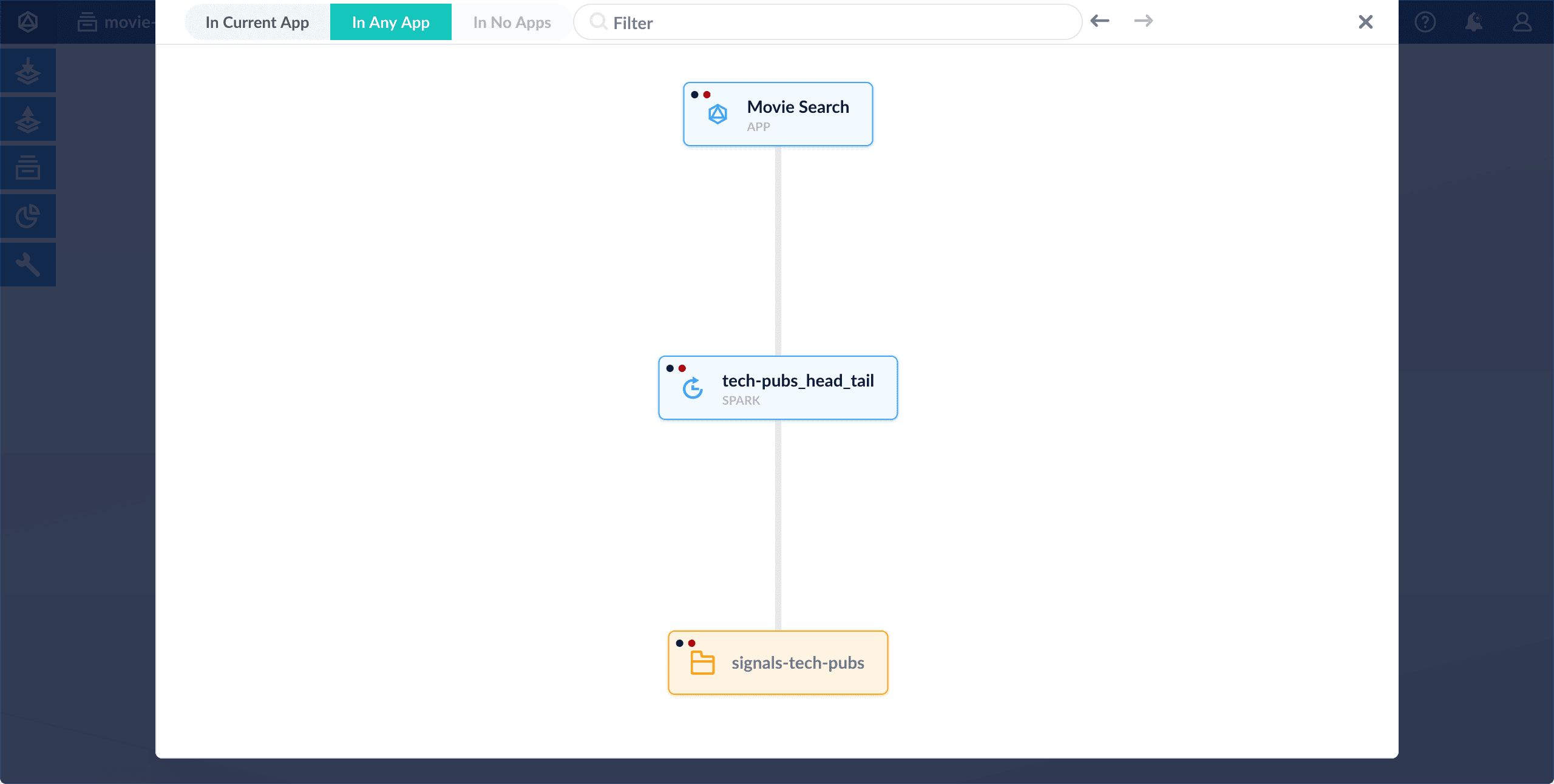
- Navigate to System > Object Explorer or click Find Objects.
- Click In Any App.
- Select the object you want to include in this app.
- Hover over the object to reveal the app icon.\
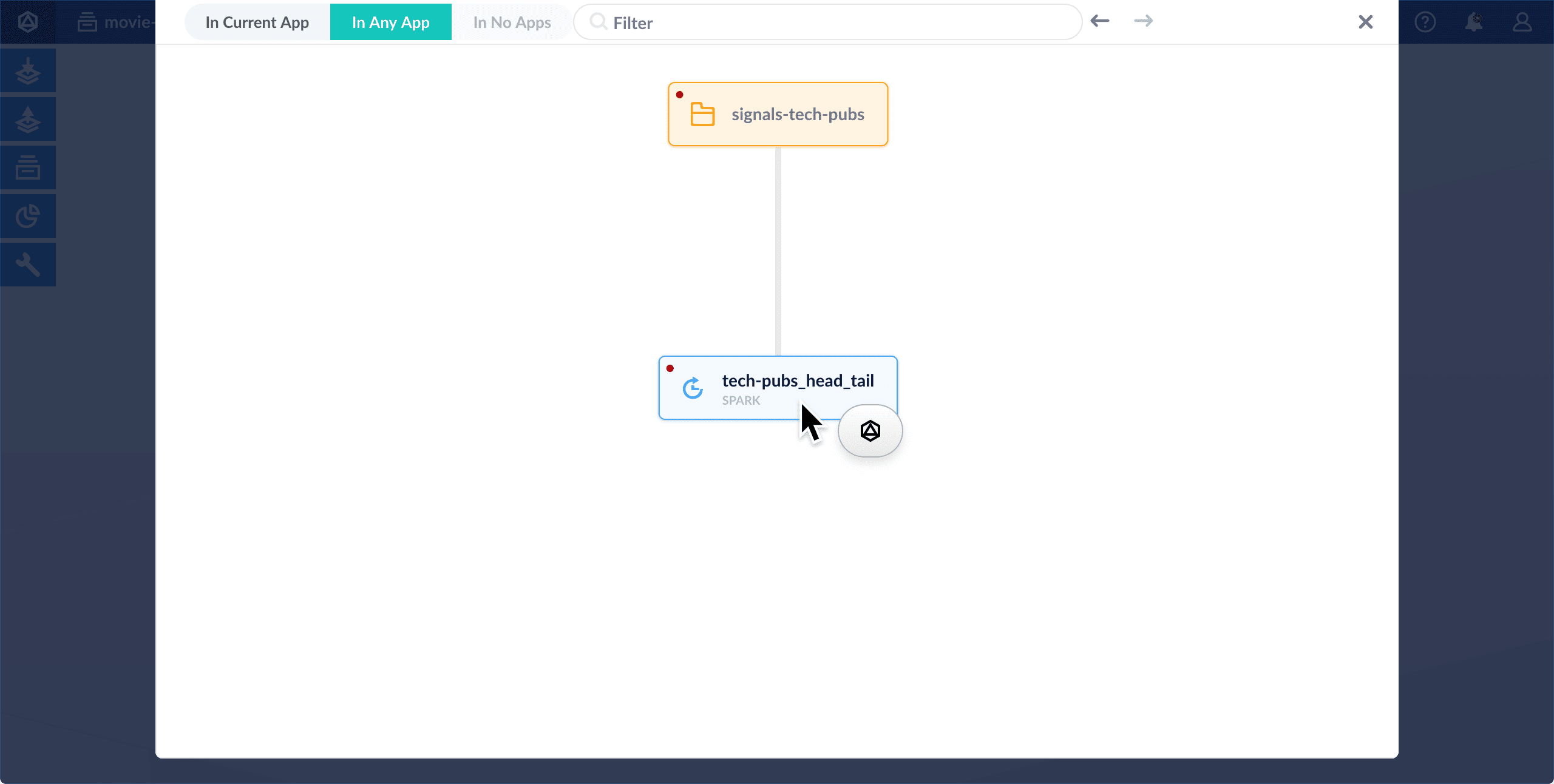
- Click the app icon.
- Select Add to this app.\

Fusion Applications and Collections
The course for Fusion Applications and Collections focuses on the features of Fusion apps and collections and best practices when working with them.