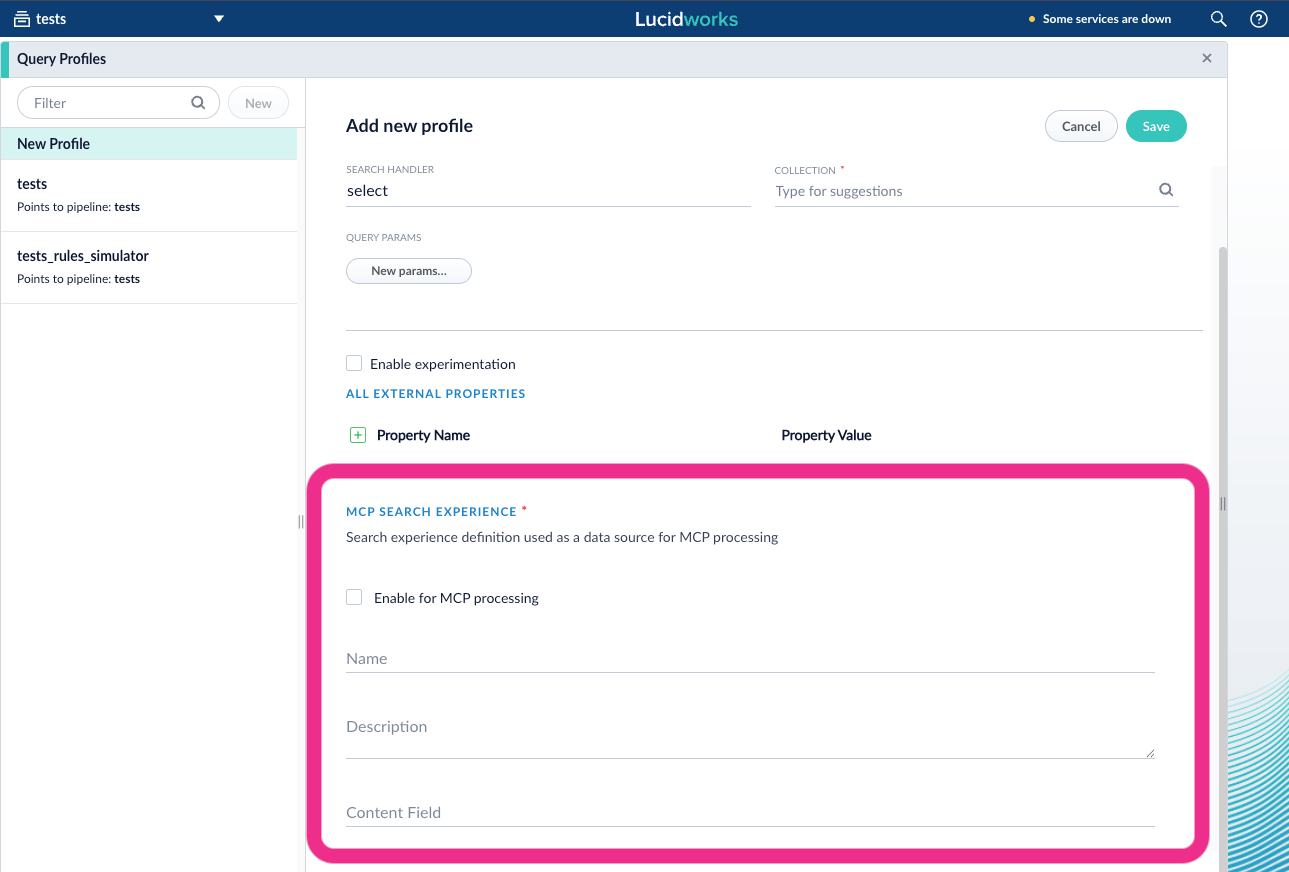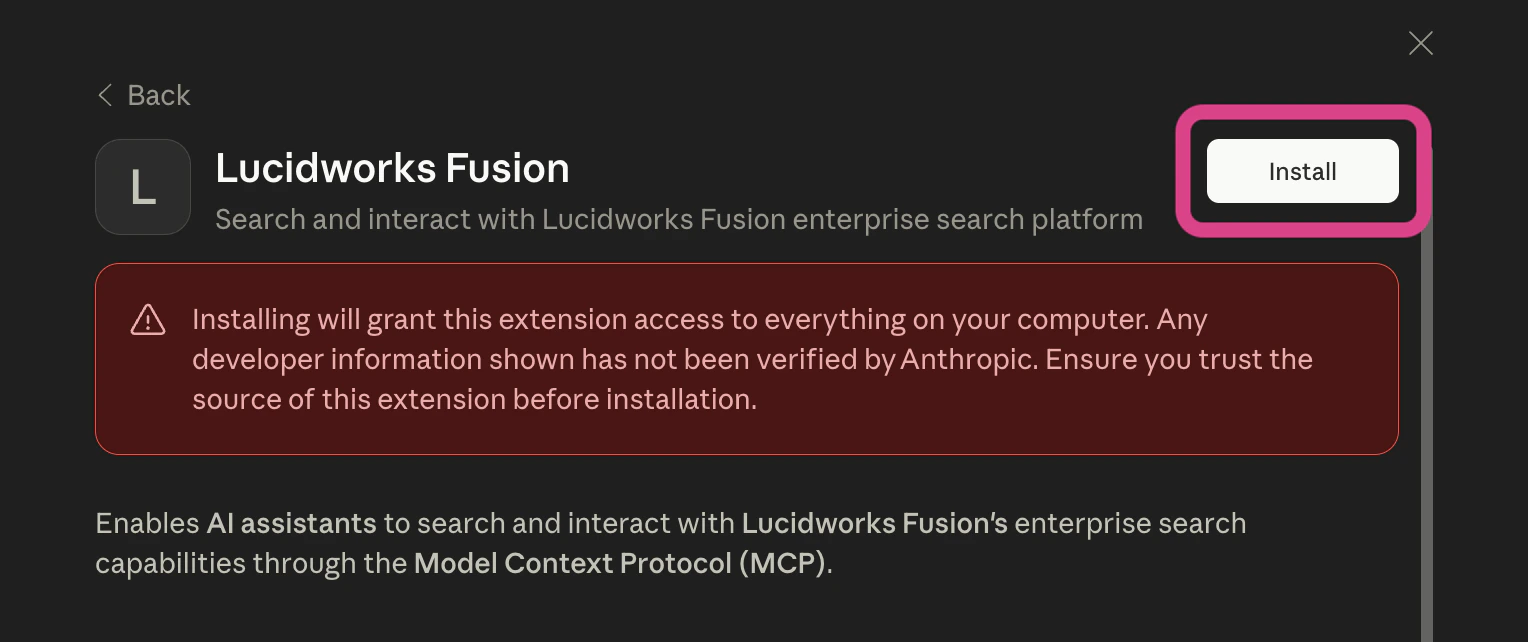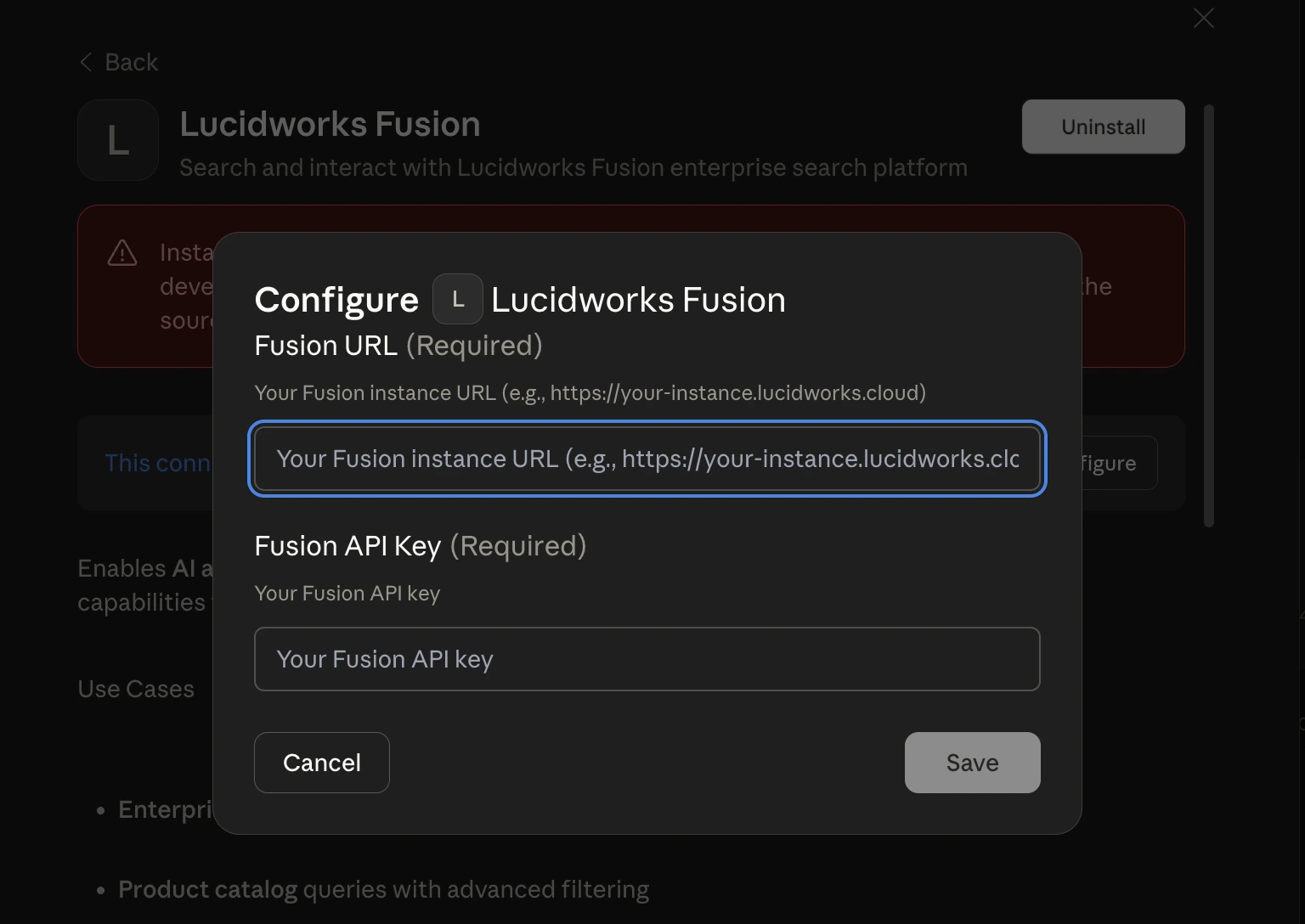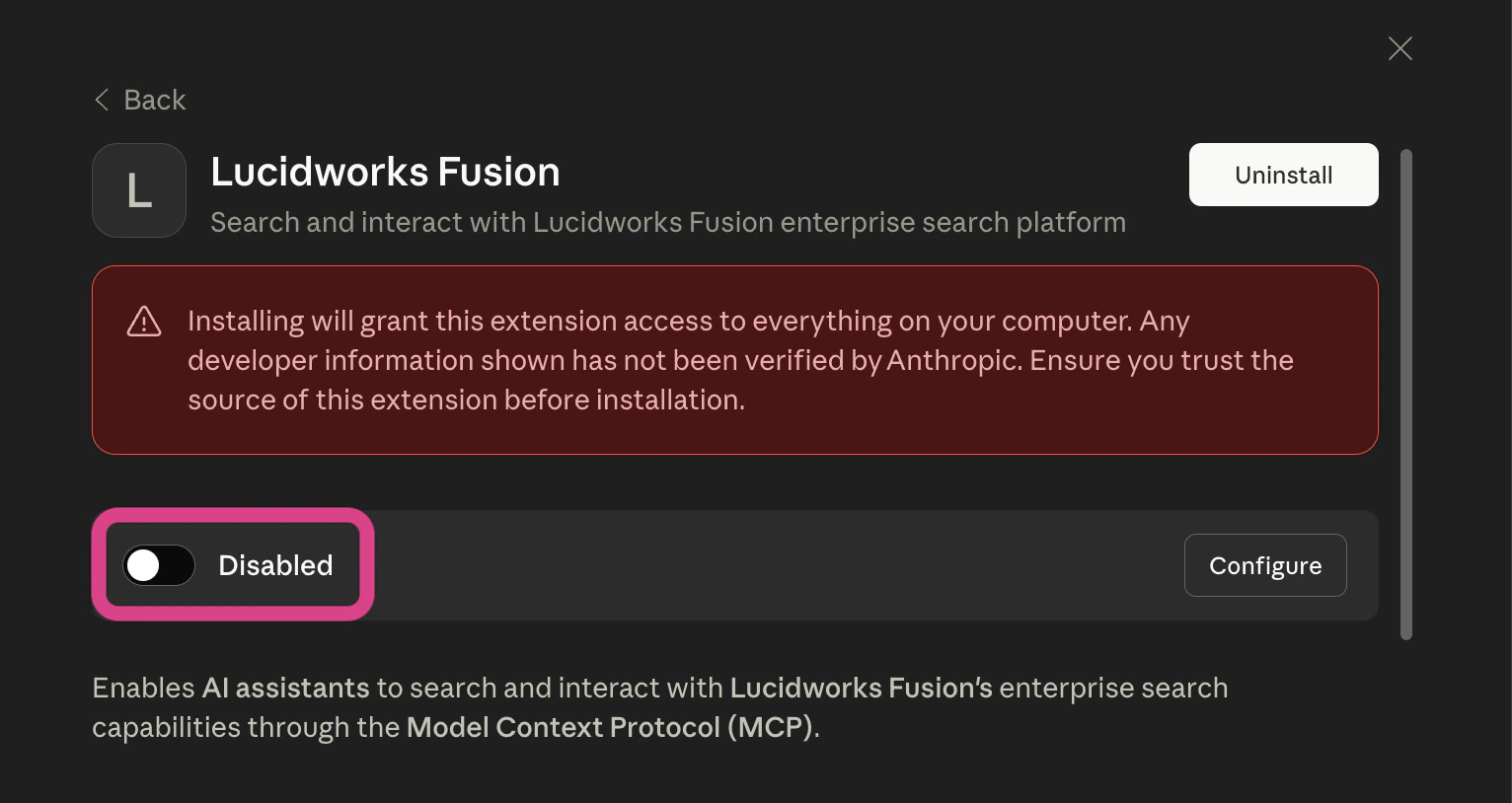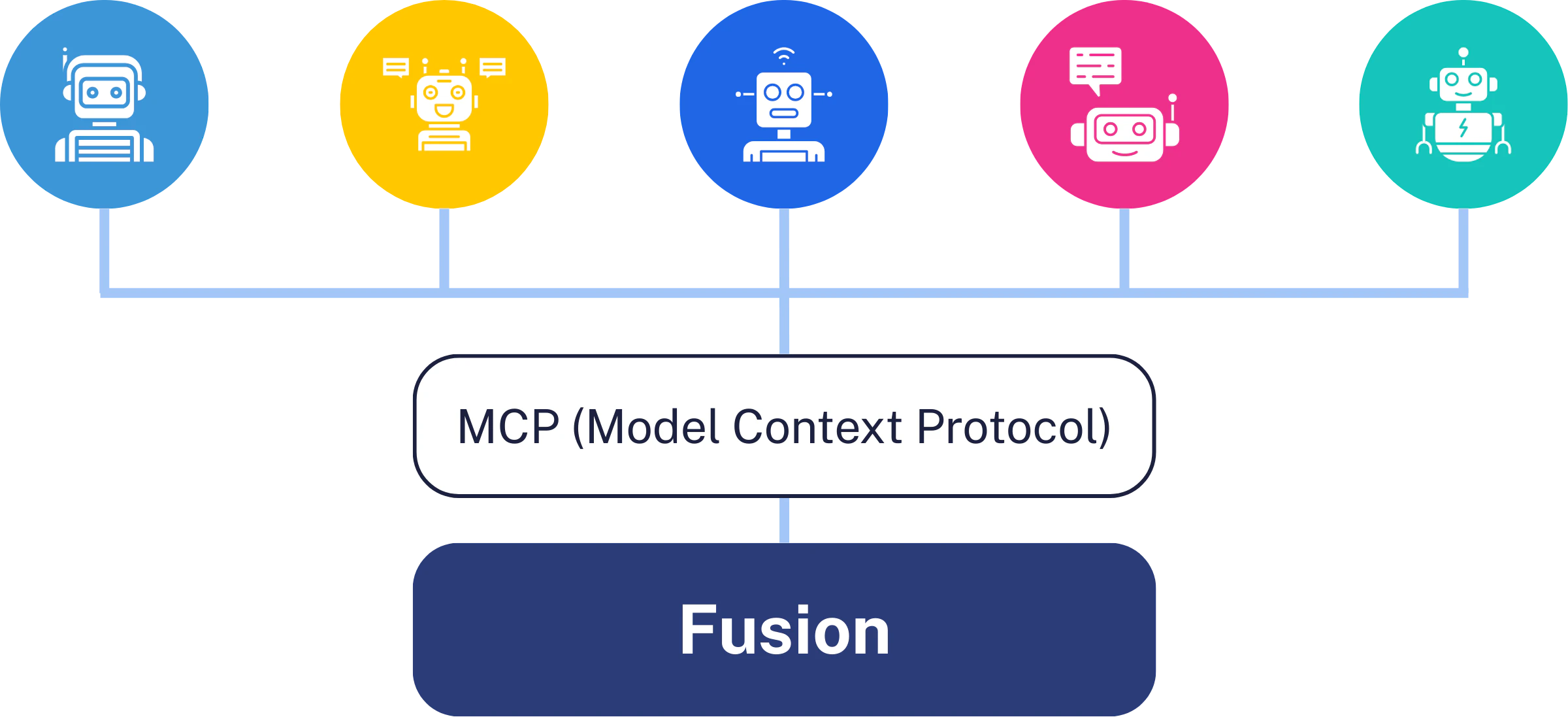
Fusion MCP (Model Context Protocol) enables agentic search using your preferred AI agent—Claude, ChatGPT, Cursor IDE, or any MCP-compatible application—to search your Fusion data. With MCP, you can choose any LLM that fits your needs and connect it to Fusion using a standardized protocol. You configure the connection once, and any MCP-compatible AI agent can immediately search your indexed content.
The Fusion MCP feature requires Fusion 5.17.0 or later. To use this feature, you will need to upgrade to Fusion 5.17.0 when it becomes available.
You can connect many different types of AI agents to Fusion using MCP

Benefits

Fusion’s MCP server provides these advantages:
  • Universal compatibility: Works with Claude Desktop, Claude Code, ChatGPT, Cursor IDE, and any MCP-compatible application.
  • Self-service integration: Configure AI agents to access Fusion data without custom API development.
  • Enterprise security: Leverages Fusion’s existing security controls, including field-level security, role-based access, and audit logging.
  • Multi-tenant architecture: Support multiple use cases with different data access patterns using query profiles and collection isolation.
  • Query pipeline integration: AI agents benefit from your custom query pipelines, ML models, and relevance tuning.
  • Extensible tool framework: Add custom tools programmatically that automatically become available to all AI agents.

Supported AI clients

Fusion’s MCP server works with any MCP-compatible AI client, including these popular clients:
  • Claude Code: Command-line AI agent with built-in MCP support (recommended for easiest setup)
  • Claude Desktop: Desktop application for conversational AI
  • Cursor IDE: AI-powered code editor
  • ChatGPT Enterprise: ChatGPT with custom connector support
You can also build compatible applications with an MCP SDK.

MCP server setup

Before you begin

Before configuring MCP access, ensure you have the following:
  • Fusion 5.17 or later deployed with the MCP Server service running
  • A Fusion app configured with indexed content
  • A query profile created for MCP access
  • An API key generated in Fusion with appropriate permissions
  • An MCP-compatible AI client
The MCP server runs on your Fusion infrastructure at https://FUSION_HOST:FUSION_PORT/mcp. No client-side installation is required.

Configure the MCP server

If you are using self-hosted Fusion, the MCP server is configured in your Fusion values.yaml file. You define search experiences that map to specific Fusion applications and query profiles. If you are using Lucidworks Search, the Lucidworks team configures this for you.
1

Add the MCP server configuration

Add the MCP server configuration with at least one search experience to your Fusion values.yaml file, as in this example:
mcp:
  server:
    name: Fusion MCP Server
  search-experiences:
    - name: "Product Catalog"
      description: "Product specifications, inventory, sizing, and pricing information for all Acme products"
      application-name: "acme_app"
      query-profile: "product_search"
    - name: "Employee Resources"
      description: "HR policies, benefits information, training materials, and internal announcements"
      application-name: "acme_app"
      query-profile: "employee_docs"
The following parameters configure the MCP server:
mcp.server.name
string
required
Display name for the MCP server. This name appears to AI agents when they connect.
mcp.server.tools.search-documents.description
string
Description for the search_documents tool. This parameter is optional and has a safe default that includes critical dependency information.
Only override this if you understand how the tools work together. The default description instructs AI agents that they must first call list_search_experiences to obtain valid search experience names. Incorrect descriptions can break the automatic workflow.
mcp.server.tools.list-search-experiences.description
string
Description for the list_search_experiences tool. This parameter is optional and has a safe default that includes usage examples.
Only override this if you understand the tool dependency pattern. Modifying this incorrectly can prevent AI agents from discovering available search experiences properly.
mcp.search-experiences
array
required
List of available search experiences. Each search experience defines how the MCP server routes queries to Fusion applications. You must configure at least one search experience.
mcp.search-experiences.name
string
required
Display name of the search experience. AI agents use this name to route queries.
mcp.search-experiences.description
string
required
Description of what this search experience contains. This helps AI agents determine which search experience to use for a given query.
A well-crafted description helps provide a seamless experience for users. Make your descriptions as detailed as possible to enable AI agents to quickly identify the right search experience for any prompt.
mcp.search-experiences.application-name
string
required
Fusion application name to query.
mcp.search-experiences.query-profile
string
required
Fusion query profile to use for queries.
2

Redeploy Fusion

The MCP server validates the configuration at deployment and requires at least one valid search experience with all required fields populated. If no valid search experiences are configured, the service fails to start with an error message.

Connect an AI agent

To connect an AI agent to Fusion, you need your Fusion API key for authentication. The key is sent as an HTTP header with each request.
Claude Desktop requires manual JSON configuration.
  1. Locate the configuration file for your operating system.
    • macOS: ~/Library/Application Support/Claude/claude_desktop_config.json
    • Windows: %APPDATA%\Claude\claude_desktop_config.json
    • Linux: ~/.config/Claude/claude_desktop_config.json
  2. Edit the file to add the Fusion MCP server:
    {
       "mcpServers": {
        "fusion": {
          "type": "http",
           "url": "https://FUSION_HOST:FUSION_PORT/mcp",
           "headers": {
             "x-api-key": "FUSION_API_KEY"
           }
         }
       }
     }
    
    Replace the header values with your specific credentials.
  3. Restart Claude Desktop.
  4. Verify the connection. Look for the hammer icon () in the Claude interface to confirm the MCP server is connected. Ask Claude to search Fusion, and it should automatically use the fusion tool.
Cursor IDE requires manual JSON configuration.
  1. Locate the configuration file for your operating system.
    • macOS: ~/Library/Application Support/Cursor/User/globalStorage/mcp-settings.json
    • Windows: %APPDATA%\Cursor\User\globalStorage\mcp-settings.json
    • Linux: ~/.config/Cursor/User/globalStorage/mcp-settings.json
  2. Edit the file to add the Fusion MCP server:
    {
      "mcpServers": {
        "fusion": {
          "type": "http",
          "url": "https://FUSION_HOST:FUSION_PORT/mcp",
           "headers": {
             "x-api-key": "FUSION_API_KEY"
           }
        }
      }
    }
    
    Replace the header values with your specific credentials.
  3. Restart Cursor IDE.
ChatGPT Enterprise requires admin console configuration.
  1. Log into the ChatGPT Enterprise admin console and navigate to Settings > Integrations > Custom Connectors.
  2. Click Add Custom Connector and configure the connector:
    {
       "name": "Fusion Search",
       "type": "mcp_http",
       "endpoint": "https://FUSION_HOST:FUSION_PORT/mcp",
       "headers": {
         "x-api-key": "FUSION_API_KEY"
         },
       "description": "Search internal knowledge base via Lucidworks Fusion"
    }
    
    Replace the header values with your specific credentials.
  3. Enable the connector for the appropriate users or teams.
  4. Test by asking ChatGPT to search Fusion.
Custom applications use the MCP SDK to connect to Fusion, as in the examples below:
import { Client } from '@modelcontextprotocol/sdk/client/index.js';
import { StreamableHTTPClientTransport } from '@modelcontextprotocol/sdk/client/streamableHttp.js';

// Configure HTTP transport with headers
const transport = new StreamableHTTPClientTransport(
  new URL('https://FUSION_HOST:FUSION_PORT/mcp'),
  {
    headers: {
      'x-api-key': process.env.FUSION_API_KEY,
    }
  }
);

// Initialize MCP client
const client = new Client(
  { name: 'custom-chat', version: '1.0.0' },
  { capabilities: { tools: {} } }
);

await client.connect(transport);

// First, list available search experiences
const experiences = await client.callTool({
  name: 'list_search_experiences',
  arguments: {}
});

// Then search using a specific experience
const result = await client.callTool({
  name: 'search_documents',
  arguments: {
    searchExperience: 'knowledge_base',
    query: 'authentication best practices',
    rows: 10
  }
});

console.log(result.content);

Test the connection

After configuring your AI agent, test the connection with these example prompts. These prompts verify that the MCP server is working correctly and that your AI agent can discover and use the configured search experiences.
1

Retrieve search experiences

Test whether the AI agent can successfully retrieve the configured search experiences from Fusion.

What search experiences are available?

CursorOpen in Cursor
2

Search by name

Test whether the AI agent can identify the correct search experience by name and execute a search query.

Search the Product Catalog for wireless headphones

CursorOpen in Cursor
3

Test multi-experience routing

Test multi-experience routing, verifying that the AI agent can select the appropriate search experience based on the query context.

Find recent HR policies in Employee Resources

CursorOpen in Cursor
4

Match natural language queries

Test whether the AI agent can match natural language queries to search experience descriptions and return relevant results.

What information can I find about benefits and time off policies?

CursorOpen in Cursor

Search with MCP

Fusion’s MCP server provides four tools that work together in a discovery-to-execution pattern. The AI agent automatically determines which tool to call based on the user’s query.

List search experiences

The list_search_experiences tool discovers available search experiences configured in Fusion. You can use this tool in the following situations:
  • You need to see what search experiences are available.
  • You need to determine which search experience to use for a specific query.
  • You need to help users who don’t know what they can search for.
The AI agent automatically calls this tool when users ask questions like “What can I search here?” or “What do I find in Fusion?”. The tool returns a list of configured search experiences with their names and descriptions. This tool takes no parameters.

Search documents

The search_documents tool searches for documents and returns relevant results from Fusion collections. Based on user input, it automatically selects a search experience and can optionally filter and sort results. On the back end, this tool can implement all of the parameters in the required request format. For example, in the AI agent a user can input “Find all reports from the last six months and sort them with the newest ones first” to trigger a query that uses filters to specify the document type and date range and sort to order the results by date, newest to oldest.

Get a document

The get_document tool fetches a specific document by its ID. This is useful when search_documents has already been called and the user inquires about a specific document returned in those results. The tool returns complete details about the document, such as its title, description, URL, similar documents (if MoreLikeThis is implemented), and highlighted fields (if highlighting is implemented). Parameters:
searchExperience
string
required
The name of the search experience to use.
documentId
string
required
The unique identifier of the document to retrieve.
Example request:
{
  "method": "tools/call",
  "params": {
    "name": "get_document",
    "arguments": {
      "searchExperience": "knowledge_base",
      "documentId": "doc-12345"
    }
  }
}

Get the field schema

The get_schema tool retrieves available fields within a specific search experience and returns schema information with sortable and searchable capability flags. You can use this tool in the following situations:
  • You need to discover what fields exist within a particular search experience.
  • You need to determine which fields can be used for sorting.
  • You need to determine which fields can be used for filtering.
  • You need to display field information to users with human-readable names.
The AI agent automatically calls this tool before using the sort or filters parameters when searching documents, or when users ask questions like “What fields can I sort by?” or “What can I filter by?”. The tool returns field names with their display values and capability flags. By default, the tool returns only populated fields. Set includeEmptyFields=true to retrieve the complete schema. Always use the displayValue when showing fields to users (for example, “Title” or “Publish Date”) rather than technical names (for example, title_s or publish_date_dt). Parameters:
searchExperience
string
required
The name of the search experience to query for schema information.
includeEmptyFields
boolean
default:"false"
Set to true to retrieve all fields, including those with no values. By default, only populated fields are returned.
Example request:
{
  "method": "tools/call",
  "params": {
    "name": "get_schema",
    "arguments": {
      "searchExperience": "knowledge_base",
      "includeEmptyFields": false
    }
  }
}

How the tools work together

The AI agent uses these tools in the following order:
  1. When a user asks a question without specifying a search experience, the agent calls list_search_experiences to discover available options.
  2. The agent analyzes the search experiences and matches them to the user’s query intent.
  3. The agent calls search_documents with the appropriate search experience.
  4. The agent returns results to the user.
For example, when a user asks “Find Hearthstone cards,” the agent automatically completes the following steps:
  1. Calls list_search_experiences and receives the following data:
    {
      "searchExperiences": [
        {"name": "Company Knowledge", "description": "Internal policy and procedure documents"},
        {"name": "Hearthstone Knowledge", "description": "Card info, deck strategies, heroes, and lore"}
      ]
    }
    
  2. Identifies the “Hearthstone Knowledge” search experience as the one that best matches the prompt.
  3. Calls search_documents with searchExperience: "Hearthstone Knowledge" and the user’s query.
  4. Returns the card results.
This pattern allows users who know nothing about Fusion’s configuration to simply ask questions and get results without needing to understand the underlying structure.

Develop custom applications

You can build your own MCP-compatible client applications for integration with Fusion’s MCP server. See how to build a client to learn how to do this with an MCP SDK. Like other AI agents, your custom application needs an API key.

STDIO mode setup

STDIO mode is useful when you are developing a custom application. STDIO mode makes it available to local Claude Desktop and Claude Code clients only, using the Standard I/O (STDIO) protocol. The MCP server is configured in your Fusion application.yaml file. You define search experiences that map to specific Fusion applications and query profiles.
  1. Open your Fusion application.yaml configuration file.
  2. Add the MCP server configuration with at least one search experience, as in this example:
    mcp:
      server:
        name: Fusion MCP Server
        # tools:  # Optional - tool descriptions have safe defaults
        #   search-documents:
        #     description: "Custom description (use with caution)"
        #   list-search-experiences:
        #     description: "Custom description (use with caution)"
      search-experiences:
       - name: "Product Catalog"
         description: "Product specifications, inventory, sizing, and pricing information for all Acme products"
         application-name: "acme_app"
         query-profile: "product_search"
       - name: "Employee Resources"
         description: "HR policies, benefits information, training materials, and internal announcements"
         application-name: "acme_app"
         query-profile: "employee_docs"
    
    You can use all of the parameters in Configure the MCP server.
  3. Restart Fusion to apply the configuration changes. The MCP server validates the configuration at startup and requires at least one valid search experience with all required fields populated. If no valid search experiences are configured, the server fails to start with an error message.
The MCP server endpoint is fixed at /mcp and cannot be changed.
  1. Open your Claude configuration file.
  2. Configure the MCP server in Docker mode or JAR mode as follows:
    {
      "mcpServers": {
        "fusion-stdio-docker": {
          "command": "docker",
          "args": [
            "run", "--rm", "-i", "--name", "mcp-server",
            "-e", "FUSION_URL=https://FUSION_HOST:FUSION_PORT",
            "-e", "FUSION_API_KEY=YOUR_API_KEY",
            "-e", "MCP_SEARCH_EXPERIENCES_0_NAME=products",
            "-e", "MCP_SEARCH_EXPERIENCES_0_DESCRIPTION=Search product catalog with filters for category, price, and availability",
            "-e", "MCP_SEARCH_EXPERIENCES_0_APPLICATION_NAME=APP_NAME",
            "-e", "MCP_SEARCH_EXPERIENCES_0_QUERY_PROFILE=default",
            "mcp-server-stdio:latest"
          ]
        }
      }
    }
    
    You can configure a single search experience or multiple search experiences as follows:
    FUSION_URL=https://FUSION_HOST:FUSION_PORT
    FUSION_API_KEY=YOUR_API_KEY
    MCP_SEARCH_EXPERIENCES_0_NAME=products
    MCP_SEARCH_EXPERIENCES_0_DESCRIPTION=Product catalog search
    MCP_SEARCH_EXPERIENCES_0_APPLICATION_NAME=products-app
    MCP_SEARCH_EXPERIENCES_0_QUERY_PROFILE=default
    
  3. Save the file and restart Claude.

Request format

The request format varies by tool. The list_search_experiences tool takes no parameters:
{
  "jsonrpc": "2.0",
  "id": 1,
  "method": "tools/call",
  "params": {
    "name": "list_search_experiences",
    "arguments": {}
  }
}
The search_documents tool requires the search experience name and query parameters:
{
  "jsonrpc": "2.0",
  "id": 2,
  "method": "tools/call",
  "params": {
    "name": "search_documents",
    "arguments": {
      "searchExperience": "knowledge_base",
      "query": "kubernetes deployment",
      "rows": 10,
      "start": 0,
      "sort": "score desc"
    }
  }
}
Standard MCP parameters are described in the MCP schema specification. Fusion-specific parameters for search_documents are explained below:
arguments.searchExperience
string
required
The name of the search experience to use. Obtain this value from the list_search_experiences tool. If the search experience is invalid or not configured, the response will include a list of available search experiences for fallback.
arguments.query
string
Natural language search query for broad search across all fields. Use this for general keyword searches without field-specific criteria. Omit it to use the default *:* query.For field-specific searches (such as title contains X, type equals PDF, or date from 2024), use the arguments.filters parameter instead.
arguments.filters
array
Filter criteria to narrow results. Multiple filters are combined with AND logic. Use this when you want to filter by specific field values, as in these examples:
  • dates (“from 2024”, “last month”)
  • types (“only PDFs”)
  • categories (“HR documents”)
  • exclusions (“not drafts”)
Always get the field schema first to discover available field names. Use the technical name field in filters objects, but use the displayValue to display to users.
The following operators are supported:
OperatorParametersDescriptionExample
equalsfield, valueExact match{"field": "type_s", "operator": "equals", "value": "pdf"}
not_equalsfield, valueExclude value{"field": "status_s", "operator": "not_equals", "value": "draft"}
infield, values (array)Match any value (OR){"field": "type_s", "operator": "in", "values": ["pdf", "docx"]}
not_infield, values (array)Exclude all values{"field": "status_s", "operator": "not_in", "values": ["draft", "archived"]}
rangefield, from, toInclusive range{"field": "publish_date_dt", "operator": "range", "from": "2024-01-01T00:00:00Z", "to": "2024-12-31T23:59:59Z"}
greater_thanfield, valueValue > (exclusive){"field": "year_i", "operator": "greater_than", "value": 2020}
greater_than_or_equalsfield, valueValue >= (inclusive){"field": "page_count_i", "operator": "greater_than_or_equals", "value": 100}
less_thanfield, valueValue < (exclusive){"field": "file_size_l", "operator": "less_than", "value": 10485760}
less_than_or_equalsfield, valueValue <= (inclusive){"field": "price_f", "operator": "less_than_or_equals", "value": 99.99}
containsfield, valueWildcard match{"field": "filename_s", "operator": "contains", "value": "report"}
starts_withfield, valuePrefix match{"field": "email_s", "operator": "starts_with", "value": "admin"}
existsfieldHas any value{"field": "author_s", "operator": "exists"}
not_existsfieldHas no value{"field": "email_s", "operator": "not_exists"}
relative_date_rangefield, timeUnit, timeValueRelative to NOW{"field": "publish_date_dt", "operator": "relative_date_range", "timeUnit": "DAYS", "timeValue": 7}
See Filtering examples below.
arguments.rows
integer
default:"10"
Number of results to return (maximum: 20).
arguments.start
integer
default:"0"
Pagination offset.
arguments.sort
string
Sort field and order. Example: date desc or score desc.

Response format

{
  "jsonrpc": "2.0",
  "id": 5,
  "result": {
    "content": [],
    "isError": false,
    "structuredContent": {
      "summary": "Found X documents for query: <query>",
      "documents": [
        {
          "id": "unique-document-id",
          "title": "Document Title",
          "description": "Document description or summary",
          "url": "https://example.com/document"
        }
      ],
      "searchExperiences": [],
      "querySpellcheckSuggestions": []
    }
  }
}
Response fields:
summary
string
required
Summary message indicating the number of documents found or error state.
documents
array
required
List of matching documents. Always present, even if empty.
searchExperiences
array
Populated only when the requested search experience is invalid. When populated, contains available search experiences that can be used. Empty for valid searches.
querySpellcheckSuggestions
array
Spelling correction suggestions. Populated when the query contains misspellings or returns no results. Empty when no suggestions are available.
Understanding empty results:
  • documents is empty
  • searchExperiences is populated
  • querySpellcheckSuggestions is empty
The search experience name you provided is invalid. Check the searchExperiences array for available search experiences and retry with a valid name.

Usage examples

{
  "jsonrpc": "2.0",
  "id": 1,
  "method": "tools/call",
  "params": {
    "name": "list_search_experiences",
    "arguments": {}
  }
}
{
  "jsonrpc": "2.0",
  "id": 3,
  "method": "tools/call",
  "params": {
    "name": "search_documents",
    "arguments": {
      "searchExperience": "knowledge_base",
      "query": "machine learning",
      "rows": 10,
      "start": 0
    }
  }
}
{
  "jsonrpc": "2.0",
  "id": 5,
  "method": "tools/call",
  "params": {
    "name": "search_documents",
    "arguments": {
      "searchExperience": "technical_docs",
      "query": "spring boot",
      "rows": 20,
      "sort": "date desc"
    }
  }
}
Returns up to 20 results sorted by date in descending order (most recent first).
{
  "jsonrpc": "2.0",
  "id": 6,
  "method": "tools/call",
  "params": {
    "name": "search_documents",
    "arguments": {
      "searchExperience": "technical_docs",
      "query": "API documentation",
      "rows": 15,
      "start": 5,
      "sort": "score desc"
    }
  }
}
To retrieve all documents from a search experience, omit the query parameter or provide an empty string.
{
  "jsonrpc": "2.0",
  "id": 7,
  "method": "tools/call",
  "params": {
    "name": "search_documents",
    "arguments": {
      "searchExperience": "technical_docs",
      "rows": 10
    }
  }
}
Both requests return all documents from the search experience (internally converted to Solr’s *:* query).
When a query contains misspellings or returns no results, the response may include spelling correction suggestions.
{
  "jsonrpc": "2.0",
  "id": 8,
  "method": "tools/call",
  "params": {
    "name": "search_documents",
    "arguments": {
      "searchExperience": "technical_docs",
      "query": "kubernetis deployment"
    }
  }
}
When querySpellcheckSuggestions contains values, AI agents should inform users about the alternative search terms and offer to retry the search with a corrected query.

Filtering examples

Find PDFs from a specific department.
{
  "jsonrpc": "2.0",
  "id": 9,
  "method": "tools/call",
  "params": {
    "name": "search_documents",
    "arguments": {
      "searchExperience": "Company Knowledge",
      "filters": [
        {
          "field": "type_s",
          "operator": "equals",
          "value": "pdf"
        },
        {
          "field": "department_s",
          "operator": "equals",
          "value": "HR"
        }
      ]
    }
  }
}
Find documents published in 2024.
Request
{
  "jsonrpc": "2.0",
  "id": 10,
  "method": "tools/call",
  "params": {
    "name": "search_documents",
    "arguments": {
      "searchExperience": "Company Knowledge",
      "filters": [
        {
          "field": "publish_date_dt",
          "operator": "range",
          "from": "2024-01-01T00:00:00Z",
          "to": "2024-12-31T23:59:59Z"
        }
      ]
    }
  }
}
Find documents from the last seven days.
Request
{
  "jsonrpc": "2.0",
  "id": 11,
  "method": "tools/call",
  "params": {
    "name": "search_documents",
    "arguments": {
      "searchExperience": "Company Knowledge",
      "filters": [
        {
          "field": "publish_date_dt",
          "operator": "relative_date_range",
          "timeUnit": "DAYS",
          "timeValue": 7
        }
      ]
    }
  }
}
Supported time units: DAYS, WEEKS, MONTHS, YEARS, HOURS, MINUTES.
Find PDFs or Word documents.
Request
{
  "jsonrpc": "2.0",
  "id": 12,
  "method": "tools/call",
  "params": {
    "name": "search_documents",
    "arguments": {
      "searchExperience": "Company Knowledge",
      "filters": [
        {
          "field": "type_s",
          "operator": "in",
          "values": ["pdf", "docx"]
        }
      ]
    }
  }
}
Find all documents except drafts.
Request
{
  "jsonrpc": "2.0",
  "id": 13,
  "method": "tools/call",
  "params": {
    "name": "search_documents",
    "arguments": {
      "searchExperience": "Company Knowledge",
      "filters": [
        {
          "field": "status_s",
          "operator": "not_equals",
          "value": "draft"
        }
      ]
    }
  }
}
Find files with “report” in the filename.
Request
{
  "jsonrpc": "2.0",
  "id": 14,
  "method": "tools/call",
  "params": {
    "name": "search_documents",
    "arguments": {
      "searchExperience": "Company Knowledge",
      "filters": [
        {
          "field": "filename_s",
          "operator": "contains",
          "value": "report"
        }
      ]
    }
  }
}
Find documents that have an author field.
Request
{
  "jsonrpc": "2.0",
  "id": 15,
  "method": "tools/call",
  "params": {
    "name": "search_documents",
    "arguments": {
      "searchExperience": "Company Knowledge",
      "filters": [
        {
          "field": "author_s",
          "operator": "exists"
        }
      ]
    }
  }
}
Find recent, large PDFs from Engineering, excluding drafts.
Request
{
  "jsonrpc": "2.0",
  "id": 16,
  "method": "tools/call",
  "params": {
    "name": "search_documents",
    "arguments": {
      "searchExperience": "Company Knowledge",
      "filters": [
        {
          "field": "type_s",
          "operator": "equals",
          "value": "pdf"
        },
        {
          "field": "department_s",
          "operator": "equals",
          "value": "Engineering"
        },
        {
          "field": "page_count_i",
          "operator": "greater_than_or_equals",
          "value": 100
        },
        {
          "field": "publish_date_dt",
          "operator": "relative_date_range",
          "timeUnit": "MONTHS",
          "timeValue": 3
        },
        {
          "field": "status_s",
          "operator": "not_equals",
          "value": "draft"
        }
      ]
    }
  }
}
Multiple filters are combined with AND logic.
Find documents containing “machine learning” that are PDFs from 2024.
Request
{
  "jsonrpc": "2.0",
  "id": 17,
  "method": "tools/call",
  "params": {
    "name": "search_documents",
    "arguments": {
      "searchExperience": "Company Knowledge",
      "query": "machine learning",
      "filters": [
        {
          "field": "type_s",
          "operator": "equals",
          "value": "pdf"
        },
        {
          "field": "publish_date_dt",
          "operator": "range",
          "from": "2024-01-01T00:00:00Z",
          "to": "2024-12-31T23:59:59Z"
        }
      ]
    }
  }
}
The query parameter performs a broad keyword search, while filters narrow results by specific field values.

Example use cases

The following examples demonstrate common MCP integration patterns.
A developer uses Cursor IDE to find code examples while writing:Code context:
function authenticateUser(username, password) {
  // TODO: Implement authentication
}
Developer action: Right-click > “Search Fusion for similar code”MCP call:
{
  "method": "tools/call",
  "params": {
    "name": "search_documents",
    "arguments": {
      "searchExperience": "code_search",
      "query": "authenticate user function JavaScript",
      "filters": [
        {"field": "file_type", "operator": "in", "values": ["javascript", "typescript"]}
      ],
      "rows": 5
    }
  }
}
Cursor displays relevant code examples from internal repositories with links to full source files.
A security team configures a chatbot that only accesses security documentation:Configuration:
claude mcp add --transport http fusion-security https://FUSION_HOST:FUSION_PORT/mcp \
    --header "x-api-key: security_bot_key"
The server’s security_docs_only_profile search experience restricts searches to the security documentation collection. Even if a user asks for financial reports, the bot can only search and return security-related content.
If your query pipeline is configured with highlighting or MoreLikeThis, the MCP server can include those features in its responses:
Example response
{
  "jsonrpc": "2.0",
  "id": 10,
  "result": {
    "content": [],
    "isError": false,
    "structuredContent": {
      "summary": "Found 3 documents for query: search",
      "documents": [
        {
          "id": "doc-123",
          "title": "Introduction to Search Analytics",
          "url": "https://docs.example.com/search-analytics",
          "moreLikeThis": [
            {
              "id": "doc-456",
              "title": "Query Performance Optimization"
            },
            {
              "id": "doc-789",
              "title": "Relevance Tuning Best Practices"
            },
            {
              "id": "doc-321",
              "title": "Understanding Search Metrics"
            }
          ],
          "highlighting": {
            "title_t": ["Introduction to <em>Search</em> Analytics"],
            "description_t": ["Learn how to analyze and improve your <em>search</em> performance"]
          }
        }
      ],
      "searchExperiences": [],
      "querySpellcheckSuggestions": []
    }
  }
}

Example multi-tenant configurations

Fusion’s MCP server supports multi-tenant architectures where different users or use cases access different data subsets.
You can configure separate MCP endpoints with different query profiles:
claude mcp add --transport http fusion-employee \
    https://FUSION_HOST:FUSION_PORT/mcp \
    --header "x-api-key: employee_key"
  • The employee API key accesses a server with search experiences configured for full access to all collections.
  • The contractor API key accesses a server with search experiences limited to public documentation and shared resources.
You can support both public (unauthenticated) and authenticated access patterns:
{
  "mcpServers": {
    "fusion-public": {
      "type": "http",
      "url": "https://FUSION_HOST:FUSION_PORT/mcp",
      "headers": {
        "x-api-key": "public_readonly_key"
      }
    }
  }
}
This approach enables use cases like showroom kiosks (public read-only access with search experiences configured for public documents) and internal employee tools (authenticated with search experiences configured for full access and security trimming) using the same Fusion instance.

Troubleshooting

This section provides solutions for common MCP configuration issues.
If you cannot connect to the MCP server, verify the following:
  1. Verify the endpoint is accessible:
     curl -X POST https://FUSION_HOST:FUSION_PORT/mcp \
     -H "Content-Type: application/json" \
     -H "Accept: text/event-stream, application/json" \
     -H "x-api-key: api-key" \
     -i \
     -d '{
       "jsonrpc": "2.0",
       "id": 1,
       "method": "initialize",
       "params": {
         "protocolVersion": "2024-11-05",
         "capabilities": {},
         "clientInfo": {
           "name": "test-client",
           "version": "1.0.0"
         }
       }
     }'
    
    The protocol version in this example (2024-11-05) may differ from your installed version. See the MCP schema specification for the current version.
    If the endpoint is accessible, it returns output similar to the example below. Any other result means that the endpoint is not accessible.
    {
     "jsonrpc": "2.0",
     "id": 1,
     "result": {
       "protocolVersion": "2024-11-05",
       "capabilities": {
         "logging": {},
         "prompts": {
           "listChanged": false
         },
         "resources": {
           "subscribe": false,
           "listChanged": true
         },
         "tools": {
           "listChanged": true
         }
       },
       "serverInfo": {
         "name": "Fusion MCP Server",
         "version": "1.0.0"
       }
     }
    
}

2. Confirm that the Fusion version is 5.17 or later:
 ```bash wrap
 curl https://FUSION_HOST:FUSION_PORT/api/admin/version
  1. Check the URL path is exactly /mcp (no trailing slash, not /api/mcp).
  2. Test with verbose logging:
    claude mcp test fusion --verbose
    
  1. Regenerate the API key in Fusion Admin (the key may be expired or revoked).
  2. Verify the header format is exactly x-api-key: API_KEY (case-sensitive).
  3. Test the key directly against Fusion’s API:
    curl -H "x-api-key: abc123" https://FUSION_HOST:FUSION_PORT/api/apps/YOUR_APP/query/YOUR_PROFILE
    
  1. Verify the query profile exists in the specified Fusion app.
  2. Check the profile name is an exact match (case-sensitive).
  3. Ensure the API key’s role has permission to execute queries on this profile.
The x-api-key header is required for authentication:
claude mcp add --transport http fusion https://FUSION_HOST:FUSION_PORT/mcp --header "x-api-key: API_KEY"
Run this command to verify your configuration:
claude mcp list
The response should show your MCP URL:
fusion - https://FUSION_HOST:FUSION_PORT/mcp (http)
If searches complete successfully but return no results, try these steps.
  1. Verify the Fusion app contains indexed content:
    curl "https://FUSION_HOST:FUSION_PORT/api/apps/YOUR_APP/query/YOUR_PROFILE?q=*:*"
    
  2. Check that the query profile has access to the expected collections.
  3. Test the same query directly in Fusion’s Query Workbench to confirm results exist.
  4. Review security trimming rules that might filter out documents for the API key’s role.
If MCP searches are slow, try these steps.
  1. Check the query profile’s pipeline stages for expensive operations.
  2. Review the query complexity (complex filter queries can impact performance).
  3. Monitor Fusion’s query logs for slow queries.
  4. Consider optimizing ML model execution or caching strategies.
  5. Verify network latency between the AI client and Fusion instance.
If the Fusion MCP server fails to start with an error message about search experiences, follow these steps.Symptom:
ERROR - No valid search experiences configured. Server cannot start without at least one valid search experience.
Exception in thread "main" java.lang.IllegalStateException: No valid search experiences configured...
Solution:
  1. Add at least one search experience with all required fields to application.yaml:
    mcp:
      server:
        name: Fusion MCP Server
      search-experiences:
        - name: "Company Knowledge"                    # Required
          description: "Internal documentation..."    # Required
          application-name: "APP_NAME"         # Required
          query-profile: "default"                    # Required
    
  2. Restart the server.
  3. Verify startup logs show: Found 1 valid search experience(s): [Company Knowledge]
If list_search_experiences returns fewer search experiences than you configured, follow these steps.Solution:
  1. Check server startup logs for: INFO - Found N valid search experience(s): [names]
  2. Compare logged names with your configuration.
  3. Verify all required fields are populated (name, description, application-name, query-profile).
  4. Fix configuration and restart.
If your search query returns an error message about the search experience not being configured, verify the search experience name.Symptom:
{
  "summary": "Search experience is not configured",
  "documents": [],
  "searchExperiences": [...]
}
Solution:
  1. Call list_search_experiences to get exact names.
  2. Use the exact name (case-sensitive).
Common mistakes:
  • ❌ “engineering docs” (wrong case)
  • ✅ “Engineering Docs” (exact match)
If you receive a generic error message about being unable to process the request, verify your Fusion configuration and connectivity.Symptom:
{
  "content": [{"type": "text", "text": "Error: Unable to process request"}],
  "isError": true
}
Solution:Follow these troubleshooting steps:
  1. Verify Fusion is running and accessible.
  2. Check that application-name exists in Fusion (case-sensitive).
  3. Verify query-profile exists and is enabled in Fusion.
  4. Check authentication and network connectivity.
  5. Review MCP server logs for detailed error messages.
If your search completes successfully but returns no documents, verify your data and query configuration.Symptom:
{
  "summary": "Found 0 documents",
  "documents": [],
  "searchExperiences": []
}
Solution:Follow these troubleshooting steps:
  1. Verify documents are indexed in Fusion (check Collections in Fusion UI).
  2. Try omitting the query parameter to return all documents (defaults to *:*):
    {
      "searchExperience": "Company Knowledge"
    }
    
  3. Try a broader query.
  4. Test the same query directly in Fusion’s Query Workbench.
  5. Verify application-name points to the correct Fusion application.
  6. Check query profile settings for permission filters.