

Spark in Fusion On-Prem
These topics provide information about Spark administration in Fusion Server:- Spark Components. Spark integration in Fusion, including a diagram
- Spark Driver Processes. Fusion jobs run on Spark use a driver process started by the API service
Spark Getting Started for Fusion 4.x
Spark Getting Started for Fusion 4.x
The public GitHub repository Fusion Spark Bootcamp contains examples and labs for learning how to use Fusion’s Spark features.In this section, you will walk through some basic concepts of using Spark in Fusion. For more exposure, you should work through the labs in the Fusion Spark Bootcamp.On Windows:Give these commands from the In Fusion 4.0.x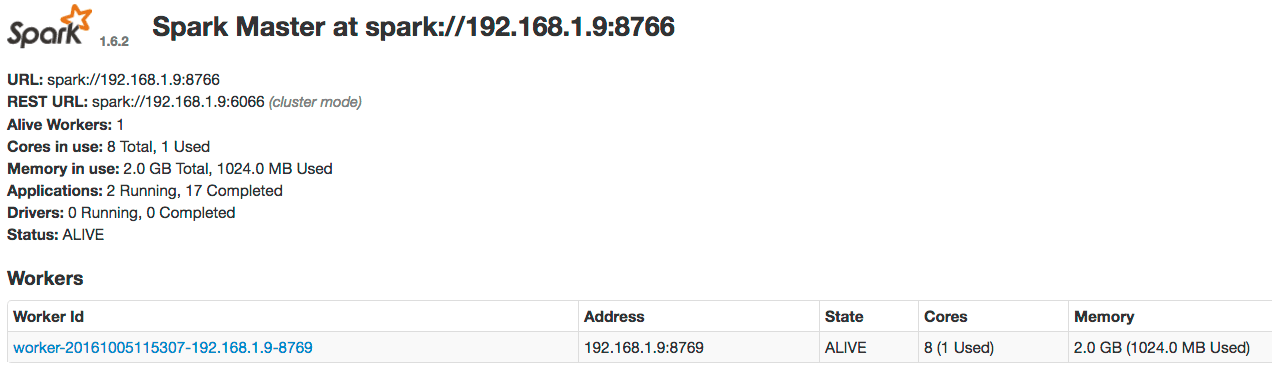


Starting the Spark Master and Spark Worker services
The Fusion run script/opt/fusion/latest.***__x__****/bin/fusion (on Unix) or C:\lucidworks\fusion{backslash}latest.****__x__***\bin\fusion.cmd (on Windows) does not start the spark-master and spark-worker processes. This reduces the number of Java processes needed to run Fusion and therefore reduces memory and CPU consumption.Jobs that depend on Spark, for example, aggregations, will still execute in what Spark calls local mode. When in local mode, Spark executes tasks in-process in the driver application JVM. Local mode is intended for jobs that consume/produce small datasets.One caveat about using local mode is that a persistent Spark UI is not available. But you can access the driver/job application UI at port :4040 while the local SparkContext is running.To scale Spark in Fusion to support larger data sets and to speed up processing, you should start the spark-master and spark-worker services.On Unix:bin directory below the Fusion home directory, for example, /opt/fusion/latest.***__x__**** (on Unix) or C:\lucidworks\fusion{backslash}latest.****__x__*** (on Windows).To have the spark-master and spark-worker processes start and stop with bin/fusion start and bin/fusion stop (on Unix) or bin\fusion.cmd start and bin\fusion.cmd stop (on Windows), add them to the group.default definition in fusion.cors (fusion.properties in Fusion 4.x). For example:In Fusion 4.1+Viewing the Spark Master
After starting the master and worker services, direct your browser tohttp://localhost:8767 to view the Spark master web UI, which should resemble this:Running a job in the Spark shell
After you have started the Spark master and Spark worker, run the Fusion Spark shell.On Unix:bin directory below the Fusion home directory, for example, /opt/fusion/latest.***__x__**** (on Unix) or C:\lucidworks\fusion{backslash}latest.****__x__*** (on Windows).The shell can take a few minutes to load the first time because the script needs to download the shaded Fusion JAR file from the API service.If ports are locked down between Fusion nodes, specify the Spark driver and BlockManager ports, for example:On Unix::paste to activate paste mode in the shell and paste in the following Scala code:The Spark master web UI
The Spark master web UI lets you dig into the details of the Spark job. In your browser (http://localhost:8767), there should be a job named “Spark shell” under running applications (the application ID will be different than the following screenshot):- How many tasks were needed to execute this job?
- Which JARs were added to the classpath for this job? (Look under the Environment tab.)
- How many executor processes were used to run this job? Why? (Look at the Spark configuration properties under the Environment tab.)
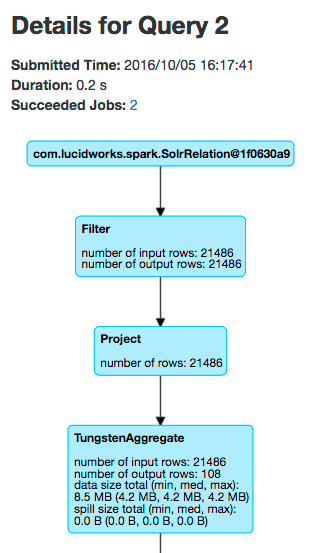
- How many rows were read from Solr for this job? (Look under the SQL tab.)
- 205 tasks were needed to execute this job.
- The Environment tab shows that one of the JAR files is named
spark-shaded-*.jarand was “Added By User”. - It took 2 executor processes to run this job. Each executor has 2 CPUs allocated to it and the
bin/spark-shellscript asked for 4 total CPUs for the shell application. - This particular job read about 21K rows from Solr, but this number will differ based on how long Fusion has been running.
Spark job tuning
Returning to the first question, why were 202 tasks needed to execute this job?spark.sql.shuffle.partitions.Because our data set is so small, let us adjust Spark so that it only uses 4 tasks. In the Spark shell, execute the following Scala:show command:Spark Configuration for Fusion 4.x
Spark Configuration for Fusion 4.x
Spark has a number of configuration properties.
In this section, we will cover some of the key settings you will need to use Fusion’s Spark integration.For the full set of Fusion’s spark-related configuration properties, see the
Spark Jobs API.
then be sure to reserve some CPU for Solr to avoid a compute intensive Spark job from starving Solr of CPU resources.You can also over-allocate cores to a spark-worker, which usually is recommended for hyper-threaded cores by setting the property You can obtain the IP address that the Spark master web UI binds to with this API command:After making this change to your Spark worker nodes, you must restart the spark-worker process
on each.On Unix:Give this command from the Give this command from the The Spark worker process manages executors for multiple jobs running concurrently.
For certain types of aggregation jobs you can also configure the per executor memory, but this can impact how many jobs you can run concurrently in your cluster.
Unless explicitly specified using the parameter After making these changes and restarting the workers, when we run a Fusion job, we get the following: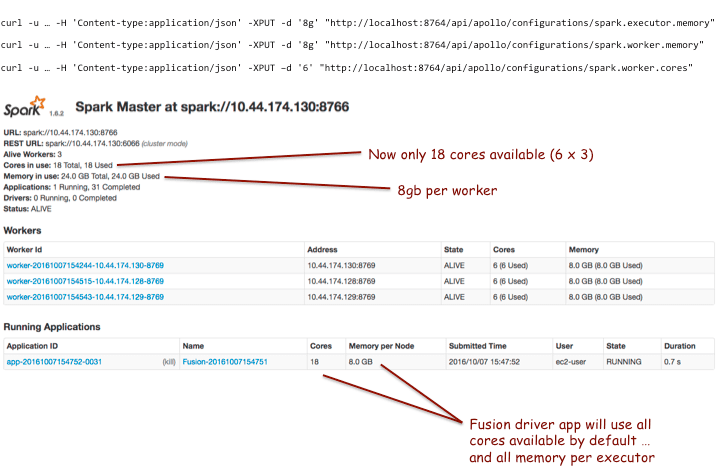

Spark master/worker resource allocation
If you co-locate Spark workers and Solr nodes on the same server,
Number of cores allocated
To change the CPU usage per worker, you need to use the Fusion configuration API to update this setting, as in the following example.spark-worker.envVars to SPARK_WORKER_CORES=<number of cores> in the fusion.cors (fusion.properties in Fusion 4.x) file on all nodes hosting a spark-worker. For example, a r4.2xlarge instance in EC2 has 8 CPU cores, but the following configuration will improve utilization and performance:bin directory below the Fusion home directory, for example, /opt/fusion/latest.***__x__***.On Windows:bin directory below the Fusion home directory, for example, C:\lucidworks\fusion{backslash}latest.***__x__***.Memory allocation
The amount of memory allocated to each worker process is controlled by Fusion propertyfusion.spark.worker.memory which specifies the total amount of memory available for all executors spun up by that Spark Worker process. This is the quantity seen in the memory column against a worker entry in the Workers table.The JVM memory setting (-Xmx) for the spark-worker process configured in the fusion.cors (fusion.properties in Fusion 4.x) file controls how much memory the spark-worker needs to manage executors (and not how much memory should be made available to your job(s)). When modifying the -Xmx value, use curl as follows:spark.executor.memory, Fusion calculates the amount of memory that can be allocated to the executorAggregation Spark jobs always get half the memory of the amount assigned to the workers.
This is controlled by the fusion.spark.executor.memory.fraction property, which is set to 0.5 by default.For example, Spark workers have 4 Gb of memory by default and the executors for aggregator Spark jobs are assigned 2 Gb for each executor.To let Fusion aggregation jobs use more of the memory of the workers, increase fusion.spark.executor.memory.fraction property to 1.
Use this property instead of the Spark executor memory property.Cores per driver allocation
The configuration propertyfusion.spark.cores.fraction lets you limit the number of cores used by the Fusion driver applications (default and scripted). For example, in the screenshot above, we see 18 total CPUs available.We set the cores fraction property to 0.5 via the following command:Ports used by Spark in Fusion
This table lists the default port numbers used by Spark processes in Fusion.If a port is not available, Spark uses the next available port by adding
1 to the assigned port number.
For example, if 4040 is not available, Spark uses 4041 (if available, or 4042, and so forth).Ensure that the ports in the above table are accessible, as well as a range of up to 16 subsequent ports.
For example, open ports 8772 through 8787, and 8788 through 8804, because a single node can have more than one Spark driver and Spark BlockManager.Spark-related directories and files in Fusion
The following directories and files are for Spark components and logs in Fusion.Spark components
These directories and files are for Spark components:Spark logs
These directories and files are for configuring and storing Spark logs:Connection configurations for an SSL-enabled Solr cluster
You will need to set these Java system properties used by SolrJ:javax.net.ssl.trustStorejavax.net.ssl.trustStorePasswordjavax.net.ssl.trustStoreType
spark.executor.extraJavaOptionsfusion.spark.driver.jvmArgsspark.driver.extraJavaOptions
Scale Spark Aggregations for Fusion 4.x
Scale Spark Aggregations for Fusion 4.x
Consider the process of running a simple aggregation on 130M signals. For an aggregation of this size, it helps to tune your Spark configuration.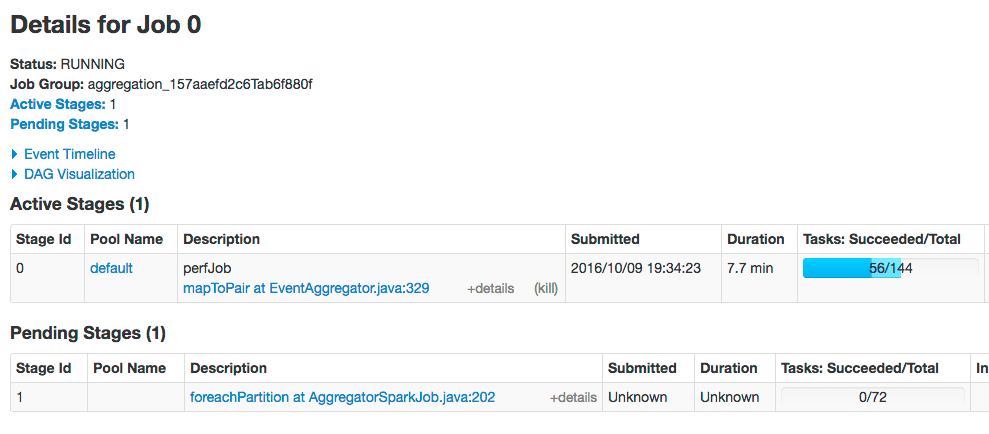
Speed up tasks and avoid timeouts
One of the most common issues encountered when running an aggregation job over a large signals data set is task timeout issues in Stage 2 (foreachPartition). This is typically due to slowness indexing aggregated jobs back into Solr or due to JavaScript functions.The solution is to increase the number of partitions of the aggregated RDD (the input to Stage 2). By default, Fusion uses 25 partitions. Here, we increase the number of partitions to 72. Set these configuration properties:-
spark.default.parallelism.* Default number of partitions in RDDs returned by transformations likejoin,reduceByKey, andparallelizewhen not specified by the user: -
spark.sql.shuffle.partitions.* Number of partitions to use when shuffling data for joins or aggregations.
foreachPartition stage of the job will use 72 partitions:Increase rows read per page
You can increase the number of rows read per page (the default is 10000) by passing the rows parameter when starting your aggregation job; for example:Improve job performance
You can increase performance when reading input data from Solr using thesplits_per_shard read option, which defaults to 4. This configuration setting governs how many Spark tasks can read from Solr concurrently. Increasing this value can improve job performance but also adds load on Solr.Spark Troubleshooting
Spark Troubleshooting
This article contains tips and techniques for troubleshooting Spark.If you see this, then it means your job has requested more CPU or memory than is available. For instance, if you ask for 4g but there is only 2g available, then the job will just hang in WAITING status.This is most likely due to an OOM in the executor JVM (preventing it from maintaining the heartbeat with the application driver). However, we have seen cases where tasks fail, but the job still completes, so you will need to wait it out to see if the job recovers.Another situation when this can occur is when a shuffle size (incoming data for a particular task) exceeds 2GB. This is hard to predict in advance because it depends on job parallelism and the number of records produced by earlier stages. The solution is to re-submit the job with increased job parallelism.
Begin troubleshooting process
-
First determine if the job is a Spark job. Spark jobs display in the Fusion UI Jobs panel and start with
spark:. Additionally, a Spark job has a job ID attributed as SPARK JOB ID . View a comprehensive list of spark jobs:- Fusion 4.x:
-
Next, check whether Spark services are enabled or if it is a local Spark instance instantiated to run Spark-related jobs.
- Go to
fusion.propertiesand look forgroup.default. The line should havespark-masterandspark-workerin the list, for examplegroup.default = zookeeper, solr, api, connectors-classic, connectors-rpc, proxy, webapps, admin-ui, spark-master, spark-worker, log-shipper. - Connect to
spark-clientvia shell script by navigating to fusion_home/bin/ directory and attempt to start via./spark-shell. It should successfully connect with a message, for example “Launching Spark Shell with Fusion Spark Master: local”. If spark-shell fails to connect at all, copy the error message and pass it to Lucidworks support.
- Go to
-
Try connecting to Apache Spark’s admin URL. It should be accessible via
host:8764. Check if scheduled jobs are complete or running. -
Re-confirm the status of Spark services by querying the API endpoint at
http://localhost:8764/api/spark/info. The API should returnmodeandmasterUrl. IfmodeandmasterUrlare local, then Spark services are not enabled explicitly or they are in a failure state. If Spark services are enabled then you will seemodeas STANDALONE. -
If Spark services were enabled but the API endpoint returned
modeas LOCAL then there is an issue with starting Spark services.- Restart Fusion with its Spark services as a first option.
- Check driver default logs via API endpoint and increase the numbers of rows param as required, for example
http://<FUSION_HOST>/api/spark/log/driver/default?rows=100ORhttp://localhost:8764/api/spark/log/driver/default?rows=100. - If you do not see an error stack trace in detail via the API endpoint, check the server tail Spark driver default logs by navigating to fusion_home/var/log/api/ and do
tail -F spark-driver-default.log, or copy the complete log files under/fusion_home/var/log/api/(for example, spark-driver-default.log, spark-driver-scripted.log, api.log, spark-driver-script-stdout.log) and share with Lucidworks to troubleshoot the actual issue.- Logs required to troubleshoot Spark jobs failure are responses to below endpoints
http://localhost:8764/api/spark/master/confighttp://localhost:8764/api/spark/worker/confighttp://localhost:8764/api/spark/master/statushttps://host:8764/api/spark/infohttps://host:8764/api/spark/configurationshttp://192.168.29.185:8764/api/apollo/configurations
- Logs required to troubleshoot Spark jobs failure are responses to below endpoints
Known issues and solutions
-
Standard Fusion setup without Spark services enabled expects the Spark jobs to work in local mode, however they are failing. When Spark services are not configured to start, a local Spark instance is instantiated to run Spark-related jobs. This Spark instance could possibly have issues.
Steps
-
Run the curl command:
-
Remove any shaded jars on file system.
- Restart Fusion, specifically API and spark-worker services (if running).
-
Run the curl command:
- Spark job (script or aggregation) is not getting all the resources available on the workers. By default, each application is only configured to get 0.5 of available memory on the cluster and 0.8 of available cores.
Other troubleshooting steps
Log API endpoints for Spark jobs
Log endpoints are useful for debugging Spark jobs on multiple nodes. In a distributed environment, the log endpoints parse the last N log lines from different Spark log files on multiple nodes and output the responses from all nodes astext/plain (which renders nicely in browsers) sorted by the timestamp.The REST API Reference documents log endpoints for Spark jobs. The URIs for the endpoints contain /api/spark/log.The most useful log API endpoint is the spark/log/job/ endpoint, which goes through all Fusion REST API and Spark logs, filters the logs by the jobId (using MDC, the mapped diagnostic context), and merges the output from different files.For example, to obtain log content for the job **_jobId_**:Log endpoints will only output data from log files on nodes on which the API service is running.