

Fusion Server requires a valid license. Depending on the details of your contract, your license may also enable optional connectors or Fusion AI. Fusion Server provides a license management UI and a license API for installing and managing licenses. When you upload a license, Fusion Server stores it in ZooKeeper, so you only need to upload it to one node per cluster. The Fusion UI notifies you when your trial license is about to expire. When your license has expired, Fusion Server accepts no configuration changes until you upload a valid license. Visit our company page to try Fusion.Documentation Index
Fetch the complete documentation index at: https://doc.lucidworks.com/llms.txt
Use this file to discover all available pages before exploring further.
Learn more
Install a Fusion License
Install a Fusion License
- Log in to the Fusion UI.
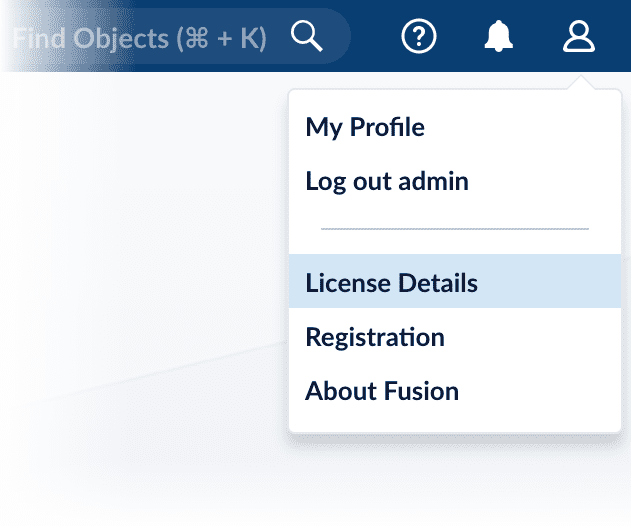
- In the upper right, open the profile menu and select License Details:
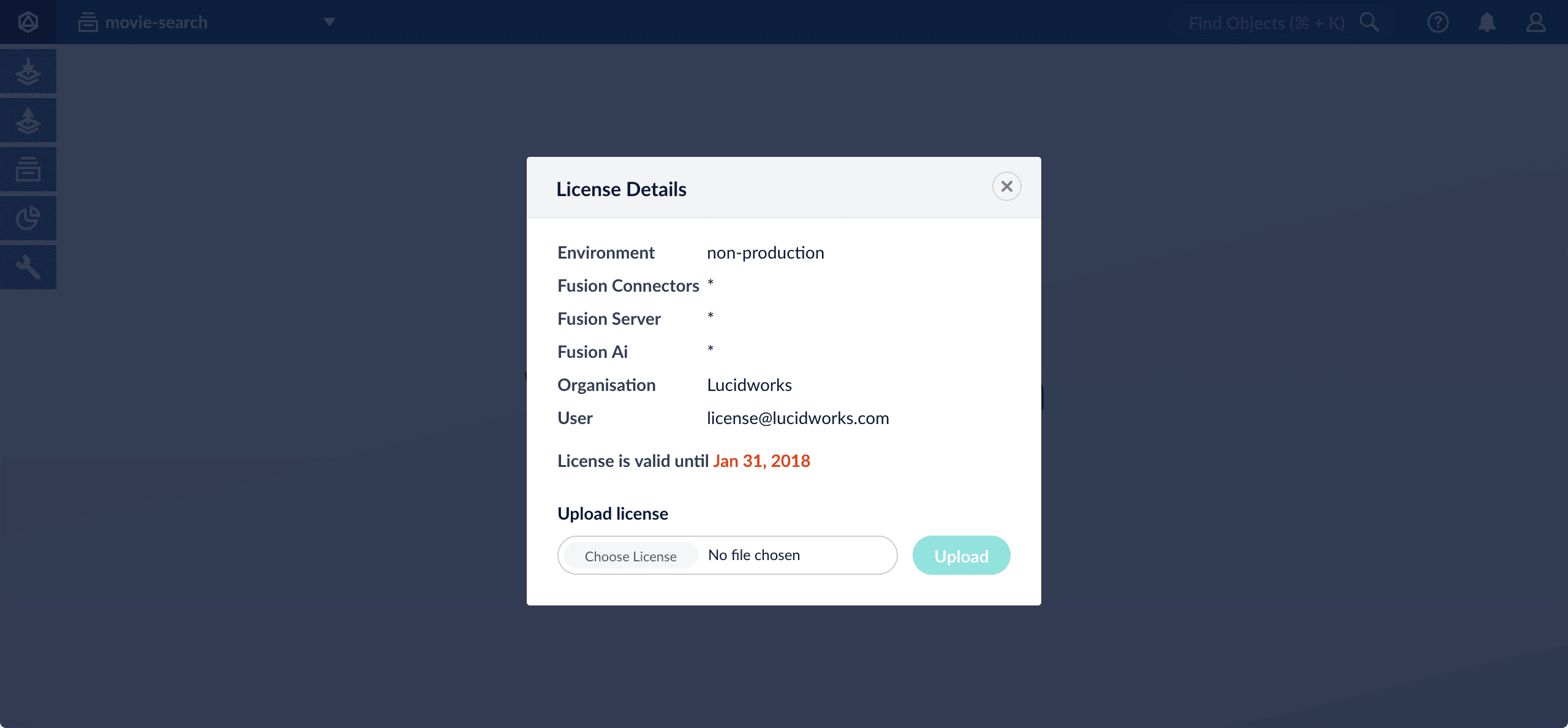
- Click Choose License and select your license file.
- Click Upload.
Create the Initial Admin Password with the API
Create the Initial Admin Password with the API
After creating a new instance of Fusion, you will need to create a password for the admin user. This is typically done in the Fusion UI. In some cases, such as during the development stage when the Admin UI microservice is not running, you may want to create this password using the API.Use the following example commands to create the initial admin password with the API, in this case,
password123: