> ## Documentation Index
> Fetch the complete documentation index at: https://doc.lucidworks.com/llms.txt
> Use this file to discover all available pages before exploring further.
# Typeahead
> Core Settings
export const LwTemplate = ({title = "Key questions to get you started", icon = "sparkles", cta = "Powered by Agent Studio", linkHref = "https://lucidworks.com/demo/?utm_source=docs&utm_medium=referral&utm_campaign=docs_cta_ai"}) => {
const [isLoaded, setIsLoaded] = useState(false);
useEffect(() => {
const timer = setTimeout(() => {
setIsLoaded(true);
}, 500);
return () => clearTimeout(timer);
}, []);
return
{isLoaded && `
}} />}
Powered by Lucidworks Agent Studio
;
};
[localhost link]: http://localhost:3000/docs/lw-platform/lw-core/sites-typeahead
[mintlify link]: https://doc.lucidworks.com/docs/lw-platform/lw-core/sites-typeahead
[old doc.lw link]: https://doc.lucidworks.com/lw-platform/core/1gkhuh
The Typeahead feature in Lucidworks Platform Core Settings provides real-time query and phrase suggestions as a user types into a search bar. This function helps users find relevant results faster by predicting what they are trying to search.
As the user enters text into the search box, the system predicts possible queries and displays instant suggestions in a dropdown menu. The suggestions refine dynamically when the user enters more characters. When the user clicks on the suggestion, the product or document displays.
Typeahead results returned by the API are sorted alphabetically. Sort options are not currently available.
## How suggestions are created
Suggestions are created in two different ways:
* **Custom terms**. You can enter typeahead suggestions for products and documents. In addition to suggestions you want to include and display when a user searches, you can also enter suggestions to exclude that are not relevant. Excluding suggestions that are not relevant can enhance your user's search experience as much as including suggestions that steer the user to the products or knowledge they seek. A maximum of 4,000 custom terms (included and excluded) can be entered.
* **Suggested terms**. Every hour, Lucidworks Platform analyzes your customers' most frequent queries using signals from the [Signals Beacon](/docs/lw-platform/lw-analytics/signals/signals-beacon) or [Signals API](/docs/lw-platform/lw-analytics/signals/signals-api). The top 1,000 terms from the last 7 days are automatically added to your Included Typeahead Suggestions list.
Click your use case below to see examples of how typeahead suggestions can enhance the search experience:
For a plumbing company, examples of Included typeahead terms are:
* black bathroom faucet
* gold bathroom faucet
* return policy
* clearance
Examples of Excluded typeahead terms are:
* shower curtain
* bath towels
* shower slippers
For an auto parts manufacturer, examples of Included typeahead terms are:
* brake kits
* carburetor calibration manual
* OEM factory service manuals (FSMs)
Examples of Excluded typeahead terms are:
* single unit
* retail price
* body shops
For human resource knowledge management, examples of Included typeahead terms are:
* benefits guide
* company holidays
* sick leave policy
Examples of Excluded typeahead terms are:
* employee address list
* handbook
* policy
## View suggestions
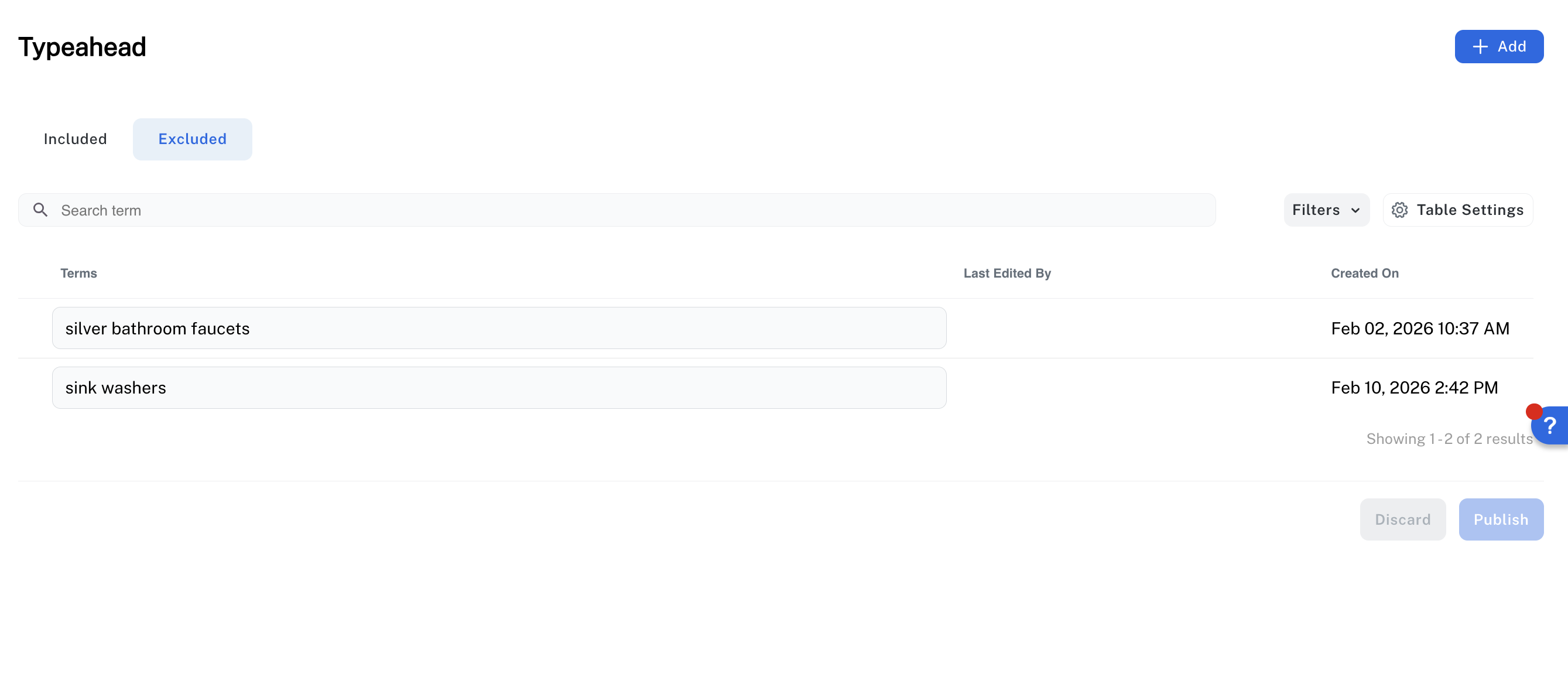
The Typeahead screen displays tabs that contain Included and Excluded suggestions.
You can perform the following actions to review or configure how the suggestions display:
* To view suggestions that contain certain characters, enter those characters in the **Search term** field and press **Enter**.
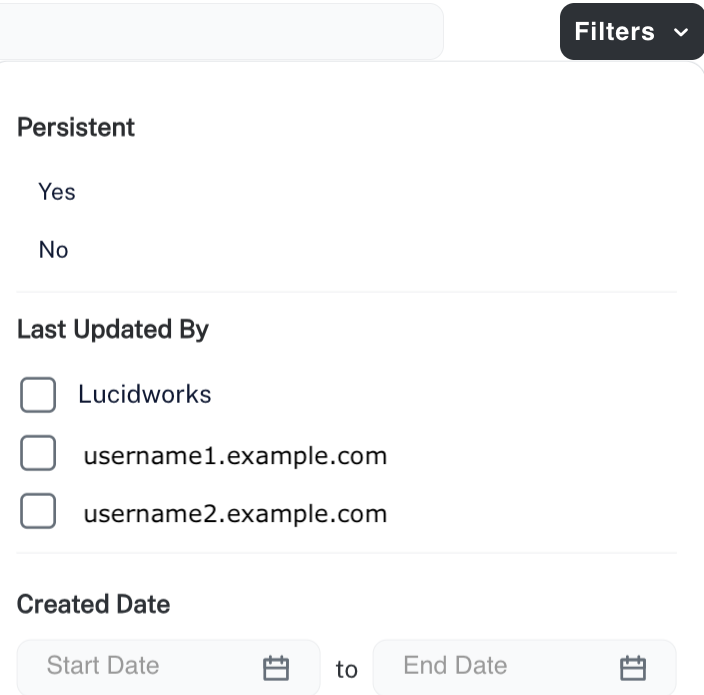
* To display suggestions based on persistence status, user who last updated the suggestion, or the date the suggestion was created, click **Filters** and select or enter the criteria.
A suggestion marked as "persistent" means that terms generated hourly do not overwrite that suggested term.
All custom typeahead terms are persistent, and must be manually excluded or deleted to be removed from the Included table. To ensure that signal-based Typeahead terms are not replaced during the hourly refresh, toggle `Persistent` to `on`.
The suggestions you enter manually in the user interface are called "custom" terms, with a value of the user signed on in the **Last Edited (Updated) By** field.
The suggestions gleaned from customer queries are called "suggested" terms, with a value of **Lucidworks** in the **Last Edited (Updated) By** field.
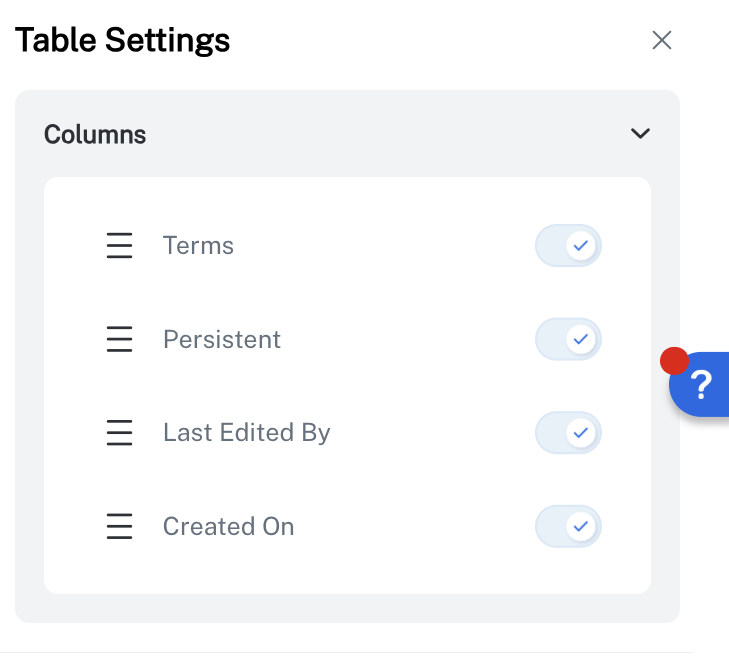
* To set the options and columns that display on the Typehead screen, click **Table Settings** and select the toggle to turn the option on or off.
## Configure suggestions
This section details the steps to configure and manage typeahead suggestions.
### Configure Included suggestions
To configure a single Included typeahead suggestion, complete the following actions:
* To add an entry, access the Typeahead screen and click **Included > +Add**. Enter the term and press **Enter**. Then, click **Publish** to activate the changes on your site.
* To edit an existing entry, click the entry, enter the changes, and then, click **Publish** to activate the changes on your site.
All custom typeahead terms are persistent, and must be manually excluded or deleted to be removed from the Included table. To ensure that signal-based Typeahead terms are not replaced during the hourly refresh, toggle `Persistent` to `on`.
**Other actions to manage individual suggestions**
To discard edits to an existing entry, select the entry and click **Discard**.
You can delete a custom term you entered, or a suggested term generated from signals.
To delete an entry, hold the pointer over the entry and click the trash icon.
When you confirm the deletion, the entry displays in a soft delete status.
To finalize the deletion, click **Publish**.
If you do not click **Publish**, the soft delete status is removed , the entry is restored to the list.
To move a custom term you entered or a suggested term generated from signals from the **Included** list to the **Excluded** list, hold the pointer over the entry and click the **Exclude** icon.
If you move a suggested term to the Excluded list, the system will not generate that suggestion again, regardless of how many signals contain that term.
When you confirm the exclusion, the entry display in a soft exclude status.
To finalize the move to the Excluded list, click **Publish**.
If you do not click **Publish**, the soft exclude status is removed when you refresh the screen, and the entry is restored to the Included list.
To edit more than one Included typeahead suggestion at a time, complete the following steps:
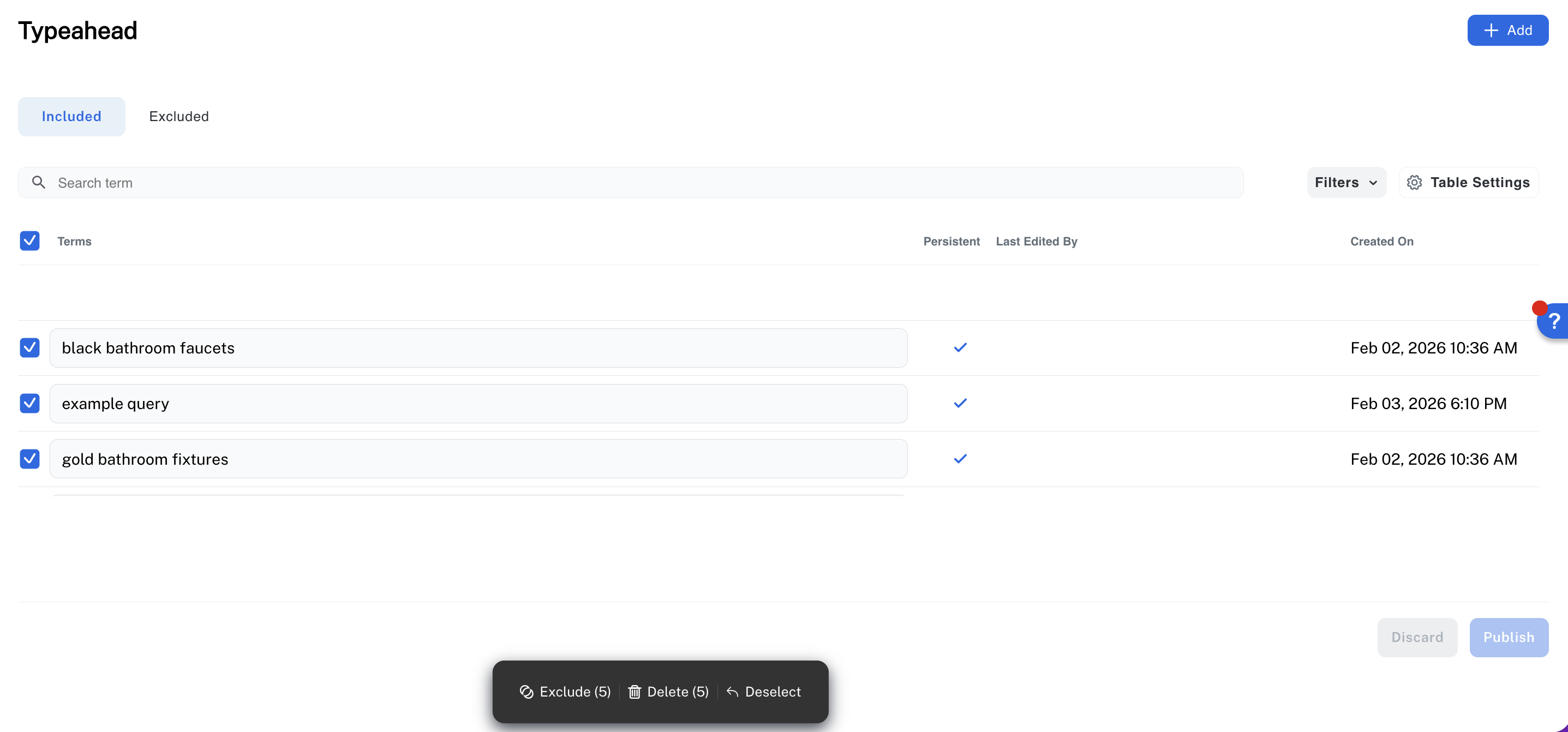
In the Typeahead screen, hold the pointer over each entry you want to select and click the checkbox. To deselect all of the entries you have selected, click **Deselect**.
To select all of the entries, hold the pointer over the **Terms** header and select the checkbox. All of the suggestions are selected.
The following sections detail how to exclude, delete, or deselect the selected entries.
To move the selected entries from the **Included** list to the **Excluded** list, click **Exclude**.
If you move a suggested term to the Excluded list, the system will not generate that suggestion again, regardless of how many signals contain that term.
When you confirm the exclusion, the entries display in a soft exclude status.
To finalize the move to the Excluded list, click **Publish**.
If you do not click **Publish**, the soft exclude status is removed when you refresh the screen, and the entries are restored to the Included list.
To delete the selected entries, click **Delete**.
When you confirm the deletion, the entries display in a soft delete status.
To finalize the deletion, click **Publish**.
If you do not click **Publish**, the soft delete status is removed when you refresh the screen, and the entries are restored to the Included list.
### Configure Excluded suggestions
Excluding a term blocks the term and related terms from being suggested. For example, if you exclude "dog", the terms "dog house" and "dog food" are also excluded, but "doghouse" is not excluded.
You might want to exclude certain keywords from typeahead for several reasons:
* Frequently searched terms, such as "sale," might dominate typeahead if not excluded, reducing variety in suggestions.
* Filter out generic terms such as "info" or "product" that provide little user intent and might not help guide the user to meaningful content.
* Exclude typeahead suggestions that do not support business goals, such as low-value queries or terms that distract from high-intent, conversion-focused results.
To manage Excluded typeahead suggestions:
The only actions you can perform on the Excluded list are to add or delete entries.
You cannot move excluded items to the Included list. To change a term from Excluded to Included, you must delete it from the Excluded list and then add it to the Included list.
To configure a single Excluded typeahead suggestion, complete the following steps:
In the Typeahead screen, click **Excluded > +Add**. Enter the term and press **Enter**. Then click **Publish** to activate that term for use on your site.
**Other actions to manage individual suggestions**
To discard edits to an existing entry, select the entry and click **Discard**.
To delete an entry, hold the pointer over the entry and click the trash icon.
When you confirm the deletion, the entry displays in a soft delete status.
To finalize the deletion, click **Publish**.
If you do not click **Publish**, the soft delete status is removed when you refresh the screen, and the entry is restored to the list.
To edit more than one Excluded typeahead suggestion at a time, complete the following steps:
In the Typeahead screen, hold the pointer over each entry you want to select and click the checkbox. To deselect all of the entries you have selected, click **Deselect**.
To select all of the entries, hold the pointer over the **Terms** header and select the checkbox. All of the suggestions are selected.
The following section details how to delete the selected entries.
To delete multiple entries, hold the pointer over each entry, click the checkbox, and then click **Delete**.
When you confirm the deletion, the entries display in a soft delete status.
To finalize the deletion, click **Publish**.
If you do not click **Publish**, the soft delete status is removed when you refresh the screen, and the entries are restored to the list.
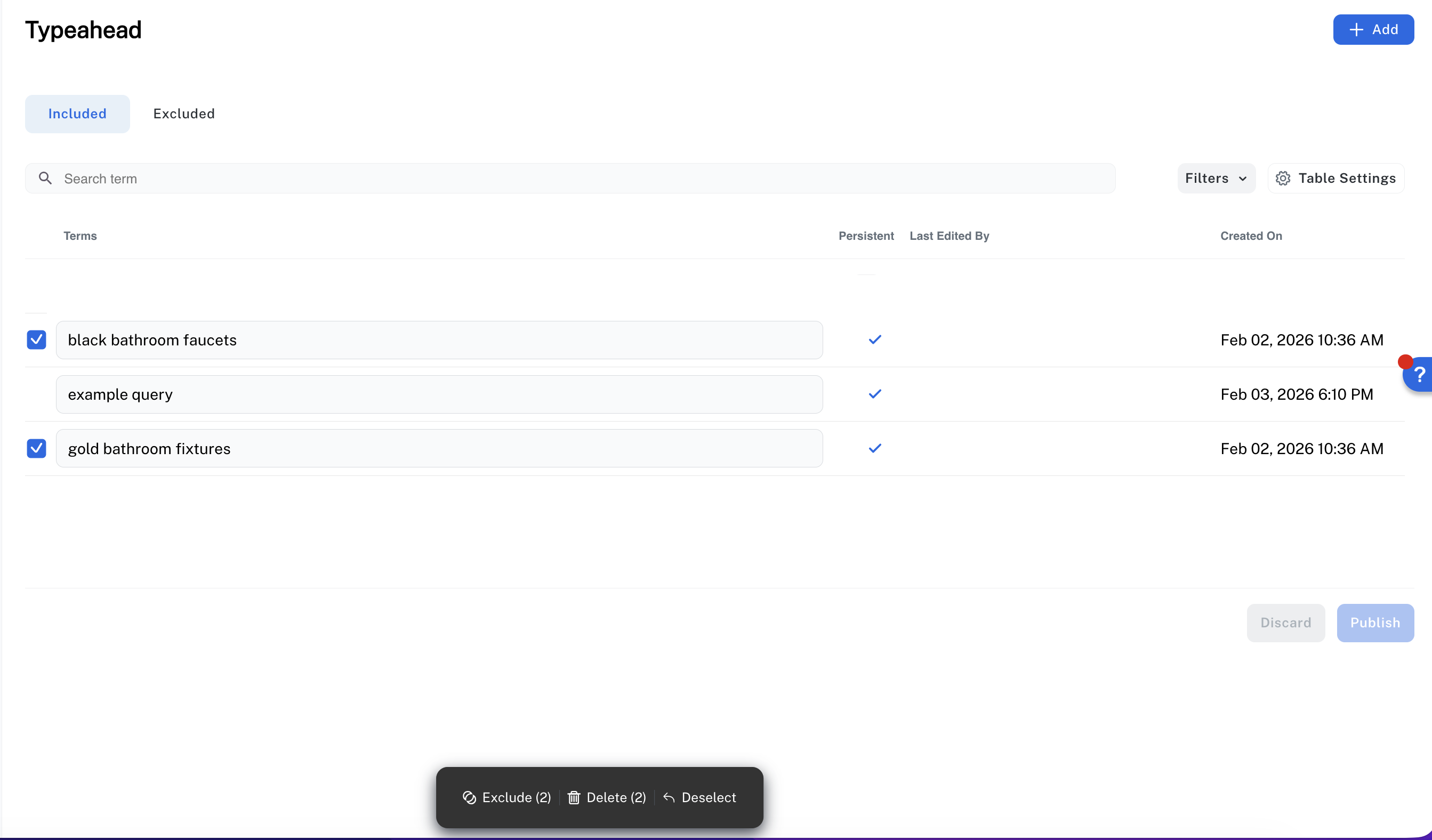 The following sections detail how to exclude, delete, or deselect the selected entries.
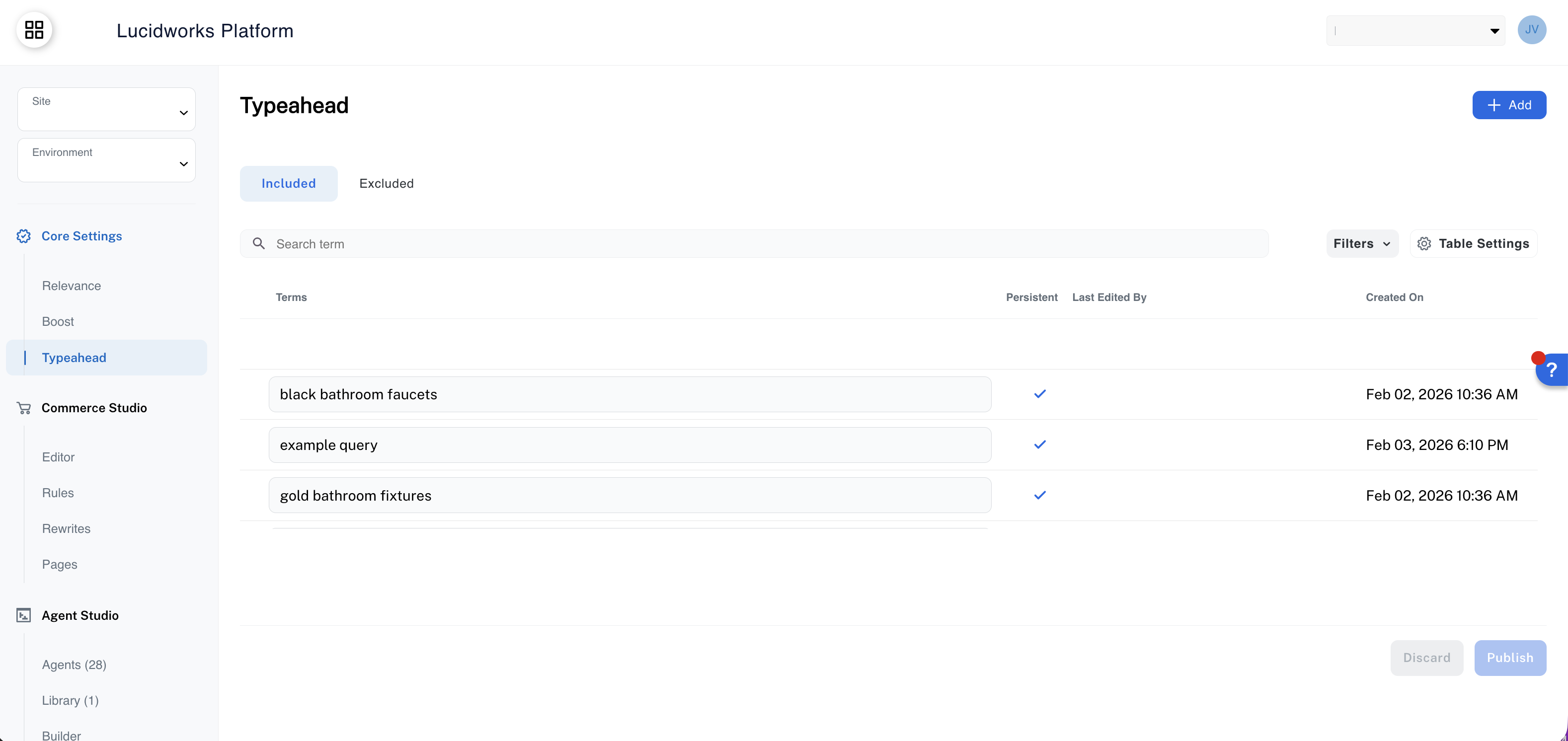 You can perform the following actions to review or configure how the suggestions display:
* To view suggestions that contain certain characters, enter those characters in the **Search term** field and press **Enter**.
* To display suggestions based on persistence status, user who last updated the suggestion, or the date the suggestion was created, click **Filters** and select or enter the criteria.
You can perform the following actions to review or configure how the suggestions display:
* To view suggestions that contain certain characters, enter those characters in the **Search term** field and press **Enter**.
* To display suggestions based on persistence status, user who last updated the suggestion, or the date the suggestion was created, click **Filters** and select or enter the criteria.
 * To set the options and columns that display on the Typehead screen, click **Table Settings** and select the toggle to turn the option on or off.
 ## Configure suggestions
This section details the steps to configure and manage typeahead suggestions.
### Configure Included suggestions
## Configure suggestions
This section details the steps to configure and manage typeahead suggestions.
### Configure Included suggestions
 To manage Excluded typeahead suggestions:
The only actions you can perform on the Excluded list are to add or delete entries.
You cannot move excluded items to the Included list. To change a term from Excluded to Included, you must delete it from the Excluded list and then add it to the Included list.
To manage Excluded typeahead suggestions:
The only actions you can perform on the Excluded list are to add or delete entries.
You cannot move excluded items to the Included list. To change a term from Excluded to Included, you must delete it from the Excluded list and then add it to the Included list.
 The following section details how to delete the selected entries.