> ## Documentation Index
> Fetch the complete documentation index at: https://doc.lucidworks.com/llms.txt
> Use this file to discover all available pages before exploring further.
# Signals Store
export const LwTemplate = ({title = "Key questions to get you started", icon = "sparkles", cta = "Powered by Agent Studio", linkHref = "https://lucidworks.com/demo/?utm_source=docs&utm_medium=referral&utm_campaign=docs_cta_ai"}) => {
const [isLoaded, setIsLoaded] = useState(false);
useEffect(() => {
const timer = setTimeout(() => {
setIsLoaded(true);
}, 500);
return () => clearTimeout(timer);
}, []);
return
{isLoaded && `
}} />}
Powered by Lucidworks Agent Studio
;
};
[old doc.lw link]: https://doc.lucidworks.com/lw-platform/analytics/88pjp2
[localhost link]: http://localhost:3000/docs/lw-platform/lw-analytics/signals/signals-store
[mintlify link]: https://doc.lucidworks.com/docs/lw-platform/lw-analytics/signals/signals-store
The Signals Store is the repository in your Lucidworks Platform workspace that holds query, click, cart-add, purchase complete, and facet usage signals gathered from customer interactions on your site.
## Create a Signal Store
One of the tasks to use signals is to create a repository to store signals.
1. Navigate to the megamenu and click **Signals**.
2. Click **Create New**.
3. In the **Name** field, enter a unique user-defined for the Signals Store.
4. In the **Region** field, select the geographical area for the Signals Store.
This selection cannot be changed. If you need a Signals Store in a different region, you need to create another Signals Store with the other region specified.
5. Click **Create**. After the Signals Store is created, you can configure the [signals beacon](/docs/lw-platform/lw-analytics/signals/signals-beacon).
## Signal fields stored
If present in the signal, the information collected by the signals beacon and housed in the Signals Store for each signal is:
* Product ID
* Title
* Image URI
* Price
## Technical components
The properties of each Signals Store include:
* User-defined name.
* Universally unique identifier (`uuid`) of the Signals Store.
The `uuid` will be use to generate a unique Signals Store endpoint using the format of `.signals.lucidworks.com`.
For more information about signals, see [signals](/docs/lw-platform/lw-analytics/signals/overview).
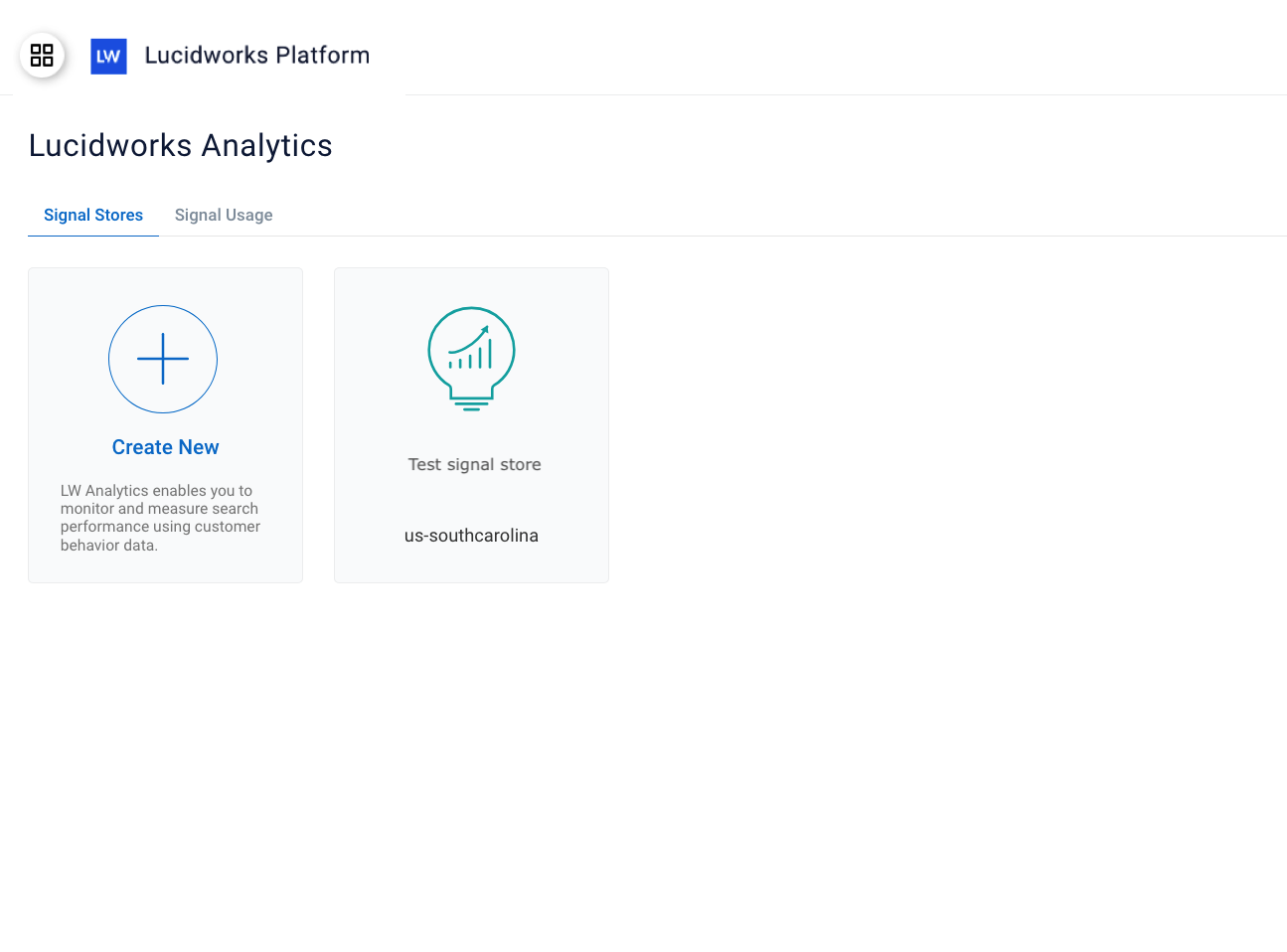 2. Click **Create New**.
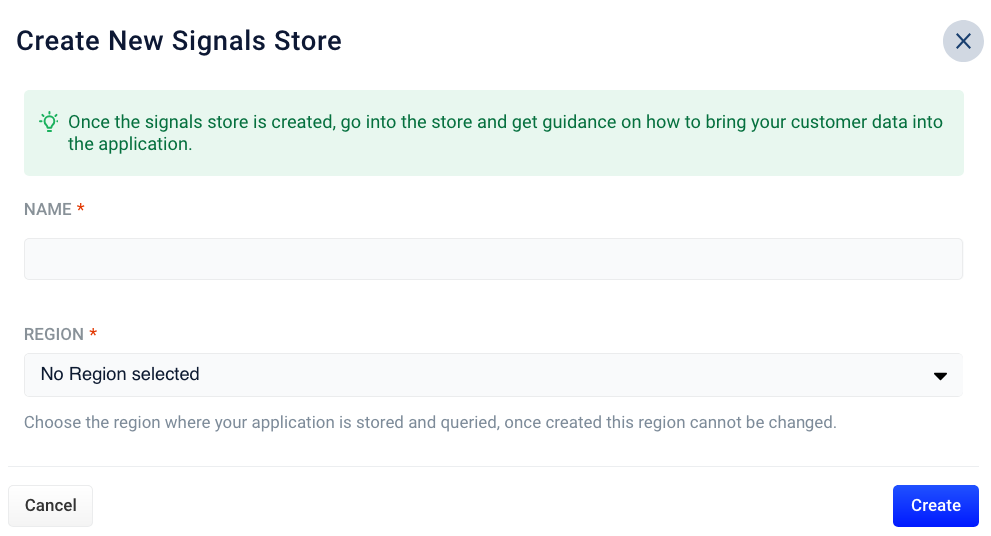 3. In the **Name** field, enter a unique user-defined for the Signals Store.
4. In the **Region** field, select the geographical area for the Signals Store.
3. In the **Name** field, enter a unique user-defined for the Signals Store.
4. In the **Region** field, select the geographical area for the Signals Store.