> ## Documentation Index
> Fetch the complete documentation index at: https://doc.lucidworks.com/llms.txt
> Use this file to discover all available pages before exploring further.

# Signals Beacon

export const LwTemplate = ({title = "Key questions to get you started", icon = "sparkles", cta = "Powered by Agent Studio", linkHref = "https://lucidworks.com/demo/?utm_source=docs&utm_medium=referral&utm_campaign=docs_cta_ai"}) => {
  const [isLoaded, setIsLoaded] = useState(false);
  useEffect(() => {
    const timer = setTimeout(() => {
      setIsLoaded(true);
    }, 500);
    return () => clearTimeout(timer);
  }, []);
  return <div className="lw-template-container">
      <Card title={title} icon={icon}>
        {isLoaded && <span dangerouslySetInnerHTML={{
    __html: `<lw-template id="a029c1a9-28be-427e-b0e1-5d918920246a"></lw-template
            >`
  }} />}
        <Link href={linkHref} className="agent-studio-link text-left text-gray-600 gap-2 dark:text-gray-400 text-sm font-medium flex flex-row items-center hover:text-primary dark:hover:text-primary-light group-hover:text-primary group-hover:dark:text-primary-light">Powered by Lucidworks Agent Studio</Link>
      </Card>
    </div>;
};

[old doc.lw link]: https://doc.lucidworks.com/lw-platform/analytics/k649vy

[localhost link]: http://localhost:3000/docs/lw-platform/lw-analytics/signals/signals-beacon

[mintlify link]: https://doc.lucidworks.com/docs/lw-platform/lw-analytics/signals/signals-beacon

{/* 
Dima’s demo:
https://drive.google.com/file/d/1P4BGaPIXAaX7hL6amy3e2zX651UvXUoH/view
https://drive.google.com/file/d/1Xhg-xBbRECpaU-MDUEYW0oMFZm2K6YT6/view
Beacon Enablement - 2024/12/18 10:58 PST - Transcript
*/}

{/* // In the JSON config, how do we know whether to put certain fields at the top level or under a specific signal type?  What’s the difference between the two? */}

The signals beacon is an embeddable tracker that captures signals corresponding to user actions, like searches and purchases.
With no coding and minimal configuration, you can quickly start sending signals to Lucidworks Platform, including all of the data needed to power your signals analytics.

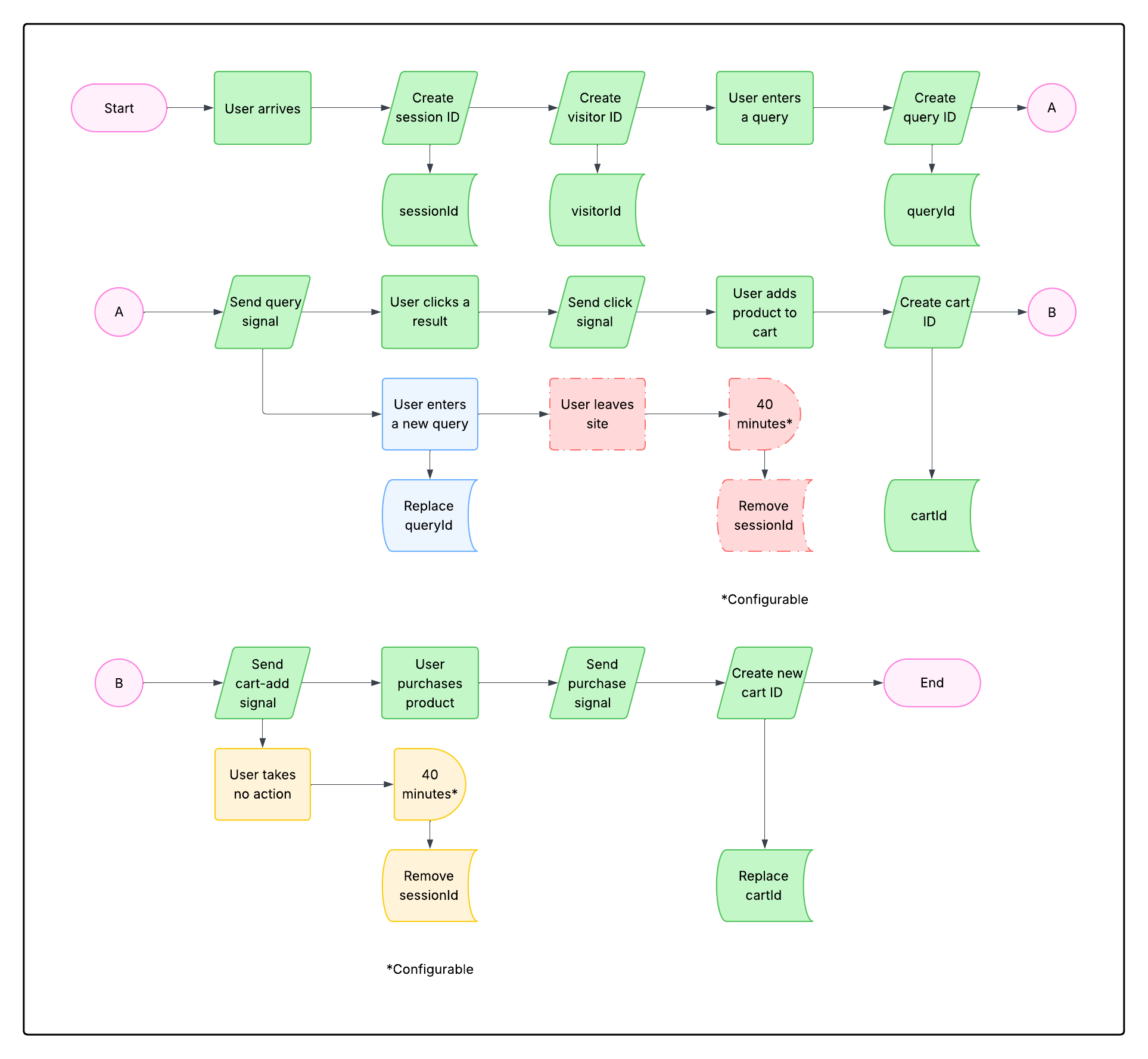
At a high level, the tracking flow begins when a user visits the site and performs one or more searches. These searches generate query identifiers that associate user actions with specific queries. As the user interacts with search results and shows interest in a product, additional signals such as clicks and cart events are captured. If the user completes a purchase, the flow concludes with a purchase signal that links the transaction back to the original query. This process enables end-to-end tracking of user behavior from search to purchase.

In this scenario, the signals beacon uses several primary tracking mechanisms:

* **Visitor ID**: A randomly generated identifier stored in local browser storage. It is unique to both the visitor and the device. It persists across sessions.
* **Session ID**: A randomly generated identifier stored in session storage. It expires after 40 minutes of inactivity or when the browser session ends. This duration is configurable using `sessionTimeoutThreshold`. When the user returns, a new session ID is generated, but the visitor ID remains the same.
* **Query ID**: A randomly generated identifier created when a search query is submitted. It is temporarily stored in memory and is included with signal events related to that query, such as clicks or purchases.
* **Cart ID**: A unique identifier created when a product is added to the cart. It links cart interactions and purchases to the originating query. After a purchase, a new cart ID is generated to track subsequent transactions independently.

The signal event flow below outlines a simplified sequence of common events. Additional signal types and behaviors are not included in this summary:

1. When a user visits the site, a visitor ID and session ID are generated.
2. When a query is submitted, a query ID is generated and a query signal is sent. This signal includes the visitor ID and session ID.
3. For each new query, a new query ID is generated and another query signal is sent.
4. When the user clicks on a product, a click signal is sent. This signal includes the associated query ID.
5. When the user adds a product to their cart, a cart ID is generated and a cart-add signal is sent.
6. When the user purchases a product, a purchase signal is sent. This signal includes the current cart ID, which allows the purchase to be traced back to the original query. After the signal is sent, the cart ID is replaced with a new one to track future transactions independently.

See the following image for a visual representation of this flow:

<Frame>
  <img src="https://mintcdn.com/lucidworks/eLUenv1bWKGXrswG/assets/images/lw-platform/analytics/signalsbeaconflow.png?fit=max&auto=format&n=eLUenv1bWKGXrswG&q=85&s=01001c00e288fbfe041380ffe27b6581" alt="Simplified signals beacon flow" width="1927" height="1777" data-path="assets/images/lw-platform/analytics/signalsbeaconflow.png" />
</Frame>

<LwTemplate />

## How it works

The beacon sends signals to the:

* [Signals store](/docs/lw-platform/lw-analytics/signals/signals-store) for storage and aggregation
* [Analytics Studio service](/docs/lw-platform/lw-analytics/overview), which provides insights about actions taken by users on your site

The following signals are collected:

* **Query signals.** When a user performs a search, a signal is recorded.
* **Click signals.** When a user clicks on a product, a signal is recorded. One example of a click signal is when a user clicks a search result, which is a strong indicator the result is relevant.
* **Cart-add signals.** When a user clicks to add an item to the cart, a signal is recorded.
* **Purchase complete signals.** When a user completes a purchase and is taken to the order confirmation page, a signal is recorded.
* **Facet usage signals.** When a user interacts with the facets associated with the results, a signal is recorded.

For information about how the signals beacon is related to other signals and analytics functions, see the [Overview of signals process](/docs/lw-platform/lw-analytics/signals/overview).

## Prerequisites

You must be a workspace owner to configure the signals beacon.
Before you begin, complete the following tasks:

* Analyze your site to confirm compatibility with the signals beacon.
  The signals beacon is compatible with most websites, but you may need to adjust the configuration to ensure it works as needed.
  * Your site should use URL query parameters (`?q=foo`), not other methods of sending the query parameters. If it is not an option to use query parameters on your site, you can use the [Signals API](/docs/lw-platform/lw-analytics/signals/signals-api) to send signals.
  - These fields should be surfaced in the page source, either as attributes or text nodes:
    * Product ID
    * Product title
    * Product image URL
    * Product price
    * Product URL
* Identify any other fields that you want the signals beacon to capture.
  You’ll need their CSS paths to configure the beacon.
  Again, these can be either attributes or text nodes, as in these examples:

  ```html theme={"dark"}
  <div class="product" data-product-id="12345"></div>
  <div class="product">12345</div>
  ```

  <Tip>  A field’s path might be different on different pages of your site.</Tip>
  The signals beacon supports multiple paths per field to accommodate this.
* Create the [Signals Store](/docs/lw-platform/lw-analytics/signals/signals-store) where the signals will be stored.

## Enable the beacon

To install the beacon, navigate to the megamenu and click **Signals**.

1. Click the Signals Store where you want to configure the signals beacon and then click **Integrations**.
2. If the beacon has never been configured for this app, you’ll see "No embed token found" on the Signals Using Beacon screen.
   In that case, click the **Generate** button.
   It can take a few moments to generate the token.
3. In the **Allowed Origins** field, enter the domains where you want to use the signals beacon. The format is `<scheme>://<hostname>[:<port>]`. For example, `https://domain.your_company_name.com`.
4. Set the **Signals Beacon** toggle to **On**.
5. Click **Copy** to copy the script and insert that script into the `<head>` tag of your website’s HTML file.

   <Tip>   This also enables the `window.logBeaconInfo()` function which you can use with your browser’s developer tools to inspect the fields captured by the beacon so that you can validate and refine your configuration.</Tip>
   See [Development and troubleshooting](#development-and-troubleshooting) below.
6. Edit the JSON configuration to process the signals you need for analytics.
   For more details, see:

   * [Example JSON configuration](#example-json-configuration)
   * [Example signals script](#example-signals-script)
   * [Field path configuration](#field-path-configuration)
   * [Beacon Configuration Interface](/docs/lw-platform/lw-analytics/signals/beacon-configuration-interface) for detailed configuration property information
7. Click **Apply**. The configuration is applied to your website and it begins to send signals instantly based on that configuration.

   <Note>You can edit the configuration at any time. When you edit the JSON configuration and click **Apply**, the changes are applied in real time and signals are sent and processed using that configuration until it is modified.</Note>

After the script is implemented and the signals are sent, you can access consolidated metrics.
The [Analytics Studio metrics](/docs/lw-platform/lw-analytics/analytics-screen) provide valuable customer behavior insights, which can be used to improve your business.

### Example JSON configuration

Use the following structure as an example to configure the beacon.

```json lines expandable wrap highlight={13,16,21} JSON configuration theme={"dark"}
{
    "attributes": {
      "productPath": ".lw-product-item",
      "sessionTimeoutThreshold": 600000,
      "cartId": "lwRetailCartId",
      "idQueryParam": "pid",
      "numberTypeFields": ["price", "quantity", "revenue"]
    },
    "fields": {
      "productId": ":scope @id",
      "imageuri": ":scope img @src",
      "price": ":scope .search-entity-price span @text",
      "title": ":scope .search-entity-title @text, :scope .search-generic-title @text",
      "uri": ".config-url @href"
    },
    
    "query": {
      "queryParam": "q",
      "delayForTrackQueryUpdate": 1000
    },
    "click": {}, 
    "cartAdd": {
      "trigger": ".lw-cart-add-trigger"
    },

    "purchase": {
      "trigger": ".lw-purchase-trigger"
    }
}
```

* **Line 13**. You can use multiple comma-separated paths in cases where a field has different paths on different pages of your site. See the [Field path configuration](#field-path-configuration) section for details and examples.
* **Line 16.** Everything below this line is your signal configuration, where you list the signals you want to track and the fields you want to extract from them.
* **Line 21.** By default, these attributes inherit from the top-level attributes `[productPath|fields]`.

For information about:

* Attributes and fields used to extract product details from page elements, see the [Field path configuration](#field-path-configuration) section.
* The BeaconConfig interface, which includes detailed information about configuration properties, types, and default values, see [Beacon configuration interface](/docs/lw-platform/lw-analytics/signals/beacon-configuration-interface).

### Example signals script

The following example contains possible fields and default values, as well as comments to help you determine other options and values.

```json lines wrap expandable highlight={2-5,7,9,14-15,17,34,44} Signals script theme={"dark"}
 {
   "attributes": {
     "data": "data-lw-product-data",
     "productPath": ".lw-product-item",
     "cartId": "lwRetailCartId",
     "numberTypeFields": [price, quantity, revenue]
   },
   "fields": {
     "productId": ":scope @id",
     "title": ".title @text",
     "imageuri": ".config-image @src",
     "uri": ".url-wrapper a @href"
   },
   "query": {
     "queryParam": "query",
     "delayForTrackQueryUpdate": 1000,
     "productPath": ".lw-product-item",
     "fields": {
       "productId": ":scope @id",
       "title": ".title @text",
       "imageuri": ".config-image @src",
       "uri": ".url-wrapper a @href"
     }
   },
   "click": {
     "productPath": ".lw-product-item",
     "fields": {
       "productId": ":scope @id",
       "title": ".title @text",
       "imageuri": ".config-image @src",
       "uri": ".url-wrapper a @href"
     }
   },
   "cartAdd": {
     "trigger": ".lw-cart-add-trigger",
     "productPath": ".lw-product-item",
     "fields": {
       "productId": ":scope @id",
       "title": ".title @text",
       "imageuri": ".config-image @src",
       "uri": ".url-wrapper a @href"
     }
   },
   "purchase": {
     "trigger": ".lw-purchase-trigger",
     "productPath": ".lw-cart-item",
     "fields": {
       "productId": ":scope @cart-item-id",
       "title": ".title @text",
       "imageuri": ".config-image @src",
       "uri": ".url-wrapper a @href"
     }
   }
 }
```

* **Line 2**. Attributes provide a more advanced way to obtain product details using serialized JSON in an element attribute.
* **Line 3**. The CSS selector to target product elements. This is the global path inherited by each signal action if no custom path is provided at `[query/click/cartAdd/purchase].productPath`. The default is `.lw-product-item`.
* **Line 4**. The local storage key for the consumer page storing the cart UUID. The `cartId` value defaults to `lwRetailCartId`. The beacon obtains the value from `localStorage.lwRetailCartId` when attaching cart info to `/retail/signals/cartadd ` and `/retail/signals/purchase`.
* **Line 5**. This list specifies the fields treated as number type fields. The defaults can be `[price, quantity, revenue]`.
* **Line 7**. This is the main section to extract product field value from your site. For more information, see the Beacon element path section in this topic, which provides detailed configuration about extracting product information to ensure accurate and consistent data collection.
* **Line 9**. The `productId` field with a value of `scope@id` is the only required field to use the Lucidworks Retail Beacon API.
* **Line 14**. Specifies the URL parameter the beacon uses to monitor query updates. For example, with the default param `query`, if the current product page is filtered with the keyword `hat`, the URL parameter is <span>http\://</span>example.com?query=hat. The default value is `query`.
* **Line 15**. Specifies the delay, in milliseconds, for tracking element updates in the query. The default value is `1000`.
* **Line 17**. Custom overwrite of the fields configuration at the root level.
* **Line 34**. The CSS selector that targets page elements for triggering add-to-cart actions. This has full CSS support for targeting multiple elements with comma-separated selectors. For example, `button.add-to-bag, #AddToBagWithPrice`.
* **Line 44**. The CSS selector that targets page elements for triggering purchase or checkout actions. This has full CSS support for targeting multiple elements with comma-separated selectors. For example, `button.add-to-bag, #AddToBagWithPrice`.

### Field path configuration

The signals beacon extracts product details from page elements using CSS selectors and attributes.
You can capture any field that’s surfaced in the page’s DOM by adding it to your JSON configuration, under `"fields"`.
This section shows you how to configure your field paths, with examples.

The format is: `[Element CSS Selector] @[Value Attribute]`, as in the example below:

<CodeGroup>
  ```json Configuration theme={"dark"}
  "url": ".details .url @href"
  ```

  ```html HTML structure theme={"dark"}
    <div class="details">
      ...
      <a class="url" href="http://example.com/prd-123" />
    </div>
  ```

  ```bash Data extracted theme={"dark"}
  http://example.com/prd-123
  ```
</CodeGroup>

### Special selectors

These special selectors and attributes are available:

* The `@text` pseudo-attribute captures the inner text node, as in these examples:

  <CodeGroup>
    ```json Configuration theme={"dark"}
    "title": ".title @text"
    ```

    ```html HTML structure theme={"dark"}
    <h2 class="title">Fancy Hat</h2>
    ```

    ```bash Data extracted theme={"dark"}
    Fancy Hat
    ```
  </CodeGroup>

  <CodeGroup>
    ```json Configuration theme={"dark"}
    "price": ".details .price @text"
    ```

    ```html HTML structure theme={"dark"}
      <div class="details">
        <div class="price" value="100" />
        ...
      </div>
    ```

    ```bash Data extracted theme={"dark"}
    100
    ```
  </CodeGroup>

* The `:scope` CSS class targets product details defined on the root `productPath` element, as in this example:

  <CodeGroup>
    ```json Configuration theme={"dark"}
    {
      "attributes": {
        "productPath": ".main-page-product",
      },

      "fields": {
        "productId": ":scope @sku",
        ...
      }
    }
    ```

    ```html HTML structure theme={"dark"}
    <div class="main-page-product" sku="prd-123">
    ```

    ```bash Data extracted theme={"dark"}
    prd-123
    ```
  </CodeGroup>

* The `textContent` selector targets elements by their text, as follows:

  * Exact match: `[textContent='Add to cart!']`
  * Contains: `[textContent*='cart']`
  * Starts with: `[textContent^='add']`
  * Ends with: `[textContent$='cart!']`

  For example:

  ```json theme={"dark"}
  "trigger": "button[textContent='Add to Cart'], .add-to-cart-container button"
  ```

* You can also use data attributes as selectors, as in this example where `data-testid` is a data attribute:

  ```json theme={"dark"}
  "trigger": ".headerSearchBox, #hdrSrch, input[data-testid=global-search]"
  ```

### Page type configuration

The `pageTypes` configuration enables you to classify queries by page type based on URL patterns.

**Configuration:**

```json theme={"dark"}
"pageTypes": {
  "search": ["*/search*"],
  "category": ["*/category/*"],
  "product": ["*/product/*"]
}
```

**Type:** `{ [pageType: string]: string[] }`

A mapping of page types to their corresponding URL patterns.

The `pageTypes` configuration enables annotation of query signals via an optional `pageType` property. By default, when no `pageType` is specified, query signals are treated as originating from the search page.

When a `pageType` is provided, its value is used for page-type matching. If a query does not match any configured patterns, its `pageType` is set to "OTHER".

Queries with a `pageType` other than null or "SEARCH" are excluded from the null query report. This is particularly useful for scenarios where queries originate from or redirect to non-search pages (e.g., category pages).

<Note>
  Explicitly configuring the "search" page type is recommended. Doing so ensures that any query signals from URLs that don't match a configured pattern are classified as "OTHER" and excluded from the null query report.
</Note>

## Configure the beacon with Agent Studio or UI Studio

To use the signals beacon on the same page as Agent Studio or UI Studio, configure the beacon script with additional attributes.
Agent Studio and UI Studio both use the `<lw-template>` web component, which requires specific beacon configuration to work correctly.

Add the following attributes to the beacon script that you downloaded at **Analytics Studio** > **Integrations**:

* `signal-store-api-url`: API URL for your signals store.
* `signal-store-embed-token`: Embed token for the signals store.
* `beacon="{}"`: Initializes the beacon configuration.
* `initiator="AS"`: Identifies the script as being used with Agent Studio or UI Studio.

The following example shows the beacon script configured with those additional attributes:

```html {6-9} theme={"dark"}
<head>
  <script 
    type="module" 
    id="lw-ui-lib" 
    src="https://storage.googleapis.com/sb-ui/springboard.esm.js"
    app-studio-api-url="YOUR_APP_STUDIO_API_URL"
    app-studio-embed-token="YOUR_APP_STUDIO_TOKEN"
    signal-store-api-url="YOUR_SIGNAL_STORE_API_URL"
    signal-store-embed-token="YOUR_SIGNAL_STORE_TOKEN"
    beacon="{}"
    initiator="AS">
  </script>
</head>

<body>
  <lw-template template-id="12345" product-id="1234">
  </lw-template>
</body>
```

Without these attributes, the beacon and `lw-template` components may conflict and fail to initialize.

## Configure the beacon for multiple pages of search results

You can configure the signals beacon if your site separates query results by tabs. For example, one tab for content and another tab for product information.

In the following example, each tab’s content path is separated by a comma under `"productPath"` with the `"fields"` property defining what is tracked for each tab using `:scope`.

```json Configuration theme={"dark"}
{
  "attributes": {
    "numberTypeFields": [
      "price",
      "quantity",
      "revenue"
    ],
    "productPath": ".cmp-content-search-result-list-item, .cmp-productlist__item"
  },
  "click": {
    "trigger": "a, a h3, .button"
  },
  "fields": {
    "imageuri": ":scope .cmp-content-search-result-list-item__img @src, :scope img @src",
    "productId": ":scope .cmp-content-search-result-list-item_link @href, :scope .cmp-text .anchor @text",
    "title": ":scope .cmp-content-search-result-list-item__details-name @text, :scope .cmp-text p @text",
    "uri": ":scope .cmp-content-search-result-list-item_link @href"
  },
  "query": {
    "queryParam": "search_query"
  }
}
```

## Programmatic hooks

If your facets are stored somewhere that is inaccessible to the beacon, you can hook into beacon events to transform or suppress signals.

The `BeaconSignalHandlers` mechanism provides a way to modify, enhance, or suppress the signals that the beacon originally constructed before they are sent.

A signal handler can be defined for each of the signal types (`query`, `click`, `cartAdd`, and `purchase`).

Handlers should be called in the site’s code after the beacon is loaded. These functions only need to be set once.

The beacon configuration does not need to change if the intent of using this mechanism is to enhance query signals with facet information that is not available through the URL.

### Signal handler behavior

The signal handler can be used for the following:

* **Modify signals:** return the modified payload object to send an enhanced signal.
* **Suppress signals:** return false to prevent the signal from being sent.
* **Error handling**: if a runtime error occurs in the callback function, the original unmodified signal will be sent.

If the signal handler returns `undefined` or `null`, the unmodified signal will be sent.

The arguments to the `window.addBeaconListener` function should include these:

1. The signal type.
2. Callback function with one argument (signal payload).

### Examples of signal payload enhancement

Enhancing a `click` payload:

```js theme={"dark"}
window.addBeaconListener('click', (payload) => {
  // Modify the payload as needed
  payload.productDetails[0].product.productId = '123';
  
  // Return the modified payload to send the signal
  return payload;
});
```

Example of a `query` payload:

```js theme={"dark"}
window.addBeaconListener('query', (payload) => {
  // Modify the payload as needed
  payload.selected_facets = [
    {
      name: 'color',
      values: ['blue', 'white'],
    },
  ];
  
  // Return the modified payload to send the signal
  return payload;
});
```

### Example of conditional signal suppression

```js theme={"dark"}
window.addBeaconListener('query', (payload) => {
  // Do not send query signals that contain a blocked search term
  if (payload.searchTerms === 'blocked query') {
    return false;
  }
});
```

## Development and troubleshooting

The signals beacon includes the built-in `window.logBeaconInfo()` debugging utility that logs verbose information if the debug flag is enabled.

To enable the debug flag in your local storage, set `localStorage.enableBeaconDev = true`.