> ## Documentation Index
> Fetch the complete documentation index at: https://doc.lucidworks.com/llms.txt
> Use this file to discover all available pages before exploring further.
# Platform Signals API
export const LwTemplate = ({title = "Key questions to get you started", icon = "sparkles", cta = "Powered by Agent Studio", linkHref = "https://lucidworks.com/demo/?utm_source=docs&utm_medium=referral&utm_campaign=docs_cta_ai"}) => {
const [isLoaded, setIsLoaded] = useState(false);
useEffect(() => {
const timer = setTimeout(() => {
setIsLoaded(true);
}, 500);
return () => clearTimeout(timer);
}, []);
return
{isLoaded && `
}} />}
Powered by Lucidworks Agent Studio
;
};
[old doc.lw link]: https://doc.lucidworks.com/lw-platform/analytics/uist05
[localhost link]: http://localhost:3000/docs/lw-platform/lw-analytics/signals/signals-api
[mintlify link]: https://doc.lucidworks.com/docs/lw-platform/lw-analytics/signals/signals-api
The Platform Signals API and the embed token feature can be used instead of the [signals beacon](/docs/lw-platform/lw-analytics/signals/signals-beacon) to collect query, click, cart-add, and purchase complete signals. When the signals are collected, you can use the insights and analytics in [Analytics Studio](/docs/lw-platform/lw-analytics/overview) to help refine your site and improve customer interactions. Visit signals are not currently used and are scheduled to be deprecated.
While the Javascript signals beacon functionality is versatile and configurable, your organization may need to use the Platform Signals API and embed features instead. For example, your organization may use a mobile app that cannot accept Javascript, have security configuration differences, or already use another framework for sending signals.
To use the Platform Signals API and embeds to collect signals, your engineering team must add the appropriate information to the backend codebase on your site. Examples of the fields that need to be added include anonymous visitor ID and session ID values for each customer interaction. The [Platform Signals API specification](/api-reference/get-signals/query-signals) details each signal request.
For detailed API specifications in Swagger/OpenAPI format, see [Platform APIs](/api-reference/get-signals/query-signals).
## UI components required to implement the Platform Signals API
Two values you need to use the Platform Signals API are the Signals Store ID and embed token. This section provides the steps in the necessary order to create and obtain those values from the UI.
### 1. Create a Signals Store
1. Navigate to the megamenu and click **Signals**.
2. Click **Create New**.
3. In the **Name** field, enter a unique user-defined for the Signals Store.
4. In the **Region** field, select the geographical area for the Signals Store.
This selection cannot be changed. If you need a Signals Store in a different region, you need to create another Signals Store with the other region specified.
5. Click **Create**.
### 2. Generate and copy the embed token to your codebase
To generate the embed token, navigate to the megamenu and click **Signals**.
1. Click the Signals Store where you want to configure the signals beacon and then click **Integrations > Signals Using Embed Token**.
2. If you haven’t configured embeds for this Signals Store, the "No embed token found" message displays.
3. Click **Generate**. It may take a few moments to generate the token.
The generated embed token for the Signals Store is permanent and cannot be changed.
4. In the Embed Token section, click **Copy** and then paste the token into your codebase. To view the token, click **Show** or click **Hide** to prevent it from displaying.
The embed token also displays in asterisks in the Authorization header line of all of the cURL examples. When you copy and then paste the cURL example, the value of the embed token displays instead of the asterisks. For example:
```bash wrap theme={"dark"}
--header 'Authorization: Embed EMBED_TOKEN'
```
### 3. Obtain the Signals Store ID
To obtain the Signals Store ID, navigate to the megamenu and click **Signals**.
1. Click the Signals Store where you want to configure the signals beacon and then click **Integrations > Signals Using Embed Token**.
2. The Signals Store ID displays in first line of all of the cURL examples. Copy that ID to paste into your codebase. For example:
```bash wrap theme={"dark"}
curl 'https://SIGNAL_STORE_ID.applications.lucidworks.com/retail/signals/query'
```
### 4. Copy or create code to collect signals
Lucidworks provides cURL command examples for the query, click, cart-add, and purchase complete signals that you can copy into your backend codebase and modify based on the language you use, such as Java, C#, Python, or Nodejs.
For detailed API specifications in Swagger/OpenAPI format, see [Platform APIs](/api-reference/get-signals/query-signals).
To copy cURL command examples you can paste into your site codebase, navigate to the megamenu and click **Signals**.
1. Click the Signals Store where you want to configure the signals beacon and then click **Integrations > Signals Using Embed Token**.
2. Click **Copy** to copy the cURL command example for the signal you want to add to your codebase.
3. Paste the command in your codebase and modify based on your organizational needs. If you choose not to use the examples Lucidworks provides, enter code into your codebase manually.
## Example user flow and signal events
This section provides a typical user interaction flow for browsing and purchasing a product by describing the required API signals and UUID generation necessary for event tracking.
You can program your site to generate UUIDs using any standards-compliant method. Each signal depends on proper UUID generation and tracking. Consistent IDs are necessary for signal integrity and accurate metrics for analytics.
To successfully create signals and ensure complete signal tracking, your site must generate and persist the following UUIDs:
* `visitorId` and `sessionId` are required in every signal (query, click, cartadd, and purchase complete) to identify the user and session.
* `queryId` is required in every signal (query, click, cartadd, and purchase complete) to identify the query, including refinements like facet selection.
* `searchTerms` is required in the query signal to return results.
* `cartId` is required in the cartadd and purchase complete signals for cart activity and must be replaced with a different UUID for each new user cartadd signal.
* `orderId` is optional, and is used on the purchase\_complete signal and identifies an actual purchase as opposed to an attempted purchase.
As part of the code you add to your site, you need to implement UUID generation and determine how to store these values and all other parameters. For example, `visitorId` is typically stored in `localStorage` to persist across sessions, and `sessionId` is usually stored in `sessionStorage` to reset between sessions.
Other parameters are detailed in the [Platform Signals API specification.](/api-reference/get-signals/query-signals)
### Sample user interaction flow
The following example provides typical interactions when a customer searches for and purchases a refrigerator.
### 1. Site entry and ID generation
When a user visits your site, the site must generate the `visitorId` and `sessionId` universal unique identifiers (UUIDs).
### 2. Search query and initial query signal
When the user searches for “silver french door bottom freezer refrigerator,” your site must generate a new `queryId` UUID and send a query signal.
```json wrap expandable Generate queryID theme={"dark"}
curl --request POST \
--url https://SIGNAL_STORE_ID.applications.lucidworks.com/retail/signals/query \
--header 'Content-Type: application/json' \
--data '[
{
"timestamp": 1744305461169,
"visitorId": "abcc8e25-d30f-2212-9f60-9b45a71453cf",
"sessionId": "41a50e2-8e32-4674-5429-e1450dfdbb14",
"queryId": "2a97fc33-3335-3369-c2dc-456b775eb90f",
"ipAddress": "111.222.333",
"searchTerms": "silver french door bottom freezer refrigerator",
"productDetails": [
{
"product": {
"productId": "1234567",
"currencyCode": "USD",
"price": 2592,
"title": "Silver french door bottom freezer 27.4 cu ft refrigerator",
"imageuri": "https://example.com/images/refrigerators/silver/bottomfreezer/1234567.jpg"
},
"quantity": 1
}
],
"sourceId": "string",
"uri": "https://example.com/refrigerators/silver/bottomfreezer"
}
]'
```
### 3. Product click and click signal
When the user clicks a product, your site must generate a click signal that uses the same `queryId` generated in the query request that returned the results on which the user clicks.
```json wrap expandable Click signal theme={"dark"}
curl --request POST \
--url https://SIGNAL_STORE_ID.applications.lucidworks.com/retail/signals/click \
--header 'Content-Type: application/json' \
--data '[
{
"timestamp": 1744305461169,
"visitorId": "abcc8e25-d30f-2212-9f60-9b45a71453cf",
"sessionId": "41a50e2-8e32-4674-5429-e1450dfdbb14",
"queryId": "2a97fc33-3335-3369-c2dc-456b775eb90f",
"ipAddress": "111.222.333",
"productDetails": [
{
"product": {
"productId": "1234567",
"currencyCode": "USD",
"price": 2592,
"title": "Silver french door bottom freezer 27.4 cu ft refrigerator",
"imageuri": "https://example.com/images/refrigerators/silver/bottomfreezer/1234567.jpg"
},
"quantity": 1
}
],
"sourceId": "string",
"uri": "https://example.com/refrigerators/silver/bottomfreezer",
"selectedPosition": 1
}
]'
```
The `selectedPosition` field is critical for calculating Average Click Position analytics. Use one-based indexing where the first item in the search results is 1, the second is 2, and so on. Do not use zero-based indexing.
### 4. Cart addition and cart-add signal
When the user adds the product to their cart, your site must generate a `cartId` and send a cart-add signal.
```json expandable Cart add signal theme={"dark"}
curl --request POST \
--url https://SIGNAL_STORE_ID.applications.lucidworks.com/retail/signals/cartadd \
--header 'Content-Type: application/json' \
--data '[
{
"timestamp": 1744305461169,
"visitorId": "abcc8e25-d30f-2212-9f60-9b45a71453cf",
"sessionId": "41a50e2-8e32-4674-5429-e1450dfdbb14",
"queryId": "2a97fc33-3335-3369-c2dc-456b775eb90f",
"ipAddress": "111.222.333",
"productDetails": [
{
"product": {
"productId": "1234567",
"currencyCode": "USD",
"price": 2592,
"title": "Silver french door bottom freezer 27.4 cu ft refrigerator",
"imageuri": "https://example.com/images/refrigerators/silver/bottomfreezer/1234567.jpg"
},
"quantity": 1
}
],
"sourceId": "string",
"uri": "https://example.com/refrigerators/silver/bottomfreezer",
"cartId": "7f626d8c-4176-4f55-b17d-e89531e92ef7"
}
]'
```
### 5. Purchase complete and purchase signal
When the user completes the purchase, your site can generate an optional `orderId` along with the purchase complete signal using the `cartId` from the cart-add signal. After the purchase, the site must replace that `cartId` with a new UUID for the next cart-add signal.
```json expandable Purchase complete signal theme={"dark"}
curl --request POST \
--url https://SIGNAL_STORE_ID.applications.lucidworks.com/retail/signals/purchase \
--header 'Content-Type: application/json' \
--data '[
{
"timestamp": 1744305461169,
"visitorId": "abcc8e25-d30f-2212-9f60-9b45a71453cf",
"sessionId": "41a50e2-8e32-4674-5429-e1450dfdbb14",
"queryId": "2a97fc33-3335-3369-c2dc-456b775eb90f",
"ipAddress": "111.222.333",
"productDetails": [
{
"product": {
"productId": "1234567",
"currencyCode": "USD",
"price": 2592,
"title": "Silver french door bottom freezer 27.4 cu ft refrigerator",
"imageuri": "https://example.com/images/refrigerators/silver/bottomfreezer/1234567.jpg"
},
"quantity": 1
}
],
"sourceId": "string",
"uri": "https://example.com/refrigerators/silver/bottomfreezer",
"cartId": "7f626d8c-4176-4f55-b17d-e89531e92ef7",
"orderId": "6a678f11d-2265-4d01-a4ed-6e9875bfbda2",
"revenue": 2592
}
]'
```
## Additional signal information
### Facet refinement and query signal generation
When the user applies a facet, for example, the query parameter of "?facet=appliances", the signals beacon considers it to be a new query. Your site must determine if you want to generate a new `queryId` UUID and new query signal, or if you handle that interaction in a different way.
```json expandable Facet signal theme={"dark"}
curl --request POST \
--url https://SIGNAL_STORE_ID.applications.lucidworks.com/retail/signals/query \
--header 'Content-Type: application/json' \
--data '[
{
"timestamp": 1744305500000,
"visitorId": "abcc8e25-d30f-2212-9f60-9b45a71453cf",
"sessionId": "41a50e2-8e32-4674-5429-e1450dfdbb14",
"queryId": "3be88d22-1c74-44fd-b3a1-6d22078dfed4",
"ipAddress": "111.222.333",
"searchTerms": "silver french door bottom freezer refrigerator",
"productDetails": [
{
"product": {
"productId": "1234567",
"currencyCode": "USD",
"price": 2592,
"title": "Silver french door bottom freezer 27.4 cu ft refrigerator",
"imageuri": "https://example.com/images/refrigerators/silver/bottomfreezer/1234567.jpg"
},
"quantity": 1
}
],
"sourceId": "string",
"uri": "https://example.com/refrigerators/silver/bottomfreezer?facet=appliances"
}
]'
```
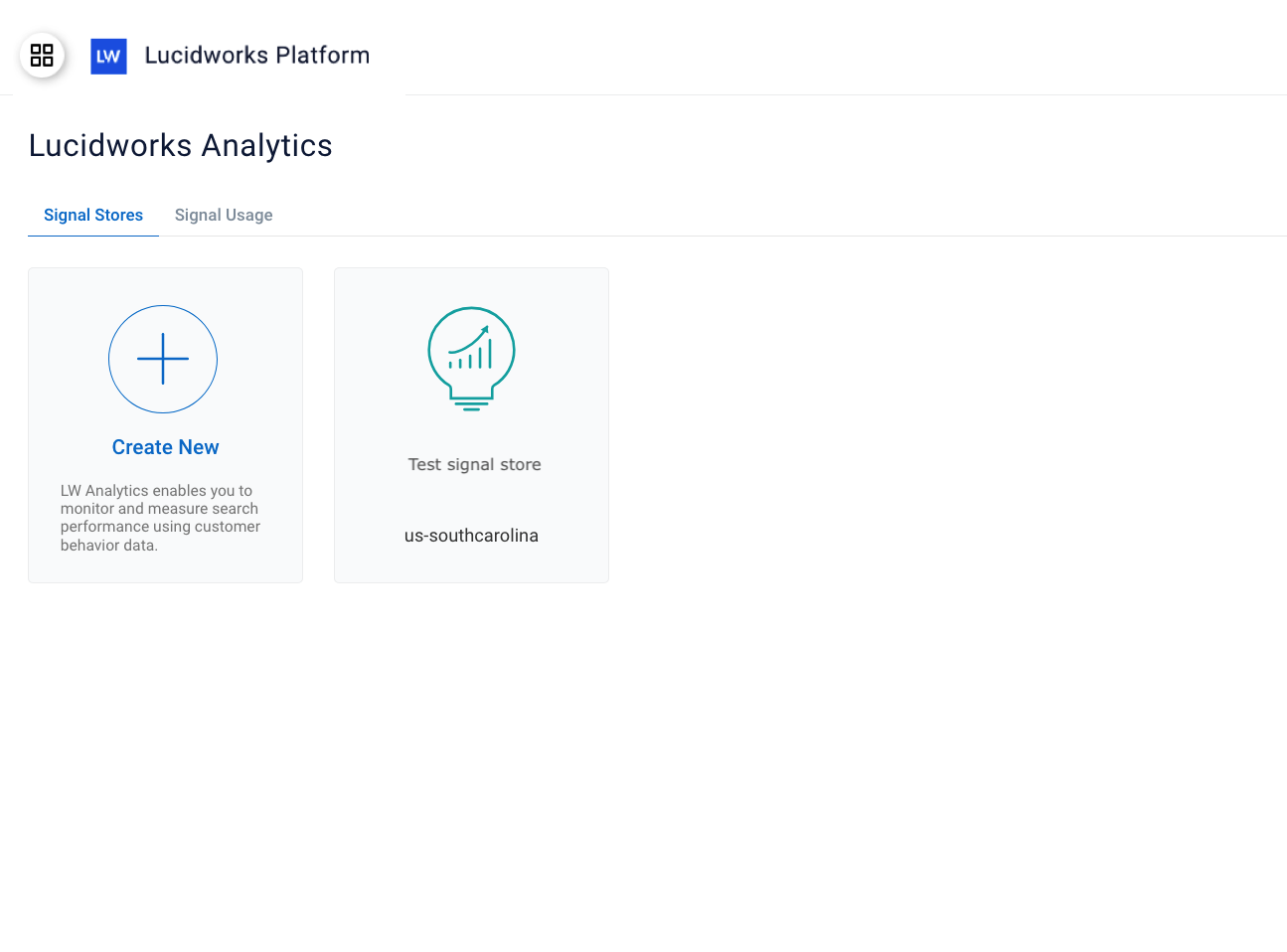 2. Click **Create New**.
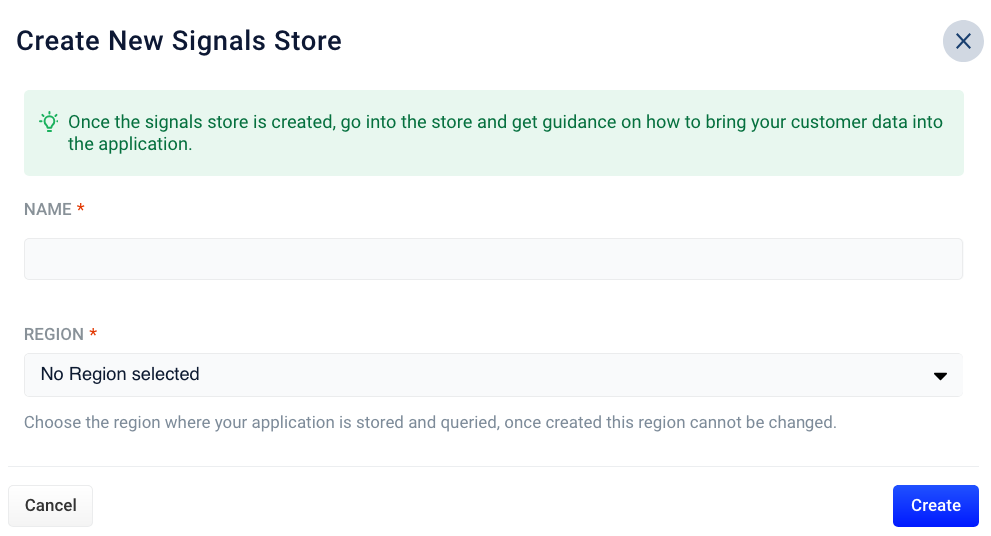 3. In the **Name** field, enter a unique user-defined for the Signals Store.
4. In the **Region** field, select the geographical area for the Signals Store.
3. In the **Name** field, enter a unique user-defined for the Signals Store.
4. In the **Region** field, select the geographical area for the Signals Store.
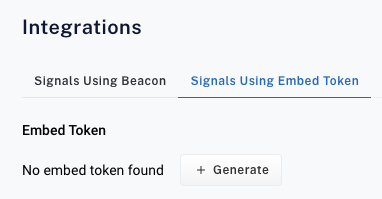 3. Click **Generate**. It may take a few moments to generate the token.
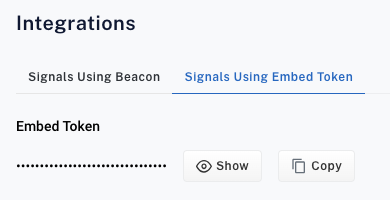 The embed token also displays in asterisks in the Authorization header line of all of the cURL examples. When you copy and then paste the cURL example, the value of the embed token displays instead of the asterisks. For example:
```bash wrap theme={"dark"}
--header 'Authorization: Embed EMBED_TOKEN'
```
### 3. Obtain the Signals Store ID
To obtain the Signals Store ID, navigate to the megamenu and click **Signals**.
1. Click the Signals Store where you want to configure the signals beacon and then click **Integrations > Signals Using Embed Token**.
2. The Signals Store ID displays in first line of all of the cURL examples. Copy that ID to paste into your codebase. For example:
```bash wrap theme={"dark"}
curl 'https://SIGNAL_STORE_ID.applications.lucidworks.com/retail/signals/query'
```
### 4. Copy or create code to collect signals
Lucidworks provides cURL command examples for the query, click, cart-add, and purchase complete signals that you can copy into your backend codebase and modify based on the language you use, such as Java, C#, Python, or Nodejs.
The embed token also displays in asterisks in the Authorization header line of all of the cURL examples. When you copy and then paste the cURL example, the value of the embed token displays instead of the asterisks. For example:
```bash wrap theme={"dark"}
--header 'Authorization: Embed EMBED_TOKEN'
```
### 3. Obtain the Signals Store ID
To obtain the Signals Store ID, navigate to the megamenu and click **Signals**.
1. Click the Signals Store where you want to configure the signals beacon and then click **Integrations > Signals Using Embed Token**.
2. The Signals Store ID displays in first line of all of the cURL examples. Copy that ID to paste into your codebase. For example:
```bash wrap theme={"dark"}
curl 'https://SIGNAL_STORE_ID.applications.lucidworks.com/retail/signals/query'
```
### 4. Copy or create code to collect signals
Lucidworks provides cURL command examples for the query, click, cart-add, and purchase complete signals that you can copy into your backend codebase and modify based on the language you use, such as Java, C#, Python, or Nodejs.