> ## Documentation Index
> Fetch the complete documentation index at: https://doc.lucidworks.com/llms.txt
> Use this file to discover all available pages before exploring further.
# Image metadata enrichment use case
export const LwTemplate = ({title = "Key questions to get you started", icon = "sparkles", cta = "Powered by Agent Studio", linkHref = "https://lucidworks.com/demo/?utm_source=docs&utm_medium=referral&utm_campaign=docs_cta_ai"}) => {
const [isLoaded, setIsLoaded] = useState(false);
useEffect(() => {
const timer = setTimeout(() => {
setIsLoaded(true);
}, 500);
return () => clearTimeout(timer);
}, []);
return
{isLoaded && `
}} />}
Powered by Lucidworks Agent Studio
;
};
[localhost link]: http://localhost:3000/docs/lw-platform/lw-ai/lw-ai-apis/lw-ai-prediction-api/image-metadata-enrichment
[mintlify link]: https://doc.lucidworks.com/docs/lw-platform/lw-ai/lw-ai-apis/lw-ai-prediction-api/image-metadata-enrichment
In the image metadata enrichment use case of the [LWAI Prediction API](/docs/lw-platform/lw-ai/lw-ai-apis/lw-ai-prediction-api/overview), the LLM ingests a text containing either a base64-encoded image or a public HTTP/HTTPS or Google Cloud Storage (`gs://`) image link and routes the image to a multimodal model. You can also supply the image using `image` or `imageLink` keys in each `batch` item. A JSON response is returned that contains a `imageMetadata` dictionary with a list of keywords, a list of subcategories, and a list of keywords synonyms. The metadata can be generated based on the image, the image title, and the categories.
This use case can be applied in the following ways:
* Enrich keywords for an image in a document.
* Generate SEO and alt text.
* Help with image-based product discovery.
* Enrich document indexing.
* Visually tag images for search and faceting.
* Expand synonyms for search recall.
* Auto-categorize images.
* Validate or correct categories.
* Increase semantic linking and recommendations.
Complete the steps to configure the image metadata enrichment use case that analyzes images to generate keywords, synonyms, and subcategories that enhance metadata content for image-based product discovery.
The use case requires specific fields, parameters, and values be configured in the LWAI Prediction index pipeline stage, Field Mapping index pipeline stage, and Query Fields query pipeline stage to generate and display metadata for images.
### Configure the LWAI Prediction index pipeline stage
1. Sign in to Fusion and click **Indexing > Index Pipelines**. Click **Add** for a new pipeline and enter a **Pipeline ID**. For example, **image-enrichment**.
2. Click **Add a new pipeline stage** and select **LWAI Prediction**.
3. In the **Label** field, enter a unique identifier for this stage. For example, **LWAI Image Metadata Enrichment**.
4. In the **Condition** field, enter what the document must contain for the stage to select it. For example, `doc.hasField("image_url_t")` means the document must have the image's web address stored as a text field to be included in the stage.
5. In the **Account Name** field, select the Lucidworks AI API account name defined in [Lucidworks AI Gateway](/docs/lw-platform/lw-ai/lw-ai-gateway).
6. In the **Use Case** field, select or enter `image-metadata-enrichment` for the Lucidworks AI use case.
7. In the **Model** field, you must enter a model that can scan multiple types of data, including images, videos, or PDFs. For multi-modal use cases such as **image-metadata-enrichment**, this example uses the `gemini-2.5-flash-lite` model.
8. In the **Input context variable** variable field, enter the name of the field that contains the image URL. For example,` `.
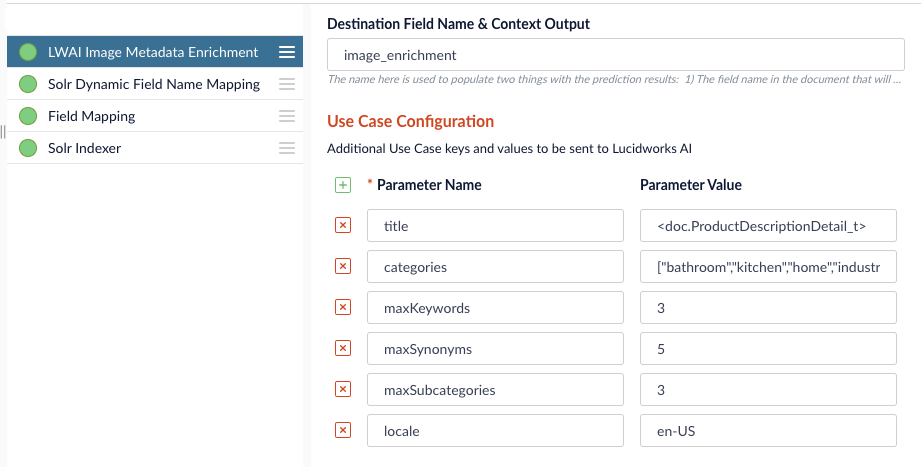
9. In the **Destination field name and context output** field, enter the name that will be used as both the field name in the document where the prediction is written and the context variable that contains the prediction. For example, `image_enrichment`.
10. In the **Use Case Configuration** section, you can add parameters and values to send to Lucidworks AI. These `useCaseConfig` parameters are only included in the stage processing when they are present in the incoming document. The parameters can also include the type of metadata returned and the maximum number of those metadata elements.
This example specifies to submit the image title, and for the stage to focus on documents already containing certain categories that are located in the United States. The example parameters also specify the stage generate up to three keywords, five synonyms, and three subcategories.
11. In the **Model Configuration** section, you can add parameters and values to send to Lucidworks AI. For example, you can specify parameters such as region to refine the search in the stage.
12. In the **API Key** field, enter the secret value specified in the external model.
13. Click **Save**.
### Configure the Field Mapping index pipeline stage
You may also need to set some parameters in the Field Mapping index pipeline stage.
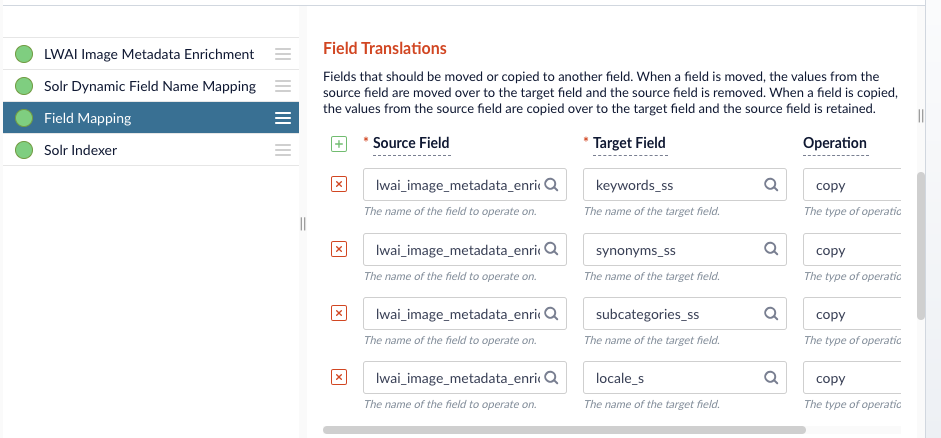
1. Click the **Field Mapping** stage and scroll to the **Field Translations** section.
For example, if the source field names are extremely long, you can use the Field Translations section to shorten them for your target index fields.
2. When you enter all of the parameter and field values, click **Save**.
### Set up a datasource
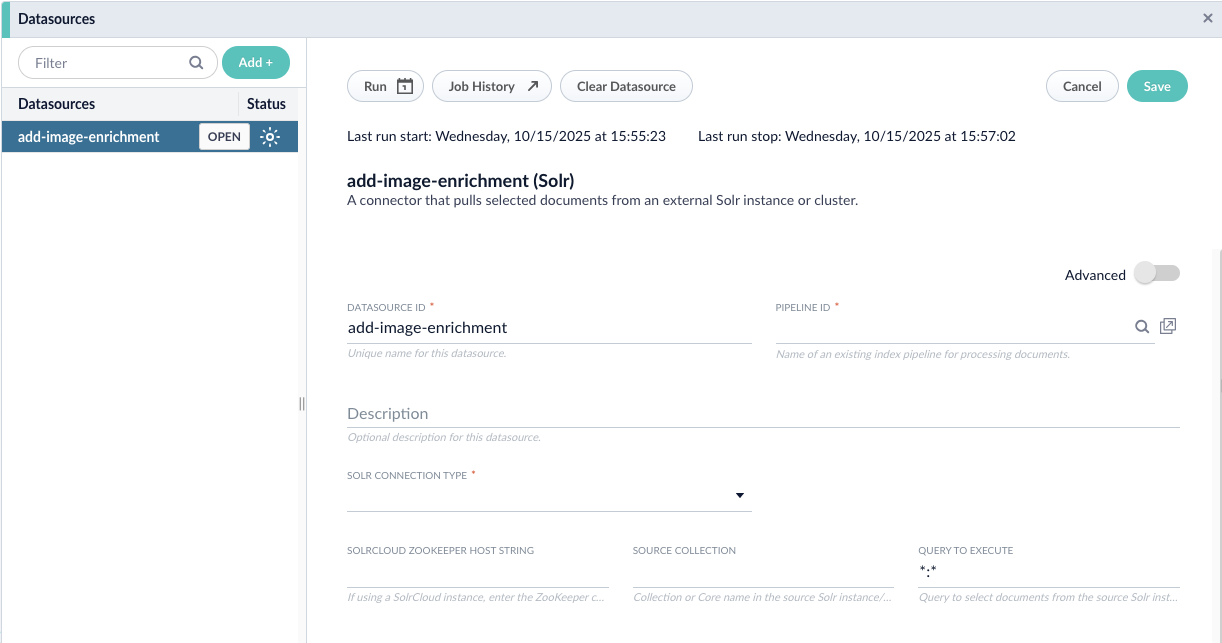
1. Click **Indexing > Datasources > Add**.
2. Set up a datasource associated with the pipeline and connector.
3. Run the datasource to enrich the metadata for the images at the URL specified in the index pipeline.
### Configure Query Fields stage
1. Click **Querying > Query Workbench** and select the **Query Fields** stage.
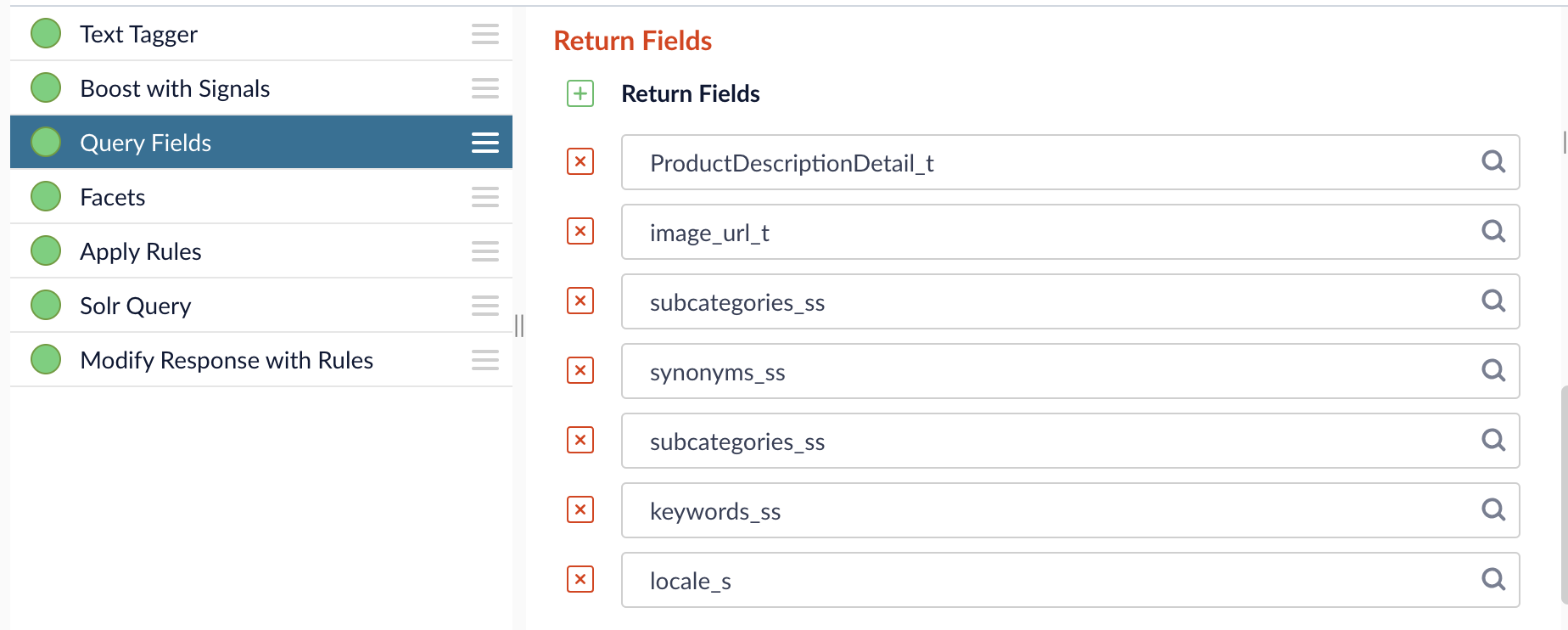
2. Scroll to the **Return Fields** section and enter the image metadata fields to include in the query results. The fields need to include, but do not have to be limited to, the fields specified in the indexing stage. This example includes the fields specified in indexing field example.
### Review the query results
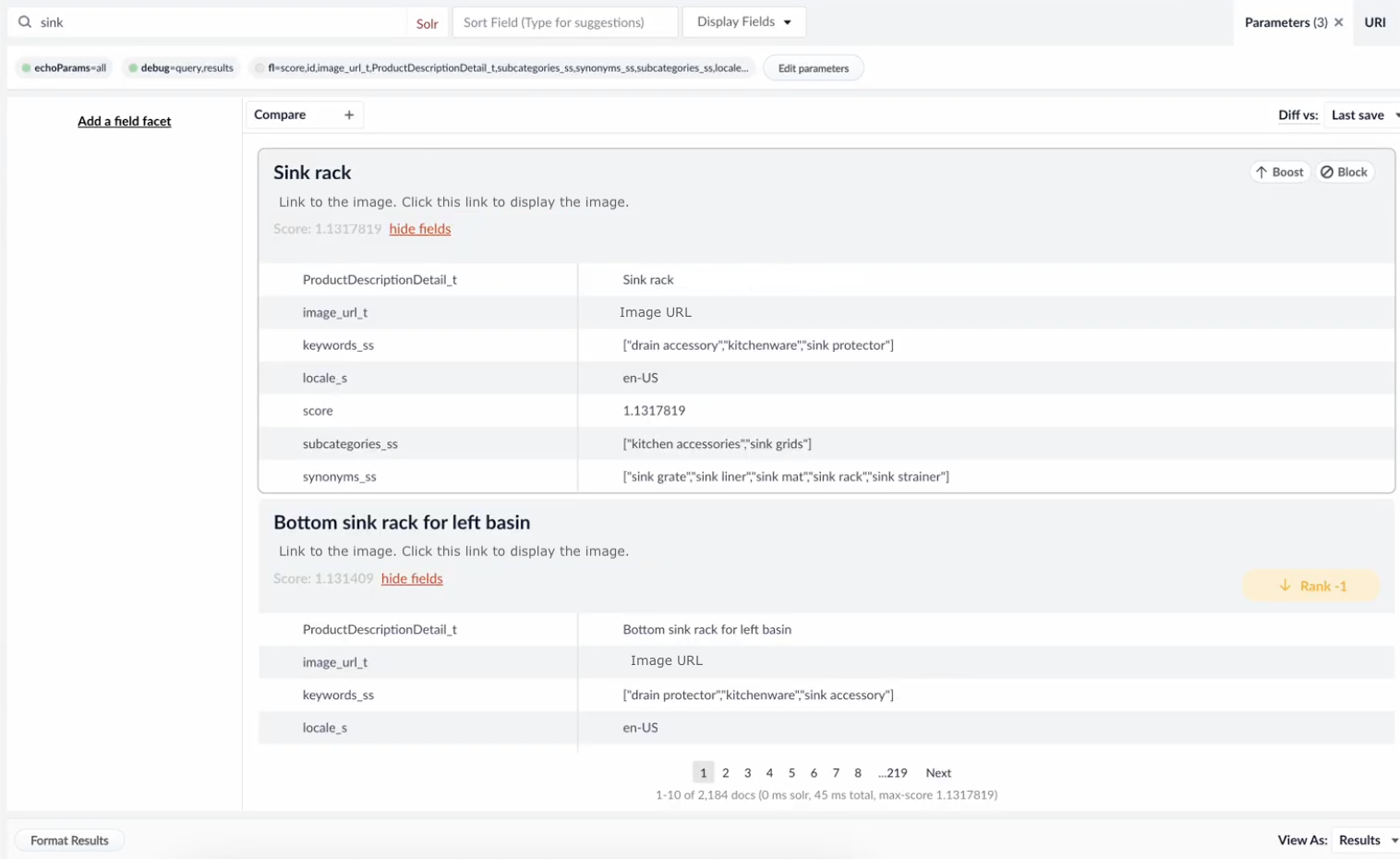
Review the results in the Query Workbench, which should include:
* The image link under the title or the image URL to view the image.
* The title, locale specified as the US in the stage field, and the calculated score of the item.
* The metadata generated based on the categories field in the stage. For this example, the categories requested were bath, kitchen, home, and industrial. The keywords, subcategories, and synonyms now reflect image metadata related to those categories.
## Unique values for the image metadata enrichment use case
An array of request items. Each item is contained within curly brackets and accepts one of the following.
Freeform content contained in the document. Pass in either a base64-encoded image or an image link and it will be parsed to the correct field. This is meant to support Fusion specifically.
A field meant to take a string of a base64-encoded image. If included, `imageLink` may not be included.
A field for HTTP/HTTPS or pulic Google Cloud Storage links (`gs://`). If included, `image` may not be included.
Optional object to control metadata generation, such as what to consider and how much to return. The image must be provided in the `batch` item as `useCaseConfig` only tunes the output.
This optional parameter is designated for the title of the image or other details to include for the generated items.
This optional parameter specifies the current categories for the item and is the basis for the subcategories generated.
This optional parameter has a default of `15` and specifies the maximum number of keywords the model should generate.
This optional parameter has a default of `5` and specifies the maximum number of subcategories the model should generate.
This optional parameter has a default of `5` and specifies the maximum number of synonyms the model should generate per keyword.
This optional parameter has a default of `en-US` and specifies the locale when generating targeted vernacular.
## Example requests
These examples show how to use the different `batch` parameters.
### Example using `batch` with `text`
```bash wrap theme={"dark"}
curl --request POST \
--url https://APPLICATION_ID.applications.lucidworks.com/ai/prediction/image-metadata-enrichment/MODEL_ID \
--header 'Authorization: Bearer ACCESS_TOKEN' \
--header 'Content-type: application/json' \
--data '{
"batch": [
{
"text": "https://i.postimg.cc/T3Gggmrx/blushing-happymushroom.png"
}
],
"useCaseConfig": {
"title": "blushing-happy-mushroom",
"categories": [
"fungi",
"cute",
"jubilant",
"embarrassed"
],
"maxKeywords": 3,
"maxSynonyms": 2,
"maxSubcategories": 2,
"locale": "en-US"
}
}'
```
### Example using `batch` with `imageLink`
```bash wrap theme={"dark"}
curl --request POST \
--url https://APPLICATION_ID.applications.lucidworks.com/ai/prediction/image-metadata-enrichment/MODEL_ID \
--header 'Authorization: Bearer ACCESS_TOKEN' \
--header 'Content-type: application/json' \
--data '{
"batch": [
{
"imageLink": "https://i.postimg.cc/T3Gggmrx/blushing-happymushroom.png"
}
],
"useCaseConfig": {
"title": "blushing-happy-mushroom",
"categories": [
"fungi",
"cute",
"jubilant",
"embarrassed"
],
"maxKeywords": 3,
"maxSynonyms": 2,
"maxSubcategories": 2,
"locale": "en-US"
}
}'
```
### Example using `batch` with `image` data encoded for Macs
```bash wrap theme={"dark"}
encoded=$(base64 -i blushing_happymushroom.png -o - | tr -d '\n');
curl --request POST \
--url https://APPLICATION_ID.applications.lucidworks.com/ai/prediction/image-metadata-enrichment/MODEL_ID \
--header 'Authorization: Bearer ACCESS_TOKEN' \
--header 'Content-type: application/json' \
--data '{
"batch": [
{
"image": "$encoded"
}
],
"useCaseConfig": {
"title": "blushing-happy-mushroom",
"categories": [
"fungi",
"cute",
"jubilant",
"embarrassed"
],
"maxKeywords": 3,
"maxSynonyms": 2,
"maxSubcategories": 2,
"locale": "en-US"
}
}'
```
## Example response
The following is an example response for all of the above requests:
````json wrap theme={"dark"}
{
"predictions":[
{
"tokensUsed": {
"promptTokens": 1614,
"completionTokens": 61,
"totalTokens": 1675
},
"imageMetadata": {
"keywords": [
"cartoon",
"pleased",
"toadstool"
],
"subcategories": [
"happy",
"mushroom art"
],
"synonyms": [
"animation",
"cheerful",
"delighted",
"drawing",
"fungus",
"sporocarp"
],
"locale": "en-US"
},
"response": "```yaml\nkeywords:\n - toadstool\n - pleased\n - cartoon\nsubcategories:\n - mushroom art\n - happy\nsynonyms:\n - fungus\n - sporocarp\n - delighted\n - cheerful\n - drawing\n - animation\n```"
}
]
}
````
 11. In the **Model Configuration** section, you can add parameters and values to send to Lucidworks AI. For example, you can specify parameters such as region to refine the search in the stage.
12. In the **API Key** field, enter the secret value specified in the external model.
13. Click **Save**.
### Configure the Field Mapping index pipeline stage
You may also need to set some parameters in the Field Mapping index pipeline stage.
1. Click the **Field Mapping** stage and scroll to the **Field Translations** section.
For example, if the source field names are extremely long, you can use the Field Translations section to shorten them for your target index fields.
11. In the **Model Configuration** section, you can add parameters and values to send to Lucidworks AI. For example, you can specify parameters such as region to refine the search in the stage.
12. In the **API Key** field, enter the secret value specified in the external model.
13. Click **Save**.
### Configure the Field Mapping index pipeline stage
You may also need to set some parameters in the Field Mapping index pipeline stage.
1. Click the **Field Mapping** stage and scroll to the **Field Translations** section.
For example, if the source field names are extremely long, you can use the Field Translations section to shorten them for your target index fields.
 2. When you enter all of the parameter and field values, click **Save**.
### Set up a datasource
1. Click **Indexing > Datasources > Add**.
2. Set up a datasource associated with the pipeline and connector.
2. When you enter all of the parameter and field values, click **Save**.
### Set up a datasource
1. Click **Indexing > Datasources > Add**.
2. Set up a datasource associated with the pipeline and connector.
 3. Run the datasource to enrich the metadata for the images at the URL specified in the index pipeline.
### Configure Query Fields stage
1. Click **Querying > Query Workbench** and select the **Query Fields** stage.
2. Scroll to the **Return Fields** section and enter the image metadata fields to include in the query results. The fields need to include, but do not have to be limited to, the fields specified in the indexing stage. This example includes the fields specified in indexing field example.
3. Run the datasource to enrich the metadata for the images at the URL specified in the index pipeline.
### Configure Query Fields stage
1. Click **Querying > Query Workbench** and select the **Query Fields** stage.
2. Scroll to the **Return Fields** section and enter the image metadata fields to include in the query results. The fields need to include, but do not have to be limited to, the fields specified in the indexing stage. This example includes the fields specified in indexing field example.
 ### Review the query results
Review the results in the Query Workbench, which should include:
* The image link under the title or the image URL to view the image.
* The title, locale specified as the US in the stage field, and the calculated score of the item.
* The metadata generated based on the categories field in the stage. For this example, the categories requested were bath, kitchen, home, and industrial. The keywords, subcategories, and synonyms now reflect image metadata related to those categories.
### Review the query results
Review the results in the Query Workbench, which should include:
* The image link under the title or the image URL to view the image.
* The title, locale specified as the US in the stage field, and the calculated score of the item.
* The metadata generated based on the categories field in the stage. For this example, the categories requested were bath, kitchen, home, and industrial. The keywords, subcategories, and synonyms now reflect image metadata related to those categories.