> ## Documentation Index
> Fetch the complete documentation index at: https://doc.lucidworks.com/llms.txt
> Use this file to discover all available pages before exploring further.
# Image Data Enrichment
export const LwTemplate = ({title = "Key questions to get you started", icon = "sparkles", cta = "Powered by Agent Studio", linkHref = "https://lucidworks.com/demo/?utm_source=docs&utm_medium=referral&utm_campaign=docs_cta_ai"}) => {
const [isLoaded, setIsLoaded] = useState(false);
useEffect(() => {
const timer = setTimeout(() => {
setIsLoaded(true);
}, 500);
return () => clearTimeout(timer);
}, []);
return
{isLoaded && `
}} />}
Powered by Lucidworks Agent Studio
;
};
When you have a large catalog of products, manually adding rich detail to each product listing isn't scalable.
Image Data Enrichment is an AI-driven feature that analyzes product images alongside text to augment each product listing with highly accurate and relevant attributes.
This makes every item more discoverable so you can increase conversion rates and revenue while decreasing search abandonment and lost opportunities.
By automatically and intelligently adding detail to your B2B or B2C product catalogs, you can surface more results for each query, including relevant products whose original listings don't always match how customers search.
With Image Data Enrichment, customers get more results for each query because richer text fields match more queries.
## How it works
Image Data Enrichment combines computer vision and natural language processing to transform sparse product information into comprehensive, searchable content.
It analyzes product images alongside existing text fields to generate key words and phrases that improve findability and help customers discover products through search.
As a result of this AI-driven analysis, Image Data Enrichment does the following:
* Expands keyword coverage
* Creates relevant synonyms
* Adds precise product categories
The result is a complete product profile that improves discoverability across B2B and B2C commerce platforms.
There are two ways to enable the feature:
* With Fusion's LWAI Prediction index stage
* With the Prediction API
See [Enabling Image Data Enrichment](#enabling-data-enrichment) below for instructions.
## When to use Image Data Enrichment
Image Data Enrichment provides measurable value when:
* Your catalog is image-rich
* Your catalog lacks rich text descriptions, keywords, categories, or synonyms
* Search recall is low despite good relevance tuning
* Manual tagging is expensive or infeasible
Image Data Enrichment is not recommended in any of these cases:
* Images are sparse or non-existent
* Your use case is knowledge management or site search
* Text field are already rich
* Compliance requirements prohibit AI-generated attributes
## Examples
The following examples demonstrate how Image Data Enrichment processes real-world product catalogs and the specific enhancements it delivers.
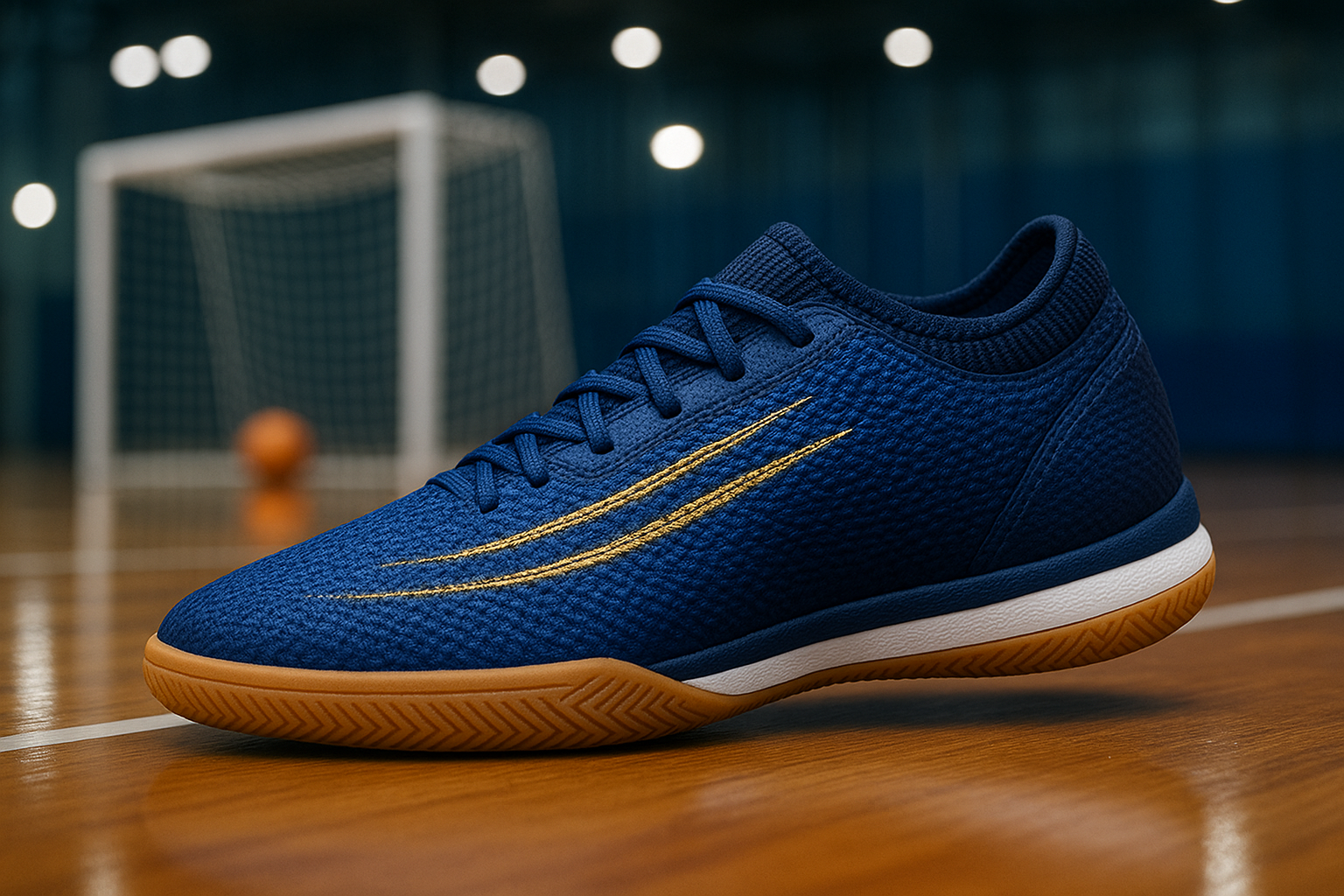
Futsal is a popular indoor soccer variant.
Imagine a customer searches your site for "futsal shoes".
The original catalog listing on the left does not match.
On the right, Image Data Enrichment has added details based on visual and contextual clues that suggest this shoe is designed for futsal.
A blue indoor soccer shoe with side lacing and a gum outsole designed for indoor courts.
**Keywords:** blue, indoor, soccer, side lacing, gum outsole
**Categories:** indoor soccer footwear, soccer shoes, athletic indoor court shoes
**Synonyms:**
* indoor soccer shoe indoor court shoe
* traction grip
A blue indoor soccer shoe with side lacing and a gum outsole designed for indoor courts.
**Keywords:** blue upper, woven upper, side lacing, clean striking surface, gold embroidery, knit collar, gum rubber outsole, herringbone tread, soccer, futsal, indoor, indoor play
**Synonyms:**
* indoor soccer shoe indoor court shoe
* traction grip
* woven upper textured upper
* gum rubber outsole gum sole
* ball control touch control
* stability support
**Categories:** indoor soccer footwear, soccer shoes, athletic indoor court shoes, futsal shoes, indoor soccer footwear, futsal performance shoes, court traction footwear, technical soccer shoes, low profile indoor trainers, gum sole indoor shoes
In this example, a customer searches for a "din rail housing with hinged cover".
The original product listing on the left contains none of those terms, though a matching item is shown in the photo.
The enriched product listing on the right adds much more detail derived from the specifications and the photo.
FlexView 40-Terminal Control Enclosure MRF-40TU-PC2035
| Property | Value |
| ------------------- | --------------------------------------- |
| Brand | ModuRail |
| Color | Gray (Light Gray) |
| Cover Color | Gray (Light Gray) |
| Flammability Rating | UL 94 V-0 |
| Height | 128 mm |
| Housing Color | Gray (Light Gray) |
| IP Rating | IP20 |
| Length | 48.3 mm |
| Material | Polycarbonate (PC) |
| Product | Accessories |
| Product Type | Enclosures for Industrial Automation 10 |
FlexView 40-Terminal Control Enclosure MRF-40TU-PC2035
| Property | Value |
| ------------------- | --------------------------------------- |
| Brand | ModuRail |
| Color | Gray (Light Gray) |
| Cover Color | Gray (Light Gray) |
| Flammability Rating | UL 94 V-0 |
| Height | 128 mm |
| Housing Color | Gray (Light Gray) |
| IP Rating | IP20 |
| Length | 48.3 mm |
| Material | Polycarbonate (PC) |
| Product | Accessories |
| Product Type | Enclosures for Industrial Automation 10 |
**Keywords:**
* control enclosure
* terminal enclosure
* DIN rail box
* automation accessory
* electrical housing
* modular enclosure
* wiring enclosure
* control cabinet insert
**Synonyms:**
* control enclosure control box, control housing, control casing, control unit shell
* terminal enclosure terminal housing, terminal casing, connection housing, terminal unit shell
* DIN rail box rail mounted box, rail installable housing, rail mount case, rail mounted enclosure
* automation accessory automation component, automation hardware, control system accessory, automation module
* electrical housing electrical casing, electrical enclosure unit, power housing, equipment housing
* modular enclosure modular housing, modular casing, expandable enclosure, modular shell
* wiring enclosure wiring housing, cable enclosure, connection box, wiring casing
* control cabinet insert cabinet module, cabinet insert unit, panel insert, cabinet component
**Categories:**
* industrial control enclosures
* DIN rail mounting accessories
* terminal block housings
* automation panel components
* electrical junction enclosures
* modular control boxes
* low voltage distribution enclosures
* equipment protection housings
## Benefits
* Higher conversions and revenue
* Faster adaptation to the latest search trends
* Improved performance against key business metrics
* More (and more relevant) results for every search
* Easier product discoverability
* Higher satisfaction
## Enabling Image Data Enrichment
You can enable this feature in Fusion or by using the Prediction API. Before you get started, ensure your product catalog images are publicly available with a URL. Alternatively, you can provide base64-encoded images.
### Using Fusion
In Fusion, you enable Image Data Enrichment by configuring the [LWAI Prediction](/docs/5/fusion/reference/config-ref/pipeline-stages/index-stages/lucidworks-ai-prediction-index-stage) stage in your index pipeline.
You might also need to configure the [Field Mapping](/docs/5/fusion/reference/config-ref/pipeline-stages/index-stages/field-mapper-index-stage) index pipeline stage and the [Query Fields](/docs/5/fusion/reference/config-ref/pipeline-stages/query-stages/search-fields-query-stage) query pipeline stage to generate and display metadata for images.
It is essential to review your Image Data Enrichment results.
Plan to test different combinations of "images only" or "images with text fields" to find the balance that produces the best results.
1. In Fusion, open the index pipeline you want to use for Image Data Enrichment.
2. Click **Add a new pipeline stage** and select **LWAI Prediction**.
3. In the **Label** field, enter a unique identifier for this stage. For example, **LWAI Image Metadata Enrichment**.
4. In the **Condition** field, enter what the document must contain for the stage to select it. For example, `doc.hasField("image_url_t")` means the document must have the image's web address stored as a text field to be included in the stage.
5. In the **Account Name** field, select the Lucidworks AI API account name defined in [Lucidworks AI Gateway](/docs/lw-platform/lw-ai/lw-ai-gateway).
6. In the **Use Case** field, select or enter `image-metadata-enrichment`.
7. In the **Model** field, you must enter a model that can scan multiple types of data, including images, videos, or PDFs. For multi-modal use cases such as **image-metadata-enrichment**, this example uses the `gemini-2.5-flash-lite` model.
8. In the **Input context variable** variable field, enter the name of the field that contains the image URL. For example, ``.
9. In the **Destination field name and context output** field, enter the name that will be used as both the field name in the document where the prediction is written and the context variable that contains the prediction. For example, `image_enrichment`.
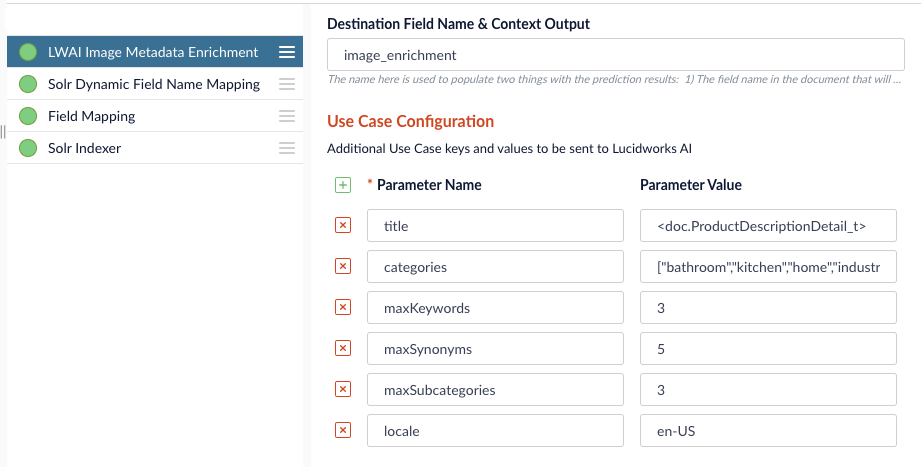
10. In the **Use Case Configuration** section, you can add parameters and values to send to Lucidworks AI. These `useCaseConfig` parameters are only included in the stage processing when they are present in the incoming document. The parameters can also include the type of metadata returned and the maximum number of those metadata elements.
This example specifies to submit the image title, and for the stage to focus on documents already containing certain categories that are located in the United States. The example parameters also specify the stage generate up to three keywords, five synonyms, and three subcategories.
11. In the **Model Configuration** section, you can add parameters and values to send to Lucidworks AI. For example, you can specify parameters such as region to refine the search in the stage.
12. In the **API Key** field, enter the secret value specified in the external model.
13. Click **Save**.
You may also need to set some parameters in the Field Mapping index pipeline stage.
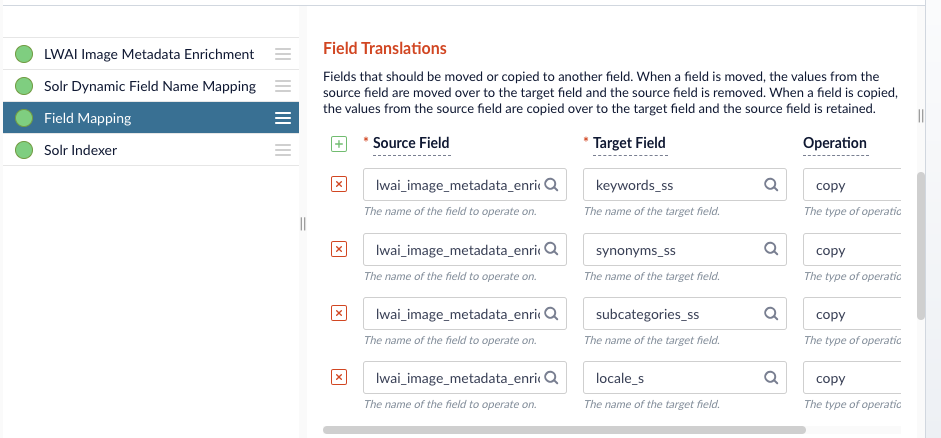
1. Click the **Field Mapping** stage and scroll to the **Field Translations** section.
For example, if the source field names are extremely long, you can use the Field Translations section to shorten them for your target index fields.
2. When you enter all of the parameter and field values, click **Save**.
Run a datasource job that uses the configured index pipeline to add enriched data to your index.
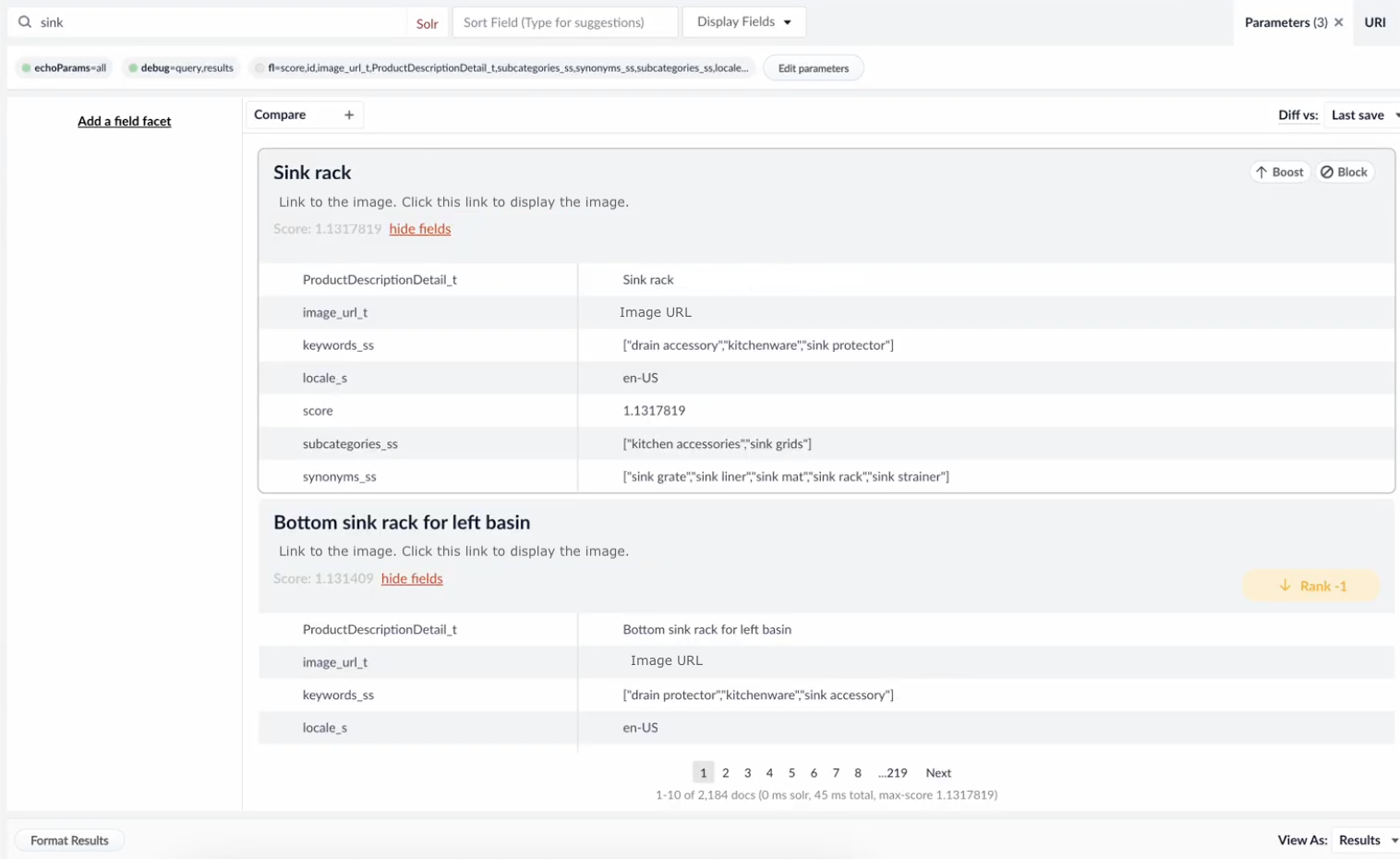
When the datasource job finishes, you can see the image metadata data fields in the Query Workbench.
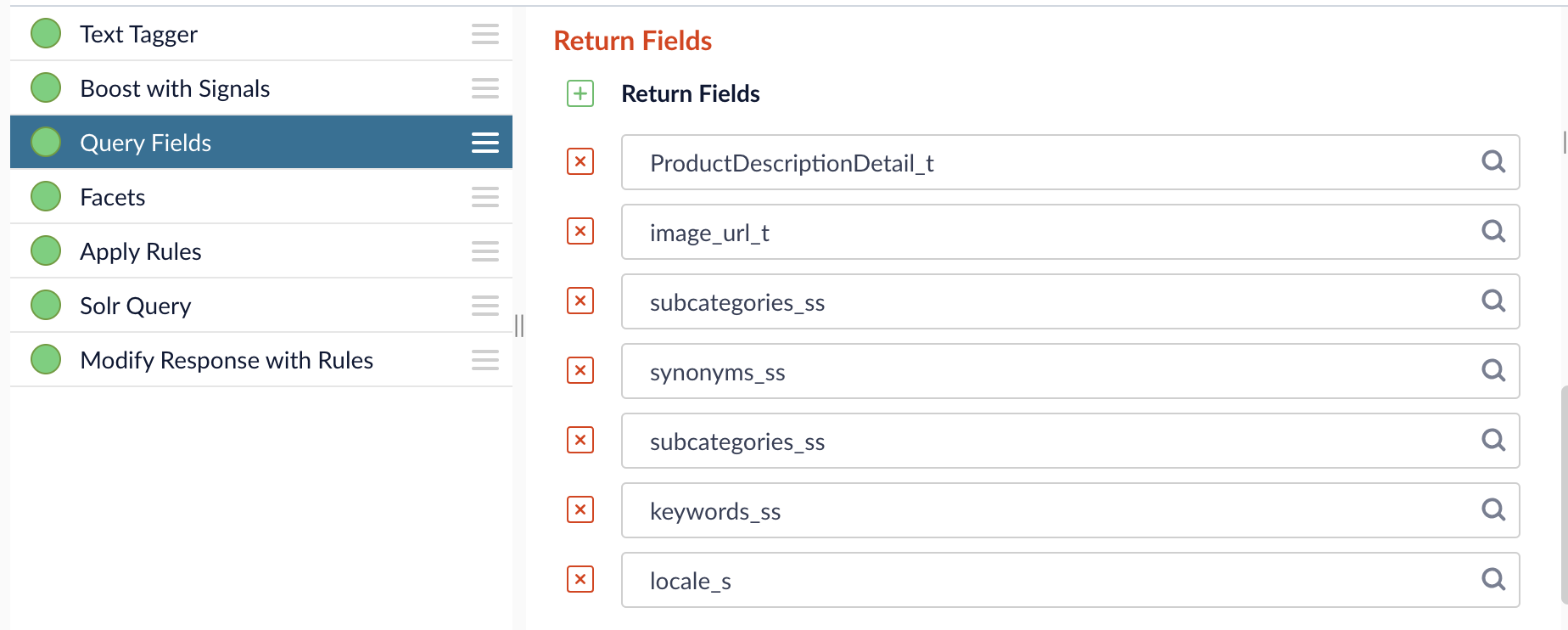
1. In your query pipeline, select the **Query Fields** stage.
2. Scroll to the **Return Fields** section and enter the image metadata fields to include in the query results. The fields need to include, but do not have to be limited to, the fields specified in the indexing stage. This example includes the fields specified in indexing field example.
Review the results in the Query Workbench, which should include:
* The image link under the title or the image URL to view the image.
* The title, locale specified as the US in the stage field, and the calculated score of the item.
* The metadata generated based on the categories field in the stage. For this example, the categories requested were bath, kitchen, home, and industrial. The keywords, subcategories, and synonyms now reflect image metadata related to those categories.
### Using the Prediction API
If you're not using Fusion, you can enable Image Data Enrichment by making calls to the [Prediction API](https://doc.lucidworks.com/docs/lw-platform/lw-ai/lw-ai-apis/lw-ai-prediction-api/overview) and incorporating the response into your data source.
#### Example requests
The Prediction API requests below use [image metadata enrichment parameters](/docs/lw-platform/lw-ai/lw-ai-apis/lw-ai-prediction-api/image-metadata-enrichment#unique-values-for-the-image-metadata-enrichment-use-case).
```json Batch with text theme={"dark"}
curl --request POST \
--url https://APPLICATION_ID.applications.lucidworks.com/ai/prediction/image-metadata-enrichment/MODEL_ID \
--header 'Authorization: Bearer ACCESS_TOKEN' \
--header 'Content-type: application/json' \
--data '{
"batch": [
{
"text": "https://i.postimg.cc/XYZ12345/leather-messenger-bag.png"
}
],
"useCaseConfig": {
"title": "leather-messenger-bag",
"categories": [
"bags",
"leather",
"professional",
"business"
],
"maxKeywords": 3,
"maxSynonyms": 2,
"maxSubcategories": 2,
"locale": "en-US"
}
}'
```
```json Batch with imageLink theme={"dark"}
curl --request POST \
--url https://APPLICATION_ID.applications.lucidworks.com/ai/prediction/image-metadata-enrichment/MODEL_ID \
--header 'Authorization: Bearer ACCESS_TOKEN' \
--header 'Content-type: application/json' \
--data '{
"batch": [
{
"imageLink": "https://i.postimg.cc/XYZ12345/leather-messenger-bag.png"
}
],
"useCaseConfig": {
"title": "leather-messenger-bag",
"categories": [
"bags",
"leather",
"professional",
"business"
],
"maxKeywords": 3,
"maxSynonyms": 2,
"maxSubcategories": 2,
"locale": "en-US"
}
}'
```
```json Batch with image (encoded) theme={"dark"}
encoded=$(base64 -i blushing_happymushroom.png -o - | tr -d '\n');
curl --request POST \
--url https://APPLICATION_ID.applications.lucidworks.com/ai/prediction/image-metadata-enrichment/MODEL_ID \
--header 'Authorization: Bearer ACCESS_TOKEN' \
--header 'Content-type: application/json' \
--data '{
"batch": [
{
"image": "$encoded"
}
],
"useCaseConfig": {
"title": "leather-messenger-bag",
"categories": [
"bags",
"leather",
"professional",
"business"
],
"maxKeywords": 3,
"maxSynonyms": 2,
"maxSubcategories": 2,
"locale": "en-US"
}
}'
```
#### Example response
The response for all of the above examples looks like this:
````json theme={"dark"}
{
"predictions":[
{
"tokensUsed": {
"promptTokens": 1614,
"completionTokens": 61,
"totalTokens": 1675
},
"imageMetadata": {
"keywords": [
"leather",
"messenger",
"work bag"
],
"subcategories": [
"professional bags",
"office accessories"
],
"synonyms": [
"briefcase",
"shoulder bag",
"business bag",
"laptop bag",
"work satchel"
],
"locale": "en-US"
},
"response": "```yaml\nkeywords:\n - leather\n - messenger\n - work bag\nsubcategories:\n - professional bags\n - office accessories\nsynonyms:\n - briefcase\n - shoulder bag\n - business bag\n - laptop bag\n - work satchel\n```"
}
]
}
````
 A blue indoor soccer shoe with side lacing and a gum outsole designed for indoor courts.
**Keywords:** blue, indoor, soccer, side lacing, gum outsole
**Categories:** indoor soccer footwear, soccer shoes, athletic indoor court shoes
**Synonyms:**
* indoor soccer shoe
A blue indoor soccer shoe with side lacing and a gum outsole designed for indoor courts.
**Keywords:** blue, indoor, soccer, side lacing, gum outsole
**Categories:** indoor soccer footwear, soccer shoes, athletic indoor court shoes
**Synonyms:**
* indoor soccer shoe 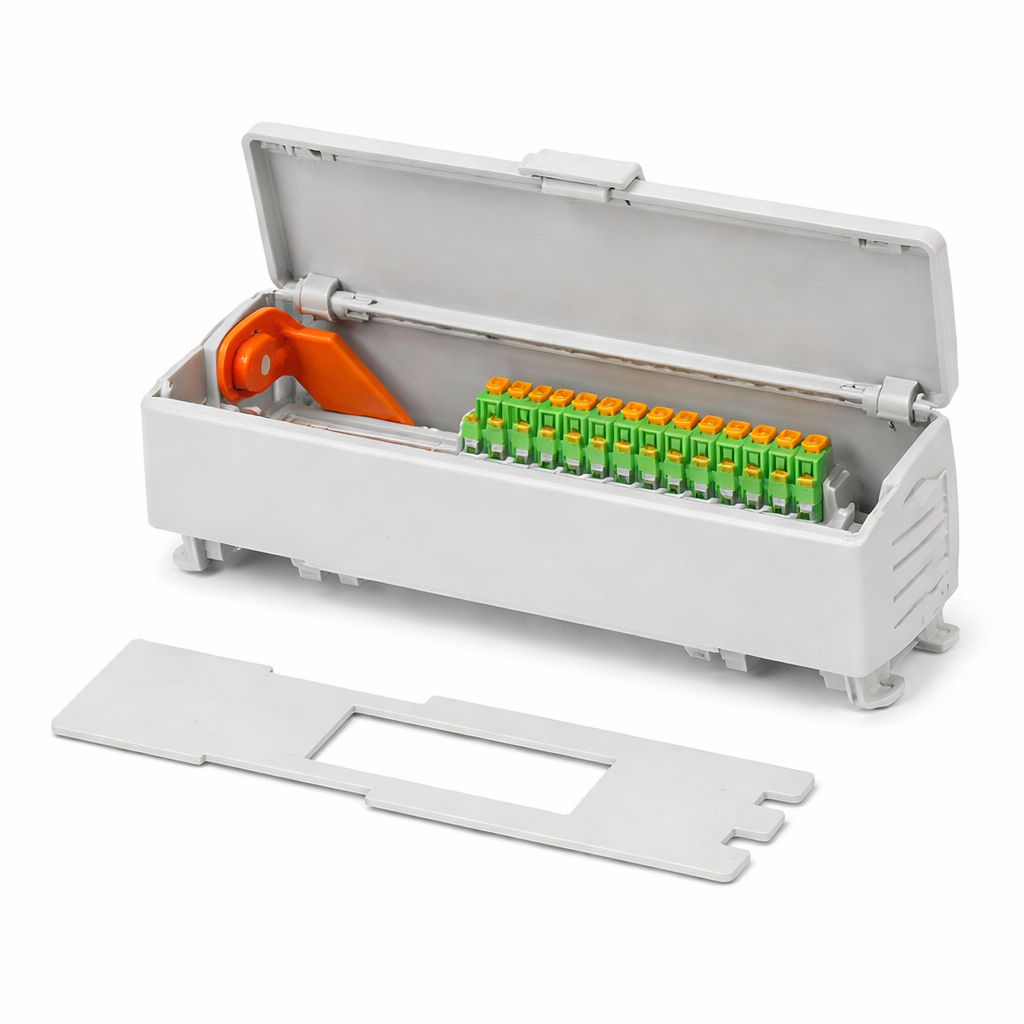 FlexView 40-Terminal Control Enclosure MRF-40TU-PC2035
| Property | Value |
| ------------------- | --------------------------------------- |
| Brand | ModuRail |
| Color | Gray (Light Gray) |
| Cover Color | Gray (Light Gray) |
| Flammability Rating | UL 94 V-0 |
| Height | 128 mm |
| Housing Color | Gray (Light Gray) |
| IP Rating | IP20 |
| Length | 48.3 mm |
| Material | Polycarbonate (PC) |
| Product | Accessories |
| Product Type | Enclosures for Industrial Automation 10 |
FlexView 40-Terminal Control Enclosure MRF-40TU-PC2035
| Property | Value |
| ------------------- | --------------------------------------- |
| Brand | ModuRail |
| Color | Gray (Light Gray) |
| Cover Color | Gray (Light Gray) |
| Flammability Rating | UL 94 V-0 |
| Height | 128 mm |
| Housing Color | Gray (Light Gray) |
| IP Rating | IP20 |
| Length | 48.3 mm |
| Material | Polycarbonate (PC) |
| Product | Accessories |
| Product Type | Enclosures for Industrial Automation 10 |
 11. In the **Model Configuration** section, you can add parameters and values to send to Lucidworks AI. For example, you can specify parameters such as region to refine the search in the stage.
12. In the **API Key** field, enter the secret value specified in the external model.
13. Click **Save**.
11. In the **Model Configuration** section, you can add parameters and values to send to Lucidworks AI. For example, you can specify parameters such as region to refine the search in the stage.
12. In the **API Key** field, enter the secret value specified in the external model.
13. Click **Save**.
 2. When you enter all of the parameter and field values, click **Save**.