> ## Documentation Index
> Fetch the complete documentation index at: https://doc.lucidworks.com/llms.txt
> Use this file to discover all available pages before exploring further.
# Choosing, implementing, and troubleshooting NHS stages
export const LwTemplate = ({title = "Key questions to get you started", icon = "sparkles", cta = "Powered by Agent Studio", linkHref = "https://lucidworks.com/demo/?utm_source=docs&utm_medium=referral&utm_campaign=docs_cta_ai"}) => {
const [isLoaded, setIsLoaded] = useState(false);
useEffect(() => {
const timer = setTimeout(() => {
setIsLoaded(true);
}, 500);
return () => clearTimeout(timer);
}, []);
return
{isLoaded && `
}} />}
Powered by Lucidworks Agent Studio
;
};
[localhost link]: http://localhost:3000/docs/lucidworks-search/11-vector-search/hybrid-stage-differences
[mintlify link]: https://doc.lucidworks.com/docs/lucidworks-search/11-vector-search/hybrid-stage-differences
[old doc.lw link]: https://doc.lucidworks.com/managed-fusion/5.9/00qy0k
Lucidworks Search supports several different query stages that implement Neural Hybrid Search.
This topic provides guidance for choosing the right stage for your use case and developing your query pipeline for optimal results.
## Choose a stage
The stage you choose depends on the features you need and your version of Lucidworks Search:
| | Best for chunking | Best all-around | Deprecated |
| ------------------------------- | ------------------------------------------------------------------------- | --------------------------------------------------------------- | ---------------------------------------------------------- |
| | [Chunking Neural Hybrid Query stage](#chunking-neural-hybrid-query-stage) | [Neural Hybrid Query stage](#neural-hybrid-query-stage) | [Hybrid Query stage](#hybrid-query-stage) |
| Lucidworks Search support | 5.9.12 and later | 5.9.10 and later | 5.9.5 – 5.9.9 |
| Support for nested/chunked data | | | |
| Prefiltering support | | | |
| Improved faceting | | | |
| Support for collapse | | | |
| Key bug fixes | | | |
| New query parsers | | | |
| Lexical search | | | |
| Vector search | | | |
| k-Nearest Neighbors (KNN) | | | |
| VecSim | | | |
## Best practices for implementation
When building a query pipeline with Neural Hybrid Search, apply these best practices to achieve the most relevant results and minimize troubleshooting.
### Start with a simplified query pipeline
When developing your query pipeline, start with a very simple one containing only the essential stages below, in this order:
1. [LWAI Vectorize Query](/docs/lucidworks-search/09-developer-documentation/config-specs/query-pipeline-stages/vectorize-query-via-lucidworks-ai-query-stage) or [Ray/Seldon Vectorize Query](/docs/lucidworks-search/09-developer-documentation/config-specs/query-pipeline-stages/ray-seldon-vectorize-query-stage)
2. [Query Fields](/docs/lucidworks-search/09-developer-documentation/config-specs/query-pipeline-stages/query-fields)
3. Your hybrid query stage (see above for guidance)
4. [Solr Query](/docs/lucidworks-search/09-developer-documentation/config-specs/query-pipeline-stages/solr-query)
Verify that the basic pipeline works before adding more stages.
This simplifies troubleshooting significantly.
### Order your stages carefully
As you add stages to your query pipeline, the order of the stages matters.
To get the best results, order the stages according to the guidelines below.
#### Vectorize the query early
Place the [LWAI Vectorize Query](/docs/lucidworks-search/09-developer-documentation/config-specs/query-pipeline-stages/vectorize-query-via-lucidworks-ai-query-stage) or [Ray/Seldon Vectorize Query](/docs/lucidworks-search/09-developer-documentation/config-specs/query-pipeline-stages/ray-seldon-vectorize-query-stage) stage as early as possible in the query pipeline.
This ensures that the query cannot be changed.
#### Only *before* the NHS stage
If your pipeline includes the stages described below, they must appear *before* the NHS stages indicated here:
| Stage | Chunking Neural Hybrid | Neural Hybrid Query | Hybrid Query |
| --------------------------------------------------------------------------------- | ----------------------------------- | ----------------------------------- | ----------------------------------- |
| Query Fields | | | |
| Any stage that modifies disMax/eDisMax params (`mm`, `qf`, `uf`, `pf`, and so on) | | | |
| Text Tagger | | | |
#### Only *after* the NHS stage
If your pipeline includes the stages described below, they must appear *after* the NHS stages indicated here:
| Stage | Chunking Neural Hybrid | Neural Hybrid Query | Hybrid Query |
| -------------------------------------------------------------------------- | ----------------------------------- | ----------------------------------- | ----------------------------------- |
| Apply Rules | | | |
| Boosting stages (such as Boost with Signals, Document Boosting, and so on) | | | |
| Security Trimming | | | |
| Pre-filtering JavaScript stage (5.9.13) | | | |
### Use Solr explain
Lucidworks Search's query responses include information returned by [Solr's `explain` feature](https://solr.apache.org/guide/solr/latest/query-guide/document-transformers.html#explain-explainaugmenterfactory), which includes information about how a document's score was calculated.
In an NHS app, Solr `explain` provides valuable insight into the variables you can adjust in your pipeline configuration or your model configuration to achieve the best results.
You can find Solr `explain` information in Lucidworks Search's search results:
* In JSON results, the field is `debug.explain`.
* In Query Workbench's debug view, the field is `explain`.
Click below to see how to find the `explain` field in Query Workbench:
The scoring calculations will vary depending on the query pipeline you've built.
In an NHS pipeline, `explain` shows you the neural hybrid score, the original score, and the factors used to calculate each, as in this example:
```text Solr explain example output wrap expandable theme={"dark"}
"test-doc001": "
0.05422813 = Neural hybrid score: (0.5422813017274628 * 0.1) + (0.0 * 0.9) computed from:
0.5422813017274628 = Squashed lexical score: tanh(0.1 * 6.073815822601318)
6.073816 = Lexical Score
6.073816 = max of:
2.8591154 = weight(embedding_t:vector in 11546) [SchemaSimilarity], result of:
2.8591154 = score(freq=22.0), computed as boost * idf * tf from:
3.1229217 = idf, computed as log(1 + (N - n + 0.5) / (n + 0.5)) from:
217 = n, number of documents containing term
4939 = N, total number of documents with field
0.9155258 = tf, computed as freq / (freq + k1 * (1 - b + b * dl / avgdl)) from:
22.0 = freq, occurrences of term within document
1.2 = k1, term saturation parameter
0.75 = b, length normalization parameter
1304.0 = dl, length of field (approximate)
678.4179 = avgdl, average length of field
6.073816 = weight(title_t:vector in 11546) [SchemaSimilarity], result of:
6.073816 = score(freq=1.0), computed as boost * idf * tf from:
2.0 = boost
6.3650546 = idf, computed as log(1 + (N - n + 0.5) / (n + 0.5)) from:
8 = n, number of documents containing term
4939 = N, total number of documents with field
0.477122 = tf, computed as freq / (freq + k1 * (1 - b + b * dl / avgdl)) from:
1.0 = freq, occurrences of term within document
1.2 = k1, term saturation parameter
0.75 = b, length normalization parameter
3.0 = dl, length of field
3.3923872 = avgdl, average length of field
0.0 = Vector Unavailable
0.0 = No vectors in segment
"
```
### Evaluate different configurations
Try creating multiple query pipelines, each configured with different values so you can test different approaches.
Compare the results side by side and adjust your pipeline configurations until you get the level of relevance you need.
These basic parameters are a good place to start experimenting with different values:
* Adjust the value of **Lexical Query Squash Factor** to experiment with the weight of the lexical score relative to the vector score.
If the first lexical score in Solr `explain` is 0.9999, you should lower the squash factor.
* Try turning **Compute Vector Similarity for Lexical-Only Matches** on or off.
It must be off if you are using byte vectors.
* See whether you can improve performance by enabling [pre-filtering](/docs/lucidworks-search/09-developer-documentation/config-specs/query-pipeline-stages/neural-hybrid-query-stage#prefiltering).
For more advanced tips about fine-tuning your query pipeline, see the next section.
## Advanced technical tips
This section provides advanced technical tips to help you optimize your Neural Hybrid Search app.
### Scaling equations and the squash factor
In hybrid search, a scaling equation is the mathematical formula used to combine scores from the two retrieval models (vector + lexical) into a single unified score that determines the final ranking of results.
These differ slightly between the newer NHS stages and the deprecated Hybrid Query stage.
Click below to compare the scaling equations of the different hybrid query stages:
```graphql theme={"dark"}
squash(lexical_score)*lexical_weight + vector_score*vector_weight
```
```graphql theme={"dark"}
vector_weight*vector_score + lexical_weight*scaled(lexical_score)
```
The newer stages offer more control by means of a `squash` factor.
Because lexical scores range from zero to infinity and vector scores range between zero and one, their natural scores are not comparable; vector results would consistently be ranked beneath lexical results.
Squashing compensates for this by converting lexical scores into scores within the same (0–1) range as the vector scores so that they can be compared for ranking in a more balanced way.
In the scaling equations above, `squash` is `tanh(alpha*lexical_score)`, where `alpha` is the **Lexical Query Squash Factor** that you configure in the stage and `lexical_score` is the lexical score.
Lucidworks recommends setting the **Lexical Query Squash Factor** to the inverse of the maximum lexical score observed across your queries. This helps balance the impact of lexical and vector scores, leading to more accurate and nuanced search results.
When the `squash` value is smaller, then the lexical and semantic values can be more even.
Decrease the **Lexical Query Squash Factor** value if you see `0.9999` for a lot of top lexical contributions; you can find that number in Solr Explain's JSON response or the Query Workbench's debug mode.
### Chunking Neural Hybrid Query stage
* Use this stage when your index pipeline includes the [LWAI Chunker index stage](/docs/lucidworks-search/09-developer-documentation/config-specs/index-pipeline-stages/lwai-chunker-stage), or when your data is chunked by some other means.
In that index stage:
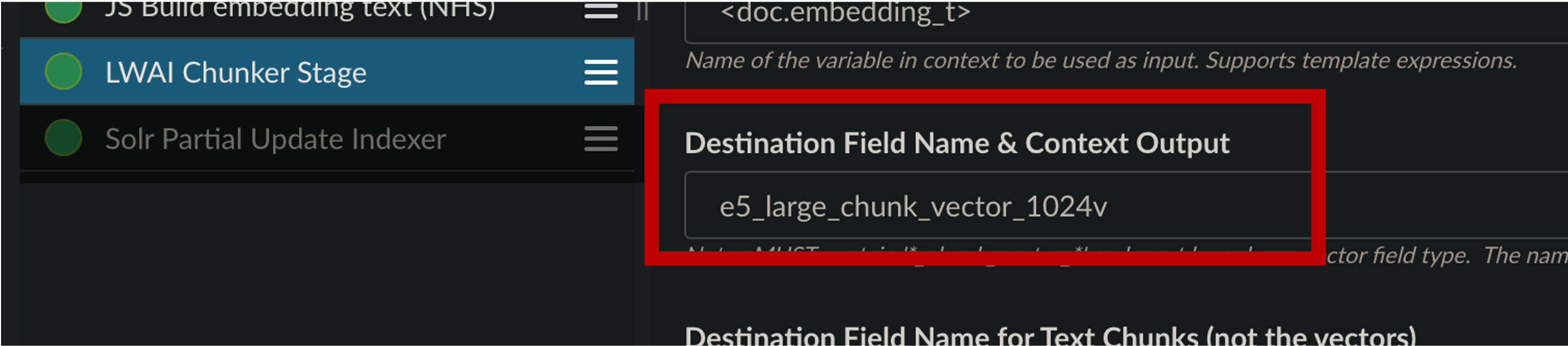
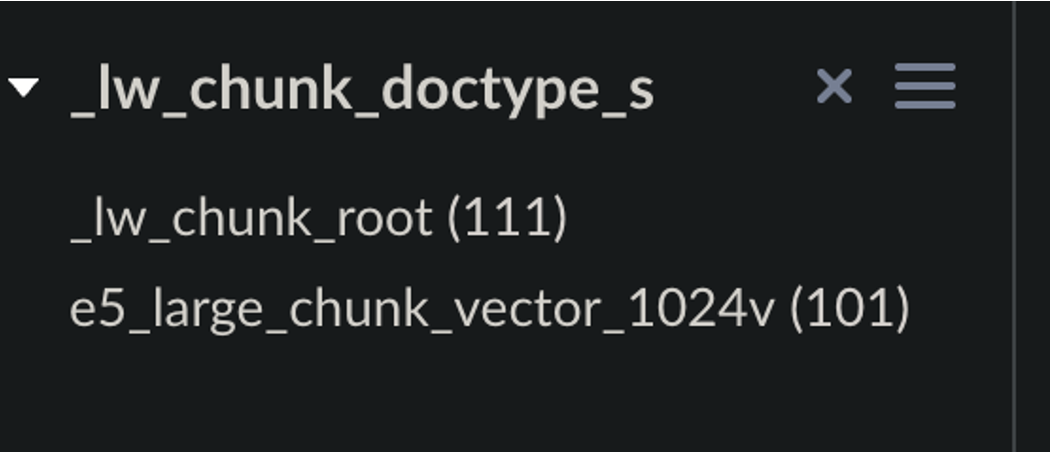
* Make sure your indexed data includes a `field _lw_chunk_doctype_s` field whose value is either `_lw_chunk_root` or the name of the vector field defined for the children.
* Include one of these values in the chunking index stage:
Then these values can be used with the Chunking Neural Hybrid Query stage:
* We recommend starting with a new collection for your chunked data.
If not, you must add following to `solrconfig.xml`:
```xml wrap theme={"dark"}
```
* To smooth results scores and catch any orphans, turn on **Compute Vector Similarity for Lexical-Only Matches**.
This does impact performance but it also prevents relevant documents from being lost.
### Neural Hybrid Query stage
* We recommend starting with a new collection for your vectorized data.
If not, you must add following to `solrconfig.xml`:
```xml wrap theme={"dark"}
```
* Prefiltering varies in some Lucidworks Search releases:
* In 5.9.12 and later, facet counts are stable regardless of whether pre-filtering is enabled.
* In 5.9.10 and 5.9.11, facet counts are stable only when pre-filtering is blocked.
* When pre-filtering is enabled in 5.9.10 and 5.9.11, all filter queries are included, which can cause inconsistent facet counts.
* To smooth results scores and catch any orphans, turn on **Compute Vector Similarity for Lexical-Only Matches**.
This does impact performance but it also prevents relevant documents from being lost.
* Make sure the incoming `q` parameter is a raw user query string and not a Solr query parser string (such as `field_t:foo`).
The resulting query is always written to ``.
### Hybrid Query stage
All documents should have a vector to avoid the `no float vector value is indexed for field` bug in Lucene.
### NRT replicas and HNSW graph challenges
Lucidworks recommends using PULL and TLOG replicas. These replica types copy the index of the leader replica, which results in the same Hierarchical Navigable Small World (HNSW) graph on every replica. When querying, the HNSW approximation query will be consistent given a static index.
In contrast, Near Real-Time (NRT) replicas have their own index, so they will also have their own HNWS graph. HNSW is an Approximate Nearest Neighbor (ANN) algorithm, so it will not return exactly the same results for differently constructed graphs. This means that queries performed can and will return different results per HNWS graph (number of NRT replicas in a shard) which can lead to noticeable result shifts. When using NRT replicas, the shifts can be made less noticeable by increasing the `topK` parameter. Variation will still occur, but it should be lower in the documents. Another way to mitigate shifts is to use Neural Hybrid Search with a vector similarity cutoff.
For more information, refer to [Solr Types of Replicas](https://solr.apache.org/guide/solr/latest/deployment-guide/solrcloud-shards-indexing.html#types-of-replicas).
In the case of Neural Hybrid Search, lexical Best Matching 25 (BM25) & Term Frequency–Inverse Document Frequency (TF-IDF) score differences that can occur with NRT replicas because of index differences for deleted documents, can also affect combined [Hybrid score](/docs/lucidworks-search/11-vector-search/overview#hybrid-scoring).
If you choose to use NRT replicas then it is possible that any lexical and/or semantic vectors variations can and will be exacerbated.
## Troubleshooting tips
If you aren't getting the results you expect, these general troubleshooting tips can help you narrow down the cause of the issue:
Inspect your indexed data to verify that vector fields are present.
If not, re-index your data using one of these index stages:
* [LWAI Chunker](/docs/lucidworks-search/09-developer-documentation/config-specs/index-pipeline-stages/lwai-chunker-stage)
* [LWAI Batch Vectorize](/docs/lucidworks-search/09-developer-documentation/config-specs/index-pipeline-stages/lwai-batch-vectorize)
* [LWAI Vectorize Field](/docs/lucidworks-search/09-developer-documentation/config-specs/index-pipeline-stages/vectorize-field-via-lucidworks-ai-index-stage)
* [Ray/Seldon Vectorize Field Stage](/docs/lucidworks-search/09-developer-documentation/config-specs/index-pipeline-stages/ray-seldon-vectorize-field-stage)
The **Vector Query Field** value configured in your query pipeline's hybrid query stage must match the value of the destination field configured in the vector indexing stages above.
Check `solrconfig.xml` to verify that it includes a `queryParser` whose `name` matches your hybrid query stage:
| Chunking Neural Hybrid Query stage | Neural Hybrid Query stage | Hybrid Query stage |
| ---------------------------------- | ------------------------- | ------------------ |
| `_lw_chunk_wrap` | `neuralHybrid` | `xVecSim` |
Below is the configuration that's automatically included in newly-created collections for compatibility with all hybrid query stages.
If your query parser is missing, you can paste this snippet into `solrconfig.xml`:
```xml Query parser configuration wrap theme={"dark"}
```
Inspect the vector results without the lexical results by creating a special query pipeline that performs only a vector query.
Instead of a hybrid query stage, you can use a [JavaScript query stage](/docs/lucidworks-search/09-developer-documentation/config-specs/index-pipeline-stages/javascript) to create the query, as in this example:
```js Example JavaScript stage for vector-only queries theme={"dark"}
function (request, response, ctx) {
var field = 'text_1024_v';
var topK = '1000';
// The vector in context will come from a Vectorize stage
if(ctx.get('vector')!== null){
var vector = ctx.get('vector');
request.putSingleParam('q','{!knn f='+field+' topK='+topK+' v=' + vector + '}');
request.putSingleParam('defType','lucene')
}
}
```
Try disabling and re-enabling different query pipeline stages one at a time, noting any differences in the results.
If results improve when one stage is disabled, the issue may be isolated to that stage.
Use Solr's `explain` feature to check the variables being used to calculate document scores.
You can use this information to adjust your query pipeline configuration for better results.
See [Use Solr explain](#use-solr-explain) above for details.
Solr’s implementation of dense vector search depends on the Lucene implementation of [HNSW ANN](https://cwiki.apache.org/confluence/pages/viewpage.action?pageId=255069753#CEP30:ApproximateNearestNeighbor\(ANN\)VectorSearchviaStorageAttachedIndexes-AboutHNSW+Lucene).
The Lucene implementation has a known issue where, in some collections, nodes in the HNSW graph become unreachable via graph traversal, essentially becoming disconnected or “orphaned.”
Run the following command to identify orphaning:
```bash theme={"dark"}
curl -sS -u 'USERNAME:PASSWORD' 'https://FUSION_HOST:FUSION_PORT/api/solrAdmin/default/COLLECTION_NAME/select'\
--form-string 'fl=id,vecSim:$vecSim' \
--form-string 'rows=1' \
--form-string 'q=(*:* -{!knn f=VECTOR_FIELD topK=999999 v=$vec})' \
--form-string 'vecSim=vectorSimilarity(VECTOR_FIELD,$vec)' \
--form-string 'vec=COMPATIBLE_VECTOR'
```
If the collection doesn’t have a vector for every document, include a filter so only the documents that have vectors are included. Filter on the boolean vector, as in this example: `--form-string 'fq=VECTOR_FIELD_b:true' \`
Construct a KNN exclusion query where topK is higher than the number of vectors in your collection.
If the number of vectors in your collection exceeds 999,999 then increase the value to be at least equal to that value.
If any are documents returned, those documents are orphans.
If no documents are returned, there are likely no orphans.
You can test a few varying vectors to be certain.
To resolve orphans, do the following:
1. Increase the HNSW Solr schema parameters `hnswBeamWidth` and `hnswMaxConnections` per the [Suggested values](#suggested-values) below.
2. Save the schema.
3. Clear the index.
4. Re-index your collection.
Suggested values are as follows:
| Orphaning rate | `hnswBeamWidth` | `hnswMaxConnections` |
| -------------- | --------------- | -------------------- |
| 5% or less | 300 | 64 |
| 5% - 25% | 500 | 100 |
| 25% or more | 3200 | 512 |
Highlighting can conflict with the hybrid stages.
If you have configured highlighting, you might see query failures with errors like `Index _ out of bounds for length _`.
To resolve this issue, set `hl.q` to the lexical-only query parameter `` before the hybrid stage, or ``.
 Then these values can be used with the Chunking Neural Hybrid Query stage:
 * We recommend starting with a new collection for your chunked data.
If not, you must add following to `solrconfig.xml`:
```xml wrap theme={"dark"}
* We recommend starting with a new collection for your chunked data.
If not, you must add following to `solrconfig.xml`:
```xml wrap theme={"dark"}