> ## Documentation Index
> Fetch the complete documentation index at: https://doc.lucidworks.com/llms.txt
> Use this file to discover all available pages before exploring further.

# Highlight

> Query pipeline stage configuration specifications

export const schema = {
  "type": "object",
  "title": "Highlight",
  "description": "Configure highlighting. Note: The options configured here are used as the default settings if the request does not already have these values set. The stage will not overwrite incoming highlighting options, with the exception of the fields configuration, which is additive.",
  "required": ["fields"],
  "properties": {
    "skip": {
      "type": "boolean",
      "title": "Skip This Stage",
      "description": "Set to true to skip this stage.",
      "default": false,
      "hints": ["advanced"]
    },
    "label": {
      "type": "string",
      "title": "Label",
      "description": "A unique label for this stage.",
      "hints": ["advanced"],
      "maxLength": 255
    },
    "condition": {
      "type": "string",
      "title": "Condition",
      "description": "Define a conditional script that must result in true or false. This can be used to determine if the stage should process or not.",
      "hints": ["code", "code/javascript", "advanced"]
    },
    "legacy": {
      "type": "boolean",
      "title": "Legacy",
      "description": "True if this stage only supports legacy mode",
      "hints": ["readonly", "hidden"]
    },
    "fields": {
      "type": "array",
      "title": "Highlight Fields",
      "description": "Specifies the fields to use for faceting. These fields are always added to any incoming highlight request.",
      "minItems": 1,
      "items": {
        "type": "string"
      }
    },
    "count": {
      "type": "integer",
      "title": "Snippet count",
      "description": "Number of snippets to generate for each configured field.",
      "default": 1
    },
    "length": {
      "type": "integer",
      "title": "Snippet length",
      "description": "Length of snippets to attempt to generate.",
      "default": 100
    },
    "pre": {
      "type": "string",
      "title": "Match start tag",
      "description": "The characters immediately preceeding a highlighted value. Usually an opening HTML tag.",
      "default": "<em>"
    },
    "post": {
      "type": "string",
      "title": "Match end tag",
      "description": "The characters immediately following a highlighted value. Usually a closing HTML tag.",
      "default": "</em>"
    },
    "defaultHighlight": {
      "type": "boolean",
      "title": "Default highlight",
      "description": "If no highlight match is found in the field, return the leading part of the field instead. Can be used to avoid returning large fields if you need to display something even when there is no highlight match.",
      "default": false
    }
  },
  "category": "Set Up",
  "categoryPriority": 8,
  "unsafe": false
};

export const SchemaParamFields = ({schema}) => {
  const sanitize = str => {
    if (typeof str !== "string") return str;
    return str.replace(/^"(.*)"$/s, "$1").replace(/\\/g, "").replace(/"/g, "'");
  };
  const formatDescription = str => {
    const s = sanitize(str);
    return (/[.!?]\)*$/).test(s) ? s : `${s}.`;
  };
  const {description, properties = {}, required: requiredProps = []} = schema;
  const visibleProps = useMemo(() => Object.entries(properties).filter(([, prop]) => !prop.hints?.includes("hidden")), [properties]);
  return <div>
      {description && <p>{formatDescription(description)}</p>}

      {visibleProps.map(([name, prop]) => {
    const isRequired = requiredProps.includes(name);
    const hasDefault = prop.default !== undefined;
    const rawDefault = prop.default;
    const isComplexDefault = hasDefault && (typeof rawDefault === "object" || typeof rawDefault === "string" && (rawDefault.length > 20 || rawDefault.includes('"')));
    const fieldProps = {
      key: name,
      body: prop.title || name,
      type: prop.type,
      ...prop.title && ({
        post: [<><span className="text-stone-400 dark:text-stone-500">API property: </span>{name}</>]
      }),
      ...isRequired && ({
        required: true
      }),
      ...!isComplexDefault && hasDefault ? {
        default: sanitize(String(rawDefault))
      } : {}
    };
    const isObject = prop.type === "object" && prop.properties;
    const isArrayOfObjects = prop.type === "array" && prop.items?.type === "object" && prop.items.properties;
    return <ParamField {...fieldProps}>
            {prop.description && <p>{formatDescription(prop.description)}</p>}

            {isComplexDefault && <div className="flex">
                <p>
                  <strong>Default:</strong>
                </p>
                <pre className="!my-0">
                  <code>
                    {JSON.stringify(rawDefault, null, 2)}
                  </code>
                </pre>
              </div>}

            {isArrayOfObjects && <div className="flex">
              <p>
                <strong>Object attributes:</strong>
              </p>
              <pre className="!my-0">
                <code>
                  {'{\n'}
                  {Object.entries(prop.items.properties).map(([iname, iprop]) => <>
                      {`  ${iname}`}
                      {prop.items?.required?.includes(iname) && <span style={{
      color: 'red'
    }}> required</span>}
                      {`: {\n    display name: ${sanitize(iprop.title || '')}\n    type: ${iprop.type}\n  }\n`}
                    </>)}
                  {'}'}
                </code>
              </pre>
              </div>}

            {isObject && <Expandable title="properties">
                <SchemaParamFields schema={{
      properties: prop.properties,
      required: prop.required
    }} />
              </Expandable>}
          </ParamField>;
  })}
    </div>;
};

export const LwTemplate = ({title = "Key questions to get you started", icon = "sparkles", cta = "Powered by Agent Studio", linkHref = "https://lucidworks.com/demo/?utm_source=docs&utm_medium=referral&utm_campaign=docs_cta_ai"}) => {
  const [isLoaded, setIsLoaded] = useState(false);
  useEffect(() => {
    const timer = setTimeout(() => {
      setIsLoaded(true);
    }, 500);
    return () => clearTimeout(timer);
  }, []);
  return <div className="lw-template-container">
      <Card title={title} icon={icon}>
        {isLoaded && <span dangerouslySetInnerHTML={{
    __html: `<lw-template id="a029c1a9-28be-427e-b0e1-5d918920246a"></lw-template
            >`
  }} />}
        <Link href={linkHref} className="agent-studio-link text-left text-gray-600 gap-2 dark:text-gray-400 text-sm font-medium flex flex-row items-center hover:text-primary dark:hover:text-primary-light group-hover:text-primary group-hover:dark:text-primary-light">Powered by Lucidworks Agent Studio</Link>
      </Card>
    </div>;
};

[localhost link]: http://localhost:3000/docs/lucidworks-search/09-developer-documentation/config-specs/query-pipeline-stages/highlight

[mintlify link]: https://doc.lucidworks.com/docs/lucidworks-search/09-developer-documentation/config-specs/query-pipeline-stages/highlight

[old doc.lw link]: https://doc.lucidworks.com/managed-fusion/5.9/rj1v8l

<LwTemplate />

## Overview

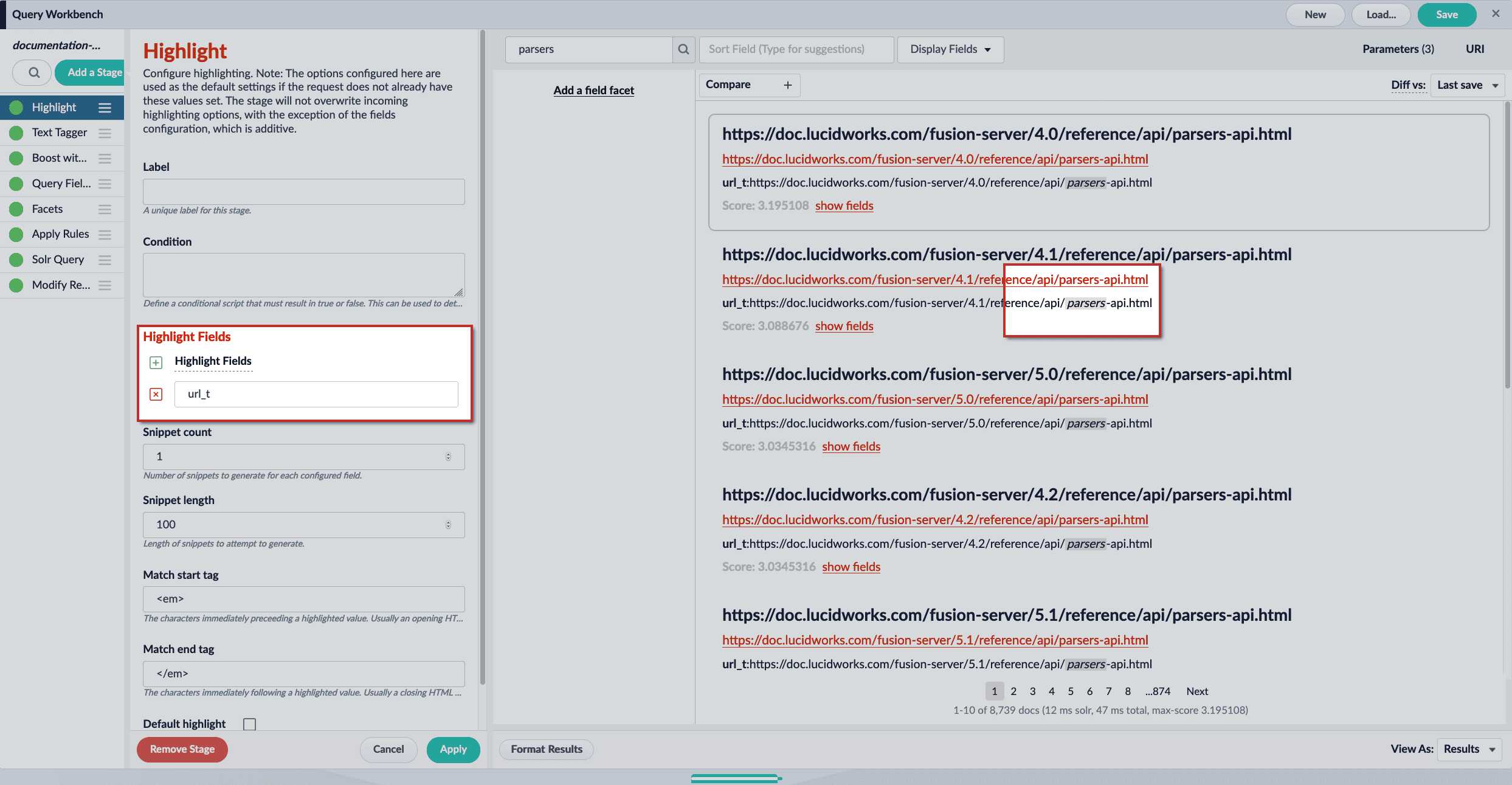
The Highlight stage allows you to highlight key parts of fields by generating snippets and appending match tags to the highlighted terms. The highlight match tags can then be styled in your web search application.

<img src="https://mintcdn.com/lucidworks/S4K1ej9-5L4WZcZ9/assets/images/5.2/highlight-stage-highlights.png?fit=max&auto=format&n=S4K1ej9-5L4WZcZ9&q=85&s=8907a22db61db7ba8a11381b2fa37b79" alt="Highlight stage highlights" width="2487" height="1291" data-path="assets/images/5.2/highlight-stage-highlights.png" />

<Note>
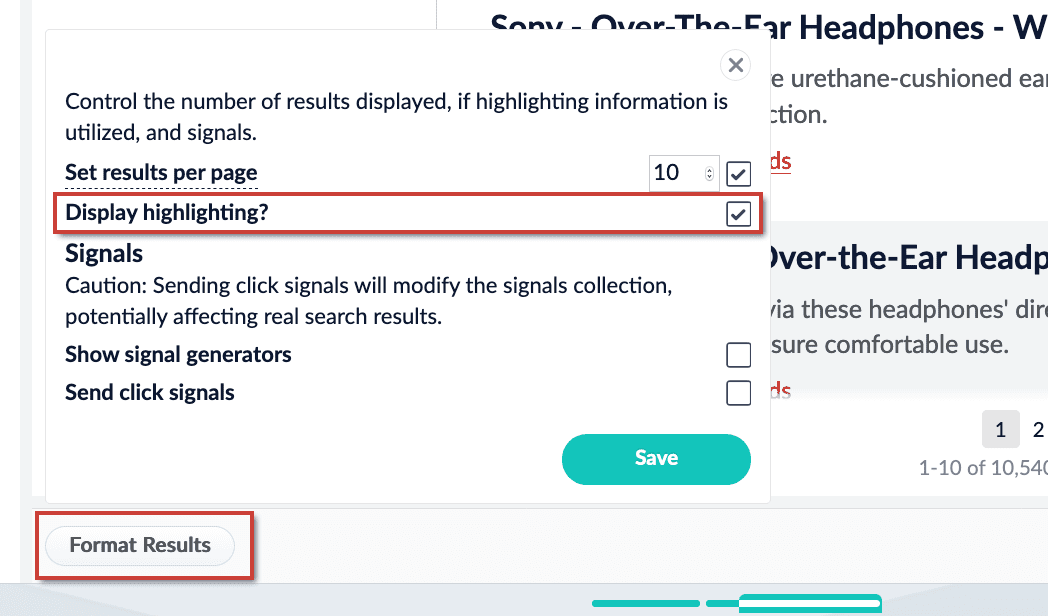
  To see highlighting in the Query Workbench, turn it on by setting **Format Results** > **Display highlighting?** to `true`:

  <img src="https://mintcdn.com/lucidworks/S4K1ej9-5L4WZcZ9/assets/images/5.2/qwb-display-highlighting-option.png?fit=max&auto=format&n=S4K1ej9-5L4WZcZ9&q=85&s=e6db0eee798c7f24436540fdfad93f94" alt="Display highlighting option" width="1048" height="616" data-path="assets/images/5.2/qwb-display-highlighting-option.png" />
</Note>

**How does this differ from other highlight methods?**

* **Highlight Query Pipeline Stage.** The [Query Highlight pipeline stage](/docs/lucidworks-search/09-developer-documentation/config-specs/query-pipeline-stages/highlight) allows you to configure standard options for highlighting using [Solr’s Unified highlighter](https://solr.apache.org/guide/8_6/highlighting.html#the-unified-highlighter) instead of adding Solr request parameters. For instructions, see **Configure the Highlight Query Pipeline Stage**.
* **Additional Query Parameters stage.** Configure highlighting with the [Additional Query Parameters stage](/docs/lucidworks-search/09-developer-documentation/config-specs/query-pipeline-stages/additional-query-parameters). For instructions, see **Configure Highlighting in the Query Workbench**.

<AccordionGroup>
  <Accordion title="Configure the Highlight Query Pipeline Stage">
    The Highlight stage allows you to highlight key parts of fields by generating snippets and appending match tags to the highlighted terms. The highlight match tags can then be styled in your web search application.

    * **Highlight Query Pipeline Stage**\
      The [Query Highlight pipeline stage](/docs/lucidworks-search/09-developer-documentation/config-specs/query-pipeline-stages/highlight) allows you to configure standard options for highlighting using [Solr’s Unified highlighter](https://lucene.apache.org/solr/guide/8_6/highlighting.html#the-unified-highlighter) instead of adding Solr request parameters.
    * **Additional Query Parameters stage**
      Configure highlighting with the [Additional Query Parameters stage](/docs/lucidworks-search/09-developer-documentation/config-specs/query-pipeline-stages/additional-query-parameters).

    ## Instructions

    1. Navigate to **Querying** > **Query Workbench**.
    2. Click **Add a Stage** and choose **Highlight** from the list.
    3. Click the **+ Highlight Fields** button, and input the field name(s) to configure highlighting for. Repeat to enter multiple fields, if desired.
    4. Assign a \*\*[Snippet count\*\*](/docs/lucidworks-search/09-developer-documentation/config-specs/query-pipeline-stages/highlight) value. With a value of `3`, Fusion will attempt to generate 3 snippets containing highlighted terms.
    5. Assign a \*\*[Snippet length\*\*](/docs/lucidworks-search/09-developer-documentation/config-specs/query-pipeline-stages/highlight) value. With a value of `100`, Fusion will attempt to create snippets that are around 100 characters in length.
    6. Assign \*\*[Match tag\*\*](/docs/lucidworks-search/09-developer-documentation/config-specs/query-pipeline-stages/highlight) values. These values are used to wrap the highlighted terms. By default, `<em>` and `</em>` are used. You can use other values for the match tags, such as `<span style="background-color:powderblue;">` and `</span>`, but the Lucidworks Search UI will not reflect your custom styles.
    7. (optional) Set **Default highlight** to `true` if you want to generate snippets even when no highlights are found. The **Snippet count** and **Snippet length** values are still in effect.
    8. Click the **Apply** button to preview highlighting.

       <Check>To see highlighting in the Query Workbench, turn it on by setting **Format Results** > **Display highlighting?** to `true`:     <img src="https://mintcdn.com/lucidworks/S4K1ej9-5L4WZcZ9/assets/images/5.2/qwb-display-highlighting-option.png?fit=max&auto=format&n=S4K1ej9-5L4WZcZ9&q=85&s=e6db0eee798c7f24436540fdfad93f94" alt="Display highlighting option" width="1048" height="616" data-path="assets/images/5.2/qwb-display-highlighting-option.png" /></Check>
    9. If you are satisfied with your changes, click the **Save** button to save the pipeline.
  </Accordion>

  <Accordion title="Configure Highlighting in the Query Workbench">
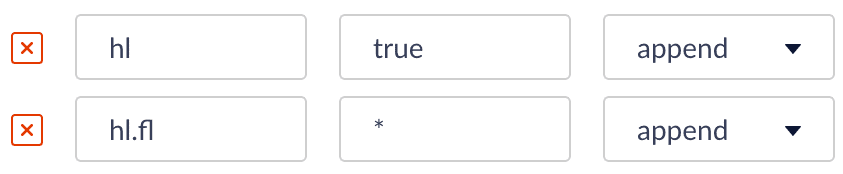
    Search results can be displayed with the search terms highlighted, by adding these [Solr query parameters](https://solr.apache.org/guide/8_6/common-query-parameters.html) to the Additional Query Parameters stage of the query pipeline:

    * `hl=true`
    * `hl.fl=*`

    By default, the Query Workbench ignores these parameters when rendering search results. To view highlighted search results in the preview panel of the Query Workbench, you must configure the parameters above *and* enable the **Display highlighting** option.

    * **Highlight Query Pipeline Stage**

      The [Query Highlight pipeline stage](/docs/lucidworks-search/09-developer-documentation/config-specs/query-pipeline-stages/highlight) allows you to configure standard options for highlighting using [Solr’s Unified highlighter](https://solr.apache.org/guide/8_6/highlighting.html#the-unified-highlighter) instead of adding Solr request parameters.

    * **Additional Query Parameters stage**
      * Configure highlighting with the [Additional Query Parameters stage](/docs/lucidworks-search/09-developer-documentation/config-specs/query-pipeline-stages/additional-query-parameters).

    **How to enable highlighting in the preview panel**

    1. Add the Additional Query Parameters stage to your query pipeline, or select it if it is already there.
    2. Under **Parameters and Values**, add the following query parameters and values:

           <img src="https://mintcdn.com/lucidworks/2n5qtVSsU54oMlB1/assets/images/3.1/QWB-highlighting1.png?fit=max&auto=format&n=2n5qtVSsU54oMlB1&q=85&s=2ecc30c3d15e46f8c6c98a6296eb1277" alt="Highlighting params" width="843" height="174" data-path="assets/images/3.1/QWB-highlighting1.png" />
    3. Click **Apply**.

       At this point, no highlighting appears in the preview panel.
    4. At the bottom of the window, click **Format Results**.
    5. Select **Display highlighting**.
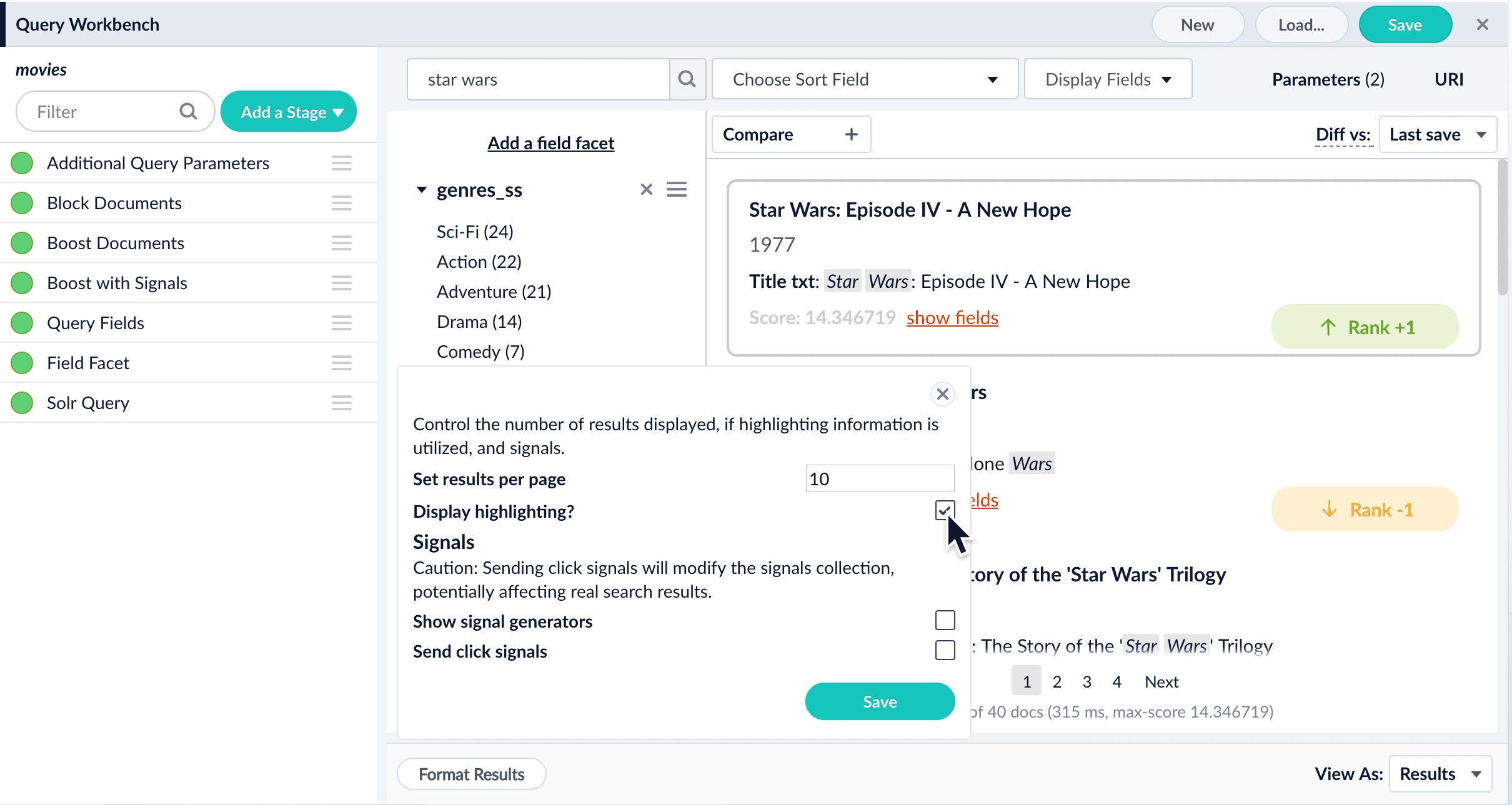
           <img src="https://mintcdn.com/lucidworks/l9y7VqRhZkN9hmR0/assets/images/4.0/query-workbench-display-highlighting.png?fit=max&auto=format&n=l9y7VqRhZkN9hmR0&q=85&s=745f2eec915149ed7ecc8330ab90a51c" alt="Highlighting option" width="2420" height="1289" data-path="assets/images/4.0/query-workbench-display-highlighting.png" />
    6. Click **Save**.

       Now our search results include highlighted search terms:
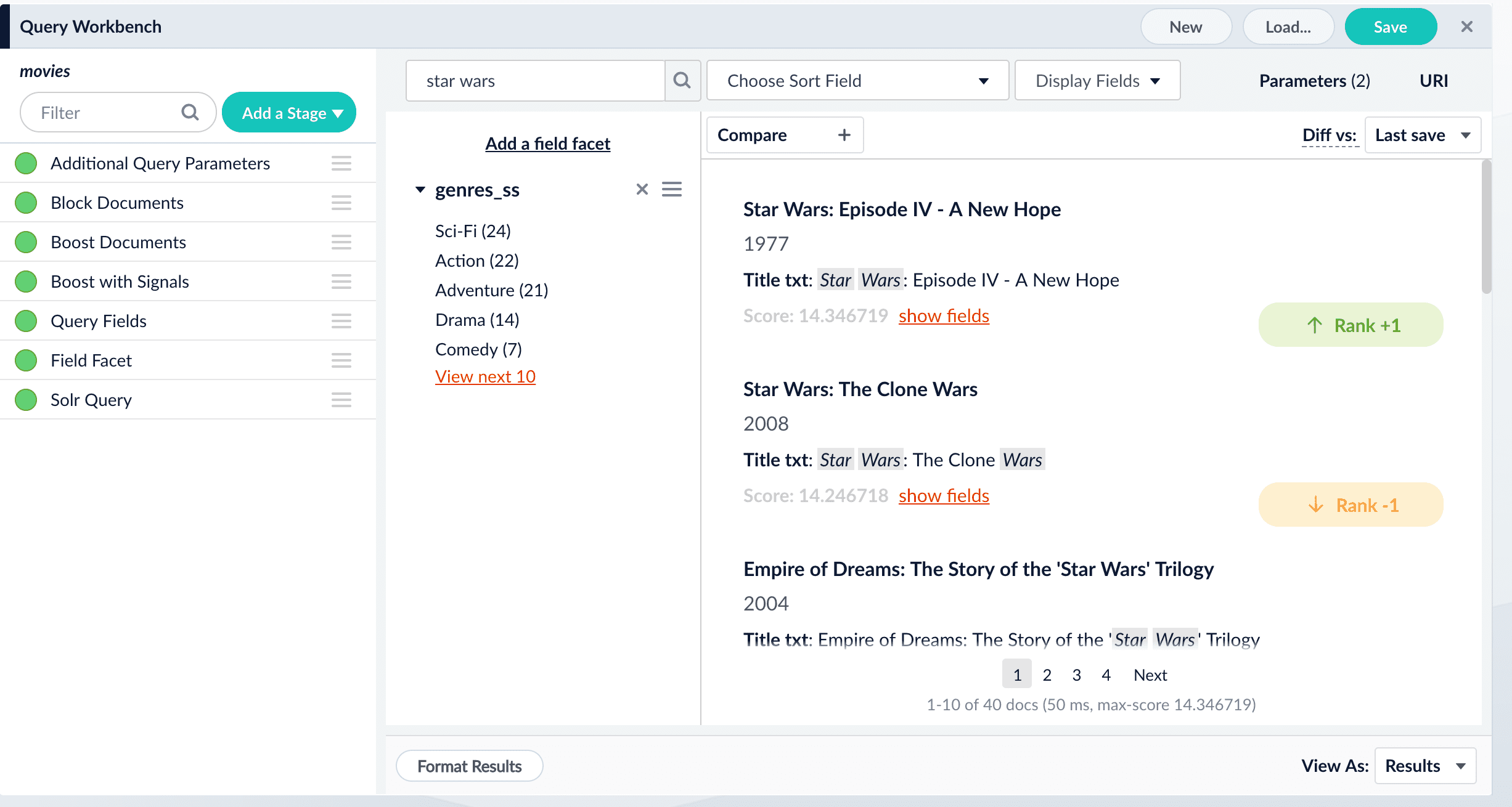
           <img src="https://mintcdn.com/lucidworks/l9y7VqRhZkN9hmR0/assets/images/4.0/query-workbench-highlighting.png?fit=max&auto=format&n=l9y7VqRhZkN9hmR0&q=85&s=e71aa5b05c6d97703672b672bee317a1" alt="Highlighted search terms" width="2453" height="1310" data-path="assets/images/4.0/query-workbench-highlighting.png" />
  </Accordion>
</AccordionGroup>

## Parameters

### Highlight Fields

Specifies the fields to use for highlighting. Highlighting should be used *for text fields only*. These fields are typically identified by the `_t` suffix, for example: `longDescription_t`.

### Snippet count

Specifies the number of snippets to generate for each configured field. When **Snippet count** is assigned a value of `3`, for example, the following is returned:

```json wrap  theme={"dark"}
"highlighting": {
    "link:/fusion/5.2/concepts/signals-and-aggregations/signals/": {
        "body_t": [
            "Click <em>signals</em> are the most common type of <em>signals</em> as this is the most common action a user takes with an item. ", // 1
            "The <em>signals</em> collection is created automatically when <em>signals</em> are enabled for the primary collection. ", // 2
            "App Insights mainly uses raw <em>signals</em>, but also uses some aggregated <em>signals</em>. " // 3
        ]
    }
}
```

### Snippet length

Controls the length of snippets. The **Snippet length** value is a character count. For example, setting **Snippet count** to `3` and **Snippet length** to `5` will attempt to generate 3 snippets that are at least 5 characters long:

```json wrap  theme={"dark"}
"highlighting": {
    "link:/fusion/4.1/concepts/signals-and-aggregations/signals/": {
        "body_t": ["Click <em>signals</em> are the most common type of <em>signals</em> as this is the most common action a user takes with an item. ", // 1
        "The <em>signals</em> collection is created automatically when <em>signals</em> are enabled for the primary collection. ",  // 2
        "App Insights mainly uses raw <em>signals</em>, but also uses some aggregated <em>signals</em>. " // 3
        ]
    }
}
```

In the example above, 3 snippets were generated, each snippet was at least 5 characters long, and snippets returned as a complete sentence. Setting the **Snippet length** to a higher value, such as `500`, may result in a single long snippet despite a **Snippet count** value of `3`:

```json wrap  theme={"dark"}
  "highlighting": {
      "link:/fusion/5.2/concepts/signals-and-aggregations/signals/": {
          "body_t": ["<em>Signals</em> are indexed in a secondary collection which is linked to the primary collection by the naming convention <primarycollectionname>_signals. So, if your main collection is named products, the associated <em>signals</em> collection is named products_signals. The <em>signals</em> collection is created automatically when <em>signals</em> are enabled for the primary collection. <em>Signals</em> are enabled by default whenever a new collection is created. <em>Signals</em> are indexed just like ordinary documents. The <em>signals</em> collection can be searched like any other collection, for example by using the Query Workbench with the <em>signals</em> collection selected. App Insights provides visualizations and reports with which to analyze your <em>signals</em>. App Insights mainly uses raw <em>signals</em>, but also uses some aggregated <em>signals</em>. Currently only the signal types Request, Response and Click are supported within the App Insights dashboards. See the descriptions of <em>signals</em> types and structure for more information. "]
      }
  }
```

### Match tags

Specifies the tags to use for identifying highlighted portions of the snippet. By default `<em>` and `</em>` are used. Match tags are appended to the highlight response field:

**JSON**

```json wrap  theme={"dark"}
  "highlighting" : {
    "8483697" : {
      "longDescription_t" : [ "Use these <em>powerful</em> headphones to stay focused on the music and help tune out background noise." ]
    },
    "2132048" : {
      "longDescription_t" : [ "Enjoy the beats and rhythms of your favorite music with these stylish over-the-ear headphones that feature 40mm drivers for clear and <em>powerful</em> sound. " ]
    }
  }
```

You can use other values for the match tags, such as `<span style="background-color:powderblue;">` and `</span>`, but the Lucidworks Search UI will not reflect your custom styles.

### Default highlight

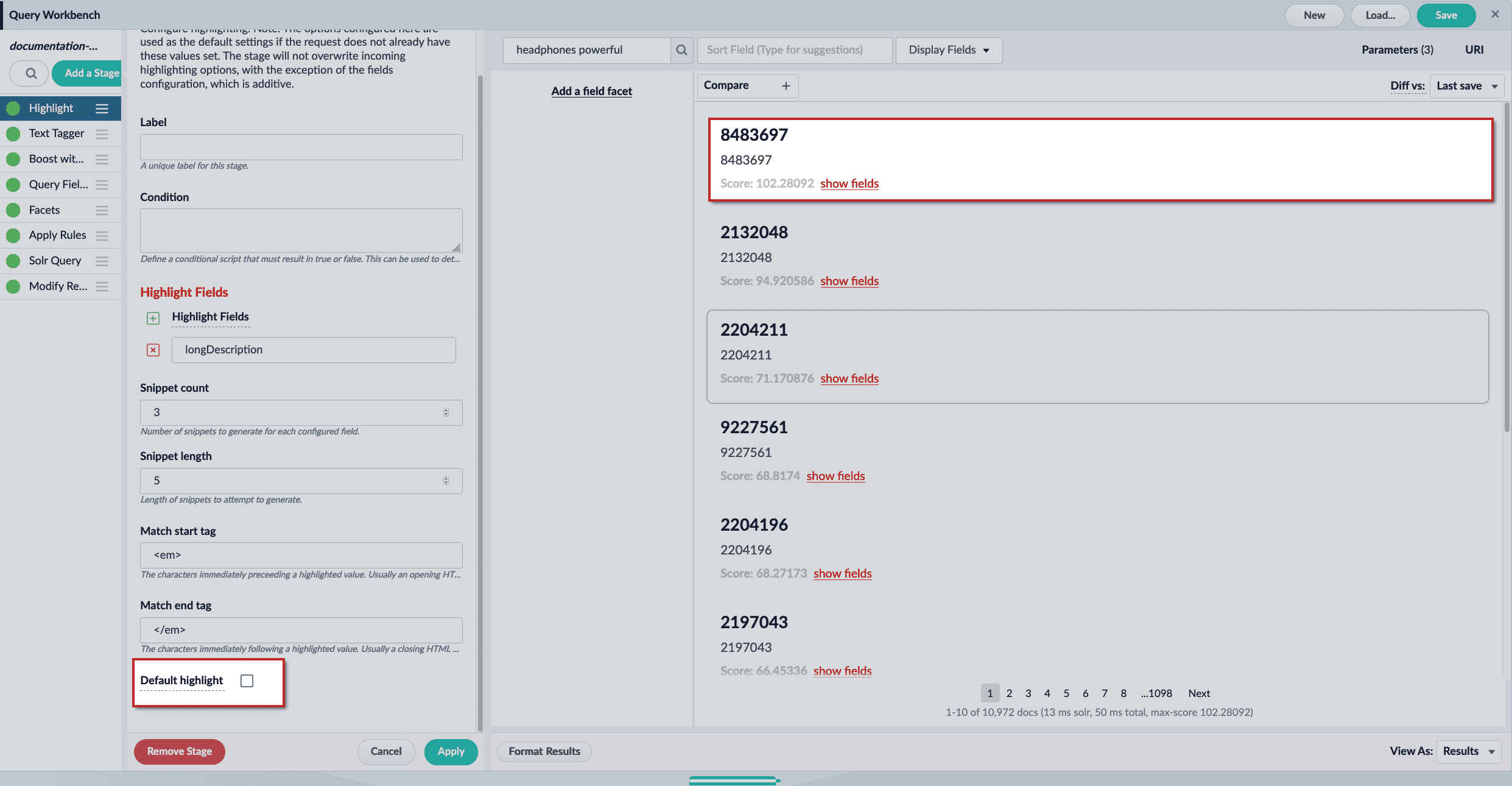
If no highlighting match is found, the results are returned without highlighting. This is easiest to see in the JSON. In the examples below, `longDescription_t` is as the **Highlight Fields** value.

**UI**

<img src="https://mintcdn.com/lucidworks/L5PMnIeZ03zhv8Ti/assets/images/5.6/highlight-stage-default-false-56.png?fit=max&auto=format&n=L5PMnIeZ03zhv8Ti&q=85&s=d78d2b65443ee61226d62cbb20f21d84" alt="Default highlight false" width="2483" height="1290" data-path="assets/images/5.6/highlight-stage-default-false-56.png" />

**JSON**

```json wrap  theme={"dark"}
"highlighting" : {
    "8483697" : {
      "longDescription_t" : [ ]
    },
    "2132048" : {
      "longDescription_t" : [ ]
    }
  }
```

In the examples above, no highlight match is found for the documents. Turn on **Default highlight** to force the stage to return the leading part of the field instead. Use this option to avoid returning large fields if you need to display something even when there is no highlight match.

**UI**
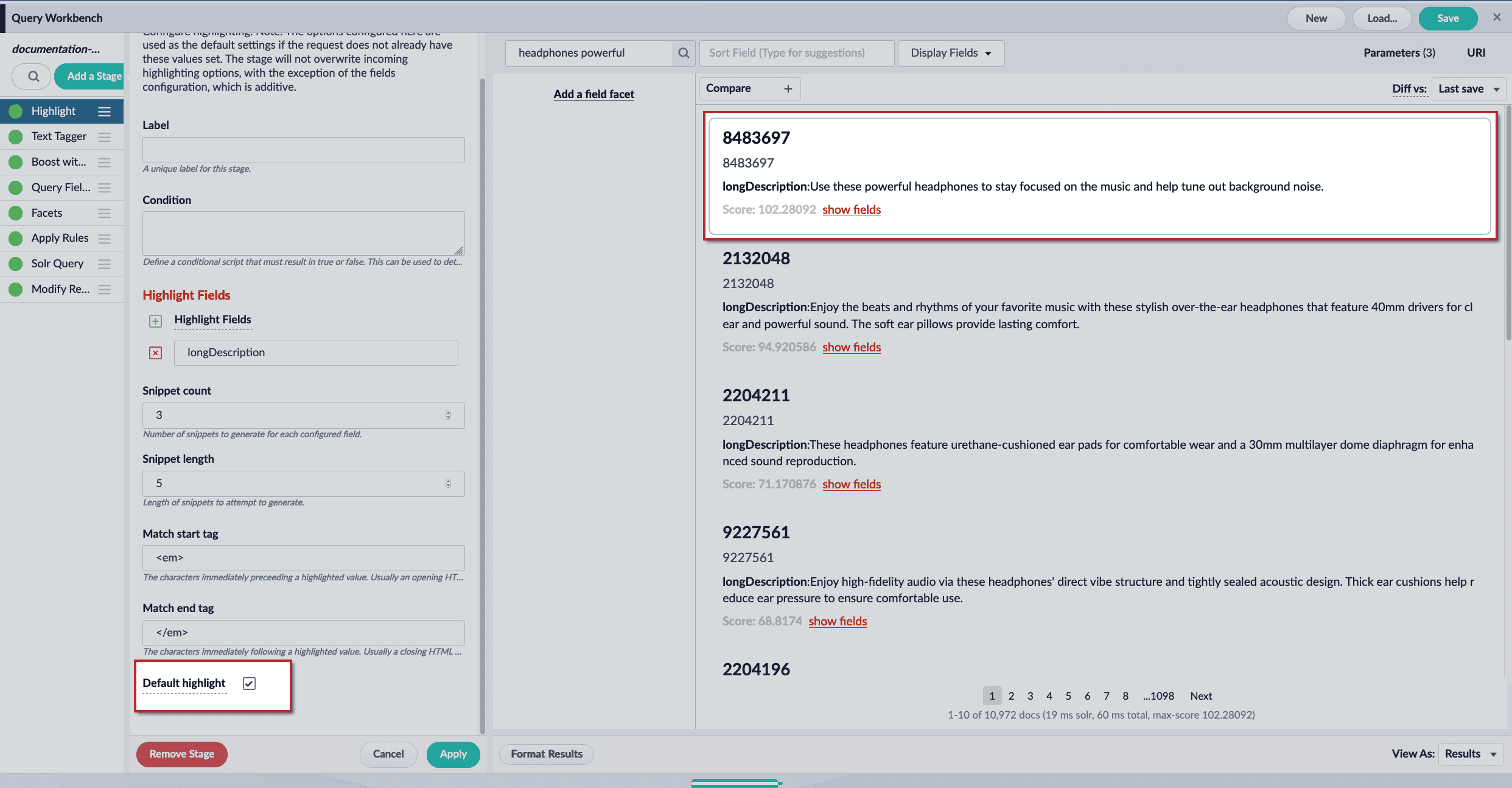
<img src="https://mintcdn.com/lucidworks/L5PMnIeZ03zhv8Ti/assets/images/5.6/highlight-stage-default-true-56.png?fit=max&auto=format&n=L5PMnIeZ03zhv8Ti&q=85&s=813b786368c268f33e11ee3559af8920" alt="Default highlight true" width="2484" height="1294" data-path="assets/images/5.6/highlight-stage-default-true-56.png" />

**JSON**

```json wrap  theme={"dark"}
  "highlighting" : {
    "8483697" : {
      "longDescription_t" : [ "Use these powerful headphones to stay focused on the music and help tune out background noise." ]
    },
    "2132048" : {
      "longDescription_t" : [ "Enjoy the beats and rhythms of your favorite music with these stylish over-the-ear headphones that feature 40mm drivers for clear and powerful sound. " ]
    }
  }
```

## Configuration

<Tip>
  When entering configuration values in the UI, use *unescaped* characters, such as `\t` for the tab character. When entering configuration values in the API, use *escaped* characters, such as `\\t` for the tab character.
</Tip>

<SchemaParamFields schema={schema} />