> ## Documentation Index
> Fetch the complete documentation index at: https://doc.lucidworks.com/llms.txt
> Use this file to discover all available pages before exploring further.
# Parsers
> Configuration specifications
export const LwTemplate = ({title = "Key questions to get you started", icon = "sparkles", cta = "Powered by Agent Studio", linkHref = "https://lucidworks.com/demo/?utm_source=docs&utm_medium=referral&utm_campaign=docs_cta_ai"}) => {
const [isLoaded, setIsLoaded] = useState(false);
useEffect(() => {
const timer = setTimeout(() => {
setIsLoaded(true);
}, 500);
return () => clearTimeout(timer);
}, []);
return
{isLoaded && `
}} />}
Powered by Lucidworks Agent Studio
;
};
[localhost link]: http://localhost:3000/docs/lucidworks-search/09-developer-documentation/config-specs/parsers/overview
[mintlify link]: https://doc.lucidworks.com/docs/lucidworks-search/09-developer-documentation/config-specs/parsers/overview
[old doc.lw link]: https://doc.lucidworks.com/managed-fusion/5.9/8ds9gm
Parsers provide fine-grained configuration for inbound data. You configure parsers with stages, much like index pipelines and query pipelines. Parsers can include conditional parsing and nested parsing. You can configure them through the [Lucidworks Search UI](/docs/lucidworks-search/09-developer-documentation/config-specs/parsers/overview) or the [Parsers API](/docs/lucidworks-search/09-developer-documentation/config-specs/parsers/overview).
Connectors receive the inbound data, convert it into a byte stream, and send the byte stream to a parser’s configured parsing stages. The parser selects a parsing stage to handle the stream, which parses the data and produces documents that are sent to the index pipeline.
Each parsing stage evaluates whether the inbound stream matches the stage’s default media types or filename extensions. The first stage that finds a match processes the data and can output one or both of the following:
* Zero or more pipeline documents for consumption by the index pipeline
* Zero or more new input streams for re-parsing\
This recursive approach is useful for containers (for example, `zip` and `tar` files). The output of the container parsing can be another container or a stream of uncompressed content that requires its own parsing.
Stages that might match the stream beyond the first match will not be used.
A few static fields impact the overall parser configuration. They are accessible when you select the parser in the Index Workbench:
| Field | Description |
| ------------------------------------- | ------------------------------------------------------------------------------------------------------------------------------------------------------------------------------------------------------------------------------------------------------------------------------------------------------------------------------------------------------------------------------------------------------------------------------------------------------------------------------------- |
| Document ID Source Field | Field in the source file that contains the document ID. If no value is entered, the default value is `id`. When a field name matches this parameter, that field is consumed to populate the document's unique identifier (Solr's `uniqueKey`) and is not available as a stored field in the indexed document. If your source data contains a field of `id` that you want to preserve, either rename the field in your source data or change this parameter to a different field name. |
| Maximum Parser Recursion Depth | Maximum number of times the parser may recurse over the file, before proceeding to the next parser. This is useful for files with hierarchical structures (for example, `zip` and `tar` files). |
| Enable automatic media type detection | Whether to automatically detect the media type of the source files. If disabled, the parser uses the media type `application/octet-stream`. |
## Built-in parser stages
The parser stages found in the sidenav are available for configuration.
Datasources that use connectors that retrieve fixed-structure content, such as those for Twitter and Jira, have hard-coded parsers and do not expose any configurable parser options.
## Configure parsers
When you configure a datasource, you can use the [Index Workbench](/docs/lucidworks-search/03-ui-tour/index-workbench) or the [Parsers API](/api-reference/index-profiles-crud-api/list-all-index-profiles) to create a parser. A parser consists of an ordered list of parser stages, some global parser parameters, and the stage-specific parameters. You can re-order the stages list by dragging them up or down in the Index Workbench.
Any parser stage can be added to the same parser multiple times if different configuration options are needed for different stages. Datasources with fixed-structure data will also be parsed by Lucidworks Search, but with default settings that do not need to be customized.
There is no limit to the number of stages that can be included in a parser. The priority-order of the stages is completely flexible. In a default parser configuration, a fallback parser is provided at the end of the parsing stage list to handle streams no other stage matches. If present, this stage is selected and attempts to parse anything that has not yet been matched.
When entering configuration values in the UI, use *unescaped* characters, such as `\t` for the tab character. When entering configuration values in the API, use *escaped* characters, such as `\\t` for the tab character.
### Configure a parser in the Lucidworks Search UI in Index Workbench
To configure parsers under **Indexing > Index Workbench**:
1. In the [Lucidworks Search workspace](/docs/lucidworks-search/03-ui-tour/overview),
navigate to the [Index Workbench](/docs/lucidworks-search/03-ui-tour/index-workbench).
2. At the upper right of the Index Workbench panel, click **Load**.
3. Under **Load**, click the name of the index pipeline.
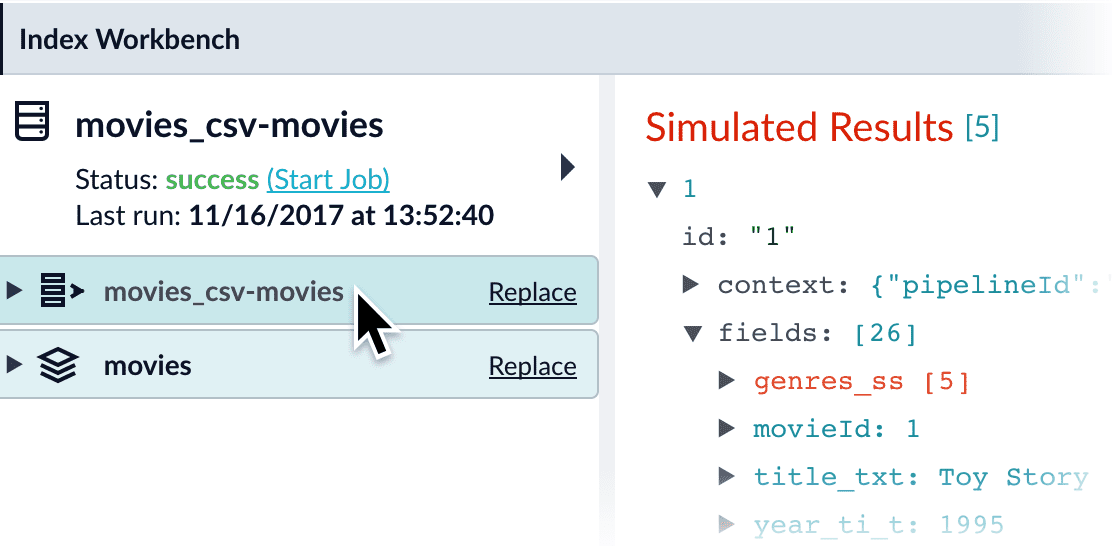
4. Click the parser to open its configuration:
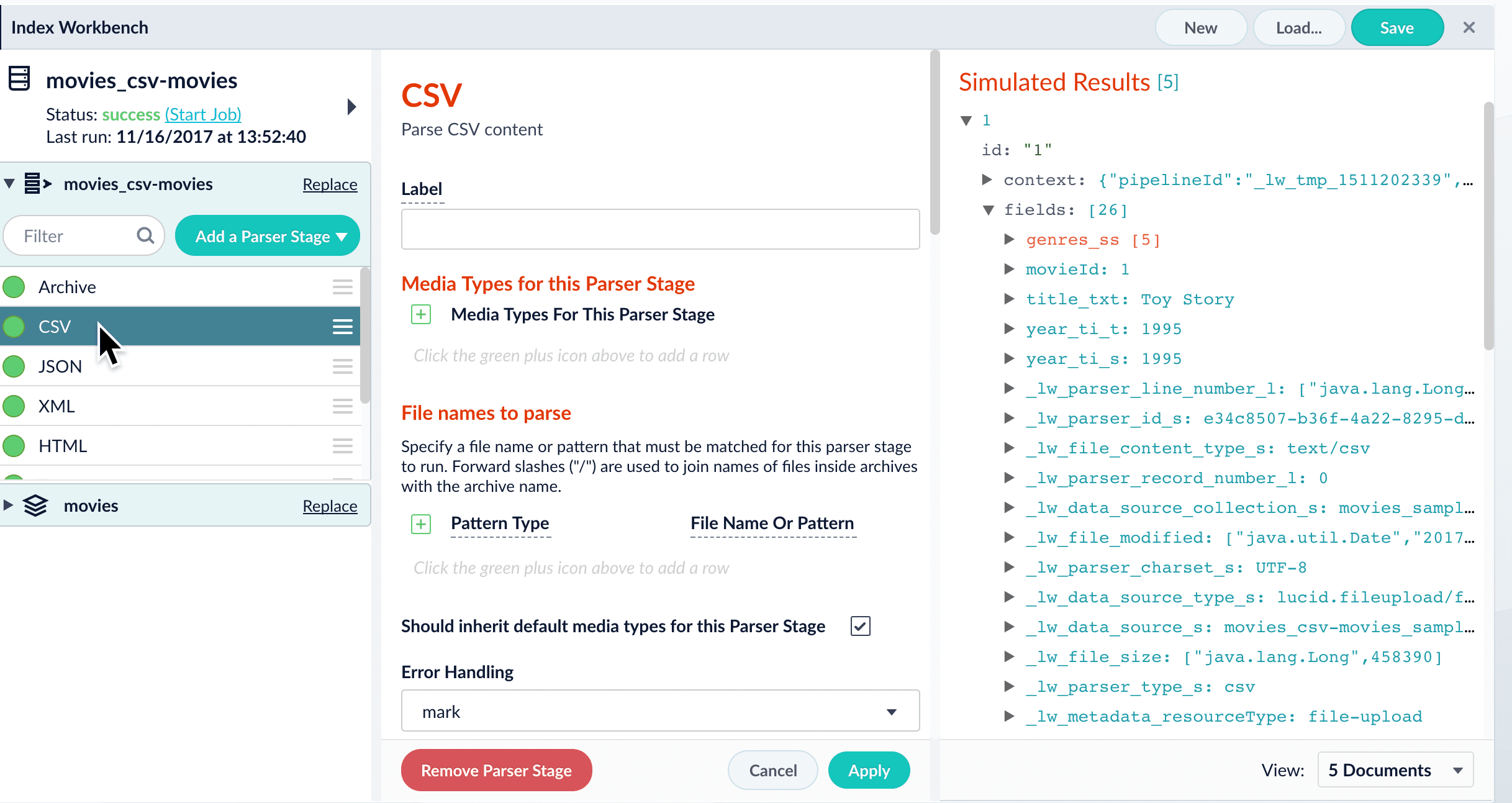
5. Click a specific stage to open its configuration panel:
### Configure a parser in the Lucidworks Search UI in Parsers
#### Requirements
To configure each part of the indexing process separately instead of using the Index Workbench,
you must complete the following:
* Configure datasources in **Indexing > Datasources**. For more information, see **Configure a new datasource**.
* Configure parsers in [**Indexing > Parsers**](#configure-a-parser-in-index-parsers) using the steps in this section.
* Configure index pipelines in **Indexing > Index Pipelines**. For more information, see [Index Pipeline Stages](/docs/lucidworks-search/09-developer-documentation/config-specs/index-pipeline-stages/overview).
{/* // tag::body[] */}
## Add the datasource and connector
1. Sign in to Lucidworks Search and click any application.
2. Click **Indexing > Datasources > Add+**.
3. Select your connector.
The connector configuration panel displays. The specific configuration options vary depending on the connector.
## Configure the connector
If you do not see your connector in the list, you may need to install it.
To configure the connector:
1. Enter a useful name for your datasource in the **Datasource ID** field.
2. Select an option in the **Pipeline ID** field if different from the default.
3. Select an option in the **Parser** fields if different from the default.
4. Select your specific release and connector detail. For more information, see [Connectors Configuration Reference](/docs/lucidworks-search/09-developer-documentation/config-specs/fusion-connectors/overview).
5. Click **Save**.
## Test the datasource configuration
1. Click **Indexing > Index Workbench > Load**.
2. Select the datasource ID you specified when you created the datasource.
3. Review the datasource configuration and a simulation of the results when you run this datasource job to index your data.
4. Adjust the configurations of your datasource, parsers, and index pipeline until the simulated results are satisfactory.
5. Click **Save**.
## Index your data
1. In the Index Workbench, click **Start Job**.
2. When the job status is Finished, click **Querying > Query Workbench** to view the indexed documents and configure your query pipeline. For more information, see [Query Workbench](/docs/lucidworks-search/03-ui-tour/query-workbench).
{/* // end::body[] */}
#### Configure a parser in Index > Parsers
1. In the [Lucidworks Search workspace](/docs/lucidworks-search/03-ui-tour/overview), navigate to **Indexing > Parsers**.
2. Click **Add**.
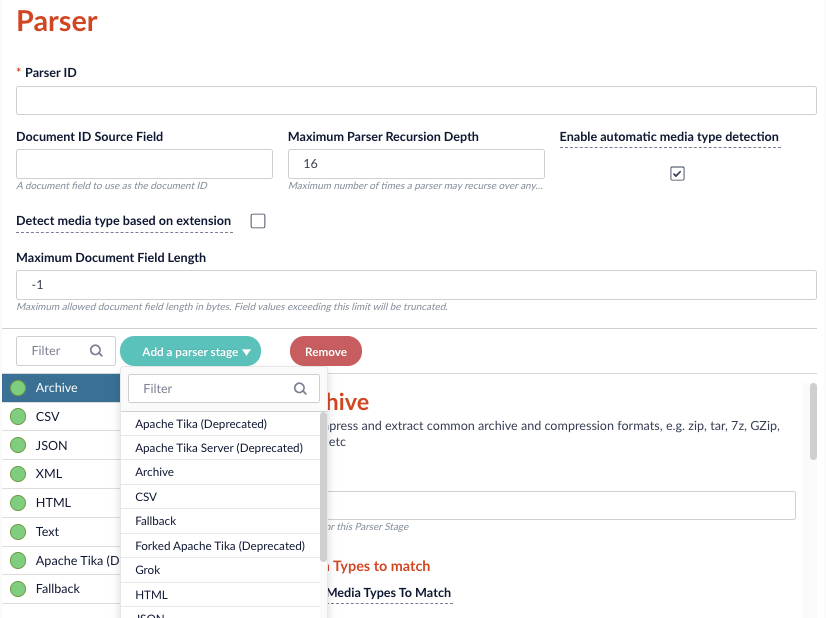
3. In the **Parser ID** field, enter a unique identifier for the parser. For example, **CSV\_parser**.
4. In the **Document ID Source Field**, enter the dataset field to use as the document ID. For example, `docID`.
5. In the **Maximum Parser Recursion Depth** field, enter the maximum of times this parser can recurse over any document before proceeding to the next parser. For example, **16**.
6. Select the **Enable automatic media type detection** checkbox to automatically detect the `Content-Type` of each document. If this is not selected, `application/octet-stream` is used.
7. Select the **Detect media type based on extension** checkbox to use the file extension to detect the `Content-Type` of a document before attempting to detect type based on content.
8. In the **Maximum Document Field Length** field, enter the maximum number of bytes allowed in the document. If a field exceeds this length, the field is truncated to this number.
9. Click **Add a parser stage** and select the parser to open its configuration. For example, **CSV**. To review configuration information for each parser type, click that parser topic in the sidebar.
10. Click **Save**.
### Configure a parser in the REST API
The [Parsers API](/api-reference/index-profiles-crud-api/list-all-index-profiles) provides a programmatic interface for viewing, creating, and modifying parsers, as well as sending documents directly to a parser.
* To get all currently-defined parsers: `https://EXAMPLE_COMPANY.lucidworks.cloud/api/parsers/`
* To get the parser schema: `https://EXAMPLE_COMPANY.lucidworks.cloud/api/parsers/_schema`
Replace `EXAMPLE_COMPANY` with the name provided by your Lucidworks representative.
Here is a very simple parser example, for parsing JSON input:
```json wrap theme={"dark"}
{ "id": "simple-json",
"type": "json",
arbitrary parser-specific options here.
"prettify": false
}
```
The example below shows a parser that can parse JSON input, as well as JSON that is inside zip, tar, or gzip containers, or any combination (such as .tar.gz). The order of the stages begins with the outermost containers and ends with the innermost content.
```json wrap theme={"dark"}
{ "id": "default-json",
"type": "composite",
"parsers": [
{ "id" : "zip-parser",
"type" : "zip" },
{ "type" : "gz" },
{ "type" : "tar" },
{ "id": "json-parser",
"type": "json",
"prettify": false
}]
}
```
ID is optional, just as in pipeline stages. Many parser stages require no configuration other than `type`.
## Field parser index pipeline stage
The parsers themselves only parse whole documents. Parsing of content embedded in fields is performed separately by the Field Parser index pipeline stage. This stage identifies the field that requires parsing and the parser to use.
 5. Click a specific stage to open its configuration panel:
 ### Configure a parser in the Lucidworks Search UI in Parsers
#### Requirements
To configure each part of the indexing process separately instead of using the Index Workbench,
you must complete the following:
* Configure datasources in **Indexing > Datasources**. For more information, see **Configure a new datasource**.
* Configure parsers in [**Indexing > Parsers**](#configure-a-parser-in-index-parsers) using the steps in this section.
* Configure index pipelines in **Indexing > Index Pipelines**. For more information, see [Index Pipeline Stages](/docs/lucidworks-search/09-developer-documentation/config-specs/index-pipeline-stages/overview).
### Configure a parser in the Lucidworks Search UI in Parsers
#### Requirements
To configure each part of the indexing process separately instead of using the Index Workbench,
you must complete the following:
* Configure datasources in **Indexing > Datasources**. For more information, see **Configure a new datasource**.
* Configure parsers in [**Indexing > Parsers**](#configure-a-parser-in-index-parsers) using the steps in this section.
* Configure index pipelines in **Indexing > Index Pipelines**. For more information, see [Index Pipeline Stages](/docs/lucidworks-search/09-developer-documentation/config-specs/index-pipeline-stages/overview).
 3. In the **Parser ID** field, enter a unique identifier for the parser. For example, **CSV\_parser**.
4. In the **Document ID Source Field**, enter the dataset field to use as the document ID. For example, `docID`.
5. In the **Maximum Parser Recursion Depth** field, enter the maximum of times this parser can recurse over any document before proceeding to the next parser. For example, **16**.
6. Select the **Enable automatic media type detection** checkbox to automatically detect the `Content-Type` of each document. If this is not selected, `application/octet-stream` is used.
7. Select the **Detect media type based on extension** checkbox to use the file extension to detect the `Content-Type` of a document before attempting to detect type based on content.
8. In the **Maximum Document Field Length** field, enter the maximum number of bytes allowed in the document. If a field exceeds this length, the field is truncated to this number.
9. Click **Add a parser stage** and select the parser to open its configuration. For example, **CSV**. To review configuration information for each parser type, click that parser topic in the sidebar.
10. Click **Save**.
### Configure a parser in the REST API
The [Parsers API](/api-reference/index-profiles-crud-api/list-all-index-profiles) provides a programmatic interface for viewing, creating, and modifying parsers, as well as sending documents directly to a parser.
* To get all currently-defined parsers: `https://EXAMPLE_COMPANY.lucidworks.cloud/api/parsers/`
* To get the parser schema: `https://EXAMPLE_COMPANY.lucidworks.cloud/api/parsers/_schema`
3. In the **Parser ID** field, enter a unique identifier for the parser. For example, **CSV\_parser**.
4. In the **Document ID Source Field**, enter the dataset field to use as the document ID. For example, `docID`.
5. In the **Maximum Parser Recursion Depth** field, enter the maximum of times this parser can recurse over any document before proceeding to the next parser. For example, **16**.
6. Select the **Enable automatic media type detection** checkbox to automatically detect the `Content-Type` of each document. If this is not selected, `application/octet-stream` is used.
7. Select the **Detect media type based on extension** checkbox to use the file extension to detect the `Content-Type` of a document before attempting to detect type based on content.
8. In the **Maximum Document Field Length** field, enter the maximum number of bytes allowed in the document. If a field exceeds this length, the field is truncated to this number.
9. Click **Add a parser stage** and select the parser to open its configuration. For example, **CSV**. To review configuration information for each parser type, click that parser topic in the sidebar.
10. Click **Save**.
### Configure a parser in the REST API
The [Parsers API](/api-reference/index-profiles-crud-api/list-all-index-profiles) provides a programmatic interface for viewing, creating, and modifying parsers, as well as sending documents directly to a parser.
* To get all currently-defined parsers: `https://EXAMPLE_COMPANY.lucidworks.cloud/api/parsers/`
* To get the parser schema: `https://EXAMPLE_COMPANY.lucidworks.cloud/api/parsers/_schema`