> ## Documentation Index
> Fetch the complete documentation index at: https://doc.lucidworks.com/llms.txt
> Use this file to discover all available pages before exploring further.

# BPR Recommender

> Job configuration specifications

export const schema = {
  "type": "object",
  "title": "BPR Recommender",
  "description": "Use this job when you want to compute user recommendations or item similarities using a Bayesian Personalized Ranking recommender. You can also implement a user-to-item recommender in the advanced section of this job’s configuration UI.",
  "required": ["id", "trainingCollection", "trainingFormat", "outputFormat", "userIdField", "itemIdField", "type"],
  "properties": {
    "id": {
      "type": "string",
      "title": "Job ID",
      "description": "The ID for this job. Used in the API to reference this job. Allowed characters: a-z, A-Z, dash (-) and underscore (_)",
      "maxLength": 63,
      "pattern": "[a-zA-Z][_\\-a-zA-Z0-9]*[a-zA-Z0-9]?"
    },
    "sparkConfig": {
      "type": "array",
      "title": "Additional parameters",
      "description": "Provide additional key/value pairs to be injected into the training JSON map at runtime. Values will be inserted as-is, so use \" to surround string values",
      "hints": ["advanced"],
      "items": {
        "type": "object",
        "required": ["key"],
        "properties": {
          "key": {
            "type": "string",
            "title": "Parameter Name"
          },
          "value": {
            "type": "string",
            "title": "Parameter Value"
          }
        }
      }
    },
    "writeOptions": {
      "type": "array",
      "title": "Write Options",
      "description": "Options used when writing output to Solr or other sources",
      "hints": ["advanced"],
      "items": {
        "type": "object",
        "required": ["key"],
        "properties": {
          "key": {
            "type": "string",
            "title": "Parameter Name"
          },
          "value": {
            "type": "string",
            "title": "Parameter Value"
          }
        }
      }
    },
    "readOptions": {
      "type": "array",
      "title": "Read Options",
      "description": "Options used when reading input from Solr or other sources.",
      "hints": ["advanced"],
      "items": {
        "type": "object",
        "required": ["key"],
        "properties": {
          "key": {
            "type": "string",
            "title": "Parameter Name"
          },
          "value": {
            "type": "string",
            "title": "Parameter Value"
          }
        }
      }
    },
    "outputBatchSize": {
      "type": "string",
      "title": "Output Batch Size",
      "description": "Batch size of documents when pushing results to solr",
      "default": "15000",
      "hints": ["advanced"]
    },
    "jobRunName": {
      "type": "string",
      "title": "Job Run Name",
      "description": "Identifier for this job run. Use it to filter recommendations from particular runs.",
      "hints": ["advanced"]
    },
    "trainingCollection": {
      "type": "string",
      "title": "Training data path",
      "description": "Solr collection or cloud storage path where training data is present.",
      "minLength": 1
    },
    "trainingFormat": {
      "type": "string",
      "title": "Training data format",
      "description": "The format of the training data - solr, parquet etc.",
      "default": "solr",
      "minLength": 1
    },
    "secretName": {
      "type": "string",
      "title": "Cloud storage secret name",
      "description": "Name of the secret used to access cloud storage as defined in the K8s namespace",
      "hints": ["advanced"],
      "minLength": 1
    },
    "outputUserRecsCollection": {
      "type": "string",
      "title": "Items-Users Output Path",
      "description": "Solr collection or cloud storage path to store batch-predicted user/item recommendations (if absent, none computed). Specify at least one of Items-Users Output Collection or Items-Items Output Collection.",
      "minLength": 1
    },
    "outputItemSimCollection": {
      "type": "string",
      "title": "Item-Items Output Path",
      "description": "Solr collection or cloud storage path to store batch-computed item/item similarities (if absent, none computed). Specify at least one of Items-Users Output Collection or Items-Items Output Collection.",
      "minLength": 1
    },
    "outputFormat": {
      "type": "string",
      "title": "Output data format",
      "description": "The format of the output data - solr, parquet etc.",
      "default": "solr",
      "minLength": 1
    },
    "partitionFields": {
      "type": "string",
      "title": "Partition fields",
      "description": "If writing to non-Solr sources, this field will accept a comma-delimited list of column names for partitioning the dataframe before writing to the external output.",
      "hints": ["advanced"]
    },
    "numRecsPerUser": {
      "type": "integer",
      "title": "No. of recs per user",
      "description": "Number of recommendations that will be saved per user.",
      "default": 10,
      "minimum": 0,
      "exclusiveMinimum": false
    },
    "userTopkAnn": {
      "type": "integer",
      "title": "No. of User Recs to Compute for Filtering",
      "description": "Applies only when Filter Already Clicked Items is enabled. This is used to fetch additional recommendations so that the value specified for the Number of Recommendations Per User is most likely satisfied with filtering turned on.",
      "hints": ["advanced"],
      "minimum": 0,
      "exclusiveMinimum": false
    },
    "numSimsPerItem": {
      "type": "integer",
      "title": "No. of recs per item",
      "description": "Number of recommendations that will be saved per item.",
      "default": 10,
      "minimum": 0,
      "exclusiveMinimum": false
    },
    "deleteOldRecs": {
      "type": "boolean",
      "title": "Delete Old Recommendations",
      "description": "Should previous recommendations be deleted. If this box is unchecked, then old recommendations will not be deleted but new recommendations will be appended with a different Job ID. Both sets of recommendations will be contained within the same collection. Will only work when output path is solr.",
      "default": true
    },
    "excludeFromDeleteFilter": {
      "type": "string",
      "title": "Exclude from Delete Filter",
      "description": "If the 'Delete Old Recommendations' flag is enabled, then use this query filter to identify existing recommendation docs to exclude from delete. The filter should identify recommendation docs you want to keep.",
      "hints": ["advanced"]
    },
    "filterClicked": {
      "type": "boolean",
      "title": "Filter already clicked items",
      "description": "Whether to filter out already clicked items in item recommendations for user. Takes more time but drastically improves quality.",
      "default": true,
      "hints": ["advanced"]
    },
    "weightField": {
      "type": "string",
      "title": "Training Collection Counts/Weights Field",
      "description": "Solr field name containing stored counts/weights the user has for that item. This field is used as weight during training",
      "default": "aggr_count_i"
    },
    "trainingDataFilterQuery": {
      "type": "string",
      "title": "Training Data Filter Query",
      "description": "Solr or SQL query to filter training data. Use solr query when solr collection is specified in Training Path. Use SQL query when cloud storage location is specified. The table name for SQL is `spark_input`.",
      "hints": ["code/sql", "advanced"]
    },
    "trainingSampleFraction": {
      "type": "number",
      "title": "Training Data Sampling Fraction",
      "description": "Choose a fraction of the data for training.",
      "default": 1,
      "hints": ["advanced"],
      "maximum": 1,
      "exclusiveMaximum": false
    },
    "userIdField": {
      "type": "string",
      "title": "Training Collection User Id Field",
      "description": "Solr field name in the training collection that contains stored User ID.",
      "default": "user_id_s",
      "minLength": 1
    },
    "itemIdField": {
      "type": "string",
      "title": "Training Collection Item Id Field",
      "description": "Solr field name in the training collection that contains stored Item ID.",
      "default": "item_id_s",
      "minLength": 1
    },
    "randomSeed": {
      "type": "integer",
      "title": "Random Seed",
      "description": "Pseudorandom determinism fixed by keeping this seed constant",
      "default": 12345,
      "hints": ["advanced"]
    },
    "itemMetadataFields": {
      "type": "array",
      "title": "Item Metadata Fields",
      "description": "List of item metadata fields to include in the recommendation output documents. WARNING: Adding many fields can lead to huge output sizes or OOM issues.",
      "hints": ["advanced"],
      "items": {
        "type": "string"
      }
    },
    "itemMetadataCollection": {
      "type": "string",
      "title": "Item Metadata Path",
      "description": "Cloud storage path or Solr collection containing item metadata fields you want to add to the recommendation output documents. Leave blank and fill in the metadata fields if you want to fetch data from the training collection. Join field needs to be specified.",
      "hints": ["advanced"]
    },
    "itemMetadataFormat": {
      "type": "string",
      "title": "Metdata format",
      "description": "The format of the metadata - solr, parquet etc.",
      "default": "solr",
      "hints": ["advanced"],
      "minLength": 1
    },
    "itemMetadataJoinField": {
      "type": "string",
      "title": "Item Metadata Join Field",
      "description": "Name of field in the item metadata collection to join on.",
      "hints": ["advanced"]
    },
    "performANN": {
      "type": "boolean",
      "title": "Perform approximate nearest neighbor search",
      "description": "Whether to perform approximate nearest neighbor search (ANN). ANN will drastically reduce training time, but accuracy will drop a little. Disable only if training dataset is very small.",
      "default": true
    },
    "maxNeighbors": {
      "type": "integer",
      "title": "Max neighbors for indexing",
      "description": "If perform ANN, size of the potential neighbors for the indexing phase. Higher value leads to better recall and shorter retrieval times (at the expense of longer indexing time).Reasonable range: 5~100",
      "hints": ["advanced"],
      "maximum": 2000,
      "exclusiveMaximum": false,
      "minimum": 100,
      "exclusiveMinimum": false
    },
    "searchNN": {
      "type": "integer",
      "title": "Search Depth",
      "description": "If perform ANN, the depth of search used to find neighbors. Higher value improves recall at the expense of longer retrieval time.Reasonable range: 100~2000",
      "hints": ["advanced"],
      "maximum": 2000,
      "exclusiveMaximum": false,
      "minimum": 100,
      "exclusiveMinimum": false
    },
    "indexNN": {
      "type": "integer",
      "title": "Indexing Depth",
      "description": "If perform ANN, the depth of constructed index. Higher value improves recall at the expense of longer indexing time.Reasonable range: 100~2000",
      "hints": ["advanced"],
      "maximum": 2000,
      "exclusiveMaximum": false,
      "minimum": 100,
      "exclusiveMinimum": false
    },
    "factors": {
      "type": "integer",
      "title": "Dimension of latent factors",
      "description": "Latent factor dimension used for matrix decomposition. Bigger values require more time and memory but usually provide better results.",
      "default": 100,
      "hints": ["advanced"],
      "minimum": 1,
      "exclusiveMinimum": false
    },
    "epochs": {
      "type": "integer",
      "title": "Training iterations",
      "description": "Number of model training iterations. Model will converge better with larger number at the expense of increased training time. For bigger datasets use smaller values.",
      "default": 30,
      "hints": ["advanced"],
      "minimum": 1,
      "exclusiveMinimum": false
    },
    "learningRate": {
      "type": "number",
      "title": "Learning rate",
      "description": "Model learning rate.",
      "default": 0.05,
      "hints": ["advanced"]
    },
    "metadataCategoryFields": {
      "type": "array",
      "title": "Metadata fields for item-item evaluation",
      "description": "These fields will be used for item-item evaluation and for determining if the recommendation pair belong to the same category.",
      "hints": ["advanced"],
      "items": {
        "type": "string"
      }
    },
    "minNumItemUniqueClicks": {
      "type": "integer",
      "title": "Training Data Filtered By Popular Items",
      "description": "Items must have at least this no. of unique user interactions to be included for training and recommendations. The higher this value, the more popular items selected but the amount of training data will reduce.",
      "default": 2,
      "minimum": 1,
      "exclusiveMinimum": false
    },
    "minNumUserUniqueClicks": {
      "type": "integer",
      "title": "Training Data Filtered By User clicks",
      "description": "Users must have at least this no. of unique item interactions to be included for training and recommendations. The higher this value, the more active users are selected but the amount of training data will reduce.",
      "default": 2,
      "minimum": 1,
      "exclusiveMinimum": false
    },
    "minNumClickedProducts": {
      "type": "integer",
      "title": "Minimum Clicked Products",
      "description": "Minimum number of clicked products the user should have to be a candidate for the test set.",
      "default": 3,
      "minimum": 2,
      "exclusiveMinimum": false
    },
    "maxNumTestUsers": {
      "type": "integer",
      "title": "Maximum Test Users",
      "description": "Maximum number of test users to choose. If more users satisfying the Minimum Clicked Products criterion are present, the number will be capped to what is specified here.",
      "default": 10000,
      "minimum": 0,
      "exclusiveMinimum": false
    },
    "numTestUserClicks": {
      "type": "integer",
      "title": "Number of User Clicks for Test",
      "description": "How many test user clicks to use for testing. Should be less than the value for Minimum Clicked Products.",
      "default": 1,
      "minimum": 1,
      "exclusiveMinimum": false
    },
    "doEvaluation": {
      "type": "boolean",
      "title": "Evaluate on test data",
      "description": "Evaluate how well the trained model predicts user clicks. Test data will be sampled from original dataset."
    },
    "type": {
      "type": "string",
      "title": "Spark Job Type",
      "enum": ["argo-item-recommender-user"],
      "default": "argo-item-recommender-user",
      "hints": ["readonly"]
    }
  },
  "additionalProperties": true,
  "category": "Other",
  "categoryPriority": 1,
  "propertyGroups": [{
    "label": "Input/Output Parameters",
    "properties": ["trainingCollection", "trainingFormat", "outputUserRecsCollection", "outputItemSimCollection", "outputFormat", "outputBatchSize", "secretName", "partitionFields"]
  }, {
    "label": "Training Data Settings",
    "properties": ["trainingDataFilterQuery", "trainingSampleFraction", "userIdField", "itemIdField", "weightField", "trainingDataFrameConfigOptions"]
  }, {
    "label": "Model Tuning Parameters",
    "properties": ["numRecsPerUser", "numSimsPerItem", "filterClicked", "userTopkAnn", "minNumItemUniqueClicks", "minNumUserUniqueClicks", "maxIters", "deleteOldRecs", "excludeFromDeleteFilter", "performANN", "maxNeighbors", "searchNN", "indexNN", "factors", "epochs", "learningRate", "randomSeed"]
  }, {
    "label": "Evaluation Parameters",
    "properties": ["doEvaluation", "minNumClickedProducts", "numTestUserClicks", "maxNumTestUsers"]
  }, {
    "label": "Item Metadata Settings",
    "properties": ["itemMetadataCollection", "itemMetadataFormat", "itemMetadataJoinField", "itemMetadataFields", "metadataCategoryFields"]
  }]
};

export const SchemaParamFields = ({schema}) => {
  const sanitize = str => {
    if (typeof str !== "string") return str;
    return str.replace(/^"(.*)"$/s, "$1").replace(/\\/g, "").replace(/"/g, "'");
  };
  const formatDescription = str => {
    const s = sanitize(str);
    return (/[.!?]\)*$/).test(s) ? s : `${s}.`;
  };
  const {description, properties = {}, required: requiredProps = []} = schema;
  const visibleProps = useMemo(() => Object.entries(properties).filter(([, prop]) => !prop.hints?.includes("hidden")), [properties]);
  return <div>
      {description && <p>{formatDescription(description)}</p>}

      {visibleProps.map(([name, prop]) => {
    const isRequired = requiredProps.includes(name);
    const hasDefault = prop.default !== undefined;
    const rawDefault = prop.default;
    const isComplexDefault = hasDefault && (typeof rawDefault === "object" || typeof rawDefault === "string" && (rawDefault.length > 20 || rawDefault.includes('"')));
    const fieldProps = {
      key: name,
      body: prop.title || name,
      type: prop.type,
      ...prop.title && ({
        post: [<><span className="text-stone-400 dark:text-stone-500">API property: </span>{name}</>]
      }),
      ...isRequired && ({
        required: true
      }),
      ...!isComplexDefault && hasDefault ? {
        default: sanitize(String(rawDefault))
      } : {}
    };
    const isObject = prop.type === "object" && prop.properties;
    const isArrayOfObjects = prop.type === "array" && prop.items?.type === "object" && prop.items.properties;
    return <ParamField {...fieldProps}>
            {prop.description && <p>{formatDescription(prop.description)}</p>}

            {isComplexDefault && <div className="flex">
                <p>
                  <strong>Default:</strong>
                </p>
                <pre className="!my-0">
                  <code>
                    {JSON.stringify(rawDefault, null, 2)}
                  </code>
                </pre>
              </div>}

            {isArrayOfObjects && <div className="flex">
              <p>
                <strong>Object attributes:</strong>
              </p>
              <pre className="!my-0">
                <code>
                  {'{\n'}
                  {Object.entries(prop.items.properties).map(([iname, iprop]) => <>
                      {`  ${iname}`}
                      {prop.items?.required?.includes(iname) && <span style={{
      color: 'red'
    }}> required</span>}
                      {`: {\n    display name: ${sanitize(iprop.title || '')}\n    type: ${iprop.type}\n  }\n`}
                    </>)}
                  {'}'}
                </code>
              </pre>
              </div>}

            {isObject && <Expandable title="properties">
                <SchemaParamFields schema={{
      properties: prop.properties,
      required: prop.required
    }} />
              </Expandable>}
          </ParamField>;
  })}
    </div>;
};

export const LwTemplate = ({title = "Key questions to get you started", icon = "sparkles", cta = "Powered by Agent Studio", linkHref = "https://lucidworks.com/demo/?utm_source=docs&utm_medium=referral&utm_campaign=docs_cta_ai"}) => {
  const [isLoaded, setIsLoaded] = useState(false);
  useEffect(() => {
    const timer = setTimeout(() => {
      setIsLoaded(true);
    }, 500);
    return () => clearTimeout(timer);
  }, []);
  return <div className="lw-template-container">
      <Card title={title} icon={icon}>
        {isLoaded && <span dangerouslySetInnerHTML={{
    __html: `<lw-template id="a029c1a9-28be-427e-b0e1-5d918920246a"></lw-template
            >`
  }} />}
        <Link href={linkHref} className="agent-studio-link text-left text-gray-600 gap-2 dark:text-gray-400 text-sm font-medium flex flex-row items-center hover:text-primary dark:hover:text-primary-light group-hover:text-primary group-hover:dark:text-primary-light">Powered by Lucidworks Agent Studio</Link>
      </Card>
    </div>;
};

[localhost link]: http://localhost:3000/docs/lucidworks-search/09-developer-documentation/config-specs/jobs/bpr-recommender

[mintlify link]: https://doc.lucidworks.com/docs/lucidworks-search/09-developer-documentation/config-specs/jobs/bpr-recommender

[old doc.lw link]: https://doc.lucidworks.com/managed-fusion/5.9/ec8fkn

Use this job when you want to compute user recommendations or item similarities using a Bayesian Personalized Ranking (BPR) recommender algorithm.

|                  |                                                                                                                                                                                                                                                                                                                                                                |
| ---------------- | -------------------------------------------------------------------------------------------------------------------------------------------------------------------------------------------------------------------------------------------------------------------------------------------------------------------------------------------------------------- |
| Default job name | `COLLECTION_NAME_bpr_item_recs`                                                                                                                                                                                                                                                                                                                                |
| Input            | [Aggregated signals](/docs/lucidworks-search/09-developer-documentation/config-specs/jobs/sql-aggregation/built-in-sql-aggregation-jobs) (the `COLLECTION_NAME_recs_aggr` collection by default)                                                                                                                                                               |
| Output           | [Items-for-item recommendations](/docs/lucidworks-search/07-improve-your-queries/recommendations/items-for-item) (the `COLLECTION_NAME_bpr_item_recs` collection by default) and [Items-for-user recommendations](/docs/lucidworks-search/07-improve-your-queries/recommendations/items-for-user) (the `COLLECTION_NAME_bpr_user_recs` collection by default). |

This job assumes that your signals collection contains the preferences of many users. It uses this collection of preferences to predict another user’s preference for an item that the user has not yet seen:

* **User.** Use **Training Collection User Id Field** to specify the name of the user ID field, usually `user_id_s`.
* **Item.** Use **Training Collection Item Id Field** to specify the name of the item ID field, usually `item_id_s`.
* **Interaction-value.** Use **Training Collection Counts/Weights Field** to specify the name of the interaction value field, usually `aggr_count_i`.

BPR-based recommenders compare a pair of recommendations for a user.

<Note>You can also configure this job to read from or write to cloud storage. See **Configure An Argo-Based Job to Access GCS** and **Configure An Argo-Based Job to Access S3**.</Note>

<AccordionGroup>
  <Accordion title="Configure An Argo-Based Job to Access GCS">
    Some jobs can be configured to read from or write to Google Cloud Storage (GCS).

    You can configure a combination of Solr and cloud-based input or output, that is, you can read from GCS and then write to Solr or vice versa.
    However, you cannot configure multiple storage sources for input or multiple storage targets for output; only one can be configured for each.

    See also Configure An Argo-Based Job to Access S3.

    <LwTemplate />

    ## Supported jobs

    This procedure applies to these Argo jobs:

    * Content based Recommender
    * BPR Recommender
    * Classification
    * Evaluate QnA Pipeline
    * QnA Coldstart Training
    * QnA Supervised Training

    For Spark jobs, see Configure A Spark-Based Job to Access Cloud Storage.

    ## How to configure a job to access GCS

    1. Gather the access key for your GCS account.\
       See the [GCS documentation](https://cloud.google.com/iam/docs/creating-managing-service-account-keys).
    2. Create a Kubernetes secret:
       ```
       kubectl create secret generic my-gcs-serviceaccount-key --from-file=<my-gcs-serviceaccount-key>.json --namespace <fusion-namespace>
       ```
    3. In the job’s **Cloud storage secret name** field, enter the name of the secret for the GCS target as mounted in the Kubernetes namespace.\
       This is the name you specified in the previous step.  In the example above, the secret name is `my-gcs-serviceaccount-key`.
       <Tip>   You can also find this name using `kubectl get secret -n <fusion-namespace>`.</Tip>
    4. In the job’s **Additional Parameters**, add this parameter:
       * Parameter name: `google.cloud.auth.service.account.json.keyfile`
       * Parameter value: `<name of the keyfile that is available when the GCS secret is mounted to the pod>`
         <Note>   The file name may be different than the secret name.  You can check using `kubectl get secret -n <fusion-namespace> <secretname> -o yaml`.</Note>
  </Accordion>

  <Accordion title="Configure An Argo-Based Job to Access S3">
    Some jobs can be configured to read from or write to Amazon S3 (S3).

    You can configure a combination of Solr and cloud-based input or output, that is, you can read from S3 and then write to Solr or vice versa.
    However, you cannot configure multiple storage sources for input or multiple storage targets for output; only one can be configured for each.

    See also Configure An Argo-Based Job to Access GCS.

    ## Supported jobs

    This procedure applies to these Argo jobs:

    * Content based Recommender
    * BPR Recommender
    * Classification
    * Evaluate QnA Pipeline
    * QnA Coldstart Training
    * QnA Supervised Training

    For Spark jobs, see Configure A Spark-Based Job to Access Cloud Storage.

    ## How to configure a job to access S3

    1. Gather the access key and secret key for your S3 account.\
       See the [AWS documentation](https://aws.amazon.com/premiumsupport/knowledge-center/create-access-key).
    2. Create a Kubernetes secret:
       ```
       kubectl create secret generic aws-secret --from-literal=my-aws-key-file='<access key>' --from-literal=my-aws-secret-path='<secret key>' --namespace <fusion-namespace>
       ```
    3. In the job’s **Cloud storage secret name** field, enter the name of the secret for the S3 target as mounted in the Kubernetes namespace.\
       This is the name you specified in the previous step.  In the example above, the secret name is `aws-secret`.
       <Tip>   You can also find this name using `kubectl get secret -n <fusion-namespace>`.</Tip>
    4. In the job’s **Additional Parameters**, add these two parameters:
       * Param name: `fs.s3a.access.keyPath`\
         Param value: `<name of the file containing the access key that is available when the S3 secret is mounted to the pod>`
       * Param name: `fs.s3a.secret.keyPath`\
         Param value: `<name of the file containing the access secret that is available when the S3 secret is mounted to the pod>`
         <Note>   The file name may be different than the secret name.  You can check using `kubectl get secret -n <fusion-namespace> <secretname> -o yaml`.</Note>
  </Accordion>
</AccordionGroup>

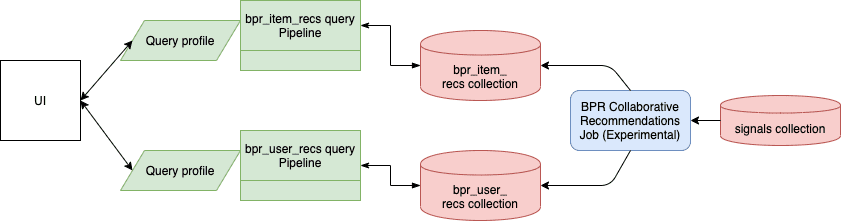
**BPR collaborative recommendations dataflow**

<img src="https://mintcdn.com/lucidworks/S4K1ej9-5L4WZcZ9/assets/images/5.2/bpr-dataflow-diagram.png?fit=max&auto=format&n=S4K1ej9-5L4WZcZ9&q=85&s=6fa614bb8ef4601b6b45c1b3dae5dc9a" alt="BPR dataflow" width="841" height="221" data-path="assets/images/5.2/bpr-dataflow-diagram.png" />

<Note>If using Solr as the training data source, ensure that the source collection contains the `random_*` dynamic field defined in its `managed-schema.xml`. This field is required for sampling the data. If it is not present, add the following entry to the `managed-schema.xml` alongside other dynamic fields `<dynamicField name="random_*" type="random"/>` and \<fieldType class="solr.RandomSortField" indexed="true" name="random"/> alongside other field types.</Note>

## Tuning tips

The BPR Recommender job has a few unique tuning parameters compared to the ALS Recommender job:

* **Training Data Filtered By Popular Items**. By setting the minimum number of user interactions required for items to be included in training and recommendations, you can suppress items that do not yet have enough signals data for meaningful recommendations.

* **Filter already clicked items**. This feature produces only "fresh" recommendations, by omitting items the user has already clicked.  (It also increases the job’s running time.)

* **Perform approximate nearest neighbor search**. This option reduces the job’s running time significantly, with a small decrease in accuracy. If your training dataset is very small, then you can disable this option.

* **Evaluate on test data**. This feature samples the original dataset to evaluate how well the trained model predicts unseen user interactions. The clicks that are sampled for testing are not used for training. For example, with the default configuration, users who have at least three total clicks are selected for testing. For each of those users, one click is used for testing and the rest are used for training. The trained model is applied to the test data, and the evaluation results are written to the log.

* **Metadata fields for item-item evaluation**. These fields are used during evaluation to determine whether pairs belong to the same category.

## Query pipeline setup

* For [items-for-item recommendations](/docs/lucidworks-search/07-improve-your-queries/recommendations/items-for-item), <a href="/assets/attachments/pipelines/APPName_item_item_rec_pipelines_bpr.json" download>Download the APPName\_item\_item\_rec\_pipelines\_bpr.json file</a> and **Migrate Lucidworks Search Objects** to create the query pipeline that consumes this job’s output. See **Fetch Items-for-Item Recommendations (Collaborative/BPR Method)** for details.
* For [items-for-user recommendations](/docs/lucidworks-search/07-improve-your-queries/recommendations/items-for-user), <a href="/assets/attachments/pipelines/APPName_item_user_rec_pipelines_bpr.json" download>Download the APPName\_item\_user\_rec\_pipelines\_bpr.json file</a> and **Migrate Lucidworks Search Objects** to create the query pipeline that consumes this job’s output. See **Fetch Items-for-User Recommendations (Collaborative/BPR Method)** for details.

<AccordionGroup>
  <Accordion title="Migrate Lucidworks Search Objects">
    You can use the Fusion UI and the [Objects API](/api-reference/objects/get-objects-service-status) to migrate collections and related objects, including your searchable data, configuration data, pipelines, aggregations, and other objects on which your collections depend. You can also migrate entire apps.

    <Check>To upgrade from one Fusion version to a 5.x version, see Fusion 5 Upgrades to migrate objects.</Check>

    You might need to migrate objects in the following circumstances:

    * When migrating data from development environments into testing and production environments
    * To back up data, so you can restore it after an incident of data loss
    * When the migrator script was not able to migrate an object automatically

    <Warning>When you export and import objects to migrate them, make sure you that any data gets to where it is going before deleting the sources.</Warning>

    ## Migration approaches

    Several approaches are available for migrating Fusion objects. This table summarizes the approaches.

    |                                   | Export an app              | Import an app                                                      | Export an object           | Import an object          | Add an object to an app |
    | --------------------------------- | -------------------------- | ------------------------------------------------------------------ | -------------------------- | ------------------------- | ----------------------- |
    | **Fusion UI**                     | App configuration          | Launcher<br /> (entire app) App configuration<br /> (combine apps) | -                          | -                         | Object Explorer         |
    | **Objects API**<br /> (endpoints) | GET from `export` endpoint | POST to `import` endpoint                                          | GET from `export` endpoint | POST to `import` endpoint | -                       |

    For more information about using the Objects API to export and import objects, see [Objects API](/api-reference/objects/get-objects-service-status).

    The remainder of this topic describes approaches in the Fusion UI.

    Use the parts of the Fusion UI indicated in the table to export and import apps and specific objects. Exporting creates a zip file. To import, you select a data file and possibly a variable file.

    The approach with Object Explorer differs. With Object Explorer, you can add objects from other apps (or that are not linked to any apps) to the currently open app.

    ## Export an app with the Fusion UI

    **How to export an app with the Fusion UI**

    1. Navigate to the launcher.
    2. Hover over the app you want to export and click the Configure icon:
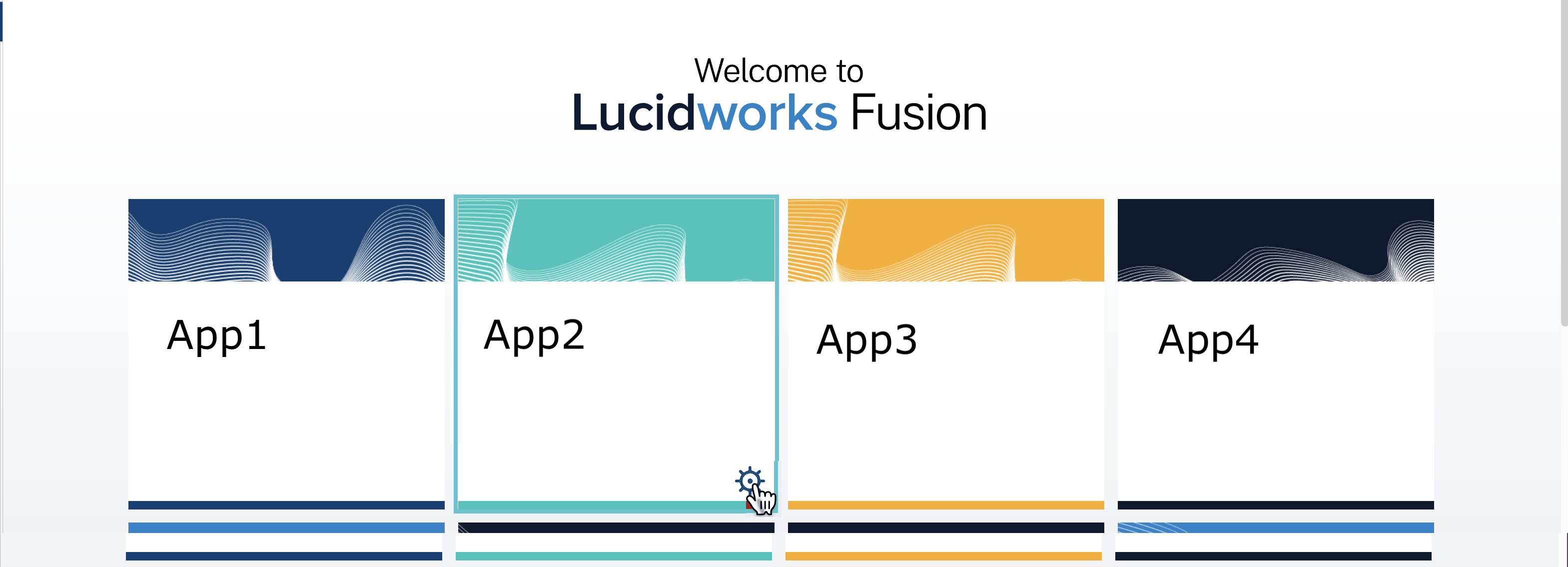
           <img src="https://mintcdn.com/lucidworks/L5PMnIeZ03zhv8Ti/assets/images/5.6/launcher-app-config-hover-56.png?fit=max&auto=format&n=L5PMnIeZ03zhv8Ti&q=85&s=8ae921d898899048020c96681719b4ee" alt="App config button" width="3138" height="1134" data-path="assets/images/5.6/launcher-app-config-hover-56.png" />
    3. In the app config window, click **Export app to zip**:
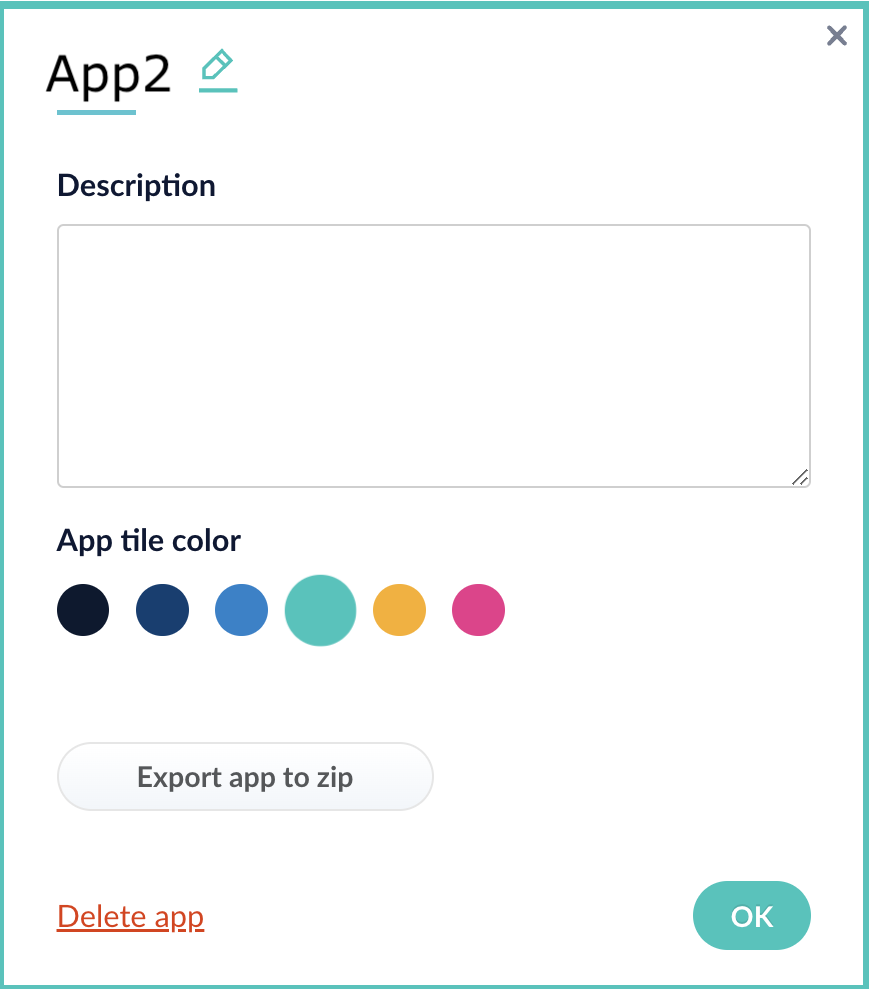
           <img style={{ width: "300px" }} src="https://mintcdn.com/lucidworks/L5PMnIeZ03zhv8Ti/assets/images/5.6/launcher-export-app-56.png?fit=max&auto=format&n=L5PMnIeZ03zhv8Ti&q=85&s=198aa7f16fddd9adc758115e7ec132c2" width="869" height="989" data-path="assets/images/5.6/launcher-export-app-56.png" />

    See import for information to import the downloaded zip file into other instances of Fusion 5.x.

    ## Import an app with the Fusion UI

    **How to import an app with the Fusion UI**

    1. Navigate to the launcher.
    2. Click **Import app**.
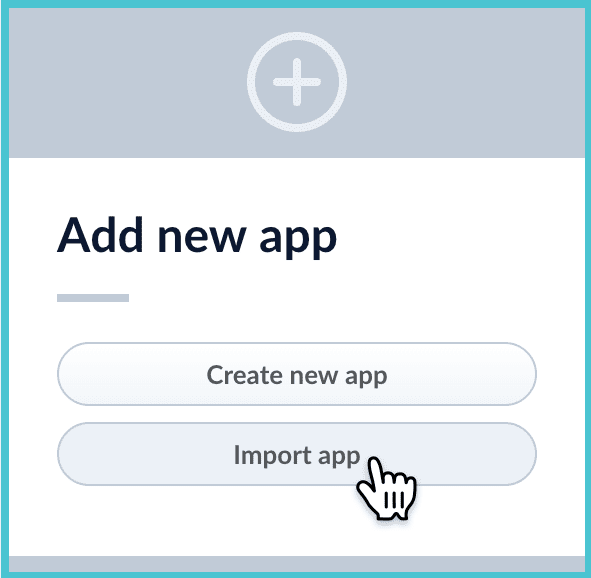
           <img style={{ width: "300px" }} src="https://mintcdn.com/lucidworks/zH_ln2rWO5G9pvTA/assets/images/5.0/launcher-import-app.png?fit=max&auto=format&n=zH_ln2rWO5G9pvTA&q=85&s=c093d9e28cc5ab76f2c4a7323d741afa" width="591" height="578" data-path="assets/images/5.0/launcher-import-app.png" />
    3. Under **Data File**, click **Choose File** and select the zip file containing the app you want to import.
    4. If your app has [usernames and passwords](/api-reference/objects/list-imported-variables) in a separate file, select it under **Variables File**.
       If the Variables File is needed, it *must* be a separate file that is not in a .zip file. It is a .json map of variables to values. The following is an example:
       ```json theme={"dark"}
       {
       "secret.dataSources.Inventory_BR_S3_DS.password":"SOMETHING",
       "secret.dataSources.LLM_A_BR_S3_DS.password":"FmJSaDE9Tj5REDACTED",
       "secret.dataSources.LLM_BR_Inventory_S3_DS.password":"FmJSaDE9Tj5GzIVvethAC4Huh",
       "secret.dataSources.LLM_BR_Load_S3_DS.password":"FmJSaDE9Tj5GzIVvethAC4"
       }
       ```
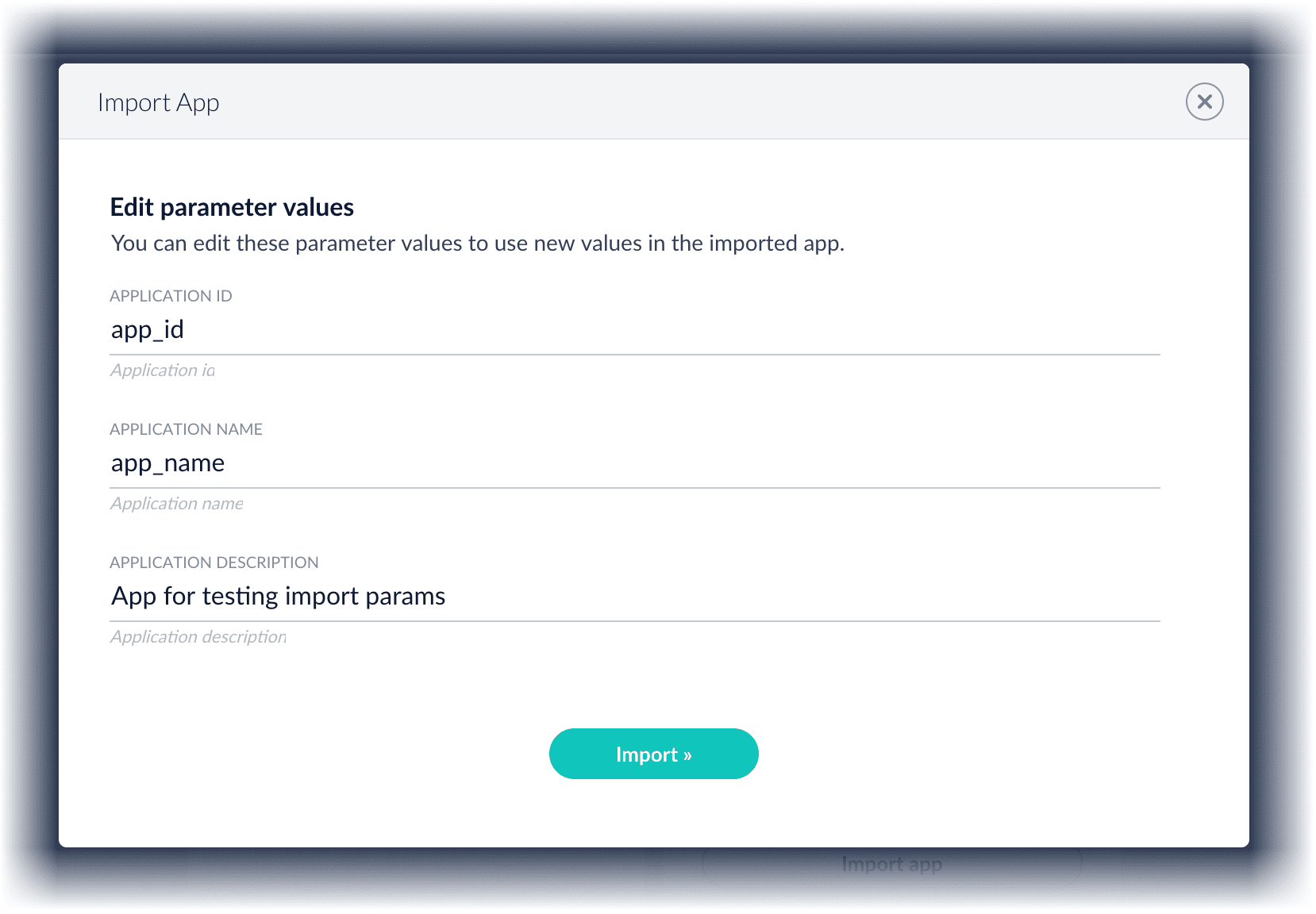
    5. You can sometimes edit parameter values to use the new values in the imported app. If this is the case, Fusion displays a dialog box that lets you edit the parameter values.
           <img src="https://mintcdn.com/lucidworks/de_1M1m_4TTyJqw0/assets/images/5.0/import-app-edit-parameters.png?fit=max&auto=format&n=de_1M1m_4TTyJqw0&q=85&s=2211f3a81b3394a7959b582d59afa2b9" alt="Edit parameter values" width="1658" height="1152" data-path="assets/images/5.0/import-app-edit-parameters.png" />

       Make desired changes, and then click **Import**.

    ## Copy an app

    To copy an app from one deployment to a different one, [export the app](#export-an-app-with-the-fusion-ui) on the source deployment, and then [import the app](#import-an-app-with-the-fusion-ui) on the target deployment.

    ## Import objects into an app

    You can import objects into the currently open app.

    **How to import objects into an open app**

    1. In the Fusion launcher, click the app into which you want to import objects.
       The Fusion workspace appears.
    2. Click **System  > Import Fusion Objects**.
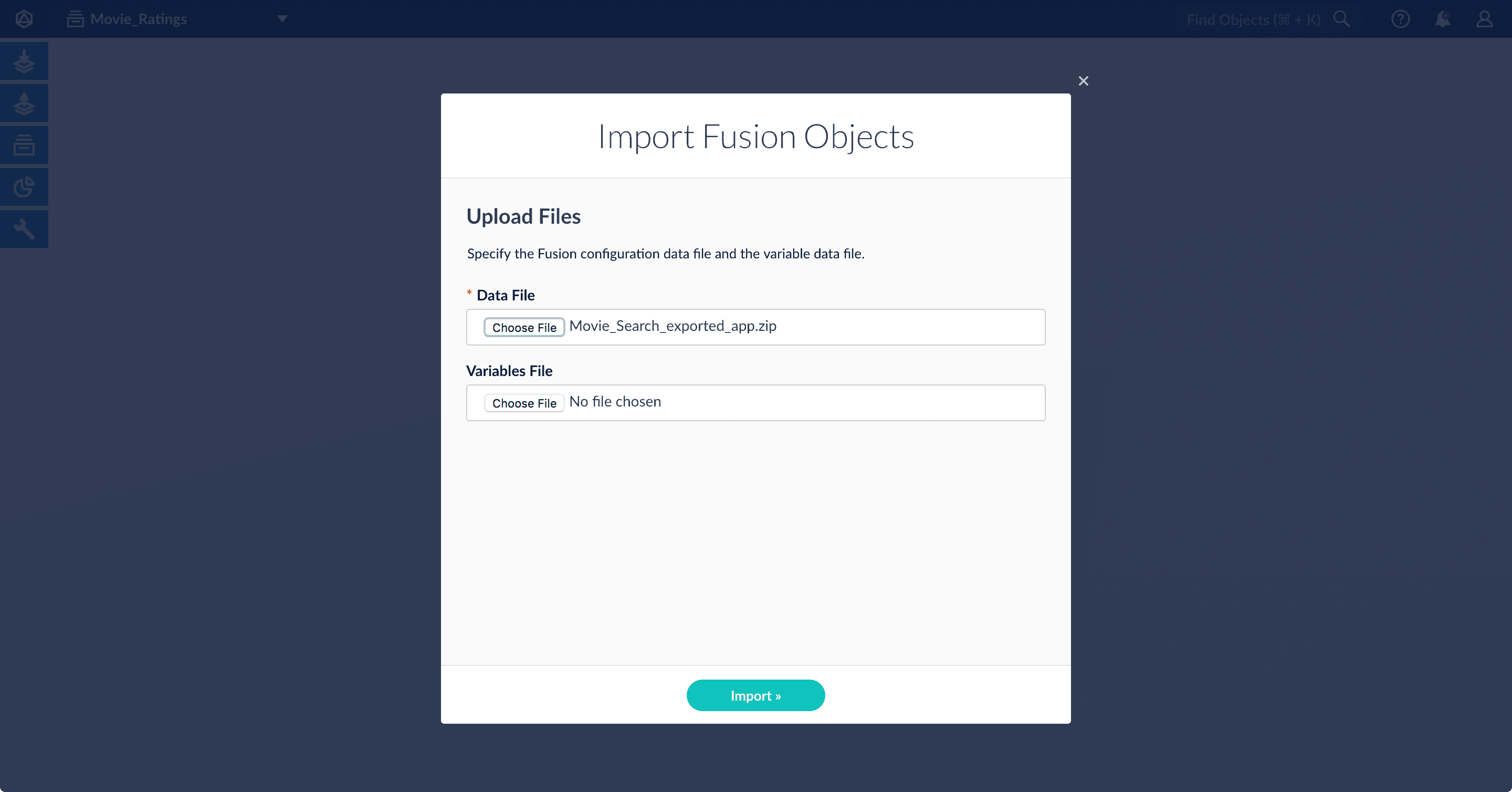
       The Import Fusion Objects window opens.
           <img src="https://mintcdn.com/lucidworks/NgNm7Bp5nEBDIA7H/assets/images/4.0/import-objects.png?fit=max&auto=format&n=NgNm7Bp5nEBDIA7H&q=85&s=04697d36b39bd2229b87bedfee422a09" alt="Import Objects Window" width="2880" height="1508" data-path="assets/images/4.0/import-objects.png" />
    3. Select the data file from your local filesystem.
       If you are importing [usernames and passwords](/api-reference/objects/import-objects) in a separate file, select it under **Variables File**.
    4. Click **Import**.
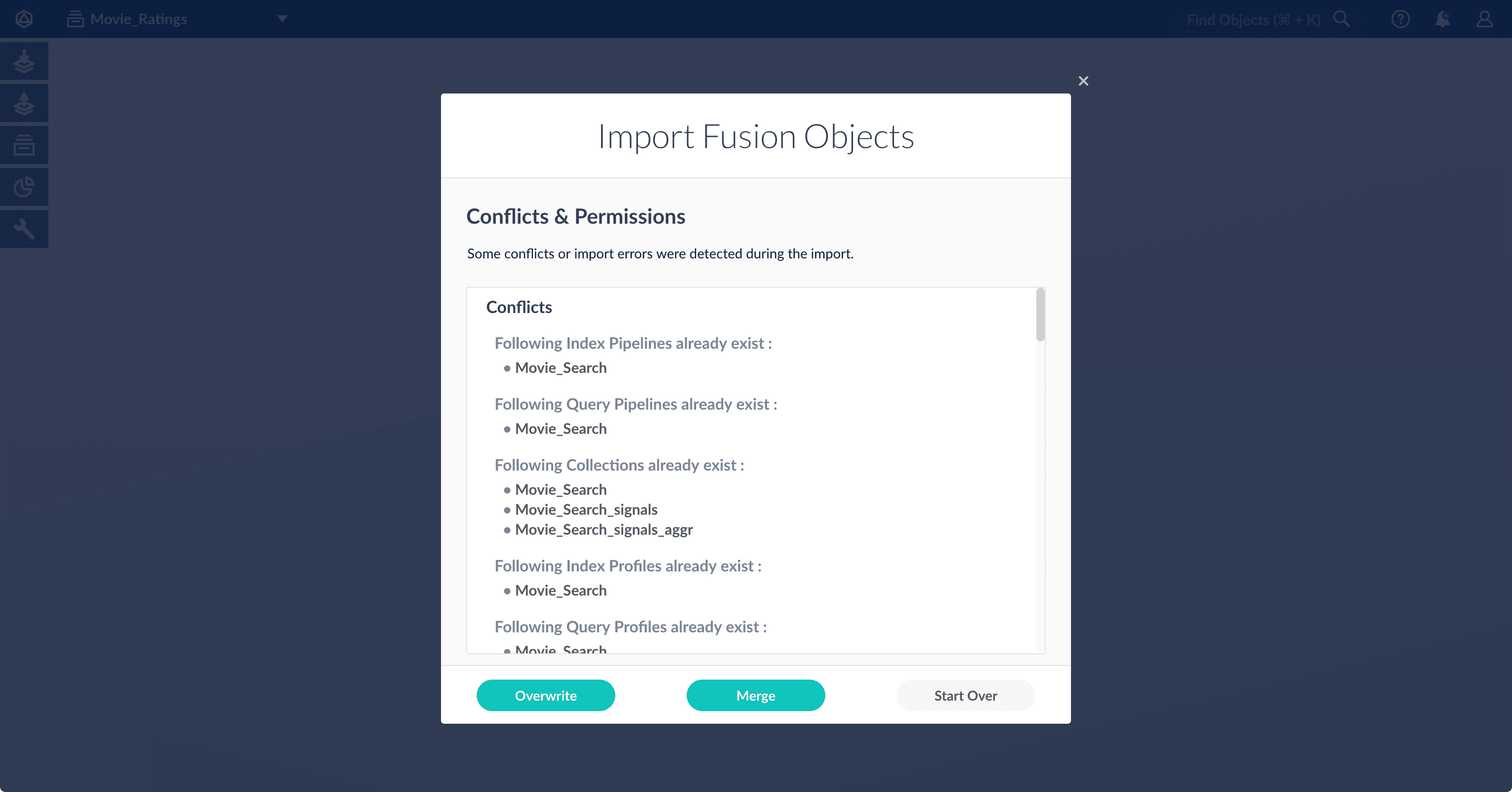
       If there are conflicts, Fusion prompts you to specify an import policy:
           <img src="https://mintcdn.com/lucidworks/NgNm7Bp5nEBDIA7H/assets/images/4.0/import-conflicts.png?fit=max&auto=format&n=NgNm7Bp5nEBDIA7H&q=85&s=53b711be62ea740fb033b6dbc96a29a6" alt="Import Conflicts" width="2880" height="1508" data-path="assets/images/4.0/import-conflicts.png" />
       * Click **Overwrite** to overwrite the objects on the target system with the ones in the import file.
       * Click **Merge** to skip all conflicting objects and import only the non-conflicting objects.
       * Click **Start Over** to abort the import.
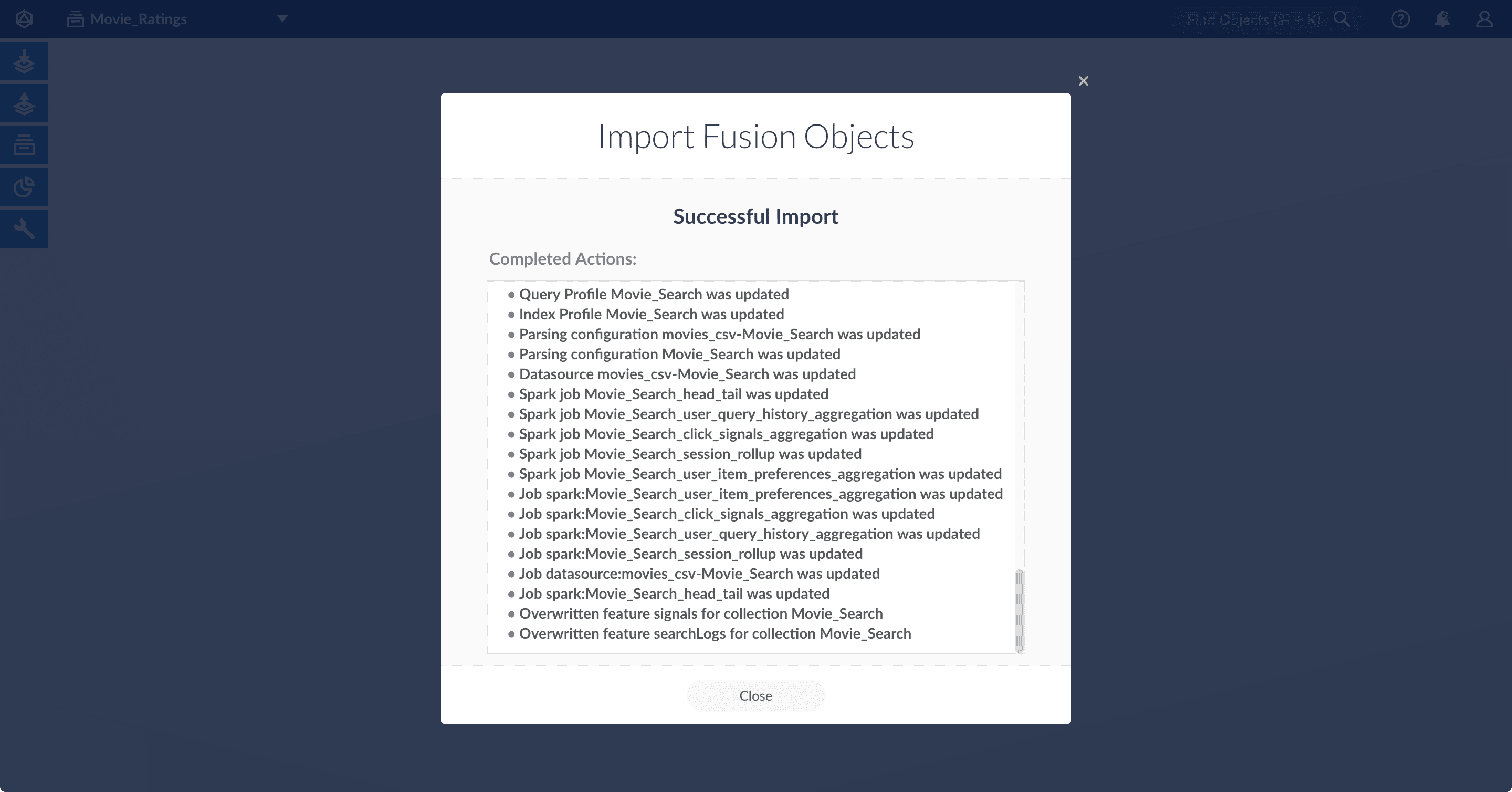
         Fusion confirms that the import was successful:
             <img src="https://mintcdn.com/lucidworks/NgNm7Bp5nEBDIA7H/assets/images/4.0/import-objects-success.png?fit=max&auto=format&n=NgNm7Bp5nEBDIA7H&q=85&s=e2416d872ac6a74f2d40eaa4adbde56f" alt="Successful Import" width="2880" height="1508" data-path="assets/images/4.0/import-objects-success.png" />
    5. Click **Close** to close the Import Fusion Objects window.

    ## Add an object to an app

    You can add objects present in other apps (or in no apps) to the open app. Some objects are linked to other apps. You can also add those directly to an app.

    * **Add an object to an app** – While in the Fusion workspace for the app to which you want to add an object, open Object Explorer and click **In Any App**. Search for or browse to the object you want to add. Hover over the object, click the App <img className="inline-image" alt="App" src="https://mintcdn.com/lucidworks/5yWZ-KtZuBe4Y_Fg/assets/images/4.0/icons/oe-app-menu.png?fit=max&auto=format&n=5yWZ-KtZuBe4Y_Fg&q=85&s=1e9322222ea76f70c278fb9c2a04ce9f" width="40" height="42" data-path="assets/images/4.0/icons/oe-app-menu.png" /> icon, and then click **Add to this app**.

          <img src="https://mintcdn.com/lucidworks/l9y7VqRhZkN9hmR0/assets/images/4.0/object-explorer-add-to-app.png?fit=max&auto=format&n=l9y7VqRhZkN9hmR0&q=85&s=472088e9361aa1bc278ad7da50e9bbdf" alt="Add to this app" width="2560" height="938" data-path="assets/images/4.0/object-explorer-add-to-app.png" />
    * **Add an object to an app directly** – In cases when an object is linked to an app, but is not linked directly to the app (it is linked via some dependency), you can add the object to an app directly.

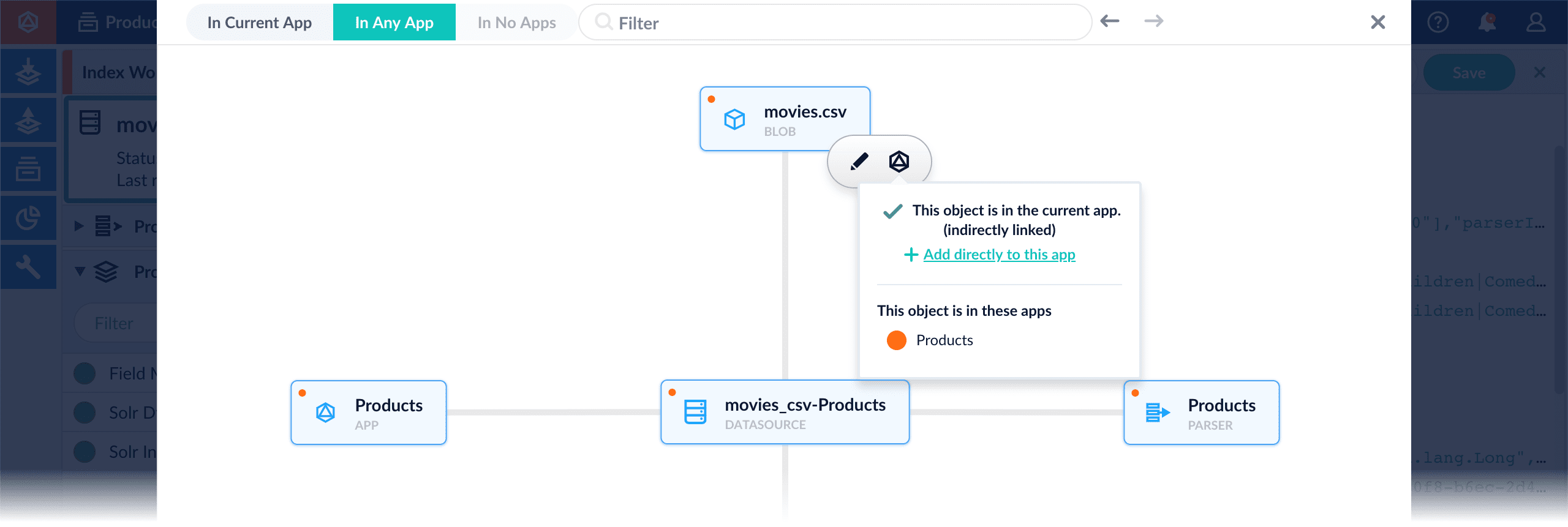
      While in the Fusion workspace for the app to which you want to add an object directly, open Object Explorer and click **In Any App**. Search for or browse to the object you want to add. Hover over the object, click the App <img className="inline-image" alt="App" src="https://mintcdn.com/lucidworks/5yWZ-KtZuBe4Y_Fg/assets/images/4.0/icons/oe-app-menu.png?fit=max&auto=format&n=5yWZ-KtZuBe4Y_Fg&q=85&s=1e9322222ea76f70c278fb9c2a04ce9f" width="40" height="42" data-path="assets/images/4.0/icons/oe-app-menu.png" /> icon, and then click **Add to this app directly**.
          <img src="https://mintcdn.com/lucidworks/l9y7VqRhZkN9hmR0/assets/images/4.0/object-explorer-add-directly-to-app.png?fit=max&auto=format&n=l9y7VqRhZkN9hmR0&q=85&s=af54840e096bbb4e6814c7eb5960d492" alt="Add to this app directly" width="2560" height="861" data-path="assets/images/4.0/object-explorer-add-directly-to-app.png" />
  </Accordion>

  <Accordion title="Fetch Items-for-Item Recommendations (Collaborative/BPR Method)">
    In Lucidworks Search, you can download and import a query pipeline that works out of the box with the default [BPR Recommender](/docs/lucidworks-search/09-developer-documentation/config-specs/jobs/bpr-recommender) job.

    There are two separate pipelines attached below which work in different ways to query and return recommendations.

    **Query for recommendations only**

    1. <a href="/assets/attachments/pipelines/APPName_item_item_rec_pipelines_bpr.json" download>Download the `APPName_item_item_rec_pipelines_bpr.json` file</a>.
    2. Rename the file to replace `APPName` with the name of your Lucidworks Search app, such as `ProductCatalog_item_item_rec_pipelines_bpr.json`.
    3. Open the JSON file, replace all instances of `APPName` with the name of your Lucidworks Search app, such as `ProductCatalog`, and save it.
    4. Import the JSON file into your Lucidworks Search instance using the Query Pipelines REST API:
       ```
       curl -u USERNAME:PASSWORD <https://EXAMPLE_COMPANY.b.lucidworks.cloud/api/query-pipelines -XPOST -H 'content-type:application/json' -d@<path/to/filename.json>
       ```
    5. In the Lucidworks Search UI, navigate to **Query** > **Query Pipelines** to verify that the new pipeline is available.

       <Note>   This pipeline should be used to query the collection where the recommendations are stored. It makes a query against the `itemId` field and only returns the recommended `itemId` values. To get the actual items, you need to make a second query to the respective catalog collection with the returned `itemId` values.</Note>

    No additional configuration is needed to use this pipeline with the default BPR job configuration.

    **Boost recommended products from catalog**

    1. <a href="/assets/attachments/pipelines/APPName_items_for_item_bpr_boost.json" download>Download the `APPName_items_for_item_bpr_boost.json` file</a>
    2. Rename the file to replace `APPName` with the name of your Lucidworks Search app, such as `ProductCatalog_item_item_rec_pipelines_bpr.json`.
    3. Open the JSON file, replace all instances of `APPName` with the name of your Lucidworks Search app, such as `ProductCatalog`.
    4. Fill in the `collection` name field in the first `Recommend Items for Item` stage and save the file.
    5. Import the JSON file into your Lucidworks Search instance using the Query Pipelines REST API:
       ```
       curl -u USERNAME:PASSWORD https://EXAMPLE_COMPANY.b.lucidworks.cloud/api/query-pipelines -XPOST -H 'content-type:application/json' -d@<path/to/filename.json>
       ```
    6. In the Lucidworks Search UI, navigate to **Query** > **Query Pipelines** to verify that the new pipeline is available.

    <Note>This pipeline queries the recommendations collection and then makes a subsequent query to the actual catalog collection boosting the recommended items and returning the actual items from the catalog. This pipeline will therefore also return recommendations even if none were generated/available.</Note>

    <Note>This pipeline expects a request parameter called `id=<itemId>` to be appended to the request in order to work. An example query URL to this pipeline would look like `https://EXAMPLE_COMPANY.b.lucidworks.cloud/api/query-pipelines/APPName_items_for_item_bpr_boost/collections/catalog/select?q=**:**&id=SomeItemId`</Note>

    <Tip>If the pipeline does not appear in the **Query Pipelines** panel, you may need to attach it to your app like this:  Go to **System** > **Object Explorer**, click the **In No Apps** filter, hover over the pipeline, click the <img className="inline-image" alt="oe-app-menu" src="https://mintcdn.com/lucidworks/5yWZ-KtZuBe4Y_Fg/assets/images/4.0/icons/oe-app-menu.png?fit=max&auto=format&n=5yWZ-KtZuBe4Y_Fg&q=85&s=1e9322222ea76f70c278fb9c2a04ce9f" width="40" height="42" data-path="assets/images/4.0/icons/oe-app-menu.png" /> icon, and select **Add to this app**.</Tip>

    No additional configuration is needed to use this pipeline with the default BPR job configuration.

    **See also**

    * [Items-For-Item Recommendations](/docs/lucidworks-search/07-improve-your-queries/recommendations/items-for-item)
    * [Get Started with Recommendations and Boosting](/docs/lucidworks-search/07-improve-your-queries/recommendations/getting-started)
  </Accordion>

  <Accordion title="Fetch Items-for-User Recommendations (Collaborative/BPR Method)">
    You can download and import a query pipeline that works out of the box to fetch items-for-user recommendations generated by the default [BPR Recommender](/docs/5/fusion/reference/config-ref/jobs/bpr-recommender) job.

    There are two separate pipelines attached below which work in different ways to query and return recommendations.

    **Query for recommendations only**

    1. <a href="/assets/attachments/pipelines/APPName_item_user_rec_pipelines_bpr.json" download>Download the `APPName_item_user_rec_pipelines_bpr.json` file</a>.
    2. Rename the file to replace `APPName` with the name of your Fusion app, such as `ProductCatalog_item_item_rec_pipelines_bpr.json`.
    3. Open the JSON file, replace all instances of `APPName` with the name of your Fusion app, such as `ProductCatalog`, and save it.
    4. Import the JSON file into your Fusion instance using the Query Pipelines REST API:
       ```
       curl -u USERNAME:PASSWORD <fusion_proxy>/api/query-pipelines -XPOST -H 'content-type:application/json' -d@<path/to/filename.json>
       ```
    5. In the Fusion UI, navigate to **Query** > **Query Pipelines** to verify that the new pipeline is available.

       <Note>   This pipeline should be used to query the collection where the recommendations are stored. It makes a query against the `userId` field and only returns the recommended `itemId` values. To get the actual items, you need to make a second query to the respective catalog collection with the returned `itemId` values.</Note>

    No additional configuration is needed to use this pipeline with the default BPR job configuration.

    **Boost recommended products from catalog**

    1. <a href="/assets/attachments/pipelines/APPName_items_for_user_bpr_boost.json" download>Download the `APPName_items_for_user_bpr_boost.json` file</a>
    2. Rename the file to replace `APPName` with the name of your Fusion app, such as `ProductCatalog_items_for_user_bpr_boost.json`.
    3. Open the JSON file, replace all instances of `APPName` with the name of your Fusion app, such as `ProductCatalog`.
    4. Fill in the `collection` name field in the first `Recommend Items for User` stage and save the file.
    5. Import the JSON file into your Fusion instance using the Query Pipelines REST API:
       ```
       curl -u USERNAME:PASSWORD <fusion_proxy>/api/query-pipelines -XPOST -H 'content-type:application/json' -d@<path/to/filename.json>
       ```
    6. In the Fusion UI, navigate to **Query** > **Query Pipelines** to verify that the new pipeline is available.

    <Note>This pipeline queries the recommendations collection and then makes a subsequent query to the actual catalog collection boosting the recommended items and returning the actual items from the catalog. This pipeline will therefore also return recommendations even if none were generated/available.</Note>

    <Note>This pipeline expects a request parameter called `id=<userId>` to be appended to the request in order to work. An example query URL to this pipeline would look like `https://example-recs-fusion.com/api/query-pipelines/APPName_items_for_user_bpr_boost/collections/catalog/select?q=**:**&id=SomeUserId`</Note>

    <Tip>If the pipeline does not appear in the **Query Pipelines** panel, you may need to attach it to your app like this:  Go to **System** > **Object Explorer**, click the **In No Apps** filter, hover over the pipeline, click the <img className="inline-image" alt="oe-app-menu" src="https://mintcdn.com/lucidworks/5yWZ-KtZuBe4Y_Fg/assets/images/4.0/icons/oe-app-menu.png?fit=max&auto=format&n=5yWZ-KtZuBe4Y_Fg&q=85&s=1e9322222ea76f70c278fb9c2a04ce9f" width="40" height="42" data-path="assets/images/4.0/icons/oe-app-menu.png" /> icon, and select **Add to this app**.</Tip>

    **See also**

    * [Items-For-User Recommendations](/docs/5/fusion/reference/config-ref/pipeline-stages/query-stages/recommend-items-for-user-query-stage)
    * [BPR Recommender job](/docs/5/fusion/reference/config-ref/jobs/bpr-recommender)
    * [Getting Started with Recommendations and Boosting](/docs/5/fusion/getting-data-out/query-enhancement/recommendations/getting-started)
  </Accordion>
</AccordionGroup>

## Configuration properties

<SchemaParamFields schema={schema} />
