> ## Documentation Index
> Fetch the complete documentation index at: https://doc.lucidworks.com/llms.txt
> Use this file to discover all available pages before exploring further.

# Data Model Mapping

> Index pipeline stage configuration specifications

export const schema = {
  "type": "object",
  "title": "Data Model Mapping",
  "description": "Map document fields to data model fields.",
  "required": ["dataModelType", "mappings", "keepUnmappedFields"],
  "properties": {
    "skip": {
      "type": "boolean",
      "title": "Skip This Stage",
      "description": "Set to true to skip this stage.",
      "default": false,
      "hints": ["advanced"]
    },
    "label": {
      "type": "string",
      "title": "Label",
      "description": "A unique label for this stage.",
      "hints": ["advanced"],
      "maxLength": 255
    },
    "condition": {
      "type": "string",
      "title": "Condition",
      "description": "Define a conditional script that must result in true or false. This can be used to determine if the stage should process or not.",
      "hints": ["code", "code/javascript", "advanced"]
    },
    "dataModelType": {
      "type": "string",
      "title": "DataModel Type",
      "description": "Fusion Data Model type to map to",
      "hints": ["enumUrl:/api/data-models"]
    },
    "matchTrigger": {
      "type": "object",
      "title": "Match Trigger",
      "required": ["fieldToMatch", "valueToMatch"],
      "properties": {
        "fieldToMatch": {
          "type": "string",
          "title": "Field to match",
          "description": "The name of the field to match on. Enter '*' to match all documents that don't already have a data model."
        },
        "valueToMatch": {
          "type": "string",
          "title": "Value to match",
          "description": "The value of the field to match on. Supports regular expression by wrapping the value in slashes, e.g.: '/text.*/'"
        }
      }
    },
    "mappings": {
      "type": "array",
      "title": "Field Mappings",
      "description": "List of mapping rules",
      "hints": ["advanced"],
      "items": {
        "type": "object",
        "required": ["sourceField", "dataModelField"],
        "properties": {
          "sourceField": {
            "type": "string",
            "title": "Source Field"
          },
          "dataModelField": {
            "type": "string",
            "title": "Data model field",
            "hints": ["enumUrl:/api/data-models/${dataModelType}/fields"],
            "minLength": 1
          }
        }
      }
    },
    "keepUnmappedFields": {
      "type": "boolean",
      "title": "Keep unmapped fields",
      "default": false
    }
  },
  "category": "Advanced",
  "categoryPriority": 3,
  "unsafe": false
};

export const SchemaParamFields = ({schema}) => {
  const sanitize = str => {
    if (typeof str !== "string") return str;
    return str.replace(/^"(.*)"$/s, "$1").replace(/\\/g, "").replace(/"/g, "'");
  };
  const formatDescription = str => {
    const s = sanitize(str);
    return (/[.!?]\)*$/).test(s) ? s : `${s}.`;
  };
  const {description, properties = {}, required: requiredProps = []} = schema;
  const visibleProps = useMemo(() => Object.entries(properties).filter(([, prop]) => !prop.hints?.includes("hidden")), [properties]);
  return <div>
      {description && <p>{formatDescription(description)}</p>}

      {visibleProps.map(([name, prop]) => {
    const isRequired = requiredProps.includes(name);
    const hasDefault = prop.default !== undefined;
    const rawDefault = prop.default;
    const isComplexDefault = hasDefault && (typeof rawDefault === "object" || typeof rawDefault === "string" && (rawDefault.length > 20 || rawDefault.includes('"')));
    const fieldProps = {
      key: name,
      body: prop.title || name,
      type: prop.type,
      ...prop.title && ({
        post: [<><span className="text-stone-400 dark:text-stone-500">API property: </span>{name}</>]
      }),
      ...isRequired && ({
        required: true
      }),
      ...!isComplexDefault && hasDefault ? {
        default: sanitize(String(rawDefault))
      } : {}
    };
    const isObject = prop.type === "object" && prop.properties;
    const isArrayOfObjects = prop.type === "array" && prop.items?.type === "object" && prop.items.properties;
    return <ParamField {...fieldProps}>
            {prop.description && <p>{formatDescription(prop.description)}</p>}

            {isComplexDefault && <div className="flex">
                <p>
                  <strong>Default:</strong>
                </p>
                <pre className="!my-0">
                  <code>
                    {JSON.stringify(rawDefault, null, 2)}
                  </code>
                </pre>
              </div>}

            {isArrayOfObjects && <div className="flex">
              <p>
                <strong>Object attributes:</strong>
              </p>
              <pre className="!my-0">
                <code>
                  {'{\n'}
                  {Object.entries(prop.items.properties).map(([iname, iprop]) => <>
                      {`  ${iname}`}
                      {prop.items?.required?.includes(iname) && <span style={{
      color: 'red'
    }}> required</span>}
                      {`: {\n    display name: ${sanitize(iprop.title || '')}\n    type: ${iprop.type}\n  }\n`}
                    </>)}
                  {'}'}
                </code>
              </pre>
              </div>}

            {isObject && <Expandable title="properties">
                <SchemaParamFields schema={{
      properties: prop.properties,
      required: prop.required
    }} />
              </Expandable>}
          </ParamField>;
  })}
    </div>;
};

export const LwTemplate = ({title = "Key questions to get you started", icon = "sparkles", cta = "Powered by Agent Studio", linkHref = "https://lucidworks.com/demo/?utm_source=docs&utm_medium=referral&utm_campaign=docs_cta_ai"}) => {
  const [isLoaded, setIsLoaded] = useState(false);
  useEffect(() => {
    const timer = setTimeout(() => {
      setIsLoaded(true);
    }, 500);
    return () => clearTimeout(timer);
  }, []);
  return <div className="lw-template-container">
      <Card title={title} icon={icon}>
        {isLoaded && <span dangerouslySetInnerHTML={{
    __html: `<lw-template id="a029c1a9-28be-427e-b0e1-5d918920246a"></lw-template
            >`
  }} />}
        <Link href={linkHref} className="agent-studio-link text-left text-gray-600 gap-2 dark:text-gray-400 text-sm font-medium flex flex-row items-center hover:text-primary dark:hover:text-primary-light group-hover:text-primary group-hover:dark:text-primary-light">Powered by Lucidworks Agent Studio</Link>
      </Card>
    </div>;
};

[localhost link]: http://localhost:3000/docs/lucidworks-search/09-developer-documentation/config-specs/index-pipeline-stages/data-model-mapping

[mintlify link]: https://doc.lucidworks.com/docs/lucidworks-search/09-developer-documentation/config-specs/index-pipeline-stages/data-model-mapping

[old doc.lw link]: https://doc.lucidworks.com/managed-fusion/5.9/04pnyx

Data models simplify the process of getting started with Lucidworks Search by providing pre-configured objects to reduce the effort spent on basic starting tasks. This helps keep documents consistent between datasources and intuitive to the object’s type.

The Data Model Mapping index stage is used to map the field values found in your documents to the data model fields.

<Note>
  **Important**

  This index stage must be placed *before* the **[Call Data Model Pipeline index stage](/docs/lucidworks-search/09-developer-documentation/config-specs/index-pipeline-stages/call-data-model-pipeline)**.
</Note>

<LwTemplate />

## More information

* **Configure a Data Model**
* [Data Models](/docs/lucidworks-search/04-move-data-in/data-models/overview)
* [Data Models API reference](/api-reference/data-models/get-data-models-service-status)
* [Call Data Model Pipeline Index Stage reference](/docs/lucidworks-search/09-developer-documentation/config-specs/index-pipeline-stages/call-data-model-pipeline)

<Accordion title="Configure a Data Model">
  Data models simplify the process of getting started with Fusion by providing pre-configured objects to reduce the effort spent on basic starting tasks. This helps keep documents consistent between datasources and intuitive to the object’s type.

  See the [Data Models](/docs/5/fusion/getting-data-in/indexing/data-models/overview) topic for more information.

  ## Configure the datasource

  <Check>This section references the Slack V2 Connector as an example. The instructions on [configuring the data model](#configure-the-data-model) are valid for any connector that indexes users.</Check>

  1. Navigate to **Indexing > Datasources**.

  2. Click the **Add** button, and choose the Slack V2 connector from the list.

     <Note>   Some connectors include built-in data models as a standard component. Others require you to manually create data models.</Note>

  3. Complete the datasource configuration:
     * Ideally, use a pipeline specifically created for this data model. For now, you can create the pipeline by navigating to **Indexing > Index Pipelines** and clicking the **Add** button. Configure it using the information in [Configure the index pipeline](#configure-the-index-pipeline).

     * Under **Profiles Settings**, select *Index profiles*:

         <img src="https://mintcdn.com/lucidworks/tklssWuUmNaxlF0b/assets/images/5.4/slack-v2-config01.png?fit=max&auto=format&n=tklssWuUmNaxlF0b&q=85&s=eb49319c9ceffd045cf5af1869462523" alt="Slack V2 Configuration 01" width="1173" height="232" data-path="assets/images/5.4/slack-v2-config01.png" />

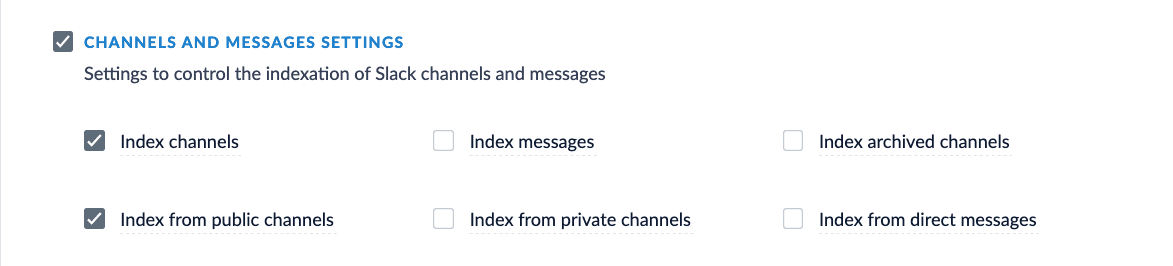
     * Under **Channels and Messages Settings**, select *Index channels* and *Index from public channels*:
         <img src="https://mintcdn.com/lucidworks/tklssWuUmNaxlF0b/assets/images/5.4/slack-v2-config02.png?fit=max&auto=format&n=tklssWuUmNaxlF0b&q=85&s=36d4935ad22c8b9b4f22e598c2a64482" alt="Slack V2 Configuration 02" width="1173" height="266" data-path="assets/images/5.4/slack-v2-config02.png" />

  4. Click **Save**.

  5. Click **Run** to run the indexing job.

  {/* [#configure-data-model] */}

  ## Configure the data model

  Some connectors include built-in data models with pre-configured object types. However, you can add new data models or customize existing ones to fit your particular needs.

  1. Navigate to **Indexing > Data Models**.

  2. Click the **Add** button.

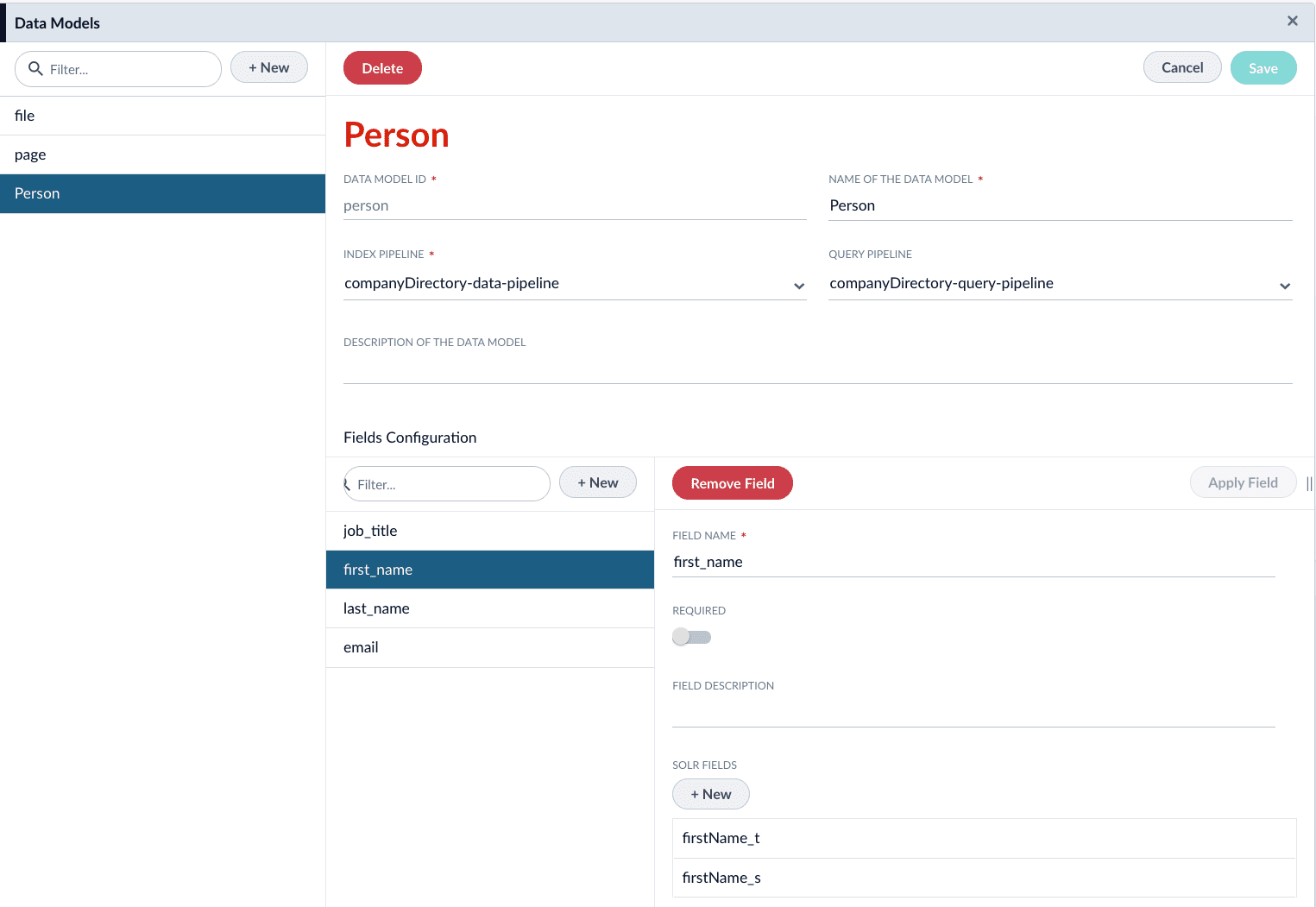
  3. Create a new data model. For example, `person`.

  4. Assign the index pipeline for the data model. In this example, create a new index pipeline named `companyDirectory-data-pipeline`.

     This pipeline is ideally for operation with data models only. For the sake of this example, we will only be using the default stages. Applying additional logic/stages specific to the object would occur here.

  5. Assign the query pipeline you will use to query the indexed documents. In this example, create a new query pipeline named `companyDirectory-query-pipeline`.

  6. Click the **New** button under **Fields Configuration**.

  7. Complete the required configurations, as detailed in [Data Models API Reference](/api-reference/data-models/get-data-models-service-status). Create fields for the following:

     | Field Name   | Solr Fields                  |
     | ------------ | ---------------------------- |
     | `first_name` | `firstName_t`, `firstName_s` |
     | `last_name`  | `lastName_t`, `lastName_s`   |
     | `email`      | `email_s`                    |
     | `job_title`  | `jobTitle_t`, `jobTitle_s`   |
       <img src="https://mintcdn.com/lucidworks/aGMTh7KKUIwUyuv7/assets/images/5.3/data-models-person-revised.png?fit=max&auto=format&n=aGMTh7KKUIwUyuv7&q=85&s=71ebd18648ebd091e6bdc3364f9279d2" alt="Data Models Person" width="1525" height="1051" data-path="assets/images/5.3/data-models-person-revised.png" />

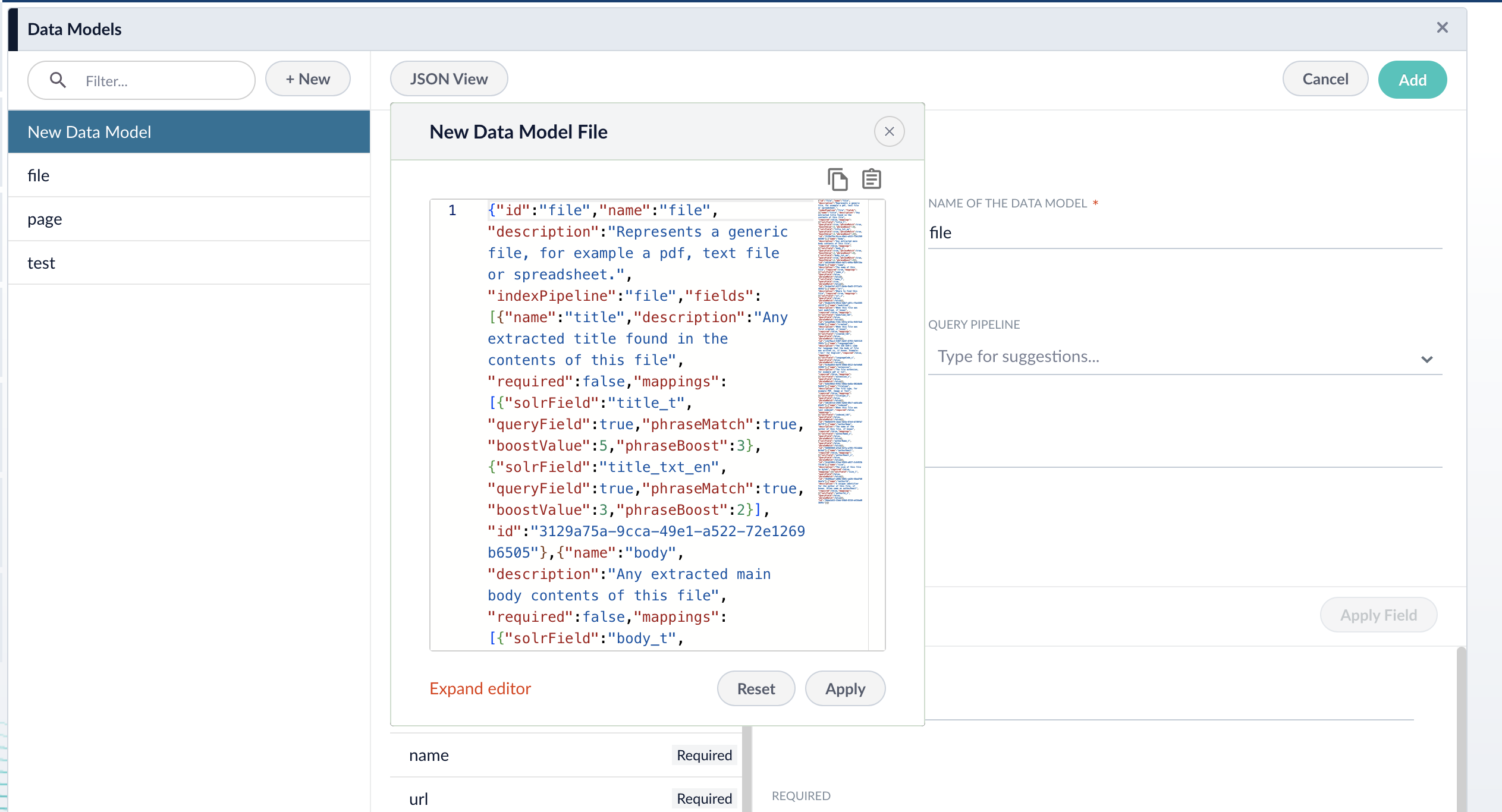
  8. If needed, edit the JSON for the data model before saving. After saving the data model, this JSON viewer becomes read-only.
       <img src="https://mintcdn.com/lucidworks/rCk05FGao1tZ6RSO/assets/images/5.4/ui-json-editor.png?fit=max&auto=format&n=rCk05FGao1tZ6RSO&q=85&s=f0063fa74481ce1e7425508d4e940af1" alt="Data Models JSON Editor" width="2526" height="1366" data-path="assets/images/5.4/ui-json-editor.png" />

  9. Click the **Save** button to save the data model.

  ## Configure the index pipeline

  To begin, navigate to **Indexing > Index Workbench**. Alternatively, the `companyDirectory-index-pipeline` pipeline can be configured in **Indexing > Index Pipelines**, but you are not able to preview results.

  <Check>The raw data fields in your index coming from Slack may differ from the example data fields used in this article.</Check>

  ### Data Model Mapping stage

  1. Click the **Add a Stage** button, and choose **Data Model Mapping** from the list.

  2. Use the **Data Model Type** dropdown to select the `person` data model.

  3. *(optional)* Check the **Match Trigger** checkbox and assign the following values:

     | Field              | Value    |
     | ------------------ | -------- |
     | **Field to match** | `type_s` |
     | **Value to match** | `user`   |

     <Tip>   The **Value to match** field supports RegEx. You can assign multiple values. Alternatively, you can create additional **Data Model Mapping** stages.</Tip>

  4. Assign field mappings for the Slack datasource’s raw datasources:

     | Source Field | Data Model Field |
     | ------------ | ---------------- |
     | `first_name` | `first_name`     |
     | `last_name`  | `last_name`      |
     | `email`      | `email`          |

  5. *(optional)* Check the **Keep unmapped fields** checkbox to preserve fields that are unmatched to the data model.

  6. Click **Apply**.

  ### Call Data Model Pipeline stage

  <Check>This stage must be placed *after* the Data Model Mapping stage.</Check>

  1. Click the **Add a Stage** button, and choose **Call Data Model Pipeline** from the list.
  2. Assign the value `_lw_data_model_type_s` to the **Data Model Type Field** field. This field is created when a document meets the criteria specified in the **Data Model Mapping**.
  3. Click **Apply**.

  ## Next steps

  With the index pipeline configured, you are now ready to complete the indexing job by clicking the **Start Job** button.

  Once complete, the documents are ready for viewing in the Query Workbench:

  1. Navigate to **Querying > Query Workbench**.
  2. Click the **Load** button.
  3. Choose the query pipeline you specified when creating the data model, `companyDirectory-query-pipeline`.

  ## More information

  * [Data Models](/docs/5/fusion/getting-data-in/indexing/data-models/overview)
  * [Data Models API reference](/api-reference/data-models/get-data-models-service-status)
  * [Data Model Mapping Index Stage reference](/docs/5/fusion/reference/config-ref/pipeline-stages/index-stages/datamodel-mapping-index-stage)
  * [Call Data Model Pipeline Index Stage reference](/docs/5/fusion/reference/config-ref/pipeline-stages/index-stages/call-datamodel-pipeline-index-stage)
</Accordion>

## Configuration

<Tip>
  When entering configuration values in the UI, use *unescaped* characters, such as `\t` for the tab character. When entering configuration values in the API, use *escaped* characters, such as `\\t` for the tab character.
</Tip>

<SchemaParamFields schema={schema} />
