> ## Documentation Index
> Fetch the complete documentation index at: https://doc.lucidworks.com/llms.txt
> Use this file to discover all available pages before exploring further.
# Jobs and scheduling
export const LwTemplate = ({title = "Key questions to get you started", icon = "sparkles", cta = "Powered by Agent Studio", linkHref = "https://lucidworks.com/demo/?utm_source=docs&utm_medium=referral&utm_campaign=docs_cta_ai"}) => {
const [isLoaded, setIsLoaded] = useState(false);
useEffect(() => {
const timer = setTimeout(() => {
setIsLoaded(true);
}, 500);
return () => clearTimeout(timer);
}, []);
return
{isLoaded && `
}} />}
Powered by Lucidworks Agent Studio
;
};
[localhost link]: http://localhost:3000/docs/lucidworks-search/08-administration/jobs-scheduling/overview
[mintlify link]: https://doc.lucidworks.com/docs/lucidworks-search/08-administration/jobs-scheduling/overview
[old doc.lw link]: https://doc.lucidworks.com/managed-fusion/5.9/mz6jhc
A *job* is a runnable Lucidworks Search object that performs a specific activity, such as datasource jobs and Spark jobs. Examples of the activities include:
* Aggregating signal data
* Training a shallow neural model and projecting each document onto the resulting vector embedding space
* Loading data into a data source
## Job types
Each job type is a type of Lucidworks Search object that you can run or schedule to be run.
| | |
| ------------ | ------------------------------------------------------------------------------------------------------------------------------------------------------------------------------------------------------------------------------------------------------------------------------------------------------------------------------------------------------------------------------ |
| `datasource` | A job to ingest data according to the specified datasource configuration, such as `datasource:movie-db`. Datasources are created using the [Connector Datasources API](/api-reference/datasource-configuration-v2-api/list-all-v2-datasources) or the Lucidworks Search UI. See [Datasource Jobs](/docs/lucidworks-search/08-administration/jobs-scheduling/datasource-jobs). |
| `spark` | A Spark job to process data, such as `spark:dailyMetricsRollup-counters`. Spark jobs are created using the [Spark Jobs API](/api-reference/spark-job-controller-api/list-all-job-runs) or the Lucidworks Search UI. See [Spark Jobs](/docs/lucidworks-search/08-administration/jobs-scheduling/spark-jobs). |
## The Jobs manager
The Jobs manager, available in the Lucidworks Search workspace at **Collections** > **Jobs**, provides a simple interface for viewing and scheduling jobs. You can also create tasks and Spark jobs here.
You cannot create, run, or schedule datasource jobs in the Jobs manager. You must create them on the Datasources page, in the Index Workbench, or in the Quickstart. To run a datasource job, use the [scheduler](/docs/lucidworks-search/08-administration/jobs-scheduling/fusion-schedules).
## Learn more
The quick learning for **Managing and Scheduling Jobs** focuses on how to create, configure, and schedule jobs using the Fusion UI.
The course for **Jobs and Scheduling** focuses on utilizing and managing different job types in Fusion.
1. In the Fusion workspace, navigate to **Collections > Jobs**.
2. Click **Add** and select the job type. The New Job Configuration panel appears. This panel is different for each job type.
3. Configure the new job as needed.
4. Click **Save**.
**How to schedule a job**
1. In the Lucidworks Search workspace, navigate to **Collections > Scheduler**.
2. Select the job from the job list.
3. Click **Run**.
4. Click **New Schedule**.
5. Select a job trigger:
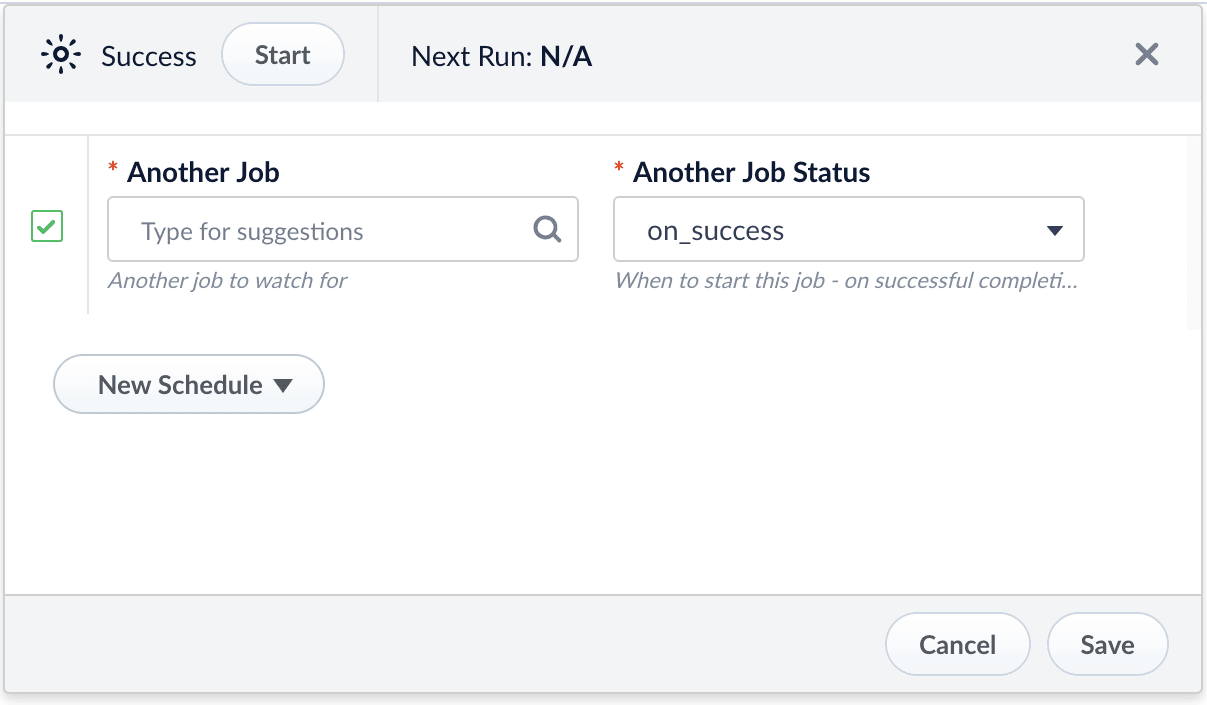
* **After Another Job Completes**\
Enter the job ID and job result that trigger this one.\\
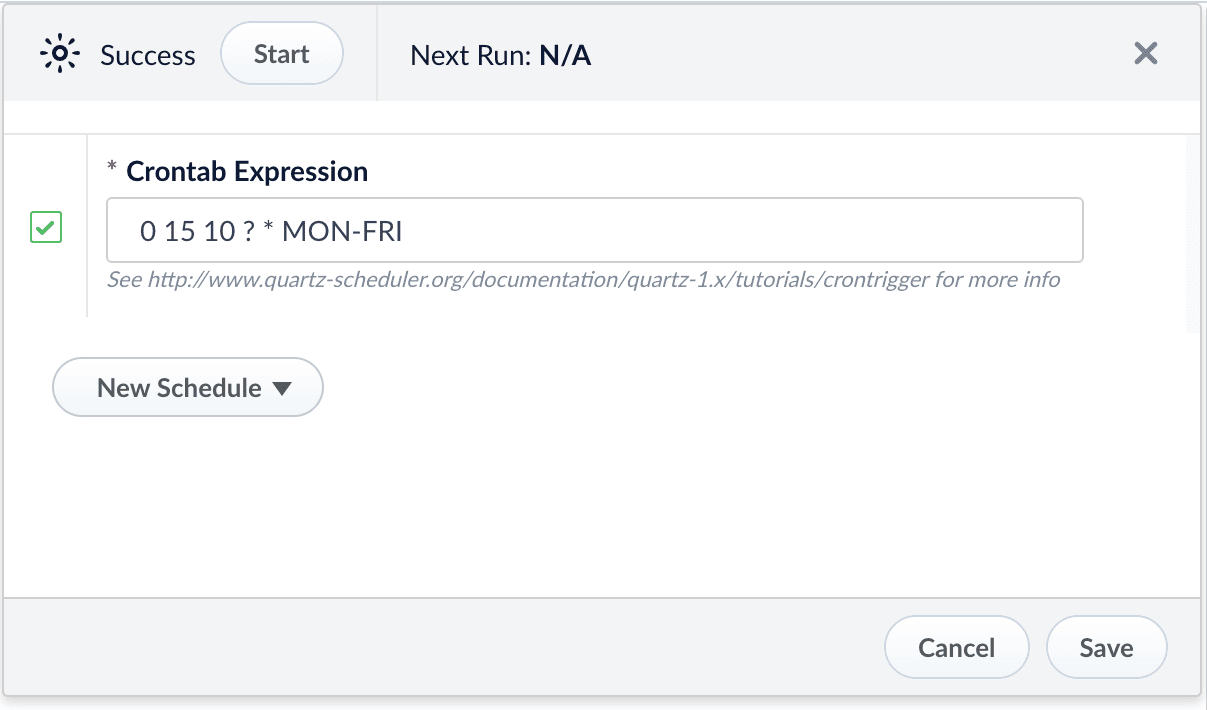
* **Cron String**\
Enter a Quartz cron expression, using UTC time unless `default.timezone` is set to another time zone in `fusion.cors`. See [the Quartz documentation](http://www.quartz-scheduler.org/api/2.3.0/org/quartz/CronExpression.html) for additional details.\\
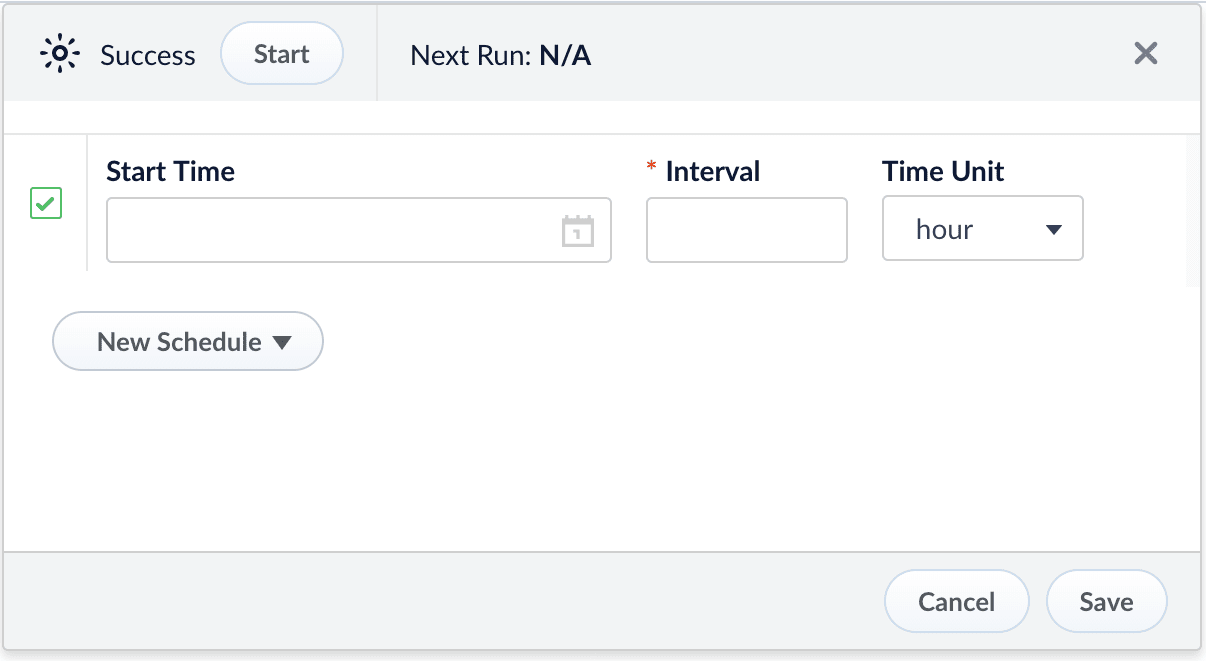
* **Start + Interval**\
Enter a start date/time, an interval, and the interval units. Include seconds in the start time.\\
 * **Cron String**\
Enter a Quartz cron expression, using UTC time unless `default.timezone` is set to another time zone in `fusion.cors`. See [the Quartz documentation](http://www.quartz-scheduler.org/api/2.3.0/org/quartz/CronExpression.html) for additional details.\\
* **Cron String**\
Enter a Quartz cron expression, using UTC time unless `default.timezone` is set to another time zone in `fusion.cors`. See [the Quartz documentation](http://www.quartz-scheduler.org/api/2.3.0/org/quartz/CronExpression.html) for additional details.\\
 * **Start + Interval**\
Enter a start date/time, an interval, and the interval units. Include seconds in the start time.\\
* **Start + Interval**\
Enter a start date/time, an interval, and the interval units. Include seconds in the start time.\\