> ## Documentation Index
> Fetch the complete documentation index at: https://doc.lucidworks.com/llms.txt
> Use this file to discover all available pages before exploring further.
# Remove words
export const LwTemplate = ({title = "Key questions to get you started", icon = "sparkles", cta = "Powered by Agent Studio", linkHref = "https://lucidworks.com/demo/?utm_source=docs&utm_medium=referral&utm_campaign=docs_cta_ai"}) => {
const [isLoaded, setIsLoaded] = useState(false);
useEffect(() => {
const timer = setTimeout(() => {
setIsLoaded(true);
}, 500);
return () => clearTimeout(timer);
}, []);
return
{isLoaded && `
}} />}
Powered by Lucidworks Agent Studio
;
};
export const InlineImage = ({src, alt = '', height = '2em'}) => {
return ;
};
[localhost link]: http://localhost:3000/docs/lucidworks-search/07-improve-your-queries/remove-words/overview
[mintlify link]: https://doc.lucidworks.com/docs/lucidworks-search/07-improve-your-queries/remove-words/overview
[old doc.lw link]: https://doc.lucidworks.com/managed-fusion/5.9/k03fvq
Use a Remove Words query rewrite to remove particular phrases from queries. Unlike other rewrites, Remove Words rules are entered manually and aren’t generated by a job.
You can create a Remove Words query rewrite to remove words from a query. This query rewrite is helpful when a word in the search query does not add value to the search results.
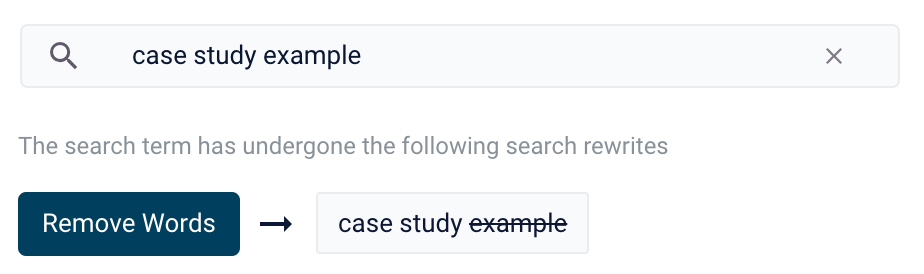
For example, you can rewrite a search query for `case study examples` to remove `examples` and then display results for `case study`.
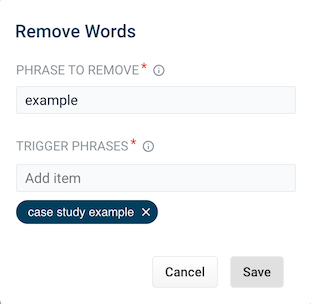
1. From the list of query rewrite options, select Remove Words. A form appears:
2. This form contains the following fields:
| Parameter | Description | Example Value |
| ---------------- | ----------------------------------------------------------------------------------------------------------------------------------------------------------------------------------------------------------------- | --------------------- |
| Phrase to remove | The words to remove from the trigger phrase. | `examples` |
| Trigger phrases | The query that prompts the removal of the phrase. The trigger phrase is not necessarily a complete query. If the query contains the trigger phrase, then Fusion removes the phrase in the Phrase to Remove field. | `case study examples` |
1. Enter a phrase to remove and a trigger phrase. Note that the phrase to remove is auto-populated with the query.
2. Click **Save**.
The search is re-run, and a Search box information panel drops down to show that the new query rewrite has fired:
To learn how to use Remove Words and other query rewrites in the [Rules Editor](/docs/lucidworks-search/07-improve-your-queries/rules-editor/overview), see **Use query rewrites in the Rules Editor**.
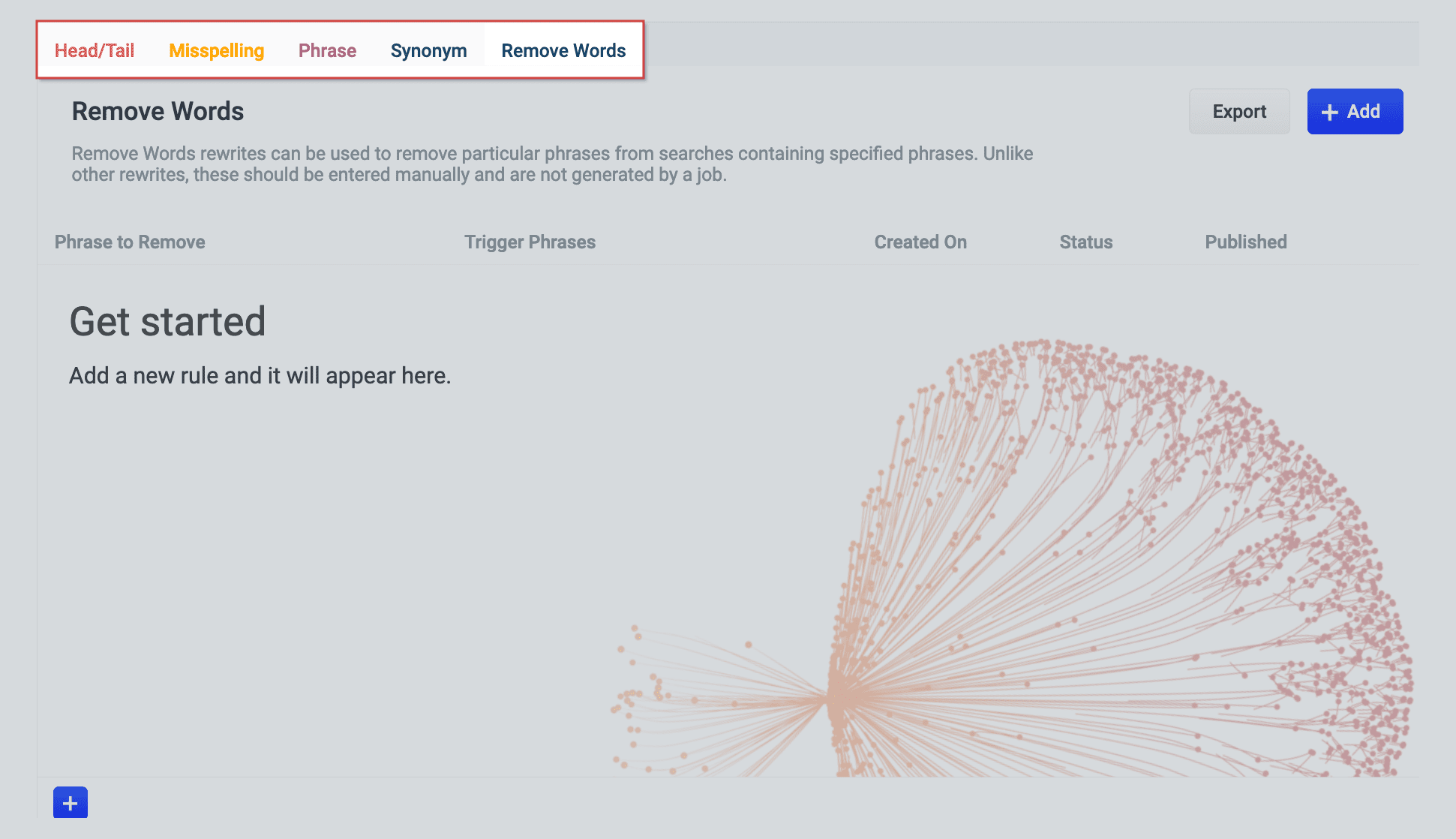
This article describes how to use the Rewrites screen in the [Rules Editor](/docs/lucidworks-search/07-improve-your-queries/rules-editor/overview).
## Query rewrite rule types
* **Head/Tail.** Replace underperforming queries with queries that produce higher click-through rates. Query improvements always require review before they are published. Schedule the Head/Tail Analysis job to get AI-generated query improvements based on your signals collection. \
\
Manually created Head/Tail rewrites must provide an "Improved Query" in a format appropriate to the type of request the rewrite will be applied to. For Legacy requests, this means a valid Solr query fit for use as the `q` parameter. For DSL requests this means a JSON string representing the main DSL query. \
\
For more information, see:
* [Underperforming Query Rewriting](/docs/lucidworks-search/07-improve-your-queries/head-tail-analysis/overview)
* [Head/Tail Analysis Jobs](/docs/lucidworks-search/09-developer-documentation/config-specs/jobs/head-tail-analysis)
* **Misspelling.** Lucidworks Search replaces misspelled query terms with their spelling corrections for better search results. Schedule the Token and Phrase Spell Correction job to get AI-generated spelling corrections based on your signals collection. See [Misspelling Detection](/docs/lucidworks-search/07-improve-your-queries/misspelling-detection/overview).
* **Phrase.** Known phrases are boosted when they appear in new queries. Schedule the Phrase Extraction job to get AI-generated phrases based on your signals collection. For more information, see [Phrase Detection](/docs/lucidworks-search/07-improve-your-queries/phrase-detection/overview).
* **Synonym.** Synonyms are used to expand queries so that they include all known synonyms of the query terms. To retrieve AI-generated synonyms based on your signals collection, schedule the [Synonym Detection job](/docs/lucidworks-search/09-developer-documentation/config-specs/jobs/synonym-detection).
* **Remove Words** - Remove particular phrases from queries. Unlike other rewrites, these should be entered manually and are not generated by a job. See [Remove Words](/docs/lucidworks-search/07-improve-your-queries/remove-words/overview).
## Facets
### Facet menu
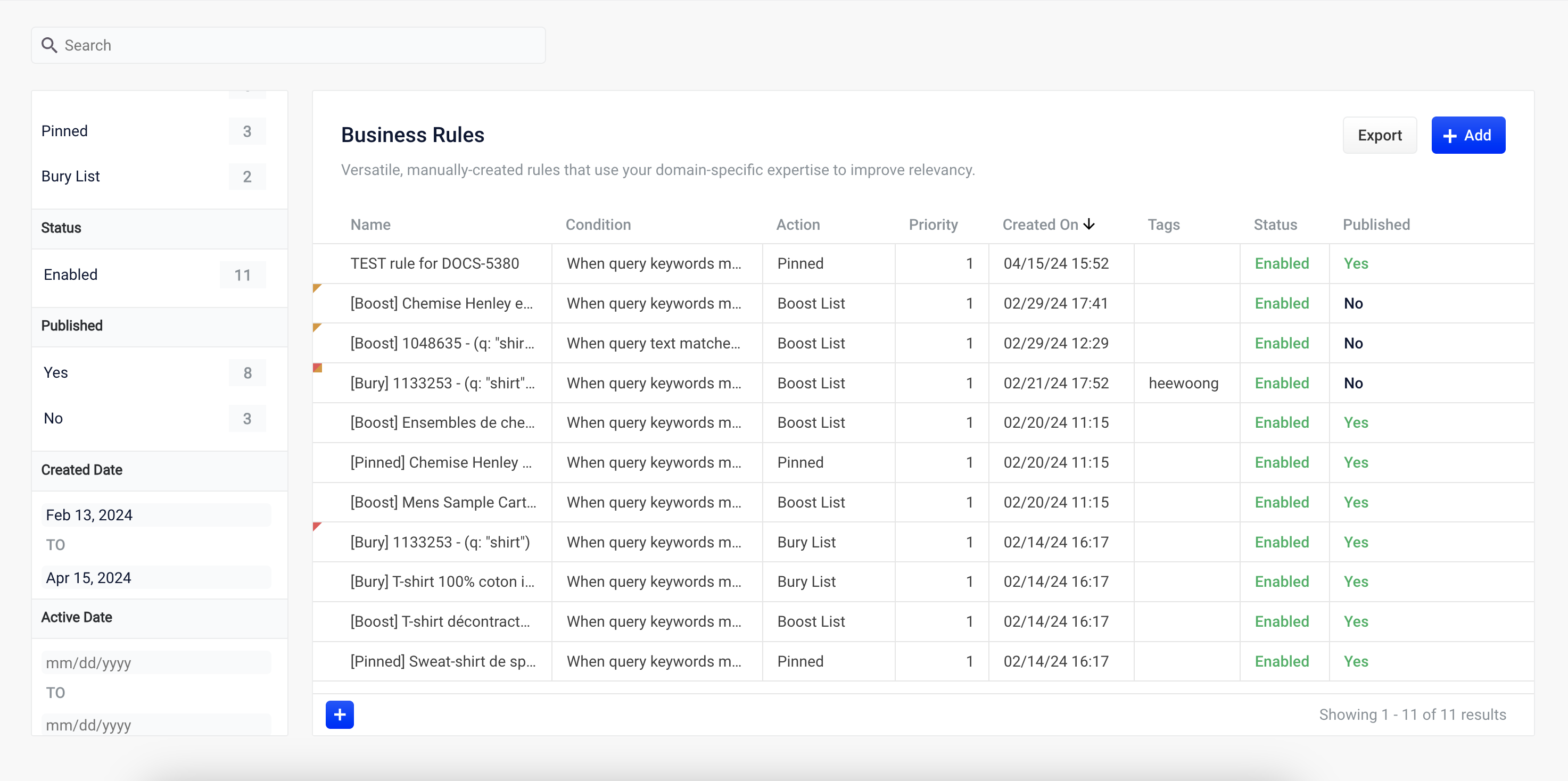
To facet the rules list by **Status** or **Published**, click one of the facet items within the facet categories.
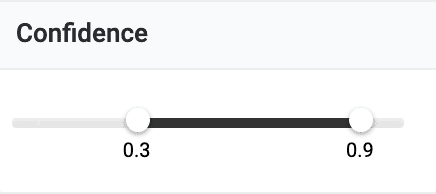
To facet the rules by **Confidence**, click and drag either slider to set the range of confidence you would like to see:
Faceting rules by confidence is not available for Head/Tail rewrites.
### Search
Enter a term in the search bar to quickly facet your query rewrite rules.
## Rules
Begin by selecting a query rewrite rule types to create.
### Create a rule
1. Click **+Add**.
2. In the new table row, complete the required fields, and additional fields as needed.
3. Click the checkmark to save, or close to cancel the changes.
### Edit a rule
1. Hold the pointer over the rule to edit.
2. Click the pencil icon.
3. Enter desired changes and click the checkmark to save, or close to cancel the changes.
### Approve/deny rules
{/* // New or altered rules will need to be approved by a user with the appropriate permissions before the rule can be enabled. */}
1. Hold the pointer over a rule.
2. Select the checkbox that displays for that rule.
3. To modify multiple rules, hold the pointer over each rule and select its corresponding checkbox.
4. Click **Approve** or **Deny** as needed.
{/*
This is not an explicit option in the rewrite screen. Is this implicit by approval/denial?
### Enable/disable a rule
1. Hold the pointer over a rule.
2. Select the checkbox that displays for that rule.
3. To modify multiple rules, hold the pointer over each rule and select its corresponding checkbox.
4. Click **Enable** or **Disable** as needed.
*/}
### Publish a rule
1. Hold the pointer over a rule.
2. Select the checkbox that displays for that rule.
3. To publish multiple rules, hold the pointer over each rule and select its corresponding checkbox.
4. Click **Publish Selected** to publish the selected rules.
#### Publish an individual rule
1. Hold the pointer over a rule.
2. Click the button.
3. To confirm, click **Publish**.
### Delete rules
#### Delete a single rule
1. Hold the pointer over a rule.
2. Click the trash can.
3. To confirm, click **Delete**.
#### Delete multiple rules
1. Hold the pointer over a rule.
2. Select the checkbox that displays for that rule.
3. To delete multiple rules, hold the pointer over each rule and select its corresponding checkbox.
4. Click **Delete**.
5. To confirm, click **Delete** again.
### Sort rules
1. Hold the pointer over column titles. A icon displays for some titles to indicate the rules list can be sorted by that column.
2. Click the title column to sort the rules.
The column that is currently sorting the rules list is indicated by an or icon.
### Export rules
To export the rules list, click **Export**. This generates a `.csv` file that contains your rules.
## Columns
### Customize columns
To customize columns:
1. Hold the pointer over the row of column titles.
2. Click the button.
3. In the Customize Columns to Display screen, select the checkboxes for the columns you want to display. Clear the checkboxes for columns you do not want to display.
4. Click **Save**. To exit without saving your changes, click **Cancel**.
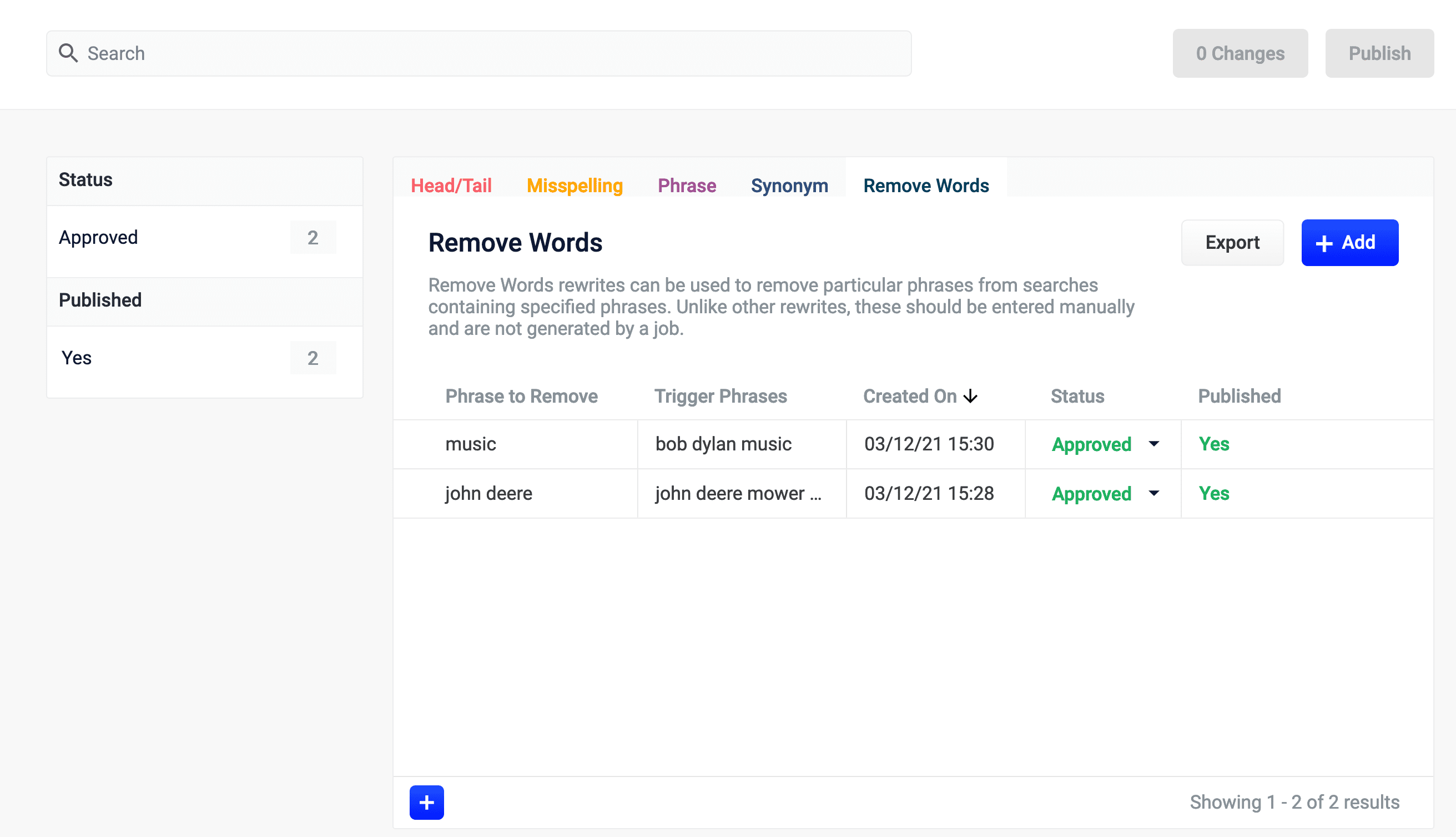 You can create a Remove Words query rewrite to remove words from a query. This query rewrite is helpful when a word in the search query does not add value to the search results.
For example, you can rewrite a search query for `case study examples` to remove `examples` and then display results for `case study`.
1. From the list of query rewrite options, select Remove Words. A form appears:
You can create a Remove Words query rewrite to remove words from a query. This query rewrite is helpful when a word in the search query does not add value to the search results.
For example, you can rewrite a search query for `case study examples` to remove `examples` and then display results for `case study`.
1. From the list of query rewrite options, select Remove Words. A form appears:
 2. This form contains the following fields:
| Parameter | Description | Example Value |
| ---------------- | ----------------------------------------------------------------------------------------------------------------------------------------------------------------------------------------------------------------- | --------------------- |
| Phrase to remove | The words to remove from the trigger phrase. | `examples` |
| Trigger phrases | The query that prompts the removal of the phrase. The trigger phrase is not necessarily a complete query. If the query contains the trigger phrase, then Fusion removes the phrase in the Phrase to Remove field. | `case study examples` |
1. Enter a phrase to remove and a trigger phrase. Note that the phrase to remove is auto-populated with the query.
2. Click **Save**.
The search is re-run, and a Search box information panel drops down to show that the new query rewrite has fired:
2. This form contains the following fields:
| Parameter | Description | Example Value |
| ---------------- | ----------------------------------------------------------------------------------------------------------------------------------------------------------------------------------------------------------------- | --------------------- |
| Phrase to remove | The words to remove from the trigger phrase. | `examples` |
| Trigger phrases | The query that prompts the removal of the phrase. The trigger phrase is not necessarily a complete query. If the query contains the trigger phrase, then Fusion removes the phrase in the Phrase to Remove field. | `case study examples` |
1. Enter a phrase to remove and a trigger phrase. Note that the phrase to remove is auto-populated with the query.
2. Click **Save**.
The search is re-run, and a Search box information panel drops down to show that the new query rewrite has fired:
 To learn how to use Remove Words and other query rewrites in the [Rules Editor](/docs/lucidworks-search/07-improve-your-queries/rules-editor/overview), see **Use query rewrites in the Rules Editor**.
 To facet the rules list by **Status** or **Published**, click one of the facet items within the facet categories.
To facet the rules by **Confidence**, click and drag either slider to set the range of confidence you would like to see:
To facet the rules list by **Status** or **Published**, click one of the facet items within the facet categories.
To facet the rules by **Confidence**, click and drag either slider to set the range of confidence you would like to see:
 ### Create a rule
1. Click **+Add**.
2. In the new table row, complete the required fields, and additional fields as needed.
3. Click the checkmark to save, or close to cancel the changes.
### Edit a rule
1. Hold the pointer over the rule to edit.
2. Click the pencil icon.
3. Enter desired changes and click the checkmark to save, or close to cancel the changes.
### Approve/deny rules
{/* // New or altered rules will need to be approved by a user with the appropriate permissions before the rule can be enabled. */}
1. Hold the pointer over a rule.
2. Select the checkbox that displays for that rule.
3. To modify multiple rules, hold the pointer over each rule and select its corresponding checkbox.
4. Click **Approve** or **Deny** as needed.
{/*
This is not an explicit option in the rewrite screen. Is this implicit by approval/denial?
### Enable/disable a rule
1. Hold the pointer over a rule.
2. Select the checkbox that displays for that rule.
3. To modify multiple rules, hold the pointer over each rule and select its corresponding checkbox.
4. Click **Enable** or **Disable** as needed.
*/}
### Publish a rule
1. Hold the pointer over a rule.
2. Select the checkbox that displays for that rule.
3. To publish multiple rules, hold the pointer over each rule and select its corresponding checkbox.
4. Click **Publish Selected** to publish the selected rules.
#### Publish an individual rule
1. Hold the pointer over a rule.
2. Click the
### Create a rule
1. Click **+Add**.
2. In the new table row, complete the required fields, and additional fields as needed.
3. Click the checkmark to save, or close to cancel the changes.
### Edit a rule
1. Hold the pointer over the rule to edit.
2. Click the pencil icon.
3. Enter desired changes and click the checkmark to save, or close to cancel the changes.
### Approve/deny rules
{/* // New or altered rules will need to be approved by a user with the appropriate permissions before the rule can be enabled. */}
1. Hold the pointer over a rule.
2. Select the checkbox that displays for that rule.
3. To modify multiple rules, hold the pointer over each rule and select its corresponding checkbox.
4. Click **Approve** or **Deny** as needed.
{/*
This is not an explicit option in the rewrite screen. Is this implicit by approval/denial?
### Enable/disable a rule
1. Hold the pointer over a rule.
2. Select the checkbox that displays for that rule.
3. To modify multiple rules, hold the pointer over each rule and select its corresponding checkbox.
4. Click **Enable** or **Disable** as needed.
*/}
### Publish a rule
1. Hold the pointer over a rule.
2. Select the checkbox that displays for that rule.
3. To publish multiple rules, hold the pointer over each rule and select its corresponding checkbox.
4. Click **Publish Selected** to publish the selected rules.
#### Publish an individual rule
1. Hold the pointer over a rule.
2. Click the 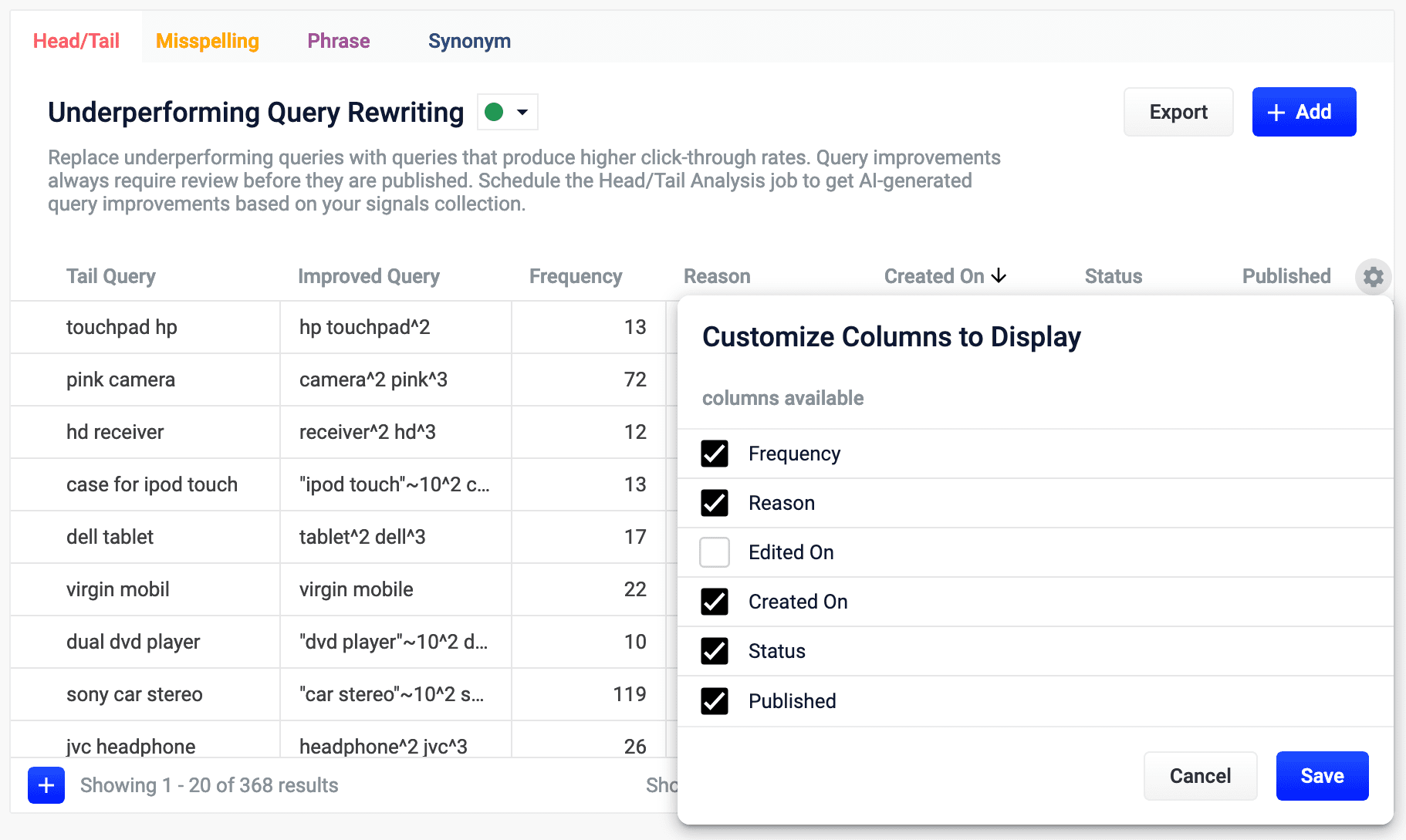 3. In the Customize Columns to Display screen, select the checkboxes for the columns you want to display. Clear the checkboxes for columns you do not want to display.
4. Click **Save**. To exit without saving your changes, click **Cancel**.
3. In the Customize Columns to Display screen, select the checkboxes for the columns you want to display. Clear the checkboxes for columns you do not want to display.
4. Click **Save**. To exit without saving your changes, click **Cancel**.