> ## Documentation Index
> Fetch the complete documentation index at: https://doc.lucidworks.com/llms.txt
> Use this file to discover all available pages before exploring further.
# Templates
export const LwTemplate = ({title = "Key questions to get you started", icon = "sparkles", cta = "Powered by Agent Studio", linkHref = "https://lucidworks.com/demo/?utm_source=docs&utm_medium=referral&utm_campaign=docs_cta_ai"}) => {
const [isLoaded, setIsLoaded] = useState(false);
useEffect(() => {
const timer = setTimeout(() => {
setIsLoaded(true);
}, 500);
return () => clearTimeout(timer);
}, []);
return
{isLoaded && `
}} />}
Powered by Lucidworks Agent Studio
;
};
export const InlineImage = ({src, alt = '', height = '2em'}) => {
return ;
};
[localhost link]: http://localhost:3000/docs/lucidworks-search/07-improve-your-queries/curate-search-experience/predictive-merchandiser/templates-pm
[mintlify link]: https://doc.lucidworks.com/docs/lucidworks-search/07-improve-your-queries/curate-search-experience/predictive-merchandiser/templates-pm
[old doc.lw link]: https://doc.lucidworks.com/managed-fusion/5.9/5vb3j4
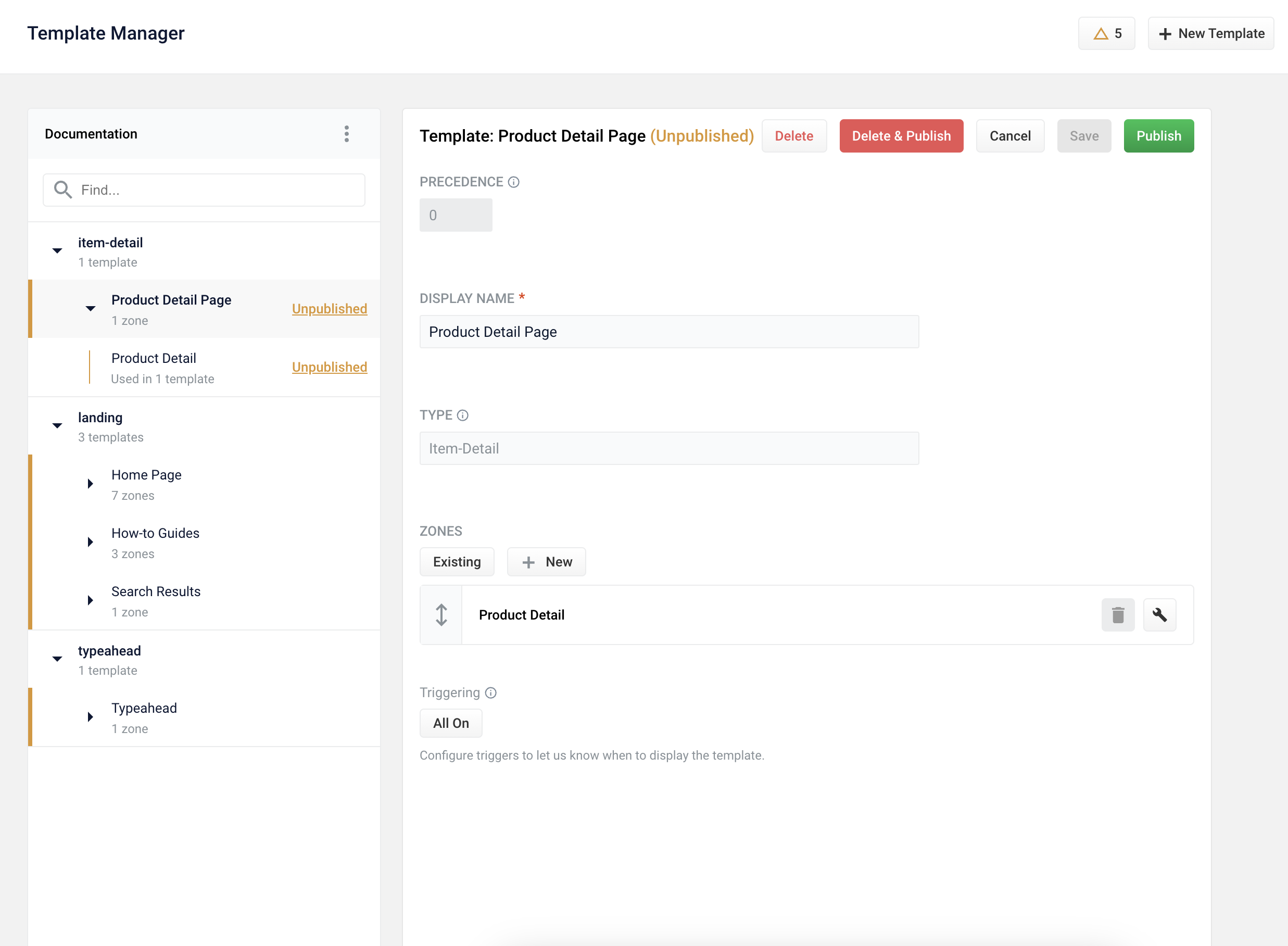
The Templates screen in the Rules Editor allows you to design, test, and implement a wide variety of search experiences. Results are conditionally delivered from multiple different query pipelines, enabling you to optimize search, browse, and AI-driven functionality throughout your site.
Access Templates from the [Rules Editor](/docs/lucidworks-search/07-improve-your-queries/rules-editor/overview) by navigating to **Relevance > Rules > Templates**. See **Use Predictive Merchandiser templates** for instructions on using Templates.
This article teaches you how to use the [Templates](/docs/lucidworks-search/07-improve-your-queries/curate-search-experience/predictive-merchandiser/templates-pm) feature in Predictive Merchandiser, including how to:
* [Create a template](#create-a-new-template)
* [Add zones](#add-a-zone-to-a-template) to the template
* Conditionally [trigger the template](#set-triggering-options)
* [Test](#test-the-template) the template in the Predictive Merchandiser screen
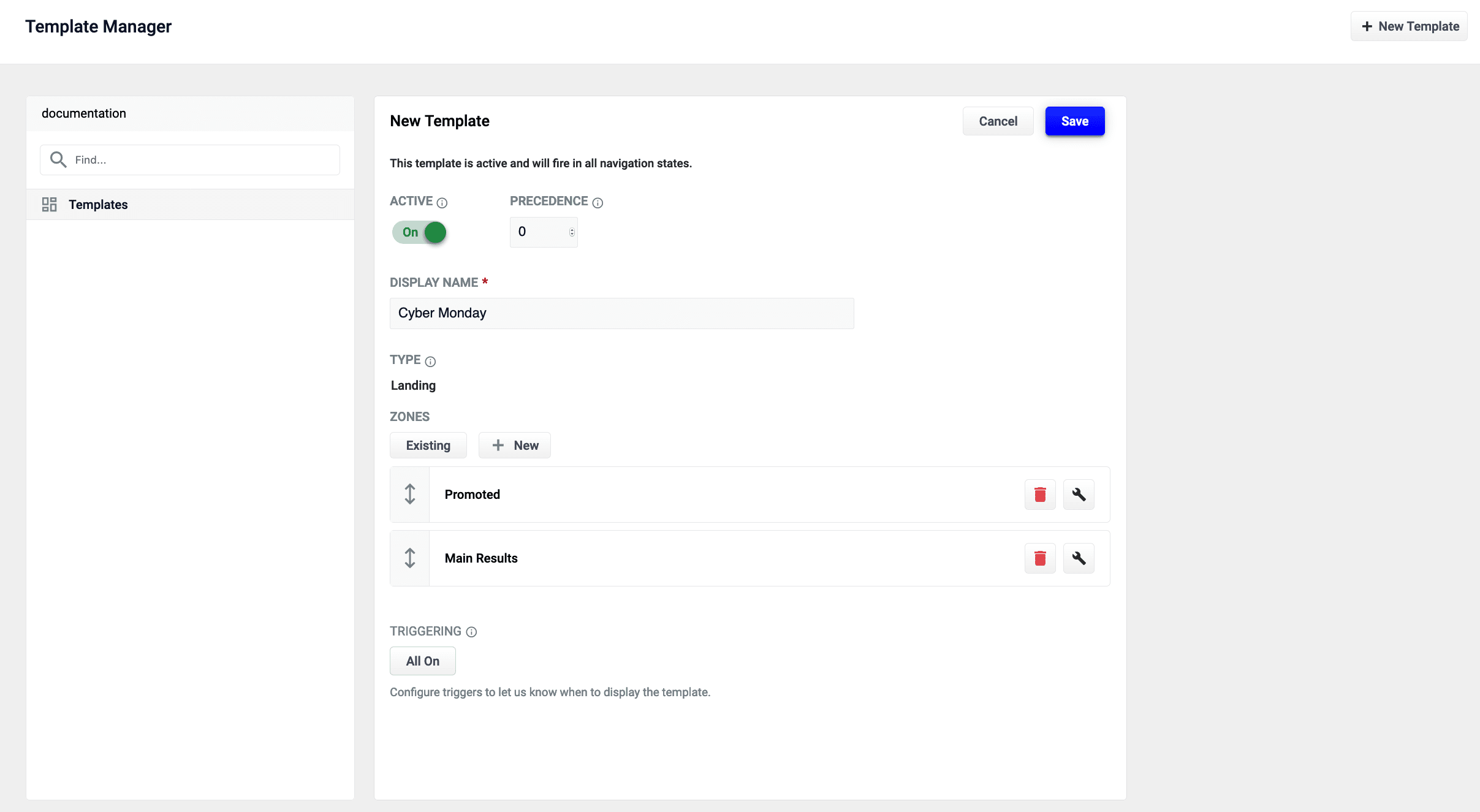
In the instructions below, a new template is created with two zones for use during a Cyber Monday sales event. One zone is used to display general search results while the other is used to promote specific products for the sale.
The zones used in this article use different query profiles. To follow the instructions as described, you will need to begin with an app that has at least two query profiles.
The course for **Predictive Merchandiser: Template Manager** focuses on how to use the templates included in Predictive Merchandiser and create your own custom templates.
## Create a new template
1. From the Templates screen, click the **New Template** button:
2. In the Template Name field, enter a unique name. In this example, the value `Cyber Monday` is assigned.
3. Select a value in Template Type. This example uses the `landing` template type.
This value is read-only and for informational purposes only.
4. Click the **Save** button to save the new template:
For detailed configuration information, see:
* [Templates UI configuration options](/docs/lucidworks-search/07-improve-your-queries/curate-search-experience/predictive-merchandiser/templates-ui-configuration-options)
* [Templating API configuration reference](/api-reference/templates-controller/get-template-information)
## Add a zone to a template
Zones enable Lucidworks Search users to create rules designed for specific query profiles. Combined with templates, this allows a search application to display results from multiple query profiles in the same view.
In this example, two new zones are created for the Cyber Monday template.
1. Click **Existing** to add an existing zone. In this example, the Main Results List zone is added by selecting the zone and clicking **Apply**.
The Main Results List zone is the default zone. This zone can be edited but cannot be deleted.
2. Create a new zone by clicking the **New** button:
3. In the Display Name field, enter a unique name for the zone. For this example, the value is Promoted.
4. In the Query Profile file, select a value. This example uses a query profile named promotional-results. This query profile is configured with rules that pin products to the top of the results.
5. In the Zone Type field, select a value. This example uses main-results-list.
This value is read-only and for informational purposes only.
6. Set the configuration options for the product image, title, and description per your preference.
7. Click the **Save** button to save the new zone:
For detailed zone configuration details, see [Zone configuration options](/docs/lucidworks-search/07-improve-your-queries/curate-search-experience/predictive-merchandiser/templates-ui-configuration-options).
## Edit an existing zone
To edit a zone that is already added to a template, complete the following:
1. Click **Start Task**.
2. Click the pencil icon to edit the page.
3. Click the wrench icon to edit the zone.
To delete a zone, click the trash can icon.
4. Edit the zone as needed and click **Save**.
## Set triggering options
Triggers describe conditions that must be met for a template to display. Trigger options include a set date range and specific search terms.
For more information, see [Triggering configuration options](/docs/lucidworks-search/07-improve-your-queries/curate-search-experience/predictive-merchandiser/templates-ui-configuration-options).
### Date range
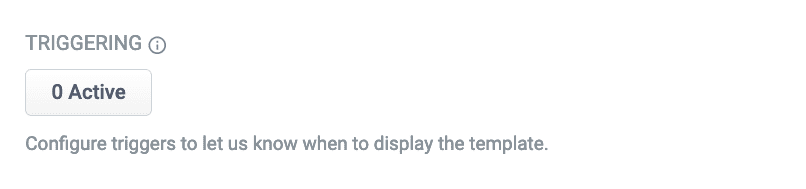
1. In the Triggering section, click **0 Active**.
If there are active triggers, this button changes to reflect that number. For example, this button will read **3 Active** when 3 triggers are active.
2. Click the date range selector and select a start and end date. For this example, choose a date range that includes today’s date.
3. Click the **Save** button to save your changes:
### Search terms
1. In the Triggering section, click **0 Active**.
2. Click the **Trigger** button:
3. In the Search Terms field, enter `cyber monday`.
4. Set the Match Mode field to `phrase`.
5. Click **Add**.
6. Repeat the process to add a second trigger with Search Terms set to `sales event` and Match Mode to `phrase`.
7. Click the **Save** button to save your changes:
## Test the template
1. Access Predictive Merchandiser.
2. Enter one of the [search terms](#search-terms) you configured in [set triggering options](#set-triggering-options). This example used the search terms `cyber monday` and `sales event`.
If today’s date does not fall within the template’s [date range trigger](#date-range), the template will *not* load.
If everything is configured correctly, the Cyber Monday template is loaded. You can now create different rules for both zones, including pinning promoted products in the Promoted zone.
Templates are only available with a valid license for [Predictive Merchandiser](/docs/lucidworks-search/07-improve-your-queries/curate-search-experience/predictive-merchandiser/overview). If available, the templates icon displays in the left navigation panel.
For more information, see [Templates UI Configurations Options](/docs/lucidworks-search/07-improve-your-queries/curate-search-experience/predictive-merchandiser/templates-ui-configuration-options) and the [Templating API Configuration Reference](/api-reference/templates-controller/get-template-information).
The course for **Predictive Merchandiser: Template Manager** focuses on how to use the templates included in Predictive Merchandiser and create your own custom templates.
## Templates
Templates are comprised of two primary elements, the [template](#templates) itself and its associated [zones](#zones). A variety of conditions, or *triggers*, determine which template is shown to the customer. These triggers can include whether the template is active, the template’s precedence over other templates, the customer’s query, and whether the template is triggered within a specific date range (if set).
### Default templates
A new app starts with built-in templates: Detail Page, Search Results, and Typeahead. The Detail Page and Search Results Page templates are immediately available in the **Templates** screen.
Detail Page
The Detail Page defines what a customer sees when they view the details of a product. It can be configured in the **Templates** screen or by hovering over a product in the **Predictive Merchandiser** screen and clicking the **Detail Page** button that appears.
Search Results page
The Search Results Page defines what a customer sees when they reach a search results page. This template can also be configured in the **Template** screen. Alternatively, you can click **Merchandiser > Start Task > Edit Template**.
Typeahead Template
The Typeahead Template allows you to configure what is displayed when query terms are typed into the search bar. To add this template, click **Merchandiser > Start Task > enter a search query term**. When the system displays "Typeahead not created. Do you want to create a new typeahead template?", click **New** to create the typeahead template.
### Custom templates
In some cases, you may want to create custom template types to add more options for curating pages in your search application. You can create a custom template type in the **Template** screen by following the steps in **Create a Custom Predictive Merchandiser Template Type**.
In some cases, you may want to create custom template types to add more options for curating pages in your search application. You can create a custom template type in the **Template** screen by following the steps in **Create a Custom Predictive Merchandiser Template Type**.
This article teaches you how to create custom [Templates](/docs/lucidworks-search/07-improve-your-queries/curate-search-experience/predictive-merchandiser/templates-pm) for Predictive Merchandiser.
To begin, access Templates in the [Rules Editor](/docs/lucidworks-search/07-improve-your-queries/rules-editor/overview) by navigating to **Relevance** > **Rules** > **Templates**.
## Create a new template type
1. From the Template Manager screen, click **New Template**.
2. Add a user-friendly **Display Name** for your template.
3. In the **type** field, create a new template type by entering the name and clicking **Add**.
4. Click **Save**. The custom template type and template display in the list of templates.
5. Configure the template as desired.
6. Click **Publish**. Review the changes, and click **Confirm and Publish** to publish your custom template type and template. The template is now available in the **Merchandiser** screen. The template activates based on your configurations.
This article teaches you how to create custom [Templates](/docs/lucidworks-search/07-improve-your-queries/curate-search-experience/predictive-merchandiser/templates-pm) for Predictive Merchandiser.
To begin, access Templates in the [Rules Editor](/docs/lucidworks-search/07-improve-your-queries/rules-editor/overview) by navigating to **Relevance** > **Rules** > **Templates**.
## Create a new template type
1. From the Template Manager screen, click **New Template**.
2. Add a user-friendly **Display Name** for your template.
3. In the **type** field, create a new template type by entering the name and clicking **Add**.
4. Click **Save**. The custom template type and template display in the list of templates.
5. Configure the template as desired.
6. Click **Publish**. Review the changes, and click **Confirm and Publish** to publish your custom template type and template. The template is now available in the **Merchandiser** screen. The template activates based on your configurations.
### Hierarchical template triggers
Hierarchical template triggers allow you to fire a search configuration template or rules at a parent or child level in a hierarchy, and even at a faceted level.
**Ways to use hierarchical templates:**
* For a sale on "Winter Coats," you can fire a template at the "Outerwear" level or at any of its children.
* For an overstock on a particular clothing size, you could fire a template directly at the “Women’s Outerwear, Size Small” filter.
* When rolling out a new company policy, you could fire a zone on all pages from the homepage down so everyone sees the most important links and documents for the new policy.
#### Hierarchical fields settings
To configure hierarchical fields settings:
1. Access the application and click **Relevance > Rules > Templates**.
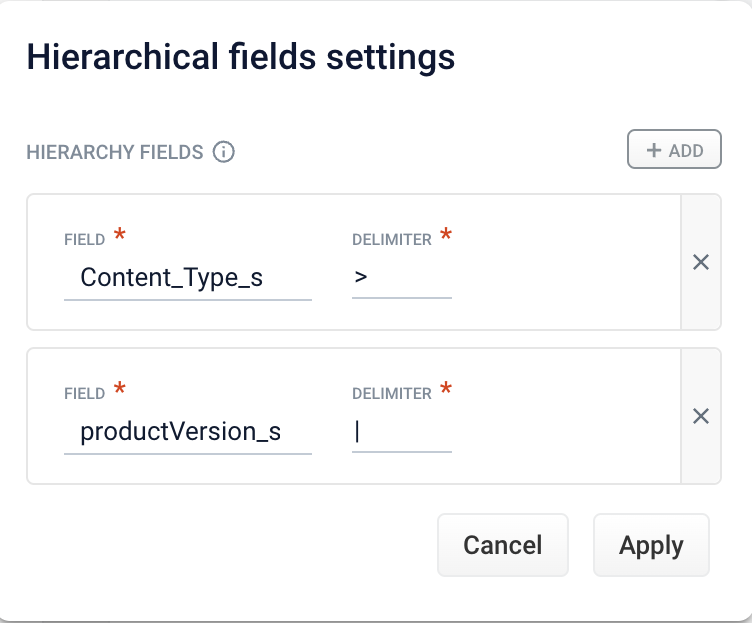
2. Click the three vertical dots to the right of the application name to display the Hierarchical fields settings section.
3. Complete one of the following:
* To add a new field, click **+ Add**. Enter values in the **Field** and **Delimiter** fields and click **Apply**.
Any symbol can be used as a delimiter.
* To edit an existing field, click **Field** and select the value to edit. Enter the appropriate value in the **Delimiter** field and click **Apply**.
* To delete a field setting, select the value in **Field**, click **X**, and then click **Apply**.
* To cancel any changes before you apply them, click **Cancel**.
#### Hierarchical trigger settings
To configure hierarchical trigger settings:
1. Access the application and click **Relevance > Rules > Templates**.
2. Click to open a template.
3. In the Triggering section, click the trigger to display the settings. You can also click **+ Trigger** to add a new trigger.
4. Enter values in the **Search terms** and **Match mode** fields.
5. In the Filters section of the Edit Trigger screen (or New Trigger screen), click **+ Add** to add a new filter.
6. Enter values in the **Field name** and **Field value** fields.
7. Click the **Apply to Descendant** option to apply the trigger at child levels of the hierarchy.
The **Apply to Descendant** function only applies to fields that are configured as hierarchical.
8. Click **Exact** to enable exact filter matches.
9. Save the configuration. To close the window without saving changes click **X** or **Cancel**.
The URL Content tab fields and values do not apply to hierarchical trigger functions.
## Zones
Zones enable Lucidworks Search users to create rules designed for specific query profiles. Combined with templates, this allows a search application to display results from multiple query profiles in the same view.
For example, if a customer searches for `climbing`, one zone can fetch results for climbing apparel, and another zone can fetch blog posts about climbing. The same zone can be used in multiple templates, and changes to a zone will be made on all templates that zone is used in.
In the preceding example, a unique template is fired for the query `cyber monday`. This template has two zones:
* **Promoted** - Display advertised products.
* **Main Results List** - Display general search results.
 The zones used in this article use different query profiles. To follow the instructions as described, you will need to begin with an app that has at least two query profiles.
 Access Templates from the [Rules Editor](/docs/lucidworks-search/07-improve-your-queries/rules-editor/overview) by navigating to **Relevance > Rules > Templates**. See **Use Predictive Merchandiser templates** for instructions on using Templates.
 3. Complete one of the following:
* To add a new field, click **+ Add**. Enter values in the **Field** and **Delimiter** fields and click **Apply**.
3. Complete one of the following:
* To add a new field, click **+ Add**. Enter values in the **Field** and **Delimiter** fields and click **Apply**.