> ## Documentation Index
> Fetch the complete documentation index at: https://doc.lucidworks.com/llms.txt
> Use this file to discover all available pages before exploring further.
# Results and page concepts
> Predictive Merchandiser
export const LwTemplate = ({title = "Key questions to get you started", icon = "sparkles", cta = "Powered by Agent Studio", linkHref = "https://lucidworks.com/demo/?utm_source=docs&utm_medium=referral&utm_campaign=docs_cta_ai"}) => {
const [isLoaded, setIsLoaded] = useState(false);
useEffect(() => {
const timer = setTimeout(() => {
setIsLoaded(true);
}, 500);
return () => clearTimeout(timer);
}, []);
return
{isLoaded && `
}} />}
Powered by Lucidworks Agent Studio
;
};
export const InlineImage = ({src, alt = '', height = '2em'}) => {
return ;
};
[localhost link]: http://localhost:3000/docs/lucidworks-search/07-improve-your-queries/curate-search-experience/predictive-merchandiser/results-and-page-concepts
[mintlify link]: https://doc.lucidworks.com/docs/lucidworks-search/07-improve-your-queries/curate-search-experience/predictive-merchandiser/results-and-page-concepts
[old doc.lw link]: https://doc.lucidworks.com/managed-fusion/5.9/j802t6
This topic provides information about page components you can manage to improve query results in Predictive Merchandiser.
## Hierarchical facets
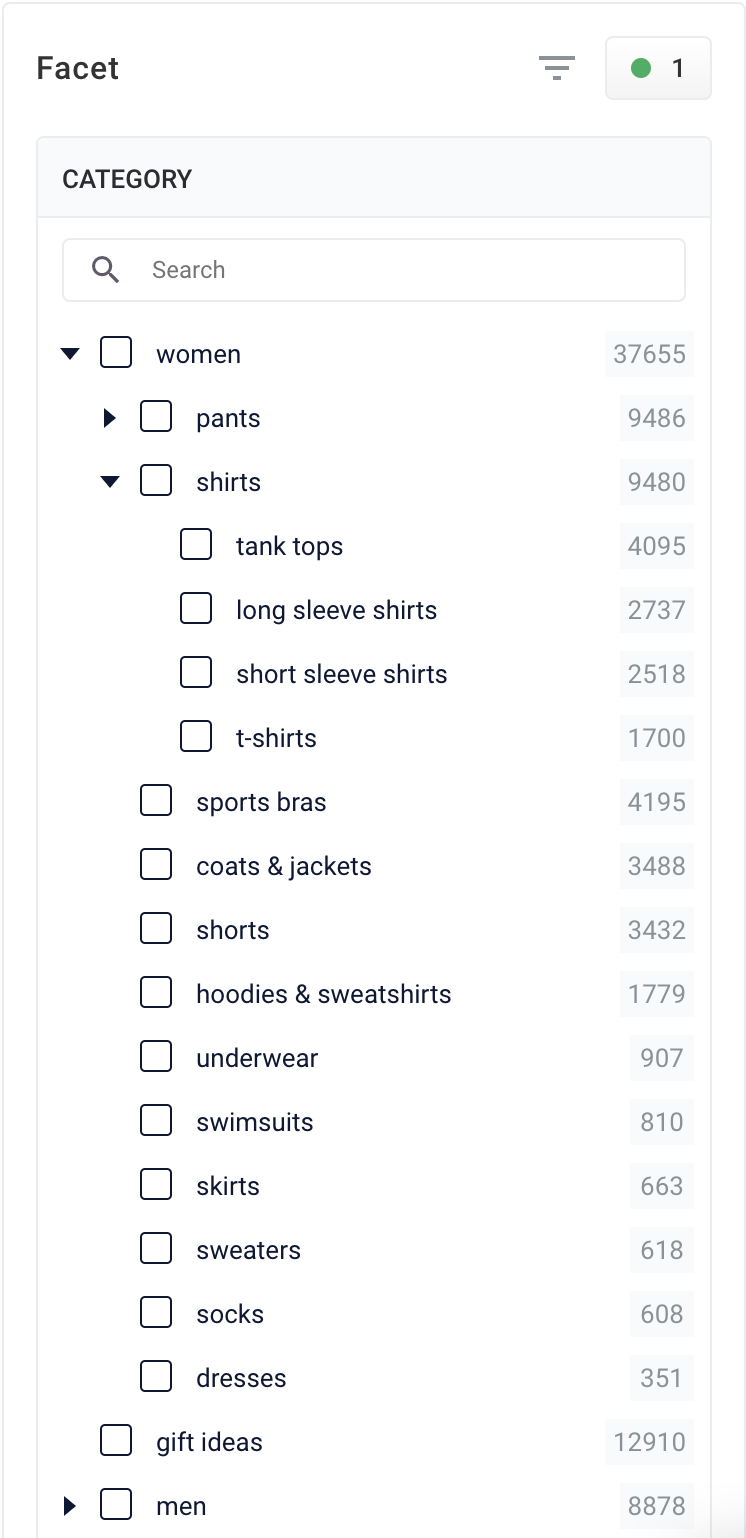
Hierarchical facets allow faster navigation through facet submenus and breadcrumbs.
A "parent" facet specified as a general category can contain multiple "children" and "grandchildren" levels that are related. A user can click to open a facet that contains children, and then click a specific facet to bypass the results from the parent to display only the facet selected.
In the following example for a clothing site, women is the parent. The children are pants, shirts (and its children), sports bras, coats & jackets, and shorts.
Hierarchical facets are split according to the delimiter set in the [Apply Rules](/docs/lucidworks-search/09-developer-documentation/config-specs/query-pipeline-stages/apply-rules) query pipeline stage.
For more information, see **Use Hierarchical Facets**.
## Lucidworks Search
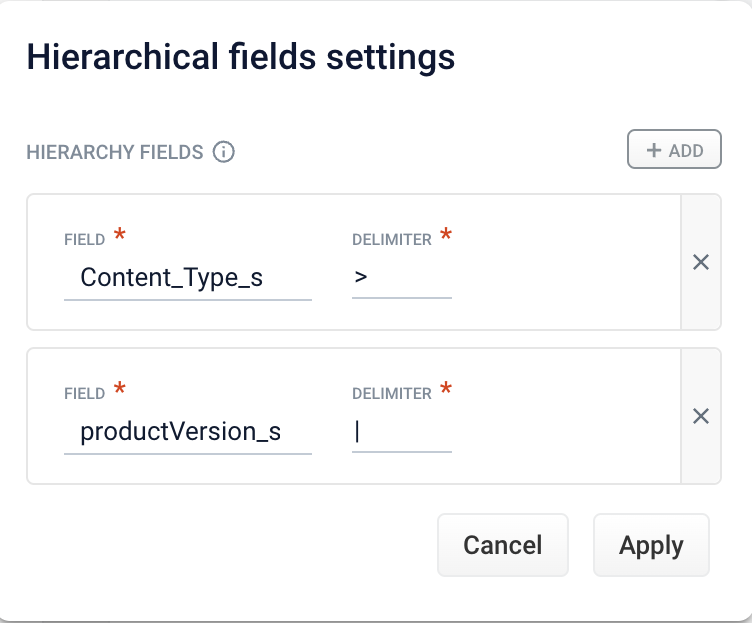
To configure hierarchical fields settings:
1. Access the application and click **Relevance > Rules > Templates**.
2. Click the three vertical dots to the right of the application name to display the Hierarchical fields settings section.
3. Complete one of the following:
* To add a new field, click **+ Add**. Enter values in the **Field** and **Delimiter** fields and click **Apply**.
Any symbol can be used as a delimiter.
* To edit an existing field, click **Field** and select the value to edit. Enter the appropriate value in the **Delimiter** field and click **Apply**.
* To delete a field setting, select the value in **Field**, click **X**, and then click **Apply**.
* To cancel any changes before you apply them, click **Cancel**.
## Product grouping
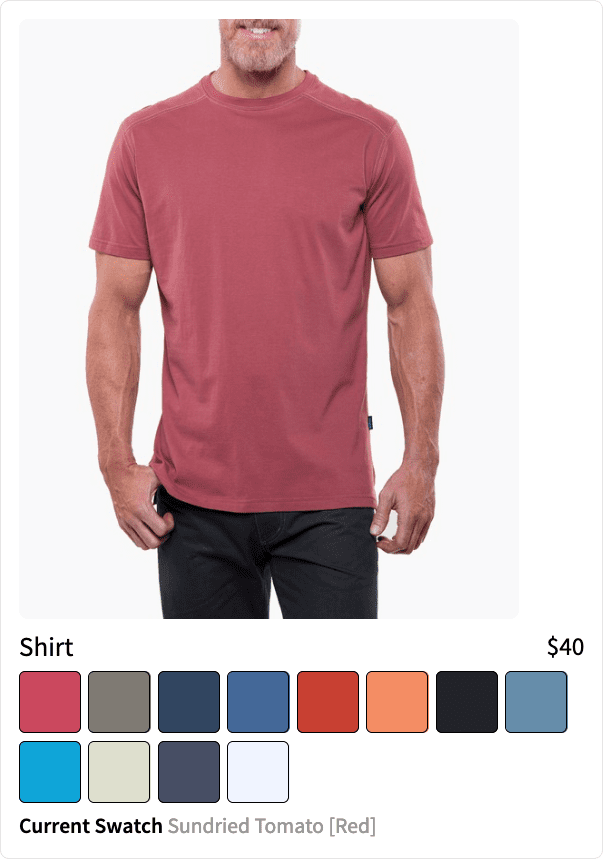
Product grouping lets you group products in different variations such as color, version, or size.
Options to group products include:
* Block or boost. For example, to promote a product group that is on sale, boost the group to the top of the results.
* Apply rules individually to products within a group. For example, boost the red color version of a product to the top of the group if a specific user typically searches for red.
### Best practices
These parameters group products, and are defined in the Additional Query Parameters Stage:
| Parameter Name | Parameter Value | Update Policy |
| -------------- | --------------- | ------------- |
| group | true | default |
| group.format | grouped | default |
| group.ngroups | true | default |
| group.field | style\_id\_s | default |
For more information about adding a query pipeline and additional query parameters, see:
* **Add a Query Pipeline Stage**
* [Additional Query Parameters Stage](/docs/lucidworks-search/09-developer-documentation/config-specs/query-pipeline-stages/additional-query-parameters)
In the Query Workbench, click **Add a Stage** to add query pipeline stages that can perform query setup, results relevancy, troubleshooting, and more.
The Solr Query stage is the only pipeline stage that is required for querying processes to complete, and therefore exists in every query pipeline. It is always the last stage in a series.
**See these pages for more information:**
* [Query Workbench](/docs/lucidworks-search/05-move-data-out/query-workbench/overview)
* [Query Pipeline Stages](/docs/lucidworks-search/05-move-data-out/query-pipeline/query-pipeline-stages)
* [Solr Query stage](/docs/lucidworks-search/09-developer-documentation/config-specs/query-pipeline-stages/solr-query)
#### Collapse/Expand parser grouping
The Collapse/Expand parser allows grouping with the following parameters:
| Parameter Name | Parameter Value |
| --------------- | --------------- |
| expand | true |
| enableElevation | true |
| group | false |
See [Collapse and Expand Results](https://solr.apache.org/guide/collapse-and-expand-results.html) for more information.
## Page metadata
Metadata describe the content of a web page. The Page Metadata feature in Predictive Merchandiser lets you configure metadata using **Use Predictive Merchandiser templates**.
This article teaches you how to use the [Templates](/docs/lucidworks-search/07-improve-your-queries/curate-search-experience/predictive-merchandiser/templates-pm) feature in Predictive Merchandiser, including how to:
* [Create a template](#create-a-new-template)
* [Add zones](#add-a-zone-to-a-template) to the template
* Conditionally [trigger the template](#set-triggering-options)
* [Test](#test-the-template) the template in the Predictive Merchandiser screen
In the instructions below, a new template is created with two zones for use during a Cyber Monday sales event. One zone is used to display general search results while the other is used to promote specific products for the sale.
The zones used in this article use different query profiles. To follow the instructions as described, you will need to begin with an app that has at least two query profiles.
The course for **Predictive Merchandiser: Template Manager** focuses on how to use the templates included in Predictive Merchandiser and create your own custom templates.
## Create a new template
1. From the Templates screen, click the **New Template** button:
2. In the Template Name field, enter a unique name. In this example, the value `Cyber Monday` is assigned.
3. Select a value in Template Type. This example uses the `landing` template type.
This value is read-only and for informational purposes only.
4. Click the **Save** button to save the new template:
For detailed configuration information, see:
* [Templates UI configuration options](/docs/lucidworks-search/07-improve-your-queries/curate-search-experience/predictive-merchandiser/templates-ui-configuration-options)
* [Templating API configuration reference](/api-reference/templates-controller/get-template-information)
## Add a zone to a template
Zones enable Lucidworks Search users to create rules designed for specific query profiles. Combined with templates, this allows a search application to display results from multiple query profiles in the same view.
In this example, two new zones are created for the Cyber Monday template.
1. Click **Existing** to add an existing zone. In this example, the Main Results List zone is added by selecting the zone and clicking **Apply**.
The Main Results List zone is the default zone. This zone can be edited but cannot be deleted.
2. Create a new zone by clicking the **New** button:
3. In the Display Name field, enter a unique name for the zone. For this example, the value is Promoted.
4. In the Query Profile file, select a value. This example uses a query profile named promotional-results. This query profile is configured with rules that pin products to the top of the results.
5. In the Zone Type field, select a value. This example uses main-results-list.
This value is read-only and for informational purposes only.
6. Set the configuration options for the product image, title, and description per your preference.
7. Click the **Save** button to save the new zone:
For detailed zone configuration details, see [Zone configuration options](/docs/lucidworks-search/07-improve-your-queries/curate-search-experience/predictive-merchandiser/templates-ui-configuration-options).
## Edit an existing zone
To edit a zone that is already added to a template, complete the following:
1. Click **Start Task**.
2. Click the pencil icon to edit the page.
3. Click the wrench icon to edit the zone.
To delete a zone, click the trash can icon.
4. Edit the zone as needed and click **Save**.
## Set triggering options
Triggers describe conditions that must be met for a template to display. Trigger options include a set date range and specific search terms.
For more information, see [Triggering configuration options](/docs/lucidworks-search/07-improve-your-queries/curate-search-experience/predictive-merchandiser/templates-ui-configuration-options).
### Date range
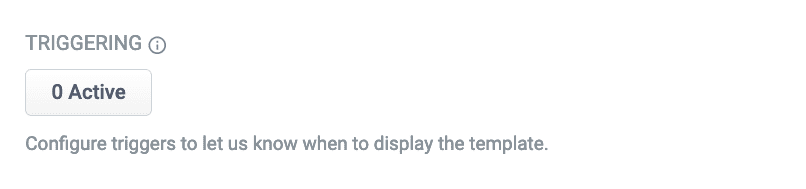
1. In the Triggering section, click **0 Active**.
If there are active triggers, this button changes to reflect that number. For example, this button will read **3 Active** when 3 triggers are active.
2. Click the date range selector and select a start and end date. For this example, choose a date range that includes today’s date.
3. Click the **Save** button to save your changes:
### Search terms
1. In the Triggering section, click **0 Active**.
2. Click the **Trigger** button:
3. In the Search Terms field, enter `cyber monday`.
4. Set the Match Mode field to `phrase`.
5. Click **Add**.
6. Repeat the process to add a second trigger with Search Terms set to `sales event` and Match Mode to `phrase`.
7. Click the **Save** button to save your changes:
## Test the template
1. Access Predictive Merchandiser.
2. Enter one of the [search terms](#search-terms) you configured in [set triggering options](#set-triggering-options). This example used the search terms `cyber monday` and `sales event`.
If today’s date does not fall within the template’s [date range trigger](#date-range), the template will *not* load.
If everything is configured correctly, the Cyber Monday template is loaded. You can now create different rules for both zones, including pinning promoted products in the Promoted zone.
When you trigger Predictive Merchandiser templates, the page metadata is added to the response payload, which looks like this:
```json wrap theme={"dark"}
{
"triggered": {
"app": "test",
"id": "5d9cd572-5928-4a16-a9de-5bab582538a2",
"name": "example-template",
...
"name": "Metadata of example-template",
...
"inTemplates": ["5d9cd572-5928-4a16-a9de-5bab582538a2"],
"pageMetadata": [{
"metadata": {
"pageTitle": "Example page title",
"pageDescription": "Example description",
"pageKeywords": ["example"],
"imageUrl": null,
"pageUrl": null
}
}],
"neverPublished": false,
"staging": true,
"published": false
}
}
```
The Page Metadata feature also lets you filter your facets by existing tags, clone the values of your facets, or select filters/facets with predefined metadata. If you have a large number of pages, you can also search your domain by **Path URL** using the **URL Search**.
For more information, see **Use page metadata**.
## Access and edit page metadata
You must be within an active template to use the **More Menu**.
1. Sign into Lucidworks Search and click your application.
2. Click **Relevance > Rules > Merchandiser**.
3. Click
4. Click
5. On the Page Metadata screen, edit the information and click **Save**.
### Publish a template
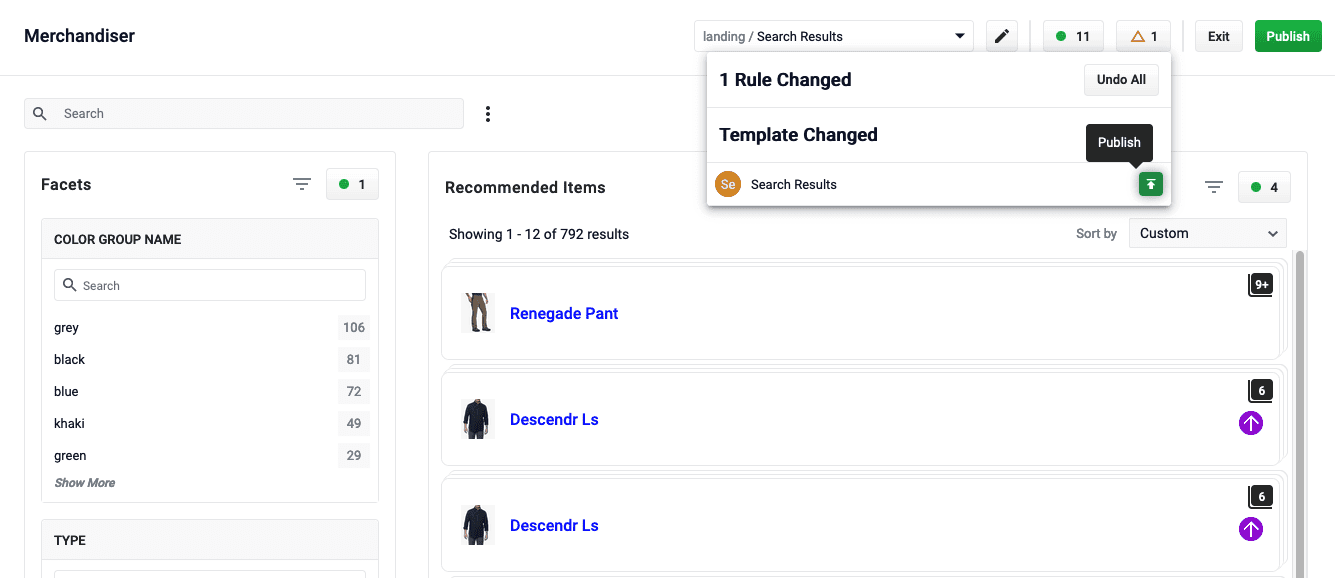
After editing your page metadata, your changes will not be applied until you publish the template. The Publish function is available from the Rules toolbar:
1. Click
In the **Template Changed** section, you will see short description of the page that you edited the metadata for.
2. Hover to the right of the page description to see the button.
3. Review the changes and click to apply metadata changes to your site.
## Clone facet values
1. On the Merchandiser screen, click
2. Click
3. Select one or more of your existing facets and click
{/* // == Select filters or facets with predefined metadata */}
{/* // will fill in once the FUS-650 is closed */}
## Find a page using URL search
1. On the Merchandiser screen, click
2. Click
3. In the Domain URL field, select the domain URL for the website you want to search. For example, `/https://www.lucidworks.com`.
4. In the Path URL field, enter the URL you want to search. For example, `/products/managed-fusion`.
5. Click **Search**.
## Search rewrites
Search rewriting lets you modify search queries to more accurately reflect the intentions of your customers.
These functions let you:
* Create search rewrites manually.
* Edit, test, review and publish the search rewrites generated automatically from signals data.
For example, create a misspelling search rewrite to correct common spelling mistakes entered for a particular product. The misspelled query will then produce the same results as a correctly spelled search.
Predictive Manager provides four rewrite types:
* **Head/Tail** - improves poorly performing searches.
* **Misspelling detection** - corrects common spelling mistakes.
* **Phrase detection** - identifies products with matching phrases.
* **Synonym detection** - includes alternative words with the same meaning.
You can create query rewrite rules in Predictive Merchandiser. This is similar to using the Rules Editor to create query rewrite rules, except there are additional options in Predictive Merchandiser.
1. In Fusion, navigate to **Relevance** > **Rules** > **Merchandiser**.
2. Enter a search term or phrase in the search bar.
3. Click **Start Task**.
4. Hover your cursor next to the query. A **+** button appears:
5. Click the **+** button. A list of query rewrites options will appear: [Head/Tail](#head-tail), [Misspelling](#misspelling), [Phrase](#phrase), [Synonym](#synonym), and [Remove Words](#remove-words).
## Head/Tail
You can create a Head/Tail rewrite to improve search results using methods other than correcting for misspellings or synonym expansion. When a poorly defined search term is identified, the original term is replaced by an improved search term.
For example, a search for `iphone case yellow` could be improved by using the search term `iphone case yellow +color:"yellow"` (in this case making use of the color field in the data).
Most Head/Tail rewrites are typically created automatically via machine learning. However, if desired, custom rewrites can be manually created using the following steps.
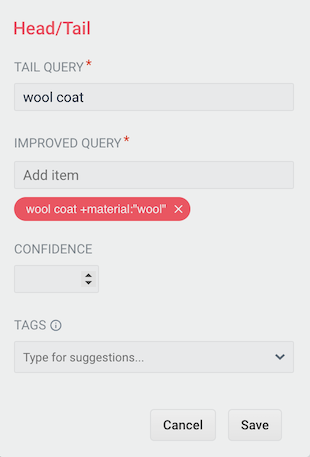
1. From the list of query rewrite options, select **Head/Tail**. A form will appear:
This form contains the following fields:
| | | |
| -------------- | -------------------------------------------------------------------------- | ------------------------------------ |
| Parameter | Description | Example Value |
| Tail Query | The tail query itself. | `iphone case yellow` |
| Improved Query | The query that will replace the tail query phrase. | `iphone case yellow +color:"yellow"` |
| Tags | Optional metadata tags that can be used to identify and organize rewrites. | `blackfridaysale` |
2. Enter one or more improved search terms in the **Improved Query** field.
3. Click the **Save** button.
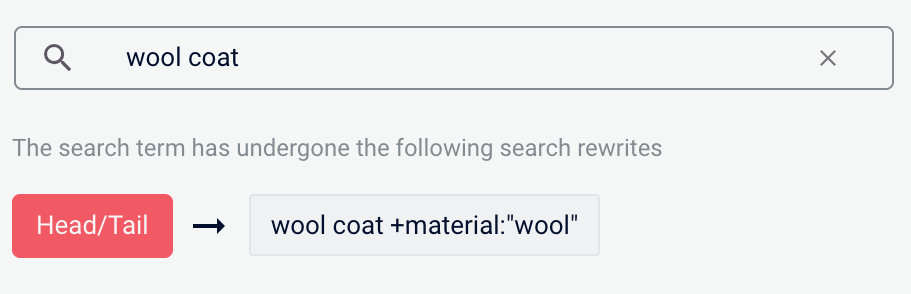
The search is re-run using the improved search term, and a Search box information panel drops down to show that the new query rewrite has fired:
## Misspelling
You can create a misspelling query rewrite to detect and correct common spelling mistakes. When a customer enters a search term containing a known misspelling, the incorrect spelling is replaced with the spelling correction.
For example, if your customers frequently misspell or mistype the word `sweater` as `sweatre`, you can set up a query rewrite to automatically correct it.
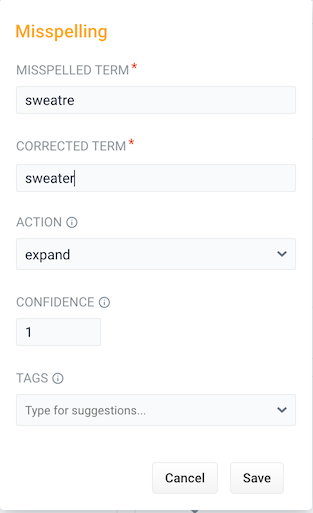
1. From the list of query rewrite options, select **Misspelling**. A form will appear:
This form contains the following fields:
| | | |
| --------------- | ------------------------------------------------------------------------------------------------------------------------------------------------------------------------------------------------------------------------------- | ----------------- |
| Parameter | Description | Example Value |
| Misspelled Term | The phrase itself. | `sweatre` |
| Corrected Term | The term that will replace the misspelled term. | `sweater` |
| Action | Action to perform. | |
| Confidence | Confidence score from the phrase job. A confidence level of `1` represents 100% confidence. For rules created automatically via machine learning, the confidence level will reflect the output from the machine learning model. | `1` |
| Tags | Optional metadata tags that can be used to identify and organize rewrites. | `blackfridaysale` |
2. Enter one or more spelling corrections in the **Corrected Term** field.
3. Click the **Save** button.
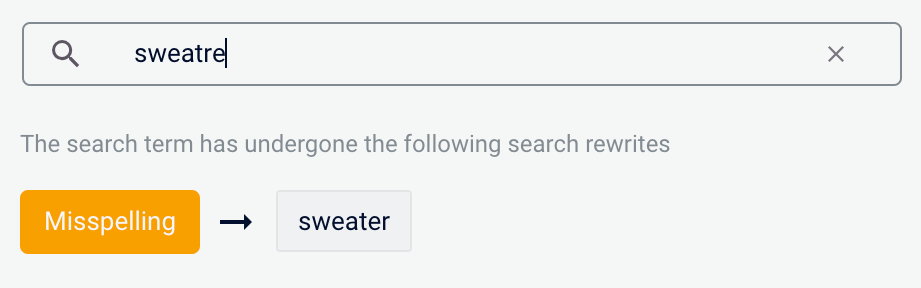
The search is re-run using the corrected spelling, and a Search box information panel drops down to show that the new query rewrite has fired:
## Phrase
You can use query rewriting to identify phrases used in search terms so that products with matching phrases are boosted in the search results. This is helpful when users do not use quotation marks to identify phrases in their search terms.
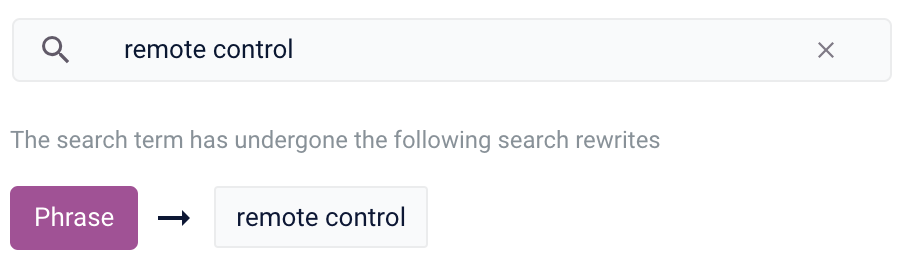
For example, without phrase detection a search for the words `remote control` would show results for both `remote` and `control`. With phrase detection, this search would correctly boost results for `"remote control"`.
1. From the list of query rewrite options, select **Phrase**. A form will appear:
This form contains the following fields:
| | | |
| ------------ | ------------------------------------------------------------------------------------------------------------------------------------------------------------------------------------------------------------------------------- | ----------------- |
| Parameter | Description | Example Value |
| Surface Form | The phrase itself. | `remote control` |
| Word Count | Indicates how many words are included in the phrase. | `2` |
| Confidence | Confidence score from the phrase job. A confidence level of `1` represents 100% confidence. For rules created automatically via machine learning, the confidence level will reflect the output from the machine learning model. | `1` |
| Tags | Optional metadata tags that can be used to identify and organize rewrites. | `blackfridaysale` |
| Phrase Count | Denotes how many times this phrase was found in the source. This value is automatically set via machine learning. It does not need to be set manually. | `5` |
| Boost Factor | The factor to use to boost this phrase in matching queries. | `2.0` |
| Slop Factor | Phrase slop, or the distance between the terms of the query while still considering it a phrase match. | `10` |
2. Enter the number of words in the phrase in the **Word Count** field.
3. Click the **Save** button.
The search is re-run, with your search words identified as a phrase, and a Search box information panel drops down to show that the new query rewrite has fired:
## Synonym
You can specify synonyms for a specified search term so that alternative words with the same meaning are automatically used in the search query. When a customer enters a search term with a synonym match, the alternative words are used instead of, or in addition to, the original search term.
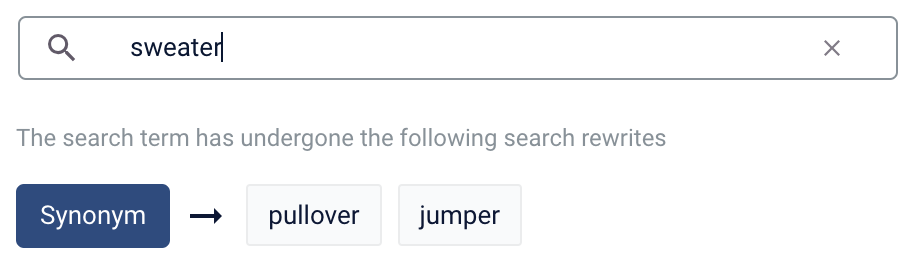
For example, the search term `sweater` could have the synonyms `pullover` and `jumper`.
1. From the list of query rewrite options, select **Synonym**. A form will appear:
This form contains the following fields:
| | | |
| ---------------- | ----------------------------------------------------------------------------------------------------------------------------------------------------------------------------------------------------------------------------------------------------------------------------------------------------------------------------------------------------------------------------------------------------------------------------------------- | -------------------- |
| Parameter | Description | Example Value |
| Surface Form | The term that has synonyms. | `sweater` |
| Direction | With a **oneway** search, the original search term is replaced by the synonym. In the example above, `sweater` would be replaced by the alternative words `pullover` and `jumper`. With a **symmetric** search, the search query is expanded to include the original term and the synonyms, resulting in a greater number of potential hits. In the example above, this time the query would include `sweater`, `pullover`, and `jumper`. | `symmetric` |
| Synonym Mappings | Synonyms for the surface form. | `pullover`, `jumper` |
| Confidence | Confidence score from the phrase job. A confidence level of `1` represents 100% confidence. For rules created automatically via machine learning, the confidence level will reflect the output from the machine learning model. | `1` |
| Tags | Optional metadata tags that can be used to identify and organize rewrites. | `blackfridaysale` |
| Count | How many times this term occurred in the signal data when it was discovered. This value is optional when a rewrite is being defined manually. | `5` |
2. Choose whether the direction is **oneway** or **symmetric**.
3. Enter one or more alternative words in the **Synonym Mappings** field.
4. Click the **Save** button.
The search is re-run using the synonyms, and a Search box information panel drops down to show that the new query rewrite has fired:
## Remove Words
The Remove Words feature is available in Fusion 5.4 and later.
You can create a Remove Words query rewrite to remove words from a query. This query rewrite is helpful when a word in the search query does not add value to the search results.
For example, you can rewrite a search query for `case study examples` to remove `examples` and then display results for `case study`.
1. From the list of query rewrite options, select Remove Words. A form appears:
This form contains the following fields:
| | | |
| ---------------- | ----------------------------------------------------------------------------------------------------------------------------------------------------------------------------------------------------------------- | --------------------- |
| Parameter | Description | Example Value |
| Phrase to remove | The words to remove from the trigger phrase. | `examples` |
| Trigger phrases | The query that prompts the removal of the phrase. The trigger phrase is not necessarily a complete query. If the query contains the trigger phrase, then Fusion removes the phrase in the Phrase to Remove field. | `case study examples` |
2. Enter a phrase to remove and a trigger phrase. Note that the phrase to remove is auto-populated with the query.
3. Click **Save**.
The search is re-run, and a Search box information panel drops down to show that the new query rewrite has fired:
## Learn more
The course for **Predictive Merchandiser: Rewrites Manager** focuses on using search rewrites to boost conversions and create better customer experiences by improving your relevancy.
## Merchandise zero results
Search queries that return zero results can drive customers away from your site. You can set certain products to display when a customer search generates zero results.
For more information, see **Merchandising Zero Results**.
1. Enter a search query the generates 0 results:
2. Click the **Add** button:
3. Select products or product groups that you want to associate with the 0 results query:
4. Click the **Insert** button. The selected products are now displayed when the search query is used, resolving the 0 results query:
## Rule conflict resolution
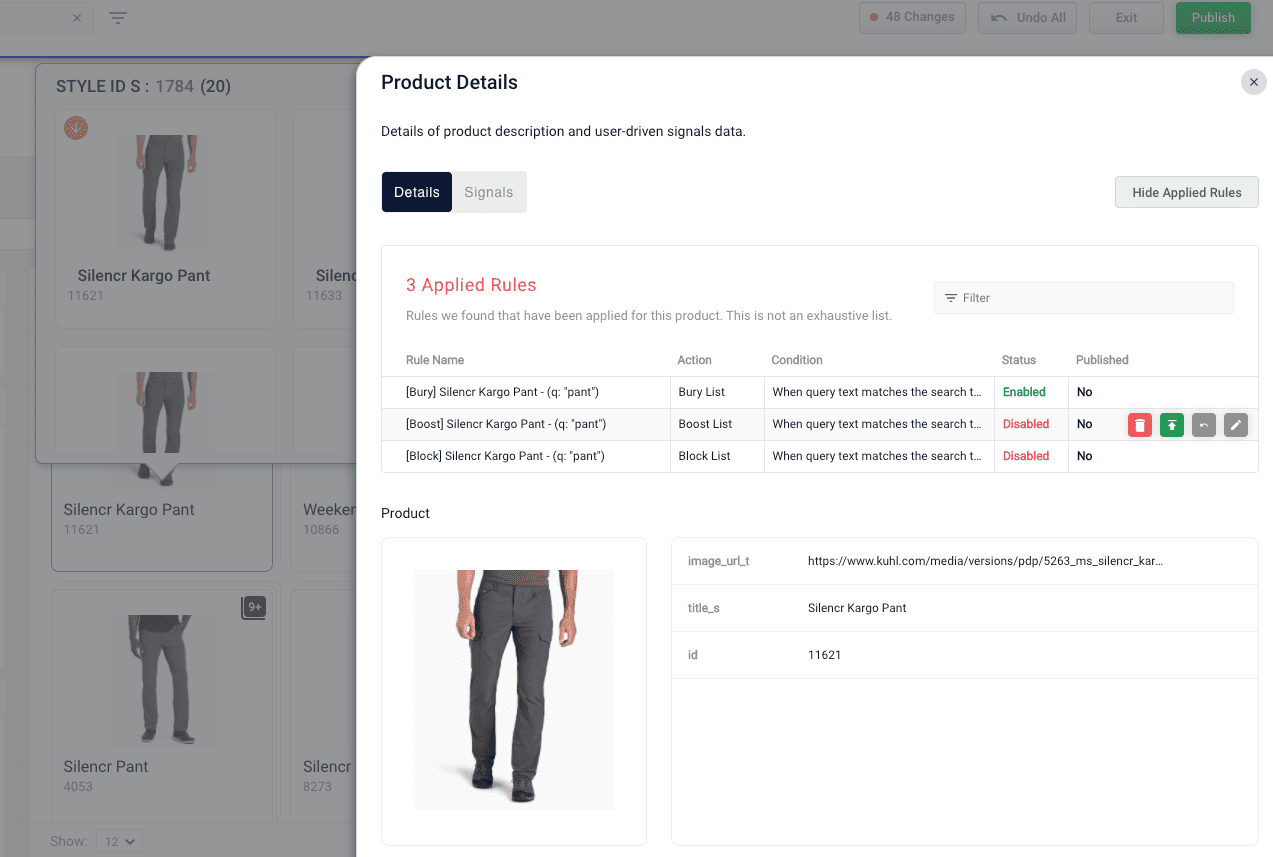
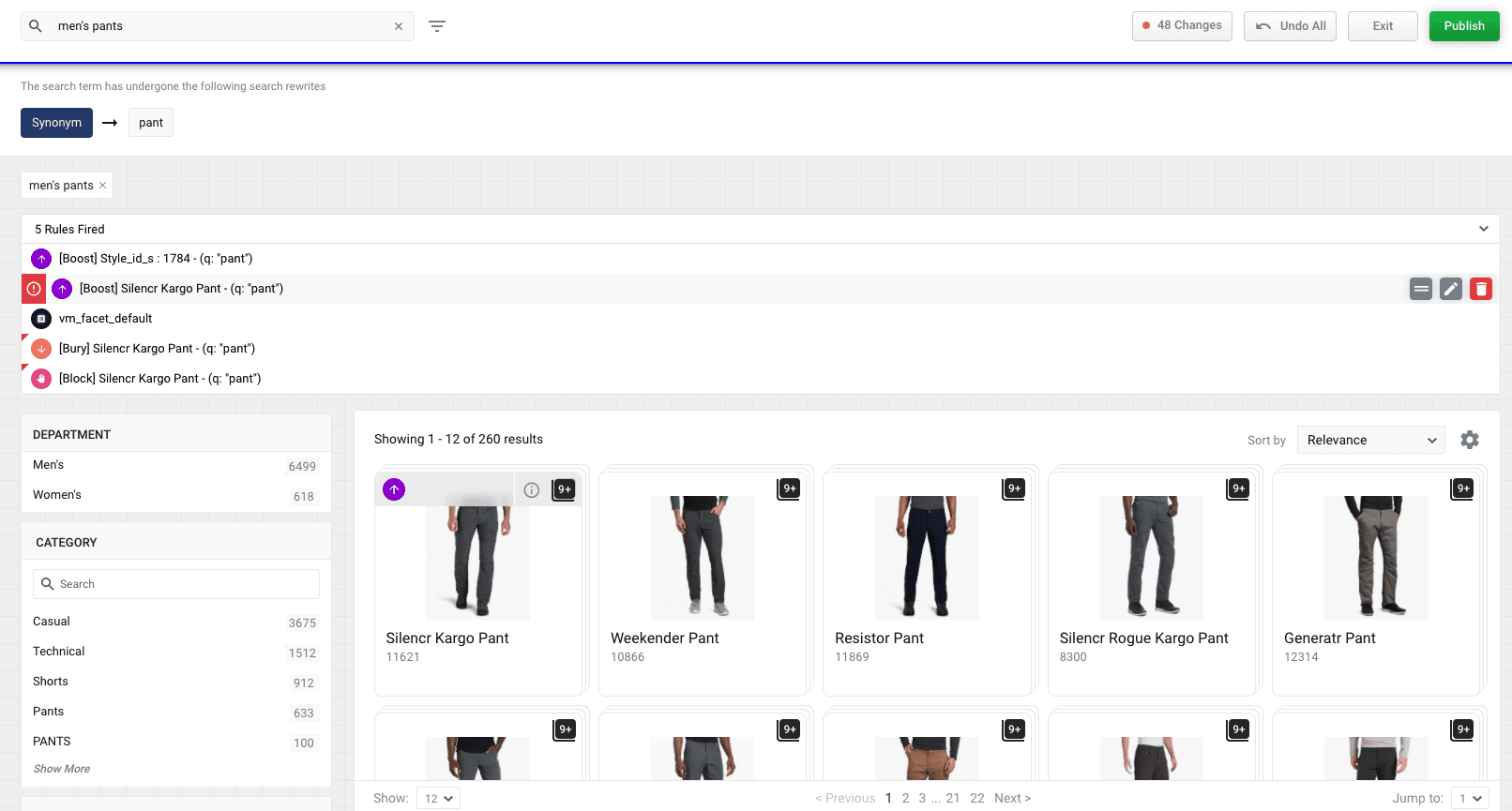
Sometimes, rules created in the [Rules Editor](/docs/lucidworks-search/07-improve-your-queries/rules-editor/overview) and Predictive Merchandiser conflict with each other. For example, if you have three rules to boost, bury, and block the same product, Predictive Merchandiser highlights these conflicting rules so you can address them.
To highlight conflicting rules, the **Rules Fired** section displays a red warning icon next to the dominant rule and a red flag on the conflicting rules.
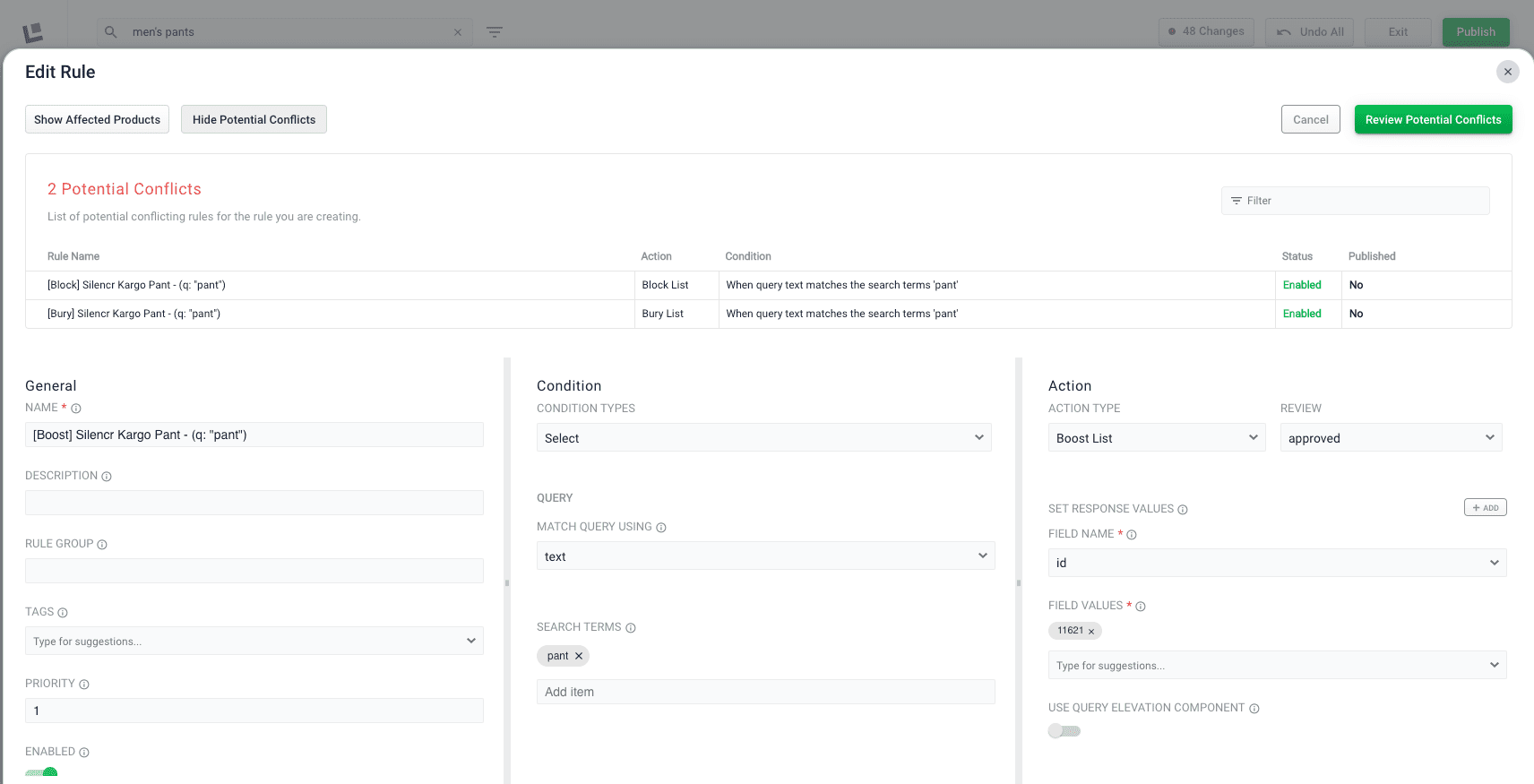
Click the **Edit** button to view the details of the conflicting rules and resolve the conflict.
The details of the conflicting rules affecting specific products are found in the details panel. Click the **Start Task** button , hover over a product, and click the **Details** button .
 3. Complete one of the following:
* To add a new field, click **+ Add**. Enter values in the **Field** and **Delimiter** fields and click **Apply**.
3. Complete one of the following:
* To add a new field, click **+ Add**. Enter values in the **Field** and **Delimiter** fields and click **Apply**.
 Hierarchical facets are split according to the delimiter set in the [Apply Rules](/docs/lucidworks-search/09-developer-documentation/config-specs/query-pipeline-stages/apply-rules) query pipeline stage.
For more information, see **Use Hierarchical Facets**.
Hierarchical facets are split according to the delimiter set in the [Apply Rules](/docs/lucidworks-search/09-developer-documentation/config-specs/query-pipeline-stages/apply-rules) query pipeline stage.
For more information, see **Use Hierarchical Facets**.
 ### Best practices
These parameters group products, and are defined in the Additional Query Parameters Stage:
| Parameter Name | Parameter Value | Update Policy |
| -------------- | --------------- | ------------- |
| group | true | default |
| group.format | grouped | default |
| group.ngroups | true | default |
| group.field | style\_id\_s | default |
For more information about adding a query pipeline and additional query parameters, see:
* **Add a Query Pipeline Stage**
* [Additional Query Parameters Stage](/docs/lucidworks-search/09-developer-documentation/config-specs/query-pipeline-stages/additional-query-parameters)
### Best practices
These parameters group products, and are defined in the Additional Query Parameters Stage:
| Parameter Name | Parameter Value | Update Policy |
| -------------- | --------------- | ------------- |
| group | true | default |
| group.format | grouped | default |
| group.ngroups | true | default |
| group.field | style\_id\_s | default |
For more information about adding a query pipeline and additional query parameters, see:
* **Add a Query Pipeline Stage**
* [Additional Query Parameters Stage](/docs/lucidworks-search/09-developer-documentation/config-specs/query-pipeline-stages/additional-query-parameters)
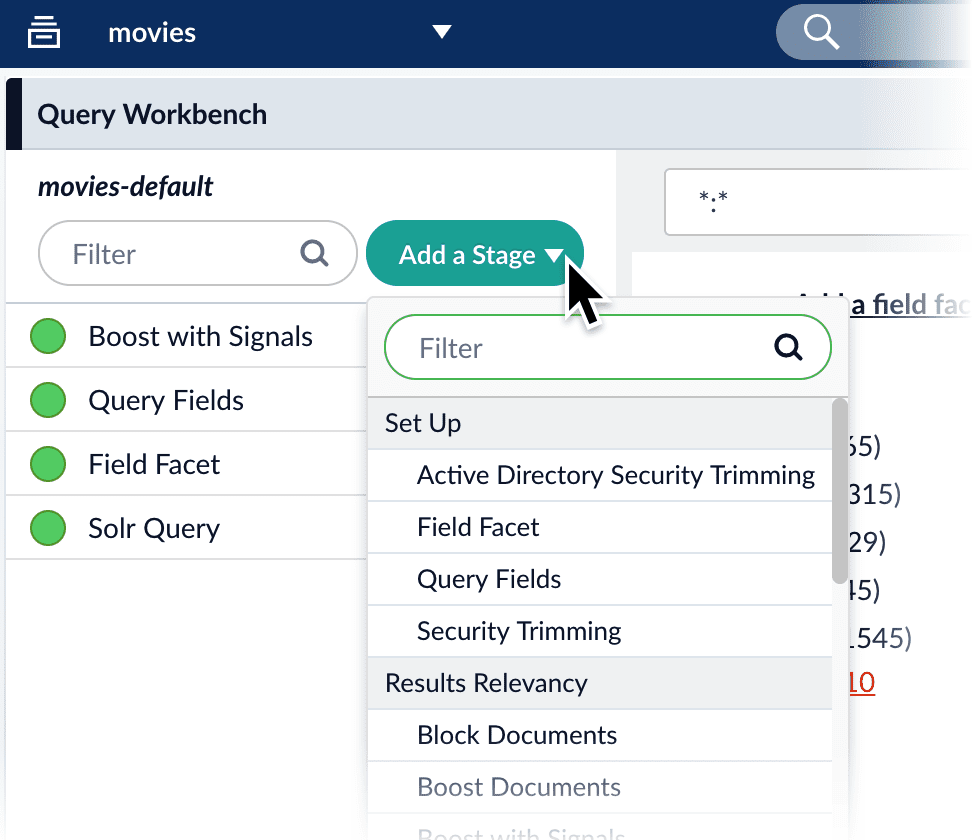 The Solr Query stage is the only pipeline stage that is required for querying processes to complete, and therefore exists in every query pipeline. It is always the last stage in a series.
**See these pages for more information:**
* [Query Workbench](/docs/lucidworks-search/05-move-data-out/query-workbench/overview)
* [Query Pipeline Stages](/docs/lucidworks-search/05-move-data-out/query-pipeline/query-pipeline-stages)
* [Solr Query stage](/docs/lucidworks-search/09-developer-documentation/config-specs/query-pipeline-stages/solr-query)
The Solr Query stage is the only pipeline stage that is required for querying processes to complete, and therefore exists in every query pipeline. It is always the last stage in a series.
**See these pages for more information:**
* [Query Workbench](/docs/lucidworks-search/05-move-data-out/query-workbench/overview)
* [Query Pipeline Stages](/docs/lucidworks-search/05-move-data-out/query-pipeline/query-pipeline-stages)
* [Solr Query stage](/docs/lucidworks-search/09-developer-documentation/config-specs/query-pipeline-stages/solr-query)
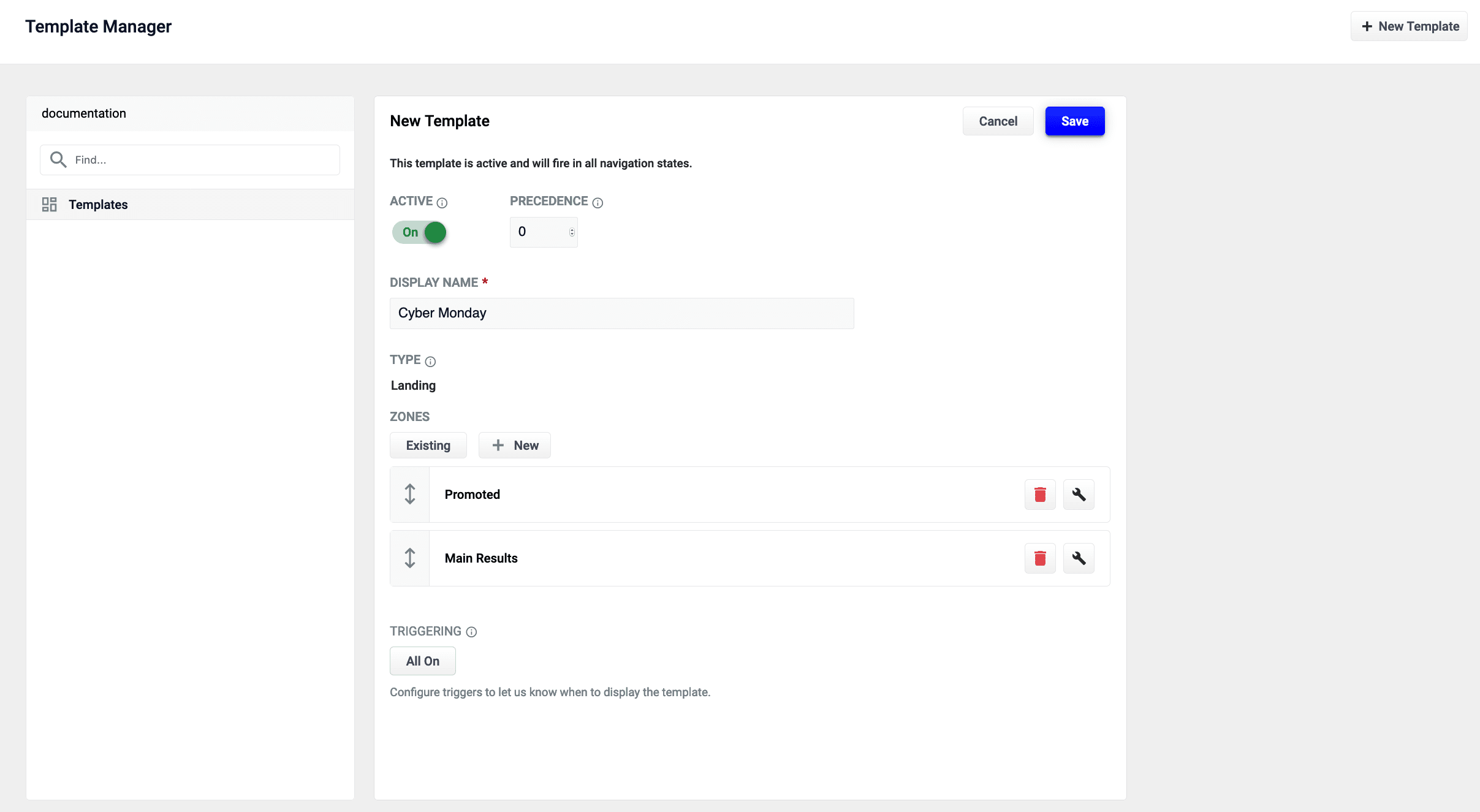 The zones used in this article use different query profiles. To follow the instructions as described, you will need to begin with an app that has at least two query profiles.
 For more information, see **Use page metadata**.
 1. Click
  This form contains the following fields:
| | | |
| -------------- | -------------------------------------------------------------------------- | ------------------------------------ |
| Parameter | Description | Example Value |
| Tail Query | The tail query itself. | `iphone case yellow` |
| Improved Query | The query that will replace the tail query phrase. | `iphone case yellow +color:"yellow"` |
| Tags | Optional metadata tags that can be used to identify and organize rewrites. | `blackfridaysale` |
2. Enter one or more improved search terms in the **Improved Query** field.
3. Click the **Save** button.
The search is re-run using the improved search term, and a Search box information panel drops down to show that the new query rewrite has fired:
This form contains the following fields:
| | | |
| -------------- | -------------------------------------------------------------------------- | ------------------------------------ |
| Parameter | Description | Example Value |
| Tail Query | The tail query itself. | `iphone case yellow` |
| Improved Query | The query that will replace the tail query phrase. | `iphone case yellow +color:"yellow"` |
| Tags | Optional metadata tags that can be used to identify and organize rewrites. | `blackfridaysale` |
2. Enter one or more improved search terms in the **Improved Query** field.
3. Click the **Save** button.
The search is re-run using the improved search term, and a Search box information panel drops down to show that the new query rewrite has fired:
 ## Misspelling
You can create a misspelling query rewrite to detect and correct common spelling mistakes. When a customer enters a search term containing a known misspelling, the incorrect spelling is replaced with the spelling correction.
For example, if your customers frequently misspell or mistype the word `sweater` as `sweatre`, you can set up a query rewrite to automatically correct it.
1. From the list of query rewrite options, select **Misspelling**. A form will appear:
## Misspelling
You can create a misspelling query rewrite to detect and correct common spelling mistakes. When a customer enters a search term containing a known misspelling, the incorrect spelling is replaced with the spelling correction.
For example, if your customers frequently misspell or mistype the word `sweater` as `sweatre`, you can set up a query rewrite to automatically correct it.
1. From the list of query rewrite options, select **Misspelling**. A form will appear:
 This form contains the following fields:
| | | |
| --------------- | ------------------------------------------------------------------------------------------------------------------------------------------------------------------------------------------------------------------------------- | ----------------- |
| Parameter | Description | Example Value |
| Misspelled Term | The phrase itself. | `sweatre` |
| Corrected Term | The term that will replace the misspelled term. | `sweater` |
| Action | Action to perform. | |
| Confidence | Confidence score from the phrase job. A confidence level of `1` represents 100% confidence. For rules created automatically via machine learning, the confidence level will reflect the output from the machine learning model. | `1` |
| Tags | Optional metadata tags that can be used to identify and organize rewrites. | `blackfridaysale` |
2. Enter one or more spelling corrections in the **Corrected Term** field.
3. Click the **Save** button.
The search is re-run using the corrected spelling, and a Search box information panel drops down to show that the new query rewrite has fired:
This form contains the following fields:
| | | |
| --------------- | ------------------------------------------------------------------------------------------------------------------------------------------------------------------------------------------------------------------------------- | ----------------- |
| Parameter | Description | Example Value |
| Misspelled Term | The phrase itself. | `sweatre` |
| Corrected Term | The term that will replace the misspelled term. | `sweater` |
| Action | Action to perform. | |
| Confidence | Confidence score from the phrase job. A confidence level of `1` represents 100% confidence. For rules created automatically via machine learning, the confidence level will reflect the output from the machine learning model. | `1` |
| Tags | Optional metadata tags that can be used to identify and organize rewrites. | `blackfridaysale` |
2. Enter one or more spelling corrections in the **Corrected Term** field.
3. Click the **Save** button.
The search is re-run using the corrected spelling, and a Search box information panel drops down to show that the new query rewrite has fired:
 ## Phrase
You can use query rewriting to identify phrases used in search terms so that products with matching phrases are boosted in the search results. This is helpful when users do not use quotation marks to identify phrases in their search terms.
For example, without phrase detection a search for the words `remote control` would show results for both `remote` and `control`. With phrase detection, this search would correctly boost results for `"remote control"`.
1. From the list of query rewrite options, select **Phrase**. A form will appear:
## Phrase
You can use query rewriting to identify phrases used in search terms so that products with matching phrases are boosted in the search results. This is helpful when users do not use quotation marks to identify phrases in their search terms.
For example, without phrase detection a search for the words `remote control` would show results for both `remote` and `control`. With phrase detection, this search would correctly boost results for `"remote control"`.
1. From the list of query rewrite options, select **Phrase**. A form will appear:
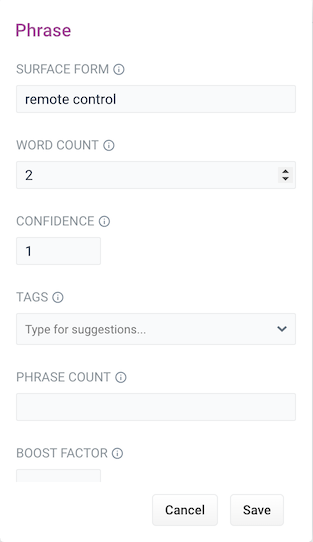 This form contains the following fields:
| | | |
| ------------ | ------------------------------------------------------------------------------------------------------------------------------------------------------------------------------------------------------------------------------- | ----------------- |
| Parameter | Description | Example Value |
| Surface Form | The phrase itself. | `remote control` |
| Word Count | Indicates how many words are included in the phrase. | `2` |
| Confidence | Confidence score from the phrase job. A confidence level of `1` represents 100% confidence. For rules created automatically via machine learning, the confidence level will reflect the output from the machine learning model. | `1` |
| Tags | Optional metadata tags that can be used to identify and organize rewrites. | `blackfridaysale` |
| Phrase Count | Denotes how many times this phrase was found in the source. This value is automatically set via machine learning. It does not need to be set manually. | `5` |
| Boost Factor | The factor to use to boost this phrase in matching queries. | `2.0` |
| Slop Factor | Phrase slop, or the distance between the terms of the query while still considering it a phrase match. | `10` |
2. Enter the number of words in the phrase in the **Word Count** field.
3. Click the **Save** button.
The search is re-run, with your search words identified as a phrase, and a Search box information panel drops down to show that the new query rewrite has fired:
This form contains the following fields:
| | | |
| ------------ | ------------------------------------------------------------------------------------------------------------------------------------------------------------------------------------------------------------------------------- | ----------------- |
| Parameter | Description | Example Value |
| Surface Form | The phrase itself. | `remote control` |
| Word Count | Indicates how many words are included in the phrase. | `2` |
| Confidence | Confidence score from the phrase job. A confidence level of `1` represents 100% confidence. For rules created automatically via machine learning, the confidence level will reflect the output from the machine learning model. | `1` |
| Tags | Optional metadata tags that can be used to identify and organize rewrites. | `blackfridaysale` |
| Phrase Count | Denotes how many times this phrase was found in the source. This value is automatically set via machine learning. It does not need to be set manually. | `5` |
| Boost Factor | The factor to use to boost this phrase in matching queries. | `2.0` |
| Slop Factor | Phrase slop, or the distance between the terms of the query while still considering it a phrase match. | `10` |
2. Enter the number of words in the phrase in the **Word Count** field.
3. Click the **Save** button.
The search is re-run, with your search words identified as a phrase, and a Search box information panel drops down to show that the new query rewrite has fired:
 ## Synonym
You can specify synonyms for a specified search term so that alternative words with the same meaning are automatically used in the search query. When a customer enters a search term with a synonym match, the alternative words are used instead of, or in addition to, the original search term.
For example, the search term `sweater` could have the synonyms `pullover` and `jumper`.
1. From the list of query rewrite options, select **Synonym**. A form will appear:
## Synonym
You can specify synonyms for a specified search term so that alternative words with the same meaning are automatically used in the search query. When a customer enters a search term with a synonym match, the alternative words are used instead of, or in addition to, the original search term.
For example, the search term `sweater` could have the synonyms `pullover` and `jumper`.
1. From the list of query rewrite options, select **Synonym**. A form will appear:
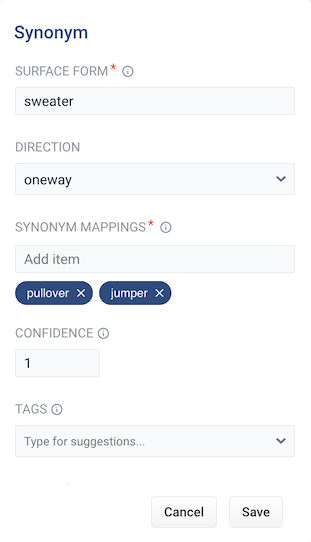 This form contains the following fields:
| | | |
| ---------------- | ----------------------------------------------------------------------------------------------------------------------------------------------------------------------------------------------------------------------------------------------------------------------------------------------------------------------------------------------------------------------------------------------------------------------------------------- | -------------------- |
| Parameter | Description | Example Value |
| Surface Form | The term that has synonyms. | `sweater` |
| Direction | With a **oneway** search, the original search term is replaced by the synonym. In the example above, `sweater` would be replaced by the alternative words `pullover` and `jumper`. With a **symmetric** search, the search query is expanded to include the original term and the synonyms, resulting in a greater number of potential hits. In the example above, this time the query would include `sweater`, `pullover`, and `jumper`. | `symmetric` |
| Synonym Mappings | Synonyms for the surface form. | `pullover`, `jumper` |
| Confidence | Confidence score from the phrase job. A confidence level of `1` represents 100% confidence. For rules created automatically via machine learning, the confidence level will reflect the output from the machine learning model. | `1` |
| Tags | Optional metadata tags that can be used to identify and organize rewrites. | `blackfridaysale` |
| Count | How many times this term occurred in the signal data when it was discovered. This value is optional when a rewrite is being defined manually. | `5` |
2. Choose whether the direction is **oneway** or **symmetric**.
3. Enter one or more alternative words in the **Synonym Mappings** field.
4. Click the **Save** button.
The search is re-run using the synonyms, and a Search box information panel drops down to show that the new query rewrite has fired:
This form contains the following fields:
| | | |
| ---------------- | ----------------------------------------------------------------------------------------------------------------------------------------------------------------------------------------------------------------------------------------------------------------------------------------------------------------------------------------------------------------------------------------------------------------------------------------- | -------------------- |
| Parameter | Description | Example Value |
| Surface Form | The term that has synonyms. | `sweater` |
| Direction | With a **oneway** search, the original search term is replaced by the synonym. In the example above, `sweater` would be replaced by the alternative words `pullover` and `jumper`. With a **symmetric** search, the search query is expanded to include the original term and the synonyms, resulting in a greater number of potential hits. In the example above, this time the query would include `sweater`, `pullover`, and `jumper`. | `symmetric` |
| Synonym Mappings | Synonyms for the surface form. | `pullover`, `jumper` |
| Confidence | Confidence score from the phrase job. A confidence level of `1` represents 100% confidence. For rules created automatically via machine learning, the confidence level will reflect the output from the machine learning model. | `1` |
| Tags | Optional metadata tags that can be used to identify and organize rewrites. | `blackfridaysale` |
| Count | How many times this term occurred in the signal data when it was discovered. This value is optional when a rewrite is being defined manually. | `5` |
2. Choose whether the direction is **oneway** or **symmetric**.
3. Enter one or more alternative words in the **Synonym Mappings** field.
4. Click the **Save** button.
The search is re-run using the synonyms, and a Search box information panel drops down to show that the new query rewrite has fired:
 ## Remove Words
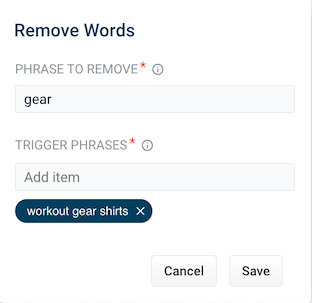 This form contains the following fields:
| | | |
| ---------------- | ----------------------------------------------------------------------------------------------------------------------------------------------------------------------------------------------------------------- | --------------------- |
| Parameter | Description | Example Value |
| Phrase to remove | The words to remove from the trigger phrase. | `examples` |
| Trigger phrases | The query that prompts the removal of the phrase. The trigger phrase is not necessarily a complete query. If the query contains the trigger phrase, then Fusion removes the phrase in the Phrase to Remove field. | `case study examples` |
2. Enter a phrase to remove and a trigger phrase. Note that the phrase to remove is auto-populated with the query.
3. Click **Save**.
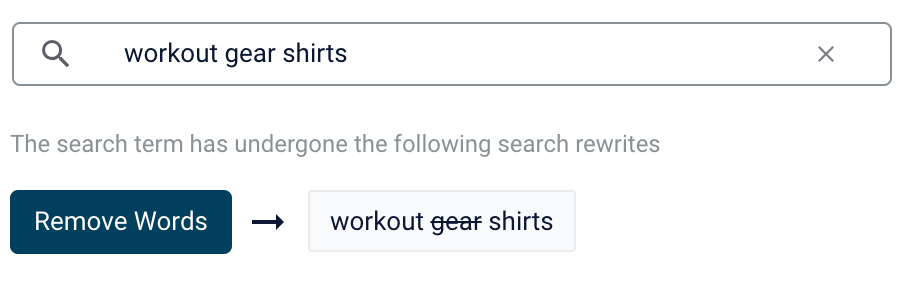
The search is re-run, and a Search box information panel drops down to show that the new query rewrite has fired:
This form contains the following fields:
| | | |
| ---------------- | ----------------------------------------------------------------------------------------------------------------------------------------------------------------------------------------------------------------- | --------------------- |
| Parameter | Description | Example Value |
| Phrase to remove | The words to remove from the trigger phrase. | `examples` |
| Trigger phrases | The query that prompts the removal of the phrase. The trigger phrase is not necessarily a complete query. If the query contains the trigger phrase, then Fusion removes the phrase in the Phrase to Remove field. | `case study examples` |
2. Enter a phrase to remove and a trigger phrase. Note that the phrase to remove is auto-populated with the query.
3. Click **Save**.
The search is re-run, and a Search box information panel drops down to show that the new query rewrite has fired:
 ## Learn more
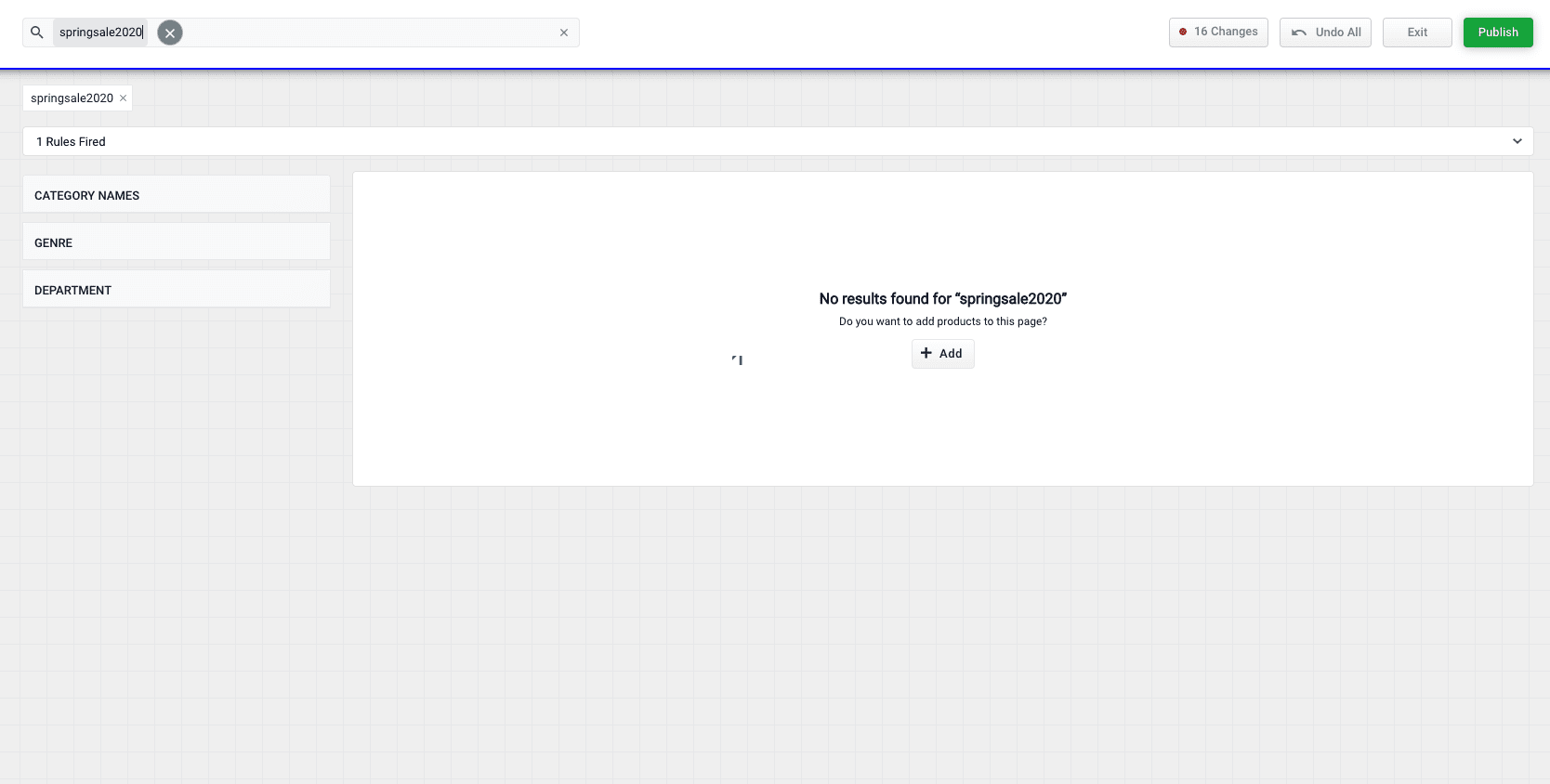 2. Click the **Add** button:
  3. Select products or product groups that you want to associate with the 0 results query:
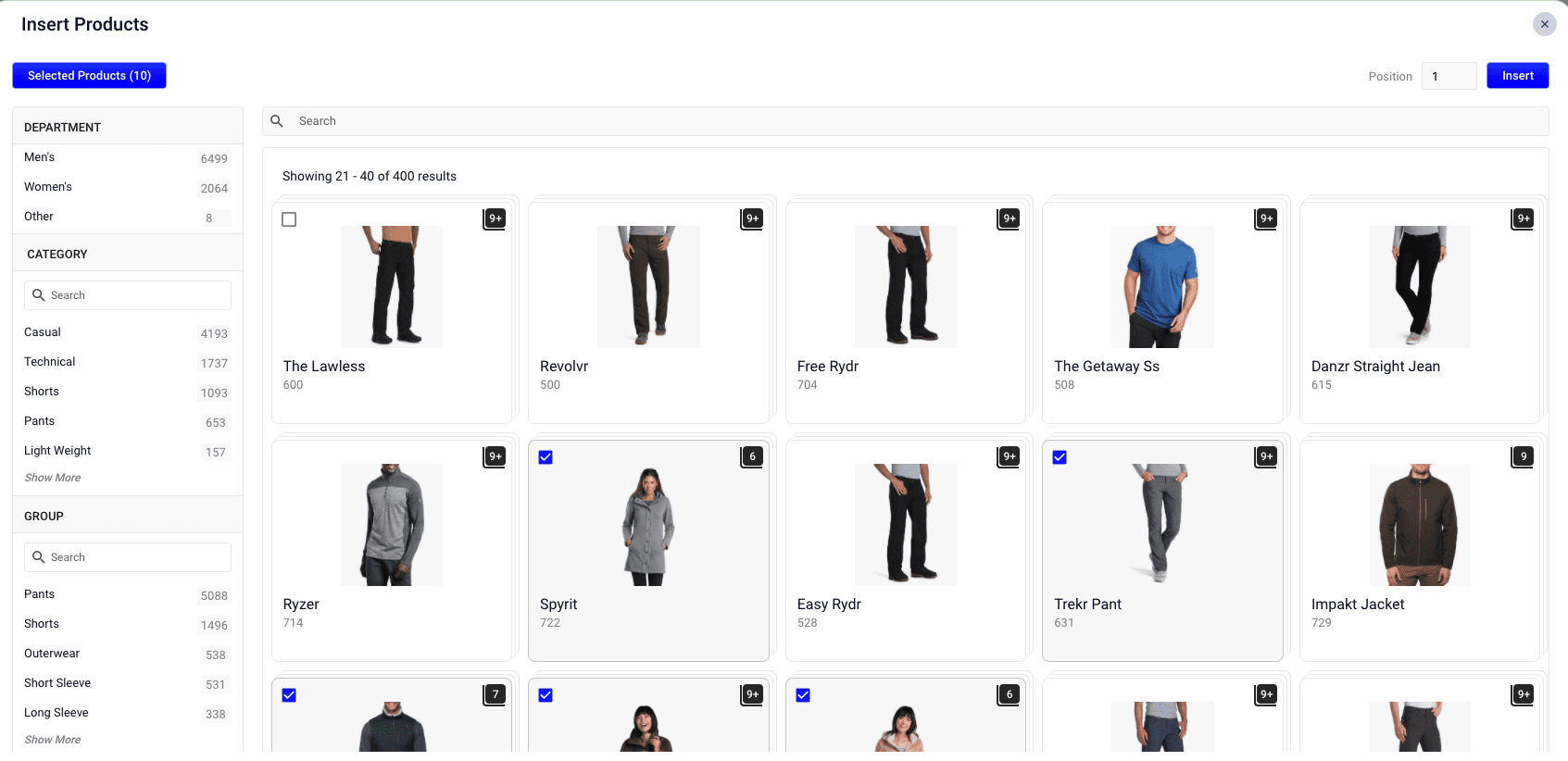 4. Click the **Insert** button. The selected products are now displayed when the search query is used, resolving the 0 results query:
 Click the **Edit** button to view the details of the conflicting rules and resolve the conflict.
 The details of the conflicting rules affecting specific products are found in the details panel. Click the **Start Task** button