> ## Documentation Index
> Fetch the complete documentation index at: https://doc.lucidworks.com/llms.txt
> Use this file to discover all available pages before exploring further.
# Custom rule actions
export const LwTemplate = ({title = "Key questions to get you started", icon = "sparkles", cta = "Powered by Agent Studio", linkHref = "https://lucidworks.com/demo/?utm_source=docs&utm_medium=referral&utm_campaign=docs_cta_ai"}) => {
const [isLoaded, setIsLoaded] = useState(false);
useEffect(() => {
const timer = setTimeout(() => {
setIsLoaded(true);
}, 500);
return () => clearTimeout(timer);
}, []);
return
{isLoaded && `
}} />}
Powered by Lucidworks Agent Studio
;
};
[localhost link]: http://localhost:3000/docs/lucidworks-search/07-improve-your-queries/business-rules/custom-rule-actions
[mintlify link]: https://doc.lucidworks.com/docs/lucidworks-search/07-improve-your-queries/business-rules/custom-rule-actions
[old doc.lw link]: https://doc.lucidworks.com/managed-fusion/5.9/j1xtp7
Custom rule actions allow you to define a unique action to take when certain conditions are met. They involve three primary components: a query pipeline, a custom rule type, and a rule that is triggered by conditions defined by the user.
To learn use custom rule actions with the API, see **Create Custom Rule Actions with the API**.
Custom rule actions allow you to define a unique action to take when certain conditions are met. They involve three primary components: a query pipeline, a custom rule type, and a rule that is triggered by conditions defined by the user.
This article describes the general workflow for creating a custom rule action. The example assumes the following components are used:
| Component | Name |
| ---------------- | -------------------- |
| Query pipeline | custom-rule-pipeline |
| Custom rule type | custom-rule-type |
| Rule | custom-rule-action |
1. Create a query pipeline, `custom-rule-pipeline`, that is used to complete the rule action.
2. Create a custom rule type, `custom-rule-type`, that uses your query pipeline. Here are some important parameters to include in your `POST` request.
Rule properties, included as part of the `schema
A unique ID for the custom rule type. The `id` value must be unique across all apps in Fusion (global namespace).\
**Example:** `custom-rule-type`
The ID of the pipeline that is invoked during rule processing.\
**Example:** `custom-rule-pipeline`
A user-friendly name for the custom rule type.\
**Example:** `My Custom Rule`
The ID of the rule’s parameter. This field is used in the API but is not visible in the Rules Editor.\
**Example:** `1st-rule-parameter`
The type of user-input.\
**Example:** `string`
A user-friendly name for the parameter.\
**Example:** `Manufacturer`
A user-friendly description of what the field is used for. The `description` value is shown in the field’s tooltip in the Rules Editor.\
**Example:** The manufacturer of the product to which this rule applies.
For example:
{/* // tag::custom-rules-example[] */}
```json theme={"dark"}
curl -u USERNAME:PASSWORD -XPOST -H "Content-type:application/json" \
https://EXAMPLE_COMPANY.b.lucidworks.cloud/api/apps/myFusionApp/custom-rule-types -d '{
"id":"custom-rule-type",
"pipeline_id":"custom-rule-pipeline",
"display_type":"My Custom Rule",
"schema": {
"type" : "object",
"properties" : {
"custom_param1" : {
"type" : "string",
"title" : "Manufacturer",
"description" : "The manufacturer of the product this rule action applies to."
},
"custom_param2" : {
"type": "string",
"title": "Type",
"description": "The type of product this rule action applies to."
}
}
}
}'
```
{/* // end::custom-rules-example[] */}
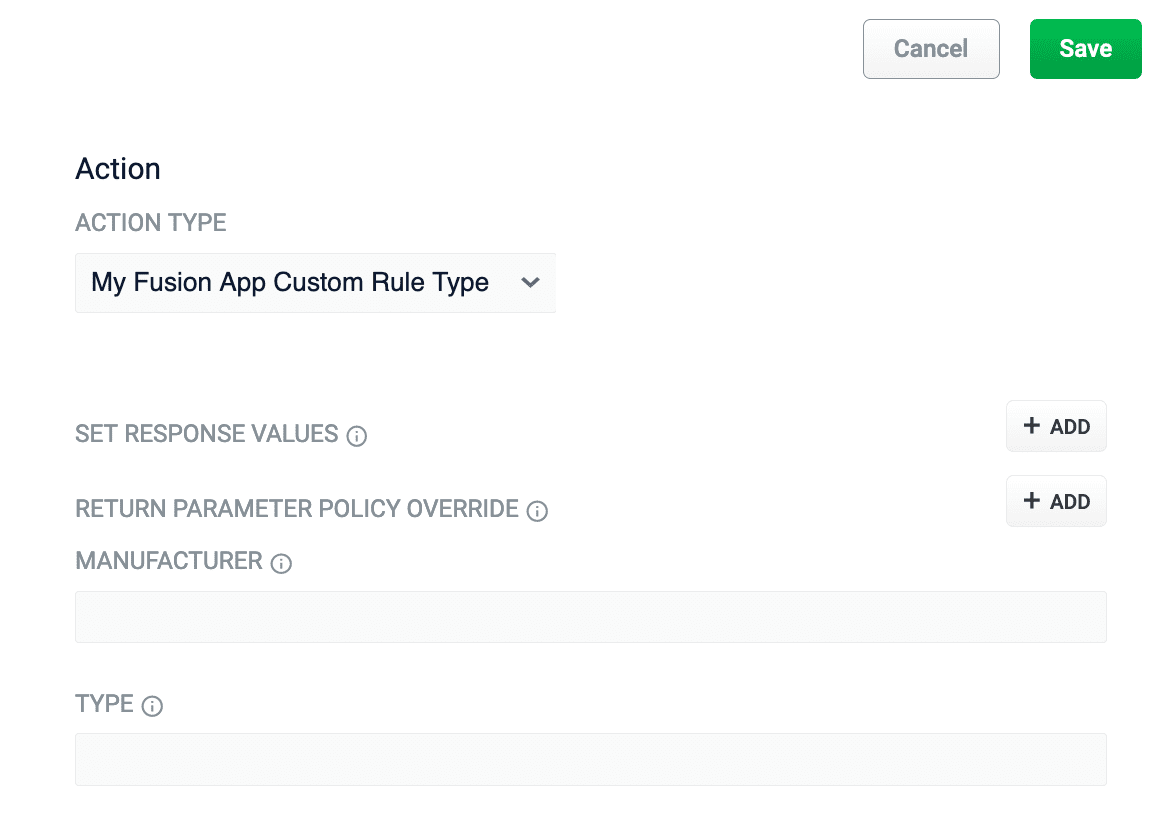
3. Verify the custom rule type was created by visiting `https://EXAMPLE_COMPANY.b.lucidworks.cloud/api/apps/myFusionApp/custom-rule-types`. Custom rule types are also available in the Rules Editor:
4. Create a rule, `custom-rule-action`, that uses your custom rule, `custom-rule-type`. If you are creating the rule using the Query Rewrite API, the following image depicts which parameters are shared between the custom rule type and the rule:
Note that the custom rule type `id` value is used for the rule’s `type` *and* `custom_type` fields. Remember to assign values to the custom rule properties, `custom_param1` and `custom_param2`.
```json theme={"dark"}
curl -u USERNAME:PASSWORD -XPOST -H "Content-type:application/json" \
https://EXAMPLE_COMPANY.b.lucidworks.cloud/api/apps/myFusionApp/query-rewrite/instances -d '{
"id":"123456",
"type":"custom-rule-type",
"custom_type":"custom-rule-type",
"name":"My Rule",
"description":"A rule that uses my custom rule, custom-rule-type.",
"search_terms":["upcoming sale"],
"custom_param1":"ABC",
"custom_param2":"XYZ",
"pipeline_id":"custom-rule-pipeline",
"display_type":"My Custom Rule"
}'
```
5. Verify your rule was created by checking the rule ID, `123456`, with the Query Rewrite API: `https://EXAMPLE_COMPANY.b.lucidworks.cloud/api/apps/myFusionApp/query-rewrite/instances/123456`
6. Test your custom rule using your normal rule development process.
## Configuration options
| Required | Parameter | Description | Example |
| -------- | -------------- | ---------------------------------------------------------------------------------------------------------------------------- | ---------------------- |
| ✅ | `id` | A unique ID for the custom rule type. The `id` value must be unique across all apps in Lucidworks Search (global namespace). | `custom-rule-type` |
| ✅ | `pipeline_id` | The ID of the pipeline that is invoked during rule processing. | `custom-rule-pipeline` |
| ✅ | `display_type` | A user-friendly name for the custom rule type. | `My Custom Rule` |
**Rule properties**, included as part of the `schema`, define the values required from the user to create a rule that uses the custom rule type.
| Required | Parameter | Description | Example |
| -------- | --------------- | --------------------------------------------------------------------------------------------------------------------------------------- | -------------------------------------------------------------- |
| ✅ | `custom_param1` | The ID of the rule’s parameter. This field is used in the API but is not visible in the Rules Editor. | `1st-rule-parameter` |
| ✅ | `type` | The type of user-input. | `string` |
| ✅ | `title` | A user-friendly name for the parameter. | `Manufacturer` |
| ✅ | `description` | A user-friendly description of what the field is used for. The `description` value is shown in the field’s tooltip in the Rules Editor. | `The manufacturer of the product this rule action applies to.` |
 4. Create a rule, `custom-rule-action`, that uses your custom rule, `custom-rule-type`. If you are creating the rule using the Query Rewrite API, the following image depicts which parameters are shared between the custom rule type and the rule:
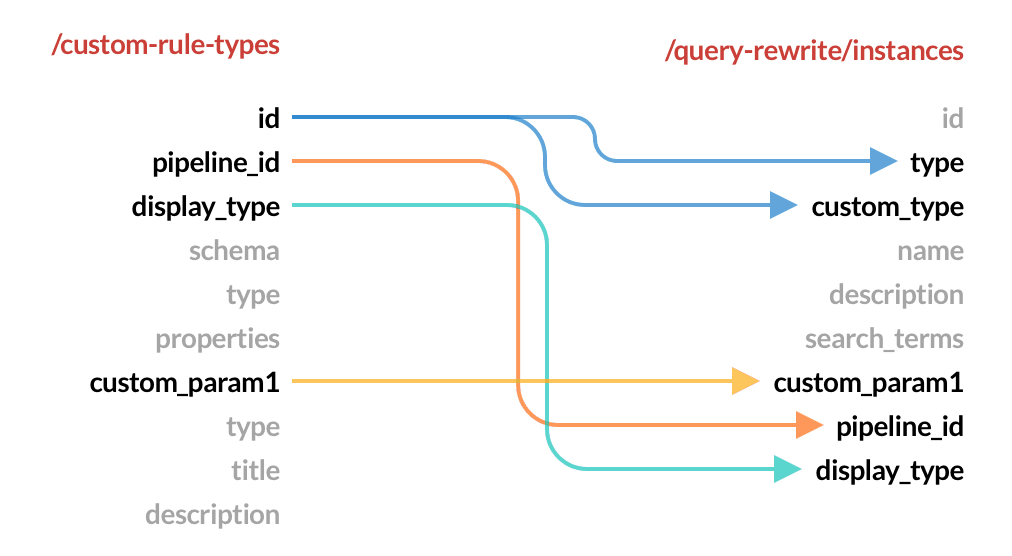 Note that the custom rule type `id` value is used for the rule’s `type` *and* `custom_type` fields. Remember to assign values to the custom rule properties, `custom_param1` and `custom_param2`.
```json theme={"dark"}
curl -u USERNAME:PASSWORD -XPOST -H "Content-type:application/json" \
https://EXAMPLE_COMPANY.b.lucidworks.cloud/api/apps/myFusionApp/query-rewrite/instances -d '{
"id":"123456",
"type":"custom-rule-type",
"custom_type":"custom-rule-type",
"name":"My Rule",
"description":"A rule that uses my custom rule, custom-rule-type.",
"search_terms":["upcoming sale"],
"custom_param1":"ABC",
"custom_param2":"XYZ",
"pipeline_id":"custom-rule-pipeline",
"display_type":"My Custom Rule"
}'
```
5. Verify your rule was created by checking the rule ID, `123456`, with the Query Rewrite API: `https://EXAMPLE_COMPANY.b.lucidworks.cloud/api/apps/myFusionApp/query-rewrite/instances/123456`
6. Test your custom rule using your normal rule development process.
Note that the custom rule type `id` value is used for the rule’s `type` *and* `custom_type` fields. Remember to assign values to the custom rule properties, `custom_param1` and `custom_param2`.
```json theme={"dark"}
curl -u USERNAME:PASSWORD -XPOST -H "Content-type:application/json" \
https://EXAMPLE_COMPANY.b.lucidworks.cloud/api/apps/myFusionApp/query-rewrite/instances -d '{
"id":"123456",
"type":"custom-rule-type",
"custom_type":"custom-rule-type",
"name":"My Rule",
"description":"A rule that uses my custom rule, custom-rule-type.",
"search_terms":["upcoming sale"],
"custom_param1":"ABC",
"custom_param2":"XYZ",
"pipeline_id":"custom-rule-pipeline",
"display_type":"My Custom Rule"
}'
```
5. Verify your rule was created by checking the rule ID, `123456`, with the Query Rewrite API: `https://EXAMPLE_COMPANY.b.lucidworks.cloud/api/apps/myFusionApp/query-rewrite/instances/123456`
6. Test your custom rule using your normal rule development process.