> ## Documentation Index
> Fetch the complete documentation index at: https://doc.lucidworks.com/llms.txt
> Use this file to discover all available pages before exploring further.
# Index pipeline stages
export const LwTemplate = ({title = "Key questions to get you started", icon = "sparkles", cta = "Powered by Agent Studio", linkHref = "https://lucidworks.com/demo/?utm_source=docs&utm_medium=referral&utm_campaign=docs_cta_ai"}) => {
const [isLoaded, setIsLoaded] = useState(false);
useEffect(() => {
const timer = setTimeout(() => {
setIsLoaded(true);
}, 500);
return () => clearTimeout(timer);
}, []);
return
{isLoaded && `
}} />}
Powered by Lucidworks Agent Studio
;
};
export const InlineImage = ({src, alt = '', height = '2em'}) => {
return ;
};
[localhost link]: http://localhost:3000/docs/lucidworks-search/04-move-data-in/index-pipeline/index-pipeline-stages
[mintlify link]: https://doc.lucidworks.com/docs/lucidworks-search/04-move-data-in/index-pipeline/index-pipeline-stages
[old doc.lw link]: https://doc.lucidworks.com/managed-fusion/5.9/50yh1o
An Index Pipeline takes content and transforms it into a document suitable for indexing by Solr via a series of modular operations called stages.
The objects sent from stage to stage are PipelineDocument objects.
Lucidworks Search provides many specialized index stages as well as a [JavaScript Index stage](/docs/lucidworks-search/09-developer-documentation/config-specs/index-pipeline-stages/javascript) that allows for custom processing via a JavaScript program. The general outline of the Extract/Transform/Load processing performed by an index pipeline is:
* Raw content is parsed into one or more PipelineDocument objects.
* Any number of intermediate stages operate on the document fields directly, or, in the case of specialized NLP tools, add annotations to a document.
* Finally, the PipelineDocument is sent to Solr for indexing.
A pipeline stage definition associates a unique ID with a set of properties.
Pipeline definitions are stored in ZooKeeper for reuse across pipelines and search applications.
The Lucidworks Search UI provides stage-specific panels used to define and configure each pipeline stage.
Alternatively, JSON can be used to specify the sequence of pipeline stages and registered via the Lucidworks Search REST API.
Some stages require additional resources, e.g., text files that contain lists of names, synonyms, places, or binary files which NLP language models.
These resources can be uploaded via the Lucidworks Search UI or the REST API.
The [Index Pipeline Stages Reference](/docs/lucidworks-search/09-developer-documentation/config-specs/index-pipeline-stages/overview) section contains articles that detail the configuration for each of the Lucidworks Search index pipeline stages. The configuration information includes field names and values, as well as examples and other key reference information.
## Pipeline stage JSON editor
The pipeline stage JSON editor gives the ability to create and copy pipeline stages by pasting JSON objects in the Lucidworks Search UI. Only JSON is supported, and JSON validation is included to prevent the user from saving an invalid object.
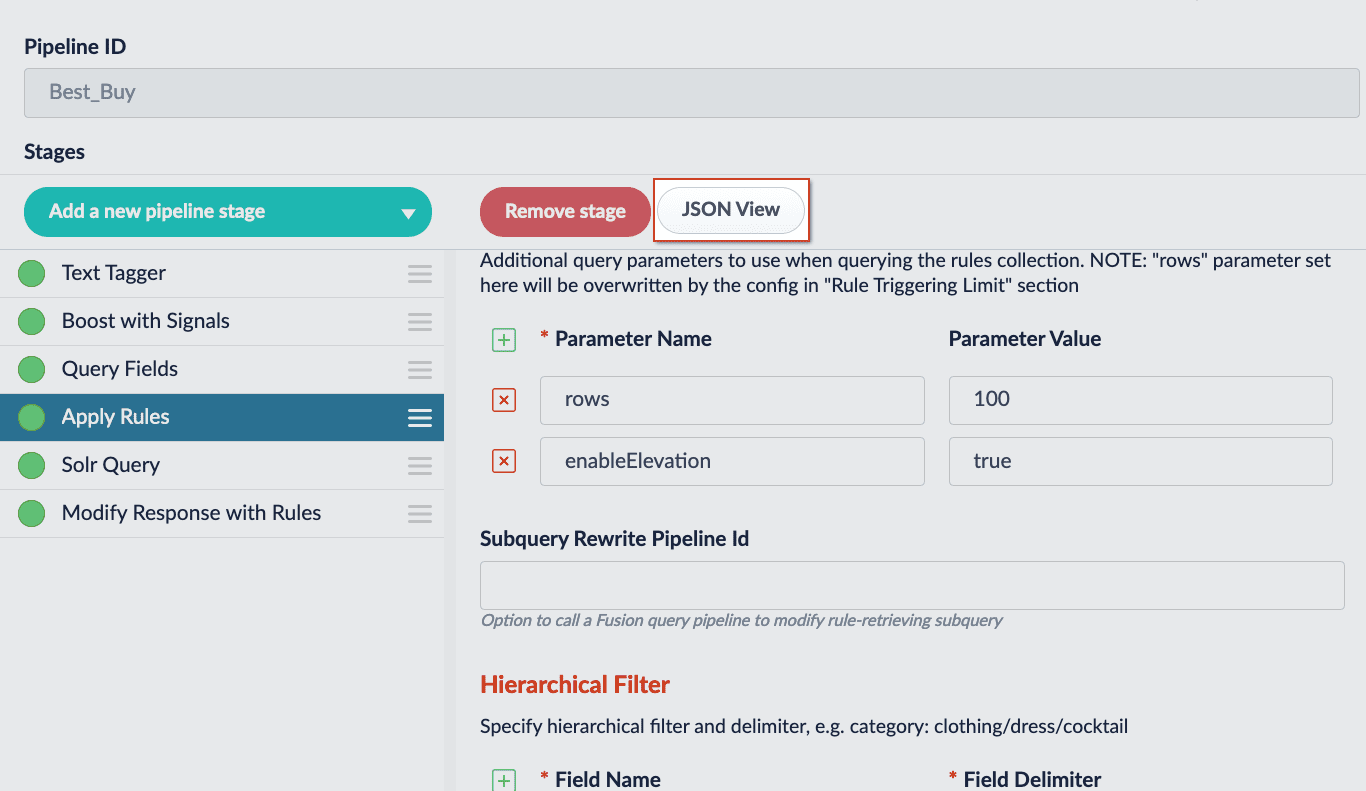
Navigate to your pipelines, select a pipeline stage, and click the **JSON View** button to open the editor:
Existing stages are considered **READ-ONLY**. They will have only a copy button which can be used to create stages. New stages will have the option to copy or paste valid JSON. Changes are applied to the stage with the **Apply** button.
Users will still need to **Save** the stage for the changes made in the editor to be saved.
The editor has several elements worth noting:
| Elements | Description |
| ----------------------------------------------------------------- | ------------------------------------------------------------------------------------------------------ |
| | Copies the JSON to the clipboard. |
| | Pastes the clipboard into the editor. Only valid JSON is accepted. |
| | Expands the editor to a fullscreen view. |
| | Condenses the editor to a compact view. |
| | Applies the JSON in the editor and updates the stage. The stage must be saved to preserve the changes. |
| | Resets changes made since the last time changes were applied. |
For instructions, see **Use the Pipeline Stage JSON Editor**.
This article will focus on copying the JSON configuration for an existing pipeline stage and creating a new stage with the JSON configuration.
The instructions in this article focus on query pipeline stages. However, the steps are the same for index pipeline stages, which are accessed at \*\*Indexing > Index Pipelines > ``.
1. Navigate to **Querying > Query Pipelines** and select a pipeline.
2. Select an existing pipeline stage to view in the editor.
3. Click the **JSON View** button. The editor will appear:
Existing stages are considered **READ-ONLY**. They will only have a copy button.
4. (optional) Click **Expand editor** to view the editor in fullscreen mode.
5. Click the **Copy** button. The JSON configuration for that stage is copied to your clipboard.
6. Click **Add a new pipeline stage** to create a new stage. Create the same stage type.
7. Click the **JSON View** button.
8. Use the **Paste** button to paste the JSON configuration from your clipboard into the editor. Alternatively, delete the existing JSON configuration and manually paste the new configuration.\
At this time, you can make changes to the JSON configuration inside the editor.
9. Click the **Apply** button to apply your changes to the stage. Although the changes are immediately shown in the UI, the stage is not saved until you click the **Save** button.
10. Save the stage.
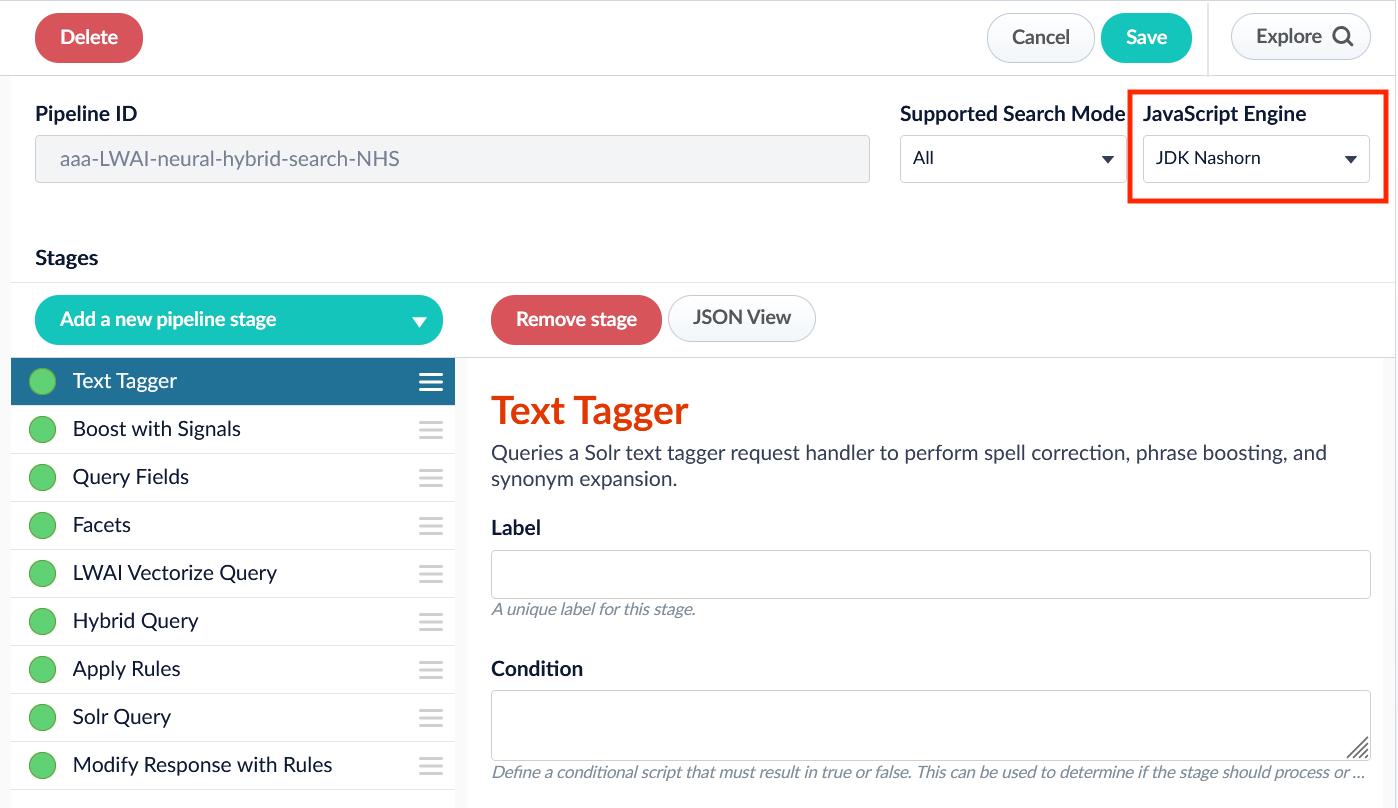
## JavaScript selector
Now your pipeline definitions can include your choice of JavaScript engine, either Nashorn or OpenJDK Nashorn.
While Nashorn is the default option, it is in the process of being deprecated and will eventually be removed, so it is recommended to use OpenJDK Nashorn when possible.
You can select the JavaScript engine in the pipeline views or in the workbenches.
Your JavaScript pipeline stages are interpreted by the selected engine.

 Existing stages are considered **READ-ONLY**. They will have only a copy button which can be used to create stages. New stages will have the option to copy or paste valid JSON. Changes are applied to the stage with the **Apply** button.