> ## Documentation Index
> Fetch the complete documentation index at: https://doc.lucidworks.com/llms.txt
> Use this file to discover all available pages before exploring further.
# Dynamic Index
export const LwTemplate = ({title = "Key questions to get you started", icon = "sparkles", cta = "Powered by Agent Studio", linkHref = "https://lucidworks.com/demo/?utm_source=docs&utm_medium=referral&utm_campaign=docs_cta_ai"}) => {
const [isLoaded, setIsLoaded] = useState(false);
useEffect(() => {
const timer = setTimeout(() => {
setIsLoaded(true);
}, 500);
return () => clearTimeout(timer);
}, []);
return
{isLoaded && `
}} />}
Powered by Lucidworks Agent Studio
;
};
When you have rapidly-changing or personalized data you need to deliver instantly, Dynamic Index is leaner, faster, and more scalable than an indexed [collection](/docs/lucidworks-search/04-move-data-in/collection/overview).
When data in Dynamic Index is updated, it's reflected in all applicable SKUs within seconds instead of minutes or hours—with no indexing.
Because your index is not affected, response times are fast, even with millions of dynamic permutations of attributes and entitlements.
Consider these examples:
Imagine your business has 1 million products distributed through 5,000 stores, and each store's pricing varies.
That's 5 billion pricing permutations you need to access on demand.
By storing those permutations in Dynamic Index, you keep your main index lean and fast, so customers get accurate pricing instantly on every product in every store.
Imagine your company sells industrial components to 50,000 accounts, each with custom pricing and contract terms.
That's 50,000 distinct permutations of product data.
By storing those variations in Dynamic Index, you keep your product index streamlined while ensuring that every customer sees accurate pricing based on their unique account.
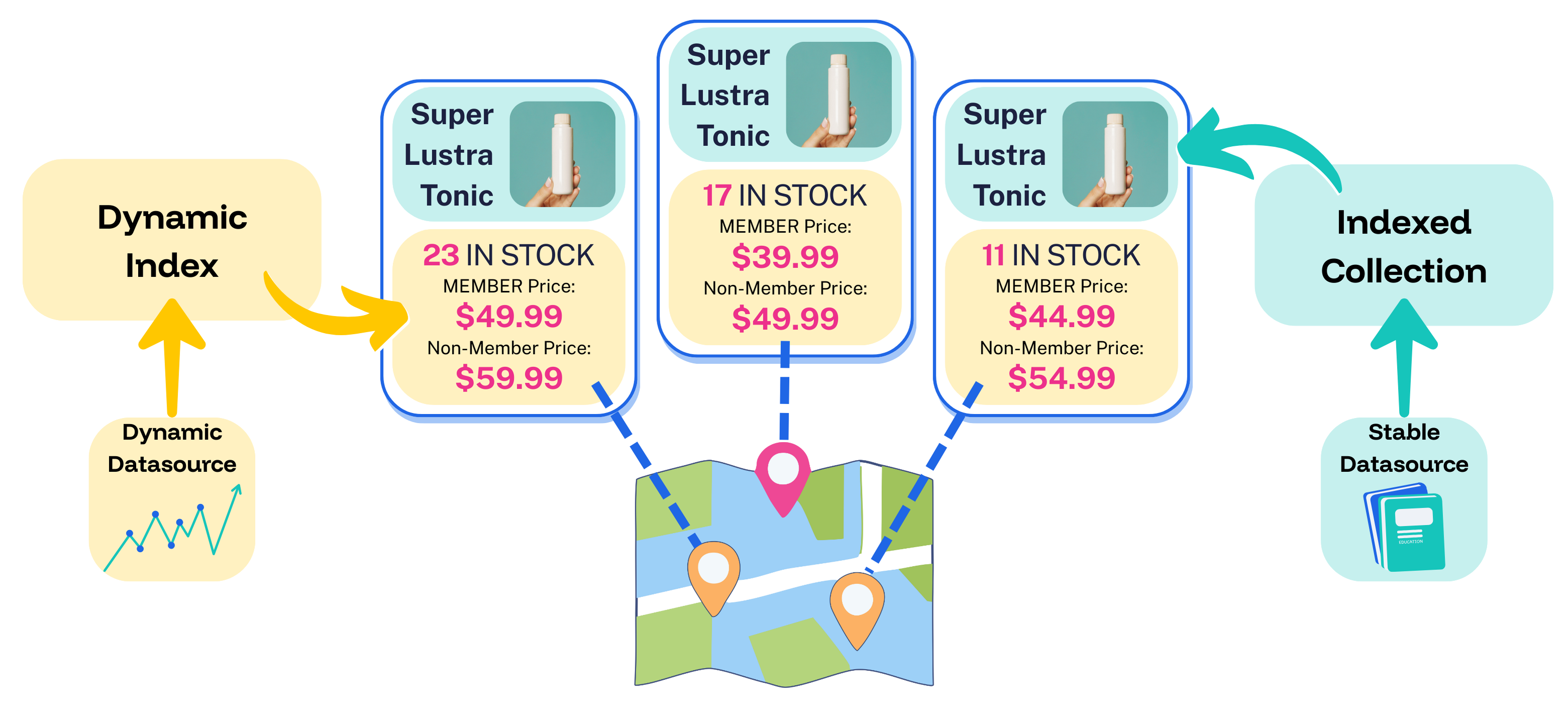
Generally, you'll use Dynamic Index in addition to an indexed collection, as in this example:
In the example above:
* Data that changes rapidly comes from Dynamic Index, including the number of items in stock and the latest prices for members and non-members at each store location.
* Data that seldom changes comes from an indexed collection, including the product name, photo, description, and so on.
* Both types of data are united to compose an individual product listing that includes up-to-the-moment pricing and inventory data, without impacting response times.
## Benefits
* Users see up-to-the-moment pricing and inventory every time.
* Bespoke experiences that reflect each user's specific entitlements, location, customer segment, and more.
* Even complex permutations are delivered with no impact on query response times.
* Bespoke experiences drive higher conversions.
* More control over data visibility.
* Faster performance due to less index bloat.
* Dynamic data is easier and less expensive to scale.
## How it works
Dynamic Index supports millions of dynamic permutations of attributes and entitlements, all scaled to suit your evolving data and traffic.
With Dynamic Index enabled, the query flow works like this:
* Fusion looks up the user's profile, contract, store, segment, or other context.
* Dynamic Index identifies the correct prices, inventory, or entitlements for the user's attributes.
* Fusion fetches relevant search results from an indexed collection.
* Dynamic Index attaches the correct prices, inventory, or entitlements to the results.
* The user gets accurate pricing, inventory, and more—every time.
* Updated data is delivered instantly on subsequent searches.
## When to use Dynamic Index
Dynamic Index works well for rapidly updating these types of data:
* Different prices for different accounts, locations, or contract terms
* Different inventory for each store, warehouse, or distribution center
* Different entitlements for users, groups, or segments
* Frequent updates across thousands or millions of SKUs
Dynamic Index is not recommended for these scenarios:
* Multi-list joins at query time
* Multi-currency in a single price list
* Self-hosted environments
* Non-GCS implementations
* Infrequently-updated data
## Requirements
* Lucidworks Search
* Google Cloud Storage (GCS)
* A prebuilt JAR, provided by Lucidworks, that includes the required utility that syncs your local external files to cloud storage
## Enable Dynamic Index
To enable Dynamic Index, you need to prepare your data, create the directory structure, then upload the data to GCS.
The Lucidworks team then initiates synchronization and your Dynamic Index goes live.
Your data must be formatted as `.txt` files using one of these formats:
* With ID and float values (one per line):
```text theme={"dark"}
id1 float1
id2 float2
```
* For sharded collections, use ID, route key, and float:
```text theme={"dark"}
id1 routeKey1 float1
id2 routeKey1 float2
```
- Each `id` value must match a document in your indexed collection.
- Each `float` must parse as a valid Java float.
- IDs and route keys must not contain whitespace.
- Blank lines and # comments are allowed.
Dynamic Index stores raw ingestion data in a hierarchical, structured directory layout that can include optional subfiles, which then organizes that external data into multi-level partitions and versioned hierarchies. This improvement simplifies the management of complex document structures and removes the previous reliance on manifest files for replication.
Each subfile is its own basename directory with its own `versions` folder. A subfile can also contain its own `subfiles` folder.
#### Benefits of Dynamic Index hierarchical support
Click the use case to review the benefits of Dynamic Index hierarchical support for your organization.
Hierarchical support enables organizations to structure complex business information such as accounts, subsidiaries, and contracts in versioned, parent-child-grandchild directories, which results in more accurate search and data insights. Updates and versioning at each level reduces reprocessing overhead and simplifies the management of large, interconnected datasets.
Hierarchical data support helps B2C organizations improve the relevant search results and experiences using the versioned, parent-child-grandchild directory structure for product information and related documents. Updates to data are faster and don't require re-indexing of all of the catalog, which improves system performance and delivery of information to customers.
Hierarchical support provides a versioned, parent-child-grandchild directory structure for data, which improves efficient content discoverability and contextual relevance in search experiences. Updates to information are specific and can be versioned at different levels, which helps make content management and maintenance more accurate and efficient.
Copy the entire directory structure to GCS using the following command:
```bash wrap theme={"dark"}
gsutil -m cp -r /SOURCE_PATH/* gs://DESTINATION_BUCKET/
```
You can also use the following command for remote sync (rsync) to upload new or changed files, which is more efficient for updates:
```bash wrap theme={"dark"}
gsutil -m rsync -r /SOURCE_PATH gs://DESTINATION_BUCKET/
```
`-m` enables parallel uploads for faster performance.
`-r` recursively copies the entire directory structure.
`SOURCE_PATH` should contain files organized using the external file structure, where each file may contain its own versions directory and optional nested subfiles.
`DESTINATION_BUCKET` is the GCS target location where you want your files uploaded.
For example:
```text theme={"dark"}
customer_data/
versions/
1000/
alex_mahan.txt
subfiles/
sub_file2/
versions/
1003/
alex_mahan_employment.txt
subfiles/
sub_file4/
versions/
1004/
alex_mahan_contact_info.txt
```
When your data is ready, [open a ticket to request Dynamic Index enablement](https://support.lucidworks.com/hc/en-us/requests/new).
Your Lucidworks representative will work with you to determine the correct replica multiplier to achieve high availability and performance.
## Update your dynamic data
Updates take effect instantly so users see the latest values in real time.
Use this method when you're doing a complete replacement of all of the values for a file.
Create the new version of the file you want to replace.
Create a new directory inside the file's `versions` folder with a higher version number than the previous one, and place the new file in this folder.
```text theme={"dark"}
customer_data/
versions/
1002/
alex_mahan_resume.txt
```
Upload only the new version folder using the following command:
```bash wrap theme={"dark"}
gsutil -m cp -r /SOURCE_PATH/customer_data/versions/1002 gs://DESTINATION_BUCKET/customer_data/versions/
```
You can also sync the entire directory using the following command:
```bash wrap theme={"dark"}
gsutil -m rsync -r /SOURCE_PATH gs://DESTINATION_BUCKET/
```
Example workflow:
Upload the initial structure using the following command:
```bash wrap theme={"dark"}
gsutil -m rsync -r file:///local/customer_data gs://DESTINATION_BUCKET/customer_data
```
For subsequent updates, you can use the following command for remote sync (rsync) to upload new or changed files, which is more efficient for updates:
```bash wrap theme={"dark"}
gsutil -m rsync -r file:///local/customer_data gs://DESTINATION_BUCKET/customer_data
```
`-m` enables parallel uploads for faster performance.
`-r` recursively copies the entire directory structure.
`-d` can also be used to delete files from the destination that don't exist in the source.
`SOURCE_PATH` should contain files organized using the external file structure, where each file may contain its own versions directory and optional nested subfiles.
`DESTINATION_BUCKET` is the GCS target location where you want your files uploaded.
Lucidworks Search uses the latest available version based on the highest numeric version in the `versions` directory.
 In the example above:
* Data that changes rapidly comes from Dynamic Index, including the number of items in stock and the latest prices for members and non-members at each store location.
* Data that seldom changes comes from an indexed collection, including the product name, photo, description, and so on.
* Both types of data are united to compose an individual product listing that includes up-to-the-moment pricing and inventory data, without impacting response times.
In the example above:
* Data that changes rapidly comes from Dynamic Index, including the number of items in stock and the latest prices for members and non-members at each store location.
* Data that seldom changes comes from an indexed collection, including the product name, photo, description, and so on.
* Both types of data are united to compose an individual product listing that includes up-to-the-moment pricing and inventory data, without impacting response times.