> ## Documentation Index
> Fetch the complete documentation index at: https://doc.lucidworks.com/llms.txt
> Use this file to discover all available pages before exploring further.
# Connectors and Datasources
export const LwTemplate = ({title = "Key questions to get you started", icon = "sparkles", cta = "Powered by Agent Studio", linkHref = "https://lucidworks.com/demo/?utm_source=docs&utm_medium=referral&utm_campaign=docs_cta_ai"}) => {
const [isLoaded, setIsLoaded] = useState(false);
useEffect(() => {
const timer = setTimeout(() => {
setIsLoaded(true);
}, 500);
return () => clearTimeout(timer);
}, []);
return
{isLoaded && `
}} />}
Powered by Lucidworks Agent Studio
;
};
[localhost link]: http://localhost:3000/docs/lucidworks-search/04-move-data-in/datasource/overview
[mintlify link]: https://doc.lucidworks.com/docs/lucidworks-search/04-move-data-in/datasource/overview
[old doc.lw link]: https://doc.lucidworks.com/managed-fusion/5.9/p36ivh
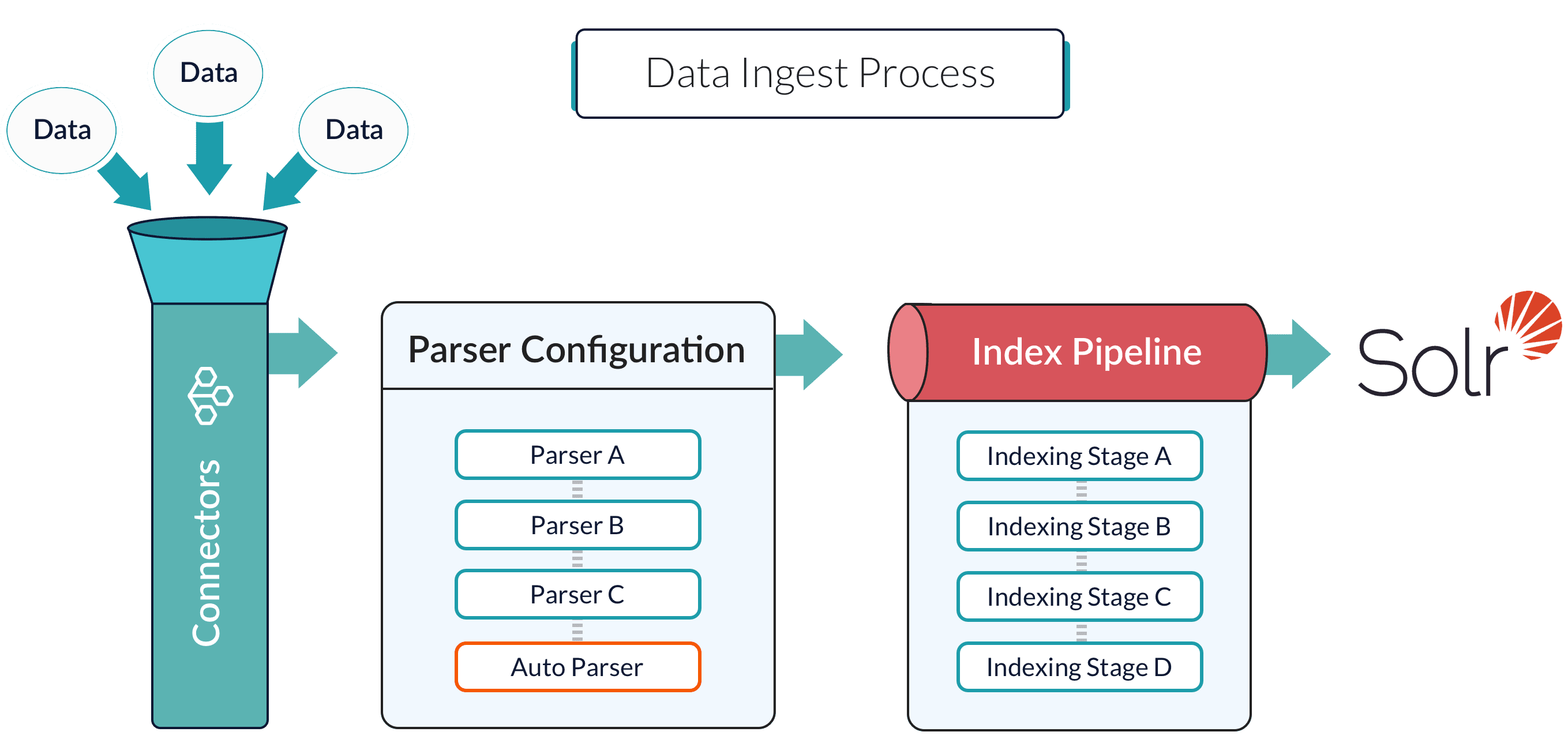
A datasource is a complete data ingest configuration that consists of the following components:
* **Connector.** Connectors are out-of-the-box components for pulling your data into Lucidworks Search. Lucidworks provides a wide variety of connectors, each specialized for a particular data type. For a list of connectors, see [Lucidworks Connectors](/docs/fusion-connectors/overview).
* **Parser.** Parsers provide fine-grained configuration for inbound data. See [Parsers](/docs/lucidworks-search/09-developer-documentation/config-specs/parsers/overview) for more information.
* **Index pipeline.** Index pipelines transform incoming data for indexing by Lucidworks Search. See [Index pipelines](/docs/lucidworks-search/04-move-data-in/index-pipeline/overview) for more information.
Lucidworks Search includes all available connectors in **Indexing > Datasources**. Some connectors come pre-installed, but you must install others manually. See **Install or update a connector** for more information.
When you create a new datasource that requires an uninstalled connector, Lucidworks Search automatically downloads and installs the connector using the [Datasources dropdown](#install-a-connector-using-the-datasources-dropdown). You can also update the connector using the [Blob Store UI](#install-or-update-a-connector-using-the-blob-store-ui) or via the [Connector API](#install-or-update-a-connector-using-the-connector-api).
## Install a connector using the Datasources dropdown
1. Sign in to Lucidworks Search and click your application.
2. Click **Indexing > Datasources > Add+**.
3. In the list of connectors, scroll down to the Not Installed section and select the connector you want to install.\
Lucidworks Search downloads and installs the connector. It displays in the list of installed connectors.
After you install a connector, you can configure a new datasource.
You can view and download all current and previous V2 connector releases at [plugins.lucidworks.com](https://plugins.lucidworks.com/).
## Install or update a connector using the Blob Store UI
1. Download the connector zip file from [Download V2 connectors](/docs/fusion-connectors/downloads/v2-connectors-downloads).
Do not expand the archive; Fusion consumes it as-is.
2. In the Fusion workspace, navigate to **System** > **Blobs**.
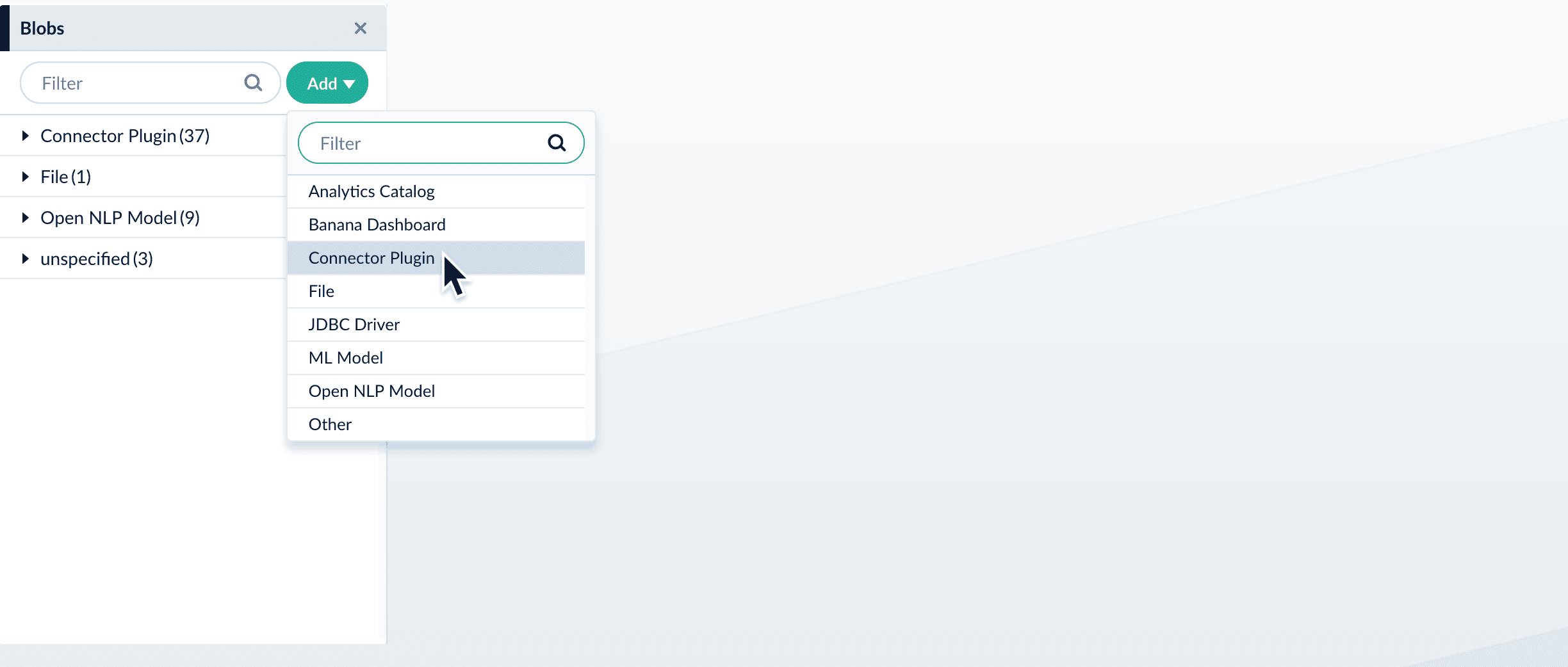
3. Click **Add**.
4. Select **Connector Plugin**.
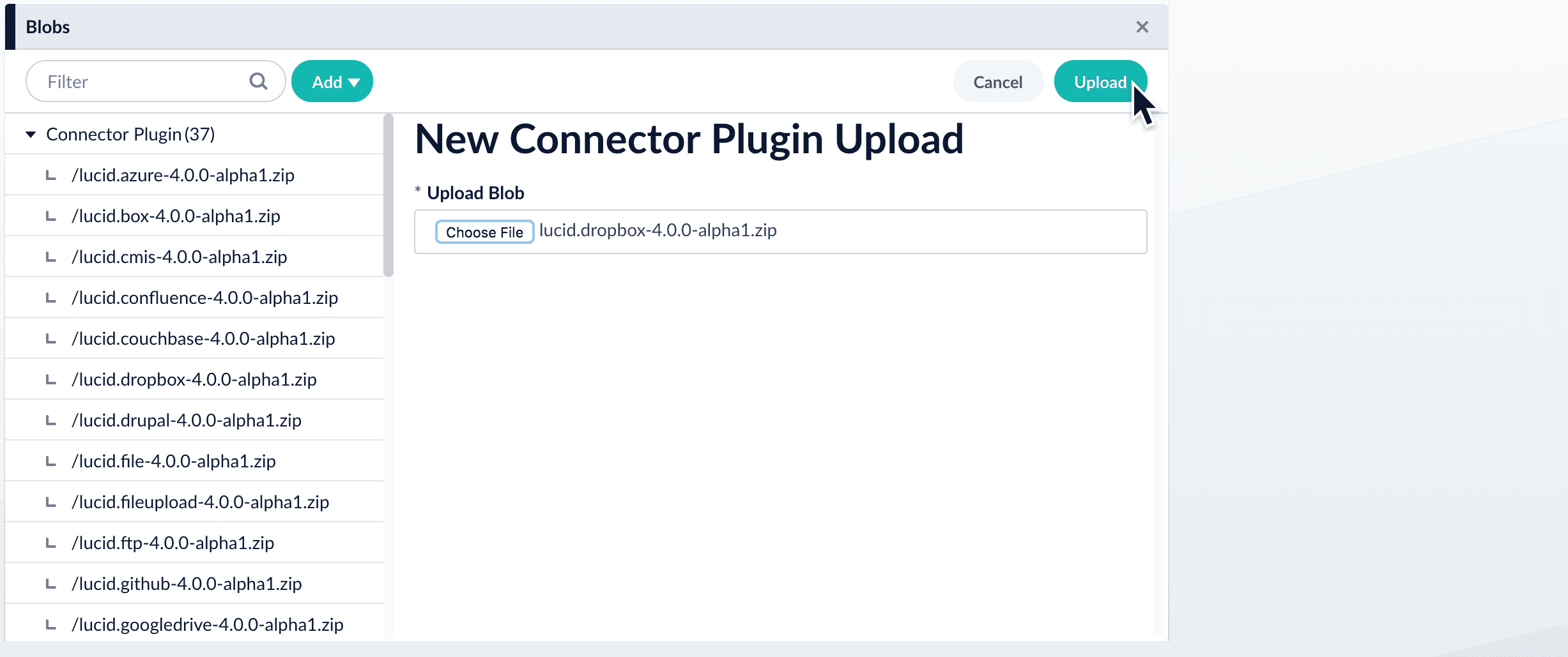
The "New Connector Plugin Upload" panel appears.
5. Click **Choose File** and select the downloaded zip file from your file system.
6. Click **Upload**.\
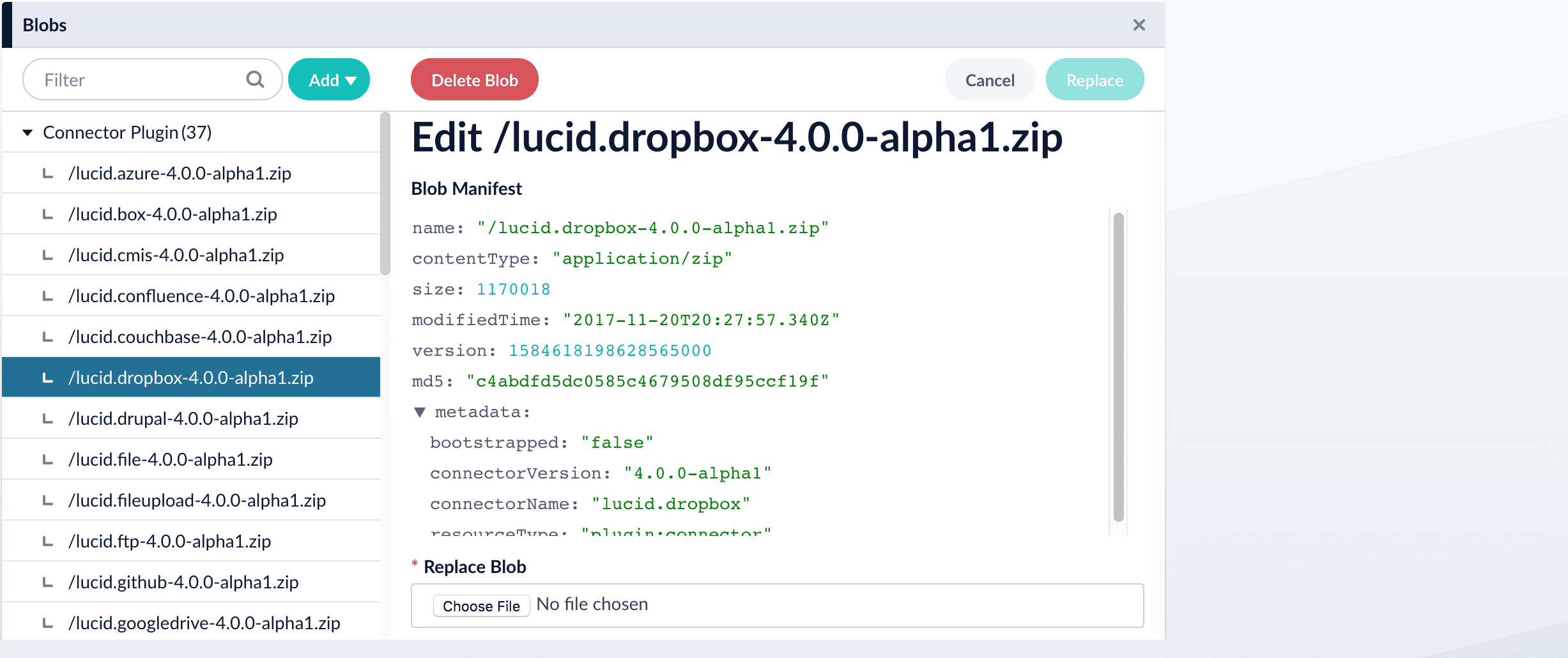
The new connector’s blob manifest appears.
From this screen you can also delete or replace the connector.
Wait several minutes for the connector to finish uploading to the blob store before installing the connector using the [Datasources dropdown](#install-a-connector-using-the-datasources-dropdown).
## Install or update a connector using the Connector API
1. Download the connector zip file.
Do not expand the archive; Lucidworks Search consumes it as-is.
2. Upload the connector zip file to Lucidworks Search’s plugins.
3. Run the following command with your information, including the `pluginId`:
```
curl -H 'content-type:application/zip' -u USERNAME:PASSWORD -X PUT https://EXAMPLE_COMPANY.b.lucidworks.cloud/api/connectors/plugins?id=lucidworks.{pluginId}' --data-binary @{plugin_path}.zip
```
Lucidworks Search automatically publishes the event to the cluster, and the listeners perform the connector installation process on each node.
If the `pluginId` is identical to an existing one, the old connector is uninstalled and the new connector is installed in its place. To get the list of existing plugin IDs, run the following command: `curl -u USERNAME:PASSWORD https://EXAMPLE_COMPANY.b.lucidworks.cloud/api/connectors/plugins`
4. Verify the new connector is installed in `https://EXAMPLE_COMPANY.b.lucidworks.cloud/apps/connectors/plugins/`.
## Reinstall a connector
To reinstall a connector for any reason, first delete the connector then use the preceding steps to install it again. This may take a few minutes to complete depending on how quickly the pods are deleted and recreated.
See **Configure a new datasource** for complete instructions.
{/* // tag::body[] */}
## Add the datasource and connector
1. Sign in to Lucidworks Search and click any application.
2. Click **Indexing > Datasources > Add+**.
3. Select your connector.
The connector configuration panel displays. The specific configuration options vary depending on the connector.
## Configure the connector
If you do not see your connector in the list, you may need to install it.
To configure the connector:
1. Enter a useful name for your datasource in the **Datasource ID** field.
2. Select an option in the **Pipeline ID** field if different from the default.
3. Select an option in the **Parser** fields if different from the default.
4. Select your specific release and connector detail. For more information, see [Connectors Configuration Reference](/docs/lucidworks-search/09-developer-documentation/config-specs/fusion-connectors/overview).
5. Click **Save**.
## Test the datasource configuration
1. Click **Indexing > Index Workbench > Load**.
2. Select the datasource ID you specified when you created the datasource.
3. Review the datasource configuration and a simulation of the results when you run this datasource job to index your data.
4. Adjust the configurations of your datasource, parsers, and index pipeline until the simulated results are satisfactory.
5. Click **Save**.
## Index your data
1. In the Index Workbench, click **Start Job**.
2. When the job status is Finished, click **Querying > Query Workbench** to view the indexed documents and configure your query pipeline. For more information, see [Query Workbench](/docs/lucidworks-search/03-ui-tour/query-workbench).
{/* // end::body[] */}
## Connector logs
You can find connector logs in `https://EXAMPLE_COMPANY.lucidworks.cloud/var/log/connectors`.
Replace `EXAMPLE_COMPANY` with the name provided by your Lucidworks representative.
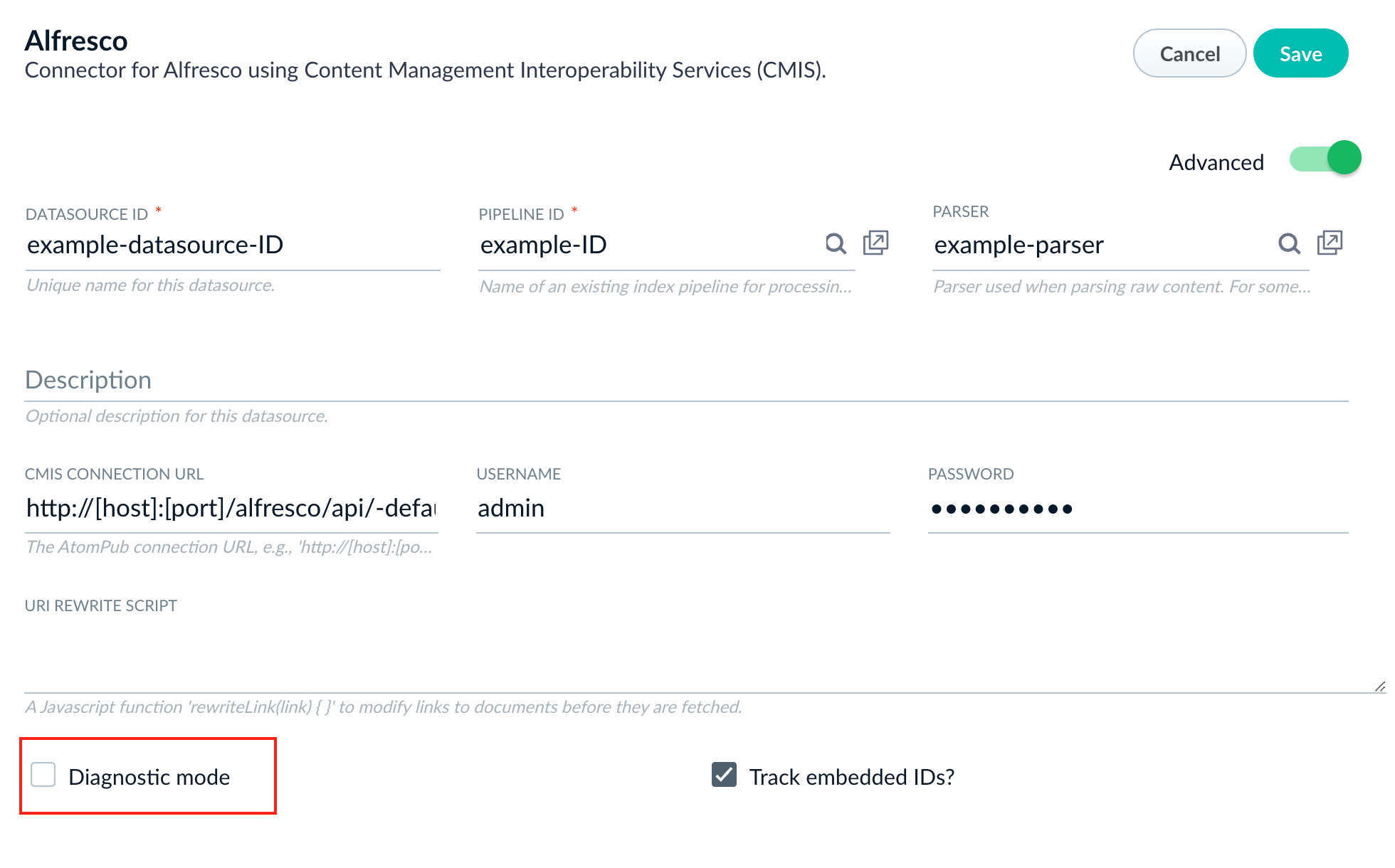
Most connectors support Diagnostic Mode (also known as Diagnostic Logging), which enables Lucidworks Search to print more detailed information to the logs about each request, including the ID of every document inserted, updated, or deleted in the oplog. More information on Diagnostic Mode can be found in the Configuration section of the connectors which offer it. You may need to click on the Advanced slider to show more settings.
 The "New Connector Plugin Upload" panel appears.
5. Click **Choose File** and select the downloaded zip file from your file system.
The "New Connector Plugin Upload" panel appears.
5. Click **Choose File** and select the downloaded zip file from your file system.
 6. Click **Upload**.\
The new connector’s blob manifest appears.
6. Click **Upload**.\
The new connector’s blob manifest appears.
 From this screen you can also delete or replace the connector.
 See **Configure a new datasource** for complete instructions.