> ## Documentation Index
> Fetch the complete documentation index at: https://doc.lucidworks.com/llms.txt
> Use this file to discover all available pages before exploring further.
# UI tour
export const LwTemplate = ({title = "Key questions to get you started", icon = "sparkles", cta = "Powered by Agent Studio", linkHref = "https://lucidworks.com/demo/?utm_source=docs&utm_medium=referral&utm_campaign=docs_cta_ai"}) => {
const [isLoaded, setIsLoaded] = useState(false);
useEffect(() => {
const timer = setTimeout(() => {
setIsLoaded(true);
}, 500);
return () => clearTimeout(timer);
}, []);
return
{isLoaded && `
}} />}
Powered by Lucidworks Agent Studio
;
};
export const InlineImage = ({src, alt = '', height = '2em'}) => {
return ;
};
[localhost link]: http://localhost:3000/docs/lucidworks-search/03-ui-tour/overview
[mintlify link]: https://doc.lucidworks.com/docs/lucidworks-search/03-ui-tour/overview
[old doc.lw link]: https://doc.lucidworks.com/managed-fusion/5.9/p4szge
The Lucidworks Search UI gives you easy access to all Lucidworks Search features.
The UI service utilizes the API service, so each UI feature has an API equivalent. For programmatic access to the features you see in the UI, see the [API Reference Guide](/docs/lucidworks-search/09-developer-documentation/rest-apis).
The course for **Navigating the Fusion UI** focuses on navigating through the Fusion application.
## Logging in
To log in to Lucidworks Search, visit your Lucidworks Search URL at `https://EXAMPLE_COMPANY.b.lucidworks.cloud`.
Replace `EXAMPLE_COMPANY` with the name provided by your Lucidworks representative.
The first time you log in:
Lucidworks Search opens the **Quickstart**, to give you a demonstration of Lucidworks Search’s most basic features. You can click **Exit the Quickstart** to close it and go to the Lucidworks Search launcher.
You can open the Quickstart at any time by navigating to the Lucidworks Search launcher and clicking **New here? Get started…**.
The brief tour below shows you how to find your way around the interface.
The Quickstart is a wizard that lets you explore some of Lucidworks Search’s core capabilities:
* Creating or selecting an app
* Selecting a collection (where data is stored)
* Indexing data
* Searching
The course for **Using The Quickstart Wizard** focuses on using the wizard to practice using the key functions of Fusion.
## Step through the Quickstart wizard
If it is not already open, open the Quickstart wizard. In the Lucidworks Search launcher, click **New here? Get started...**.
1. Click **Continue**.\
On the **Select an App** screen, you can select or create an app for your quickstart data.
If you click **Create new app**, Lucidworks Search prompts you to enter an app name (and optionally a description), then click **Create App** to return to the Quickstart. Your new app is selected by default.
2. After selecting an app, click **Continue**.
On the **Select a Collection** screen, you can select or create a [collection](/docs/lucidworks-search/04-move-data-in/collection/overview) for your quickstart data. A collection with the same name as your app is created automatically:
3. Click **Continue**.\
On the **Index Data** screen, you can either select one of the built-in sample datasets or click **Use my data** to upload your own:
4. Click **Continue**.\
On the **Query Data** screen, you can see all search results and enter your own search queries to test the indexed dataset. You can also select the display fields or view the parsed documents:
5. Click **Continue**.
From here, you can do the following:
* Open the [Index Workbench](/docs/lucidworks-search/04-move-data-in/index-workbench/overview) to change the index pipeline.
* Open the [Query Workbench](/docs/lucidworks-search/05-move-data-out/query-workbench/overview) to change the query pipeline.
The workbenches are essentials tools in the Fusion workflow.
For a more detailed tour, try this Getting Started tutorial. This four-part tutorial details how to create a Lucidworks Search application and configure it to search data in the [MovieLens](https://grouplens.org/datasets/movielens/) dataset.
## Create a new application
An application (also referred to as app) is a set of objects that performs a specific searching task, such as searching for movies.
1. Sign in to Lucidworks Search.
For more information about the Lucidworks Search user interface, see UI Tour.
2. In the Add new app section, click **Create new app**.
3. In the **App Name** field, enter `Movie Search`.
4. In the **App Description** field, enter `App to search for movies`.
5. Click **Create App**.
The Movie Search app displays in the Lucidworks Search launcher screen.
This topic details how to configure a datasource using Index Workbench.
## General information
Lucidworks Search's Index Workbench provides the tools to configure datasources, parsers, and index pipelines. It lets you preview the results of indexing before you load your data into the actual index.
When you enter the necessary data extraction configuration in Index Workbench, it retrieves a small number of documents as sample data.
Since this processing is simulated, and actual data is not yet ingested, you can preview the sample documents to test and refine the index pipeline before all of the data is loaded into the actual index.
When you complete and save the configuration, it is saved in Index Workbench as a Lucidworks Search datasource. To load your data into Lucidworks Search, use the Datasource tool to run the resulting configuration.
## Before you begin
Throughout these tutorials, it is important to save your work regularly. The steps include instructions to save, but you can save your work more frequently if needed. When you configure datasources, pipelines, and other settings on your own site, saving your changes regularly is essential.
## Download the MovieLens dataset
1. [Download the dataset](https://files.grouplens.org/datasets/movielens/ml-latest-small.zip). This is a MovieLens dataset created by the [Grouplens](https://grouplens.org/) research lab.
2. Unpack the `ml-latest-small.zip` file.
Lucidworks Search can parse `.zip` files, but in this tutorial, we will index just one file from the archive (`movies.csv`).
The `movies.csv` file contains a list of 9,125 movie titles, plus a header row. Here is a truncated listing:
```text theme={"dark"}
movieId,title,genres
1,Toy Story (1995),Adventure|Animation|Children|Comedy|Fantasy
2,Jumanji (1995),Adventure|Children|Fantasy
3,Grumpier Old Men (1995),Comedy|Romance
4,Waiting to Exhale (1995),Comedy|Drama|Romance
5,Father of the Bride Part II (1995),Comedy
6,Heat (1995),Action|Crime|Thriller
7,Sabrina (1995),Comedy|Romance
8,Tom and Huck (1995),Adventure|Children
9,Sudden Death (1995),Action
10,GoldenEye (1995),Action|Adventure|Thriller
```
## Open the Movie Search app
1. Sign in to Lucidworks Search if it is not currently open.
2. In the Lucidworks Search launcher, click the **Movie Search** app.
3. To verify the Movie Search app is selected to display in the workspace:
* Hover over Apps . Movie Search is the currently selected app.
* Review the collection picker selection at the top of the screen. `Movie_Search` is selected as the default collection for the Movie Search app, and is where Lucidworks Search will place index data.
## Configure the datasource
A collection includes one or more datasources. A datasource is a configuration that manages the import, parsing, and indexing of data into a collection.
1. Click **Indexing** **> Index Workbench**.
2. Click **New**.
3. In the Add A New Datasource section, click **Or, upload a file**.
4. Click **Choose File**.
5. Navigate to the `movies.csv` file on your computer, select it, and click **Open**. The file name displays on the screen.
6. Click **Add New Datasource**.
The Datasource (File Upload) configuration panel displays the default datasource ID `movies_csv-Movie_Search` and the default file ID `movies.csv`. You do not have to change these values.
7. Enter the **Description** `Movies CSV file`.
8. Click **Apply**.
Index Workbench reads up to 20 documents into memory from the `movies.csv` file, and then displays a preview of how they would be indexed based on current parameter and field settings.
You have finished configuring the datasource. At the bottom of the page, click **Cancel**.
The View Documents field in the lower right lets you select the number of documents to preview.
## Analyze the default output
1. Review the preview to inspect how Lucidworks Search interpreted the original fields:
* `genres` became `genres_t` (the `text_general` field type) and `genres_s` (the `string` field type). String fields are useful for faceting and sorting, while text fields are for full-text search. At this point, Lucidworks Search cannot determine whether you intend to use this field for faceting and sorting, for full-text search, or for both.
* Similarly, `title` became `title_t` and `title_s` because Lucidworks Search cannot determine whether you intend to use this field for faceting and sorting, for full-text search, or for both.
* Like the other fields, `movieId` became `movieId_t` and `movieId_s` because Lucidworks Search cannot determine whether you intend to use this field for faceting and sorting, for full-text search, or for both. This might seem odd, because the original field contains numbers. But, at this stage, Lucidworks Search creates `text_general` and `string` fields. To use the contents of this field as an integer, you would map the field to an integer field.
* Fields that begin with `_lw` fields contain data that Lucidworks Search creates for its own housekeeping. You can disregard these entries.
These fields are created by the Solr Dynamic Field Name Mapping stage in the default index pipeline. This stage attempts to automatically detect field types, and renames fields accordingly. For this tutorial, you will manually configure the fields instead.
Click the green circle next to the **Solr Dynamic Field Name Mapping** stage to turn off the stage.
Your data's original fields display: `genres`, `movieId`, and `title`.
## Configure the index pipeline
In this section, you will:
* Configure the field mappings in the index pipeline so each field has the correct data type.
* Query Data.
* Create a new field from part of an existing one.
* Trim a field's value.
### Configure field mappings
Field mappings control the data types of documents. Lucidworks Search uses field name suffixes to determine field types. If the field name:
* Contains a suffix, precise analysis and search occurs.
* Does not contain a suffix, Lucidworks Search stores the data as a string field and treats it as an unanalyzed whole.
This section provides examples of both instances.
1. In the list of index pipeline stages, click **Field Mapping** to open the Field Mapping stage configuration panel.
2. In **Field Translations**, click Add to create a new field mapping rule.
3. In the **Source Field**, enter `genres`.
4. In the **Target Field**, enter `genres_ss`.
The field suffix `_ss` means that this field is a multi-valued string field.
Lucidworks Search currently interprets this field as having a single value. The field actually contains a pipe-delimited array of values. When you finish configuring field mappings, subsequent steps will guide you to change the value type.
5. In **Operation**, select **m\*ove**.
The move operation means that the resulting document contains `genres_ss` instead of `genres`.
6. Click **Apply**. The new configuration runs the simulation again and updates the preview panel contents, changing the field name to `genres_ss`.
Before:
After:
7. Click Add to add more field mapping rules as follows:
* The `movieId` field is a unique document identifier. Select to copy it into the document's `id` field.
* The `title` should be searchable as a text field, so select to move it to the `title_txt` field.
The field mappings display as:
8. Click **Apply**. The results using those field mappings display in the preview panel.
Before:
After:
9. In the upper right, click **Save**. The changes to the index pipeline make the document ID more useful and the full text of the movie titles searchable.
Because the input documents in this tutorial are simple documents with a fixed number of known fields, it is easy to configure the Field Mapping stage to ensure the correct document structure. When documents have large numbers of fields, the Solr Dynamic Field Mapping stage can reduce the work required to configure the index pipeline.
### Split a multivalue field
The `genres_ss` field has been parsed as a single value field, but it is really a pipe-delimited array of values. To split this field into its constituent values, add a Regex Field Extraction stage to your index pipeline. This stage uses regular expressions to extract data from specific fields. It can append or overwrite existing fields with the extracted data, or use the data to populate new fields.
1. Click **Add a stage**.
2. Scroll down to Field Transformation and select **Regex Field Extraction**.
3. In **Regex Rules**, click Add .
4. On the new line, hover over the `.
5. In the Source Fields screen, click Add .
6. Enter `genres_ss` and click **Apply**.
7. In **Target Field**, enter `genres_ss`.
8. In the **Write Mode** field, select **overwrite**.
9. In the **Regex Pattern** field, paste this expression:
```sh theme={"dark"}
[^|\s][^\|]**[^|\s]**
```
You might need to scroll horizontally to see this field on the screen.
The first bracketed term in the regex matches any character that is not a vertical bar or a space.
The second term matches any character that is not a vertical bar, zero or more times.
The last term matches any character that is not a vertical bar, zero or more times.
10. In **Return If No Match**, select `input_string`.
11. Click **Apply**. Initially, your data does not change.
12. In the list of index pipeline stages, click and drag the **Regex Field Extraction** stage so it processes after the Field Mapping stage:
Now the preview shows multiple values for the `genres_ss` field:
Before:
After:
If the preview panel does not update automatically, select a different number of documents to view using the dropdown in the bottom right of the screen. This forces the preview to update.
13. To view the values of the `genres_ss` field, click the right triangle to expand it and `values` under it:
These field values are useful for faceting, which is detailed in Part 3 - Query Data.
14. In the upper right, click **Save** to save the changes to the index pipeline.
### Create a new field from part of an existing one
Currently, the `title_txt` field also contains the year in which the movie was released. To make the field more useful for faceting, the year needs to be a separate field. The Regex Field Extraction stage will separate the data.
1. In the list of index pipeline stages, click **Regex Field Extraction**.
2. In the Regex Field Extraction configuration panel, under Regex Rules, click Add .
3. On the new line, hover over the `.
4. In the Source Fields screen, click Add .
5. Enter `title_txt` and click **Apply**.
6. In **Target Field**, enter `year_i`.
The `_i` suffix indicates an integer point field (specifically, that the field is a dynamic field with a point integer, `pint`, field type). Lucidworks Search creates this new field when the regular expression matches the contents of the source field.
When you use the Regex Field Extraction stage to create a new field, the value of **Write Mode** does not affect the data.
7. In the **Regex Pattern** field, paste this expression to match the digits inside the parentheses at the end of the `title_txt` value:
```sh theme={"dark"}
\(([0-9]+)\)$
```
8. In the **Regex Capture Group** field, enter `1`. This lets the index pipeline stage transfer the year into the `year_i` field.
Scroll to the right to see this field on the screen.
9. Click **Apply**.
Now the preview includes the new `year_i` field:
Before:
After:
10. In the upper right, click **Save** to save the changes to the index pipeline.
### Trim a field's value
The `title_txt` field still includes the year of the film's release, which you have extracted into its own field, `year_i`. To refine the field for faceting, trim `year_i` from the `title_txt` values so only the title text remains.
1. In the list of index pipeline stages, click **Regex Field Extraction**.
2. In the Regex Field Extraction configuration panel, under Regex Rules, click Add .
3. On the new line, hover over **Source Fields** and click Edit .
4. In the Source Fields screen, click Add .
5. Enter `title_txt` and click **Apply**.
6. In **Target Field**, enter `title_txt`.
7. In the **Write Mode** field, select `overwrite`.
8. In the **Regex Pattern** field, paste this expression to match the digits inside the parentheses at the end of the `title_txt` value:
```sh theme={"dark"}
^(.+)\s\(([0-9]+)\)$
```
9. In the **Regex Capture Group** field, enter `1`.
10. Click **Apply**.
The preview pane displays the `title_txt` field with only the title string:
Before:
After:
11. In the upper right, click **Save** to save the changes to the index pipeline.
## Run the datasource job
In the upper left, click **Start job** to index the data using the configured index pipeline.
This launches a datasource job that imports and indexes the complete contents of your `movies.csv` file using the configuration you just saved.
Your datasource job is finished when the Index Workbench displays `Status: success` in the upper left. If the status does not change, click to return to the launcher and relaunch your app to refresh the status.
## Close panels you no longer need open
If you do not manually close each panel, Lucidworks Search opens panels beside already open panels. Click **Close** to close all of the open panels.
## Reindex the datasource
Documents are associated with a collection through the name of the datasource, which is stored as a value in the `_lw_data_source_s` field.
For various reasons, you may wish to remove all documents associated with a datasource from a collection before using CrawlDB to add relevant documents back to the collection. This process is known as **reindexing**.
1. Navigate to **Indexing** **> Datasources**.
2. Select the datasource name.
3. Click **Clear Datasource**. This removes all documents with the selected datasource name in the `_lw_data_source_s` field.
4. When the documents are removed, repeat the steps in Configure the index pipeline to reindex the data.
WARNING: Do not use the name of an existing datasource if you change the name of a datasource or if you create a new datasource. If an identical name is used, all document associations will be shared between the datasource names.
## Summary
The parts of this tutorial so far have guided you to:
* Move 9,125 movie listings from the MovieLens database into Lucidworks Search
* Customize the data type for each field
* Split multivalued fields to treat its values individually
* Create a new field that contains partial contents of a different field
* Trimmed the content of the original multivalue field
The example displays the initial index versus the results after the field mappings and extractions:
Before:
After:
This topic details how to use Query Workbench to configure search results, including faceting. Facets are categories or features offered as filters within a search results page.
## Before you begin
To perform the steps in this part of the tutorial, you must first complete Part 2 - Index Data.
The dataset created in the previous sections of the tutorial has three fields that users of your search application might find relevant:
* `genres_ss`. A list of one or more genre labels.
* `title_txt`. The name of the movie.
* `year_i`. The movie's year of release.
The field suffixes indicate the type of data stored in each field:
* Fields with the suffix `_ss` (multivalued string fields) contain one or more string values.
String fields require an exact match between the query string and the
string value stored in that field.
* Fields with the suffix `_txt` (text fields) contain text.
Text fields allow for free text search of the field contents.
For example, because the movie titles are stored in a text field, a search on
the word "Star" will match movies titled "Star", "A Star is Born", all movies in the
Star Wars and Star Trek franchises, as well as "Dark Star", "Lone Star", and "Star Kid".
* Fields with the suffix `_i` (point integer fields) contain integer values.
Numeric fields allow range matches as well as exact matches, and point integer fields allow efficient comparisons between the field's values and the search criteria.
The different field types allow for various searches. Configuration of the query pipeline determines how fields are searched.
## Explore search results
Query Workbench lets you configure a query pipeline and preview the search results it produces. A query pipeline converts a free text query submitted to your search application into a structured query for Solr.
1. Sign in to Lucidworks Search if it is not currently open.
2. In the Lucidworks Search launcher, click the **Movie Search** app.
3. Click **Querying** **> Query Workbench**.
### Perform a search
The default search is the wildcard search (`*:*`), which returns all documents in the collection.
For information about other search entries for facets, see search entry options.
1. In the search box, enter the query string `star`, and press Enter or click Search .
This search returns all movies that have the word "star" in the title.
The output is configured by the default query pipeline, which has the same name as the collection. In this example, the name is `movie-search`.
To view more of the default output, you can perform other searches.
2. In the search box, enter the query string `*:*` to return all documents, and press Enter or click Search .
To refine your results, change your index pipeline configuration and reindex your data.
### Explore the role of query pipeline stages
A default query pipeline includes the following stages:
* **Boost with Signals.** Use signals data to boost relevant documents. For more information, see collaborative filtering.
* **Query Fields.** Specify the set of fields over which to search.
* **Field Facet.** Specify the fields to use for faceting.
* **Text Tagger.** Search for information such as known phrases, synonyms, and misspellings that can be used to improve the query with query rewriting.
* **Apply Rules.** Modify the query using business rules, if any are triggered.
* **Solr Query.** Perform the query and return the results. This is the only stage that is *always required* to perform a query and receive results.
* **Modify Response with Rules.** Modify Solr's response using business rules, if any are triggered.
To preview how results are affected by different stages:
1. Click the green circle next to the **Solr Query** stage to turn off the stage.
All search results disappear from the preview pane because Lucidworks Search does not send a query to Solr.
2. Turn on the Solr Query stage and turn all other stages off.
Now the search results look much like they did before. At this point, the disabled stages do not affect the output because they are not yet configured.
3. Turn all stages on.
## Configure faceting
Facets:
* Are categories or features offered as filters within a search results page.
* Provide a simple way for users to explore and filter their search results without having to construct complicated queries.
* Can be configured when you also configure a query pipeline.
The data already indexed in the tutorial has two fields that are natural choices for faceting: `genres_ss` and `year_i`. For example, a user could search for science fiction of the 1950s in just a few clicks.
### Configure basic faceting for genres
1. Click **Add a field facet** and select the `genres_ss` field.
2. Click **Sci-Fi** to select movies that have the value `Sci-Fi` for `genres_ss`:
Genres are not in any specific order. In configuration for the Field Facet stage, you can choose a value of Sort for the facet field. Sort options are `index` (alphabetical ascending order) or `count` (number of documents). You can also add field facets by configuring the Field Facet stage.
3. Under the field facet **genres\_ss**, click **Clear all**.
### Configure range faceting for years
If you configure faceting for the `year_i` field as you did above for the `genres_ss` field, you would get one facet per year, which is not very useful.
The `year_i` field will be more usable if you configure *range faceting*. Range faceting is a way of grouping values together so that the user can select a value range instead of one specific value. For example, range facets are commonly used with pricing ($50-$100) or ratings (4 stars or higher). In this example, you will group years by decade.
Range faceting requires sending an additional query parameter to Lucidworks Search's Solr core. You can configure this with the [Solr's range facet query parameters](https://cwiki.apache.org/confluence/display/solr/Faceting#Faceting-RangeFaceting).
Use the Additional Query Parameters stage to configure range faceting for the `year_i` field:
1. Click **Add a stage**.
2. Scroll down, and in Advanced, select **Additional Query Parameters**.
The Additional Query Parameters configuration panel displays.
3. Under **Parameters and Values**, add the following parameter names and values:
* `facet.range`: `year_i`
* `facet.range.start`: `1900`
* `facet.range.end`: `2020`
* `facet.range.gap`: `10`
* `facet.range.include`: `outer`
In this case, you do not need to modify the **Update Policy** field. The default value of `append` does not affect these results.
4. Click **Apply**, and then click **Cancel** to close the configuration panel for the Additional Query Parameters stage.
The year facets are now grouped by decade:
Facets are not the only way for users to find items by year. In your user application, you can let users search for specific values in the `year_i` field such as using the text field or dropdown list.
## Configure query fields
To specify fields to match a particular query:
1. Search for "2001".
The results are not what an end user might expect because "2001: A Space Odyssey" is not the top search result.
2. Under one of the movies listed, click **show fields**.
The reason "2001: A Space Odyssey" is not the top search result is because your search query matches the `id` field. This field may not be useful to your users.
Use the Query Fields stage to specify the fields that may be a higher priority for users.
3. Below the name for the movie you selected, click **hide fields**.
4. Click the **Query Fields** stage of the query pipeline.
The Query Fields configuration panel displays.
5. Under **Search Fields**, click Add .
6. Enter `title_txt`.
7. Click Add again.
8. Enter `year_i`.
9. Click **Apply**, and then click **Cancel** to close the configuration panel for the Query Fields stage.
Now movies with '2001' in their title rise to the top of your search results, followed by films made in the year 2001:
10. In the upper right, click **Save** to save the changes to the query pipeline.
Signals are events that can be aggregated and used for automatic boosting or recommendations, which are methods to make search results more relevant.
As an example of boosting, the most popular search results for certain queries can be boosted so they display first (or at least nearer the top) when other users make similar queries.
Similarly for recommendations, click events or purchase events can be collected as signals and used to display "Customers who viewed this also viewed" or "Best-selling holiday items".
In a production environment, users' actions generate signals. For the purposes of this tutorial, you will use Query Workbench to generate click signals.
## Before you begin
To perform the steps in this part of the tutorial, you must first complete Part 3 - Query Data, which give you an indexed dataset that is configured for faceted search.
## Format display fields
1. Sign in to Lucidworks Search if it is not currently open.
2. In the Lucidworks Search launcher, click the **Movie Search** app.
3. Click **Querying** **> Query Workbench**.
4. At the top right, select **Display Fields**.
5. In the **Name** field, click the row to display a dropdown of possible values.
6. Select `title_txt`. You can filter the list of possible values.
7. In the **Description** field, select `id`.
8. Click **Display Fields** to close the Display Fields panel.
## Enable synthetic signals
To complete this part of the tutorial, you must generate more signals because not enough signals were created in Part 3 - Query Data. Since this example is a prototype app, users are not generating signals. To create more signals, you must enable synthetic signals in Query Workbench.
1. At the bottom of the Query Workbench page, click **Format Results**.
2. Select **Show signal generators** *and* **Send click signals**.
3. Click **Save**.
4. Hover over one of the search results. Query Workbench displays controls that include a **Simulate** button next to a field that lets you specify the number of signals to simulate:
## Generate signals
With synthetic signals enabled, you will generate a simple set of signal data that you can use to generate meaningful recommendations.
For this tutorial, you will generate signals you can use to boost your favorite sci-fi titles so that they display first.
1. Search for `star wars`.
The top results are not your favorite titles:
2. In **Format Results**, **Set results per page** to 20. This should allow you to scroll for this next part instead of explicitly searching for the titles.
Next you will generate signals you can use to boost certain titles. Signals are tied to the search query, so your boosted titles will display first in the search results only when users search for `star wars`.
3. Hover over "Star Wars: Episode IV - A New Hope".
4. Set the number of signals to 4000 and click **Simulate**.
5. Hover over "Star Wars: Episode V - The Empire Strikes Back".
6. Set the number of signals to 3000 and click **Simulate**.
7. Hover over "Star Wars: Episode VI - Return of the Jedi".
8. Set the number of signals to 2000 and click **Simulate**.
With synthetic signals enabled, you can also send a single signal by clicking the underlined movie title.
9. In the upper right, click **Save**. The **Save Pipeline** window displays. By default, you will overwrite the existing query pipeline for the selected collection (in this case, `Movie_Search_signals`).
10. Click **Save pipeline**.
## Explore the raw signals
When you create a collection, two corresponding collections are also created automatically:
* `COLLECTION_NAME_signals` for raw signals. For example, `Movie_Search_signals`.
* `COLLECTION_NAME_signals_aggr` for aggregated signals. For example, `Movie_Search_signals_aggr`.
You can use Query Workbench to explore the data in the `_signals` collection.
1. In the collection picker in the upper left, select **Movie\_Search\_signals**.
2. Click **Querying** **> Query Workbench**. The signals data displays.
Your signals collection contains several types of signals, such as click signals and search result signals.
3. To display click signals, enter `type:click` and click Search .
4. For any of the results, click **show fields**.
The `count_i` field displays the number of click signals you generated for this event. For example, given the corresponding `doc_id` for Star Wars: Episode IV - A New Hope, the `count_i` equals 4000.
5. Click **hide fields**.
### Optional: Format signals fields
You can configure your search view to display fields that are meaningful for your investigation.
For example, you can display the document ID and the number of click signals.
1. Click **Display Fields**.
2. For the **Name** field, select `doc_id`.
3. For the **Description** field, select `count_i`.
## Explore the aggregated signal data
Aggregation jobs are created automatically when you create an app. However, you need to run the aggregation job manually:
1. Navigate to Collections **> Jobs**.
2. In the job list, select `Movie_Search_click_signals_aggregation`.
3. Click **Run**.
4. Click **Start**. The job may take a few minutes to complete.
5. When the success message displays, in the collections picker in the upper left, select **Movie\_Search\_signals\_aggr**.
6. Click **Querying** **> Query Workbench**.
The aggregated signals data displays. If the aggregated signals data does not display, wait a minute and then reload your browser, or click Search in Query Workbench.
7. Click **Display Fields**.
8. In the **Name** field, select `doc_id`.
9. In the **Description** field, select `aggr_count_i`.
10. For the result named `1210`, click **show fields**.
The fields for aggregated signals are very similar to the fields for raw signals, with additional fields to describe the aggregation:
* `aggr_count_i`. Number of signals that have been aggregated. For example, 3000.
* `aggr_id_s`. Name of the aggregation job.
* `aggr_job_id_s`. Job ID.
* `aggr_type_s`. Aggregation type.
11. In the upper right, click **Save**.
The **Save Pipeline** screen displays. By default, you will overwrite the existing query pipeline for the selected collection. For example, `Movie_Search`.
12. Click **Save pipeline**.
## View the search results with and without default boosting
1. In the collections picker in the upper left, select **Movie\_Search**.
2. Open Query Workbench. Navigate to Querying > **Query Workbench**.
3. Search for `star wars`.
"Star Wars: Episode IV - A New Hope" is the first search result, followed by Episode V and then VI. These search results are automatically boosted by the default configuration of the
Boost with Signals query pipeline stage,
which boosts on the `id` field.
4. Click **Compare**. Another preview panel opens. Now the working pipeline is on the right and a static snapshot of that same pipeline is on the left.
In this view, you can compare results from one query pipeline side by side with another query pipeline.
In this case, you will compare results for the same pipeline (`Movie_Search`) with and without the Boost with Signals stage enabled.
5. Turn off the Boost with Signals stage.\\
The search results on the right display as they did before you generated synthetic click signals. Rank-change indicators indicate which results moved up or down as a result of turning off boosting.
6. Turn on the Boost with Signals stage again to restore the boosted results.
7. To close the comparison preview panel, click Close .
## A brief tour
* The *launcher* is where you can view all apps in your Lucidworks Search environment and create new ones.
* The *Lucidworks Search workspace* is where you configure how an app ingests, indexes, queries, and analyzes data.
### The Lucidworks Search launcher
When you log in to Lucidworks Search, the first page is the Lucidworks Search launcher. This is where you create and launch apps:
To return to the Lucidworks Search workspace, hover over , and then click **Return to launcher**.
See details about [Lucidworks Search apps](/docs/lucidworks-search/03-ui-tour/fusion-apps).
### The Lucidworks Search workspace
You can reach the Lucidworks Search workspace by clicking on any app in the launcher. When you enter the Lucidworks Search workspace, you find all the tools you need to configure the selected app:
* On the left side are the [app tool menus](#app-tool-menus), where you can find tools for working with your app.
* [System-wide tools](#system-wide) are at the top of the UI. With the exception of the **Collections** tool, which allows you to switch between collections for your app, these tools do not concern your app specifically.
#### App tool menus
On the left side of the screen are six menus where you can find tools for working with your app:
1. **Indexing** (getting data in)\
The [Index Workbench](/docs/lucidworks-search/03-ui-tour/index-workbench) is the primary tool for getting data into your app through the Lucidworks Search UI. It provides an all-in-one view of the components of a datasource. You can also access those components individually through this menu.
2. **Querying** (getting data out)\
For getting data out, the [Query Workbench](/docs/lucidworks-search/03-ui-tour/query-workbench) is the main tool. It shows you a live preview of search results while you configure and fine tune your query pipelines.\
See also [Query data](/docs/lucidworks-search/05-move-data-out/overview).
3. **Collections**\
Manage your data collections and configure their features.\
See also [Collection Management](/docs/lucidworks-search/04-move-data-in/collection/overview).
4. **Relevance**\
Add or edit rules, recommendations, and signals.
5. **Analytics Hub**\
View App Insights, run Experiments, or view your Dashboard.
6. **System**\
Manage your system, including access control and logs.
#### System-wide
On the right are menus for system-wide actions:
1. **Apps**\
Switch between apps or return to the app launcher.
2. **Collections**\
View and navigate to other collections.
3. **Microservices**\
View the status of all Lucidworks Search microservices.
4. **Search**\
Click the search icon and enter a query to find areas of the Lucidworks Search UI, objects, and related documentation. Clicking an object opens the [Object Explorer](/docs/lucidworks-search/03-ui-tour/object-explorer).
5. **Help**\
Access the documentation.
6. **Alerts**\
New alerts are briefly displayed in the foreground. Open this menu to see past alerts, or to clear the alert history.
7. **Account Settings**\
Edit your profile, log out, or manage your Lucidworks Search license.
## Learn more
## Create a new application
An application (also referred to as app) is a set of objects that performs a specific searching task, such as searching for movies.
1. Sign in to Lucidworks Search.
2. In the Add new app section, click **Create new app**.
3. In the **App Name** field, enter `Movie Search`.
4. In the **App Description** field, enter `App to search for movies`.
5. Click **Create App**.
The Movie Search app displays in the Lucidworks Search launcher screen.
This topic details how to configure a datasource using Index Workbench.
## General information
Lucidworks Search’s Index Workbench provides the tools to configure datasources, parsers, and index pipelines. It lets you preview the results of indexing before you load your data into the actual index.
When you enter the necessary data extraction configuration in Index Workbench, it retrieves a small number of documents as sample data.
Since this processing is simulated, and actual data is not yet ingested, you can preview the sample documents to test and refine the index pipeline before all of the data is loaded into the actual index.
When you complete and save the configuration, it is saved in Index Workbench as a Lucidworks Search datasource. To load your data into Lucidworks Search, use the Datasource tool to run the resulting configuration.
## Before you begin
Throughout these tutorials, it is important to save your work regularly. The steps include instructions to save, but you can save your work more frequently if needed. When you configure datasources, pipelines, and other settings on your own site, saving your changes regularly is essential.
## Download the MovieLens dataset
1. [Download the dataset](https://files.grouplens.org/datasets/movielens/ml-latest-small.zip).
This is a MovieLens dataset created by the [Grouplens](https://grouplens.org/) research lab.
2. Unpack the `ml-latest-small.zip` file.
Lucidworks Search can parse `.zip` files, but in this tutorial, we will index just one file from the archive (`movies.csv`).
The `movies.csv` file contains a list of 9,125 movie titles, plus a header row. Here is a truncated listing:
```
movieId,title,genres
1,Toy Story (1995),Adventure|Animation|Children|Comedy|Fantasy
2,Jumanji (1995),Adventure|Children|Fantasy
3,Grumpier Old Men (1995),Comedy|Romance
4,Waiting to Exhale (1995),Comedy|Drama|Romance
5,Father of the Bride Part II (1995),Comedy
6,Heat (1995),Action|Crime|Thriller
7,Sabrina (1995),Comedy|Romance
8,Tom and Huck (1995),Adventure|Children
9,Sudden Death (1995),Action
10,GoldenEye (1995),Action|Adventure|Thriller
```
## Open the Movie Search app
1. Sign in to Lucidworks Search if it is not currently open.
2. In the Lucidworks Search launcher, click the **Movie Search** app.
3. To verify the Movie Search app is selected to display in the workspace:
* Hover over Apps . Movie Search is the currently selected app.
* Review the collection picker selection at the top of the screen. `Movie_Search` is selected as the default collection for the Movie Search app, and is where Lucidworks Search will place index data.
## Configure the datasource
A collection includes one or more datasources. A datasource is a configuration that manages the import, parsing, and indexing of data into a collection.
1. Click **Indexing** **> Index Workbench**.
2. Click **New**.
3. In the Add A New Datasource section, click **Or, upload a file**.
4. Click **Choose File**.
5. Navigate to the `movies.csv` file on your computer, select it, and click **Open**. The file name displays on the screen.
6. Click **Add New Datasource**.
The Datasource (File Upload) configuration panel displays the default datasource ID `movies_csv-Movie_Search` and the default file ID `movies.csv`. You do not have to change these values.
7. Enter the **Description** `Movies CSV file`.
8. Click **Apply**.
Index Workbench reads up to 20 documents into memory from the `movies.csv` file, and then displays a preview of how they would be indexed based on current parameter and field settings.
You have finished configuring the datasource. At the bottom of the page, click **Cancel**.
The View Documents field in the lower right lets you select the number of documents to preview.
## Analyze the default output
1. Review the preview to inspect how Lucidworks Search interpreted the original fields:
* `genres` became `genres_t` (the `text_general` field type) and `genres_s` (the `string` field type). String fields are useful for faceting and sorting, while text fields are for full-text search. At this point, Lucidworks Search cannot determine whether you intend to use this field for faceting and sorting, for full-text search, or for both.
* Similarly, `title` became `title_t` and `title_s` because Lucidworks Search cannot determine whether you intend to use this field for faceting and sorting, for full-text search, or for both.
* Like the other fields, `movieId` became `movieId_t` and `movieId_s` because Lucidworks Search cannot determine whether you intend to use this field for faceting and sorting, for full-text search, or for both. This might seem odd, because the original field contains numbers. But, at this stage, Lucidworks Search creates `text_general` and `string` fields. To use the contents of this field as an integer, you would map the field to an integer field.
* Fields that begin with `_lw` fields contain data that Lucidworks Search creates for its own housekeeping. You can disregard these entries.
These fields are created by the Solr Dynamic Field Name Mapping stage in the default index pipeline. This stage attempts to automatically detect field types, and renames fields accordingly. For this tutorial, you will manually configure the fields instead.
2. Click the green circle next to the **Solr Dynamic Field Name Mapping** stage to turn off the stage.
Your data’s original fields display: `genres`, `movieId`, and `title`.
## Configure the index pipeline
In this section, you will:
* [Configure the field mappings](#configure-field-mappings) in the index pipeline so each field has the correct data type.
* [Split the `genres` field into multiple values](#split-a-multivalue-field) so each value can be used as a facet later.
* [Create a new field from part of an existing one](#create-a-new-field-from-part-of-an-existing-one).
* [Trim a field’s value](#trim-a-field-s-value).
### Configure field mappings
Field mappings control the data types of documents. Lucidworks Search uses field name suffixes to determine field types. If the field name:
* Contains a suffix, precise analysis and search occurs.
* Does not contain a suffix, Lucidworks Search stores the data as a string field and treats it as an unanalyzed whole.
This section provides examples of both instances.
1. In the list of index pipeline stages, click **Field Mapping** to open the Field Mapping stage configuration panel.
2. In **Field Translations**, click Add to create a new field mapping rule.
3. In the **Source Field**, enter `genres`.
4. In the **Target Field**, enter `genres_ss`.
The field suffix `_ss` means that this field is a multi-valued string field.
Lucidworks Search currently interprets this field as having a single value. The field actually contains a pipe-delimited array of values. When you finish configuring field mappings, subsequent steps will guide you to change the value type.
5. In **Operation**, select **move**.
The move operation means that the resulting document contains `genres_ss` instead of `genres`.
6. Click **Apply**. The new configuration runs the simulation again and updates the preview panel contents, changing the field name to `genres_ss`.
| | |
| --------------------------------------------------------------------------------------------------------------------------------------------------------------------------------------------------------------------------------------------------------------------------------------------------------------------------------------------------------------------------------------------------------------------------------------------------------------------------------------------------------------------------------------------------------------------------------------------------------------------------------------------------------------------------------------------------------------------------------------------------------------------------------------------------------------------------------------------------------------------------------------------------------------------------------------------------------------------------------------------------------------------------------------------------------------------------------------------------------------------------------------------------------------------------------------------------------------------------------------------------------------------------------------------------------------------------------------------------------------------------------------------------------------------------------------------------------------------------------------------------------------------------------- | --------------------------------------------------------------------------------------------------------------------------------------------------------------------------------------------------------------------------------------------------------------------------------------------------------------------------------------------------------------------------------------------------------------------------------------------------------------------------------------------------------------------------------------------------------------------------------------------------------------------------------------------------------------------------------------------------------------------------------------------------------------------------------------------------------------------------------------------------------------------------------------------------------------------------------------------------------------------------------------------------------------------------------------------------------------------------------------------------------------------------------------------------------------------------------------------------------------------------------------------------------------------------------------------------------------------------------------------------------------------------------------------------------------------------------------------------------------------------------------------------------------------------------- |
| Before | After |
| | |
7. Click Add to add more field mapping rules as follows:
* The `movieId` field is a unique document identifier. Select to copy it into the document’s `id` field.
* The `title` should be searchable as a text field, so select to move it to the `title_txt` field.
The field mappings display as:
8. Click **Apply**. The results using those field mappings display in the preview panel.
| | |
| --------------------------------------------------------------------------------------------------------------------------------------------------------------------------------------------------------------------------------------------------------------------------------------------------------------------------------------------------------------------------------------------------------------------------------------------------------------------------------------------------------------------------------------------------------------------------------------------------------------------------------------------------------------------------------------------------------------------------------------------------------------------------------------------------------------------------------------------------------------------------------------------------------------------------------------------------------------------------------------------------------------------------------------------------------------------------------------------------------------------------------------------------------------------------------------------------------------------------------------------------------------------------------------------------------------------------------------------------------------------------------------------------------------------------------------------------------------------------------------------------------------------------------- | --------------------------------------------------------------------------------------------------------------------------------------------------------------------------------------------------------------------------------------------------------------------------------------------------------------------------------------------------------------------------------------------------------------------------------------------------------------------------------------------------------------------------------------------------------------------------------------------------------------------------------------------------------------------------------------------------------------------------------------------------------------------------------------------------------------------------------------------------------------------------------------------------------------------------------------------------------------------------------------------------------------------------------------------------------------------------------------------------------------------------------------------------------------------------------------------------------------------------------------------------------------------------------------------------------------------------------------------------------------------------------------------------------------------------------------------------------------------------------------------------------------------------------- |
| Before | After |
| | |
9. In the upper right, click **Save**. The changes to the index pipeline make the document ID more useful and the full text of the movie titles searchable.
Because the input documents in this tutorial are simple documents with a fixed number of known fields, it is easy to configure the Field Mapping stage to ensure the correct document structure. When documents have large numbers of fields, the Solr Dynamic Field Mapping stage can reduce the work required to configure the index pipeline.
### Split a multivalue field
The `genres_ss` field has been parsed as a single value field, but it is really a pipe-delimited array of values. To split this field into its constituent values, add a Regex Field Extraction stage to your index pipeline. This stage uses regular expressions to extract data from specific fields. It can append or overwrite existing fields with the extracted data, or use the data to populate new fields.
1. Click **Add a stage**.
2. Scroll down to Field Transformation and select **Regex Field Extraction**.
3. In **Regex Rules**, click Add .
4. On the new line, hover over the `[...]` under **Source Fields**, and click Edit .
5. In the Source Fields screen, click Add .
6. Enter `genres_ss` and click **Apply**.
7. In **Target Field**, enter `genres_ss`.
8. In the **Write Mode** field, select **overwrite**.
9. In the **Regex Pattern** field, paste this expression:
```
[^|\s][^\|]*[^|\s]*
```
You might need to scroll horizontally to see this field on the screen.
The first bracketed term in the regex matches any character that is not a vertical bar or a space.
The second term matches any character that is not a vertical bar, zero or more times.
The last term matches any character that is not a vertical bar, zero or more times.
10. In **Return If No Match**, select `input_string`.
11. Click **Apply**.
Initially, your data does not change.
12. In the list of index pipeline stages, click and drag the **Regex Field Extraction** stage so it processes after the Field Mapping stage:
Now the preview shows multiple values for the `genres_ss` field:
| | |
| --------------------------------------------------------------------------------------------------------------------------------------------------------------------------------------------------------------------------------------------------------------------------------------------------------------------------------------------------------------------------------------------------------------------------------------------------------------------------------------------------------------------------------------------------------------------------------------------------------------------------------------------------------------------------------------------------------------------------------------------------------------------------------------------------------------------------------------------------------------------------------------------------------------------------------------------------------------------------------------------------------------------------------------------------------------------------------------------------------------------------------------------------------------------------------------------------------------------------------------------------------------------------------------------------------------------------------------------------------------------------------------------------------------------------------------------------------------------------------------------------------------------------------- | --------------------------------------------------------------------------------------------------------------------------------------------------------------------------------------------------------------------------------------------------------------------------------------------------------------------------------------------------------------------------------------------------------------------------------------------------------------------------------------------------------------------------------------------------------------------------------------------------------------------------------------------------------------------------------------------------------------------------------------------------------------------------------------------------------------------------------------------------------------------------------------------------------------------------------------------------------------------------------------------------------------------------------------------------------------------------------------------------------------------------------------------------------------------------------------------------------------------------------------------------------------------------------------------------------------------------------------------------------------------------------------------------------------------------------------------------------------------------------------------------------------------------------- |
| Before | After |
| | |
If the preview panel does not update automatically, select a different number of documents to view using the dropdown in the bottom right of the screen. This forces the preview to update.
13. To view the values of the `genres_ss` field, click the right triangle to expand it and `values` under it:
14. In the upper right, click **Save** to save the changes to the index pipeline.
### Create a new field from part of an existing one
Currently, the `title_txt` field also contains the year in which the movie was released. To make the field more useful for faceting, the year needs to be a separate field. The Regex Field Extraction stage will separate the data.
1. In the list of index pipeline stages, click **Regex Field Extraction**.
2. In the Regex Field Extraction configuration panel, under Regex Rules, click Add .
3. On the new line, hover over the `[...]` under **Source Fields**, and then click Edit .
4. In the Source Fields screen, click Add .
5. Enter `title_txt` and click **Apply**.
6. In **Target Field**, enter `year_i`.
The `_i` suffix indicates an integer point field (specifically, that the field is a dynamic field with a point integer, `pint`, field type). Lucidworks Search creates this new field when the regular expression matches the contents of the source field.
When you use the Regex Field Extraction stage to create a new field, the value of **Write Mode** does not affect the data.
7. In the **Regex Pattern** field, paste this expression to match the digits inside the parentheses at the end of the `title_txt` value:
```txt theme={"dark"}
\(([0-9]+)\)$
```
8. In the **Regex Capture Group** field, enter `1`. This lets the index pipeline stage transfer the year into the `year_i` field.
Scroll to the right to see this field on the screen.
9. Click **Apply**.
Now the preview includes the new `year_i` field:
| | |
| --------------------------------------------------------------------------------------------------------------------------------------------------------------------------------------------------------------------------------------------------------------------------------------------------------------------------------------------------------------------------------------------------------------------------------------------------------------------------------------------------------------------------------------------------------------------------------------------------------------------------------------------------------------------------------------------------------------------------------------------------------------------------------------------------------------------------------------------------------------------------------------------------------------------------------------------------------------------------------------------------------------------------------------------------------------------------------------------------------------------------------------------------------------------------------------------------------------------------------------------------------------------------------------------------------------------------------------------------------------------------------------------------------------------------------------------------------------------------------------------------------------------------------- | --------------------------------------------------------------------------------------------------------------------------------------------------------------------------------------------------------------------------------------------------------------------------------------------------------------------------------------------------------------------------------------------------------------------------------------------------------------------------------------------------------------------------------------------------------------------------------------------------------------------------------------------------------------------------------------------------------------------------------------------------------------------------------------------------------------------------------------------------------------------------------------------------------------------------------------------------------------------------------------------------------------------------------------------------------------------------------------------------------------------------------------------------------------------------------------------------------------------------------------------------------------------------------------------------------------------------------------------------------------------------------------------------------------------------------------------------------------------------------------------------------------------------------- |
| Before | After |
| | |
10. In the upper right, click **Save** to save the changes to the index pipeline.
### Trim a field's value
The `title_txt` field still includes the year of the film’s release, which you have extracted into its own field, `year_i`. To refine the field for faceting, trim `year_i` from the `title_txt` values so only the title text remains.
1. In the list of index pipeline stages, click **Regex Field Extraction**.
2. In the Regex Field Extraction configuration panel, under Regex Rules, click Add .
3. On the new line, hover over **Source Fields** and click Edit .
4. In the Source Fields screen, click Add .
5. Enter `title_txt` and click **Apply**.
6. In **Target Field**, enter `title_txt`.
7. In the **Write Mode** field, select `overwrite`.
8. In the **Regex Pattern** field, paste this expression to match the digits inside the parentheses at the end of the `title_txt` value:
```txt theme={"dark"}
^(.+)\s\(([0-9]+)\)$
```
9. In the **Regex Capture Group** field, enter `1`.
10. Click **Apply**.
The preview pane displays the `title_txt` field with only the title string:
| | |
| --------------------------------------------------------------------------------------------------------------------------------------------------------------------------------------------------------------------------------------------------------------------------------------------------------------------------------------------------------------------------------------------------------------------------------------------------------------------------------------------------------------------------------------------------------------------------------------------------------------------------------------------------------------------------------------------------------------------------------------------------------------------------------------------------------------------------------------------------------------------------------------------------------------------------------------------------------------------------------------------------------------------------------------------------------------------------------------------------------------------------------------------------------------------------------------------------------------------------------------------------------------------------------------------------------------------------------------------------------------------------------------------------------------------------------------------------------------------------------------------------------------------------------- | --------------------------------------------------------------------------------------------------------------------------------------------------------------------------------------------------------------------------------------------------------------------------------------------------------------------------------------------------------------------------------------------------------------------------------------------------------------------------------------------------------------------------------------------------------------------------------------------------------------------------------------------------------------------------------------------------------------------------------------------------------------------------------------------------------------------------------------------------------------------------------------------------------------------------------------------------------------------------------------------------------------------------------------------------------------------------------------------------------------------------------------------------------------------------------------------------------------------------------------------------------------------------------------------------------------------------------------------------------------------------------------------------------------------------------------------------------------------------------------------------------------------------------- |
| Before | After |
| | |
11. In the upper right, click **Save** to save the changes to the index pipeline.
## Run the datasource job
In the upper left, click **Start job** to index the data using the configured index pipeline.
This launches a datasource job that imports and indexes the complete contents of your `movies.csv` file using the configuration you just saved.
Your datasource job is finished when the Index Workbench displays `Status: success` in the upper left. If the status does not change, click to return to the launcher and relaunch your app to refresh the status.
## Close panels you no longer need open
If you do not manually close each panel, Lucidworks Search opens panels beside already open panels. Click **Close** to close all of the open panels.
## Reindex the datasource
Documents are associated with a collection through the name of the datasource, which is stored as a value in the `_lw_data_source_s` field.
For various reasons, you may wish to remove all documents associated with a datasource from a collection before using CrawlDB to add relevant documents back to the collection. This process is known as **reindexing**.
1. Navigate to **Indexing** **> Datasources**.
2. Select the datasource name.
3. Click **Clear Datasource**. This removes all documents with the selected datasource name in the `_lw_data_source_s` field.
4. When the documents are removed, repeat [the steps in Configure the index pipeline](#configure-the-index-pipeline) to reindex the data.
Do not use the name of an existing datasource if you change the name of a datasource or if you create a new datasource. If an identical name is used, all document associations will be shared between the datasource names.
## Summary
The parts of this tutorial so far have guided you to:
* Move 9,125 movie listings from the MovieLens database into Lucidworks Search
* Customize the data type for each field
* Split multivalued fields to treat its values individually
* Create a new field that contains partial contents of a different field
* Trimmed the content of the original multivalue field
The example displays the initial index versus the results after the field mappings and extractions:
| Before | After |
| --------------------------------------------------------------------------------------------------------------------------------------------------------------------------------------------------------------------------------------------------------------------------------------------------------------------------------------------------------------------------------------------------------------------------------------------------------------------------------------------------------------------------------------------------------------------------------------------------------------------------------------------------------------------------------------------------------------------------------------------------------------------------------------------------------------------------------------------------------------------------------------------------------------------------------------------------------------------------------------------------------------------------------------------------------------------------------------------------------------------------------------------------------------------------------------------------------------------------------------------------------------------------------------------------------------------------------------------------------------------------------------------------------------------------------------------------------------------------------------------------------------------------------- | --------------------------------------------------------------------------------------------------------------------------------------------------------------------------------------------------------------------------------------------------------------------------------------------------------------------------------------------------------------------------------------------------------------------------------------------------------------------------------------------------------------------------------------------------------------------------------------------------------------------------------------------------------------------------------------------------------------------------------------------------------------------------------------------------------------------------------------------------------------------------------------------------------------------------------------------------------------------------------------------------------------------------------------------------------------------------------------------------------------------------------------------------------------------------------------------------------------------------------------------------------------------------------------------------------------------------------------------------------------------------------------------------------------------------------------------------------------------------------------------------------------------------------- |
| | |
The course for **Indexing Data** focuses on how to ingest and store your data in a format that's optimized for search.
This topic details how to use Query Workbench to configure search results, including faceting. Facets are categories or features offered as filters within a search results page.
## Before you begin
The dataset created in the previous sections of the tutorial has three fields that users of your search application might find relevant:
* `genres_ss`. A list of one or more genre labels.
* `title_txt`. The name of the movie.
* `year_i`. The movie’s year of release.
The field suffixes indicate the type of data stored in each field:
* Fields with the suffix `_ss` (multivalued string fields) contain one or more string values.
String fields require an exact match between the query string and the
string value stored in that field.
* Fields with the suffix `_txt` (text fields) contain text.
Text fields allow for free text search of the field contents.
For example, because the movie titles are stored in a text field, a search on
the word "Star" will match movies titled "Star", "A Star is Born", all movies in the
Star Wars and Star Trek franchises, as well as "Dark Star", "Lone Star", and "Star Kid".
* Fields with the suffix `_i` (point integer fields) contain integer values.
Numeric fields allow range matches as well as exact matches, and point integer fields allow efficient comparisons between the field’s values and the search criteria.
The different field types allow for various searches. Configuration of the query pipeline determines how fields are searched.
## Explore search results
Query Workbench lets you configure a query pipeline and preview the search results it produces. A query pipeline converts a free text query submitted to your search application into a structured query for Solr.
1. Sign in to Lucidworks Search if it is not currently open.
2. In the Lucidworks Search launcher, click the **Movie Search** app.
3. Click **Querying** **> Query Workbench**.
### Perform a search
The default search is the wildcard search (`\*:*`), which returns all documents in the collection.
1. In the search box, enter the query string `star`, and press Enter or click Search .
This search returns all movies that have the word "star" in the title.
The output is configured by the default query pipeline, which has the same name as the collection. In this example, the name is `movie-search`.
To view more of the default output, you can perform other searches.
1. In the search box, enter the query string `\*:*` to return all documents, and press Enter or click Search .
To refine your results, change your index pipeline configuration and reindex your data.
### Explore the role of query pipeline stages
A default query pipeline includes the following stages:
* **Boost with Signals.** Use signals data to boost relevant documents.
* **Query Fields.** Specify the set of fields over which to search.
* **Field Facet.** Specify the fields to use for faceting.
* **Text Tagger.** Search for information such as known phrases, synonyms, and misspellings that can be used to improve the query with query rewriting.
* **Apply Rules.** Modify the query using business rules, if any are triggered.
* **Solr Query.** Perform the query and return the results.
This is the only stage that is *always required* to perform a query and receive results.
* **Modify Response with Rules.** Modify Solr’s response using business rules, if any are triggered.
To preview how results are affected by different stages:
1. Click the green circle next to the **Solr Query** stage to turn off the stage.
All search results disappear from the preview pane because Lucidworks Search does not send a query to Solr.
2. Turn on the Solr Query stage and turn all other stages off.
Now the search results look much like they did before. At this point, the disabled stages do not affect the output because they are not yet configured.
3. Turn all stages on.
## Configure faceting
Facets:
* Are categories or features offered as filters within a search results page.
* Provide a simple way for users to explore and filter their search results without having to construct complicated queries.
* Can be configured when you also configure a query pipeline.
The data already indexed in the tutorial has two fields that are natural choices for faceting: `genres_ss` and `year_i`. For example, a user could search for science fiction of the 1950s in just a few clicks.
### Configure basic faceting for genres
1. Click **Add a field facet** and select the `genres_ss` field.
2. Click **Sci-Fi** to select movies that have the value `Sci-Fi` for `genres_ss`:
Genres are not in any specific order. In configuration for the Field Facet stage, you can choose a value of Sort for the facet field. Sort options are `index` (alphabetical ascending order) or `count` (number of documents). You can also add field facets by configuring the Field Facet stage.
3. Under the field facet **genres\_ss**, click **Clear all**.
### Configure range faceting for years
If you configure faceting for the `year_i` field as you did above for the `genres_ss` field, you would get one facet per year, which is not very useful.
The `year_i` field will be more usable if you configure *range faceting*. Range faceting is a way of grouping values together so that the user can select a value range instead of one specific value. For example, range facets are commonly used with pricing ($50-$100) or ratings (4 stars or higher). In this example, you will group years by decade.
Range faceting requires sending an additional query parameter to Lucidworks Search’s Solr core. You can configure this with the Additional Query Parameters stage. In this case, you will use several of [Solr’s range facet query parameters](https://cwiki.apache.org/confluence/display/solr/Faceting#Faceting-RangeFaceting).
Use the Additional Query Parameters stage to configure range faceting for the `year_i` field:
1. Click **Add a stage**.
2. Scroll down, and in Advanced, select **Additional Query Parameters**.
The Additional Query Parameters configuration panel displays.
3. Under **Parameters and Values**, add the following parameter names and values:
| | |
| --------------------- | --------------- |
| Parameter Name | Parameter Value |
| `facet.range` | `year_i` |
| `facet.range.start` | `1900` |
| `facet.range.end` | `2020` |
| `facet.range.gap` | `10` |
| `facet.range.include` | `outer` |
In this case, you do not need to modify the **Update Policy** field. The default value of `append` does not affect these results.
4. Click **Apply**, and then click **Cancel** to close the configuration panel for the Additional Query Parameters stage.
The year facets are now grouped by decade:
Facets are not the only way for users to find items by year. In your user application, you can let users search for specific values in the `year_i` field such as using the text field or dropdown list.
## Configure query fields
To specify fields to match a particular query:
1. Search for "2001".
The results are not what an end user might expect because "2001: A Space Odyssey" is not the top search result.
2. Under one of the movies listed, click **show fields**.
The reason "2001: A Space Odyssey" is not the top search result is because your search query matches the `id` field. This field may not be useful to your users.
Use the Query Fields stage to specify the fields that may be a higher priority for users.
3. Below the name for the movie you selected, click **hide fields**.
4. Click the **Query Fields** stage of the query pipeline.
The Query Fields configuration panel displays.
5. Under **Search Fields**, click Add .
6. Enter `title_txt`.
7. Click Add again.
8. Enter `year_i`.
9. Click **Apply**, and then click **Cancel** to close the configuration panel for the Query Fields stage.
Now movies with '2001' in their title rise to the top of your search results, followed by films made in the year 2001:
10. In the upper right, click **Save** to save the changes to the query pipeline.
Signals are events that can be aggregated and used for automatic boosting or recommendations, which are methods to make search results more relevant.
As an example of boosting, the most popular search results for certain queries can be boosted so they display first (or at least nearer the top) when other users make similar queries.
Similarly for recommendations, click events or purchase events can be collected as signals and used to display "Customers who viewed this also viewed" or "Best-selling holiday items".
In a production environment, users' actions generate signals. For the purposes of this tutorial, you will use Query Workbench to generate click signals.
The learning path for **Refining Search Results** focuses on the Fusion features that help you maximize the relevancy of your search results.
## Format display fields
1. Sign in to Lucidworks Search if it is not currently open.
2. In the Lucidworks Search launcher, click the **Movie Search** app.
3. Click **Querying** **> Query Workbench**.
4. At the top right, select **Display Fields**.
5. In the **Name** field, click the row to display a dropdown of possible values.
6. Select `title_txt`. You can filter the list of possible values.
7. In the **Description** field, select `id`.
8. Click **Display Fields** to close the Display Fields panel.
## Enable synthetic signals
To complete this part of the tutorial, you must generate more signals because not enough signals were created in Part 3 - Query Data. Since this example is a prototype app, users are not generating signals. To create more signals, you must enable synthetic signals in Query Workbench.
1. At the bottom of the Query Workbench page, click **Format Results**.
2. Select **Show signal generators** *and* **Send click signals**.
3. Click **Save**.
4. Hover over one of the search results. Query Workbench displays controls that include a **Simulate** button next to a field that lets you specify the number of signals to simulate:
## Generate signals
With synthetic signals enabled, you will generate a simple set of signal data that you can use to generate meaningful recommendations.
For this tutorial, you will generate signals you can use to boost your favorite sci-fi titles so that they display first.
1. Search for `star wars`.
The top results are not your favorite titles:
2. In **Format Results**, **Set results per page** to 20. This should allow you to scroll for this next part instead of explicitly searching for the titles.
Next you will generate signals you can use to boost certain titles. Signals are tied to the search query, so your boosted titles will display first in the search results only when users search for `star wars`.
3. Hover over "Star Wars: Episode IV - A New Hope".
4. Set the number of signals to 4000 and click **Simulate**.
5. Hover over "Star Wars: Episode V - The Empire Strikes Back".
6. Set the number of signals to 3000 and click **Simulate**.
7. Hover over "Star Wars: Episode VI - Return of the Jedi".
8. Set the number of signals to 2000 and click **Simulate**.
With synthetic signals enabled, you can also send a single signal by clicking the underlined movie title.
9. In the upper right, click **Save**. The **Save Pipeline** window displays. By default, you will overwrite the existing query pipeline for the selected collection (in this case, `Movie_Search_signals`).
10. Click **Save pipeline**.
## Explore the raw signals
When you create a collection, two corresponding collections are also created automatically:
* `COLLECTION_NAME_signals` for raw signals. For example, `Movie_Search_signals`.
* `COLLECTION_NAME_signals_aggr` for aggregated signals. For example, `Movie_Search_signals_aggr`.
You can use Query Workbench to explore the data in the `_signals` collection.
1. In the collection picker in the upper left, select **Movie\_Search\_signals**.
2. Click **Querying** **> Query Workbench**. The signals data displays.
Your signals collection contains several types of signals, such as click signals and search result signals.
3. To display click signals, enter `type:click` and click Search .
4. For any of the results, click **show fields**.
The `count_i` field displays the number of click signals you generated for this event. For example, given the corresponding `doc_id` for Star Wars: Episode IV - A New Hope, the `count_i` equals 4000.
5. Click **hide fields**.
### Optional: Format signals fields
You can configure your search view to display fields that are meaningful for your investigation.
For example, you can display the document ID and the number of click signals.
1. Click **Display Fields**.
2. For the **Name** field, select `doc_id`.
3. For the **Description** field, select `count_i`.
## Explore the aggregated signal data
Aggregation jobs are created automatically when you create an app. However, you need to run the aggregation job manually:
1. Navigate to Collections **> Jobs**.
2. In the job list, select `Movie_Search_click_signals_aggregation`.
3. Click **Run**.
4. Click **Start**. The job may take a few minutes to complete.
5. When the success message displays, in the collections picker in the upper left, select **Movie\_Search\_signals\_aggr**.
6. Click **Querying** **> Query Workbench**.
The aggregated signals data displays. If the aggregated signals data does not display, wait a minute and then reload your browser, or click Search in Query Workbench.
7. Click **Display Fields**.
8. In the **Name** field, select `doc_id`.
9. In the **Description** field, select `aggr_count_i`.
10. For the result named `1210`, click **show fields**.
The fields for aggregated signals are very similar to the fields for raw signals, with additional fields to describe the aggregation:
* `aggr_count_i`. Number of signals that have been aggregated. For example, 3000.
* `aggr_id_s`. Name of the aggregation job.
* `aggr_job_id_s`. Job ID.
* `aggr_type_s`. Aggregation type.
11. In the upper right, click **Save**.
The **Save Pipeline** screen displays. By default, you will overwrite the existing query pipeline for the selected collection. For example, `Movie_Search`.
12. Click **Save pipeline**.
## View the search results with and without default boosting
1. In the collections picker in the upper left, select **Movie\_Search**.
2. Open Query Workbench. Navigate to Querying > **Query Workbench**.
3. Search for `star wars`.
"Star Wars: Episode IV - A New Hope" is the first search result, followed by Episode V and then VI. These search results are automatically boosted by the default configuration of the Boost with Signals query pipeline stage, which boosts on the `id` field.
4. Click **Compare**. Another preview panel opens. Now the working pipeline is on the right and a static snapshot of that same pipeline is on the left.
In this view, you can compare results from one query pipeline side by side with another query pipeline.
In this case, you will compare results for the same pipeline (`Movie_Search`) with and without the Boost with Signals stage enabled.
5. Turn off the Boost with Signals stage.
The search results on the right display as they did before you generated synthetic click signals. Rank-change indicators indicate which results moved up or down as a result of turning off boosting.
6. Turn on the Boost with Signals stage again to restore the boosted results.
7. To close the comparison preview panel, click Close .
This four-part tutorial details how to create a Lucidworks Search application and configure it to search data in the [MovieLens](https://grouplens.org/datasets/movielens/) dataset.
* Part 1: Create a Lucidworks Search application. Create an example Lucidworks Search application that searches a movie data source.
* Part 2: Index Data. Use the Index Workbench to configure an index pipeline, preview the results, and move data into the Movie Search app in a format that is useful for search.
* Part 3: Query Data. Use Query Workbench to move data out of the Movie Search app, explore the role of query pipeline stages, configure faceting, and preview search results.
* Part 4: Improve Relevancy. Use signals and boosting to make search results more relevant.
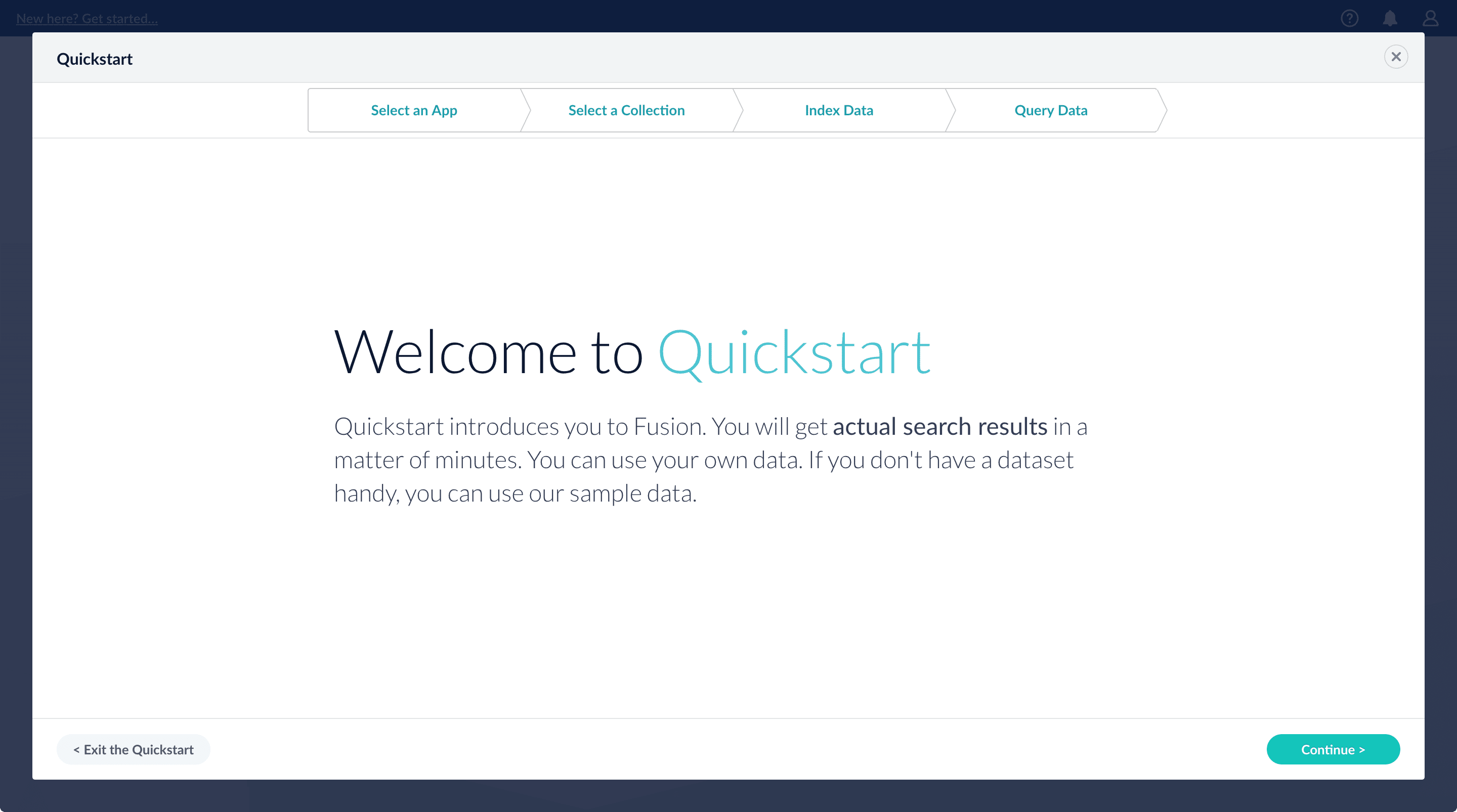 1. Click **Continue**.\
On the **Select an App** screen, you can select or create an app for your quickstart data.
1. Click **Continue**.\
On the **Select an App** screen, you can select or create an app for your quickstart data.
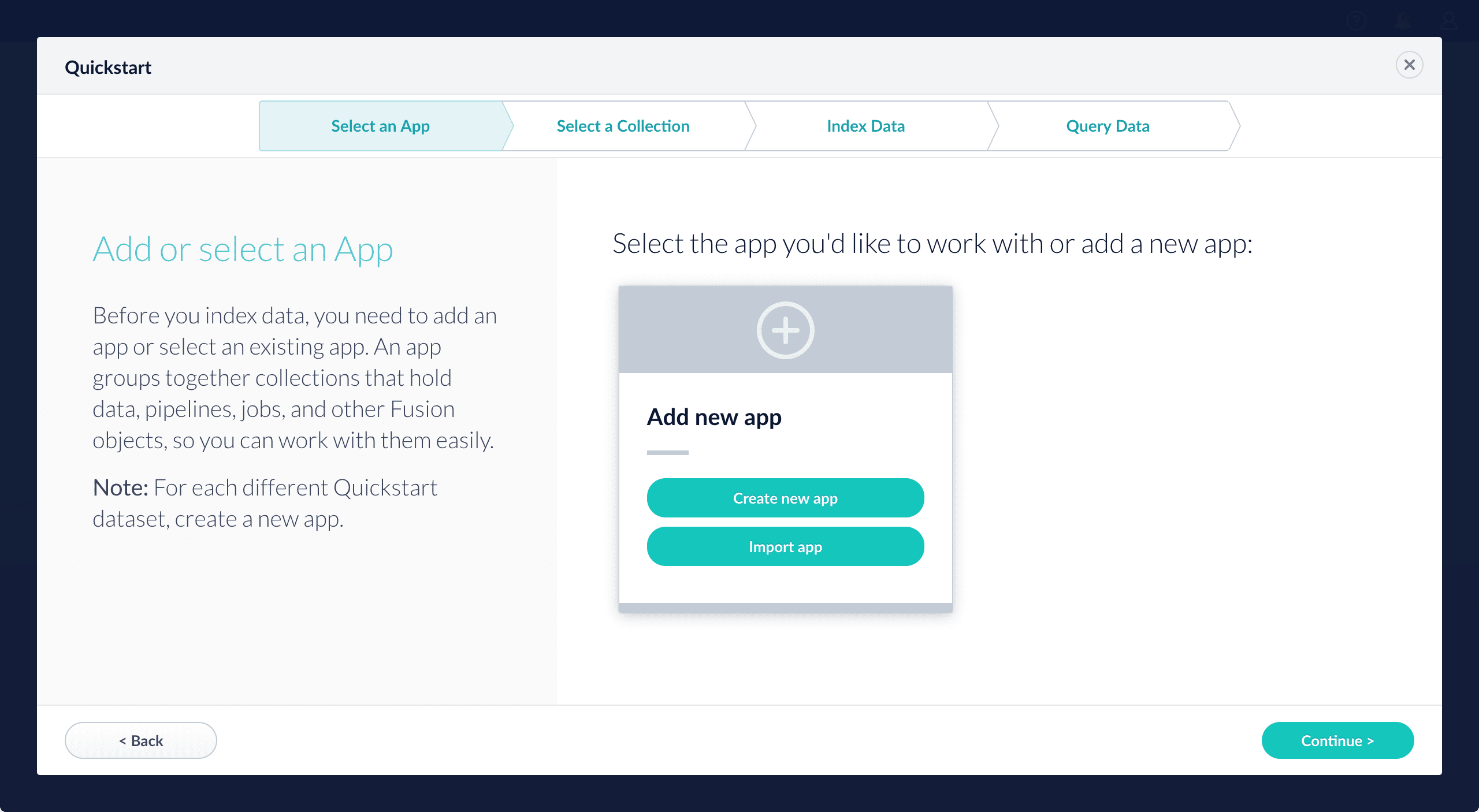 If you click **Create new app**, Lucidworks Search prompts you to enter an app name (and optionally a description), then click **Create App** to return to the Quickstart. Your new app is selected by default.
2. After selecting an app, click **Continue**.
On the **Select a Collection** screen, you can select or create a [collection](/docs/lucidworks-search/04-move-data-in/collection/overview) for your quickstart data. A collection with the same name as your app is created automatically:
If you click **Create new app**, Lucidworks Search prompts you to enter an app name (and optionally a description), then click **Create App** to return to the Quickstart. Your new app is selected by default.
2. After selecting an app, click **Continue**.
On the **Select a Collection** screen, you can select or create a [collection](/docs/lucidworks-search/04-move-data-in/collection/overview) for your quickstart data. A collection with the same name as your app is created automatically:
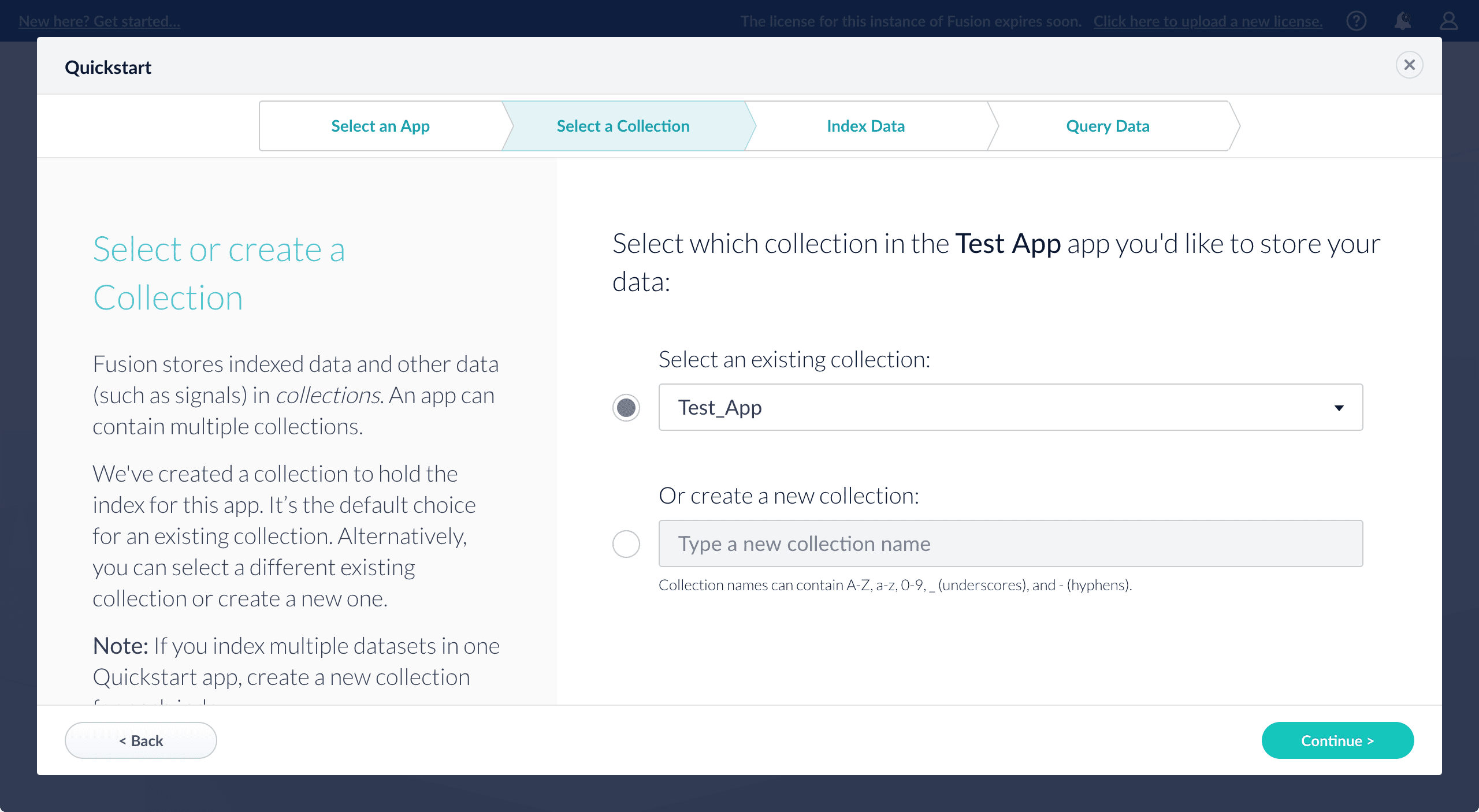 3. Click **Continue**.\
On the **Index Data** screen, you can either select one of the built-in sample datasets or click **Use my data** to upload your own:
3. Click **Continue**.\
On the **Index Data** screen, you can either select one of the built-in sample datasets or click **Use my data** to upload your own:
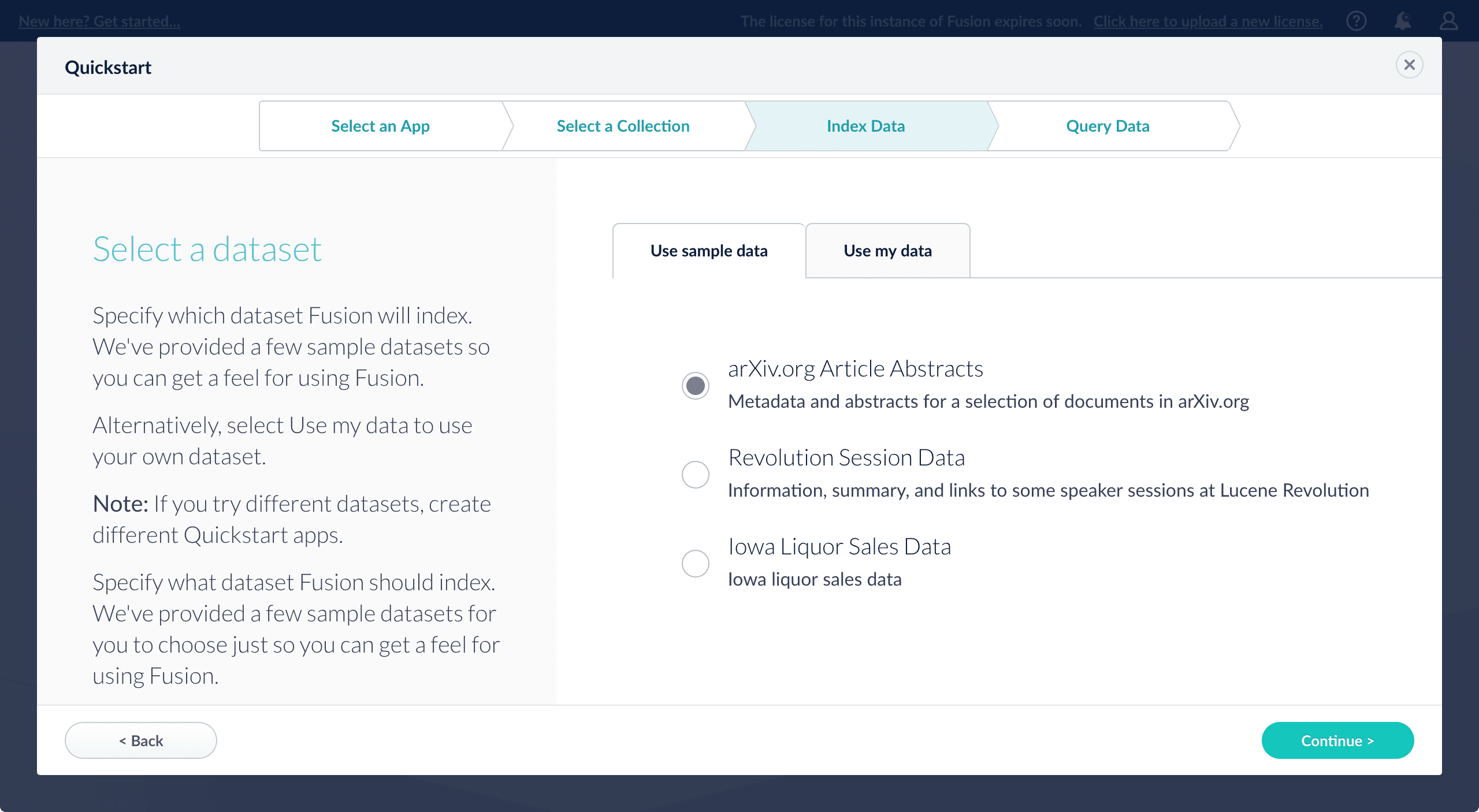 4. Click **Continue**.\
On the **Query Data** screen, you can see all search results and enter your own search queries to test the indexed dataset. You can also select the display fields or view the parsed documents:
4. Click **Continue**.\
On the **Query Data** screen, you can see all search results and enter your own search queries to test the indexed dataset. You can also select the display fields or view the parsed documents:
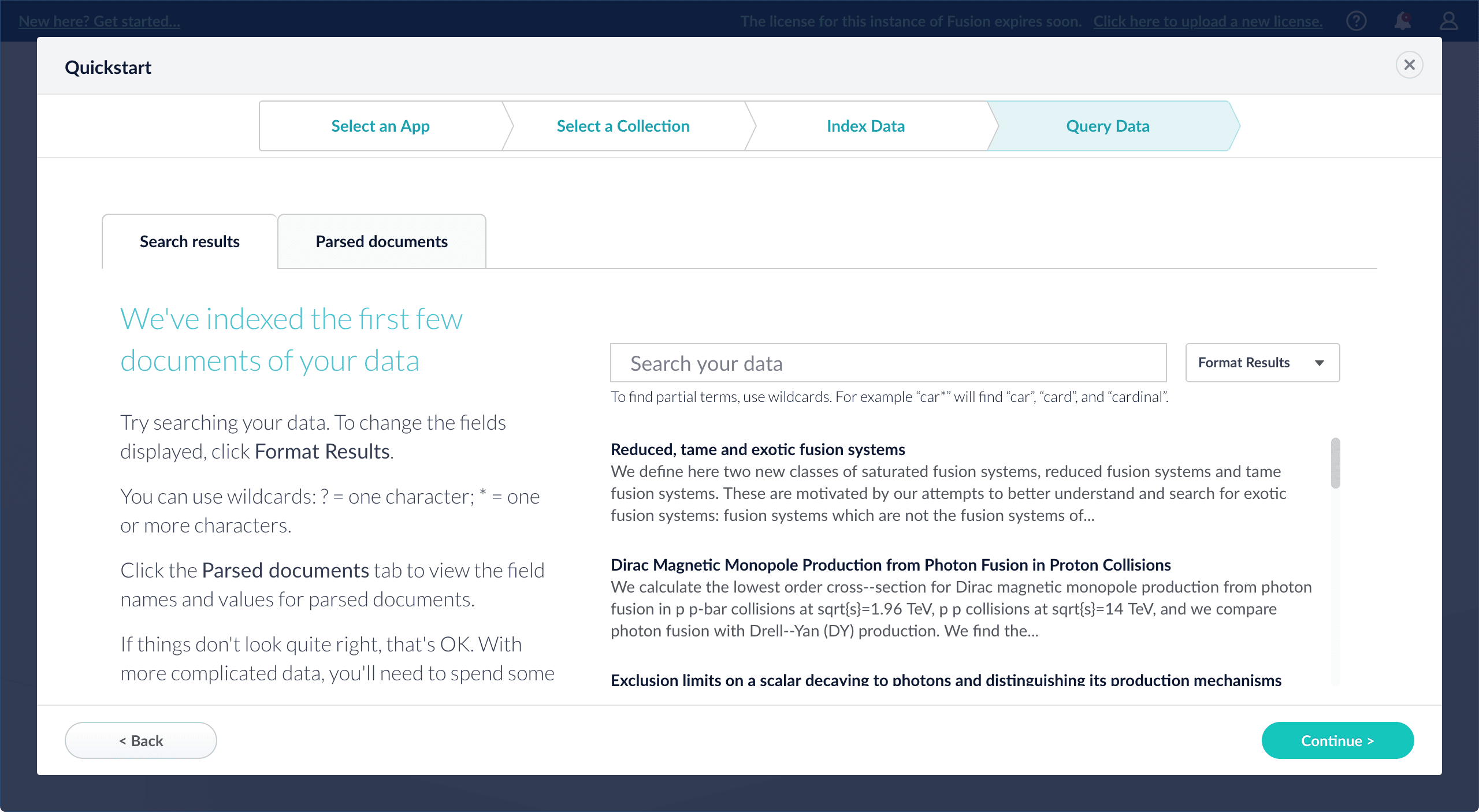 5. Click **Continue**.
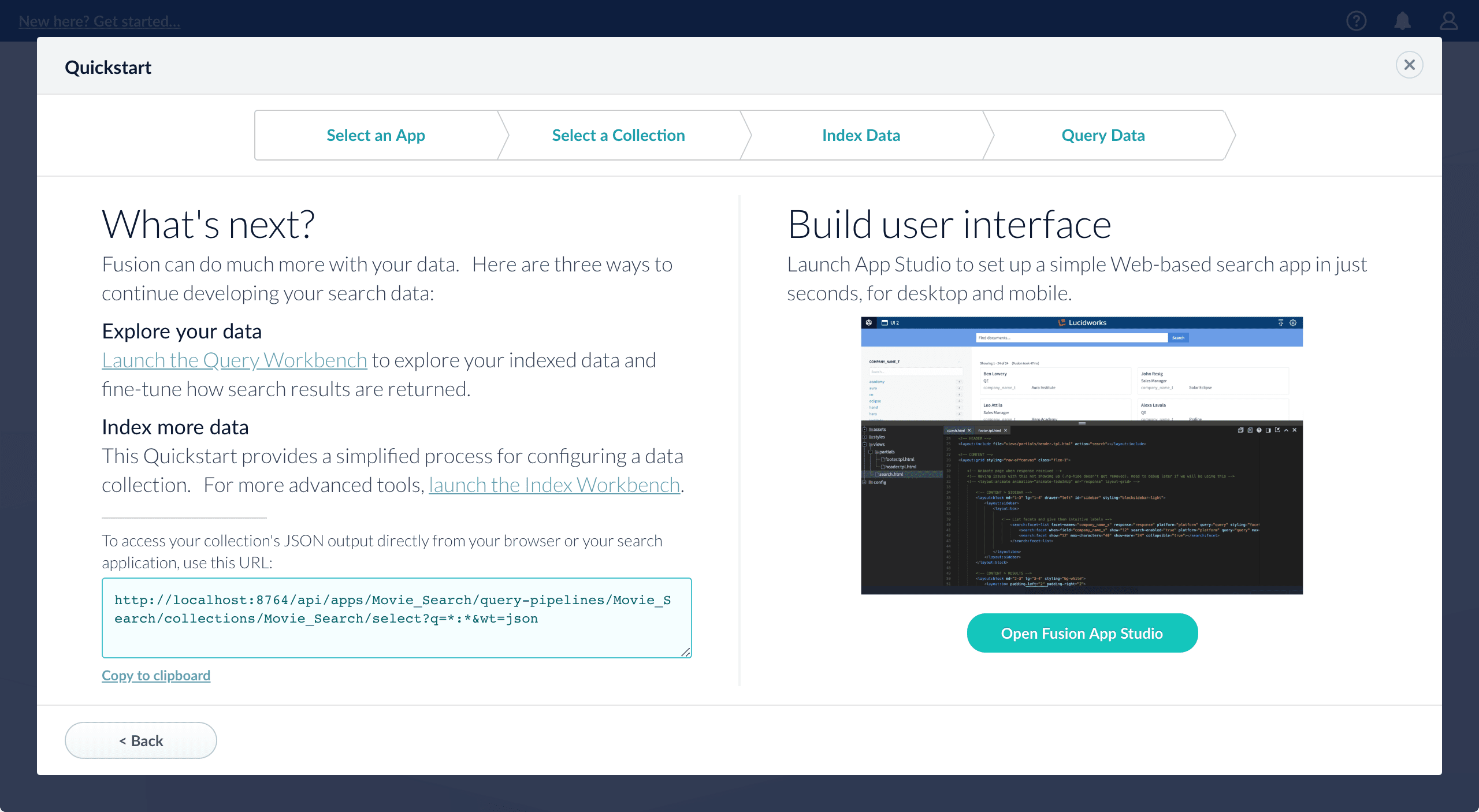 From here, you can do the following:
* Open the [Index Workbench](/docs/lucidworks-search/04-move-data-in/index-workbench/overview) to change the index pipeline.
* Open the [Query Workbench](/docs/lucidworks-search/05-move-data-out/query-workbench/overview) to change the query pipeline.
The workbenches are essentials tools in the Fusion workflow.
From here, you can do the following:
* Open the [Index Workbench](/docs/lucidworks-search/04-move-data-in/index-workbench/overview) to change the index pipeline.
* Open the [Query Workbench](/docs/lucidworks-search/05-move-data-out/query-workbench/overview) to change the query pipeline.
The workbenches are essentials tools in the Fusion workflow.
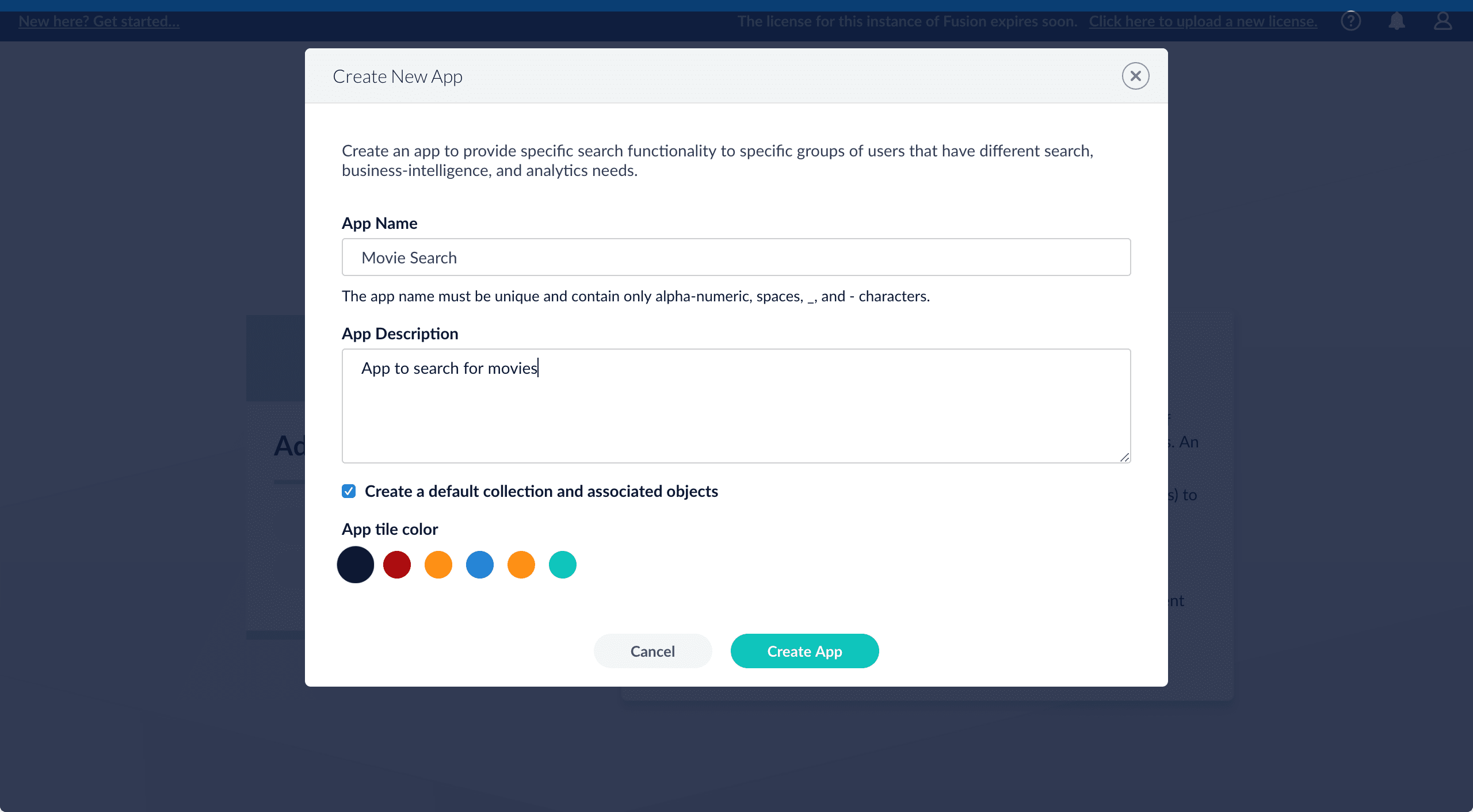 The Movie Search app displays in the Lucidworks Search launcher screen.
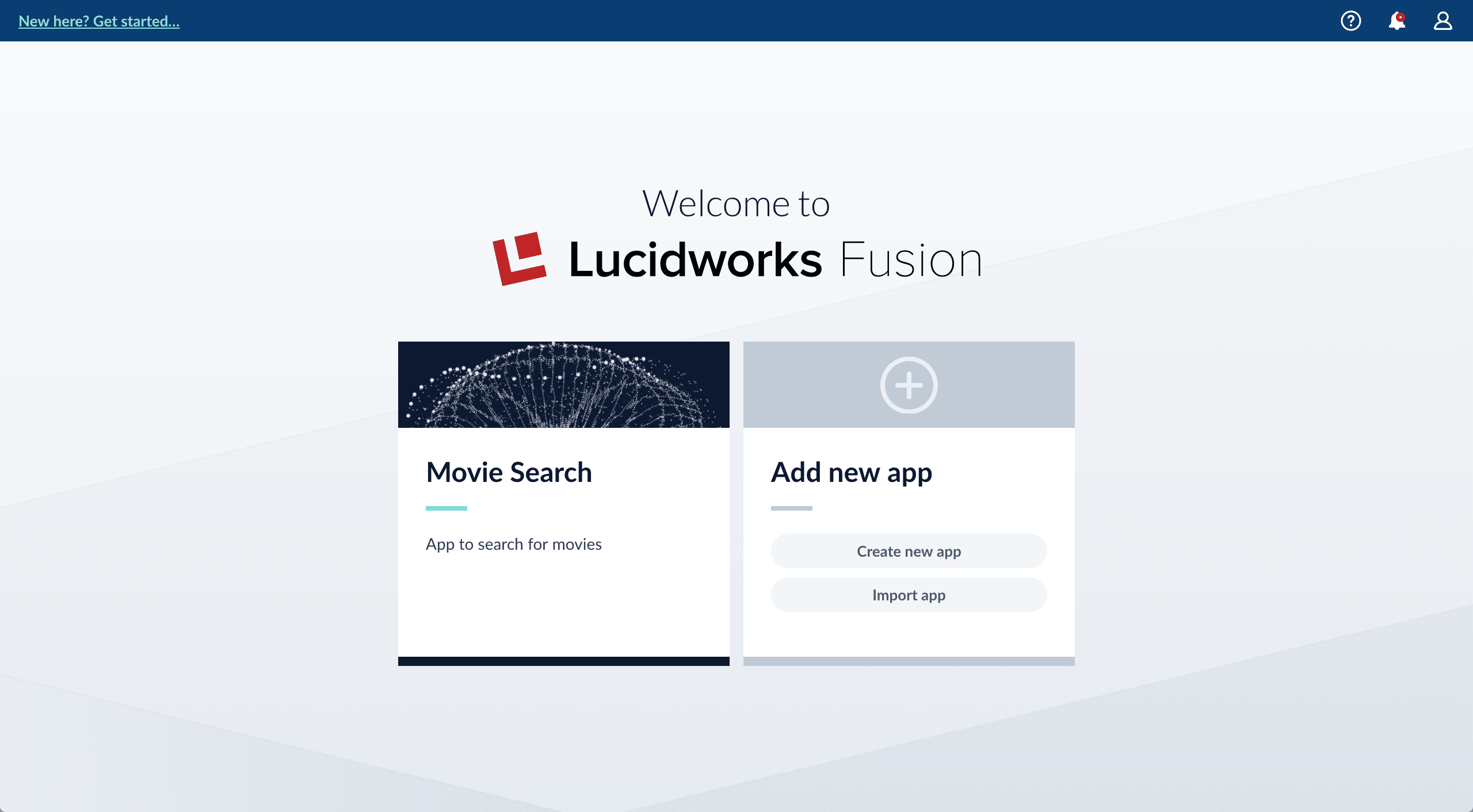
 . Movie Search is the currently selected app.
* Review the collection picker selection at the top of the screen. `Movie_Search` is selected as the default collection for the Movie Search app, and is where Lucidworks Search will place index data.
. Movie Search is the currently selected app.
* Review the collection picker selection at the top of the screen. `Movie_Search` is selected as the default collection for the Movie Search app, and is where Lucidworks Search will place index data.
 ## Configure the datasource
A collection includes one or more datasources. A datasource is a configuration that manages the import, parsing, and indexing of data into a collection.
1. Click **Indexing**
## Configure the datasource
A collection includes one or more datasources. A datasource is a configuration that manages the import, parsing, and indexing of data into a collection.
1. Click **Indexing**  **> Index Workbench**.
2. Click **New**.
3. In the Add A New Datasource section, click **Or, upload a file**.
4. Click **Choose File**.
5. Navigate to the `movies.csv` file on your computer, select it, and click **Open**. The file name displays on the screen.
**> Index Workbench**.
2. Click **New**.
3. In the Add A New Datasource section, click **Or, upload a file**.
4. Click **Choose File**.
5. Navigate to the `movies.csv` file on your computer, select it, and click **Open**. The file name displays on the screen.
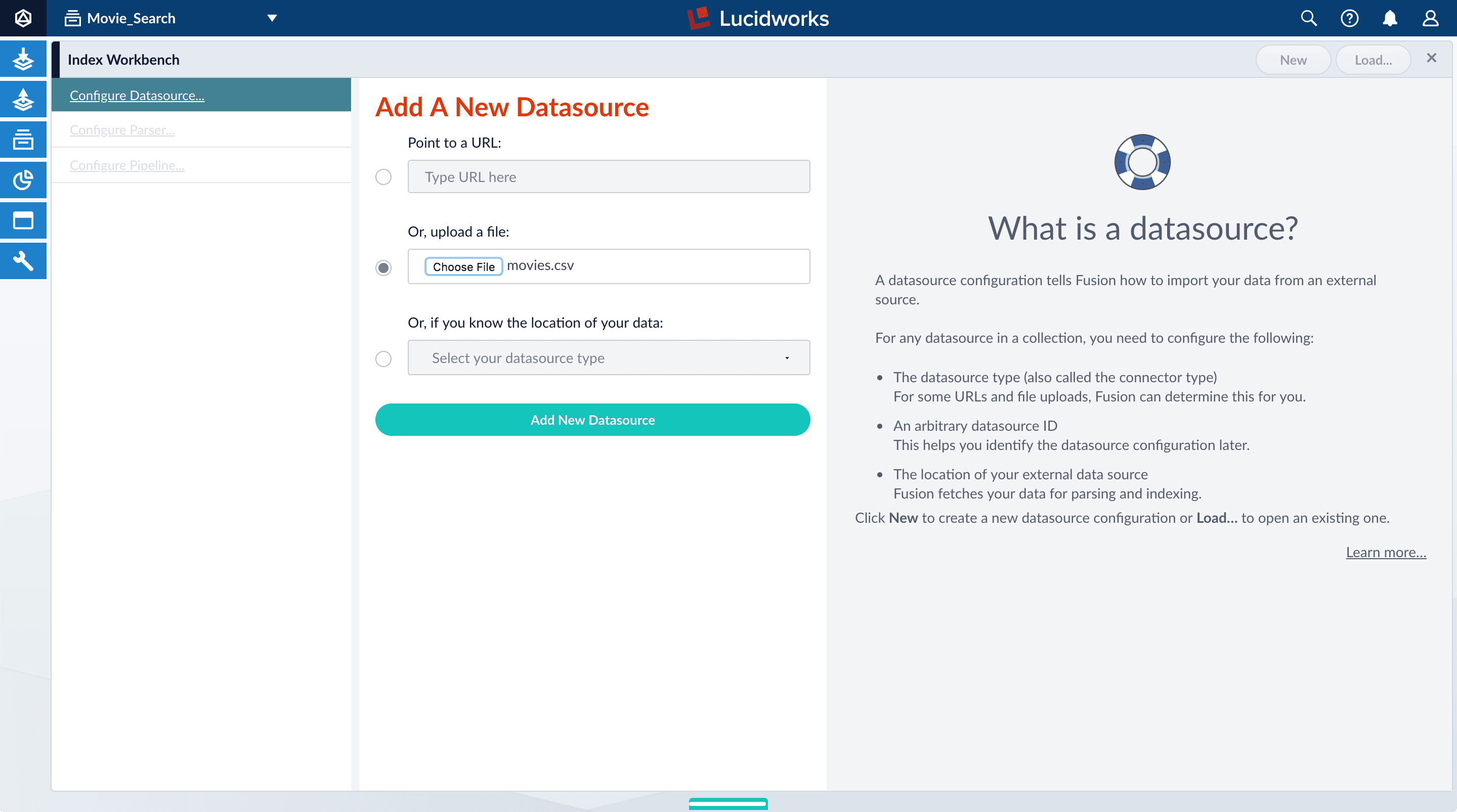 6. Click **Add New Datasource**.
The Datasource (File Upload) configuration panel displays the default datasource ID `movies_csv-Movie_Search` and the default file ID `movies.csv`. You do not have to change these values.
7. Enter the **Description** `Movies CSV file`.
6. Click **Add New Datasource**.
The Datasource (File Upload) configuration panel displays the default datasource ID `movies_csv-Movie_Search` and the default file ID `movies.csv`. You do not have to change these values.
7. Enter the **Description** `Movies CSV file`.
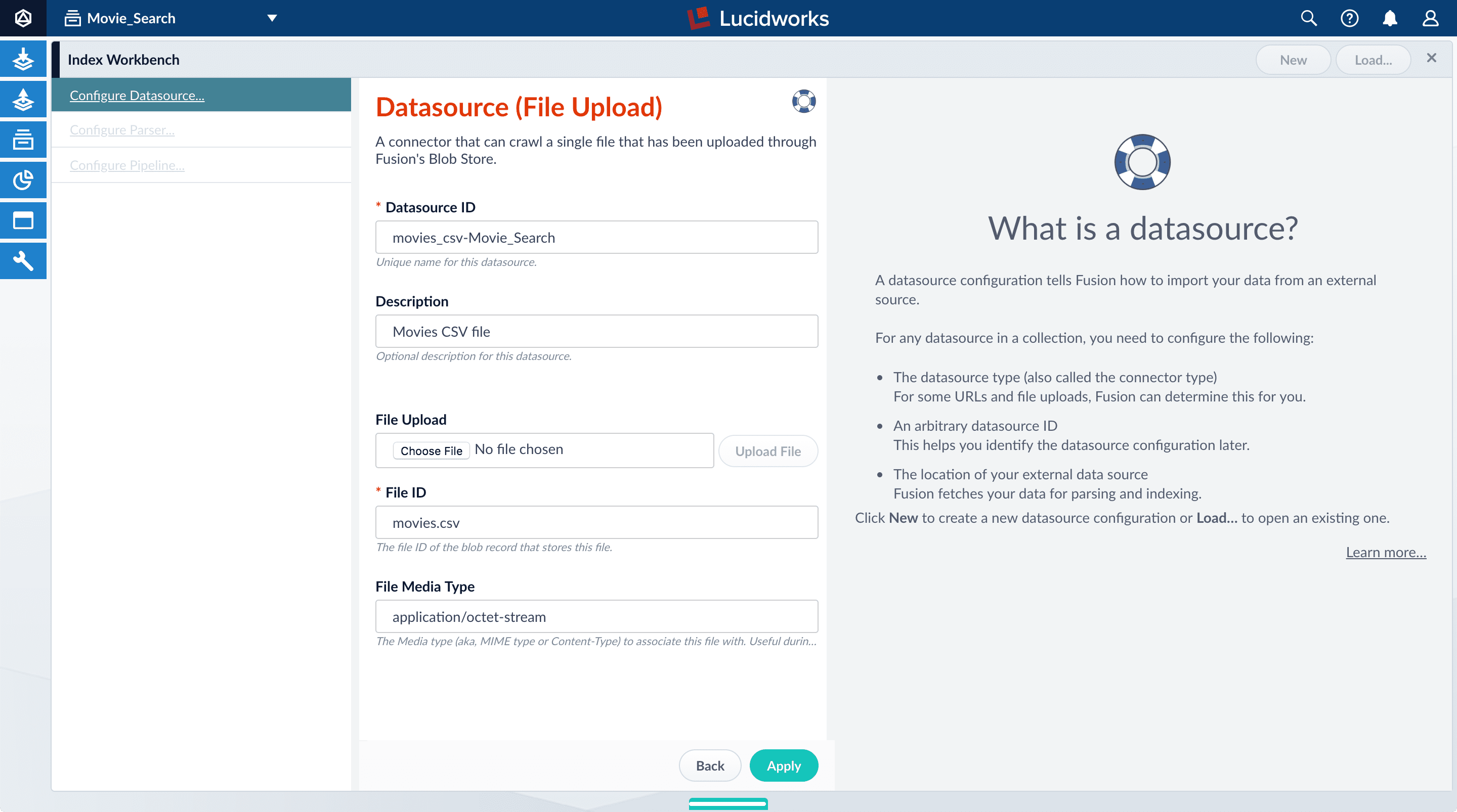 8. Click **Apply**.
Index Workbench reads up to 20 documents into memory from the `movies.csv` file, and then displays a preview of how they would be indexed based on current parameter and field settings.
You have finished configuring the datasource. At the bottom of the page, click **Cancel**.
8. Click **Apply**.
Index Workbench reads up to 20 documents into memory from the `movies.csv` file, and then displays a preview of how they would be indexed based on current parameter and field settings.
You have finished configuring the datasource. At the bottom of the page, click **Cancel**.
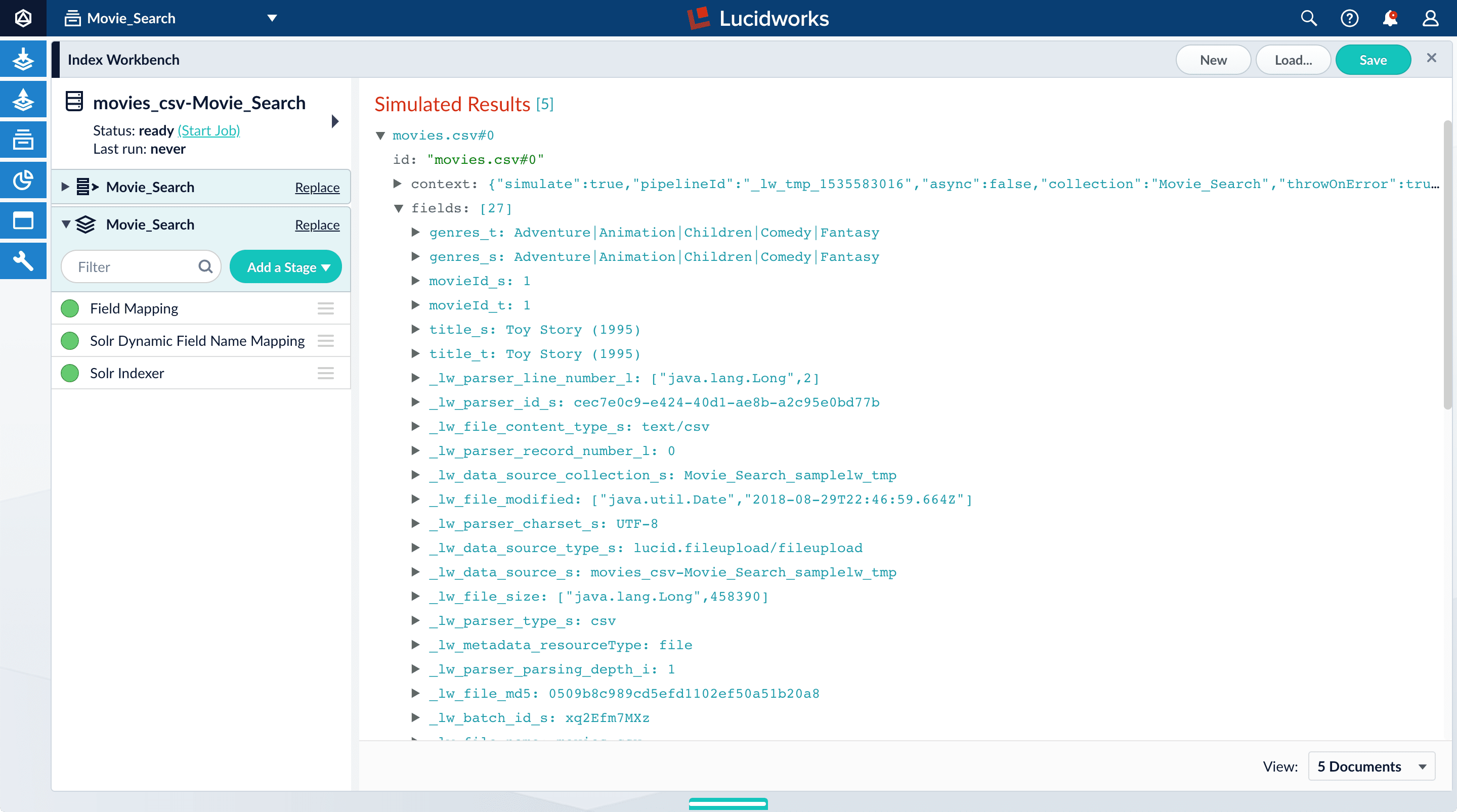 The View Documents field in the lower right lets you select the number of documents to preview.
## Analyze the default output
1. Review the preview to inspect how Lucidworks Search interpreted the original fields:
* `genres` became `genres_t` (the `text_general` field type) and `genres_s` (the `string` field type). String fields are useful for faceting and sorting, while text fields are for full-text search. At this point, Lucidworks Search cannot determine whether you intend to use this field for faceting and sorting, for full-text search, or for both.
* Similarly, `title` became `title_t` and `title_s` because Lucidworks Search cannot determine whether you intend to use this field for faceting and sorting, for full-text search, or for both.
* Like the other fields, `movieId` became `movieId_t` and `movieId_s` because Lucidworks Search cannot determine whether you intend to use this field for faceting and sorting, for full-text search, or for both. This might seem odd, because the original field contains numbers. But, at this stage, Lucidworks Search creates `text_general` and `string` fields. To use the contents of this field as an integer, you would map the field to an integer field.
* Fields that begin with `_lw` fields contain data that Lucidworks Search creates for its own housekeeping. You can disregard these entries.
These fields are created by the Solr Dynamic Field Name Mapping stage in the default index pipeline. This stage attempts to automatically detect field types, and renames fields accordingly. For this tutorial, you will manually configure the fields instead.
Click the green circle next to the **Solr Dynamic Field Name Mapping** stage to turn off the stage.
Your data's original fields display: `genres`, `movieId`, and `title`.
The View Documents field in the lower right lets you select the number of documents to preview.
## Analyze the default output
1. Review the preview to inspect how Lucidworks Search interpreted the original fields:
* `genres` became `genres_t` (the `text_general` field type) and `genres_s` (the `string` field type). String fields are useful for faceting and sorting, while text fields are for full-text search. At this point, Lucidworks Search cannot determine whether you intend to use this field for faceting and sorting, for full-text search, or for both.
* Similarly, `title` became `title_t` and `title_s` because Lucidworks Search cannot determine whether you intend to use this field for faceting and sorting, for full-text search, or for both.
* Like the other fields, `movieId` became `movieId_t` and `movieId_s` because Lucidworks Search cannot determine whether you intend to use this field for faceting and sorting, for full-text search, or for both. This might seem odd, because the original field contains numbers. But, at this stage, Lucidworks Search creates `text_general` and `string` fields. To use the contents of this field as an integer, you would map the field to an integer field.
* Fields that begin with `_lw` fields contain data that Lucidworks Search creates for its own housekeeping. You can disregard these entries.
These fields are created by the Solr Dynamic Field Name Mapping stage in the default index pipeline. This stage attempts to automatically detect field types, and renames fields accordingly. For this tutorial, you will manually configure the fields instead.
Click the green circle next to the **Solr Dynamic Field Name Mapping** stage to turn off the stage.
Your data's original fields display: `genres`, `movieId`, and `title`.
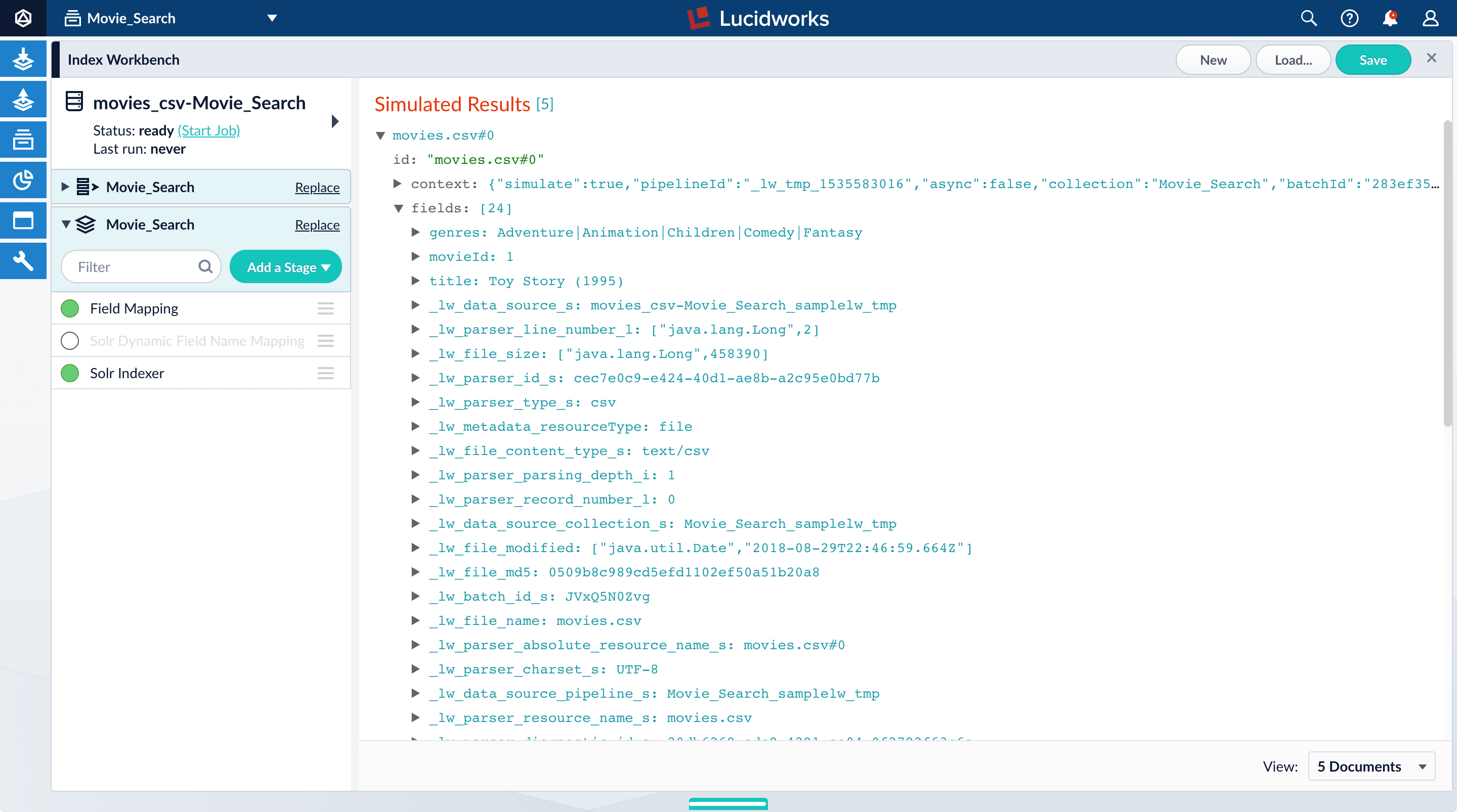 ## Configure the index pipeline
In this section, you will:
* Configure the field mappings in the index pipeline so each field has the correct data type.
* Query Data.
* Create a new field from part of an existing one.
* Trim a field's value.
### Configure field mappings
Field mappings control the data types of documents. Lucidworks Search uses field name suffixes to determine field types. If the field name:
* Contains a suffix, precise analysis and search occurs.
* Does not contain a suffix, Lucidworks Search stores the data as a string field and treats it as an unanalyzed whole.
This section provides examples of both instances.
1. In the list of index pipeline stages, click **Field Mapping** to open the Field Mapping stage configuration panel.
2. In **Field Translations**, click Add
## Configure the index pipeline
In this section, you will:
* Configure the field mappings in the index pipeline so each field has the correct data type.
* Query Data.
* Create a new field from part of an existing one.
* Trim a field's value.
### Configure field mappings
Field mappings control the data types of documents. Lucidworks Search uses field name suffixes to determine field types. If the field name:
* Contains a suffix, precise analysis and search occurs.
* Does not contain a suffix, Lucidworks Search stores the data as a string field and treats it as an unanalyzed whole.
This section provides examples of both instances.
1. In the list of index pipeline stages, click **Field Mapping** to open the Field Mapping stage configuration panel.
2. In **Field Translations**, click Add  to create a new field mapping rule.
3. In the **Source Field**, enter `genres`.
4. In the **Target Field**, enter `genres_ss`.
The field suffix `_ss` means that this field is a multi-valued string field.
to create a new field mapping rule.
3. In the **Source Field**, enter `genres`.
4. In the **Target Field**, enter `genres_ss`.
The field suffix `_ss` means that this field is a multi-valued string field.
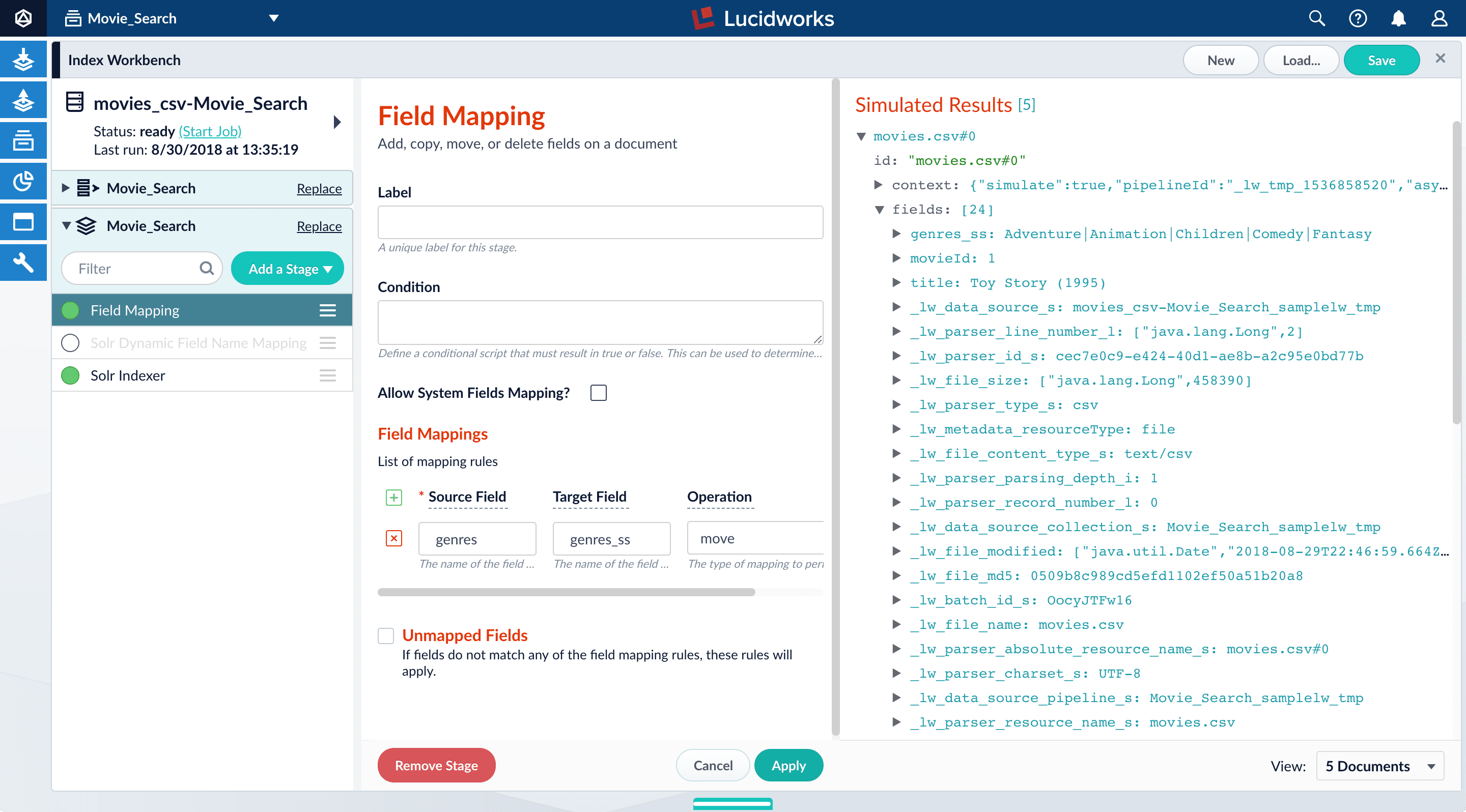 6. Click **Apply**. The new configuration runs the simulation again and updates the preview panel contents, changing the field name to `genres_ss`.
Before:
6. Click **Apply**. The new configuration runs the simulation again and updates the preview panel contents, changing the field name to `genres_ss`.
Before:
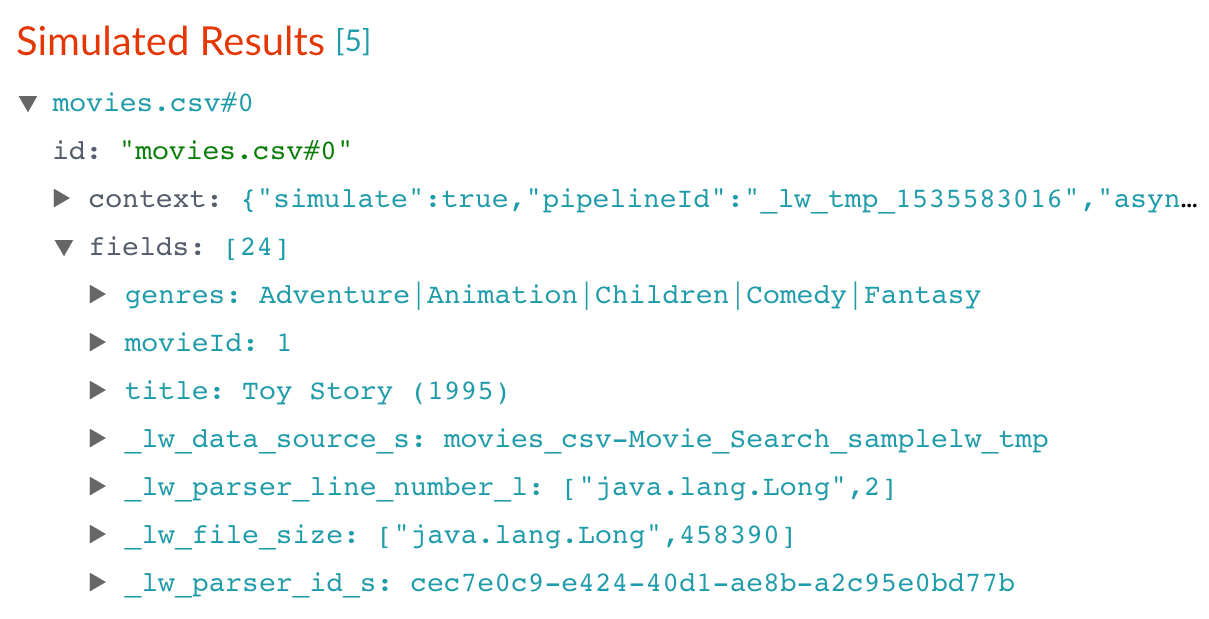 After:
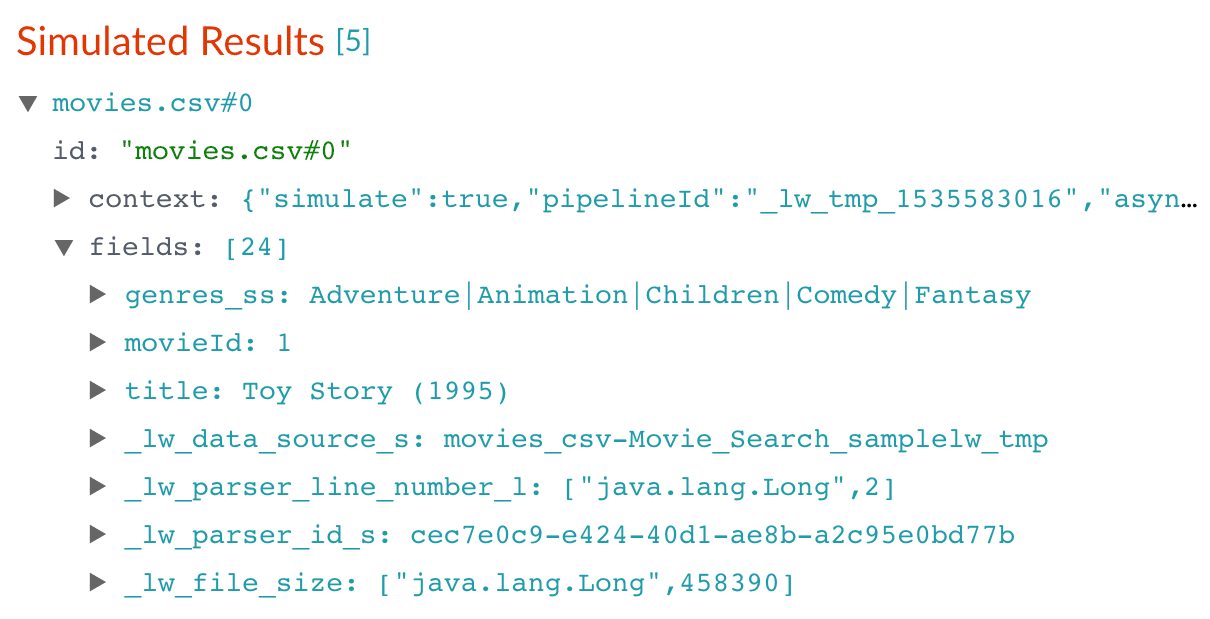 7. Click Add
 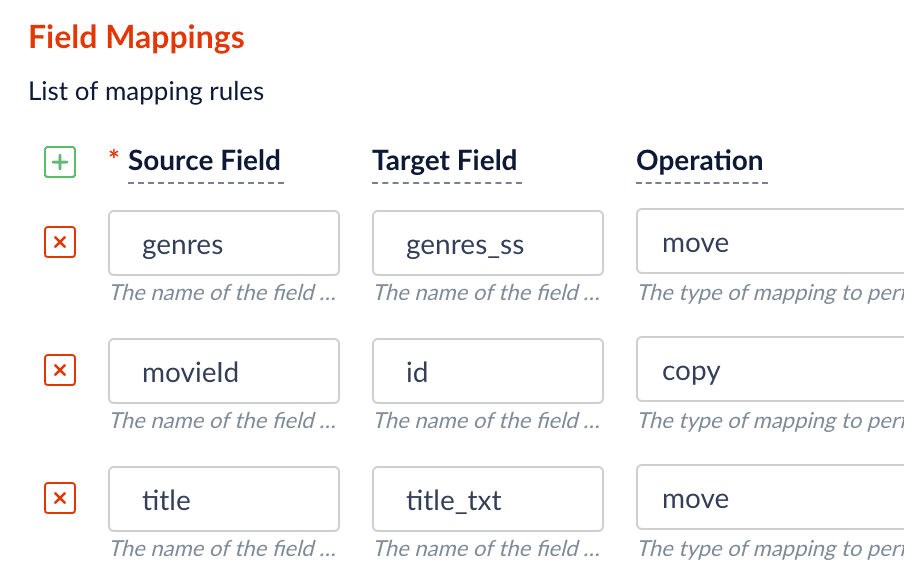 8. Click **Apply**. The results using those field mappings display in the preview panel.
Before:
8. Click **Apply**. The results using those field mappings display in the preview panel.
Before:
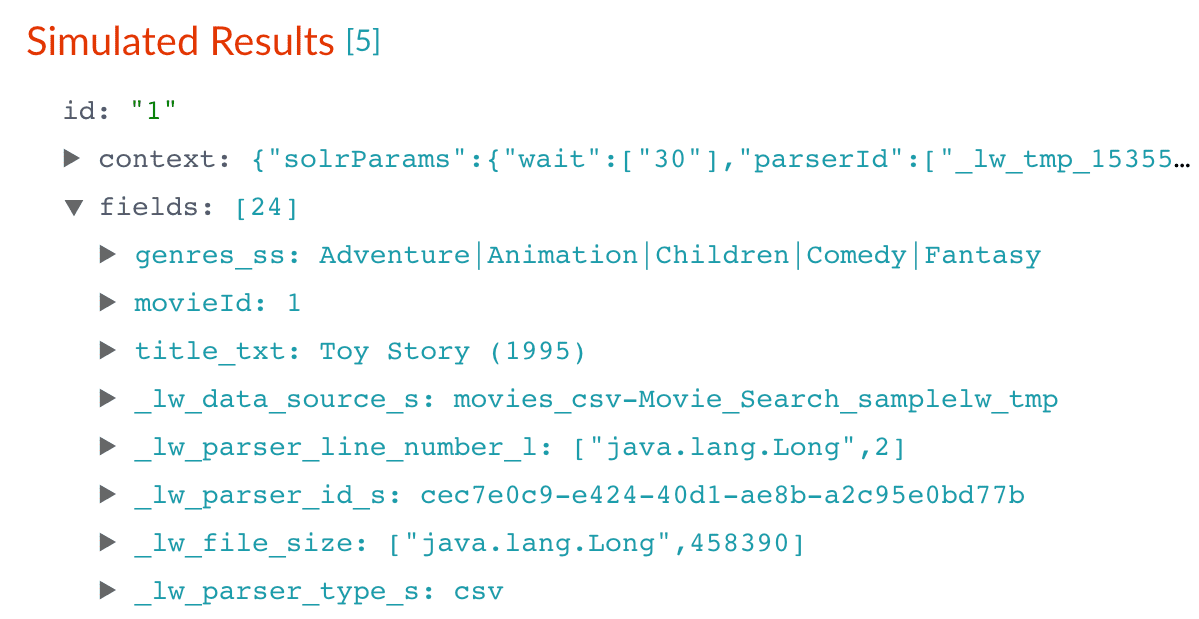 9. In the upper right, click **Save**. The changes to the index pipeline make the document ID more useful and the full text of the movie titles searchable.
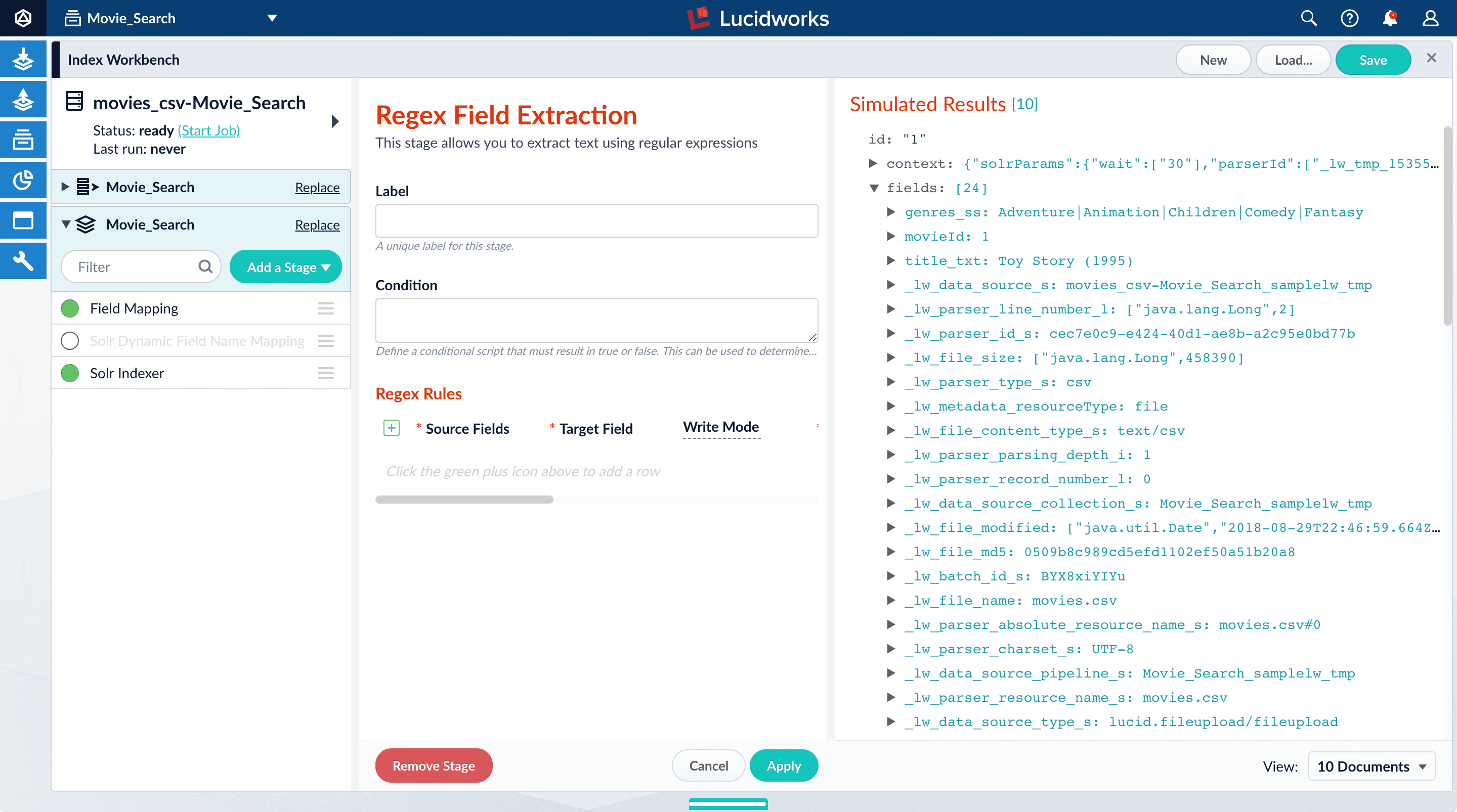 3. In **Regex Rules**, click Add
 ![...]` under **Source Fields**, and click Edit \[Edit, 30px](/assets/images/4.0/icons/edit-icon.png) .
5. In the Source Fields screen, click Add
.
5. In the Source Fields screen, click Add 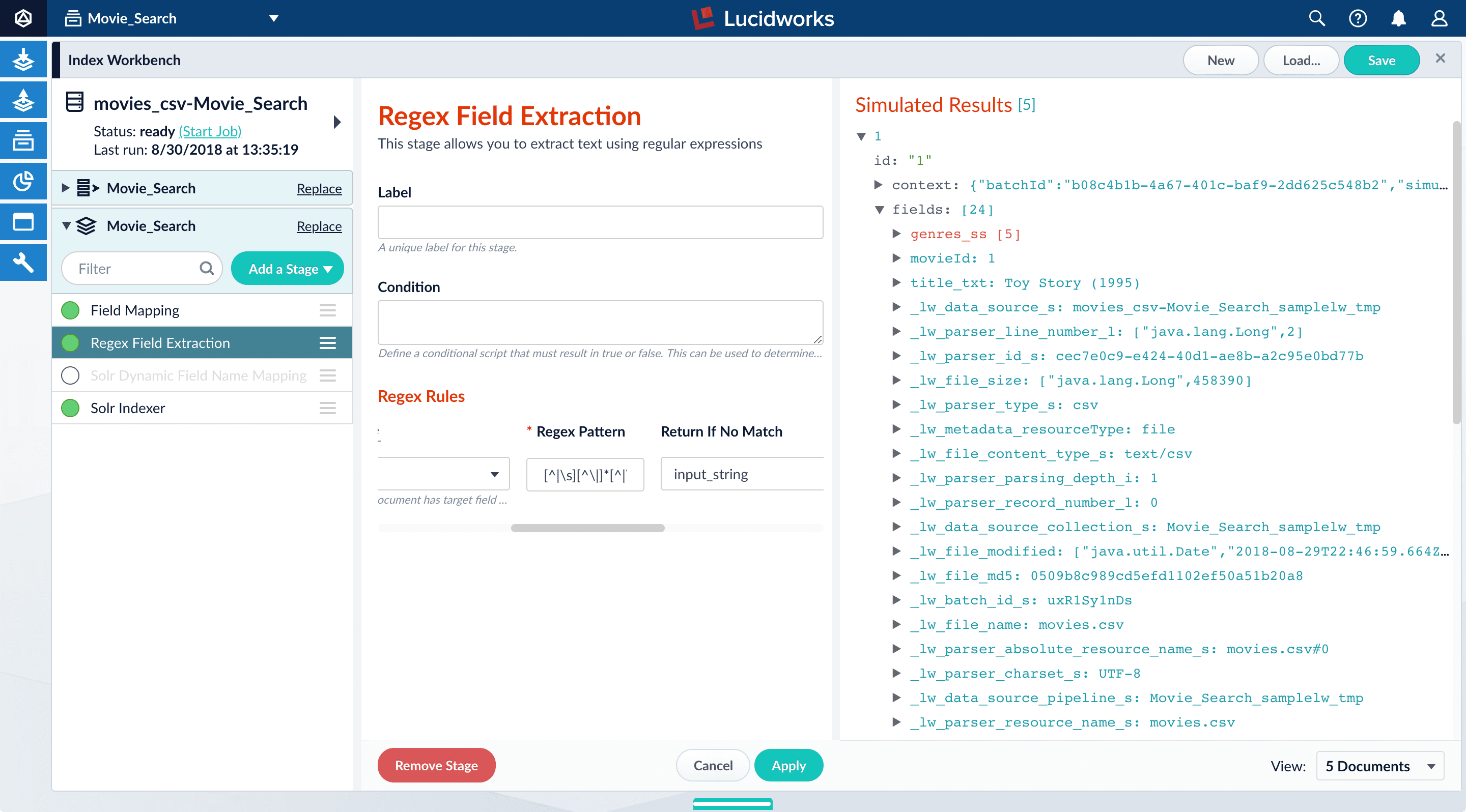 Now the preview shows multiple values for the `genres_ss` field:
Before:
Now the preview shows multiple values for the `genres_ss` field:
Before:
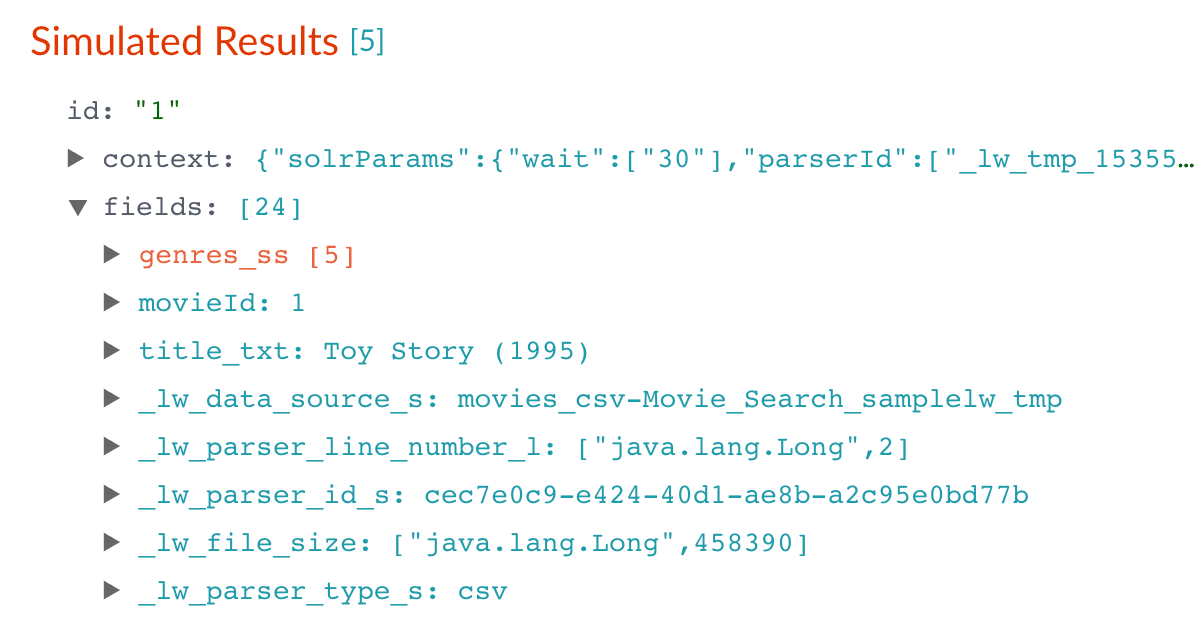
 to expand it and `values` under it:
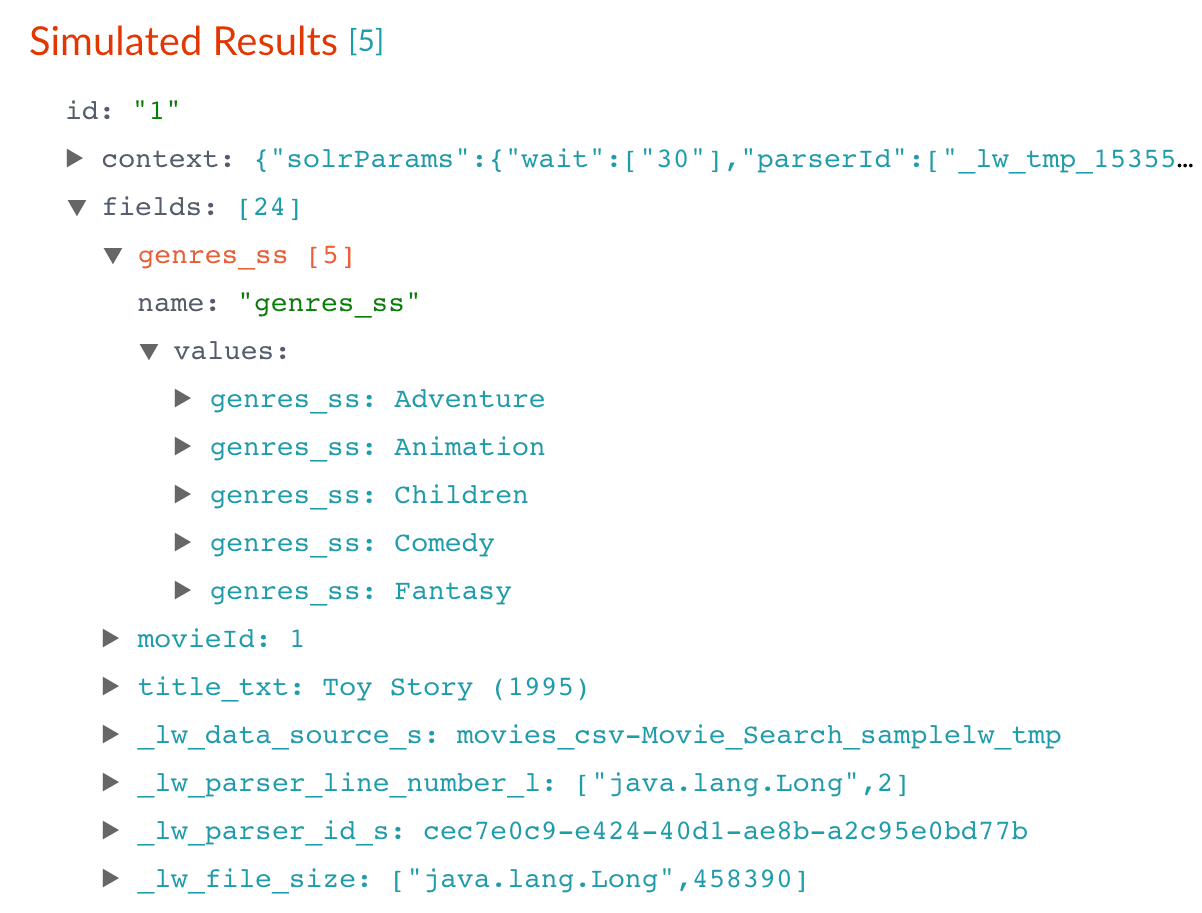 These field values are useful for faceting, which is detailed in Part 3 - Query Data.
14. In the upper right, click **Save** to save the changes to the index pipeline.
### Create a new field from part of an existing one
Currently, the `title_txt` field also contains the year in which the movie was released. To make the field more useful for faceting, the year needs to be a separate field. The Regex Field Extraction stage will separate the data.
1. In the list of index pipeline stages, click **Regex Field Extraction**.
2. In the Regex Field Extraction configuration panel, under Regex Rules, click Add
These field values are useful for faceting, which is detailed in Part 3 - Query Data.
14. In the upper right, click **Save** to save the changes to the index pipeline.
### Create a new field from part of an existing one
Currently, the `title_txt` field also contains the year in which the movie was released. To make the field more useful for faceting, the year needs to be a separate field. The Regex Field Extraction stage will separate the data.
1. In the list of index pipeline stages, click **Regex Field Extraction**.
2. In the Regex Field Extraction configuration panel, under Regex Rules, click Add 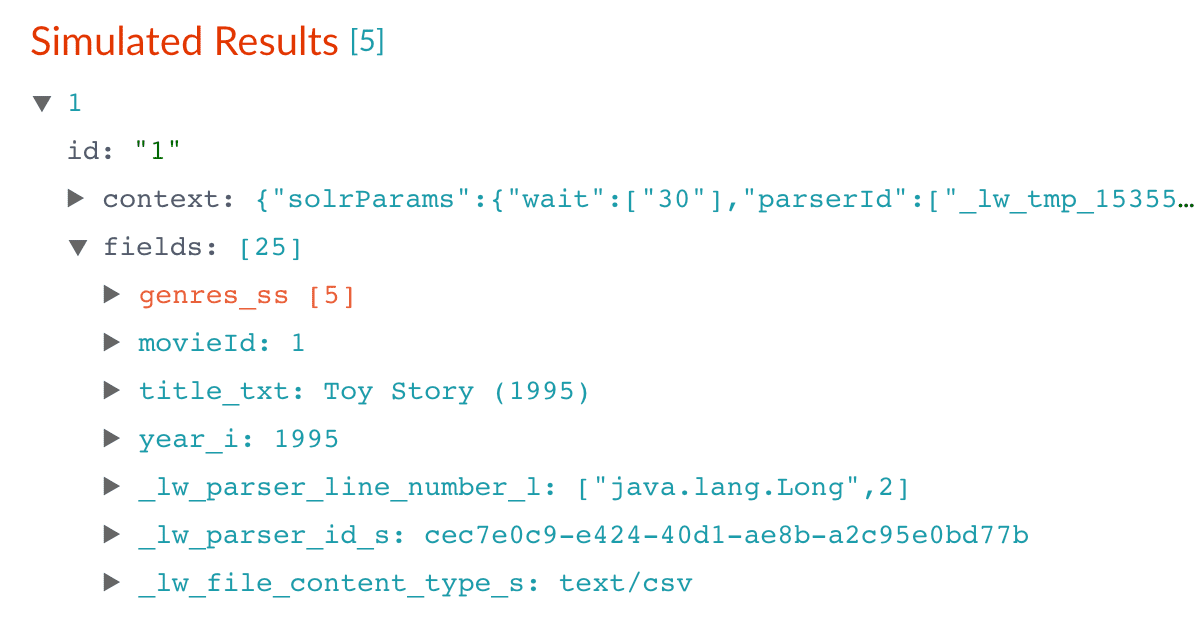 10. In the upper right, click **Save** to save the changes to the index pipeline.
### Trim a field's value
The `title_txt` field still includes the year of the film's release, which you have extracted into its own field, `year_i`. To refine the field for faceting, trim `year_i` from the `title_txt` values so only the title text remains.
1. In the list of index pipeline stages, click **Regex Field Extraction**.
2. In the Regex Field Extraction configuration panel, under Regex Rules, click Add
10. In the upper right, click **Save** to save the changes to the index pipeline.
### Trim a field's value
The `title_txt` field still includes the year of the film's release, which you have extracted into its own field, `year_i`. To refine the field for faceting, trim `year_i` from the `title_txt` values so only the title text remains.
1. In the list of index pipeline stages, click **Regex Field Extraction**.
2. In the Regex Field Extraction configuration panel, under Regex Rules, click Add  .
4. In the Source Fields screen, click Add
.
4. In the Source Fields screen, click Add 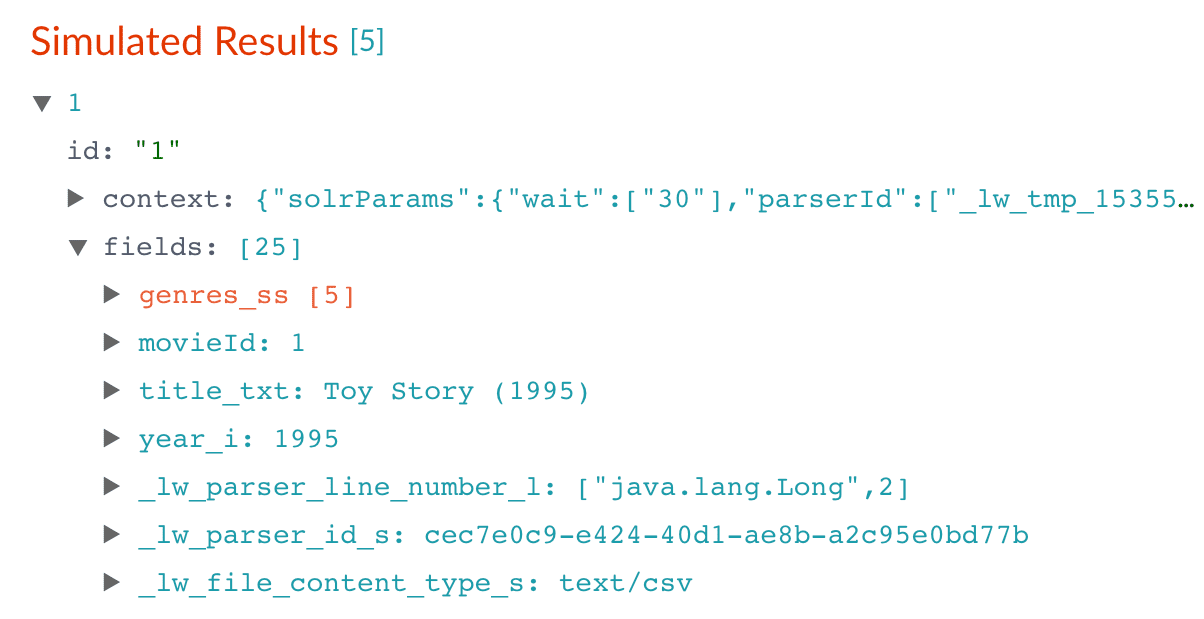 After:
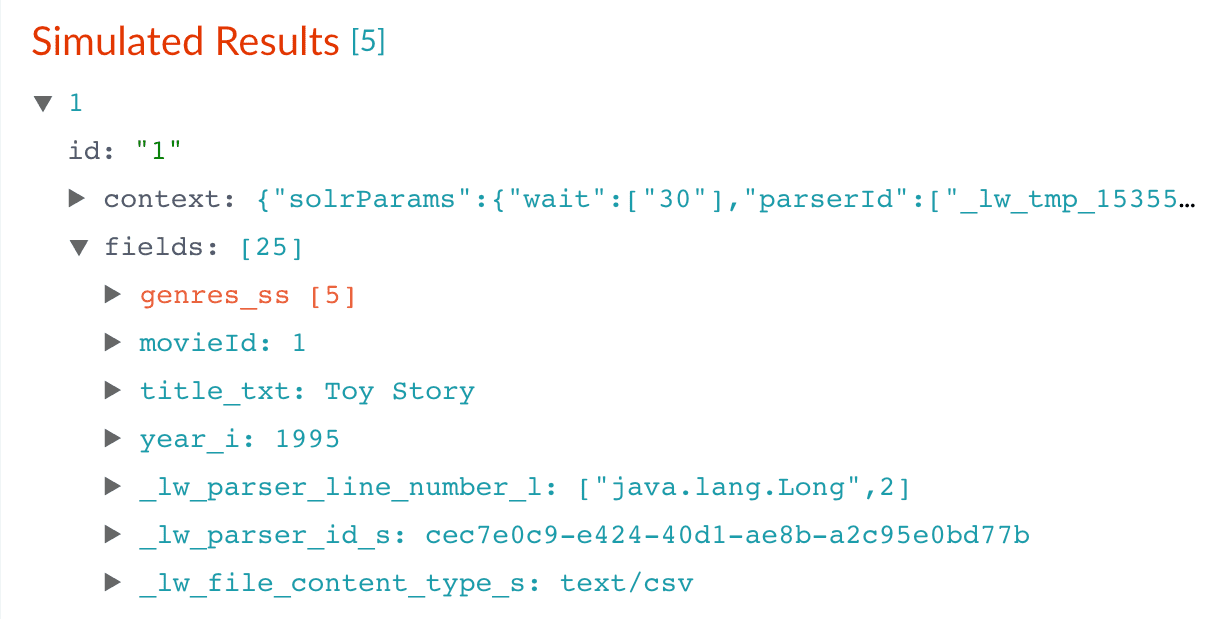 11. In the upper right, click **Save** to save the changes to the index pipeline.
## Run the datasource job
In the upper left, click **Start job** to index the data using the configured index pipeline.
11. In the upper right, click **Save** to save the changes to the index pipeline.
## Run the datasource job
In the upper left, click **Start job** to index the data using the configured index pipeline.
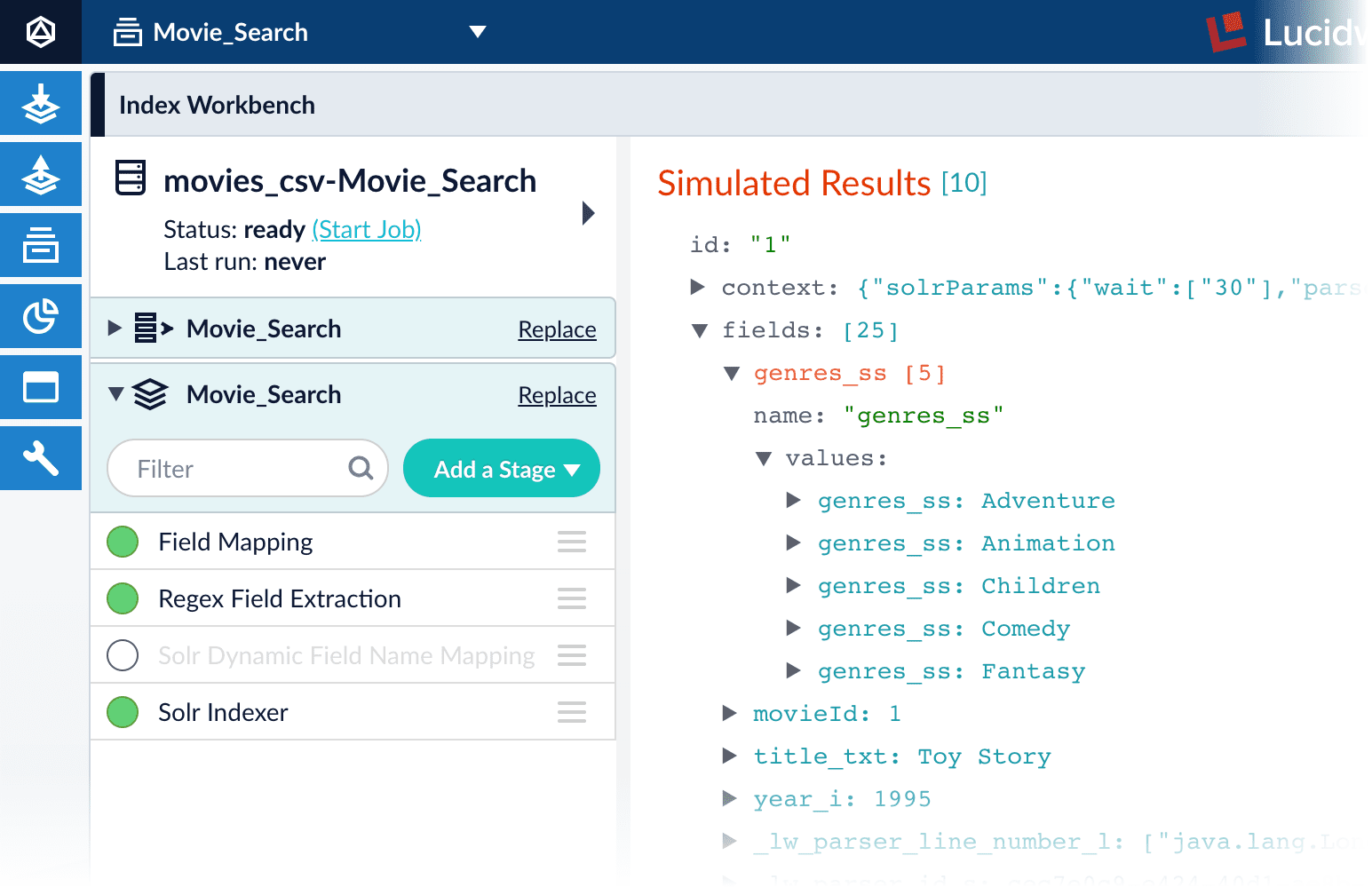 This launches a datasource job that imports and indexes the complete contents of your `movies.csv` file using the configuration you just saved.
Your datasource job is finished when the Index Workbench displays `Status: success` in the upper left. If the status does not change, click to return to the launcher and relaunch your app to refresh the status.
## Close panels you no longer need open
If you do not manually close each panel, Lucidworks Search opens panels beside already open panels. Click **Close**
This launches a datasource job that imports and indexes the complete contents of your `movies.csv` file using the configuration you just saved.
Your datasource job is finished when the Index Workbench displays `Status: success` in the upper left. If the status does not change, click to return to the launcher and relaunch your app to refresh the status.
## Close panels you no longer need open
If you do not manually close each panel, Lucidworks Search opens panels beside already open panels. Click **Close**  to close all of the open panels.
## Reindex the datasource
Documents are associated with a collection through the name of the datasource, which is stored as a value in the `_lw_data_source_s` field.
For various reasons, you may wish to remove all documents associated with a datasource from a collection before using CrawlDB to add relevant documents back to the collection. This process is known as **reindexing**.
1. Navigate to **Indexing**
to close all of the open panels.
## Reindex the datasource
Documents are associated with a collection through the name of the datasource, which is stored as a value in the `_lw_data_source_s` field.
For various reasons, you may wish to remove all documents associated with a datasource from a collection before using CrawlDB to add relevant documents back to the collection. This process is known as **reindexing**.
1. Navigate to **Indexing** 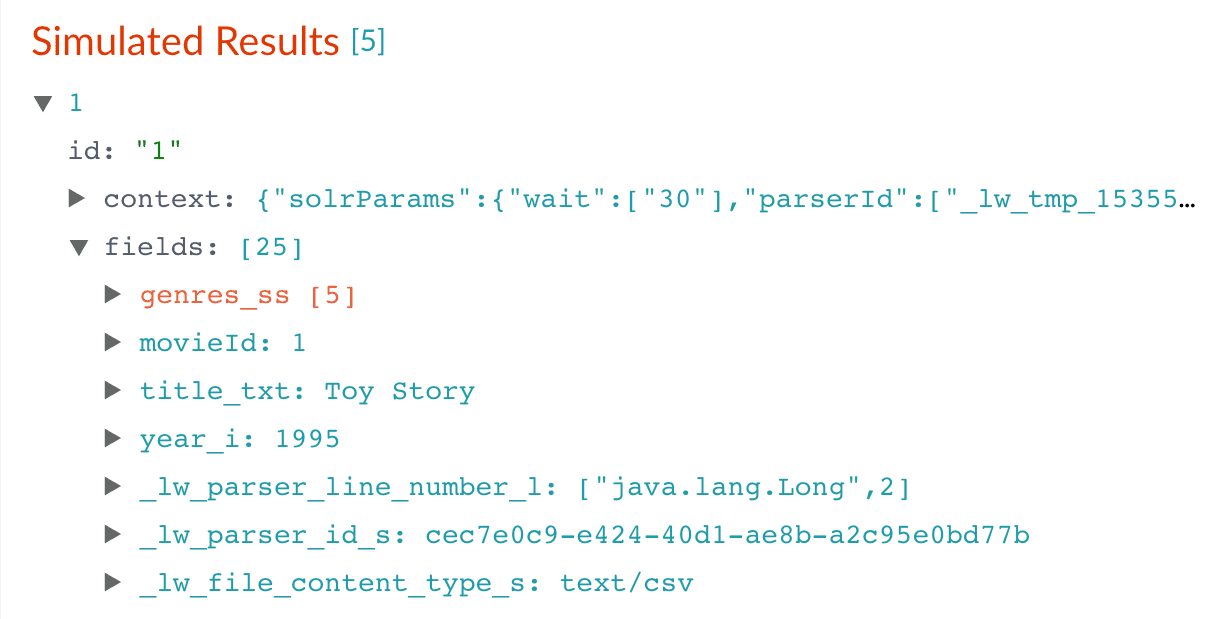
 **> Query Workbench**.
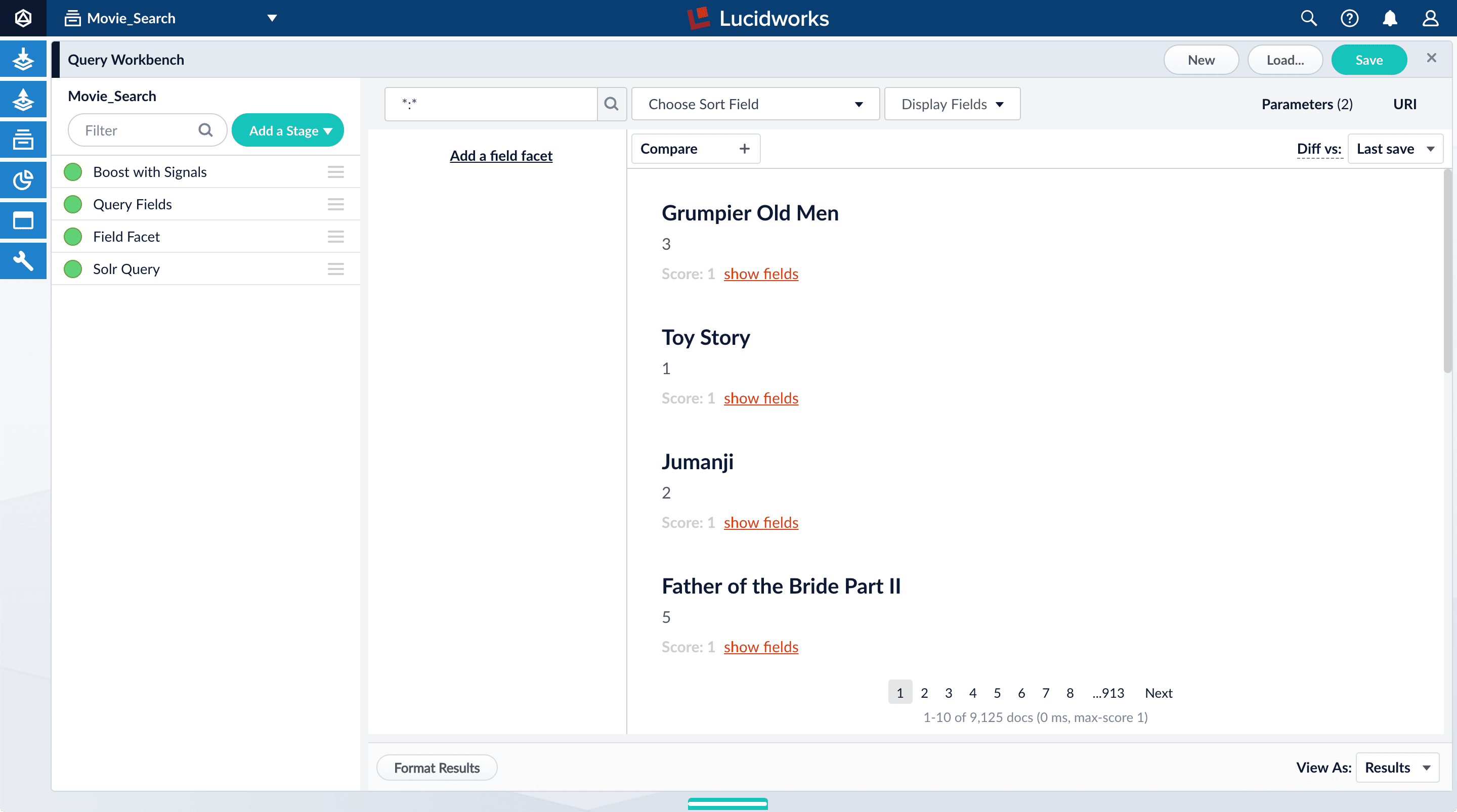 ### Perform a search
The default search is the wildcard search (`*:*`), which returns all documents in the collection.
For information about other search entries for facets, see search entry options.
1. In the search box, enter the query string `star`, and press Enter or click Search
### Perform a search
The default search is the wildcard search (`*:*`), which returns all documents in the collection.
For information about other search entries for facets, see search entry options.
1. In the search box, enter the query string `star`, and press Enter or click Search  .
This search returns all movies that have the word "star" in the title.
.
This search returns all movies that have the word "star" in the title.
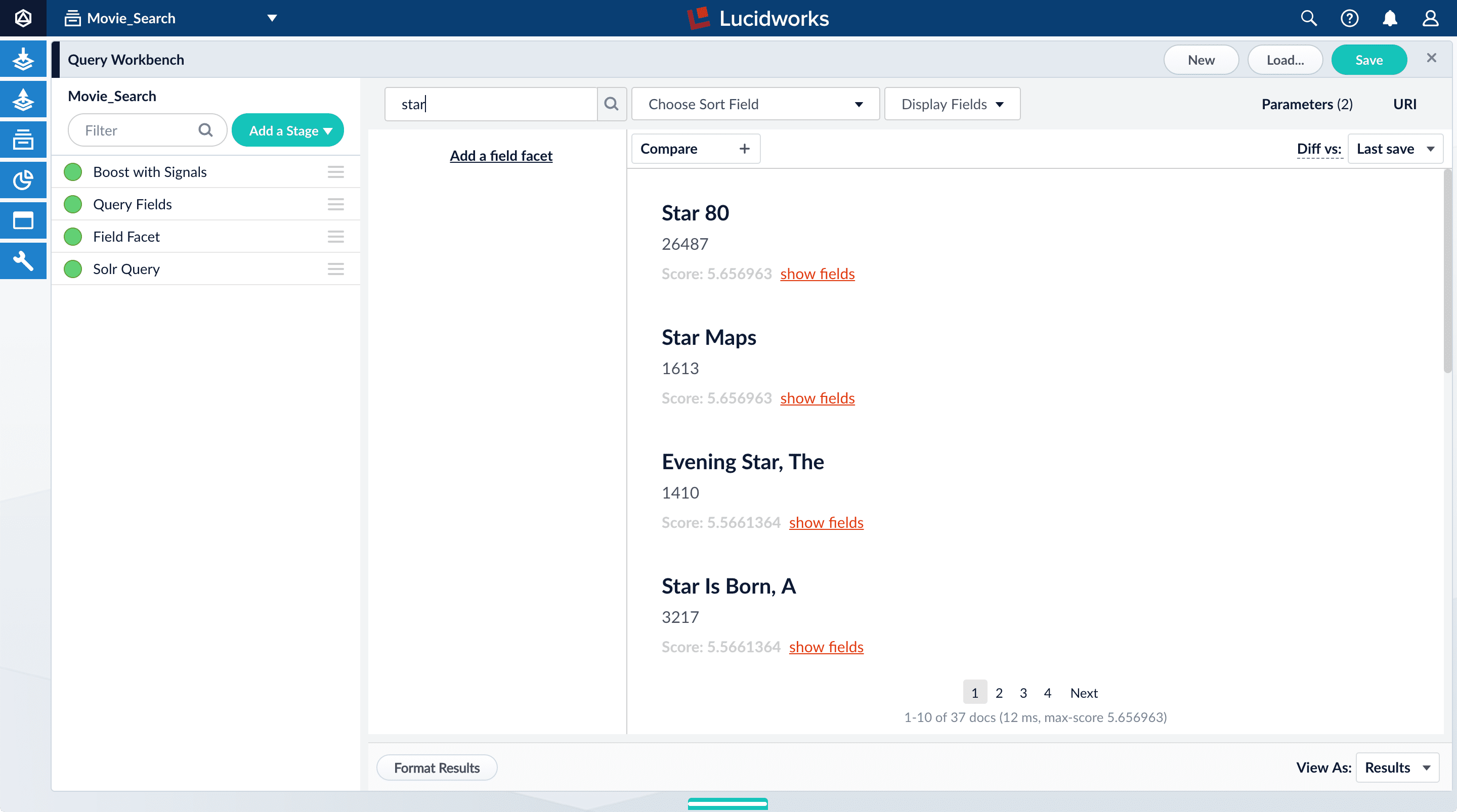 The output is configured by the default query pipeline, which has the same name as the collection. In this example, the name is `movie-search`.
To view more of the default output, you can perform other searches.
2. In the search box, enter the query string `*:*` to return all documents, and press Enter or click Search
The output is configured by the default query pipeline, which has the same name as the collection. In this example, the name is `movie-search`.
To view more of the default output, you can perform other searches.
2. In the search box, enter the query string `*:*` to return all documents, and press Enter or click Search 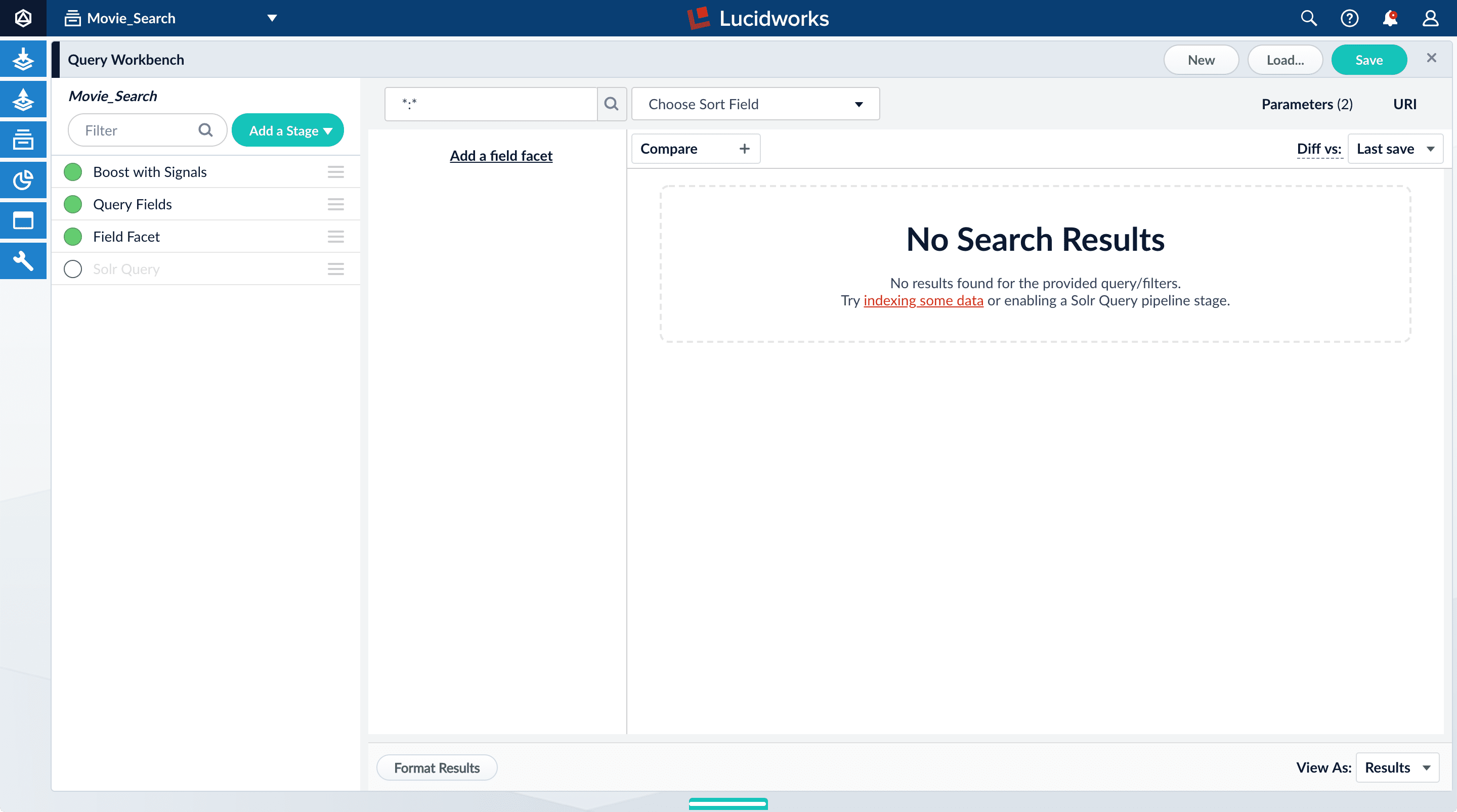 All search results disappear from the preview pane because Lucidworks Search does not send a query to Solr.
2. Turn on the Solr Query stage and turn all other stages off.
All search results disappear from the preview pane because Lucidworks Search does not send a query to Solr.
2. Turn on the Solr Query stage and turn all other stages off.
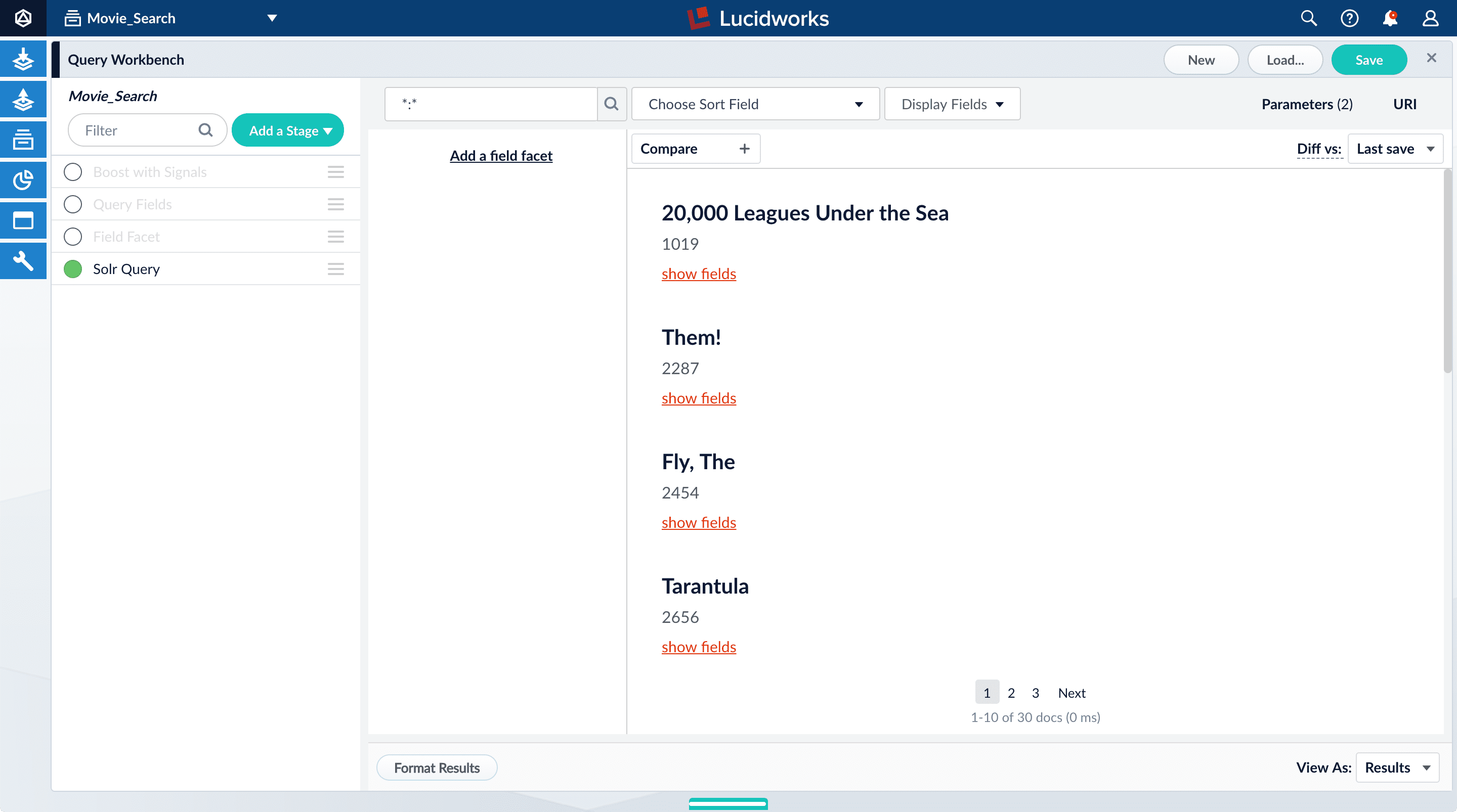 Now the search results look much like they did before. At this point, the disabled stages do not affect the output because they are not yet configured.
3. Turn all stages on.
## Configure faceting
Facets:
* Are categories or features offered as filters within a search results page.
* Provide a simple way for users to explore and filter their search results without having to construct complicated queries.
* Can be configured when you also configure a query pipeline.
The data already indexed in the tutorial has two fields that are natural choices for faceting: `genres_ss` and `year_i`. For example, a user could search for science fiction of the 1950s in just a few clicks.
Now the search results look much like they did before. At this point, the disabled stages do not affect the output because they are not yet configured.
3. Turn all stages on.
## Configure faceting
Facets:
* Are categories or features offered as filters within a search results page.
* Provide a simple way for users to explore and filter their search results without having to construct complicated queries.
* Can be configured when you also configure a query pipeline.
The data already indexed in the tutorial has two fields that are natural choices for faceting: `genres_ss` and `year_i`. For example, a user could search for science fiction of the 1950s in just a few clicks.
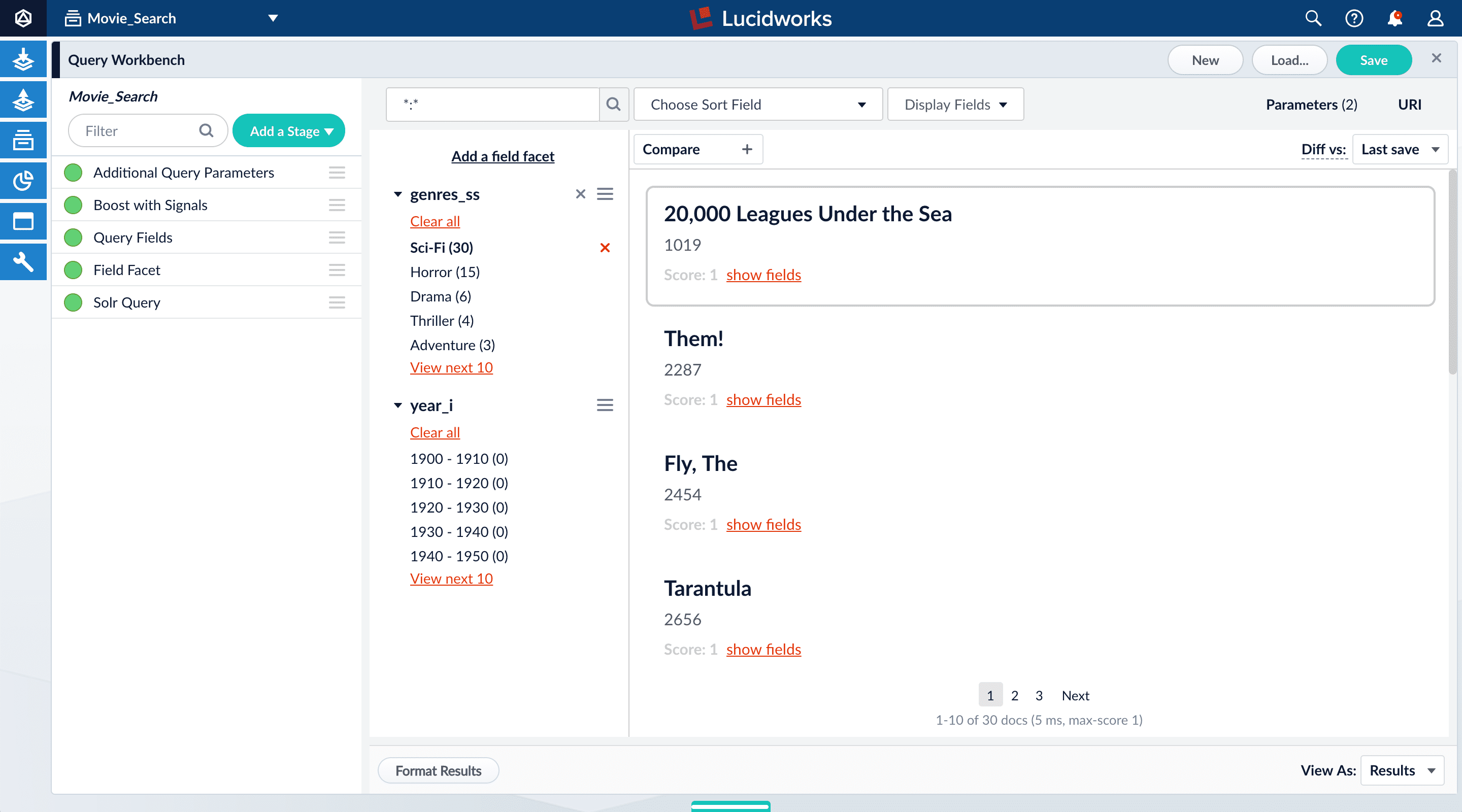 ### Configure basic faceting for genres
1. Click **Add a field facet** and select the `genres_ss` field.
### Configure basic faceting for genres
1. Click **Add a field facet** and select the `genres_ss` field.
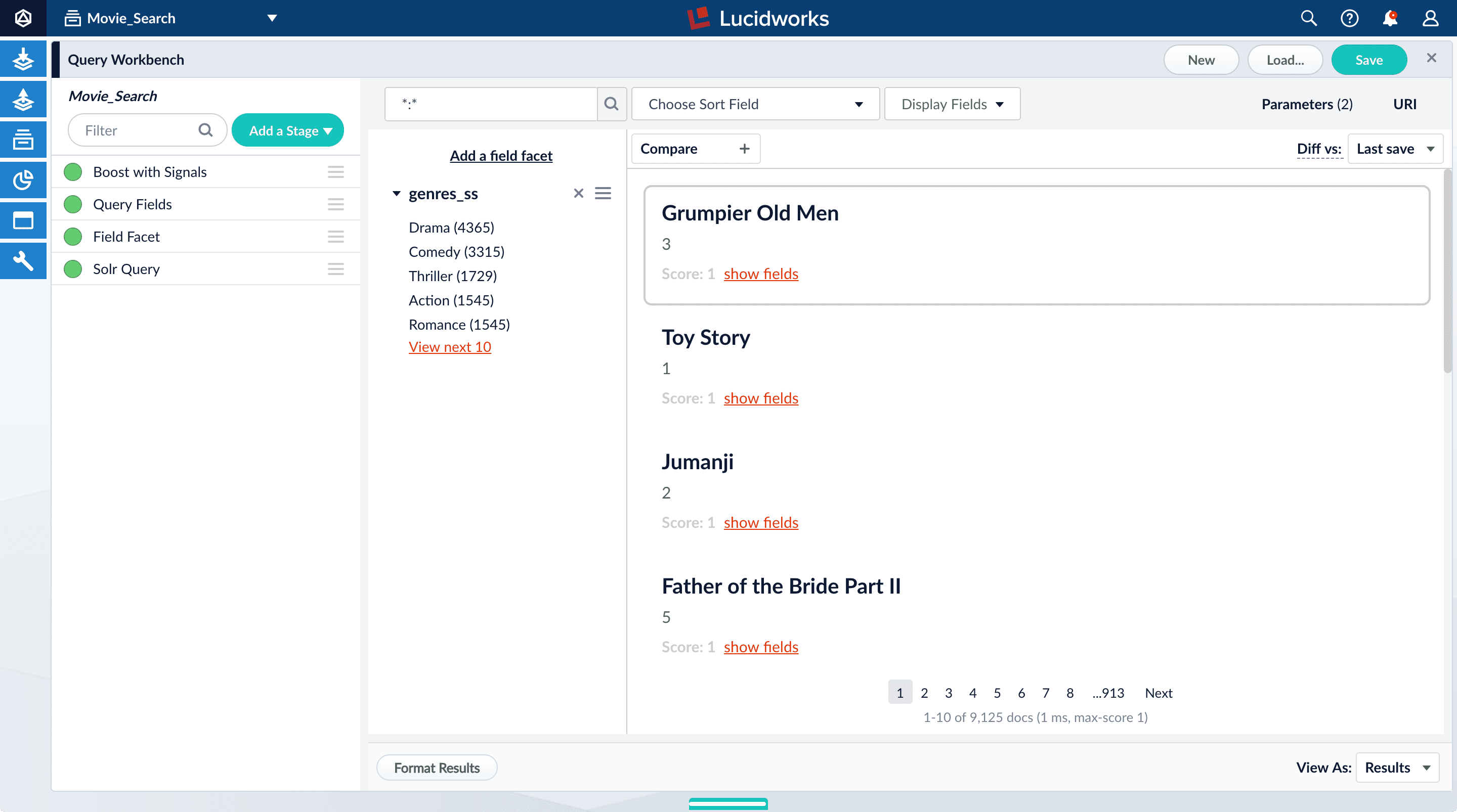 2. Click **Sci-Fi** to select movies that have the value `Sci-Fi` for `genres_ss`:
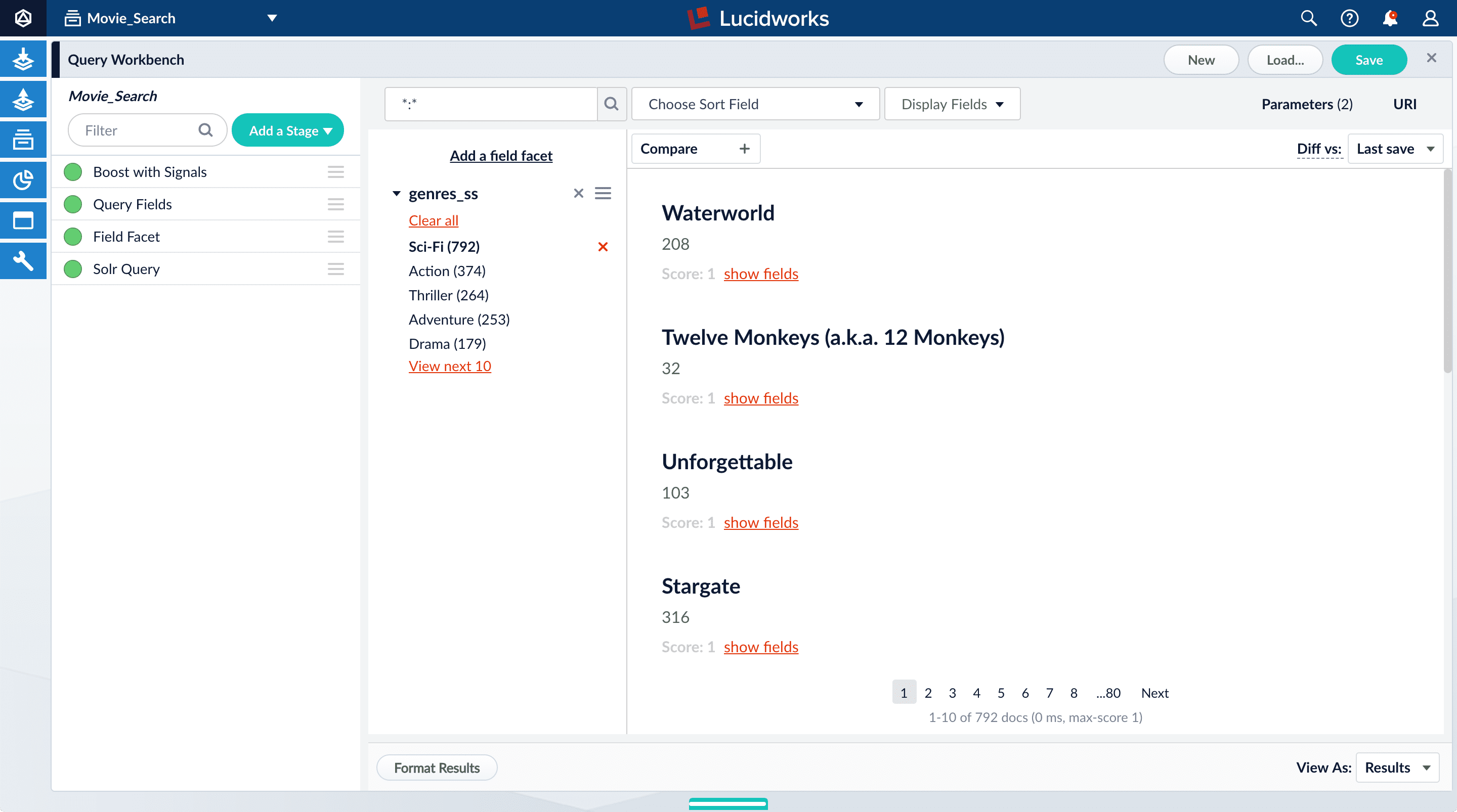
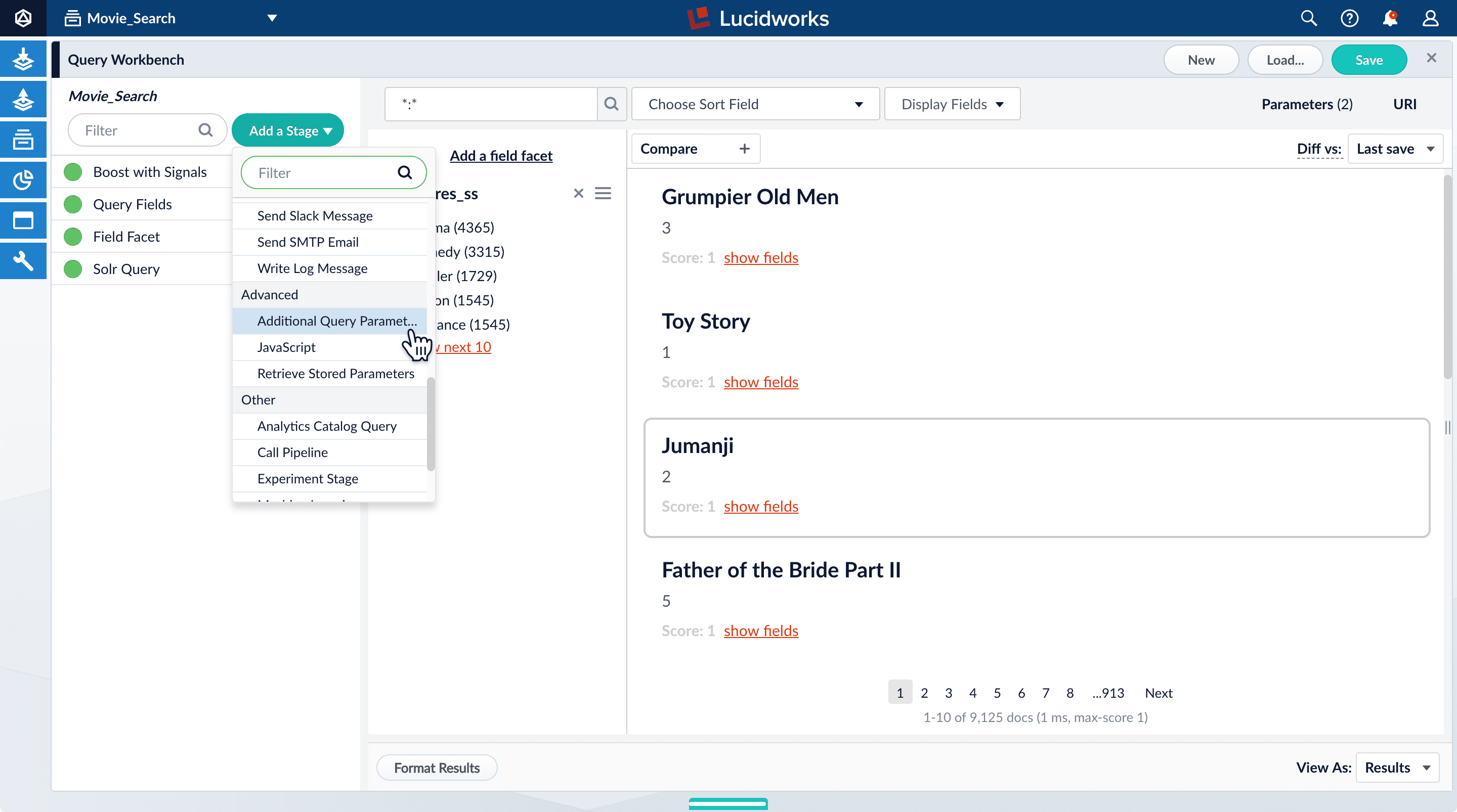 The Additional Query Parameters configuration panel displays.
3. Under **Parameters and Values**, add the following parameter names and values:
* `facet.range`: `year_i`
* `facet.range.start`: `1900`
* `facet.range.end`: `2020`
* `facet.range.gap`: `10`
* `facet.range.include`: `outer`
In this case, you do not need to modify the **Update Policy** field. The default value of `append` does not affect these results.
4. Click **Apply**, and then click **Cancel** to close the configuration panel for the Additional Query Parameters stage.
The year facets are now grouped by decade:
The Additional Query Parameters configuration panel displays.
3. Under **Parameters and Values**, add the following parameter names and values:
* `facet.range`: `year_i`
* `facet.range.start`: `1900`
* `facet.range.end`: `2020`
* `facet.range.gap`: `10`
* `facet.range.include`: `outer`
In this case, you do not need to modify the **Update Policy** field. The default value of `append` does not affect these results.
4. Click **Apply**, and then click **Cancel** to close the configuration panel for the Additional Query Parameters stage.
The year facets are now grouped by decade:
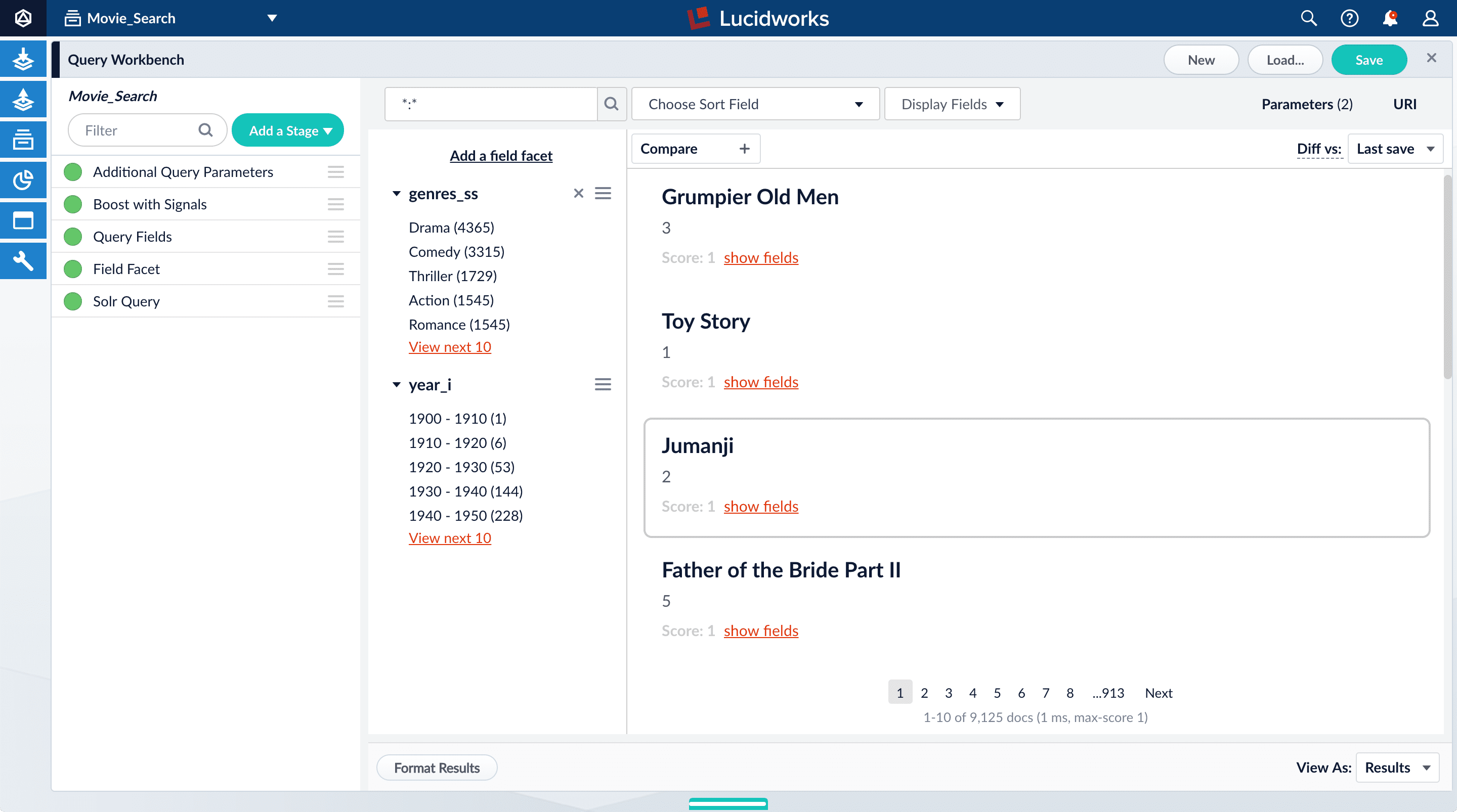
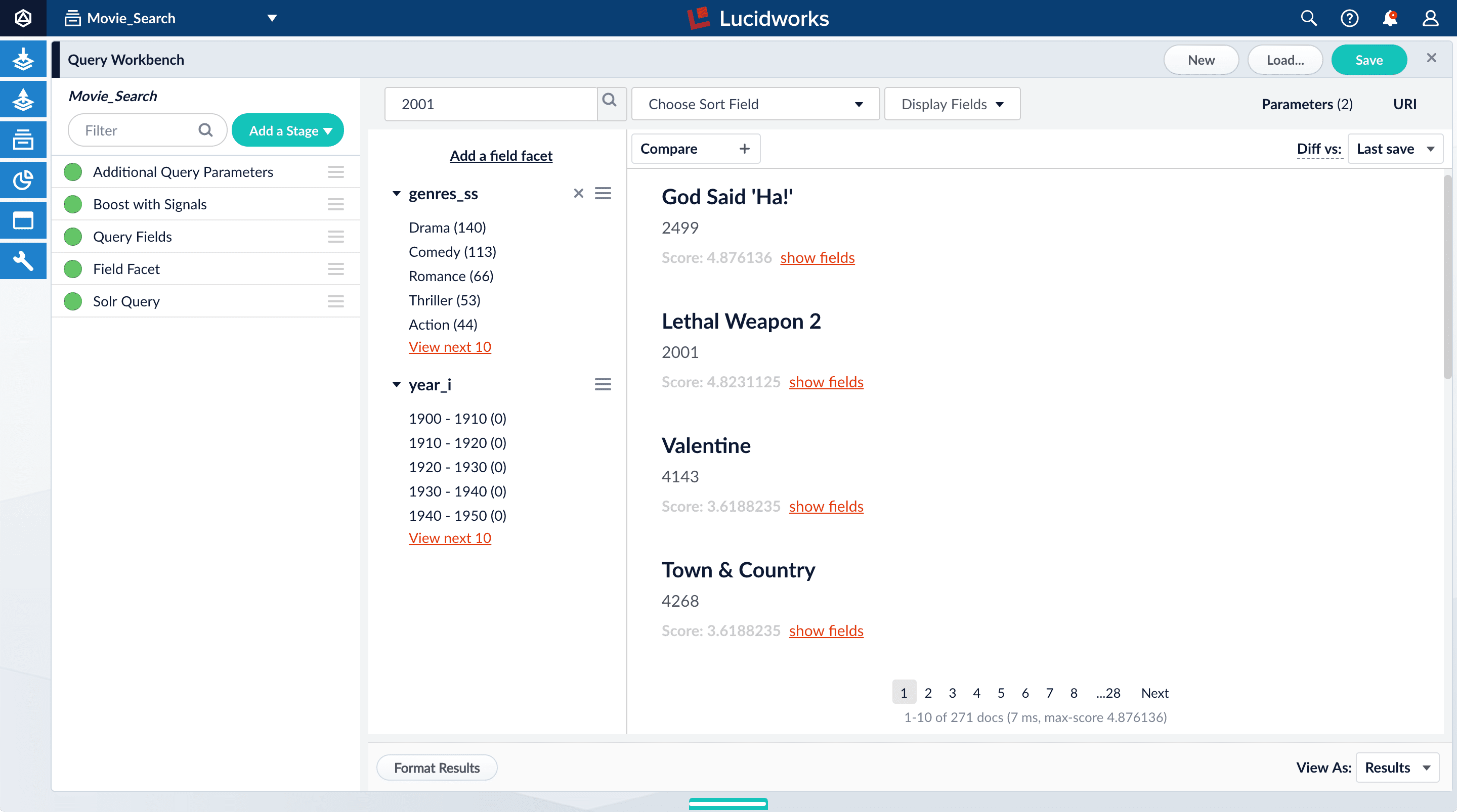 2. Under one of the movies listed, click **show fields**.
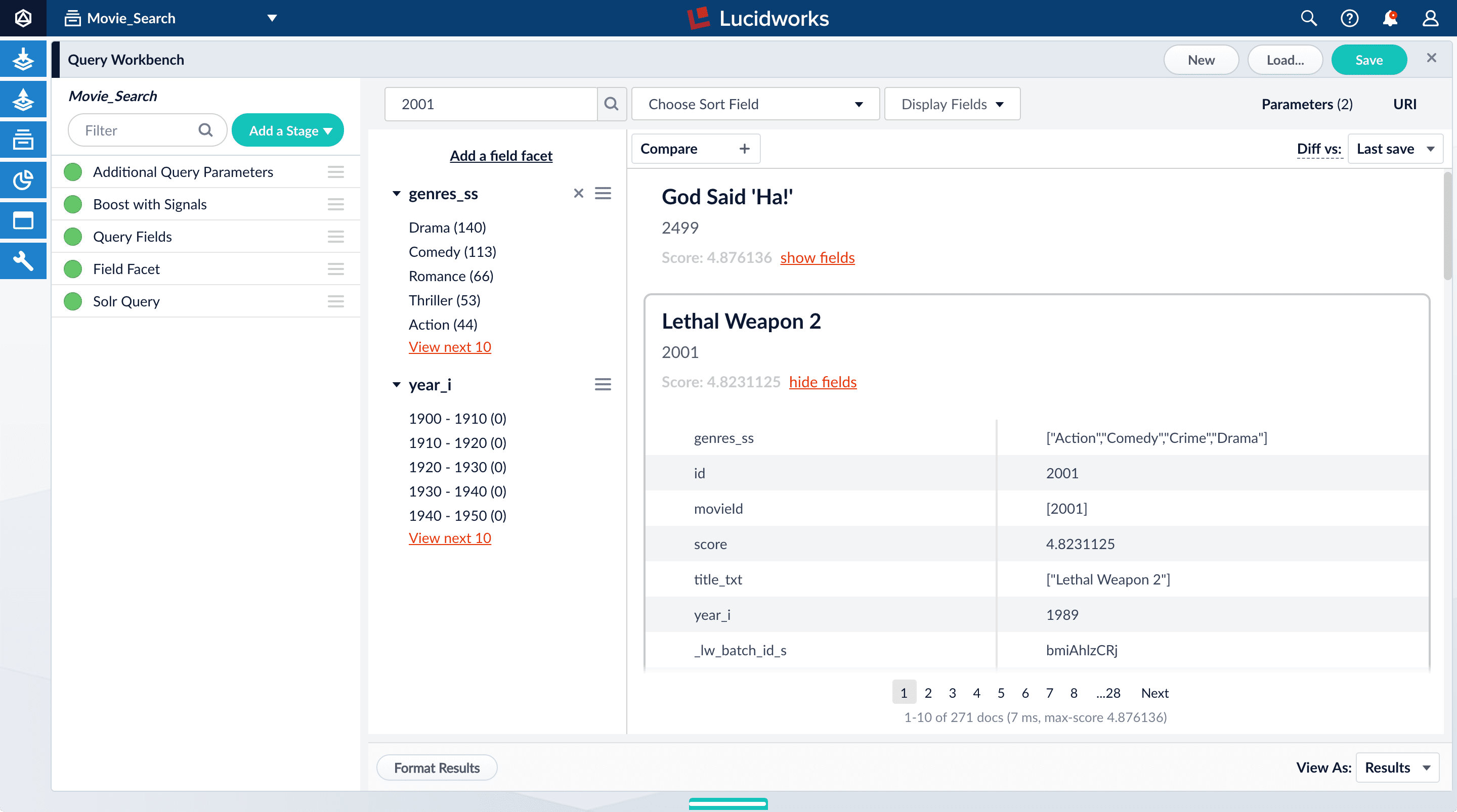 The reason "2001: A Space Odyssey" is not the top search result is because your search query matches the `id` field. This field may not be useful to your users.
Use the Query Fields stage to specify the fields that may be a higher priority for users.
3. Below the name for the movie you selected, click **hide fields**.
4. Click the **Query Fields** stage of the query pipeline.
The Query Fields configuration panel displays.
5. Under **Search Fields**, click Add
The reason "2001: A Space Odyssey" is not the top search result is because your search query matches the `id` field. This field may not be useful to your users.
Use the Query Fields stage to specify the fields that may be a higher priority for users.
3. Below the name for the movie you selected, click **hide fields**.
4. Click the **Query Fields** stage of the query pipeline.
The Query Fields configuration panel displays.
5. Under **Search Fields**, click Add 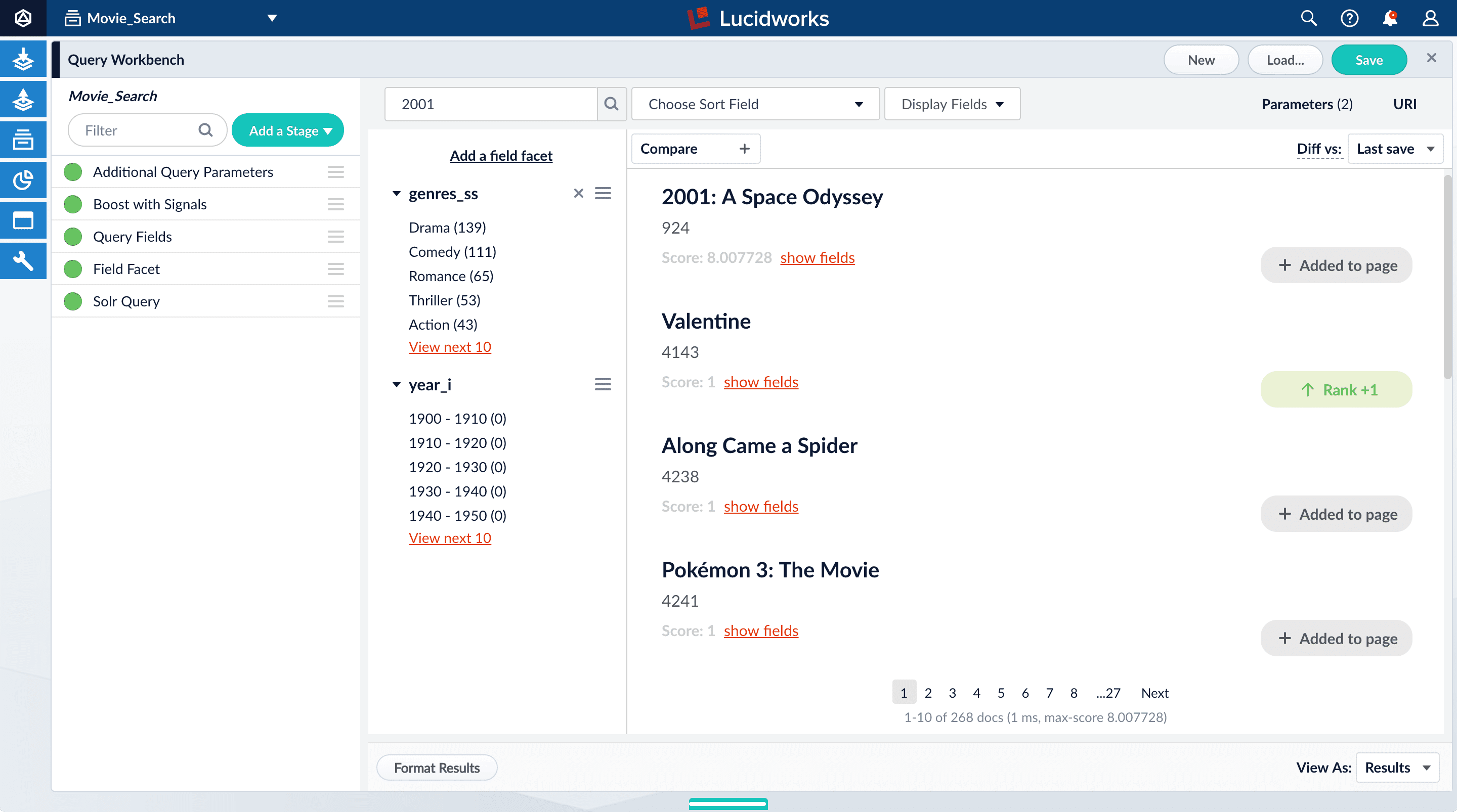 10. In the upper right, click **Save** to save the changes to the query pipeline.
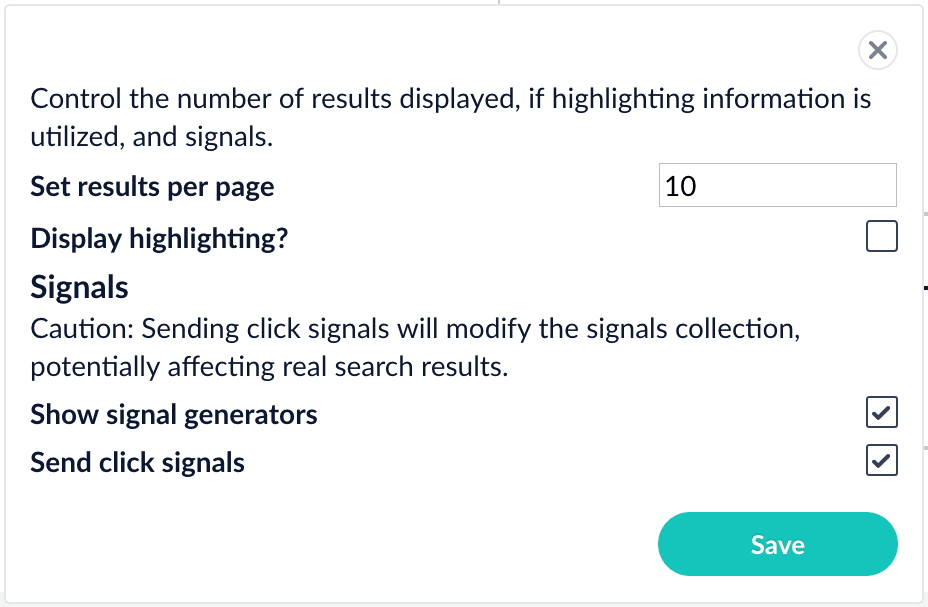 3. Click **Save**.
4. Hover over one of the search results. Query Workbench displays controls that include a **Simulate** button next to a field that lets you specify the number of signals to simulate:
3. Click **Save**.
4. Hover over one of the search results. Query Workbench displays controls that include a **Simulate** button next to a field that lets you specify the number of signals to simulate:
 ## Generate signals
With synthetic signals enabled, you will generate a simple set of signal data that you can use to generate meaningful recommendations.
For this tutorial, you will generate signals you can use to boost your favorite sci-fi titles so that they display first.
1. Search for `star wars`.
The top results are not your favorite titles:
## Generate signals
With synthetic signals enabled, you will generate a simple set of signal data that you can use to generate meaningful recommendations.
For this tutorial, you will generate signals you can use to boost your favorite sci-fi titles so that they display first.
1. Search for `star wars`.
The top results are not your favorite titles:
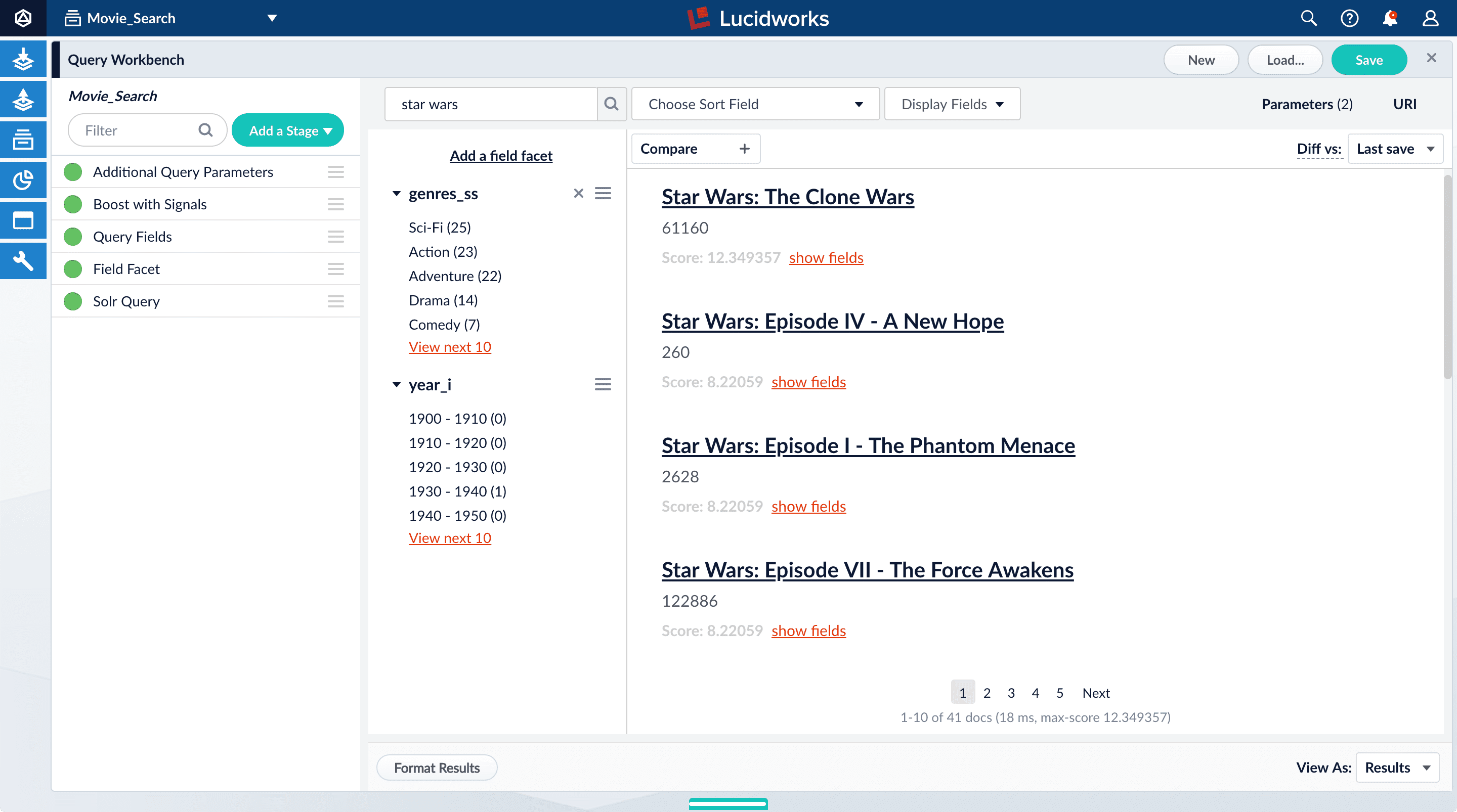 2. In **Format Results**, **Set results per page** to 20. This should allow you to scroll for this next part instead of explicitly searching for the titles.
Next you will generate signals you can use to boost certain titles. Signals are tied to the search query, so your boosted titles will display first in the search results only when users search for `star wars`.
3. Hover over "Star Wars: Episode IV - A New Hope".
4. Set the number of signals to 4000 and click **Simulate**.
5. Hover over "Star Wars: Episode V - The Empire Strikes Back".
6. Set the number of signals to 3000 and click **Simulate**.
7. Hover over "Star Wars: Episode VI - Return of the Jedi".
8. Set the number of signals to 2000 and click **Simulate**.
2. In **Format Results**, **Set results per page** to 20. This should allow you to scroll for this next part instead of explicitly searching for the titles.
Next you will generate signals you can use to boost certain titles. Signals are tied to the search query, so your boosted titles will display first in the search results only when users search for `star wars`.
3. Hover over "Star Wars: Episode IV - A New Hope".
4. Set the number of signals to 4000 and click **Simulate**.
5. Hover over "Star Wars: Episode V - The Empire Strikes Back".
6. Set the number of signals to 3000 and click **Simulate**.
7. Hover over "Star Wars: Episode VI - Return of the Jedi".
8. Set the number of signals to 2000 and click **Simulate**.
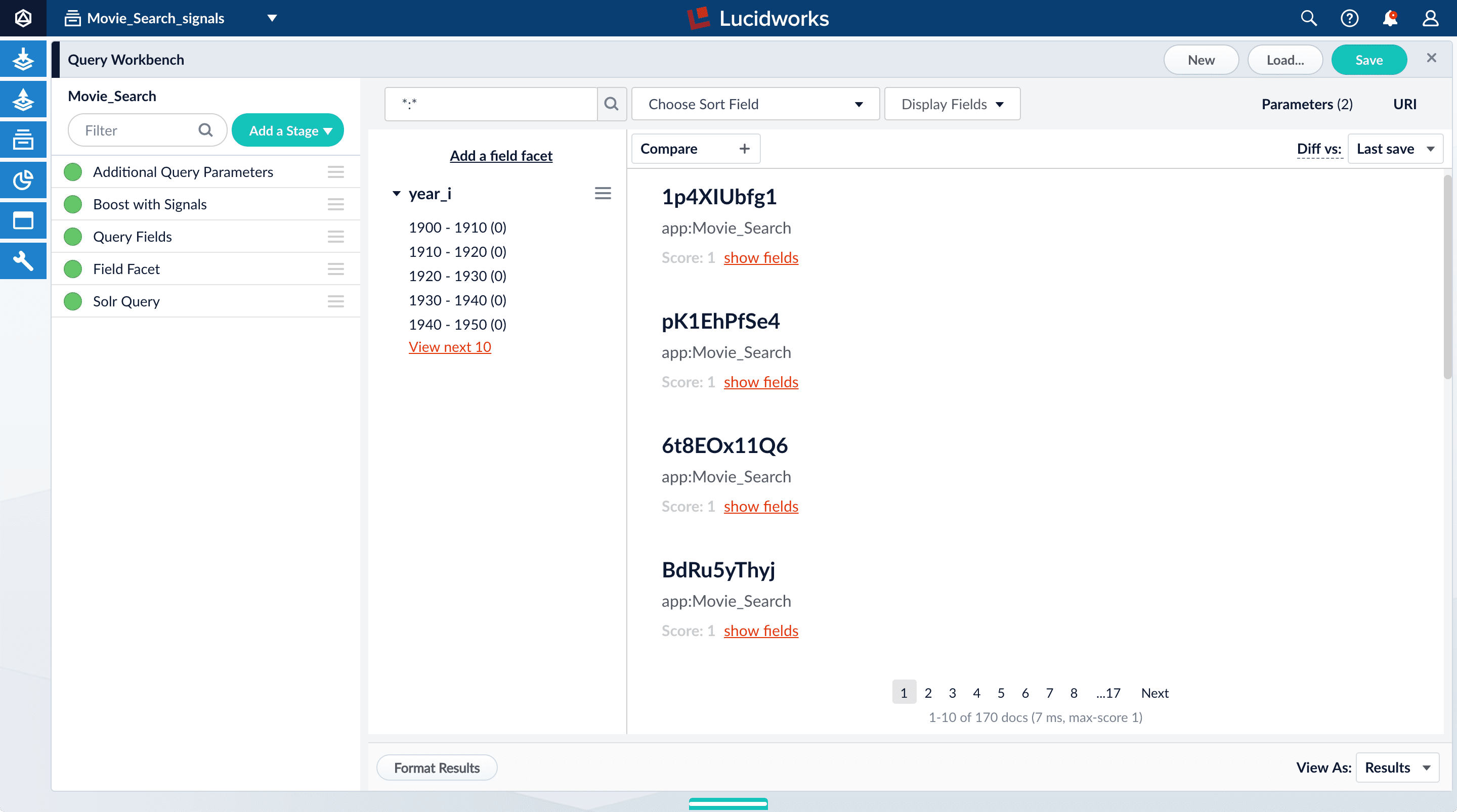 Your signals collection contains several types of signals, such as click signals and search result signals.
3. To display click signals, enter `type:click` and click Search
Your signals collection contains several types of signals, such as click signals and search result signals.
3. To display click signals, enter `type:click` and click Search 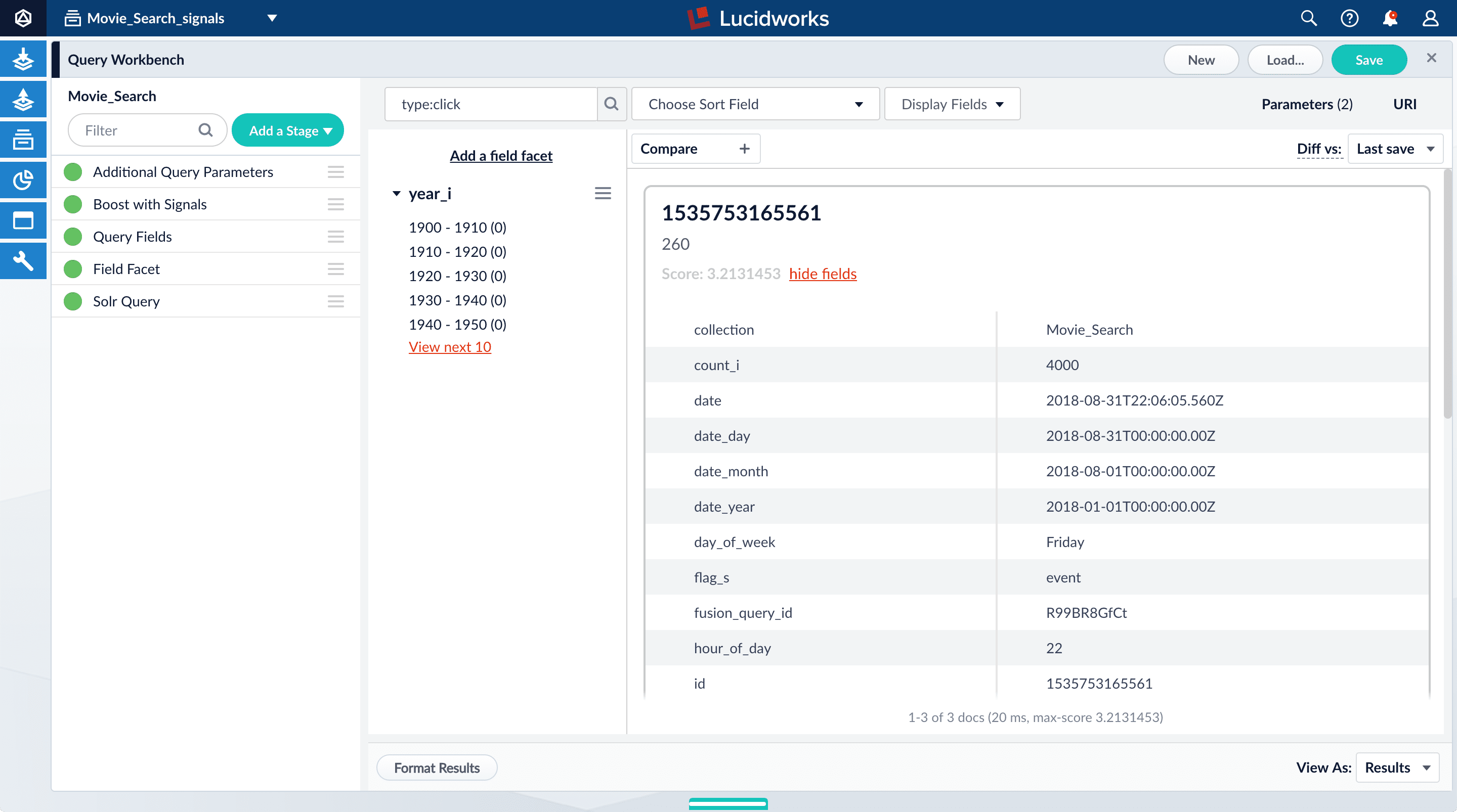 5. Click **hide fields**.
### Optional: Format signals fields
You can configure your search view to display fields that are meaningful for your investigation.
For example, you can display the document ID and the number of click signals.
1. Click **Display Fields**.
2. For the **Name** field, select `doc_id`.
3. For the **Description** field, select `count_i`.
5. Click **hide fields**.
### Optional: Format signals fields
You can configure your search view to display fields that are meaningful for your investigation.
For example, you can display the document ID and the number of click signals.
1. Click **Display Fields**.
2. For the **Name** field, select `doc_id`.
3. For the **Description** field, select `count_i`.
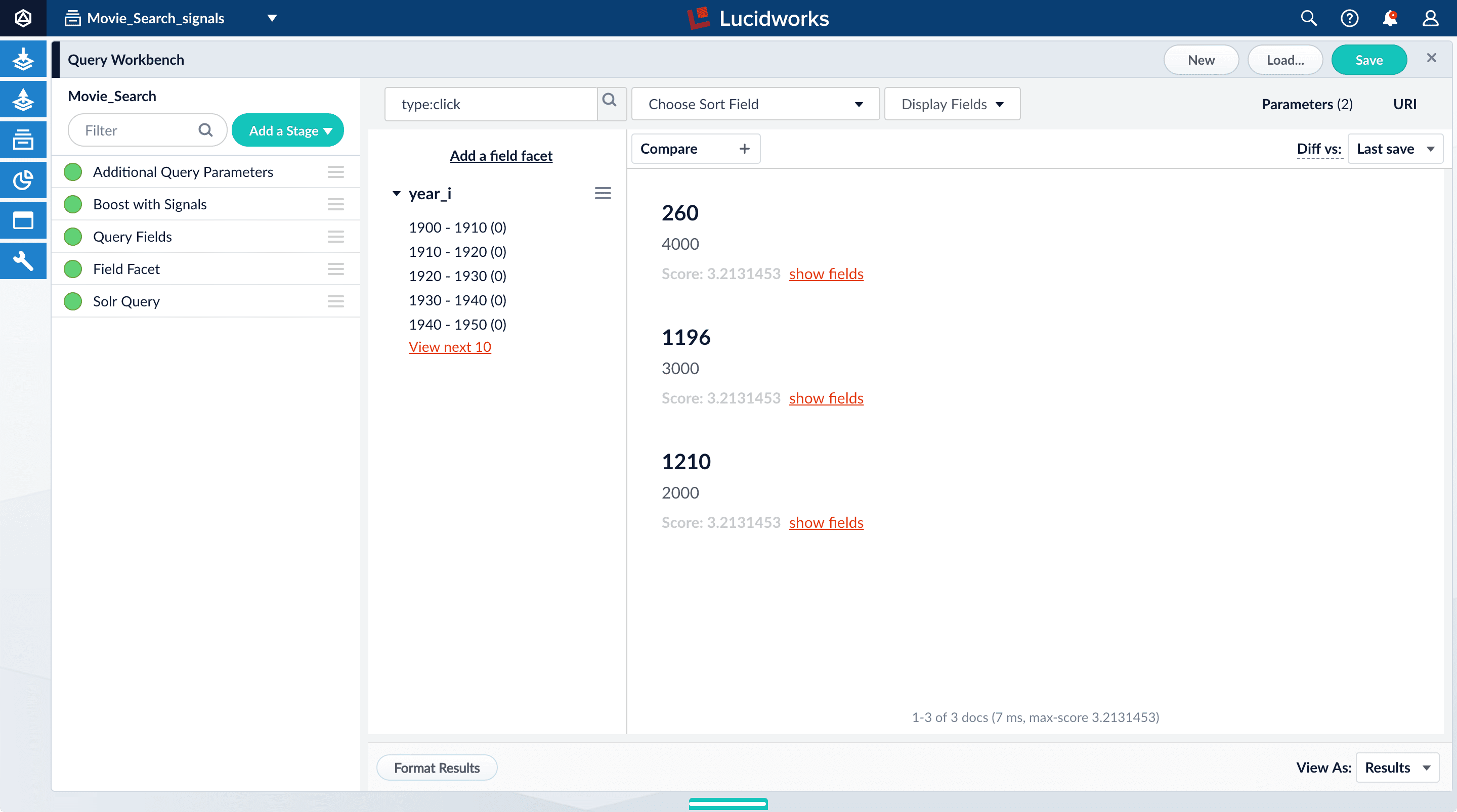 ## Explore the aggregated signal data
Aggregation jobs are created automatically when you create an app. However, you need to run the aggregation job manually:
1. Navigate to Collections
## Explore the aggregated signal data
Aggregation jobs are created automatically when you create an app. However, you need to run the aggregation job manually:
1. Navigate to Collections  **> Jobs**.
2. In the job list, select `Movie_Search_click_signals_aggregation`.
3. Click **Run**.
4. Click **Start**. The job may take a few minutes to complete.
5. When the success message displays, in the collections picker in the upper left, select **Movie\_Search\_signals\_aggr**.
6. Click **Querying**
**> Jobs**.
2. In the job list, select `Movie_Search_click_signals_aggregation`.
3. Click **Run**.
4. Click **Start**. The job may take a few minutes to complete.
5. When the success message displays, in the collections picker in the upper left, select **Movie\_Search\_signals\_aggr**.
6. Click **Querying** 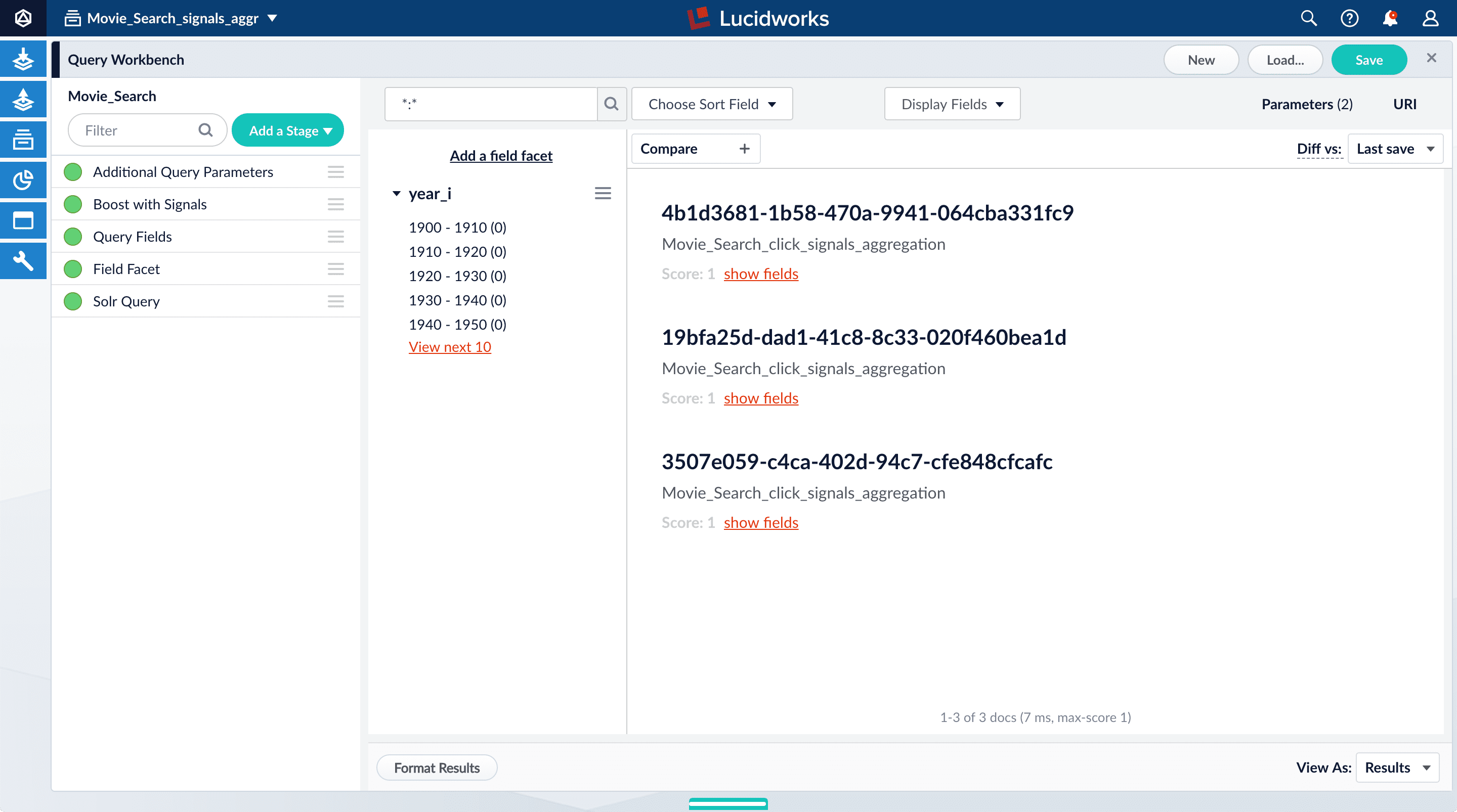 7. Click **Display Fields**.
8. In the **Name** field, select `doc_id`.
9. In the **Description** field, select `aggr_count_i`.
10. For the result named `1210`, click **show fields**.
7. Click **Display Fields**.
8. In the **Name** field, select `doc_id`.
9. In the **Description** field, select `aggr_count_i`.
10. For the result named `1210`, click **show fields**.
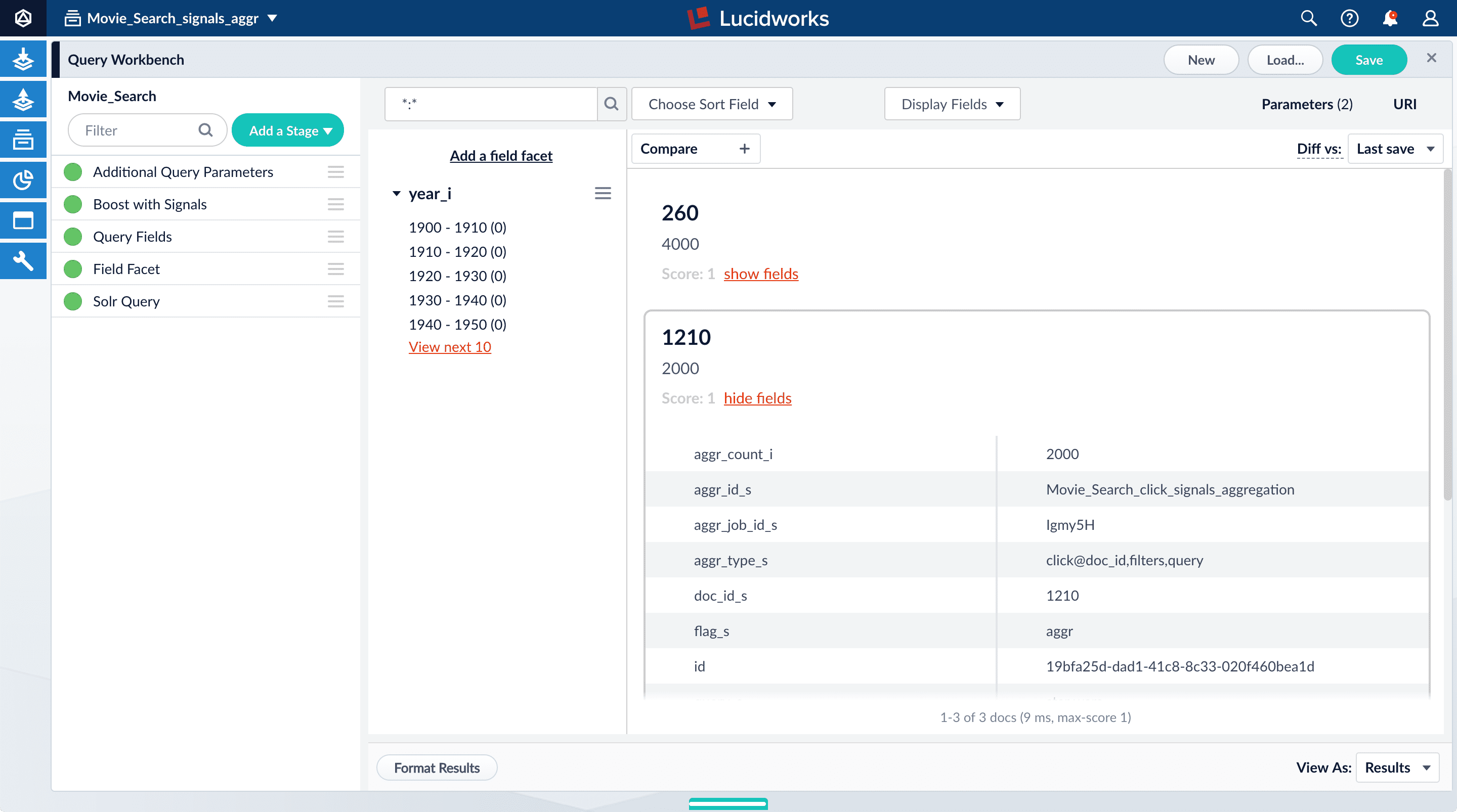 The fields for aggregated signals are very similar to the fields for raw signals, with additional fields to describe the aggregation:
* `aggr_count_i`. Number of signals that have been aggregated. For example, 3000.
* `aggr_id_s`. Name of the aggregation job.
* `aggr_job_id_s`. Job ID.
* `aggr_type_s`. Aggregation type.
11. In the upper right, click **Save**.
The **Save Pipeline** screen displays. By default, you will overwrite the existing query pipeline for the selected collection. For example, `Movie_Search`.
12. Click **Save pipeline**.
## View the search results with and without default boosting
1. In the collections picker in the upper left, select **Movie\_Search**.
2. Open Query Workbench. Navigate to Querying
The fields for aggregated signals are very similar to the fields for raw signals, with additional fields to describe the aggregation:
* `aggr_count_i`. Number of signals that have been aggregated. For example, 3000.
* `aggr_id_s`. Name of the aggregation job.
* `aggr_job_id_s`. Job ID.
* `aggr_type_s`. Aggregation type.
11. In the upper right, click **Save**.
The **Save Pipeline** screen displays. By default, you will overwrite the existing query pipeline for the selected collection. For example, `Movie_Search`.
12. Click **Save pipeline**.
## View the search results with and without default boosting
1. In the collections picker in the upper left, select **Movie\_Search**.
2. Open Query Workbench. Navigate to Querying 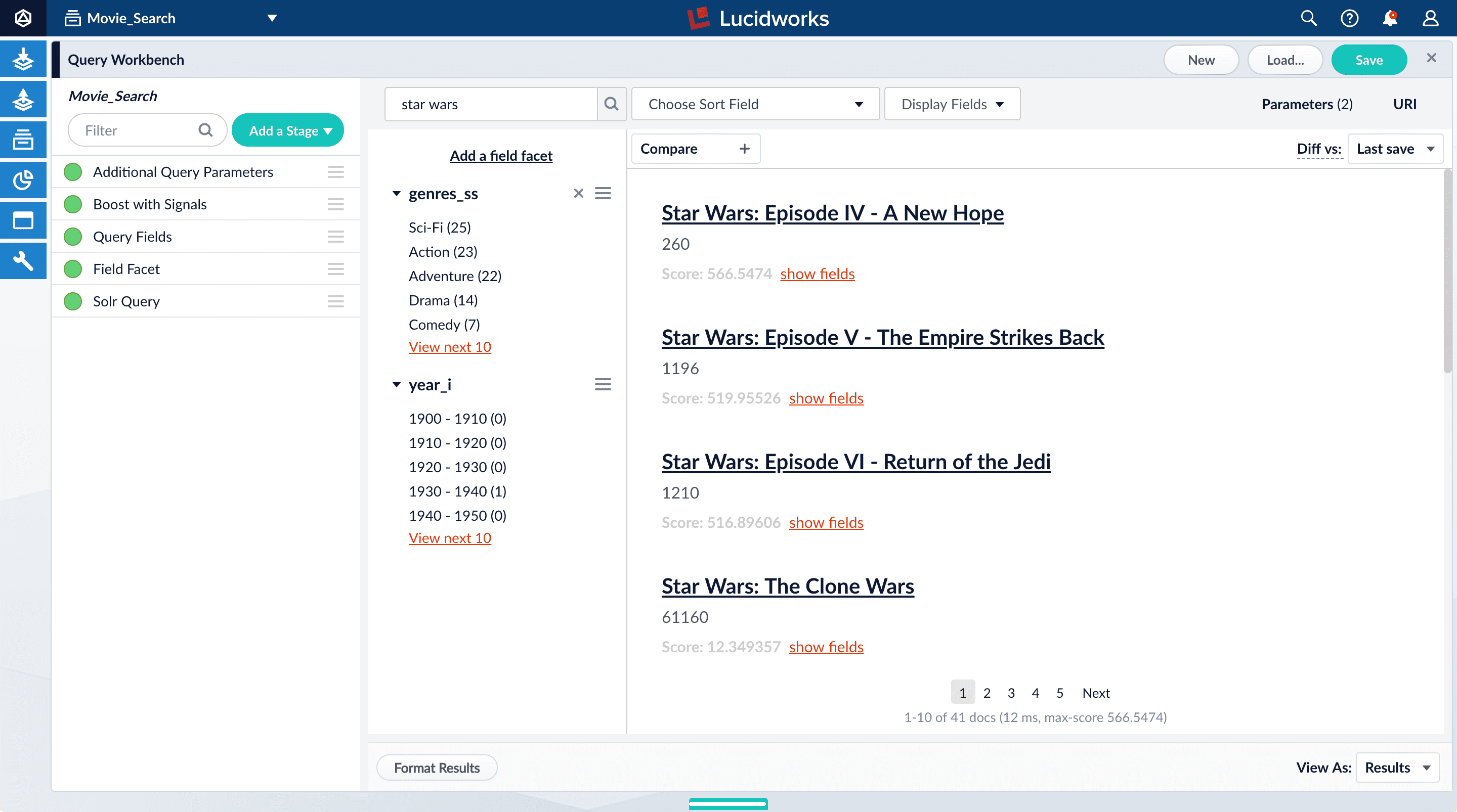 4. Click **Compare**. Another preview panel opens. Now the working pipeline is on the right and a static snapshot of that same pipeline is on the left.
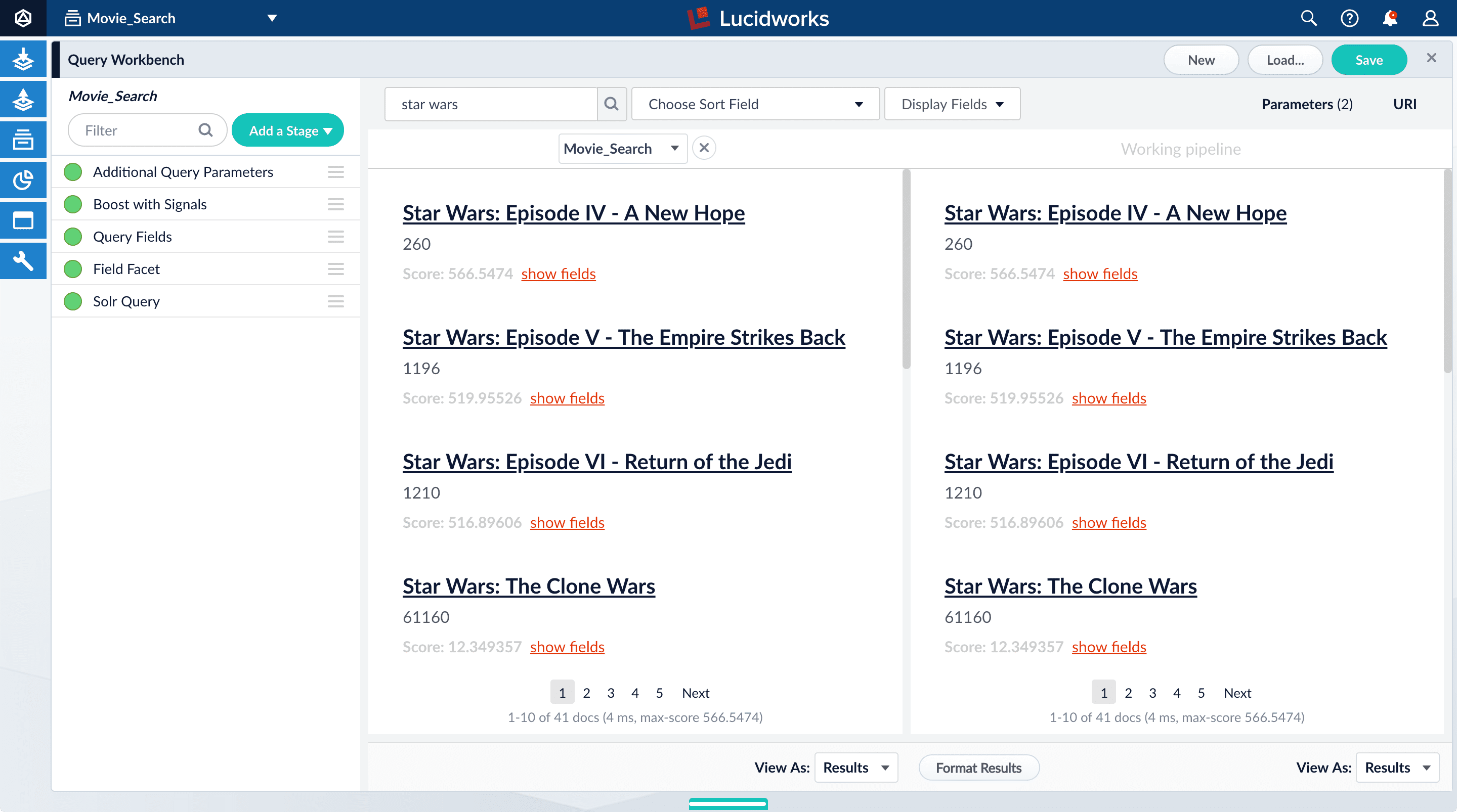 In this view, you can compare results from one query pipeline side by side with another query pipeline.
In this case, you will compare results for the same pipeline (`Movie_Search`) with and without the Boost with Signals stage enabled.
5. Turn off the Boost with Signals stage.\\
In this view, you can compare results from one query pipeline side by side with another query pipeline.
In this case, you will compare results for the same pipeline (`Movie_Search`) with and without the Boost with Signals stage enabled.
5. Turn off the Boost with Signals stage.\\
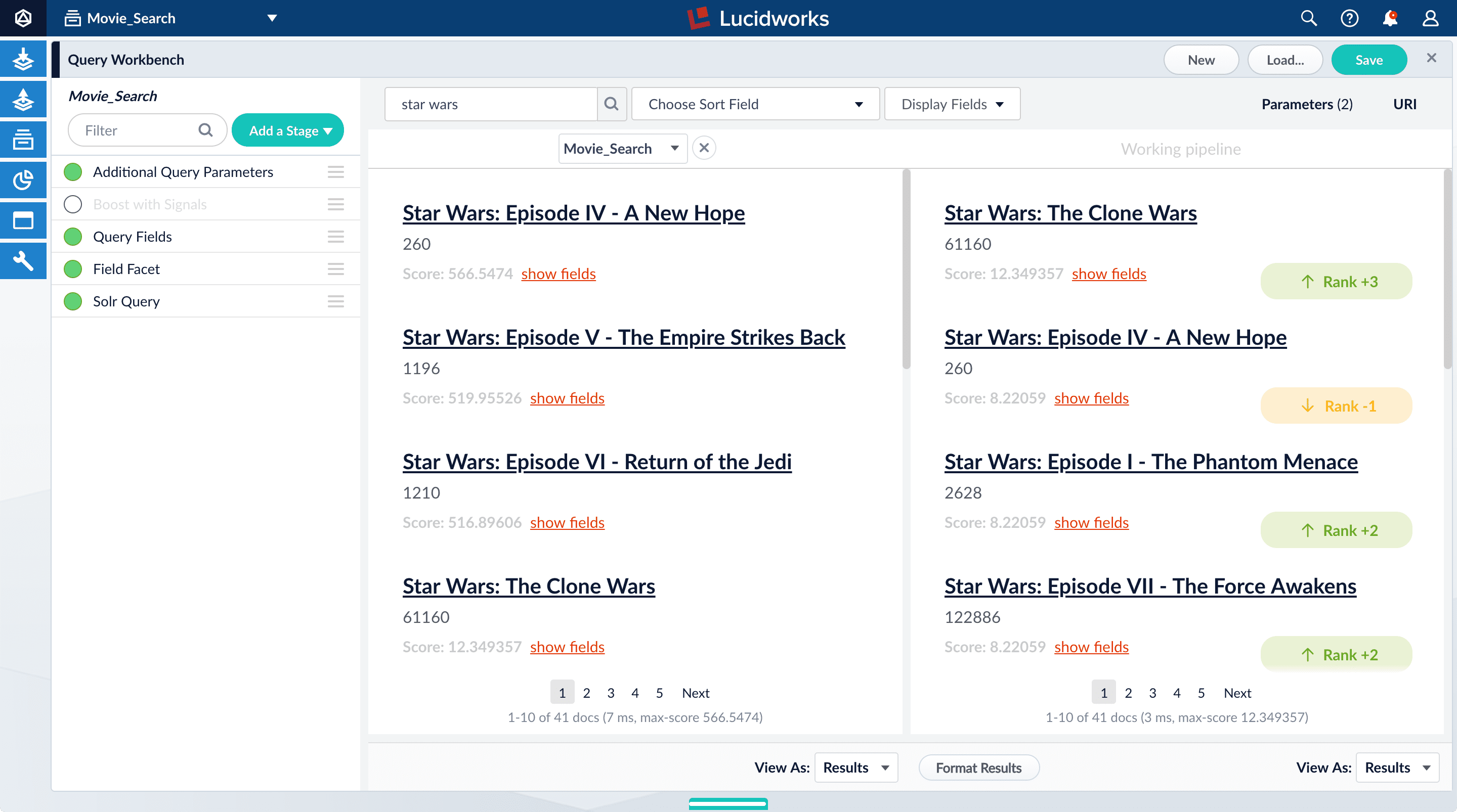 The search results on the right display as they did before you generated synthetic click signals. Rank-change indicators indicate which results moved up or down as a result of turning off boosting.
6. Turn on the Boost with Signals stage again to restore the boosted results.
7. To close the comparison preview panel, click Close
The search results on the right display as they did before you generated synthetic click signals. Rank-change indicators indicate which results moved up or down as a result of turning off boosting.
6. Turn on the Boost with Signals stage again to restore the boosted results.
7. To close the comparison preview panel, click Close  .
.
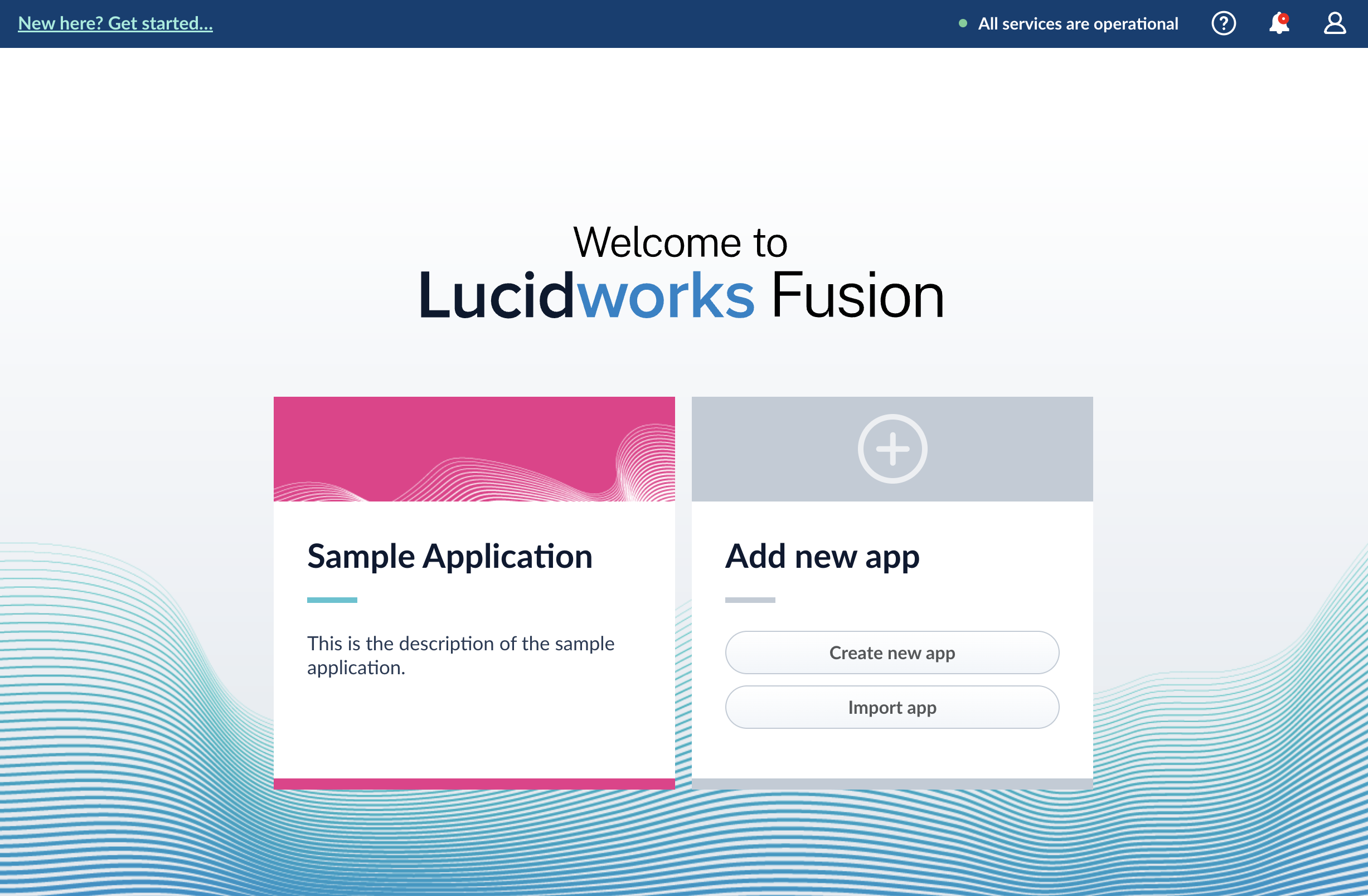 To return to the Lucidworks Search workspace, hover over
 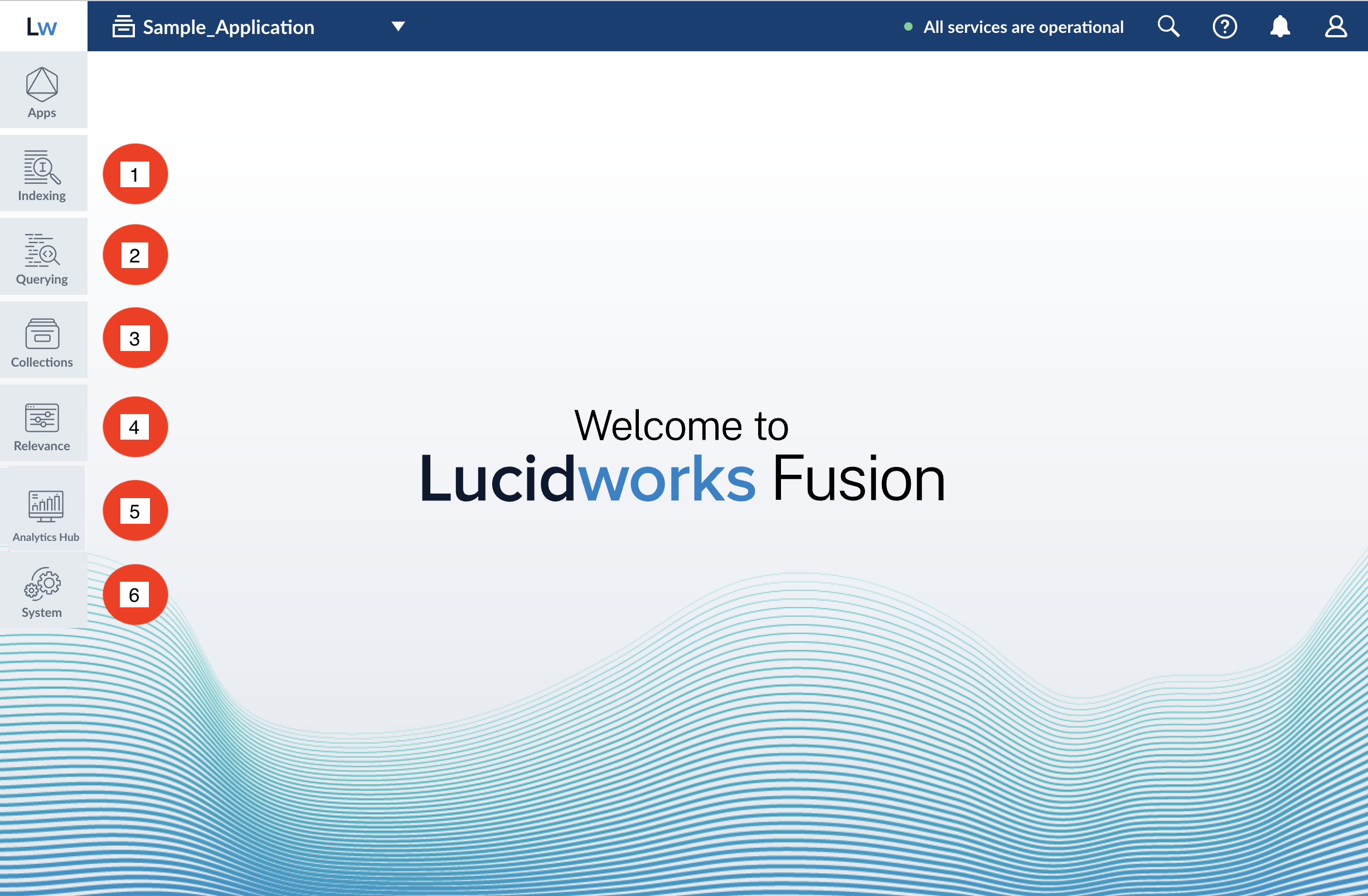 On the left side of the screen are six menus where you can find tools for working with your app:
1.
On the left side of the screen are six menus where you can find tools for working with your app:
1. 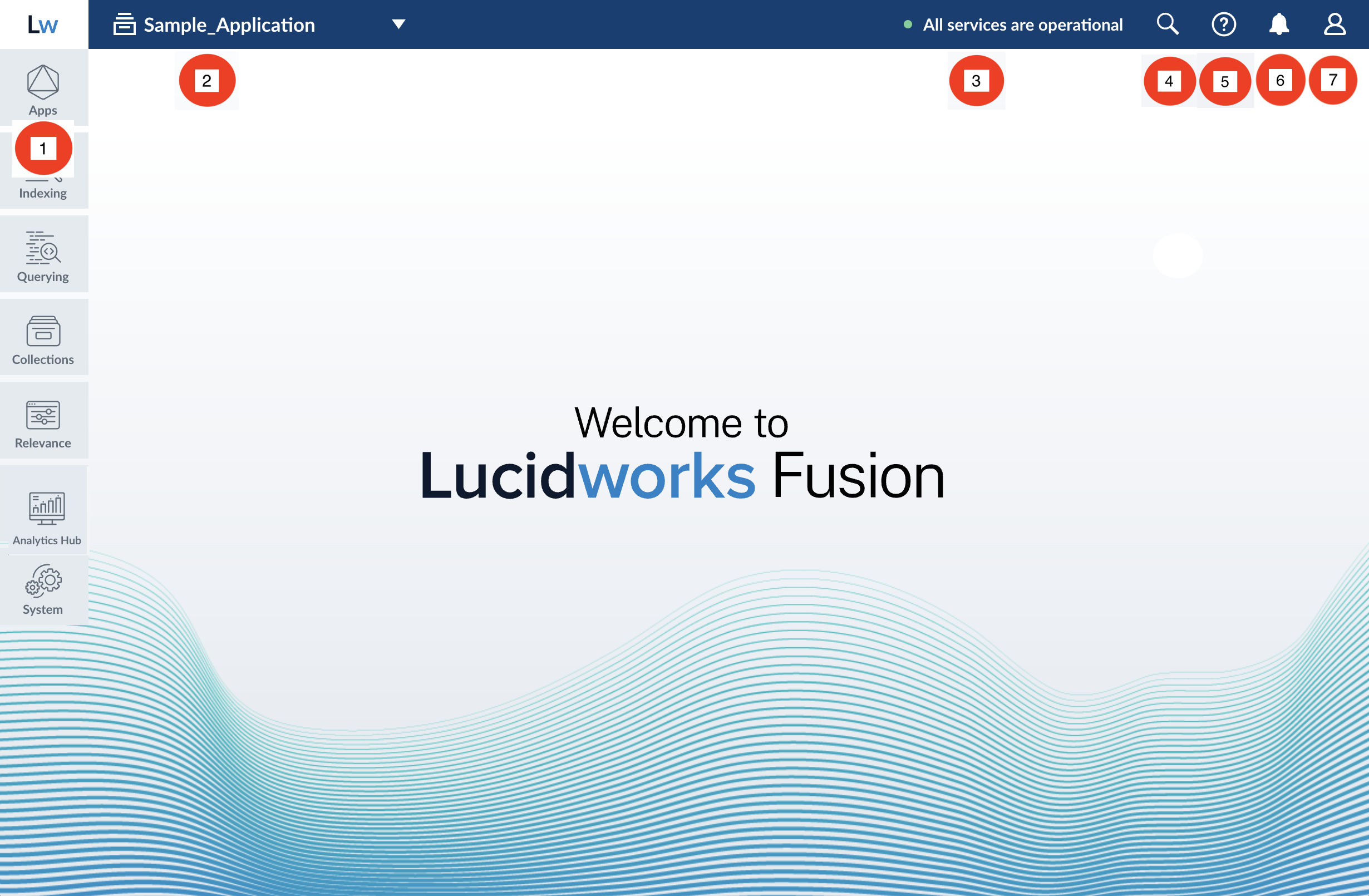 On the right are menus for system-wide actions:
1.
On the right are menus for system-wide actions:
1.