> ## Documentation Index
> Fetch the complete documentation index at: https://doc.lucidworks.com/llms.txt
> Use this file to discover all available pages before exploring further.
# Object Explorer
export const LwTemplate = ({title = "Key questions to get you started", icon = "sparkles", cta = "Powered by Agent Studio", linkHref = "https://lucidworks.com/demo/?utm_source=docs&utm_medium=referral&utm_campaign=docs_cta_ai"}) => {
const [isLoaded, setIsLoaded] = useState(false);
useEffect(() => {
const timer = setTimeout(() => {
setIsLoaded(true);
}, 500);
return () => clearTimeout(timer);
}, []);
return
{isLoaded && `
}} />}
Powered by Lucidworks Agent Studio
;
};
export const InlineImage = ({src, alt = '', height = '2em'}) => {
return ;
};
[localhost link]: http://localhost:3000/docs/lucidworks-search/03-ui-tour/object-explorer
[mintlify link]: https://doc.lucidworks.com/docs/lucidworks-search/03-ui-tour/object-explorer
[old doc.lw link]: https://doc.lucidworks.com/managed-fusion/5.9/v90jze
Object Explorer lets you easily find and manage Lucidworks Search *objects* within a specific app and across multiple apps in an entire Lucidworks Search deployment.
The course for **The Object Explorer** focuses on how to view and manage objects such as collections, datasources, index and query pipelines, index and query profiles, and parsers within apps and share them to other applications.
## Lucidworks Search apps and objects
*Lucidworks Search apps* provide tailored search functionality to specific groups of users.
An app is a named set of linked *objects*, including collections, datasources, index and query pipelines, index and query profiles, parsers, and more.
You can define security on a per-app basis using [roles](/docs/lucidworks-search/08-administration/access-control/roles) and
[security realms](/docs/lucidworks-search/08-administration/access-control/security-realms).
Generally, you will create multiple apps for different purposes. You can view all of your apps in the launcher when you log in to the Lucidworks Search UI:
To enter the Lucidworks Search workspace for any app, click the app name.
In the Lucidworks Search workspace, you can hover over to switch to another app, create a new app, or return to the launcher:
An object is something that has a specific function in a Lucidworks Search app, such as an index pipeline or Spark job. It is often something that you configure. An app is an object. Several object types are *groups* that group other objects. For more information about object types, see [Object types](#object-types).
## What you can do in Object Explorer
In Object Explorer, you can explore objects.
Which objects you can explore depends on the [permissions](/docs/lucidworks-search/08-administration/access-control/permissions) that your security realm and user definition grant you. As the user `admin`, you can explore all objects supported by Object Explorer.
* **Determine which objects are in which apps.** You can determine which objects are in the current app, in any app, in no apps, and in any app or no apps. When you navigate to an object, you can display the apps that the object is in.
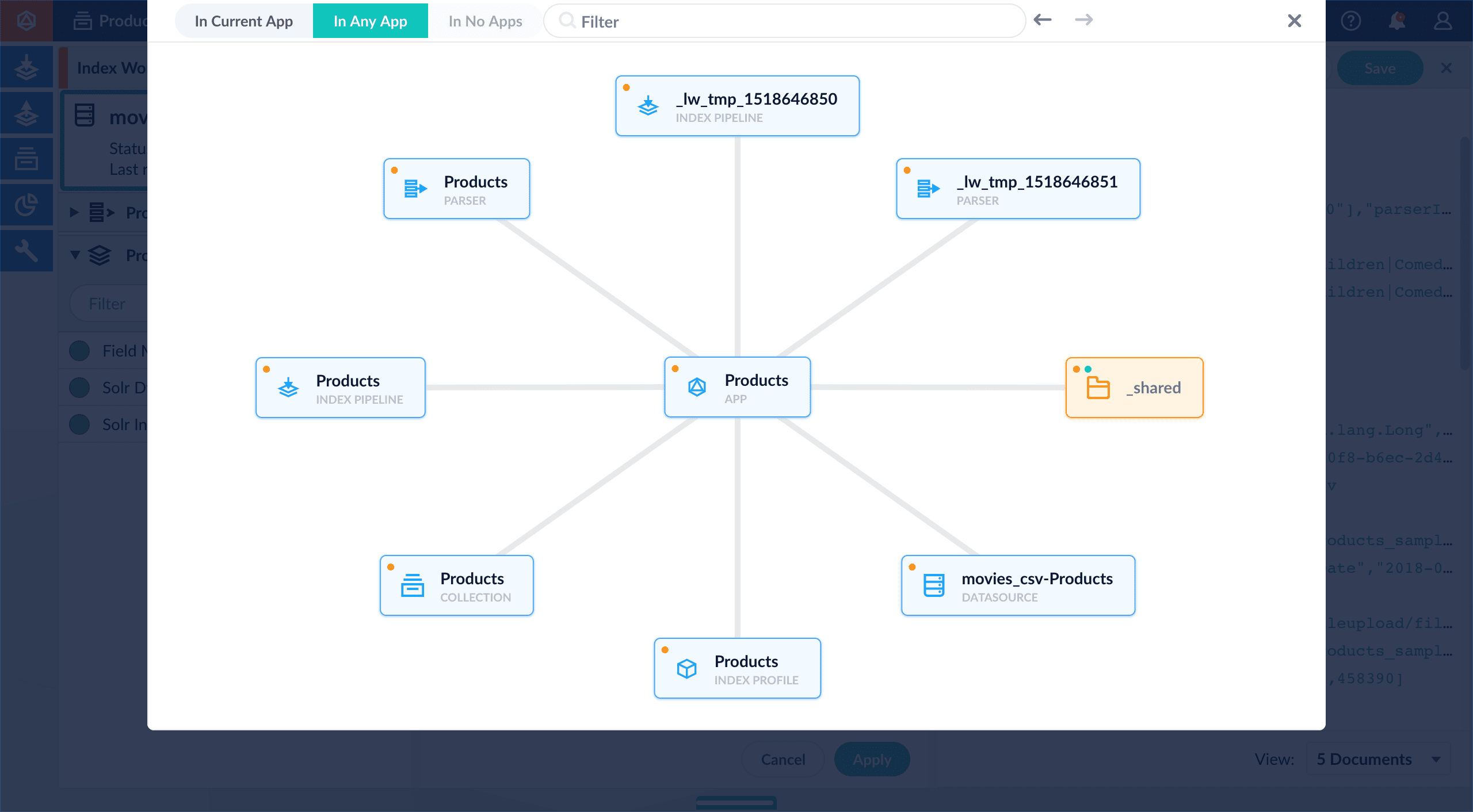
* **View and navigate between related objects.** In Object Explorer, related objects are connected by lines. Clicking an object moves it to the center of the Object Explorer window and displays related objects around it.
* **View related objects.** When you select an object, Object Explorer centers and displays related objects around it, connected by lines, for example:
* **Perform some management tasks.** You can perform some management tasks inside Object Explorer. For example, you can schedule jobs and tasks from Object Explorer. For other management tasks, Object Explorer takes you to where you need to be.
* **Add and remove objects** (*Advanced feature*) - When you create an app, it consists of objects. When you create additional apps, Lucidworks Search can *share* some objects across apps. Shared objects are in the `_shared` system group, and they have multiple dots on them, one for each app they are in.\
In some cases, you might want to remove an object from an app (undo sharing) or add an object to an app. For example, after configuring a parser in one app, you could share the parser with other apps, *without having to share things you do not want to share*, for example, the collection.
## Object types
You can explore these types of objects with Object Explorer:
| |
| --------------------------------------------------------------------------------------------------------------------------------------------------------------------- |
| App |
| Spark job or task |
| Collection |
| Datasource |
| Index pipeline |
| Parser |
| Query pipeline |
| A generic icon that is currently used for query profiles, index profiles, blobs, and experiments |
| Recommendations group |
| System group |
| User-defined group or Fusion-defined group that is not a system group |
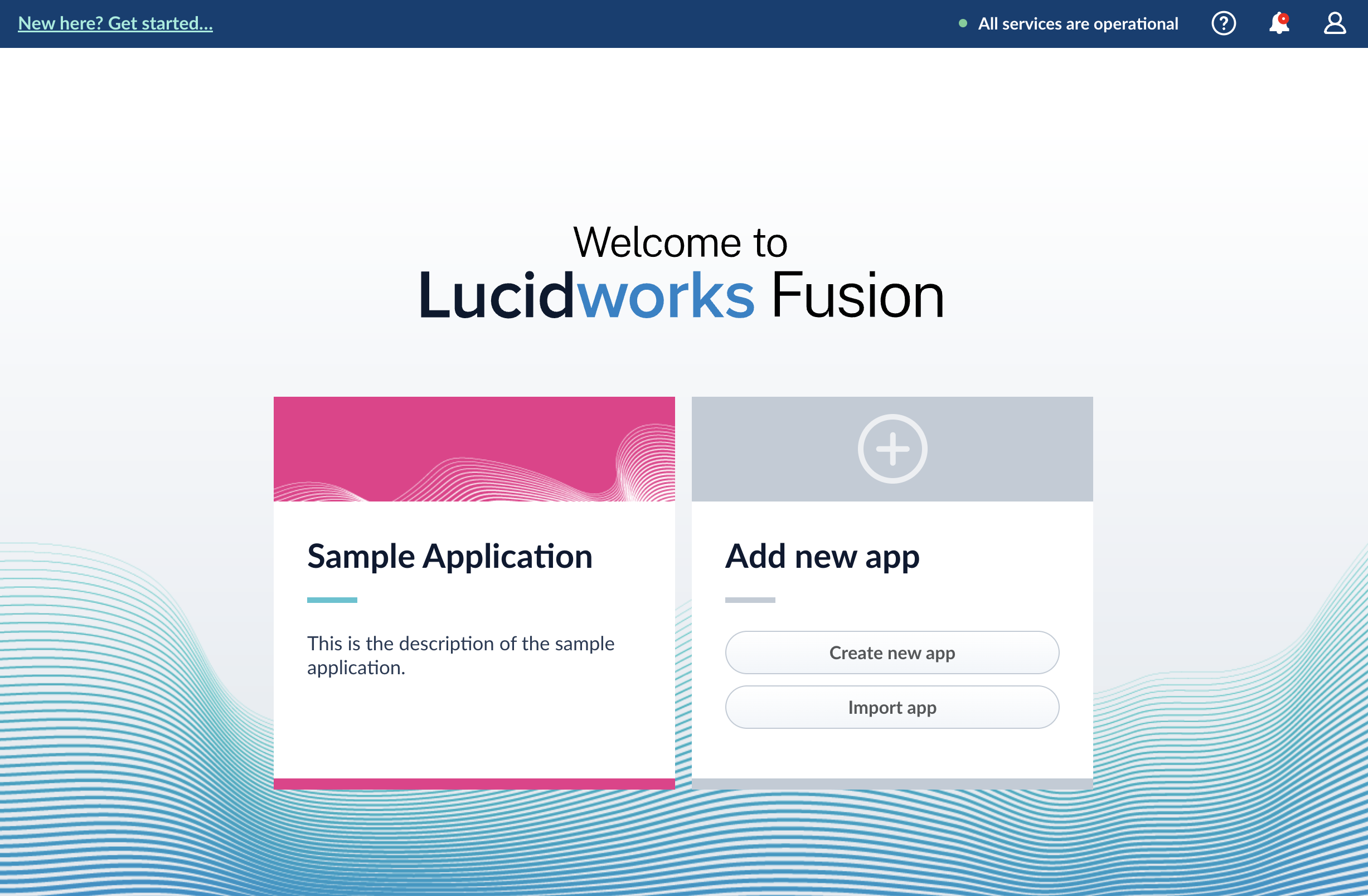 To enter the Lucidworks Search workspace for any app, click the app name.
In the Lucidworks Search workspace, you can hover over
To enter the Lucidworks Search workspace for any app, click the app name.
In the Lucidworks Search workspace, you can hover over 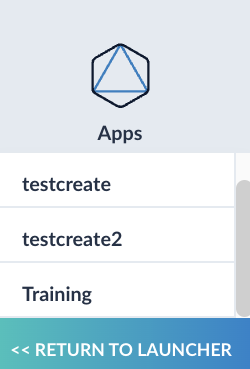 An object is something that has a specific function in a Lucidworks Search app, such as an index pipeline or Spark job. It is often something that you configure. An app is an object. Several object types are *groups* that group other objects. For more information about object types, see [Object types](#object-types).
## What you can do in Object Explorer
In Object Explorer, you can explore objects.
An object is something that has a specific function in a Lucidworks Search app, such as an index pipeline or Spark job. It is often something that you configure. An app is an object. Several object types are *groups* that group other objects. For more information about object types, see [Object types](#object-types).
## What you can do in Object Explorer
In Object Explorer, you can explore objects.
 * **Perform some management tasks.** You can perform some management tasks inside Object Explorer. For example, you can schedule jobs and tasks from Object Explorer. For other management tasks, Object Explorer takes you to where you need to be.
* **Add and remove objects** (*Advanced feature*) - When you create an app, it consists of objects. When you create additional apps, Lucidworks Search can *share* some objects across apps. Shared objects are in the `_shared` system group, and they have multiple dots on them, one for each app they are in.\
In some cases, you might want to remove an object from an app (undo sharing) or add an object to an app. For example, after configuring a parser in one app, you could share the parser with other apps, *without having to share things you do not want to share*, for example, the collection.
## Object types
You can explore these types of objects with Object Explorer:
| |
| --------------------------------------------------------------------------------------------------------------------------------------------------------------------- |
|
* **Perform some management tasks.** You can perform some management tasks inside Object Explorer. For example, you can schedule jobs and tasks from Object Explorer. For other management tasks, Object Explorer takes you to where you need to be.
* **Add and remove objects** (*Advanced feature*) - When you create an app, it consists of objects. When you create additional apps, Lucidworks Search can *share* some objects across apps. Shared objects are in the `_shared` system group, and they have multiple dots on them, one for each app they are in.\
In some cases, you might want to remove an object from an app (undo sharing) or add an object to an app. For example, after configuring a parser in one app, you could share the parser with other apps, *without having to share things you do not want to share*, for example, the collection.
## Object types
You can explore these types of objects with Object Explorer:
| |
| --------------------------------------------------------------------------------------------------------------------------------------------------------------------- |
|