> ## Documentation Index
> Fetch the complete documentation index at: https://doc.lucidworks.com/llms.txt
> Use this file to discover all available pages before exploring further.
# Lucidworks Search apps
export const LwTemplate = ({title = "Key questions to get you started", icon = "sparkles", cta = "Powered by Agent Studio", linkHref = "https://lucidworks.com/demo/?utm_source=docs&utm_medium=referral&utm_campaign=docs_cta_ai"}) => {
const [isLoaded, setIsLoaded] = useState(false);
useEffect(() => {
const timer = setTimeout(() => {
setIsLoaded(true);
}, 500);
return () => clearTimeout(timer);
}, []);
return
{isLoaded && `
}} />}
Powered by Lucidworks Agent Studio
;
};
export const InlineImage = ({src, alt = '', height = '2em'}) => {
return ;
};
[localhost link]: http://localhost:3000/docs/lucidworks-search/03-ui-tour/fusion-apps
[mintlify link]: https://doc.lucidworks.com/docs/lucidworks-search/03-ui-tour/fusion-apps
[old doc.lw link]: https://doc.lucidworks.com/managed-fusion/5.9/hnym6k
*Lucidworks Search apps* provide tailored search functionality to specific groups of users.
An app is a named set of linked *objects*, including collections, datasources, index and query pipelines, index and query profiles, parsers, and more.
You can define security on a per-app basis using [roles](/docs/lucidworks-search/08-administration/access-control/roles) and
[security realms](/docs/lucidworks-search/08-administration/access-control/security-realms).
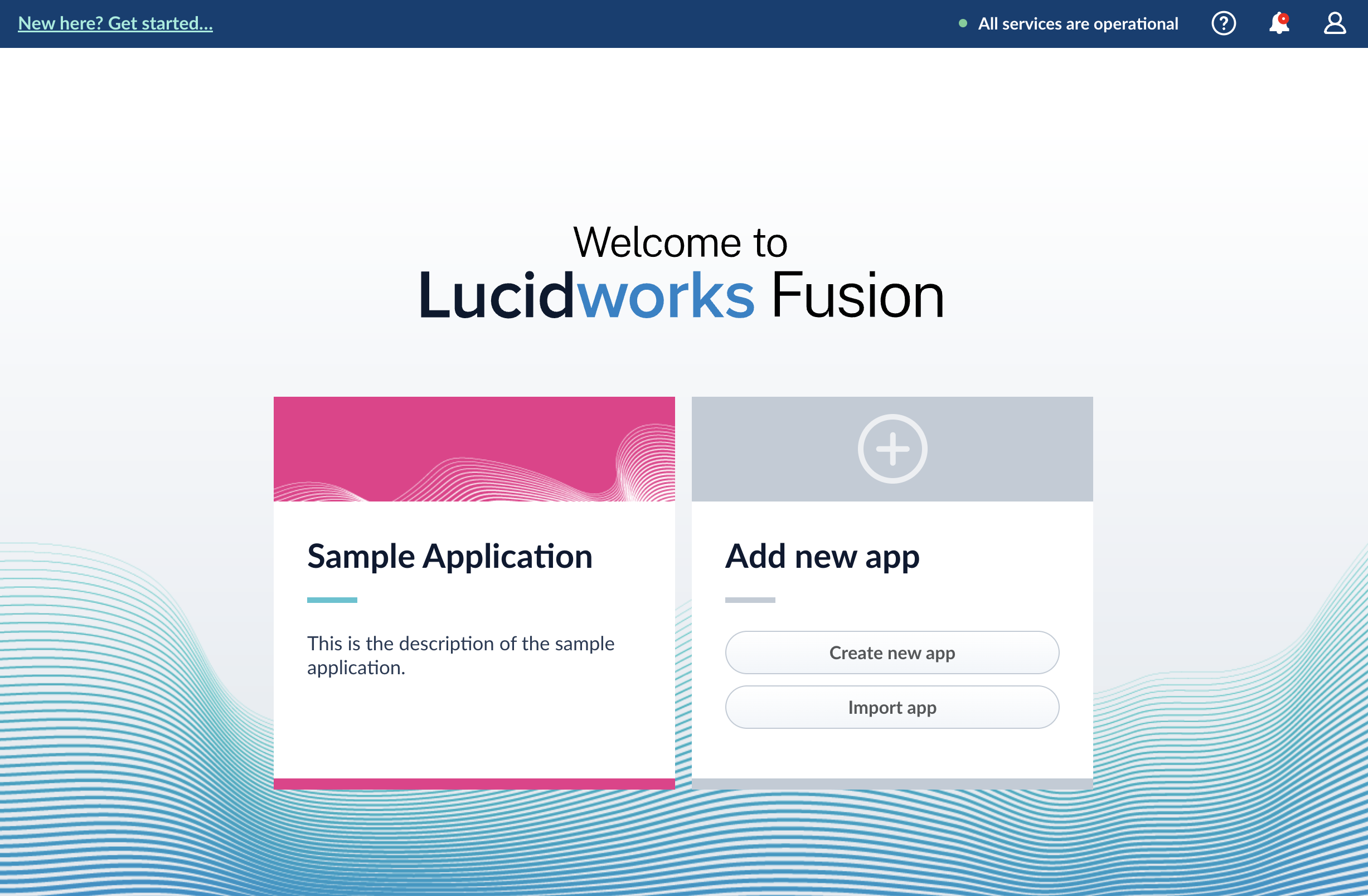
Generally, you will create multiple apps for different purposes. You can view all of your apps in the launcher when you log in to the Lucidworks Search UI:
To enter the Lucidworks Search workspace for any app, click the app name.
In the Lucidworks Search workspace, you can hover over to switch to another app, create a new app, or return to the launcher:
The course for **Fusion Applications and Collections** focuses on the features of Fusion apps and collections and best practices when working with them.
## Learn more
You can delete an app in the Lucidworks Search UI or with the Apps API.
## Manage apps in the Lucidworks Search UI
### Create an app
Lucidworks Search prompts you to create an app the first time you log in. You can create additional apps at anytime from Fusion’s home page.
1. Log into Fusion and navigate to the home screen.
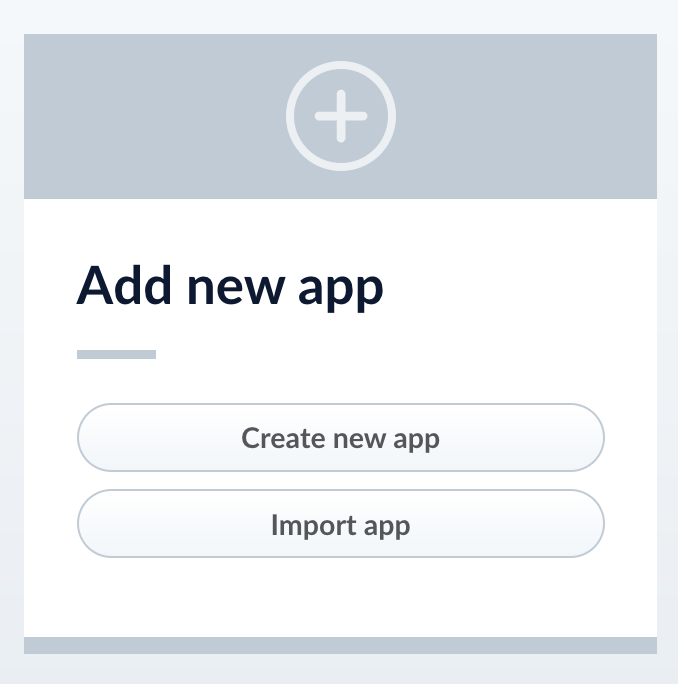
2. Click **Create new app**.
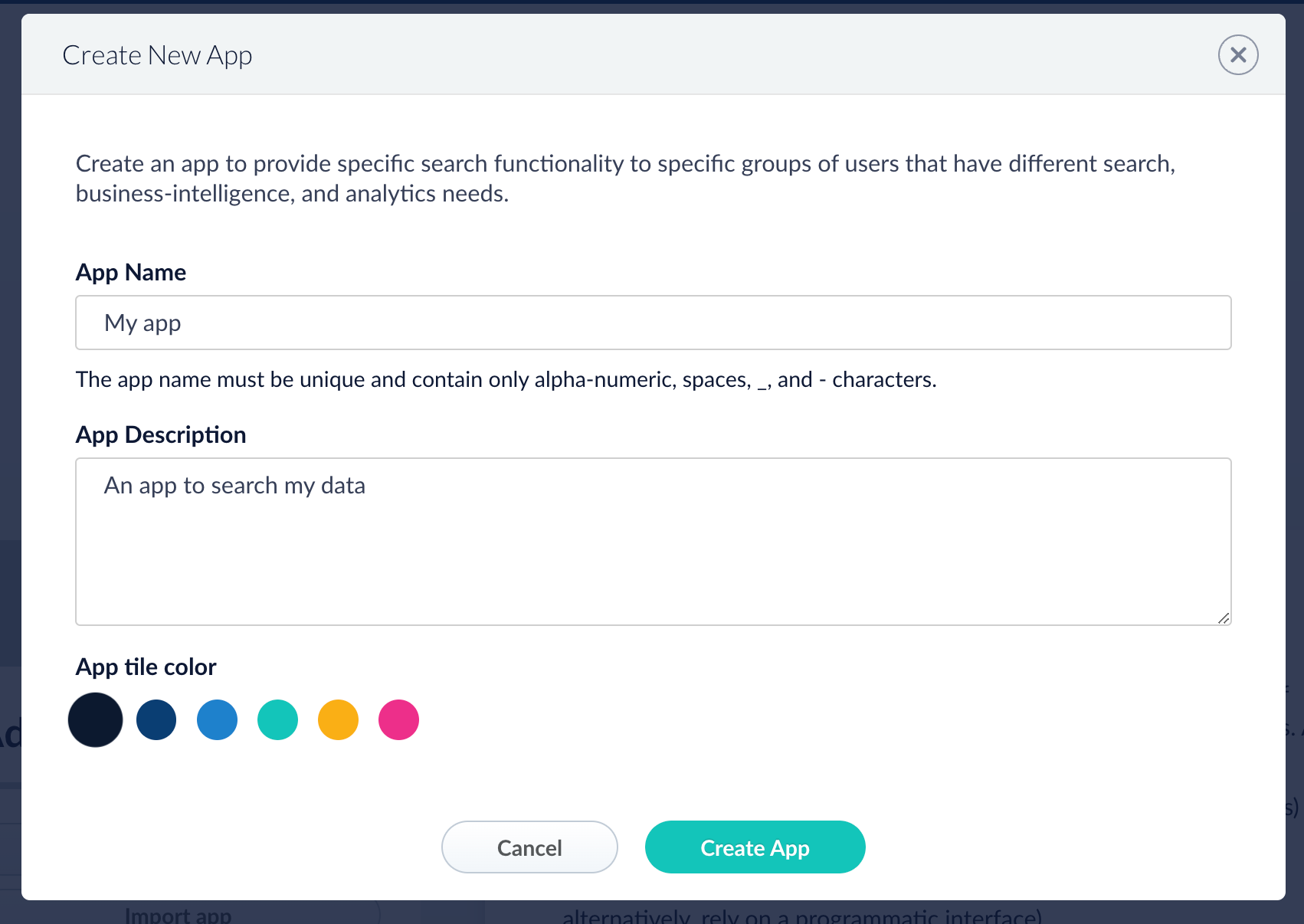
3. Enter a **Name**, **Description**, and select an **App tile color**.
4. Click **Create App**.
### Modify or delete an app
1. Log into Fusion and navigate to the home screen.
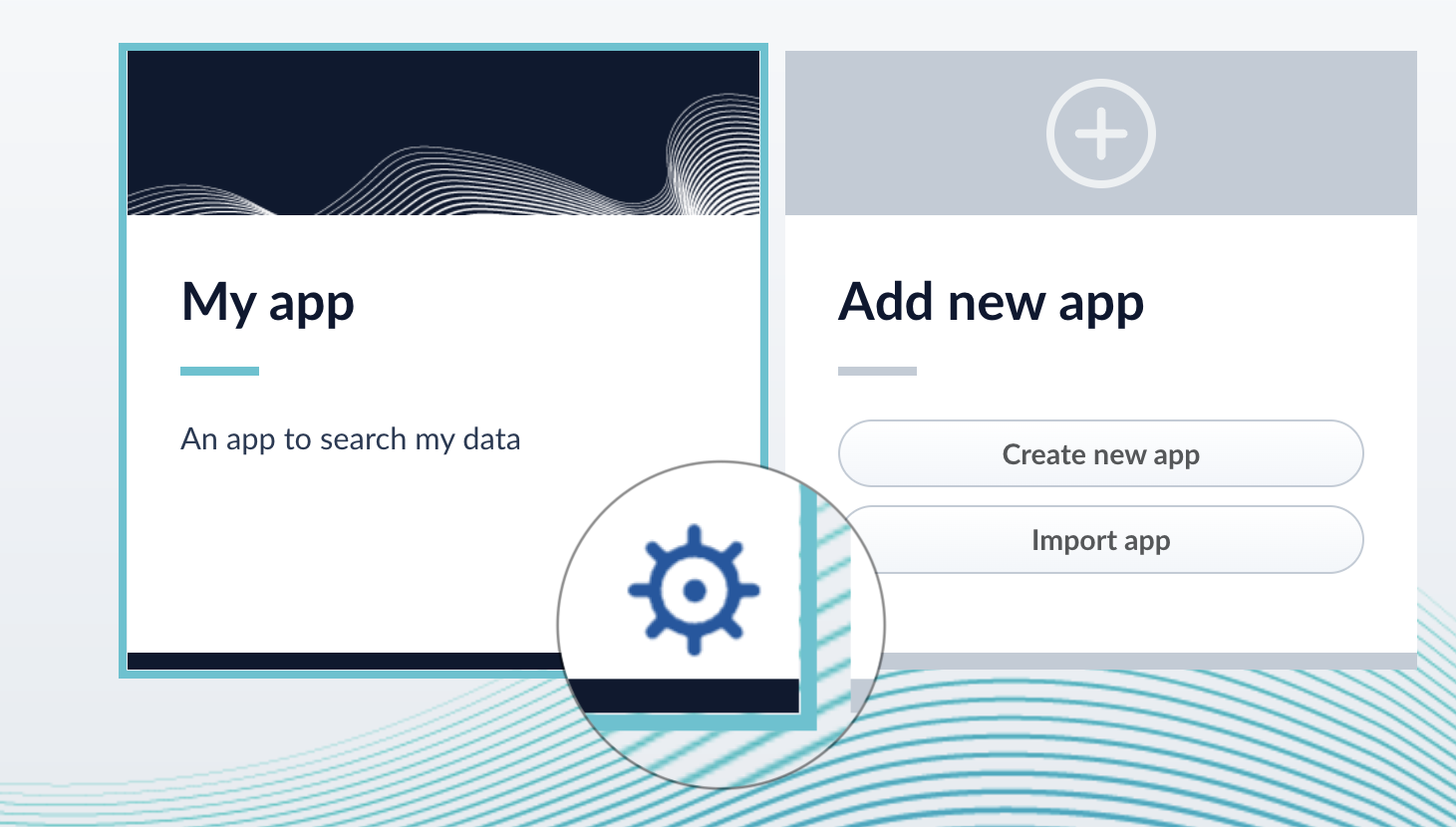
2. Click the **Configure** icon on the app you want to modify or delete.
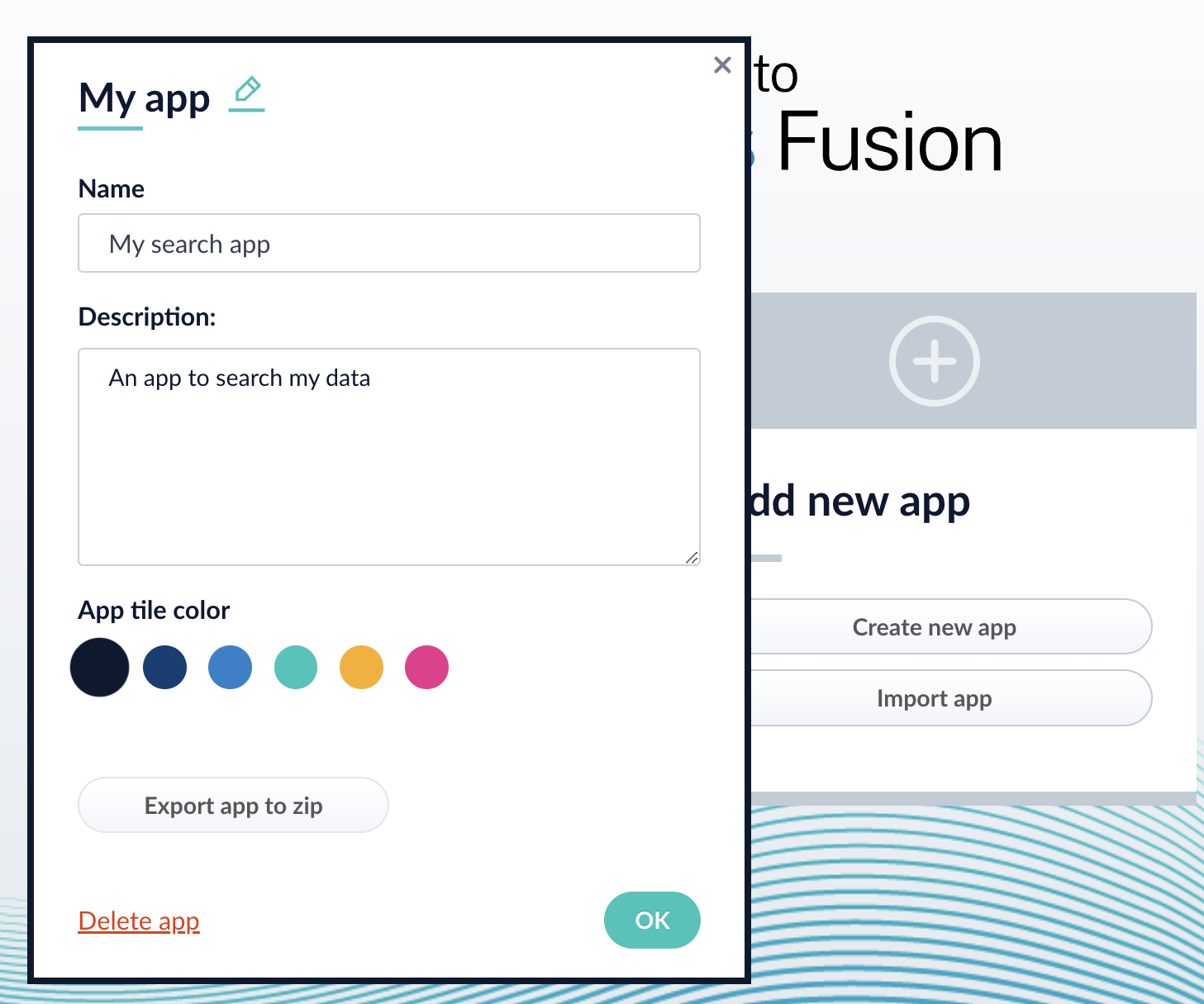
3. To modify the app, click the edit icon .
1. Edit the **Name** or **Description**.
2. Click **OK**.
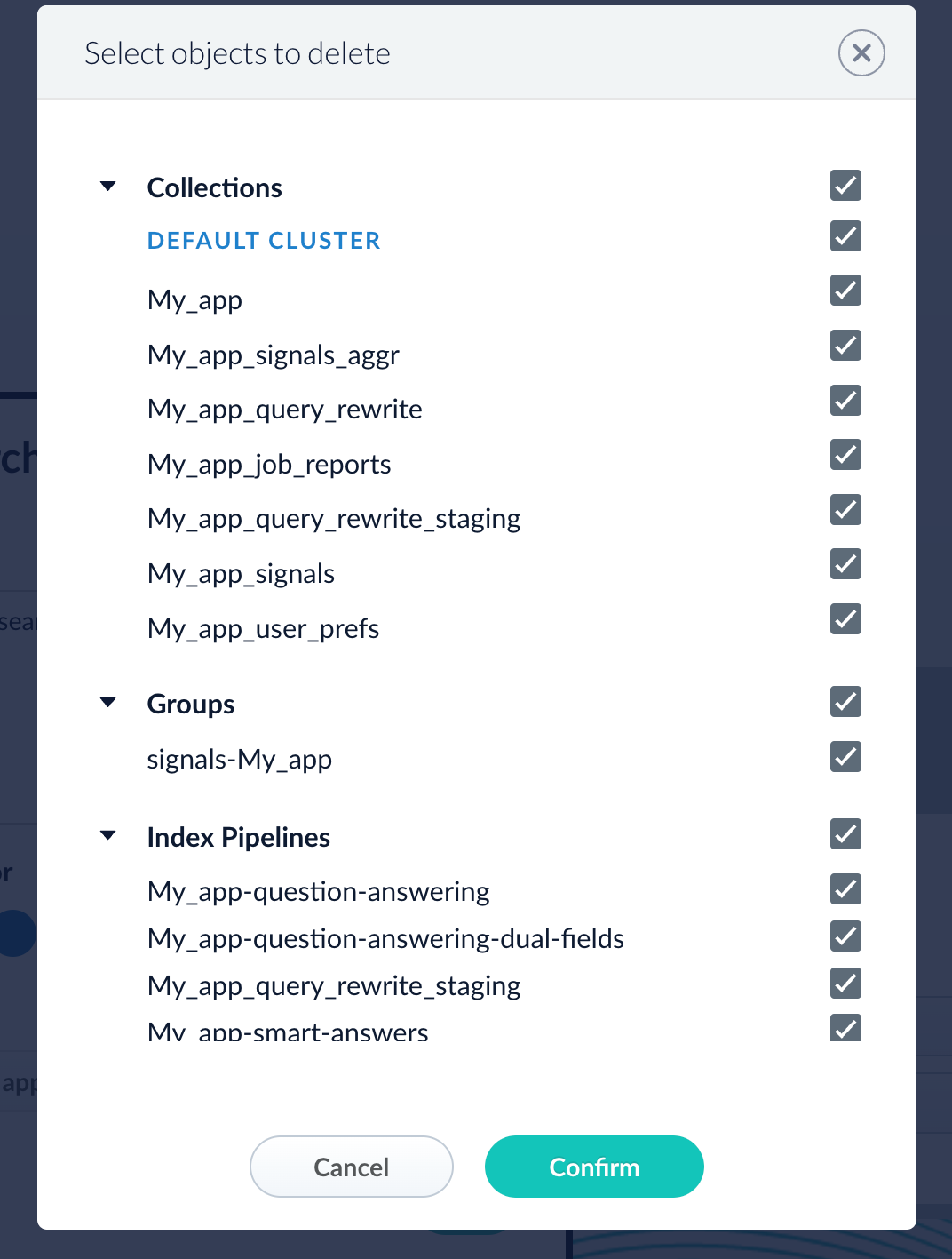
4. To delete the app, click **Delete app**.
1. A dialog box appears where you can choose which associated objects to delete or retain. Only objects not associated with other objects are displayed. All objects are selected by default.
2. Click **Confirm**.
## Manage apps with the Apps API
### Create an app
```bash wrap theme={"dark"}
curl -u USERNAME:PASSWORD -X POST -H 'Content-type: application/json' -d '{"id": "MyNewApp", "name":"My new app", "description":"A really really great new app"}' https://EXAMPLE_COMPANY.b.lucidworks.cloud/api/apps
```
### Delete an app
Run the following command, replacing `{id}` with the name of your app. This operation take about a minute to complete.
```bash wrap theme={"dark"}
curl -u USERNAME:PASSWORD -X DELETE https://https://EXAMPLE_COMPANY.b.lucidworks.cloud/api/apps/{id}
```
To export a Lucidworks Search app, you can use either the Lucidworks Search UI or the Objects API.
## Export an app with the Lucidworks Search UI
1. How to export an app with the Lucidworks Search UI
2. Navigate to the launcher.
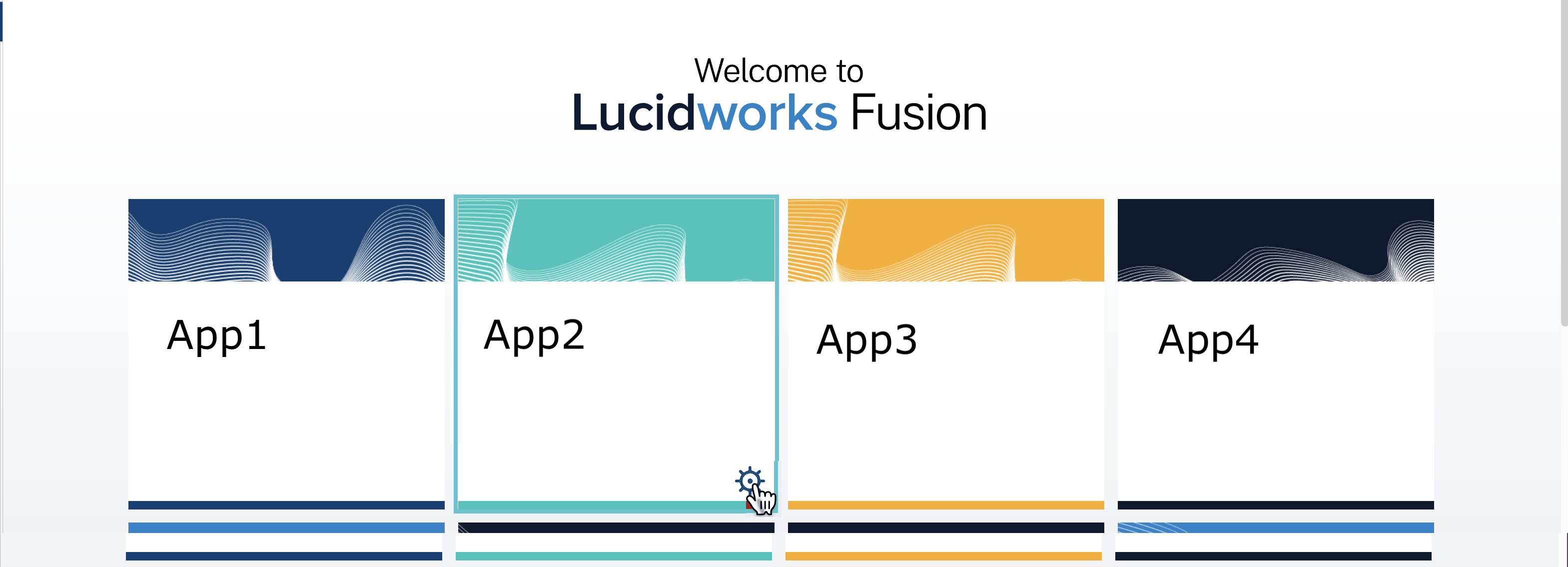
3. Hover over the app you want to export and click the Configure icon:
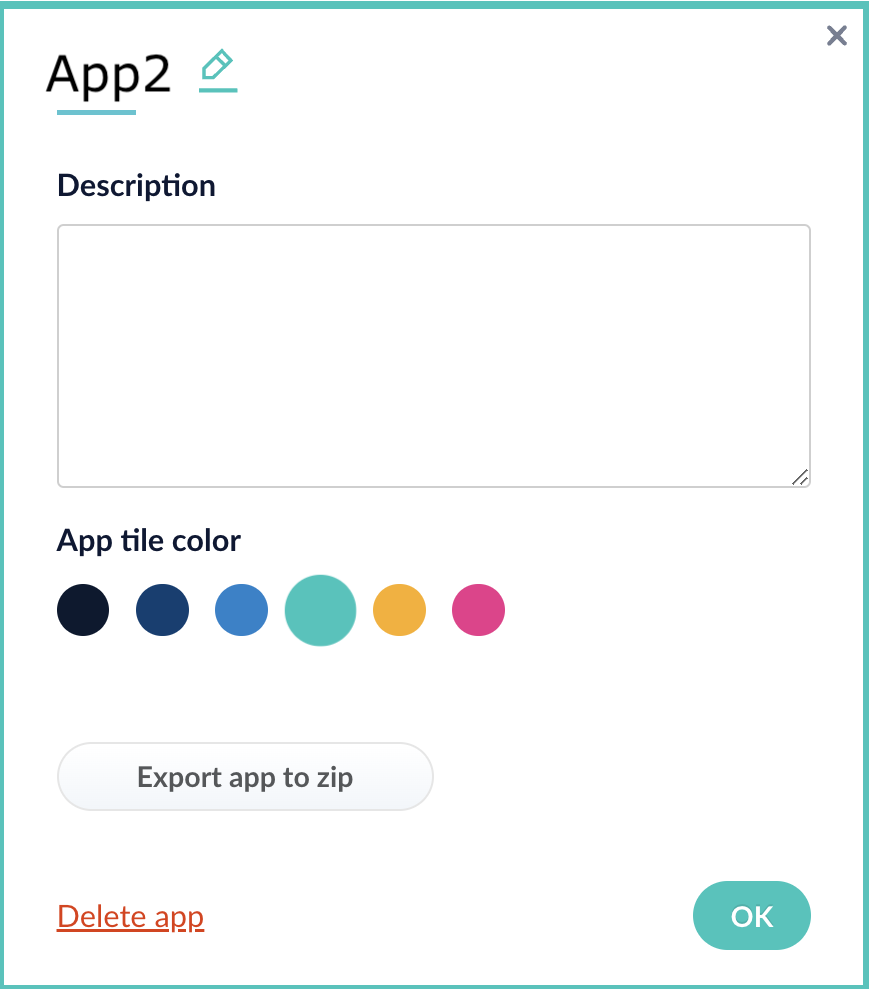
4. In the app config window, click **Export app to zip**:
## Export an app with the Objects API
The examples below show how to export one or more apps:
**Export all apps**
```bash wrap theme={"dark"}
curl -u USERNAME:PASSWORD https://EXAMPLE_COMPANY.b.lucidworks.cloud/api/objects/export?type=app > all-apps.zip
```
**Get all app IDs, then export one app by ID**
```bash wrap expandable theme={"dark"}
> curl -u USERNAME:PASSWORD https://EXAMPLE_COMPANY.b.lucidworks.cloud/api/apps
[ {
"id" : "movies",
"name" : "Movies",
"description" : "Search the movielens database.",
"dataUri" : "/App-Tile-01-460x160.png",
"properties" : {
"headerImageName" : "headerImage1",
"tileColor" : "apps-darkblue",
"previousCollectionId" : "movies"
}
}, {
"id" : "tech-pubs",
"name" : "TechPubs",
"description" : "Search the documentation.",
"dataUri" : "/App-Tile-02-460x160.png",
"properties" : {
"headerImageName" : "headerImage2",
"tileColor" : "apps-darkblue",
"previousCollectionId" : "tech-pubs"
}
} ]
> curl -u USERNAME:PASSWORD https://EXAMPLE_COMPANY.b.lucidworks.cloud/api/objects/export?app.ids=tech-pubs > techpubs.zip
```
When you export an app that includes objects that are shared with other apps, then all apps linked to that object are also exported.
**Export two apps by ID**
```bash wrap theme={"dark"}
curl -u USERNAME:PASSWORD https://EXAMPLE_COMPANY.b.lucidworks.cloud/api/objects/export?app.ids=tech-pubs,movies > two-apps.zip
```
For the `app` object type, the `deep` parameter is not used. Linked objects are always included when exporting apps.
To import an app, you can use either the Lucidworks Search UI or the Objects API.
## Import an app with the Lucidworks Search UI
1. How to import an app with the Lucidworks Search UI
2. Sign in to Lucidworks Search.
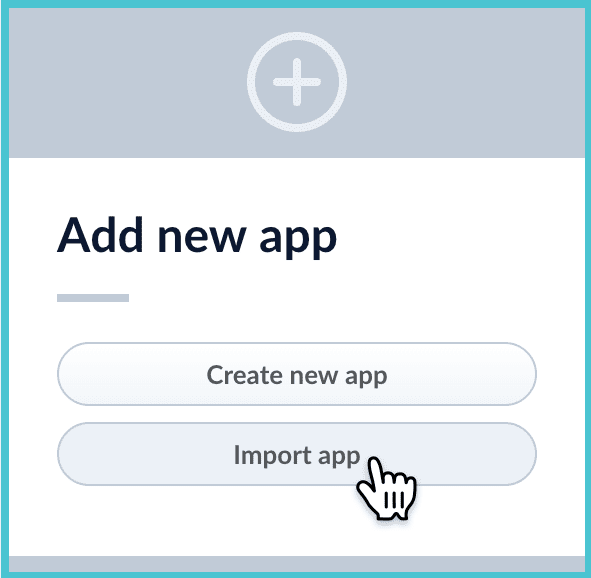
3. In the Add new app screen, click **Import app**.
4. Under **Data File**, click **Choose File** and select the zip file containing the app you want to import.
5. If your app has usernames and passwords in a separate file, select it under **Variables File**.
If the Variables File is needed, it *must* be a separate file that is not in a .zip file. It is a .json map of variables to values. The following is an example:
```json theme={"dark"}
{
"secret.dataSources.Inventory_BR_S3_DS.password":"SOMETHING",
"secret.dataSources.LLM_A_BR_S3_DS.password":"FmJSaDE9Tj5REDACTED",
"secret.dataSources.LLM_BR_Inventory_S3_DS.password":"FmJSaDE9Tj5GzIVvethAC4Huh",
"secret.dataSources.LLM_BR_Load_S3_DS.password":"FmJSaDE9Tj5GzIVvethAC4"
}
```
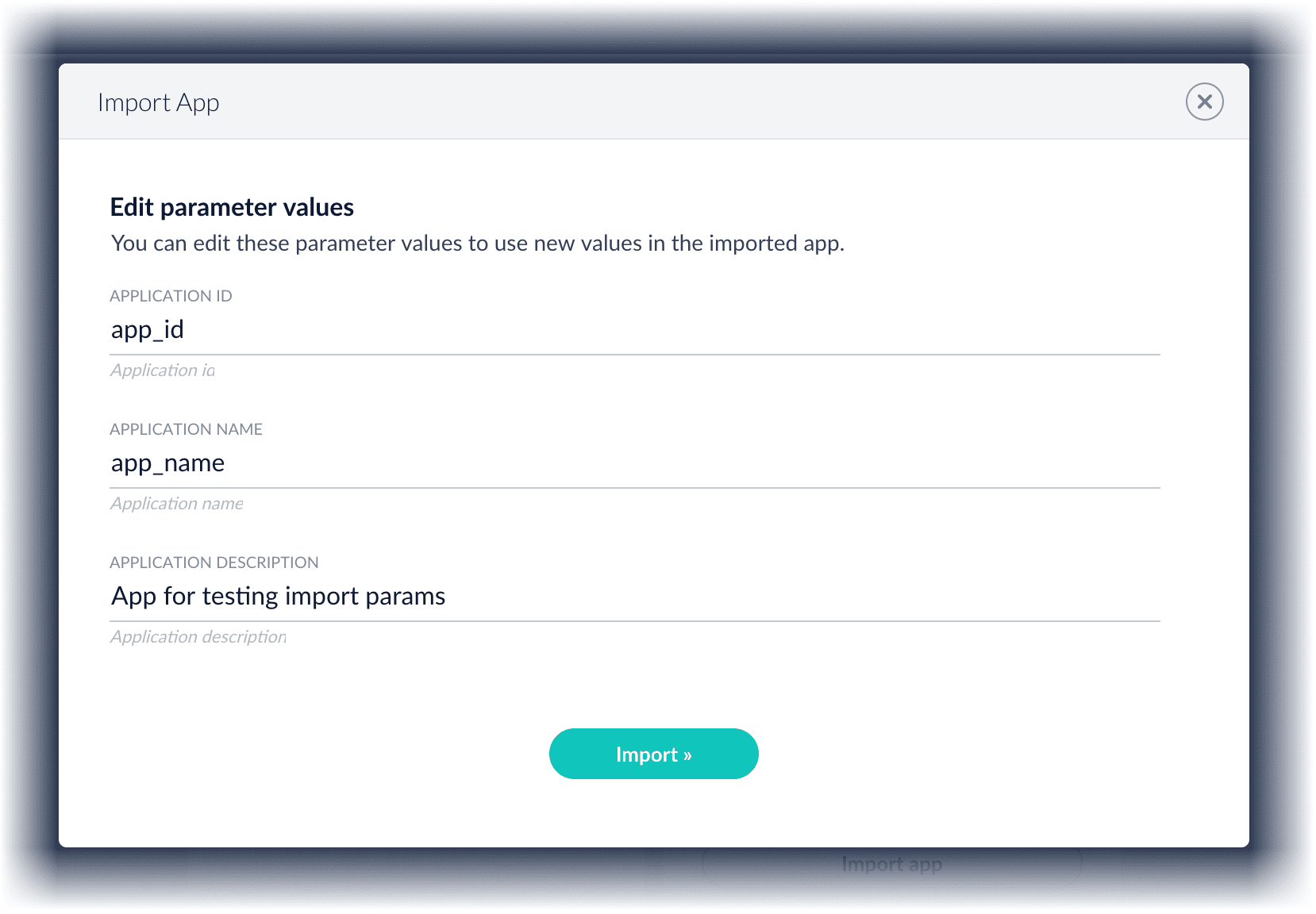
6. You can sometimes edit parameter values to use the new values in the imported app. If this is the case, Lucidworks Search displays a dialog box that lets you edit the parameter values.\\
Make desired changes, and then click **Import**.
## Import an app with the Objects API
Like any other Lucidworks Search object, an exported app is contained in a zip file which Lucidworks Search can consume upon import. The zip file does not need to be expanded first.
**Import objects from a file and stop if there are conflicts**
```bash wrap theme={"dark"}
curl -u USERNAME:PASSWORD -H "Content-Type:multipart/form-data" -X POST -F 'importData=@/Users/admin/Fusion/export.zip' http://localhost:6764/api/objects/import?importPolicy=abort
```
**Import objects, substitute the password variables, and merge any conflicts**
```bash wrap theme={"dark"}
curl -u USERNAME:PASSWORD -H "Content-Type:multipart/form-data" -X POST -F 'importData=@/Users/admin/Fusion/export.zip' -F 'variableValues=@password_file.json' http://localhost:6764/api/objects/import?importPolicy=merge
```
`password_file.json` must contain plaintext passwords.
**Import a zip file of Lucidworks Search objects and merge any conflicts**
```bash wrap theme={"dark"}
curl -u USERNAME:PASSWORD -H "Content-Type:multipart/form-data" -X POST -F 'importData=@/Users/admin/Fusion/techpubs.zip' http://localhost:6764/api/objects/import?importPolicy=merge
```
Sharing objects between apps lets you reuse parts of apps and synchronize apps without duplicating objects. For example, after you have developed a query pipeline that is well-suited to your data and search application, you can reuse it in another app with a different set of datasources.
When a shared object is modified in one app, the changes affect all other apps that share the object.
To share an object between apps:
1. Navigate to the app that does not yet include the object.
2. Navigate to **System** > **Object Explorer** or click **Find Objects**.
3. Click **In Any App**.
4. Select the object you want to include in this app.
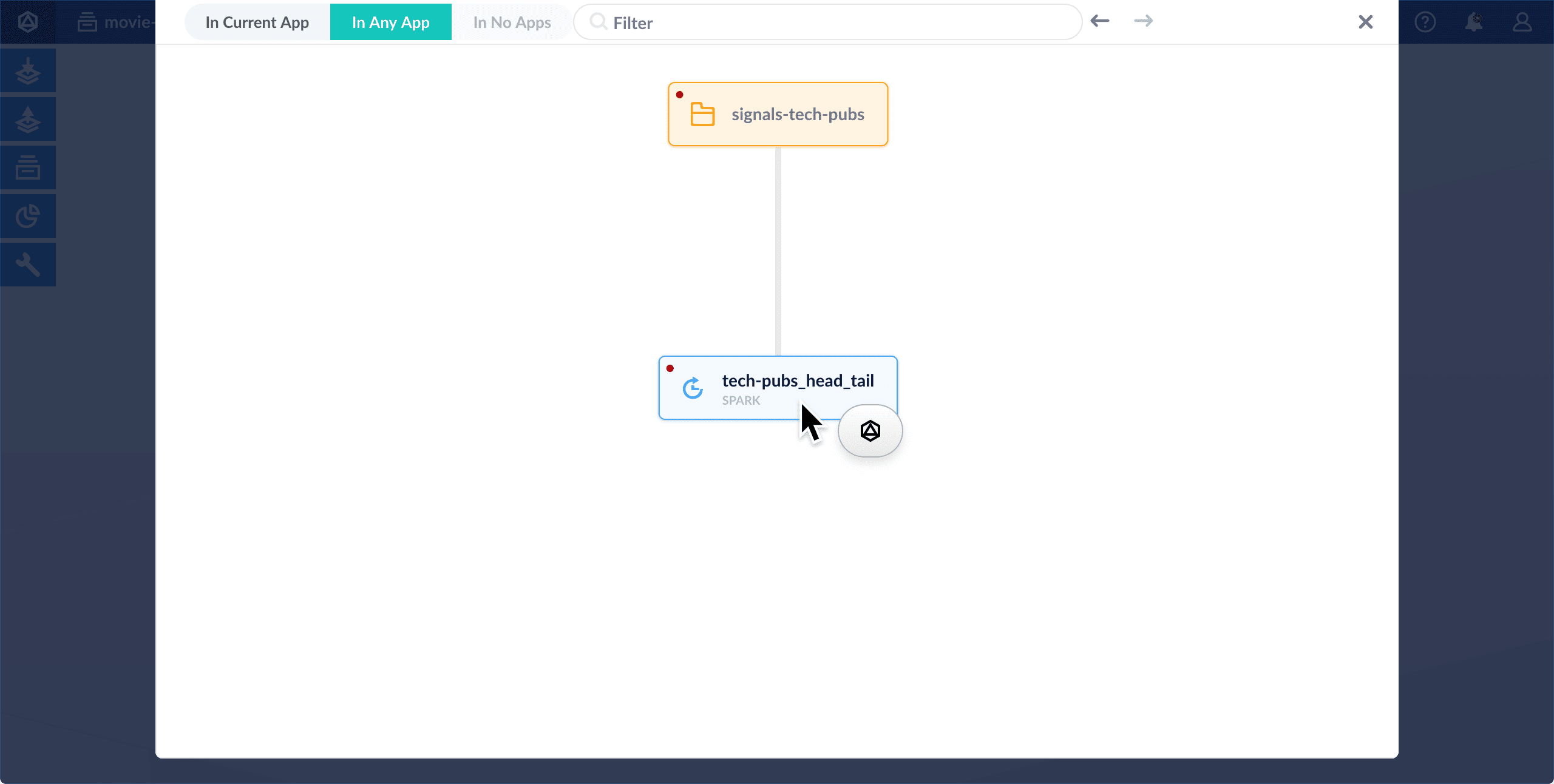
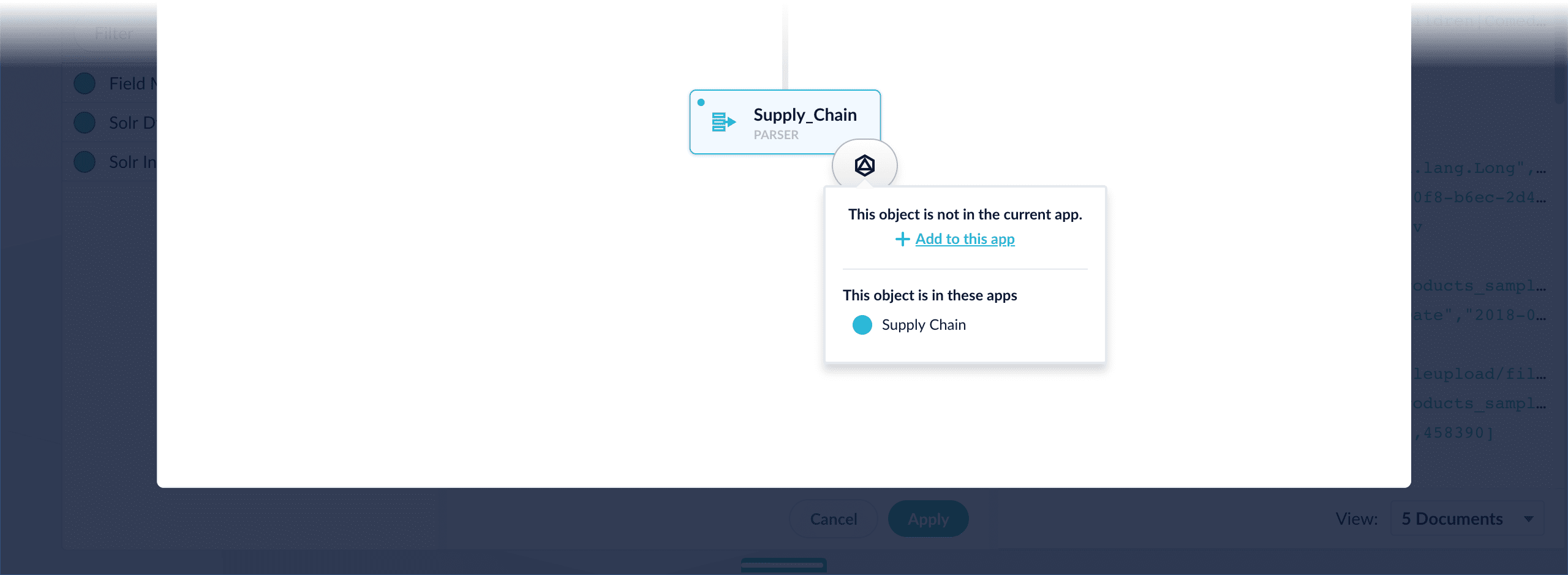
5. Hover over the object to reveal the app icon.\\
6. Click the app icon.
7. Select **Add to this app**.\\
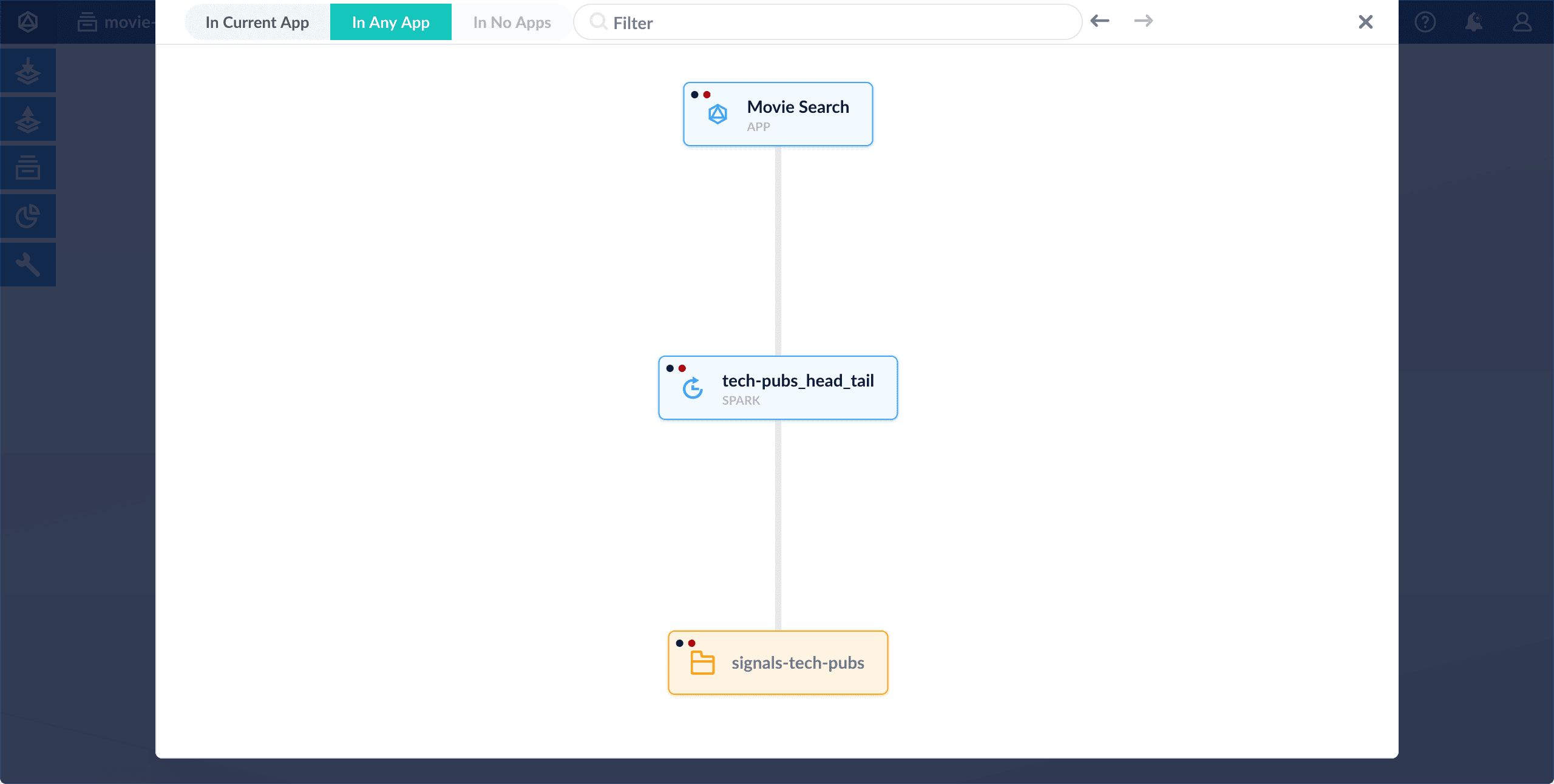
Object Explorer now displays a link between the object and this app:
Now you will see the shared object in the Fusion workspace for this app.
The course for **Fusion Applications and Collections** focuses on the features of Fusion apps and collections and best practices when working with them.
 To enter the Lucidworks Search workspace for any app, click the app name.
In the Lucidworks Search workspace, you can hover over
To enter the Lucidworks Search workspace for any app, click the app name.
In the Lucidworks Search workspace, you can hover over 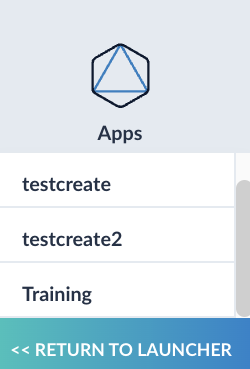
 3. Enter a **Name**, **Description**, and select an **App tile color**.
 4. Click **Create App**.
### Modify or delete an app
1. Log into Fusion and navigate to the home screen.
2. Click the **Configure** icon on the app you want to modify or delete.
4. Click **Create App**.
### Modify or delete an app
1. Log into Fusion and navigate to the home screen.
2. Click the **Configure** icon on the app you want to modify or delete.
 3. To modify the app, click the edit icon
  .
.
 1. Edit the **Name** or **Description**.
2. Click **OK**.
4. To delete the app, click **Delete app**.
1. A dialog box appears where you can choose which associated objects to delete or retain. Only objects not associated with other objects are displayed. All objects are selected by default.
2. Click **Confirm**.
1. Edit the **Name** or **Description**.
2. Click **OK**.
4. To delete the app, click **Delete app**.
1. A dialog box appears where you can choose which associated objects to delete or retain. Only objects not associated with other objects are displayed. All objects are selected by default.
2. Click **Confirm**.
 ## Manage apps with the Apps API
### Create an app
```bash wrap theme={"dark"}
curl -u USERNAME:PASSWORD -X POST -H 'Content-type: application/json' -d '{"id": "MyNewApp", "name":"My new app", "description":"A really really great new app"}' https://EXAMPLE_COMPANY.b.lucidworks.cloud/api/apps
```
### Delete an app
Run the following command, replacing `{id}` with the name of your app. This operation take about a minute to complete.
```bash wrap theme={"dark"}
curl -u USERNAME:PASSWORD -X DELETE https://https://EXAMPLE_COMPANY.b.lucidworks.cloud/api/apps/{id}
```
## Manage apps with the Apps API
### Create an app
```bash wrap theme={"dark"}
curl -u USERNAME:PASSWORD -X POST -H 'Content-type: application/json' -d '{"id": "MyNewApp", "name":"My new app", "description":"A really really great new app"}' https://EXAMPLE_COMPANY.b.lucidworks.cloud/api/apps
```
### Delete an app
Run the following command, replacing `{id}` with the name of your app. This operation take about a minute to complete.
```bash wrap theme={"dark"}
curl -u USERNAME:PASSWORD -X DELETE https://https://EXAMPLE_COMPANY.b.lucidworks.cloud/api/apps/{id}
```
 4. In the app config window, click **Export app to zip**:
 ## Export an app with the Objects API
The examples below show how to export one or more apps:
**Export all apps**
```bash wrap theme={"dark"}
curl -u USERNAME:PASSWORD https://EXAMPLE_COMPANY.b.lucidworks.cloud/api/objects/export?type=app > all-apps.zip
```
**Get all app IDs, then export one app by ID**
```bash wrap expandable theme={"dark"}
> curl -u USERNAME:PASSWORD https://EXAMPLE_COMPANY.b.lucidworks.cloud/api/apps
[ {
"id" : "movies",
"name" : "Movies",
"description" : "Search the movielens database.",
"dataUri" : "/App-Tile-01-460x160.png",
"properties" : {
"headerImageName" : "headerImage1",
"tileColor" : "apps-darkblue",
"previousCollectionId" : "movies"
}
}, {
"id" : "tech-pubs",
"name" : "TechPubs",
"description" : "Search the documentation.",
"dataUri" : "/App-Tile-02-460x160.png",
"properties" : {
"headerImageName" : "headerImage2",
"tileColor" : "apps-darkblue",
"previousCollectionId" : "tech-pubs"
}
} ]
> curl -u USERNAME:PASSWORD https://EXAMPLE_COMPANY.b.lucidworks.cloud/api/objects/export?app.ids=tech-pubs > techpubs.zip
```
## Export an app with the Objects API
The examples below show how to export one or more apps:
**Export all apps**
```bash wrap theme={"dark"}
curl -u USERNAME:PASSWORD https://EXAMPLE_COMPANY.b.lucidworks.cloud/api/objects/export?type=app > all-apps.zip
```
**Get all app IDs, then export one app by ID**
```bash wrap expandable theme={"dark"}
> curl -u USERNAME:PASSWORD https://EXAMPLE_COMPANY.b.lucidworks.cloud/api/apps
[ {
"id" : "movies",
"name" : "Movies",
"description" : "Search the movielens database.",
"dataUri" : "/App-Tile-01-460x160.png",
"properties" : {
"headerImageName" : "headerImage1",
"tileColor" : "apps-darkblue",
"previousCollectionId" : "movies"
}
}, {
"id" : "tech-pubs",
"name" : "TechPubs",
"description" : "Search the documentation.",
"dataUri" : "/App-Tile-02-460x160.png",
"properties" : {
"headerImageName" : "headerImage2",
"tileColor" : "apps-darkblue",
"previousCollectionId" : "tech-pubs"
}
} ]
> curl -u USERNAME:PASSWORD https://EXAMPLE_COMPANY.b.lucidworks.cloud/api/objects/export?app.ids=tech-pubs > techpubs.zip
```
 4. Under **Data File**, click **Choose File** and select the zip file containing the app you want to import.
5. If your app has usernames and passwords in a separate file, select it under **Variables File**.
If the Variables File is needed, it *must* be a separate file that is not in a .zip file. It is a .json map of variables to values. The following is an example:
```json theme={"dark"}
{
"secret.dataSources.Inventory_BR_S3_DS.password":"SOMETHING",
"secret.dataSources.LLM_A_BR_S3_DS.password":"FmJSaDE9Tj5REDACTED",
"secret.dataSources.LLM_BR_Inventory_S3_DS.password":"FmJSaDE9Tj5GzIVvethAC4Huh",
"secret.dataSources.LLM_BR_Load_S3_DS.password":"FmJSaDE9Tj5GzIVvethAC4"
}
```
6. You can sometimes edit parameter values to use the new values in the imported app. If this is the case, Lucidworks Search displays a dialog box that lets you edit the parameter values.\\
4. Under **Data File**, click **Choose File** and select the zip file containing the app you want to import.
5. If your app has usernames and passwords in a separate file, select it under **Variables File**.
If the Variables File is needed, it *must* be a separate file that is not in a .zip file. It is a .json map of variables to values. The following is an example:
```json theme={"dark"}
{
"secret.dataSources.Inventory_BR_S3_DS.password":"SOMETHING",
"secret.dataSources.LLM_A_BR_S3_DS.password":"FmJSaDE9Tj5REDACTED",
"secret.dataSources.LLM_BR_Inventory_S3_DS.password":"FmJSaDE9Tj5GzIVvethAC4Huh",
"secret.dataSources.LLM_BR_Load_S3_DS.password":"FmJSaDE9Tj5GzIVvethAC4"
}
```
6. You can sometimes edit parameter values to use the new values in the imported app. If this is the case, Lucidworks Search displays a dialog box that lets you edit the parameter values.\\
 Make desired changes, and then click **Import**.
## Import an app with the Objects API
Like any other Lucidworks Search object, an exported app is contained in a zip file which Lucidworks Search can consume upon import. The zip file does not need to be expanded first.
**Import objects from a file and stop if there are conflicts**
```bash wrap theme={"dark"}
curl -u USERNAME:PASSWORD -H "Content-Type:multipart/form-data" -X POST -F 'importData=@/Users/admin/Fusion/export.zip' http://localhost:6764/api/objects/import?importPolicy=abort
```
**Import objects, substitute the password variables, and merge any conflicts**
```bash wrap theme={"dark"}
curl -u USERNAME:PASSWORD -H "Content-Type:multipart/form-data" -X POST -F 'importData=@/Users/admin/Fusion/export.zip' -F 'variableValues=@password_file.json' http://localhost:6764/api/objects/import?importPolicy=merge
```
Make desired changes, and then click **Import**.
## Import an app with the Objects API
Like any other Lucidworks Search object, an exported app is contained in a zip file which Lucidworks Search can consume upon import. The zip file does not need to be expanded first.
**Import objects from a file and stop if there are conflicts**
```bash wrap theme={"dark"}
curl -u USERNAME:PASSWORD -H "Content-Type:multipart/form-data" -X POST -F 'importData=@/Users/admin/Fusion/export.zip' http://localhost:6764/api/objects/import?importPolicy=abort
```
**Import objects, substitute the password variables, and merge any conflicts**
```bash wrap theme={"dark"}
curl -u USERNAME:PASSWORD -H "Content-Type:multipart/form-data" -X POST -F 'importData=@/Users/admin/Fusion/export.zip' -F 'variableValues=@password_file.json' http://localhost:6764/api/objects/import?importPolicy=merge
```
 6. Click the app icon.
7. Select **Add to this app**.\\
6. Click the app icon.
7. Select **Add to this app**.\\
 Object Explorer now displays a link between the object and this app:
 Now you will see the shared object in the Fusion workspace for this app.