> ## Documentation Index
> Fetch the complete documentation index at: https://doc.lucidworks.com/llms.txt
> Use this file to discover all available pages before exploring further.

# OneDrive Datasource V2

> The Fusion OneDrive connector crawls a OneDrive for Business instance and retrieves data from it for indexing within Fusion.

export const schema = {
  "category": "File System",
  "categoryPriority": 1,
  "description": "Connector for OneDrive file systems",
  "properties": {
    "category": {
      "default": "Connector for OneDrive file systems",
      "hints": ["hidden", "readonly"],
      "title": "Category",
      "type": "string"
    },
    "collection": {
      "description": "The associated content Collection.",
      "hints": ["readonly", "hidden"],
      "minLength": 1,
      "pattern": "^[a-zA-Z0-9_-]+$",
      "title": "Collection ID",
      "type": "string"
    },
    "connector": {
      "description": "Connector type.",
      "hints": ["hidden"],
      "minLength": 1,
      "title": "Connector Type",
      "type": "string"
    },
    "coreProperties": {
      "description": "Common behavior and performance settings.",
      "hints": ["advanced"],
      "interfaces": ["com.lucidworks.fusion.connector.plugin.api.config.CoreConfig"],
      "properties": {
        "fetchSettings": {
          "description": "System level settings for controlling fetch behavior and performance.",
          "interfaces": ["com.lucidworks.fusion.connector.plugin.api.config.CoreConfig$FetchSystemSettings"],
          "properties": {
            "fetchItemQueueSize": {
              "default": 100,
              "description": "Size of the fetch item queue.Larger values result in increased memory usage, but potentially higher performance.Default is 100.",
              "exclusiveMaximum": false,
              "exclusiveMinimum": false,
              "maximum": 500000,
              "minimum": 1,
              "multipleOf": 1,
              "title": "Fetch Item Queue Size",
              "type": "number"
            },
            "fetchRequestCheckInterval": {
              "default": 15000,
              "description": "The amount of time to wait before check if a request is done",
              "exclusiveMaximum": false,
              "exclusiveMinimum": false,
              "maximum": 500000,
              "minimum": 1000,
              "multipleOf": 1,
              "title": "Fetch request check interval(ms)",
              "type": "number"
            },
            "fetchResponseCompletedTimeout": {
              "default": 300000,
              "description": "The maximum amount of time for a response to be completed. If exceeded, the task will be retried if the job is still running",
              "exclusiveMaximum": false,
              "exclusiveMinimum": false,
              "maximum": 600000,
              "minimum": 1,
              "multipleOf": 1,
              "title": "Fetch response completion timeout(ms)",
              "type": "number"
            },
            "fetchResponseScheduledTimeout": {
              "default": 300000,
              "description": "The maximum amount of time for a response to be scheduled. The task will be canceled if this setting is exceeded.",
              "exclusiveMaximum": false,
              "exclusiveMinimum": false,
              "maximum": 500000,
              "minimum": 1000,
              "multipleOf": 1,
              "title": "Fetch response scheduled timeout(ms)",
              "type": "number"
            },
            "numFetchThreads": {
              "default": 7,
              "description": "Maximum number of fetch threads; defaults to 4.This setting controls the number of threads that call the Connectors fetch method.Higher values can, but not always, help with overall fetch performance.",
              "exclusiveMaximum": false,
              "exclusiveMinimum": false,
              "maximum": 500,
              "minimum": 1,
              "multipleOf": 1,
              "title": "Fetch Threads",
              "type": "number"
            }
          },
          "required": [],
          "title": "Fetch Settings",
          "type": "object"
        },
        "pipelineSettings": {
          "description": "System level settings for IndexPipeline API calls.",
          "interfaces": ["com.lucidworks.fusion.connector.plugin.api.config.CoreConfig$PipelineSystemSettings"],
          "properties": {
            "retryOptions": {
              "description": "A set of options for configuring retry behavior.",
              "interfaces": ["com.lucidworks.fusion.connector.plugin.api.config.CoreConfig$PipelineEmitterRetryConfig", "com.lucidworks.fusion.connector.plugin.api.config.RetryConfig$Properties"],
              "properties": {
                "errorExclusions": {
                  "description": "Optional regex list that will be matched against failed attempts exception class and message. If any regex matches, do not retry this request. This is needed to prevent the retryer from retrying non-recoverable errors that were not already ignored by the connector implementation.",
                  "items": {
                    "maxLength": 256,
                    "minLength": 1,
                    "type": "string"
                  },
                  "title": "Error Exclusions",
                  "type": "array"
                },
                "maxDelayTimeMs": {
                  "default": 2000,
                  "description": "The retryer will retry failed operations in the case that they might succeed if attempted again. The retryer will sleep an exponential amount of time after the first failed attempt and retry in exponentially incrementing amounts after each failed attempt up to the maximumTime. This parameter sets a maximum on the sleep time. NOTE: This does NOT mean a request will stop retrying after this time, rather it is just a cap on how big the sleeps between requests can get from the multiplier.",
                  "exclusiveMaximum": false,
                  "exclusiveMinimum": false,
                  "maximum": 100,
                  "minimum": 1,
                  "multipleOf": 1,
                  "title": "Maximum Delay Time",
                  "type": "number"
                },
                "maxInMemoryBuffer": {
                  "default": 4000000,
                  "description": "The maximum in-memory buffer size (bytes) before content is temporarily spilled-over to disk.This allows the indexing process to retry content without forcing the Connector to provide it again.Content smaller than this setting is buffered in-memory.",
                  "exclusiveMaximum": false,
                  "exclusiveMinimum": false,
                  "maximum": 2147483647,
                  "minimum": 1000,
                  "multipleOf": 1,
                  "title": "Maximum In-Memory Buffer",
                  "type": "number"
                },
                "maxRetries": {
                  "default": 0,
                  "description": "The retryer will retry failed operations in the case that they might succeed if attempted again. This parameter states the number of attempts to retry until giving up. This parameter, if specified, will override the \"Stop retrying after time (milliseconds)\" parameter.",
                  "exclusiveMaximum": false,
                  "exclusiveMinimum": false,
                  "maximum": 100,
                  "minimum": 0,
                  "multipleOf": 1,
                  "title": "Maximum Retries",
                  "type": "number"
                },
                "maxTimeLimitMs": {
                  "default": 5000,
                  "description": "The retryer will retry failed operations in the case that they might succeed if attempted again. This parameter states how long since the first attempt (in seconds) that the retryer will continue to make reattempts. Note: This parameter will be ignored if the maximum retry attempts setting is specified.",
                  "exclusiveMaximum": false,
                  "exclusiveMinimum": false,
                  "maximum": 28800000,
                  "minimum": 1,
                  "multipleOf": 1,
                  "title": "Maximum Time Limit",
                  "type": "number"
                },
                "retryFactor": {
                  "default": 100,
                  "description": "The retryer will retry failed operations in the case that they might succeed if attempted again. The retryer will sleep an exponential amount of time after the first failed attempt and retry in exponentially incrementing amounts after each failed attempt up to the maximumTime. nextWaitTime = exponentialIncrement * multiplier.",
                  "exclusiveMaximum": false,
                  "exclusiveMinimum": false,
                  "maximum": 100,
                  "minimum": 1,
                  "multipleOf": 1,
                  "title": "Retry Factor",
                  "type": "number"
                }
              },
              "required": ["retryFactor", "maxDelayTimeMs"],
              "title": "Retry Options",
              "type": "object"
            }
          },
          "required": [],
          "title": "Pipeline Settings",
          "type": "object"
        }
      },
      "required": [],
      "title": "Core Properties",
      "type": "object"
    },
    "created": {
      "description": "The date at which this Configuration was created.",
      "hints": ["readonly", "hidden"],
      "title": "Date Created",
      "type": "string"
    },
    "description": {
      "description": "Optional description",
      "hints": ["lengthy"],
      "maxLength": 125,
      "title": "Description",
      "type": "string"
    },
    "diagnosticLogging": {
      "default": false,
      "description": "Enable diagnostic logging; disabled by default",
      "title": "Diagnostic Logging",
      "type": "boolean"
    },
    "id": {
      "description": "A unique identifier for this Configuration.",
      "minLength": 1,
      "pattern": "^[a-zA-Z0-9_-]+$",
      "title": "Configuration ID",
      "type": "string"
    },
    "modified": {
      "description": "The date at which this Configuration was last modified.",
      "hints": ["readonly", "hidden"],
      "title": "Date Modified",
      "type": "string"
    },
    "parserId": {
      "description": "The Parser to use in the associated IndexPipeline.",
      "title": "Parser ID",
      "type": "string"
    },
    "pipeline": {
      "description": "Name of the IndexPipeline used for processing output.",
      "minLength": 1,
      "pattern": "^[a-zA-Z0-9_-]+$",
      "title": "Pipeline ID",
      "type": "string"
    },
    "properties": {
      "description": "Plugin specific properties.",
      "interfaces": ["com.lucidworks.fusion.connector.plugins.onedrive.OneDriveConfig$Properties", "com.lucidworks.fusion.connector.plugin.api.config.ConnectorPluginProperties", "com.lucidworks.fusion.connector.plugin.api.config.SecurityTrimmingProperties", "com.lucidworks.fusion.connector.plugin.api.config.MaximumItemLimitConfig", "com.lucidworks.fusion.connector.plugin.api.config.NamePatternConfig", "com.lucidworks.fusion.connector.plugin.api.config.SizeLimitConfig"],
      "properties": {
        "clientId": {
          "description": "Client Id",
          "title": "Client Id",
          "type": "string"
        },
        "clientSecret": {
          "description": "Client secret",
          "hints": ["secret"],
          "title": "Client Secret",
          "type": "string"
        },
        "maximumItemLimitConfig": {
          "interfaces": ["com.lucidworks.fusion.connector.plugin.api.config.MaximumItemLimitConfig$Properties"],
          "properties": {
            "maxItems": {
              "default": -1,
              "description": "Limits the number of items emitted to the configured IndexPipeline. The default is no limit (-1).",
              "exclusiveMaximum": false,
              "exclusiveMinimum": false,
              "maximum": 2147483647,
              "minimum": -2147483648,
              "multipleOf": 1,
              "title": "Maximum Output Limit",
              "type": "number"
            }
          },
          "required": [],
          "title": "Item Count Limits",
          "type": "object"
        },
        "namePatternConfig": {
          "interfaces": ["com.lucidworks.fusion.connector.plugin.api.config.NamePatternConfig$Properties"],
          "properties": {
            "excludedFileExtensions": {
              "description": "A set of all file extensions to be skipped from the fetch.",
              "items": {
                "minLength": 1,
                "type": "string"
              },
              "title": "Excluded file extensions",
              "type": "array"
            },
            "exclusiveRegexes": {
              "description": "Regular expressions for URI patterns to exclude. This will limit this datasource to only URIs that do not match the regular expression.",
              "items": {
                "minLength": 1,
                "type": "string"
              },
              "title": "Exclusive regexes",
              "type": "array"
            },
            "includedFileExtensions": {
              "description": "Set of file extensions to be fetched. If specified, all non-matching files will be skipped.",
              "items": {
                "minLength": 1,
                "type": "string"
              },
              "title": "Included file extensions",
              "type": "array"
            },
            "inclusiveRegexes": {
              "description": "Regular expressions for URI patterns to include. This will limit this datasource to only URIs that match the regular expression.",
              "items": {
                "minLength": 1,
                "type": "string"
              },
              "title": "Inclusive regexes",
              "type": "array"
            },
            "regexCacheSize": {
              "default": 10000,
              "description": "The number of regex matches to cache when evaluating regular expressions. For example if you exclude files by filename, each filename's regex result will be cached so that if this same filename came up again, the regex matches would be remembered.",
              "exclusiveMaximum": false,
              "exclusiveMinimum": false,
              "maximum": 2147483647,
              "minimum": -2147483648,
              "multipleOf": 1,
              "title": "Regex Cache Size",
              "type": "number"
            }
          },
          "required": [],
          "title": "Name Pattern Rules",
          "type": "object"
        },
        "requestsWaitTimeout": {
          "default": 5,
          "description": "Time (in minutes) to wait before canceling a request to OneDrive API",
          "exclusiveMaximum": false,
          "exclusiveMinimum": false,
          "maximum": 9223372036854776000,
          "minimum": -9223372036854776000,
          "multipleOf": 1,
          "title": "Requests wait timeout",
          "type": "number"
        },
        "securityTrimmingProperties": {
          "interfaces": ["com.lucidworks.fusion.connector.plugin.api.config.SecurityTrimmingProperties$Properties"],
          "properties": {
            "enableSecurityTrimming": {
              "default": true,
              "description": "Enable indexing and query-time security-trimming",
              "title": "Enable security trimming",
              "type": "boolean"
            }
          },
          "required": [],
          "title": "Security trimming configuration",
          "type": "object"
        },
        "sizeLimitProperties": {
          "description": "Options for including or excluding items based on size, in bytes.",
          "interfaces": ["com.lucidworks.fusion.connector.plugin.api.config.SizeLimitConfig$Properties"],
          "properties": {
            "maxSizeBytes": {
              "default": -1,
              "description": "Used for excluding items when the item size is larger than the configured value.",
              "exclusiveMaximum": false,
              "exclusiveMinimum": false,
              "maximum": 2147483647,
              "minimum": -2147483648,
              "multipleOf": 1,
              "title": "Maximum",
              "type": "number"
            },
            "minSizeBytes": {
              "default": 1,
              "description": "Used for excluding items when the item size is smaller than the configured value.",
              "exclusiveMaximum": false,
              "exclusiveMinimum": false,
              "maximum": 2147483647,
              "minimum": -2147483648,
              "multipleOf": 1,
              "title": "Minimum",
              "type": "number"
            }
          },
          "required": [],
          "title": "Item Size Limits",
          "type": "object"
        },
        "tenantIdentifier": {
          "description": "Allowed values are common, organizations, consumers or identifiers (i.e. 8eaef023-2b34-4da1-9baa-8bc8c9d6a490 or example.onmicrosoft.com). For more details see: https://docs.microsoft.com/en-us/azure/active-directory/develop/active-directory-v2-protocols#endpoints",
          "title": "Tenant identifier",
          "type": "string"
        }
      },
      "required": ["clientId", "clientSecret", "tenantIdentifier"],
      "title": "OneDrive properties",
      "type": "object"
    },
    "type": {
      "description": "A type ID for this connector.",
      "hints": ["readonly", "hidden"],
      "title": "Type",
      "type": "string"
    },
    "type_description": {
      "default": "Connector for OneDrive file systems",
      "hints": ["hidden", "readonly"],
      "title": "Type Description",
      "type": "string"
    }
  },
  "required": ["parserId", "id", "properties", "pipeline"],
  "title": "SDK - OneDrive",
  "type": "object"
};

export const SchemaParamFields = ({schema}) => {
  const sanitize = str => {
    if (typeof str !== "string") return str;
    return str.replace(/^"(.*)"$/s, "$1").replace(/\\/g, "").replace(/"/g, "'");
  };
  const formatDescription = str => {
    const s = sanitize(str);
    return (/[.!?]\)*$/).test(s) ? s : `${s}.`;
  };
  const {description, properties = {}, required: requiredProps = []} = schema;
  const visibleProps = useMemo(() => Object.entries(properties).filter(([, prop]) => !prop.hints?.includes("hidden")), [properties]);
  return <div>
      {description && <p>{formatDescription(description)}</p>}

      {visibleProps.map(([name, prop]) => {
    const isRequired = requiredProps.includes(name);
    const hasDefault = prop.default !== undefined;
    const rawDefault = prop.default;
    const isComplexDefault = hasDefault && (typeof rawDefault === "object" || typeof rawDefault === "string" && (rawDefault.length > 20 || rawDefault.includes('"')));
    const fieldProps = {
      key: name,
      body: prop.title || name,
      type: prop.type,
      ...prop.title && ({
        post: [<><span className="text-stone-400 dark:text-stone-500">API property: </span>{name}</>]
      }),
      ...isRequired && ({
        required: true
      }),
      ...!isComplexDefault && hasDefault ? {
        default: sanitize(String(rawDefault))
      } : {}
    };
    const isObject = prop.type === "object" && prop.properties;
    const isArrayOfObjects = prop.type === "array" && prop.items?.type === "object" && prop.items.properties;
    return <ParamField {...fieldProps}>
            {prop.description && <p>{formatDescription(prop.description)}</p>}

            {isComplexDefault && <div className="flex">
                <p>
                  <strong>Default:</strong>
                </p>
                <pre className="!my-0">
                  <code>
                    {JSON.stringify(rawDefault, null, 2)}
                  </code>
                </pre>
              </div>}

            {isArrayOfObjects && <div className="flex">
              <p>
                <strong>Object attributes:</strong>
              </p>
              <pre className="!my-0">
                <code>
                  {'{\n'}
                  {Object.entries(prop.items.properties).map(([iname, iprop]) => <>
                      {`  ${iname}`}
                      {prop.items?.required?.includes(iname) && <span style={{
      color: 'red'
    }}> required</span>}
                      {`: {\n    display name: ${sanitize(iprop.title || '')}\n    type: ${iprop.type}\n  }\n`}
                    </>)}
                  {'}'}
                </code>
              </pre>
              </div>}

            {isObject && <Expandable title="properties">
                <SchemaParamFields schema={{
      properties: prop.properties,
      required: prop.required
    }} />
              </Expandable>}
          </ParamField>;
  })}
    </div>;
};

export const LwTemplate = ({title = "Key questions to get you started", icon = "sparkles", cta = "Powered by Agent Studio", linkHref = "https://lucidworks.com/demo/?utm_source=docs&utm_medium=referral&utm_campaign=docs_cta_ai"}) => {
  const [isLoaded, setIsLoaded] = useState(false);
  useEffect(() => {
    const timer = setTimeout(() => {
      setIsLoaded(true);
    }, 500);
    return () => clearTimeout(timer);
  }, []);
  return <div className="lw-template-container">
      <Card title={title} icon={icon}>
        {isLoaded && <span dangerouslySetInnerHTML={{
    __html: `<lw-template id="a029c1a9-28be-427e-b0e1-5d918920246a"></lw-template
            >`
  }} />}
        <Link href={linkHref} className="agent-studio-link text-left text-gray-600 gap-2 dark:text-gray-400 text-sm font-medium flex flex-row items-center hover:text-primary dark:hover:text-primary-light group-hover:text-primary group-hover:dark:text-primary-light">Powered by Lucidworks Agent Studio</Link>
      </Card>
    </div>;
};

[localhost link]: http://localhost:3000/docs/fusion-connectors/connectors/onedrive

[mintlify link]: https://doc.lucidworks.com/docs/fusion-connectors/connectors/onedrive

[old doc.lw link]: https://doc.lucidworks.com/fusion-connectors/49

<Callout icon="plug" color="#A4C6F7" iconType="solid">
  * **Latest version:** v3.1.0
  * **Compatible with Fusion version:** 4.2.0 and later
</Callout>

To set up the OneDrive connector, first authenticate it with a new or existing Microsoft application. Then proceed to configuring the crawl.

<LwTemplate />

## Remote connectors

V2 connectors support [running remotely](/docs/fusion-connectors/developers/remote-v2-connectors) in Fusion versions 5.7.1 and later.

<Accordion title="Configure remote V2 connectors">
  If you need to index data from behind a firewall, you can configure a V2 connector to run remotely on-premises using TLS-enabled gRPC.

  ## Prerequisites

  Before you can set up an on-prem V2 connector, you must configure the egress from your network to allow HTTP/2 communication into the Fusion cloud. You can use a [forward proxy server](#egress-and-proxy-server-configuration) to act as an intermediary between the connector and Fusion.

  The following is required to run V2 connectors remotely:

  * The [plugin zip file and the connector-plugin-standalone JAR](https://plugins.lucidworks.com/).
  * A configured connector backend gRPC endpoint.
  * Username and password of a user with a `remote-connectors` or `admin` role.
  * If the host where the remote connector is running is not configured to trust the server’s TLS certificate, you must configure the file path of the trust certificate collection.

  <Note>If your version of Fusion doesn’t have the `remote-connectors` role by default, you can create one. No API or UI permissions are required for the role.</Note>

  ## Connector compatibility

  Only V2 connectors are able to run remotely on-premises.
  You also need the remote connector client JAR file that matches your Fusion version.
  You can download the latest files at [V2 Connectors Downloads](/docs/fusion-connectors/downloads/v2-connectors-downloads).

  <Note>Whenever you upgrade Fusion, you must also update your remote connectors to match the new version of Fusion.</Note>

  The gRPC connector backend is not supported in Fusion environments deployed on AWS.

  ## System requirements

  The following is required for the on-prem host of the remote connector:

  * (Fusion 5.9.0-5.9.10) JVM version 11
  * (Fusion 5.9.11) JVM version 17
  * Minimum of 2 CPUs
  * 4GB Memory

  Note that memory requirements depend on the number and size of ingested documents.

  ## Enable backend ingress

  In your `values.yaml` file, configure this section as needed:

  ```yaml theme={"dark"}
  ingress:
    enabled: false
    pathtype: "Prefix"
    path: "/"
    #host: "ingress.example.com"
    ingressClassName: "nginx"   # Fusion 5.9.6 only
    tls:
      enabled: false
      certificateArn: ""
      # Enable the annotations field to override the default annotations
      #annotations: ""
  ```

  * Set `enabled` to `true` to enable the backend ingress.
  * Set `pathtype` to `Prefix` or `Exact`.
  * Set `path` to the path where the backend will be available.
  * Set `host` to the host where the backend will be available.
  * In Fusion 5.9.6 *only*, you can set `ingressClassName` to one of the following:
    * `nginx` for Nginx Ingress Controller
    * `alb` for AWS Application Load Balancer (ALB)
  * Configure TLS and certificates according to your CA’s procedures and policies.

    <Note>  TLS must be enabled in order to use AWS ALB for ingress.</Note>

  ## Connector configuration example

  ```yaml theme={"dark"}
  kafka-bridge:
    target: mynamespace-connectors-backend.lucidworkstest.com:443 # mandatory
    plain-text: false # optional, false by default.  
      proxy-server: # optional - needed when a forward proxy server is used to provide outbound access to the standalone connector
      host: host
      port: some-port
      user: user # optional
      password: password # optional
    trust: # optional - needed when the client's system doesn't trust the server's certificate
      cert-collection-filepath: path1

  proxy: # mandatory fusion-proxy
    user: admin
    password: password123
    url: https://fusiontest.com/ # needed only when the connector plugin requires blob store access

  plugin: # mandatory
    path: ./fs.zip
    type: #optional - the suffix is added to the connector id
      suffix: remote
  ```

  ### Minimal example

  ```yaml theme={"dark"}
  kafka-bridge:
    target: mynamespace-connectors-backend.lucidworkstest.com:443

  proxy:
    user: admin
    password: "password123"

  plugin:
    path: ./testplugin.zip
  ```

  ### Logback XML configuration file example

  ```xml theme={"dark"}
  <configuration>
      <appender name="CONSOLE" class="ch.qos.logback.core.ConsoleAppender">
          <encoder class="com.lucidworks.logging.logback.classic.LucidworksPatternLayoutEncoder">
              <pattern>%d - %-5p [%t:%C{3.}@%L] - %m{nolookups}%n</pattern>
              <charset>utf8</charset>
          </encoder>
      </appender>

      <appender name="FILE" class="ch.qos.logback.core.rolling.RollingFileAppender">
          <file>${LOGDIR:-.}/connector.log</file>
          <rollingPolicy class="ch.qos.logback.core.rolling.SizeAndTimeBasedRollingPolicy">
              <!-- rollover daily -->
              <fileNamePattern>${LOGDIR:-.}/connector-%d{yyyy-MM-dd}.%i.log.gz</fileNamePattern>
              <maxFileSize>50MB</maxFileSize>
              <totalSizeCap>10GB</totalSizeCap>
          </rollingPolicy>
          <encoder class="com.lucidworks.logging.logback.classic.LucidworksPatternLayoutEncoder">
              <pattern>%d - %-5p [%t:%C{3.}@%L] - %m{nolookups}%n</pattern>
              <charset>utf8</charset>
          </encoder>
      </appender>

      <root level="INFO">
          <appender-ref ref="CONSOLE"/>
          <appender-ref ref="FILE"/>
      </root>
  </configuration>
  ```

  ## Run the remote connector

  ```java theme={"dark"}
  java [-Dlogging.config=[LOGBACK_XML_FILE]] \
    -jar connector-plugin-client-standalone.jar [YAML_CONFIG_FILE]
  ```

  The `logging.config` property is optional. If not set, logging messages are sent to the console.

  ## Test communication

  You can run the connector in communication testing mode. This mode tests the communication with the backend without running the plugin, reports the result, and exits.

  ```java theme={"dark"}
  java -Dstandalone.connector.connectivity.test=true -jar connector-plugin-client-standalone.jar [YAML_CONFIG_FILE]
  ```

  ## Encryption

  In a deployment, communication to the connector’s backend server is encrypted using TLS. You should only run this configuration without TLS in a testing scenario. To disable TLS, set `plain-text` to `true`.

  ## Egress and proxy server configuration

  One of the methods you can use to allow outbound communication from behind a firewall is a proxy server. You can configure a proxy server to allow certain communication traffic while blocking unauthorized communication. If you use a proxy server at the site where the connector is running, you must configure the following properties:

  * **Host.** The hosts where the proxy server is running.
  * **Port.** The port the proxy server is listening to for communication requests.
  * **Credentials.** Optional proxy server user and password.

  When you configure egress, it is important to disable any connection or activity timeouts because the connector uses long running gRPC calls.

  ## Password encryption

  If you use a login name and password in your configuration, run the following utility to encrypt the password:

  1. Enter a user name and password in the [connector configuration YAML](#configuration).

  2. Run the standalone JAR with this property:

     ```java theme={"dark"}
     -Dstandalone.connector.encrypt.password=true
     ```

  3. Retrieve the encrypted passwords from the log that is created.

  4. Replace the clear password in the configuration YAML with the encrypted password.

  ## Connector restart (5.7 and earlier)

  The connector will shut down automatically whenever the connection to the server is disrupted, to prevent it from getting into a bad state. Communication disruption can happen, for example, when the server running in the `connectors-backend` pod shuts down and is replaced by a new pod. Once the connector shuts down, connector configuration and job execution are disabled. To prevent that from happening, you should restart the connector as soon as possible.

  You can use Linux scripts and utilities to restart the connector automatically, such as [Monit](https://mmonit.com/monit/).

  ## Recoverable bridge (5.8 and later)

  If communication to the remote connector is disrupted, the connector will try to recover communication and gRPC calls. By default, six attempts will be made to recover each gRPC call. The number of attempts can be configured with the `max-grpc-retries` bridge parameters.

  ## Job expiration duration (5.9.5 only)

  The timeout value for irresponsive backend jobs can be configured with the `job-expiration-duration-seconds` parameter. The default value is `120` seconds.

  ## Use the remote connector

  Once the connector is running, it is available in the Datasources dropdown. If the standalone connector terminates, it disappears from the list of available connectors. Once it is re-run, it is available again and configured connector instances will not get lost.

  ## Enable asynchronous parsing (5.9 and later)

  To separate document crawling from document parsing, enable Tika Asynchronous Parsing on remote V2 connectors.
</Accordion>

Below is an example configuration showing how to specify the file system to index under the `connector-plugins` entry in your `values.yaml` file:

```yaml wrap  theme={"dark"}
additionalVolumes:
- name: fusion-data1-pvc
    persistentVolumeClaim:
    claimName: fusion-data1-pvc
- name: fusion-data2-pvc
    persistentVolumeClaim:
    claimName: fusion-data2-pvc
additionalVolumeMounts:
- name: fusion-data1-pvc
    mountPath: "/connector/data1"
- name: fusion-data2-pvc
    mountPath: "/connector/data2"
```

You may also need to specify the user that is authorized to access the file system, as in this example:

```yaml wrap  theme={"dark"}
securityContext:
    fsGroup: 1002100000
    runAsUser: 1002100000
```

## Learn more

<AccordionGroup>
  <Accordion title="Configure OneDrive Authentication">
    OneDrive is a file hosting service that is part of the Microsoft Office Online services.
    The Fusion OneDrive connector crawls a OneDrive for Business instance and retrieves data from it for indexing within Fusion.

    To authenticate the Fusion OneDrive connector with a OneDrive application, first configure OneDrive with the correct permissions, then authenticate the connector.

    ## Configure OneDrive for use with the Fusion connector

    Create and register a Microsoft OneDrive App for use with the Fusion connector.

    1. Navigate to the [O365 login page](https://apps.dev.microsoft.com).

    2. Log in using an O365 admin account, or create a new one.

    3. Use an existing application or create a new one. To create a new application:
       1. From the **My Applications** page, click **Add an app**.
       2. Give your app a name and click **Create**.

    4. Take note of the Application ID. You will need this later.

    5. Click **Generate new password** and take note of the password.

    6. Under **Platforms**, click **Add platform** and then **Web**.

    7. Fill in a redirect URL to your web site, ending in port 8090. For example: `http://localhost:8090`

    8. Add the following permissions to the application:
       * Delegated permissions: `Files.Read.All`, `Sites.Read.All`, `User.Read`, `Directory.Read.All (Admin Only)`, `People.Read.All (Admin Only)`, `User.Read.All (Admin Only)`
       * Application permissions: `Directory.Read.All (Admin Only)`, `Files.Read.All (Admin Only)`, `People.Read.All (Admin Only)`, `Sites.Read.All (Admin Only)`, `User.Read.All (Admin Only)`

    9. Click **Save**. The application is now ready to be authorized by an O365 account administrator for use with the connector.

    ## Authenticate the connector

    To authenticate the Fusion connector:

    1. Open a web browser and enter the following URL:

       ```
       https://login.microsoftonline.com/<ACCOUNT_NAME>.onmicrosoft.com/oauth2/authorize?client_id=<APPLICATION_ID>&response_type=code&redirect_uri=http://<yoursite>&response_mode=query&resource=https://graph.microsoft.com&state=12345
       ```

       * Replace `<ACCOUNT_NAME>` with the prefix name of your account.
       * Replace `<APPLICATION_ID>` in the `client_id` parameter with your Application ID from above.
       * Add your site URL for the uri parameter.

    2. Optional: Enter ADFS issuer URI.

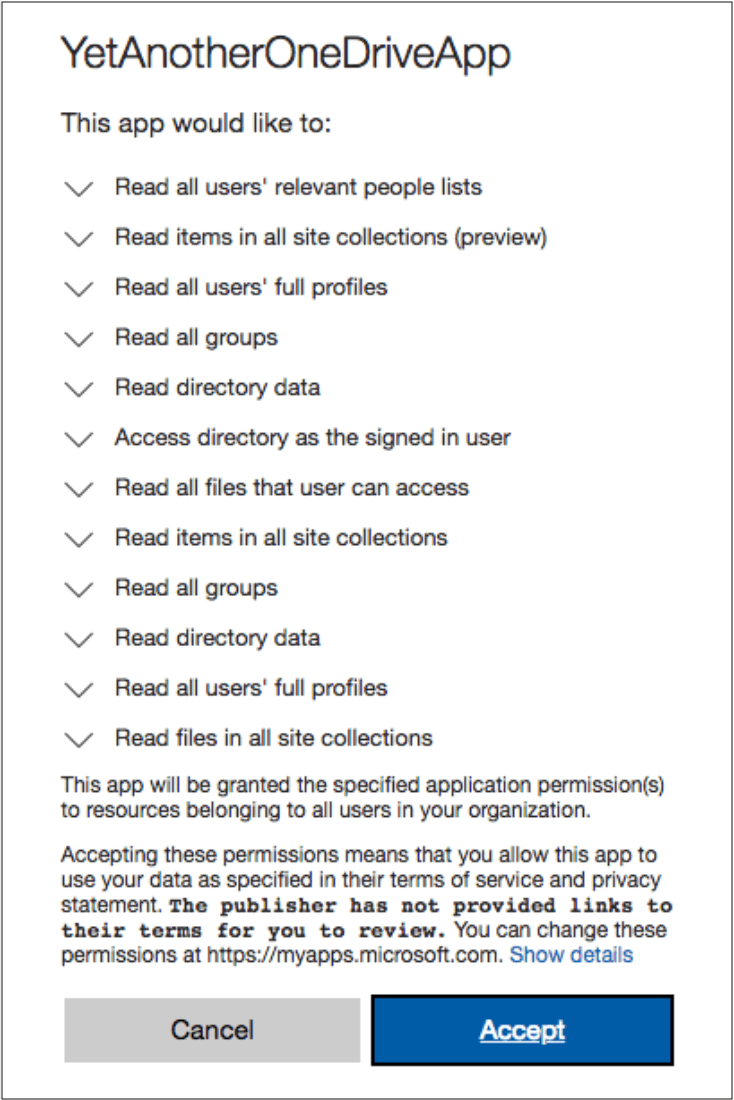
    3. Access the URL. A list of permissions displays.

           <img src="https://mintcdn.com/lucidworks/qCaM85k6rX7hs1DP/assets/images/4.1/onedrive-permissions-accept.png?fit=max&auto=format&n=qCaM85k6rX7hs1DP&q=85&s=946d5d0b0ceaccac583503edaba12267" alt="accept screen for One Drive connector permissions" width="734" height="1100" data-path="assets/images/4.1/onedrive-permissions-accept.png" />

    4. Click **Accept**. You can now use this application to crawl your OneDrive for Business accounts.
  </Accordion>

  <Accordion title="Crawl a Subset of OneDrive">
    OneDrive is a file hosting service that is part of the Microsoft Office Online services.
    The Fusion OneDrive connector crawls a OneDrive for Business instance and retrieves data from it for indexing within Fusion.

    You can optionally configure the OneDrive connector to crawl only the drives of certain users that you specify.

    1. Install the OneDrive connector. In the Fusion UI, navigate to the OneDrive connector configuration at **Indexing > Datasources > Add > OneDrive**.
    2. In the `User principal name (UPN) filter` field, specify a list of users (user principal names, or UPNs) to retrieve documents from.
       * A user’s UPN is the one they use for logging into OneDrive.
       * The `User principal name (UPN) filter` field is an array, so you can set multiple UPNs.
       * All UPNs are validated, by retrieving the user drives. If the request fails, it is logged in `$fusion_home/var/log/connectors/connectors-rpc/connectors-rpc.log`.
       * If validation fails for all UPNs set, then the crawl job does not start.
       * If at least one UPN is valid, then the validation succeeds and the job starts. While the job is running, requests to invalid UPNs fail and are logged.
       * If more than 10 UPNs are set, then the validation is skipped for performance reasons.
  </Accordion>
</AccordionGroup>

## Configuration

<SchemaParamFields schema={schema} />
