> ## Documentation Index
> Fetch the complete documentation index at: https://doc.lucidworks.com/llms.txt
> Use this file to discover all available pages before exploring further.

# LDAP ACLs V2

> The LDAP ACLs V2 connector indexes access control lists (ACLs) from an LDAP directory. It is used by other content connectors to enable security trimming so users can only search and access content they're authorized to see.

export const schema = {
  "type": "object",
  "title": "LDAP and Azure Acls Connector (v2)",
  "description": "The LDAP acls connector can crawl Active Directory, Azure Active Directory and OpenLDAP.",
  "required": ["id", "properties", "pipelineId"],
  "properties": {
    "properties": {
      "type": "object",
      "title": "Properties",
      "description": "Plugin specific properties.",
      "required": ["security", "ldapPort", "ldaps"],
      "properties": {
        "ldapHost": {
          "type": "string",
          "title": "LDAP host",
          "description": "LDAP host."
        },
        "ldapPort": {
          "type": "number",
          "title": "LDAP port",
          "description": "LDAP port.",
          "default": 389,
          "maximum": 2147483647,
          "exclusiveMaximum": false,
          "minimum": -2147483648,
          "exclusiveMinimum": false,
          "multipleOf": 1
        },
        "ldaps": {
          "type": "boolean",
          "title": "Enable SSL (LDAPS)",
          "description": "Use LDAPS to secure communication to the LDAP server.",
          "default": false
        },
        "loginUserPrincipal": {
          "type": "string",
          "title": "Login User Principal",
          "description": "The Crawl account user principal name of which to authenticate to LDAP."
        },
        "loginPassword": {
          "type": "string",
          "title": "Login Password",
          "description": "The Crawl account user password of which to authenticate to LDAP.",
          "hints": ["secret"]
        },
        "baseDn": {
          "type": "string",
          "title": "Base DN",
          "description": "Base DN."
        },
        "userSearchBaseDn": {
          "type": "string",
          "title": "User Search Base DN",
          "description": "User Search Base DN."
        },
        "groupSearchBaseDn": {
          "type": "string",
          "title": "Group Search Base DN",
          "description": "Group Search Base DN."
        },
        "userSearchFilter": {
          "type": "string",
          "title": "User Search Filter",
          "description": "User Search Filter.",
          "default": "(&(objectclass=user)(sAMAccountName=*))"
        },
        "groupSearchFilter": {
          "type": "string",
          "title": "Group Search Filter",
          "description": "Group Search Filter.",
          "default": "(&(objectclass=group))"
        },
        "adNetbiosDomain": {
          "type": "string",
          "title": "AD Netbios Domain",
          "description": "AD Netbios domain name."
        },
        "security": {
          "type": "object",
          "title": "Graph security filtering configuration",
          "required": [],
          "properties": {
            "enabled": {
              "type": "boolean",
              "title": "Enable security trimming",
              "description": "Enable query-time security-trimming",
              "default": true
            }
          },
          "interfaces": ["com.lucidworks.fusion.connector.plugin.api.config.security.GraphSecurityConfig$Properties", "com.lucidworks.fusion.connector.plugin.api.config.security.SecurityFilteringProperties"]
        },
        "additionalAttributes": {
          "type": "array",
          "title": "Additional LDAP Attributes",
          "description": "When fetching LDAP users, you can request additional attributes to be indexed as fields such as manager, mail, phonenumber, etc.",
          "items": {
            "type": "string"
          }
        },
        "azureProperties": {
          "type": "object",
          "title": "Azure AD Properties",
          "description": "Properties that should be set when want to crawl Azure AD instances for additional group definitions",
          "required": [],
          "properties": {
            "tenantId": {
              "type": "string",
              "title": "Azure AD Tenant ID",
              "description": "If crawling Azure AD instances, supply Azure Tenant ID. This is required when listing Azure Groups from Microsoft Graph API."
            },
            "clientId": {
              "type": "string",
              "title": "Azure AD Client ID",
              "description": "If crawling Azure AD instances, supply the Azure Application's Client ID. This is required when listing Azure Groups from Microsoft Graph API."
            },
            "clientSecret": {
              "type": "string",
              "title": "Azure AD Client Secret",
              "description": "If crawling Azure AD instances, supply the Azure Application's Client secret. This is required when listing Azure Groups from Microsoft Graph API.",
              "hints": ["secret"]
            },
            "ignoreSSLValidation": {
              "type": "boolean",
              "title": "Ignore SSL Validation",
              "description": "When crawling the Azure AD groups and users, ignore SSL validation.",
              "default": true
            },
            "proxyUrl": {
              "type": "string",
              "title": "Proxy URL",
              "description": "If crawling Azure AD instances, if you need to communicate through a proxy, specify the proxy url here. Format: host:port"
            },
            "proxyUsername": {
              "type": "string",
              "title": "Proxy Username",
              "description": "If crawling Azure AD instances, if you need to communicate through a proxy, specify the proxy username here"
            },
            "proxyPassword": {
              "type": "string",
              "title": "Proxy Password",
              "description": "If crawling Azure AD instances, if you need to communicate through a proxy, specify the proxy password here",
              "hints": ["secret"]
            },
            "onPremisesDomainMappings": {
              "type": "array",
              "title": "On Premises Domain Mappings",
              "description": "The onPremisesDomainName element used in the \"id\" of the azure-onprem-user by default will be a fqdn domain such as \"engineering.lucidworks.com\". Here you can specify a mapping to some other domain representation such as \"eng\". You should use this when the ACLs on your docs are in the form ShortDomain\\Username",
              "items": {
                "type": "object",
                "required": [],
                "properties": {
                  "onPremisesDomainName": {
                    "type": "string",
                    "title": "On premises domain name",
                    "description": "The full onPremisesDomainName as returned from MS Graph API. Will look something like: \"northwest.lucidworks.com\"",
                    "minLength": 1
                  },
                  "mapToDomainName": {
                    "type": "string",
                    "title": "Map to domain name",
                    "description": "What to replace this domain name with. For example, in your setup you have \"northwest.lucidworks.com\" but you want to use the netbios-style domain \"nw\". So in that case you would specify \"nw\" in this field.",
                    "minLength": 1
                  }
                },
                "interfaces": ["com.lucidworks.connector.plugins.ldapacls.config.OnPremisesDomainMapping"]
              }
            },
            "userBatchSize": {
              "type": "number",
              "title": "User Batch Size",
              "description": "This is the $top parameter sent ot the MS users endpoint, which is the number of users returned in each api call.",
              "default": 999,
              "maximum": 999,
              "exclusiveMaximum": false,
              "minimum": 1,
              "exclusiveMinimum": false,
              "multipleOf": 1
            },
            "groupBatchSize": {
              "type": "number",
              "title": "Group Batch Size",
              "description": "This is the $top parameter sent ot the MS groups endpoint, which is the number of groups returned in each api call.",
              "default": 999,
              "maximum": 999,
              "exclusiveMaximum": false,
              "minimum": 1,
              "exclusiveMinimum": false,
              "multipleOf": 1
            },
            "bearerTokenExpiryMs": {
              "type": "number",
              "title": "Bearer Token Expiry (ms)",
              "description": "In milliseconds, how long to re-use an authentication bearer token before obtaining a new one.",
              "default": 3600000,
              "maximum": 2147483647,
              "exclusiveMaximum": false,
              "minimum": 1,
              "exclusiveMinimum": false,
              "multipleOf": 1
            },
            "httpConnectionRequestTimeout": {
              "type": "number",
              "title": "HTTP Connection Pool Request Timeout (ms)",
              "description": "In milliseconds, time to wait for getting a connection from the connection manager/pool. (HttpClient maintains a connection pool to manage the connections. Similar to database connection pool).",
              "default": 60000,
              "hints": ["advanced"],
              "maximum": 2147483647,
              "exclusiveMaximum": false,
              "minimum": 1,
              "exclusiveMinimum": false,
              "multipleOf": 1
            },
            "httpSocketTimeout": {
              "type": "number",
              "title": "HTTP Socket Timeout (ms)",
              "description": "In milliseconds, max time gap between two consecutive data packets while transferring data from server to client.",
              "default": 60000,
              "hints": ["advanced"],
              "maximum": 2147483647,
              "exclusiveMaximum": false,
              "minimum": 1,
              "exclusiveMinimum": false,
              "multipleOf": 1
            },
            "httpConnectTimeout": {
              "type": "number",
              "title": "HTTP Connect Timeout (ms)",
              "description": "In milliseconds, max time to establish a connection with remote host/server.",
              "default": 30000,
              "hints": ["advanced"],
              "maximum": 2147483647,
              "exclusiveMaximum": false,
              "minimum": 1,
              "exclusiveMinimum": false,
              "multipleOf": 1
            }
          },
          "interfaces": ["com.lucidworks.connector.plugins.ldapacls.config.AzureAuthenticationConfig"]
        },
        "aclZkHosts": {
          "type": "string",
          "title": "ACL zk hosts string",
          "description": "ACL colleciton solr zk hosts string.",
          "hints": ["advanced"]
        },
        "aclZkChroot": {
          "type": "string",
          "title": "ACL zk chroot string",
          "description": "ACL colleciton solr zk hosts chroot string.",
          "hints": ["advanced"]
        },
        "fetchRetryProperties": {
          "type": "object",
          "title": "Retry Options",
          "description": "A set of options for configuring retry behavior.",
          "required": ["delayMs", "maxDelayTimeMs", "delayFactor"],
          "properties": {
            "maxRetries": {
              "type": "number",
              "title": "Maximum Retries",
              "description": "The retryer will retry failed operations in the case that they might succeed if attempted again. This parameter states the number of attempts to retry until giving up. This parameter, if specified, will override the \"Stop retrying after time (milliseconds)\" parameter.",
              "default": 3,
              "maximum": 100,
              "exclusiveMaximum": false,
              "minimum": 0,
              "exclusiveMinimum": false,
              "multipleOf": 1
            },
            "delayFactor": {
              "type": "number",
              "title": "Delay Factor",
              "description": "The retryer will retry failed operations in the case that they might succeed if attempted again. The retryer will sleep an exponential amount of time after the first failed attempt and retry in exponentially incrementing amounts after each failed attempt up to the maximumTime. nextWaitTime = exponentialIncrement * multiplier.",
              "default": 2,
              "maximum": 9999,
              "exclusiveMaximum": false,
              "minimum": 1,
              "exclusiveMinimum": false,
              "multipleOf": 1
            },
            "delayMs": {
              "type": "number",
              "title": "Retry Delay",
              "description": "Sets the delay between retries, exponentially backing off to the maxDelayTimeMs and multiplying successive delays by the delayFactor",
              "default": 1000,
              "maximum": 9223372036854776000,
              "exclusiveMaximum": false,
              "minimum": 1,
              "exclusiveMinimum": false,
              "multipleOf": 1
            },
            "maxDelayTimeMs": {
              "type": "number",
              "title": "Maximum Delay Time",
              "description": "The maximum time wait time between successive retries.",
              "default": 300000,
              "maximum": 600000,
              "exclusiveMaximum": false,
              "minimum": 1,
              "exclusiveMinimum": false,
              "multipleOf": 1
            },
            "maxTimeLimitMs": {
              "type": "number",
              "title": "Maximum Time Limit",
              "description": "This setting is used to limit the maximum amount of time spent on retries. Note: this will be ignored if \"Maximum Retries\" is specified.",
              "default": 600000,
              "maximum": 28800000,
              "exclusiveMaximum": false,
              "minimum": 1,
              "exclusiveMinimum": false,
              "multipleOf": 1
            },
            "errorExclusions": {
              "type": "array",
              "title": "Error Exclusions",
              "description": "Optional regex list that will be matched against failed attempts exception class and message. If any regex matches, do not retry this request. This is needed to prevent the retryer from retrying non-recoverable errors that were not already ignored by the connector implementation.",
              "items": {
                "type": "string",
                "maxLength": 256,
                "minLength": 1
              }
            }
          },
          "interfaces": ["com.lucidworks.fusion.connector.plugin.api.config.RetryConfig$Properties"]
        }
      },
      "interfaces": ["com.lucidworks.connector.plugins.ldapacls.config.LdapAclsConfig$Properties", "com.lucidworks.fusion.connector.plugin.api.config.ConnectorPluginProperties", "com.lucidworks.fusion.connector.plugin.api.config.RetryConfig", "com.lucidworks.fusion.connector.plugin.api.config.security.GraphSecurityConfig"]
    },
    "id": {
      "type": "string",
      "title": "Configuration ID",
      "description": "A unique identifier for this Configuration.",
      "minLength": 1,
      "pattern": "^[a-zA-Z0-9_-]+$"
    },
    "pipelineId": {
      "type": "string",
      "title": "Pipeline ID",
      "description": "Name of the IndexPipeline used for processing output.",
      "minLength": 1,
      "pattern": "^[a-zA-Z0-9_-]+$"
    },
    "parserId": {
      "type": "string",
      "title": "Parser ID",
      "description": "The Parser to use in the associated IndexPipeline.",
      "pattern": "^[a-zA-Z0-9_-]+$"
    },
    "description": {
      "type": "string",
      "title": "Description",
      "description": "Optional description",
      "hints": ["lengthy"],
      "maxLength": 125
    },
    "type": {
      "type": "string",
      "title": "Type",
      "description": "A type ID for this connector.",
      "hints": ["readonly", "hidden"]
    },
    "created": {
      "type": "string",
      "title": "Date Created",
      "description": "The date at which this Configuration was created.",
      "hints": ["readonly", "hidden"]
    },
    "modified": {
      "type": "string",
      "title": "Date Modified",
      "description": "The date at which this Configuration was last modified.",
      "hints": ["readonly", "hidden"]
    },
    "diagnosticLogging": {
      "type": "boolean",
      "title": "Diagnostic Logging",
      "description": "Enable diagnostic logging; disabled by default",
      "default": false
    },
    "collectionId": {
      "type": "string",
      "title": "Collection ID",
      "description": "The associated content Collection.",
      "hints": ["readonly", "hidden"],
      "minLength": 1,
      "pattern": "^[a-zA-Z0-9_-]+$"
    },
    "coreProperties": {
      "type": "object",
      "title": "Core Properties",
      "description": "Common behavior and performance settings.",
      "required": [],
      "properties": {
        "fetchSettings": {
          "type": "object",
          "title": "Fetch Settings",
          "description": "System level settings for controlling fetch behavior and performance.",
          "required": [],
          "properties": {
            "indexingInactivityTimeout": {
              "type": "number",
              "title": "Indexing inactivity timeout(seconds)",
              "description": "The maximum amount of time to wait for indexing results (in seconds). If exceeded, the job will fail with an indexing inactivity timeout.",
              "default": 86400,
              "maximum": 691200,
              "exclusiveMaximum": false,
              "minimum": 60,
              "exclusiveMinimum": false,
              "multipleOf": 1
            },
            "numFetchThreads": {
              "type": "number",
              "title": "Fetch Threads",
              "description": "Maximum number of fetch threads; defaults to 5. This setting controls the number of threads that call the Connectors fetch method. Higher values can, but not always, help with overall fetch performance.",
              "default": 5,
              "maximum": 500,
              "exclusiveMaximum": false,
              "minimum": 1,
              "exclusiveMinimum": false,
              "multipleOf": 1
            },
            "indexingThreads": {
              "type": "number",
              "title": "Index Subscription Threads",
              "description": "Maximum number of indexing threads; defaults to 4. This setting controls the number of threads in the indexing service used for processing content documents emitted by this datasource. Higher values can sometimes help with overall fetch performance.",
              "default": 4,
              "maximum": 10,
              "exclusiveMaximum": false,
              "minimum": 1,
              "exclusiveMinimum": false,
              "multipleOf": 1
            },
            "pluginInstances": {
              "type": "number",
              "title": "Number of plugin instances for distributed fetching",
              "description": "Maximum number of plugin instances for distributed fetching. Only specified number of plugin instances will do fetching. This is useful for distributing load between different instances.",
              "default": 0,
              "maximum": 500,
              "exclusiveMaximum": false,
              "minimum": 0,
              "exclusiveMinimum": false,
              "multipleOf": 1
            },
            "fetchItemQueueSize": {
              "type": "number",
              "title": "Fetch Item Queue Size",
              "description": "Size of the fetch item queue.Larger values result in increased memory usage, but potentially higher performance.Default is 10k.",
              "default": 10000,
              "hints": ["hidden"],
              "maximum": 500000,
              "exclusiveMaximum": false,
              "minimum": 1,
              "exclusiveMinimum": false,
              "multipleOf": 1
            },
            "fetchRequestCheckInterval": {
              "type": "number",
              "title": "Fetch request check interval(ms)",
              "description": "The amount of time to wait before check if a request is done",
              "default": 15000,
              "hints": ["hidden"],
              "maximum": 500000,
              "exclusiveMaximum": false,
              "minimum": 1000,
              "exclusiveMinimum": false,
              "multipleOf": 1
            },
            "fetchResponseScheduledTimeout": {
              "type": "number",
              "title": "Fetch response scheduled timeout(ms)",
              "description": "The maximum amount of time for a response to be scheduled. The task will be canceled if this setting is exceeded.",
              "default": 300000,
              "maximum": 500000,
              "exclusiveMaximum": false,
              "minimum": 1000,
              "exclusiveMinimum": false,
              "multipleOf": 1
            },
            "fetchResponseCompletedTimeout": {
              "type": "number",
              "title": "Fetch response completion timeout(ms)",
              "description": "The maximum amount of time for a response to be completed. If exceeded, the task will be retried if the job is still running",
              "default": 300000,
              "hints": ["hidden"],
              "maximum": 600000,
              "exclusiveMaximum": false,
              "minimum": 1,
              "exclusiveMinimum": false,
              "multipleOf": 1
            },
            "pluginInactivityTimeout": {
              "type": "number",
              "title": "Plugin inactivity timeout(seconds)",
              "description": "The maximum amount of time to wait for plugin activity (in seconds). If exceeded, the job will fail with a plugin inactivity timeout.",
              "default": 600,
              "maximum": 691200,
              "exclusiveMaximum": false,
              "minimum": 60,
              "exclusiveMinimum": false,
              "multipleOf": 1
            },
            "indexMetadata": {
              "type": "boolean",
              "title": "Index metadata",
              "description": "When enabled the metadata of skipped items will be indexed to the content collection.",
              "default": false
            },
            "indexContentFields": {
              "type": "boolean",
              "title": "Index content fields",
              "description": "When enabled, content fields will be indexed to the crawl-db collection.",
              "default": false
            },
            "asyncParsing": {
              "type": "boolean",
              "title": "Async Parsing",
              "description": "When enabled, content will be indexed asynchronously.",
              "default": false
            }
          },
          "interfaces": ["com.lucidworks.fusion.connector.plugin.api.config.CoreConfig$FetchSystemSettings"]
        }
      },
      "interfaces": ["com.lucidworks.fusion.connector.plugin.api.config.CoreConfig"],
      "hints": ["advanced"]
    }
  },
  "category": "LDAP",
  "interfaces": ["com.lucidworks.connector.plugins.ldapacls.config.LdapAclsConfig", "com.lucidworks.fusion.connector.plugin.api.config.ConnectorConfig"]
};

export const SchemaParamFields = ({schema}) => {
  const sanitize = str => {
    if (typeof str !== "string") return str;
    return str.replace(/^"(.*)"$/s, "$1").replace(/\\/g, "").replace(/"/g, "'");
  };
  const formatDescription = str => {
    const s = sanitize(str);
    return (/[.!?]\)*$/).test(s) ? s : `${s}.`;
  };
  const {description, properties = {}, required: requiredProps = []} = schema;
  const visibleProps = useMemo(() => Object.entries(properties).filter(([, prop]) => !prop.hints?.includes("hidden")), [properties]);
  return <div>
      {description && <p>{formatDescription(description)}</p>}

      {visibleProps.map(([name, prop]) => {
    const isRequired = requiredProps.includes(name);
    const hasDefault = prop.default !== undefined;
    const rawDefault = prop.default;
    const isComplexDefault = hasDefault && (typeof rawDefault === "object" || typeof rawDefault === "string" && (rawDefault.length > 20 || rawDefault.includes('"')));
    const fieldProps = {
      key: name,
      body: prop.title || name,
      type: prop.type,
      ...prop.title && ({
        post: [<><span className="text-stone-400 dark:text-stone-500">API property: </span>{name}</>]
      }),
      ...isRequired && ({
        required: true
      }),
      ...!isComplexDefault && hasDefault ? {
        default: sanitize(String(rawDefault))
      } : {}
    };
    const isObject = prop.type === "object" && prop.properties;
    const isArrayOfObjects = prop.type === "array" && prop.items?.type === "object" && prop.items.properties;
    return <ParamField {...fieldProps}>
            {prop.description && <p>{formatDescription(prop.description)}</p>}

            {isComplexDefault && <div className="flex">
                <p>
                  <strong>Default:</strong>
                </p>
                <pre className="!my-0">
                  <code>
                    {JSON.stringify(rawDefault, null, 2)}
                  </code>
                </pre>
              </div>}

            {isArrayOfObjects && <div className="flex">
              <p>
                <strong>Object attributes:</strong>
              </p>
              <pre className="!my-0">
                <code>
                  {'{\n'}
                  {Object.entries(prop.items.properties).map(([iname, iprop]) => <>
                      {`  ${iname}`}
                      {prop.items?.required?.includes(iname) && <span style={{
      color: 'red'
    }}> required</span>}
                      {`: {\n    display name: ${sanitize(iprop.title || '')}\n    type: ${iprop.type}\n  }\n`}
                    </>)}
                  {'}'}
                </code>
              </pre>
              </div>}

            {isObject && <Expandable title="properties">
                <SchemaParamFields schema={{
      properties: prop.properties,
      required: prop.required
    }} />
              </Expandable>}
          </ParamField>;
  })}
    </div>;
};

export const LwTemplate = ({title = "Key questions to get you started", icon = "sparkles", cta = "Powered by Agent Studio", linkHref = "https://lucidworks.com/demo/?utm_source=docs&utm_medium=referral&utm_campaign=docs_cta_ai"}) => {
  const [isLoaded, setIsLoaded] = useState(false);
  useEffect(() => {
    const timer = setTimeout(() => {
      setIsLoaded(true);
    }, 500);
    return () => clearTimeout(timer);
  }, []);
  return <div className="lw-template-container">
      <Card title={title} icon={icon}>
        {isLoaded && <span dangerouslySetInnerHTML={{
    __html: `<lw-template id="a029c1a9-28be-427e-b0e1-5d918920246a"></lw-template
            >`
  }} />}
        <Link href={linkHref} className="agent-studio-link text-left text-gray-600 gap-2 dark:text-gray-400 text-sm font-medium flex flex-row items-center hover:text-primary dark:hover:text-primary-light group-hover:text-primary group-hover:dark:text-primary-light">Powered by Lucidworks Agent Studio</Link>
      </Card>
    </div>;
};

[localhost link]: http://localhost:3000/docs/fusion-connectors/connectors/ad-acl-ldap

[mintlify link]: https://doc.lucidworks.com/docs/fusion-connectors/connectors/ad-acl-ldap

[old doc.lw link]: https://doc.lucidworks.com/fusion-connectors/4selgx

<Callout icon="plug" color="#A4C6F7" iconType="solid">
  * **Latest version:** v2.1.1
  * **Compatible with Fusion version:** 5.9.1 and later
</Callout>

The LDAP ACLs V2 connector is useful in environments where content sources such as SharePoint or Google Cloud Storage have ACLs that reference LDAP group or user identities.
To enable Fusion to enforce those ACLs at query time, the LDAP ACLs V2 connector first connects to an LDAP directory such as Active Directory, OpenLDAP, or another LDAP-compliant server to ingest user and group membership information.
The connector then maps those users and groups to document-level ACLs indexed by other connectors for security trimming.

<Note>
  Verify your connector version

  This connector depends on specific Fusion versions. See the following table for the required versions:

  | Fusion version         | Connector version |
  | ---------------------- | ----------------- |
  | Fusion 5.6.1 and later | v1.0.0 and later  |
  | Fusion 5.9.0 and later | v1.5.0 and later  |
  | Fusion 5.9.1 and later | v2.0.0 and later  |

  For connector downloads, see [Download Connectors](/docs/fusion-connectors/downloads/v2-connectors-downloads).
</Note>

<Warning>
  Pod limit

  The LDAP ACLs V2 connector does not support running multiple instances. Don’t run the connector on more than one pod.
</Warning>

<LwTemplate />

## Prerequisites

Perform these prerequisites to ensure the connector can reliably access, crawl, and index your data.
Proper setup helps avoid configuration or permission errors, so use the following guidelines to keep your content available for discovery and search in Fusion.

The LDAP server must use a supported authentication method:

* Simple bind with a username and password.
* (Optional) Anonymous bind for open LDAP servers, but this is discouraged in production environments for security reasons.

The LDAP access requires a bind DN (Distinguished Name) with permissions to read user and group entries:

* For users: Have access for `uid`, `cn`, `sAMAccountName`, or an equivalent for the unique user ID.
* For groups: Have access for `cn` or equivalent for group ID, plus `member`, or `uniqueMember` for users or subgroups assigned to that group.

If you are using Azure AD, the following API permissions are required under Microsoft Graph:

* `User.Read.All` to read profile properties and group memberships.
* `GroupMember.Read.All` to read memberships and basic group properties.

### Remote mode prerequisites (optional)

If running in remote mode, there are additional considerations:

* Ensure your network allows outbound HTTP/2 traffic from the remote host to the Fusion gRPC endpoint.
* You need a Fusion user account with the `remote-connectors` or `admin` role to authenticate the connector.
* If the standalone host doesn't trust Fusion's TLS cert, point it to your truststore file path.

## Authentication

Setting up the correct authentication according to your organization's data governance policies helps keep sensitive data secure while allowing authorized indexing.

You will need to enter the following in Fusion:

* LDAP host and port.
* Bind DN username for the **Login User Principal** field in Fusion.
* Bind password for the **Login Password** in Fusion.
* Base DN, such as `dc=example,dc=com`.
* User and group filters are prepopulated and you can adjust these as needed.
* If crawling Azure AD, enter the Azure credentials in the Azure AD Properties section.

Once all necessary fields are entered, save your connector configuration and click **Test Connection** in the Fusion UI to verify authentication.

If successful, the connector will be able to do the following:

* Bind to the LDAP server.
* Search users and groups.
* Fetch ACL data for security trimming.

## Full recrawls

Starting in Fusion 5.7, subsequent crawls work differently with the LDAP ACLs V2 connector than other connectors. Crawls follow this process:

1. Every time the connector crawl runs, all documents are indexed.
2. Each document is assigned a new field, `_lw_job_id_s`.
3. The connector job assigns the `jobID` value to this field.
4. When the crawl finishes, the job deletes documents that do not have the latest `jobID` value.

## Remote connectors

You can configure the LDAP ACLs V2 connector (v2.0.0 and later) to [running remotely](/docs/fusion-connectors/developers/remote-v2-connectors) in Fusion versions 5.9.1 and later.

<Accordion title="Configure Remote V2 Connectors">
  If you need to index data from behind a firewall, you can configure a V2 connector to run remotely on-premises using TLS-enabled gRPC.

  ## Prerequisites

  Before you can set up an on-prem V2 connector, you must configure the egress from your network to allow HTTP/2 communication into the Fusion cloud. You can use a [forward proxy server](#egress-and-proxy-server-configuration) to act as an intermediary between the connector and Fusion.

  The following is required to run V2 connectors remotely:

  * The [plugin zip file and the connector-plugin-standalone JAR](https://plugins.lucidworks.com/).
  * A configured connector backend gRPC endpoint.
  * Username and password of a user with a `remote-connectors` or `admin` role.
  * If the host where the remote connector is running is not configured to trust the server’s TLS certificate, you must configure the file path of the trust certificate collection.

  <Note>If your version of Fusion doesn’t have the `remote-connectors` role by default, you can create one. No API or UI permissions are required for the role.</Note>

  ## Connector compatibility

  Only V2 connectors are able to run remotely on-premises.
  You also need the remote connector client JAR file that matches your Fusion version.
  You can download the latest files at [V2 Connectors Downloads](/docs/fusion-connectors/downloads/v2-connectors-downloads).

  <Note>Whenever you upgrade Fusion, you must also update your remote connectors to match the new version of Fusion.</Note>

  The gRPC connector backend is not supported in Fusion environments deployed on AWS.

  ## System requirements

  The following is required for the on-prem host of the remote connector:

  * (Fusion 5.9.0-5.9.10) JVM version 11
  * (Fusion 5.9.11) JVM version 17
  * Minimum of 2 CPUs
  * 4GB Memory

  Note that memory requirements depend on the number and size of ingested documents.

  ## Enable backend ingress

  In your `values.yaml` file, configure this section as needed:

  ```yaml theme={"dark"}
  ingress:
    enabled: false
    pathtype: "Prefix"
    path: "/"
    #host: "ingress.example.com"
    ingressClassName: "nginx"   # Fusion 5.9.6 only
    tls:
      enabled: false
      certificateArn: ""
      # Enable the annotations field to override the default annotations
      #annotations: ""
  ```

  * Set `enabled` to `true` to enable the backend ingress.
  * Set `pathtype` to `Prefix` or `Exact`.
  * Set `path` to the path where the backend will be available.
  * Set `host` to the host where the backend will be available.
  * In Fusion 5.9.6 *only*, you can set `ingressClassName` to one of the following:
    * `nginx` for Nginx Ingress Controller
    * `alb` for AWS Application Load Balancer (ALB)
  * Configure TLS and certificates according to your CA’s procedures and policies.

    <Note>  TLS must be enabled in order to use AWS ALB for ingress.</Note>

  ## Connector configuration example

  ```yaml theme={"dark"}
  kafka-bridge:
    target: mynamespace-connectors-backend.lucidworkstest.com:443 # mandatory
    plain-text: false # optional, false by default.  
      proxy-server: # optional - needed when a forward proxy server is used to provide outbound access to the standalone connector
      host: host
      port: some-port
      user: user # optional
      password: password # optional
    trust: # optional - needed when the client's system doesn't trust the server's certificate
      cert-collection-filepath: path1

  proxy: # mandatory fusion-proxy
    user: admin
    password: password123
    url: https://fusiontest.com/ # needed only when the connector plugin requires blob store access

  plugin: # mandatory
    path: ./fs.zip
    type: #optional - the suffix is added to the connector id
      suffix: remote
  ```

  ### Minimal example

  ```yaml theme={"dark"}
  kafka-bridge:
    target: mynamespace-connectors-backend.lucidworkstest.com:443

  proxy:
    user: admin
    password: "password123"

  plugin:
    path: ./testplugin.zip
  ```

  ### Logback XML configuration file example

  ```xml theme={"dark"}
  <configuration>
      <appender name="CONSOLE" class="ch.qos.logback.core.ConsoleAppender">
          <encoder class="com.lucidworks.logging.logback.classic.LucidworksPatternLayoutEncoder">
              <pattern>%d - %-5p [%t:%C{3.}@%L] - %m{nolookups}%n</pattern>
              <charset>utf8</charset>
          </encoder>
      </appender>

      <appender name="FILE" class="ch.qos.logback.core.rolling.RollingFileAppender">
          <file>${LOGDIR:-.}/connector.log</file>
          <rollingPolicy class="ch.qos.logback.core.rolling.SizeAndTimeBasedRollingPolicy">
              <!-- rollover daily -->
              <fileNamePattern>${LOGDIR:-.}/connector-%d{yyyy-MM-dd}.%i.log.gz</fileNamePattern>
              <maxFileSize>50MB</maxFileSize>
              <totalSizeCap>10GB</totalSizeCap>
          </rollingPolicy>
          <encoder class="com.lucidworks.logging.logback.classic.LucidworksPatternLayoutEncoder">
              <pattern>%d - %-5p [%t:%C{3.}@%L] - %m{nolookups}%n</pattern>
              <charset>utf8</charset>
          </encoder>
      </appender>

      <root level="INFO">
          <appender-ref ref="CONSOLE"/>
          <appender-ref ref="FILE"/>
      </root>
  </configuration>
  ```

  ## Run the remote connector

  ```java theme={"dark"}
  java [-Dlogging.config=[LOGBACK_XML_FILE]] \
    -jar connector-plugin-client-standalone.jar [YAML_CONFIG_FILE]
  ```

  The `logging.config` property is optional. If not set, logging messages are sent to the console.

  ## Test communication

  You can run the connector in communication testing mode. This mode tests the communication with the backend without running the plugin, reports the result, and exits.

  ```java theme={"dark"}
  java -Dstandalone.connector.connectivity.test=true -jar connector-plugin-client-standalone.jar [YAML_CONFIG_FILE]
  ```

  ## Encryption

  In a deployment, communication to the connector’s backend server is encrypted using TLS. You should only run this configuration without TLS in a testing scenario. To disable TLS, set `plain-text` to `true`.

  ## Egress and proxy server configuration

  One of the methods you can use to allow outbound communication from behind a firewall is a proxy server. You can configure a proxy server to allow certain communication traffic while blocking unauthorized communication. If you use a proxy server at the site where the connector is running, you must configure the following properties:

  * **Host.** The hosts where the proxy server is running.
  * **Port.** The port the proxy server is listening to for communication requests.
  * **Credentials.** Optional proxy server user and password.

  When you configure egress, it is important to disable any connection or activity timeouts because the connector uses long running gRPC calls.

  ## Password encryption

  If you use a login name and password in your configuration, run the following utility to encrypt the password:

  1. Enter a user name and password in the [connector configuration YAML](#configuration).

  2. Run the standalone JAR with this property:

     ```java theme={"dark"}
     -Dstandalone.connector.encrypt.password=true
     ```

  3. Retrieve the encrypted passwords from the log that is created.

  4. Replace the clear password in the configuration YAML with the encrypted password.

  ## Connector restart (5.7 and earlier)

  The connector will shut down automatically whenever the connection to the server is disrupted, to prevent it from getting into a bad state. Communication disruption can happen, for example, when the server running in the `connectors-backend` pod shuts down and is replaced by a new pod. Once the connector shuts down, connector configuration and job execution are disabled. To prevent that from happening, you should restart the connector as soon as possible.

  You can use Linux scripts and utilities to restart the connector automatically, such as [Monit](https://mmonit.com/monit/).

  ## Recoverable bridge (5.8 and later)

  If communication to the remote connector is disrupted, the connector will try to recover communication and gRPC calls. By default, six attempts will be made to recover each gRPC call. The number of attempts can be configured with the `max-grpc-retries` bridge parameters.

  ## Job expiration duration (5.9.5 only)

  The timeout value for irresponsive backend jobs can be configured with the `job-expiration-duration-seconds` parameter. The default value is `120` seconds.

  ## Use the remote connector

  Once the connector is running, it is available in the Datasources dropdown. If the standalone connector terminates, it disappears from the list of available connectors. Once it is re-run, it is available again and configured connector instances will not get lost.

  ## Enable asynchronous parsing (5.9 and later)

  To separate document crawling from document parsing, enable Tika Asynchronous Parsing on remote V2 connectors.
</Accordion>

## Security trimming

Starting in Fusion 5.9, you can configure the LDAP ACLs V2 connector with the [SharePoint Optimized V2 connector](/docs/fusion-connectors/connectors/sharepoint-v2-optimized) to support security trimming.

Starting in Fusion 5.18.0, you can use a sidecar collection to store ACL documents separately from your content collection.

<Accordion title="Configure Security Trimming for SharePoint Optimized V2">
  {/* // https://lucidworks.atlassian.net/wiki/spaces/FPO/pages/2218524965/How+to+use+the+Graph+Security+Trimming#Use-the-Security-Trimming: */}

  You can configure the SharePoint Optimized V2 connector to use security trimming so that query results are filtered based on the roles and permissions assigned to the user.

  To configure security trimming, you’ll need to set up and run a SharePoint Optimized V2 datasource, an LDAP ACLs V2 datasource, and a Graph Security Trimming query stage in the same app and collection.

  When a crawl is run, the SharePoint Optimized V2 and LDAP ACLs V2 datasources must index the content documents and ACL documents to the same collection.

  * **ACL documents**: Users, Groups, and their Role Assignments.
  * **Content documents**: The SharePoint objects with metadata and content (Sites, Lists, Items). These documents have `_lw_acl_ss` fields which determines who can see the docs when searching.

  ## Set up the SharePoint datasource

  1. Navigate to **Indexing > Datasources**.
  2. Install the datasource connector if not already installed.
  3. Click **Add** and select **SharePoint Optimized V2**.
  4. Fill in all required fields.
  5. Configure only one authentication method. Enable **NLTM Authentication Settings** or **SharePoint Online Authentication** and configure the fields as explained below.

  ### NTLM Authentication

  This method connects to SharePoint on-premises server instances, such as SharePoint Server 2013, 2016, and 2019.
  When using this authentication method, the connector will index `contentDocuments` and the following `aclDocuments`: `sharepointGroups`, `siteAdmins`, `roleDefinition`, and `roleAssignment`.

  To use this authentication method, in your **SharePoint Optimized V2** datasource, select the **NTLM Authentication Settings** checkbox and configure the following fields:

  * **User**
  * **Password**
  * **Domain**
  * **Workstation**

  ### SharePoint Online Authentication

  These methods connect to SharePoint Online server instances. When using one of these methods, the connector will index `contentDocuments` and the following `aclDocuments`: `sharepointGroups`, `siteAdmins`, `roleDefinition`, `roleAssignment` and `sharepointUsers` in which `loginName` ends with `onmicrosoft.com`.

  #### Basic

  To use this authentication method, in your **SharePoint Optimized V2** datasource, select the **SharePoint Online Authentication** checkbox and configure the following fields:

  * **SharePoint online account**
  * **Password**

  #### App only (OAuth protocol)

  To use this authentication method, in your **SharePoint Optimized V2** datasource, select the **SharePoint Online Authentication** checkbox and configure the following fields:

  * **Azure AD client ID**
  * **Azure AD tenant**
  * **Azure AD Client Secret**
  * **Azure AD login endpoint (advanced)**
  * **Azure AD Refresh Token (advanced)**

  #### App only with private key

  To use this authentication method, in your **SharePoint Optimized V2** datasource, select the **SharePoint Online Authentication** checkbox and configure the following fields:

  * **Azure AD client ID**
  * **Azure AD tenant**
  * **Azure AD login endpoint**
  * **Azure AD PKCS12 Base64 Keystore**
  * **Azure AD PKCS12 Keystore Password**

  ## Set up the LDAP datasource

  1. Navigate to **Indexing > Datasources**.
  2. Install the datasource connector if not already installed.
  3. Click **Add** and select **LDAP and Azure ACLs Connector (V2)**.
  4. Fill in all required fields.
  5. Configure authentication methods. Enter LDAP login credentials and/or enable **Azure AD Properties** and configure the fields as explained below.

  ### LDAP Authentication

  This method connects to an LDAP AD server. When using this method, the connector will index the following `aclDocuments`: `ldapUsers`, and `ldapGroups`.

  To use this authentication method, in your **LDAP and Azure ACLs Connector (V2)** datasource, configure the following fields:

  * **Login User Principal**
  * **Login Password**

  ### Azure AD Authentication

  This method connects to an Azure AD server. When using this method, the connector will index the following `aclDocuments`: `azureUsers`, and `azureGroups`

  To use this authentication method, in your **LDAP and Azure ACLs Connector (V2)** datasource, select the **Azure AD Properties** checkbox and configure the following fields:

  * **Azure AD Tenant ID**
  * **Azure AD Client ID**
  * **Azure AD Client Secret**

  ## Supported authentication methods for security trimming

  |                            | LDAP AD                                     | Azure AD                                                                |
  | -------------------------- | ------------------------------------------- | ----------------------------------------------------------------------- |
  | **SharePoint On-Premises** | NTLM Authentication and LDAP Authentication | NTLM Authentication and Azure AD Authentication                         |
  | **SharePoint Online**      | N/A                                         | Any SharePoint Online authentication method and Azure AD Authentication |

  {/* // Configure the [SharePoint Optimized V2 connector](/fusion-connectors/3qqudu/share-point-optimized-v-2) to send the access-control documents to the content collection (not to the acl-collection). The SharePoint Optimized V2 connector relies on the [LDAP ACLs V2 connector](/fusion-connectors/4selgx/ldap-ac-ls-v-2) to crawl LDAP Active Directory/Azure Active Directory. The SharePoint connector does not crawl active directory user/groups. */}

  {/* // Configure the [LDAP ACLs V2 connector](/fusion-connectors/4selgx/ldap-ac-ls-v-2) to only include the field `_lw_acl_ss` when the acl-collection is the same as the app collection. */}

  {/* // The LDAP ACLs V2 connector populates the solr_collection (the same used to index the SharePoint documents) that will be used in Graph Security Trimming queries. */}

  ## Configure ACL collection

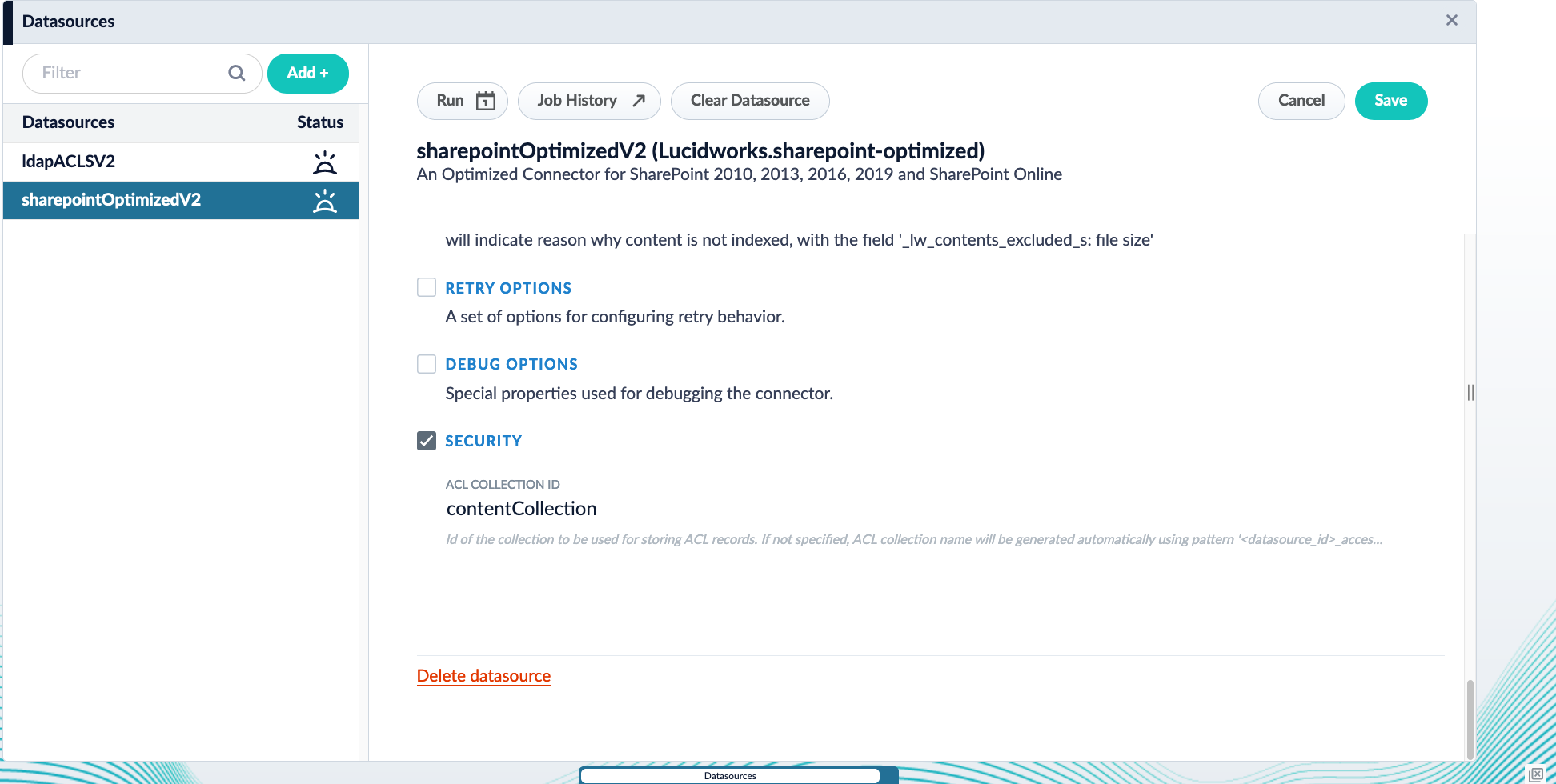
  By default, SharePoint Optimized V2 and LDAP ACLs V2 datasources index the content documents and ACL documents to the same collection. Ensure both datasources use the same value, `contentCollection`, for the field **ACL Collection ID**.

  If you are using Fusion 5.18.0 or later, you may store ACL documents in a sidecar collection. You must also use SharePoint Optimized V2 and LDAP-ACLs V2 versions 2.0.0 or later to use a separate sidecar collection. Use a separate sidecar collection if you need to manage ACL data independently of the rest of your content.

  #### If using SharePoint-Optimized and LDAP-ACLs \< v2.0.0

  If you are using SharePoint Optimized V2 and LDAP-ACLs V2 versions before 2.0.0, you must store the content documents and ACL documents in the same collection. Update the **ACL Collection Id** in the datasource configuration.

  The SharePoint-Optimized and LDAP-ACLs datasources must index their `content_documents` and `acl_documents` to the same collection. Make sure the property **Security** -> **ACL Collection**  in both datasources have the same value. In both datasources, SharePoint-Optimized and LDAP-ACLs, check the property **Security** -> **ACL Collection Id** and make sure it points to the same content-collection.

  1. Navigate to **Indexing > Datasources**.
  2. Open your SharePoint Optimized V2 or LDAP ACLs V2 datasource.
  3. Under **Security**, update the configuration to use `contentCollection` as the **ACL Collection ID**.

       <img src="https://mintcdn.com/lucidworks/VKnUHJXP6sWH55ak/assets/images/5.8/sharepointConfigGraphSec.png?fit=max&auto=format&n=VKnUHJXP6sWH55ak&q=85&s=ad02d6bef7e2b7465f2a747caf0b5c82" alt="Datasource config for Fusion 5.8 with Graph Security Trimming" width="1944" height="980" data-path="assets/images/5.8/sharepointConfigGraphSec.png" />

     <Tip>   The **Security** checkbox must be checked for this field to appear.</Tip>
  4. Save the configuration.

  Repeat this process for all required datasources.

  #### If using SharePoint-Optimized and LDAP-ACLs >= v2.0.0 with the same collection

  Recreate or update the datasources. If only updated, it is not possible to go back to the configuration of a previous plugin version.

  By default, the LDAP-ACLs and SharePoint-Optimized V2 datasources index the `content_documents` and `acl_documents` to the same collection.

  1. Navigate to **Indexing > Datasources**.
  2. Open your SharePoint Optimized V2 or LDAP ACLs V2 datasource.
  3. Under **Graph Security Filtering Configuration**, select **Enable security trimming**.

  Repeat this process for all required datasources.

  #### If using SharePoint-Optimized and LDAP-ACLs >= v2.0.0 with a sidecar collection

  <Note>
    Using a sidecar collection for ACL documents requires Fusion 5.18.0 or later.
  </Note>

  Recreate or update the datasources. If only updated, it is not possible to go back to the configuration of a previous plugin version.

  1. Create a dedicated ACL collection (for example, `acl_collection`).
  2. Navigate to **Indexing > Datasources**.
  3. Open your SharePoint Optimized V2 or LDAP ACLs datasource.
  4. Under **Security**, set **ACL Collection ID** to your ACL collection name (for example, `acl_collection`).
  5. Under **Graph Security Filtering Configuration**, select **Enable security trimming**.
  6. Save your changes.

  If you are transitioning from using the same collection to creating a sidecar collection for ACLs, you must run a full recrawl of your datasource so the ACLs route to the sidecar collection. ACL documents stored in the content collection from before the migration remain in the content collection unless the collection is reindexed or manually cleaned.

  After configuring your datasource, you must reference the ACL collection in the graph security trimming query stage.

  ## Set up Graph Security Trimming

  A [Graph Security Trimming stage](/docs/5/fusion/reference/config-ref/pipeline-stages/query-stages/security-trimming-graph-query-stage) is used to pull all nested groups for a user. Then the Solr join query takes those ACL IDs found in the graph query and filters out everything that does not match one of the ACLs.

  1. Navigate to **Querying** > **Query Pipelines**.

  2. Open the query pipeline associated with your SharePoint Optimized V2 or LDAP ACLs V2 data.

  3. Click **Add a new pipeline stage** and select **Graph Security Trimming**.

  4. Configure the stage with the following settings:

     |                    |                                   |
     | ------------------ | --------------------------------- |
     | Field              | Value                             |
     | **User ID source** | `query_param` or `header`         |
     | **User ID key**    | The key that contains the User ID |

  5. If you are using Fusion 5.9.3 or earlier, configure the following additional fields, which were removed in Fusion 5.9.4:

  | Field                   | Value               |
  | ----------------------- | ------------------- |
  | **ACL solr collection** | `contentCollection` |
  | **Join method**         | `topLevelDV`        |
  | **Join Field**          | `_lw_acl_ss`        |

  6. If you are using a sidecar collection in Fusion 5.18.0 or later that contains your access control lists, configure the following additional fields, replacing `acl_collection` with the name of your dedicated ACL collection:

  | Field                   | Value             |
  | ----------------------- | ----------------- |
  | **ACL solr collection** | `acl_collection`  |
  | **Join method**         | `crossCollection` |
  | **Join Field**          | `id`              |

  7. Save your changes.

  ## Test the configuration

  To confirm that security trimming works as configured, run the following test:

  1. First, run the SharePoint Optimized V2 and LDAP ACLs V2 datasources.
  2. Run a series of queries to test user permissions are working as intended:
     1. Run a query using a User ID key with no permissions. You should see no search results.
     2. Run a query using a User ID key that has access to some documents. You should see some search results.
     3. Run a query using a User ID key that has access to all documents. You should see all documents.

        <Note>      Facet by `_lw_document_type_s: contentDocument` to see only the SharePoint docs, otherwise aclDocuments will be also shown.</Note>
</Accordion>

## Learn more

<Accordion title="Fetch Azure Groups with the AD Connector for ACLs">
  The Active Directory Connectors for ACLs has the ability to fetch Azure groups and index them into the ACL collection. The connector utilizes the Microsoft Graph API’s [group-list service](https://docs.microsoft.com/en-us/graph/api/group-list?view=graph-rest-1.0).

  The resulting ACL document contains IDs that are GUID strings, such as `45b7d2e7-b882-4a80-ba97-10b7a63b8fa4`, and they have `inbound_ss` relationship to the `ldapGroup-sid` record’s SID identifier.

  ## Configuration parameters

  In order to crawl Azure groups from the AD Connector for ACLs, you will need the values for the following parameters:

  * Azure AD Tenant ID
  * Azure AD Client ID
  * Azure AD Client Secret

  ### Find your Tenant ID and Client ID

  Begin by registering your application:

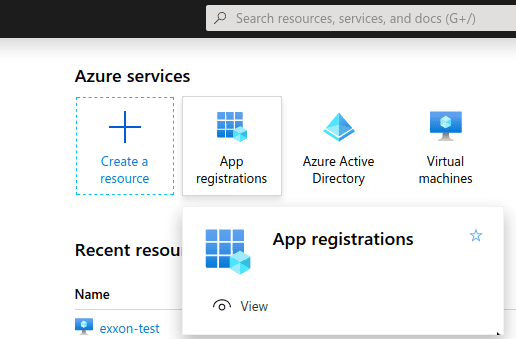
  1. Visit the [Azure portal](https://portal.azure.com/#home).
  2. Click **App registrations**.

       <img src="https://mintcdn.com/lucidworks/NR6PWuMFSzL-y-FO/assets/images/4.2/ad-acl-azure-group01.png?fit=max&auto=format&n=NR6PWuMFSzL-y-FO&q=85&s=d6bb851ed56c8e4f7eedaa58fc2eee2b" alt="height=250" width="516" height="339" data-path="assets/images/4.2/ad-acl-azure-group01.png" />
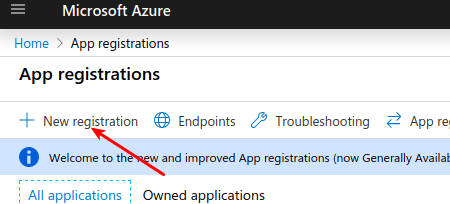
  3. Click **New registration**.

       <img src="https://mintcdn.com/lucidworks/NR6PWuMFSzL-y-FO/assets/images/4.2/ad-acl-azure-group02.png?fit=max&auto=format&n=NR6PWuMFSzL-y-FO&q=85&s=ee9a3b0eff6a0917cd8d8f6f8cfcbf39" alt="ad-acl-azure-group02" width="450" height="204" data-path="assets/images/4.2/ad-acl-azure-group02.png" />

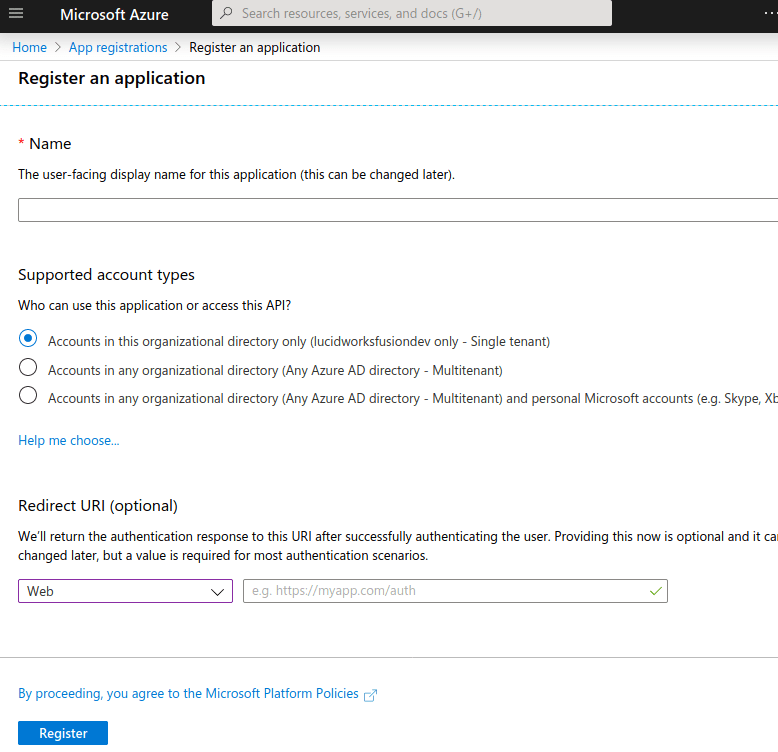
     The new application registration screen will appear:
       <img src="https://mintcdn.com/lucidworks/NR6PWuMFSzL-y-FO/assets/images/4.2/ad-acl-azure-group03.png?fit=max&auto=format&n=NR6PWuMFSzL-y-FO&q=85&s=3b43a7393092ca72fd04bb0715e3818b" alt="height=525" width="778" height="752" data-path="assets/images/4.2/ad-acl-azure-group03.png" />
  4. Enter a name for the application.
  5. Choose the *Single Tenant* supported account type.
  6. Leave the *Redirect URI* value blank.
  7. Click **Register**.

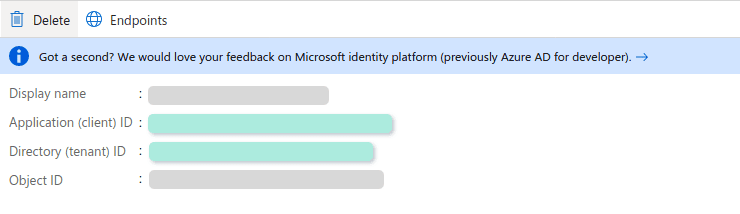
  The screen that follows displays the values for:

  * **Azure AD Tentant ID.** Listed as "Directory (tenant) ID"
  * **Azure AD Client ID.** Listed as "Application (client) ID"
      <img src="https://mintcdn.com/lucidworks/NR6PWuMFSzL-y-FO/assets/images/4.2/ad-acl-azure-group04.png?fit=max&auto=format&n=NR6PWuMFSzL-y-FO&q=85&s=167816ae5a0a4a914365be66bf7785a2" alt="ad-acl-azure-group04" width="740" height="214" data-path="assets/images/4.2/ad-acl-azure-group04.png" />

  Enter these values in the Fusion UI’s connector configuration.

  ### Configure your application permissions

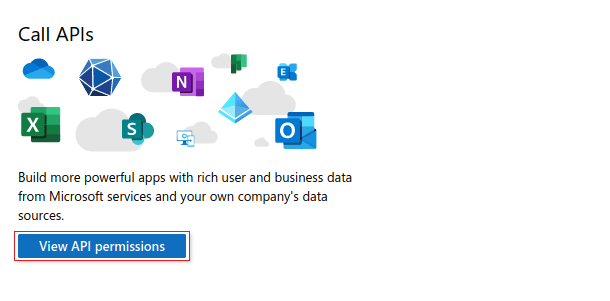
  1. Click **View API permissions**.
       <img src="https://mintcdn.com/lucidworks/NR6PWuMFSzL-y-FO/assets/images/4.2/ad-acl-azure-group05.png?fit=max&auto=format&n=NR6PWuMFSzL-y-FO&q=85&s=eac63689976c68be063d84473411f98e" alt="height=250" width="610" height="301" data-path="assets/images/4.2/ad-acl-azure-group05.png" />

  2. Add the following as *Application permissions* under **Microsoft Graph**.
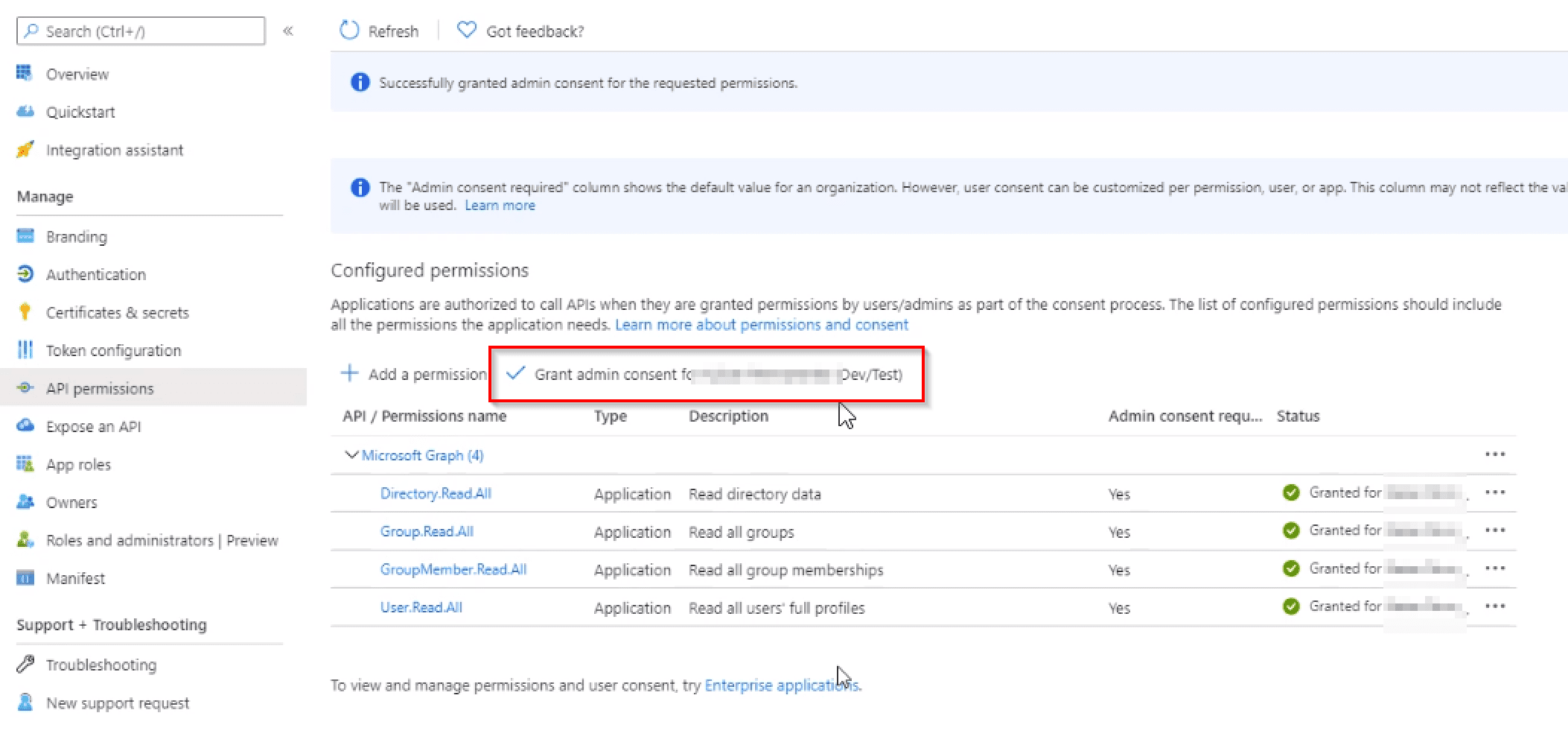
     <Warning>    You must use **\_Application** permissions\_. Failure to use *Application permissions* will result in `403` errors from the Graph API when attempting to crawl the Azure groups. Do not use the **\_Delegated** permissions\_ option.</Warning>

     1. `GroupMember.Read.All`

        Allows the application to read general information about associated groups, such as the list of members and basic group properties. See [Microsoft Graph Group Application permissions](https://docs.microsoft.com/en-us/graph/permissions-reference#application-permissions-28) for more information.
     2. `User.Read.All`

        Allows the application to read all user profile information, such as properties and group membership. See [Microsoft Graph User Application permissions](https://docs.microsoft.com/en-us/graph/permissions-reference#application-permissions-68) for more information.

  3. Select **Grant admin consent**.

       <img src="https://mintcdn.com/lucidworks/NR6PWuMFSzL-y-FO/assets/images/4.2/ad-acl-azure-grant-admin-consent.png?fit=max&auto=format&n=NR6PWuMFSzL-y-FO&q=85&s=5173b5458100d77dfdc5c33a25b62be3" alt="ad-acl-azure-grant-admin-consent" width="2106" height="1000" data-path="assets/images/4.2/ad-acl-azure-grant-admin-consent.png" />

  ### Find your Client Secret

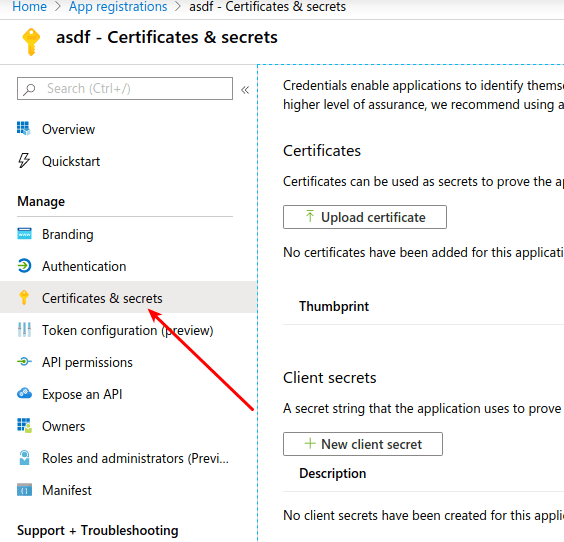
  1. Click **Clients & Secrets**.
  2. Create a **New client secret**.
       <img src="https://mintcdn.com/lucidworks/NR6PWuMFSzL-y-FO/assets/images/4.2/ad-acl-azure-group06.png?fit=max&auto=format&n=NR6PWuMFSzL-y-FO&q=85&s=2f622ae97539c85bd2bd5bb8adbac4bf" alt="height=400" width="564" height="542" data-path="assets/images/4.2/ad-acl-azure-group06.png" />

  This value is used as the **Azure AD Client Secret** in the Fusion UI’s connector configuration.

  ## Troubleshooting

  Use the following script to diagnose Azure credentials issues:

  ```java theme={"dark"}
  param (
      [Parameter(Mandatory)]$AzureTenantId,
      [Parameter(Mandatory)]$AzureClientId,
      [Parameter(Mandatory)]$AzureClientSecret
  )

  # first we get the bearer token

  $headers = New-Object "System.Collections.Generic.Dictionary[[String],[String]]"
  $headers.Add("Content-Type", "application/x-www-form-urlencoded")

  $body = "client_id=${AzureClientId}&client_secret=${AzureClientSecret}&scope=https%3A%2F%2Fgraph.microsoft.com%2F.default&grant_type=client_credentials"

  $response = Invoke-RestMethod "https://login.microsoftonline.com/${AzureTenantId}/oauth2/v2.0/token" -Method 'POST' -Headers $headers -Body $body
  $access_token = $response.access_token

  Write-Host "Successfully got access token ${access_token}"

  # now that we got the token, use it to get the groups

  $headers2 = New-Object "System.Collections.Generic.Dictionary[[String],[String]]"
  $headers2.Add("Authorization", "Bearer ${access_token}")

  $response2 = Invoke-RestMethod 'https://graph.microsoft.com/v1.0/groups' -Method 'GET' -Headers $headers2
  $response2 | ConvertTo-Json
  ```
</Accordion>

## Configuration

<Tip>
  When entering configuration values in the UI, use *unescaped* characters, such as `\t` for the tab character. When entering configuration values in the API, use *escaped* characters, such as `\\t` for the tab character.
</Tip>

<SchemaParamFields schema={schema} />