> ## Documentation Index
> Fetch the complete documentation index at: https://doc.lucidworks.com/llms.txt
> Use this file to discover all available pages before exploring further.
# Fusion 5.6.0
export const InlineImage = ({src, alt = '', height = '2em'}) => {
return  ;
};
[localhost link]: http://localhost:3000/docs/5/fusion/release-notes/5.6.0-release-notes
[mintlify link]: https://doc.lucidworks.com/docs/5/fusion/release-notes/5.6.0-release-notes
[old doc.lw link]: https://doc.lucidworks.com/fusion/5.9/mme9fq
**Release date:** August 10, 2022
This release removes support for Pulsar. Any existing workflows using Pulsar will no longer function when upgrading to 5.6.
**Component versions:**
| Component | Version |
| ----------------------- | ------------------------------------------------------------------------------------------------------------------------------------------------------------------------------------------------------------------------------------------------------------------------------------- |
| **Solr** | 8.11.1 |
| **ZooKeeper** | 3.7.1 |
| **Spark** | 3.2.1 |
| **Kubernetes** | GKE, AKS, EKS 1.22 Rancher (RKE) and OpenShift 4 compatible with Kubernetes 1.22 OpenStack and customized Kubernetes installs not supported. See [Kubernetes support](/docs/policies/lifecycle-policies/lw-version-support-lifecycle#kubernetes-support) for end of support dates. |
| **Ingress Controllers** | Nginx, Ambassador (Envoy), GKE Ingress Controller Istio not supported. |
**More information about support dates can be found at [Lucidworks Fusion Product Lifecycle](/docs/policies/lifecycle-policies/lw-version-support-lifecycle).**
**Looking to upgrade?**
See [Fusion 5 Upgrades](/docs/5/fusion/operations/fusion-5-upgrades) for detailed instructions.
## New Features
### Predictive Merchandiser
Predictive Merchandiser users can now fire templates and rules at every facet level.
Hierarchical template triggers allow you to fire a search configuration template or rules at a parent or child level in a hierarchy, and even at a faceted level.
**Ways to use hierarchical templates:**
* For a sale on "Winter Coats," you can fire a template at the "Outerwear" level or at any of its children.
* For an overstock on a particular clothing size, you could fire a template directly at the “Women’s Outerwear, Size Small” filter.
* When rolling out a new company policy, you could fire a zone on all pages from the homepage down so everyone sees the most important links and documents for the new policy.
See [Predictive Merchandiser Templates](/docs/5/fusion/getting-data-out/curating-your-search-experience/predictive-merchandiser/templates) for more information. For instructions on how to use Templates, see **Use Predictive Merchandiser Templates**.
This article teaches you how to use the [Templates](/docs/5/fusion/getting-data-out/curating-your-search-experience/predictive-merchandiser/templates) feature in Predictive Merchandiser, including how to:
* [Create a template](#create-a-new-template)
* [Add zones](#add-a-zone-to-a-template) to the template
* Conditionally [trigger the template](#set-triggering-options)
* [Test](#test-the-template) the template in the Predictive Merchandiser screen
In the instructions below, a new template is created with two zones for use during a Cyber Monday sales event. One zone is used to display general search results while the other is used to promote specific products for the sale.
;
};
[localhost link]: http://localhost:3000/docs/5/fusion/release-notes/5.6.0-release-notes
[mintlify link]: https://doc.lucidworks.com/docs/5/fusion/release-notes/5.6.0-release-notes
[old doc.lw link]: https://doc.lucidworks.com/fusion/5.9/mme9fq
**Release date:** August 10, 2022
This release removes support for Pulsar. Any existing workflows using Pulsar will no longer function when upgrading to 5.6.
**Component versions:**
| Component | Version |
| ----------------------- | ------------------------------------------------------------------------------------------------------------------------------------------------------------------------------------------------------------------------------------------------------------------------------------- |
| **Solr** | 8.11.1 |
| **ZooKeeper** | 3.7.1 |
| **Spark** | 3.2.1 |
| **Kubernetes** | GKE, AKS, EKS 1.22 Rancher (RKE) and OpenShift 4 compatible with Kubernetes 1.22 OpenStack and customized Kubernetes installs not supported. See [Kubernetes support](/docs/policies/lifecycle-policies/lw-version-support-lifecycle#kubernetes-support) for end of support dates. |
| **Ingress Controllers** | Nginx, Ambassador (Envoy), GKE Ingress Controller Istio not supported. |
**More information about support dates can be found at [Lucidworks Fusion Product Lifecycle](/docs/policies/lifecycle-policies/lw-version-support-lifecycle).**
**Looking to upgrade?**
See [Fusion 5 Upgrades](/docs/5/fusion/operations/fusion-5-upgrades) for detailed instructions.
## New Features
### Predictive Merchandiser
Predictive Merchandiser users can now fire templates and rules at every facet level.
Hierarchical template triggers allow you to fire a search configuration template or rules at a parent or child level in a hierarchy, and even at a faceted level.
**Ways to use hierarchical templates:**
* For a sale on "Winter Coats," you can fire a template at the "Outerwear" level or at any of its children.
* For an overstock on a particular clothing size, you could fire a template directly at the “Women’s Outerwear, Size Small” filter.
* When rolling out a new company policy, you could fire a zone on all pages from the homepage down so everyone sees the most important links and documents for the new policy.
See [Predictive Merchandiser Templates](/docs/5/fusion/getting-data-out/curating-your-search-experience/predictive-merchandiser/templates) for more information. For instructions on how to use Templates, see **Use Predictive Merchandiser Templates**.
This article teaches you how to use the [Templates](/docs/5/fusion/getting-data-out/curating-your-search-experience/predictive-merchandiser/templates) feature in Predictive Merchandiser, including how to:
* [Create a template](#create-a-new-template)
* [Add zones](#add-a-zone-to-a-template) to the template
* Conditionally [trigger the template](#set-triggering-options)
* [Test](#test-the-template) the template in the Predictive Merchandiser screen
In the instructions below, a new template is created with two zones for use during a Cyber Monday sales event. One zone is used to display general search results while the other is used to promote specific products for the sale.
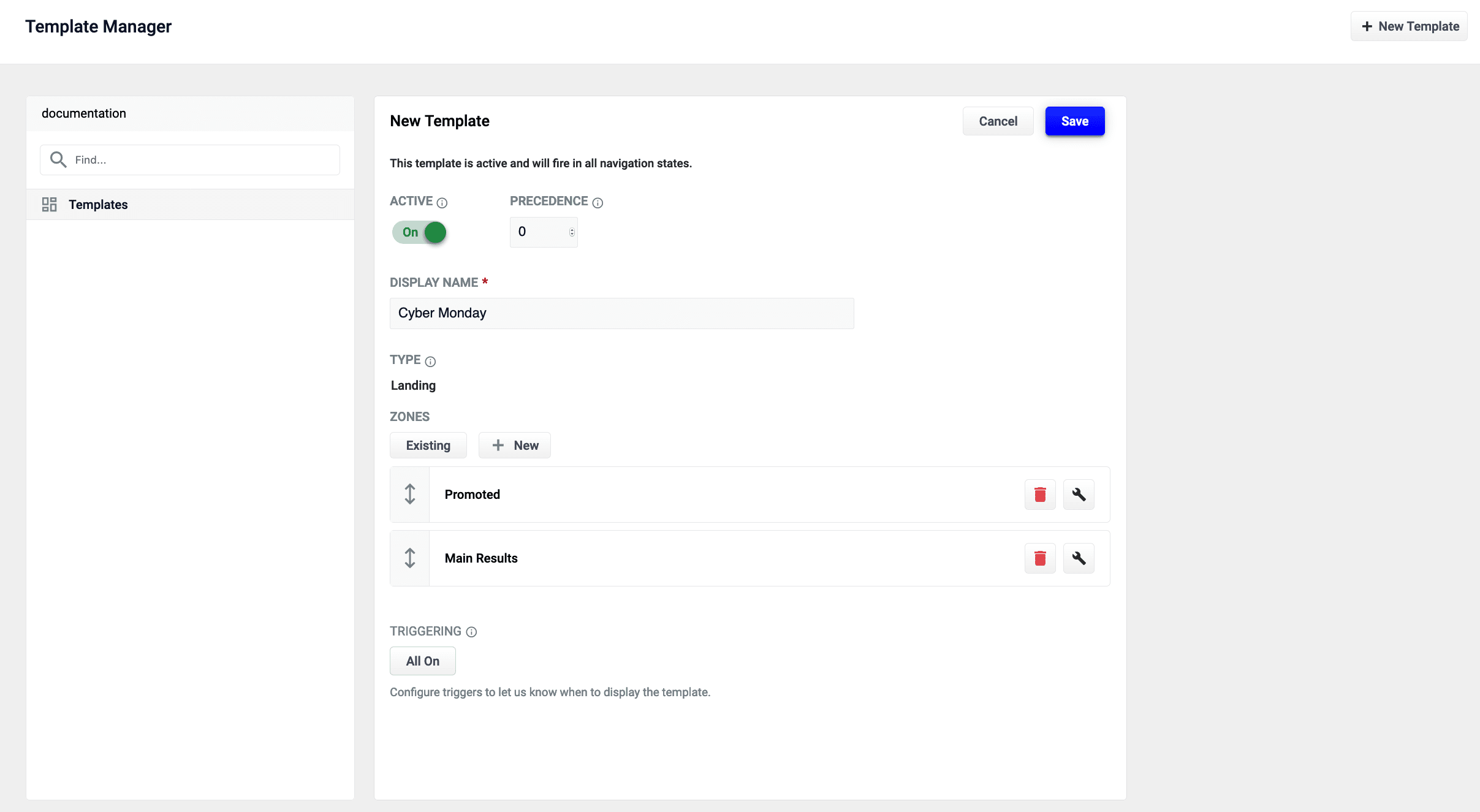 The zones used in this article use different query profiles. To follow the instructions as described, you will need to begin with an app that has at least two query profiles.
To begin, access Templates in the [Rules Editor](/docs/5/fusion/getting-data-out/query-enhancement/rules-editor) by navigating to **Relevance** > **Rules** > **Templates**.
The course for **Predictive Merchandiser: Template Manager** focuses on how to use the templates included in Predictive Merchandiser and create your own custom templates.
## Create a new template
1. From the Templates screen, click the **New Template** button:
2. Assign the template a unique name in the **Template Name** field. In this example, the value `Cyber Monday` is assigned.
3. Choose a **Template Type**. This example uses the `landing` template type.
This value is read-only and for informational purposes only.
4. Click the **Save** button to save the new template:
For full configuration, see:
* [Templates UI Configuration Options](/docs/5/fusion/getting-data-out/curating-your-search-experience/predictive-merchandiser/templates-config)
* [Templating API Configuration Reference](/api-reference/templates-controller/get-template-information)
Images may display other releases if the information between releases does not differ. For example, the Fusion Templating API image reflects version 5.3.5 in both the Fusion 5.2 and 5.3 releases, but reflects 5.4.0 in the Fusion 5.4 release.
## Add a zone to a template
Zones enable Fusion users to create rules designed for specific query profiles. Combined with templates, this allows a search application to display results from multiple query profiles in the same view.
In this example, two new zones are created for the **Cyber Monday** template.
1. Add an existing zone to the template by clicking the **Existing** button. In this example, the **Main Results List** zone is added by selecting the zone and clicking the **Apply** button.
{/*
The **Main Results List** zone is the default zone. This zone can be edited but cannot be deleted.
*/}
2. Create a new zone by clicking the **New** button:
3. Assign the zone a unique name in the **Display Name** field. For this example, the value `Promoted` is assigned.
4. Choose the **Query Profile** for this zone. This example uses a query profile named **promotional-results**. This query profile is configured with rules that pin products to the top of the results.
5. Choose the **Zone Type** for this zone. This example uses **main-results-list**.
This value is read-only and for informational purposes only.
6. Set the configuration options for the product image, title, and description per your preference.
7. Click the **Save** button to save the new zone:
For full zone configuration details, see [Zone Configuration Options](/docs/5/fusion/getting-data-out/curating-your-search-experience/predictive-merchandiser/templates-config).
## Edit an existing zone
You can edit a zone that was already added to a template:
1. Select the **Start Task** button.
2. Select the pencil icon to begin editing the chosen page.
3. Each zone has a trash can icon to delete the zone. Select the wrench icon to edit the zone.
4. In the form that appears, make any necessary edits.
5. Click the **Save** button to save your changes.
## Set triggering options
Triggers describe conditions that must be met for a template to display. Trigger options include a set date range and specific search terms. See [Triggering Configuration Options](/docs/5/fusion/getting-data-out/curating-your-search-experience/predictive-merchandiser/templates-config) for additional details.
### Date range
1. Click the **0 Active** button under **Triggering**:
The zones used in this article use different query profiles. To follow the instructions as described, you will need to begin with an app that has at least two query profiles.
To begin, access Templates in the [Rules Editor](/docs/5/fusion/getting-data-out/query-enhancement/rules-editor) by navigating to **Relevance** > **Rules** > **Templates**.
The course for **Predictive Merchandiser: Template Manager** focuses on how to use the templates included in Predictive Merchandiser and create your own custom templates.
## Create a new template
1. From the Templates screen, click the **New Template** button:
2. Assign the template a unique name in the **Template Name** field. In this example, the value `Cyber Monday` is assigned.
3. Choose a **Template Type**. This example uses the `landing` template type.
This value is read-only and for informational purposes only.
4. Click the **Save** button to save the new template:
For full configuration, see:
* [Templates UI Configuration Options](/docs/5/fusion/getting-data-out/curating-your-search-experience/predictive-merchandiser/templates-config)
* [Templating API Configuration Reference](/api-reference/templates-controller/get-template-information)
Images may display other releases if the information between releases does not differ. For example, the Fusion Templating API image reflects version 5.3.5 in both the Fusion 5.2 and 5.3 releases, but reflects 5.4.0 in the Fusion 5.4 release.
## Add a zone to a template
Zones enable Fusion users to create rules designed for specific query profiles. Combined with templates, this allows a search application to display results from multiple query profiles in the same view.
In this example, two new zones are created for the **Cyber Monday** template.
1. Add an existing zone to the template by clicking the **Existing** button. In this example, the **Main Results List** zone is added by selecting the zone and clicking the **Apply** button.
{/*
The **Main Results List** zone is the default zone. This zone can be edited but cannot be deleted.
*/}
2. Create a new zone by clicking the **New** button:
3. Assign the zone a unique name in the **Display Name** field. For this example, the value `Promoted` is assigned.
4. Choose the **Query Profile** for this zone. This example uses a query profile named **promotional-results**. This query profile is configured with rules that pin products to the top of the results.
5. Choose the **Zone Type** for this zone. This example uses **main-results-list**.
This value is read-only and for informational purposes only.
6. Set the configuration options for the product image, title, and description per your preference.
7. Click the **Save** button to save the new zone:
For full zone configuration details, see [Zone Configuration Options](/docs/5/fusion/getting-data-out/curating-your-search-experience/predictive-merchandiser/templates-config).
## Edit an existing zone
You can edit a zone that was already added to a template:
1. Select the **Start Task** button.
2. Select the pencil icon to begin editing the chosen page.
3. Each zone has a trash can icon to delete the zone. Select the wrench icon to edit the zone.
4. In the form that appears, make any necessary edits.
5. Click the **Save** button to save your changes.
## Set triggering options
Triggers describe conditions that must be met for a template to display. Trigger options include a set date range and specific search terms. See [Triggering Configuration Options](/docs/5/fusion/getting-data-out/curating-your-search-experience/predictive-merchandiser/templates-config) for additional details.
### Date range
1. Click the **0 Active** button under **Triggering**:
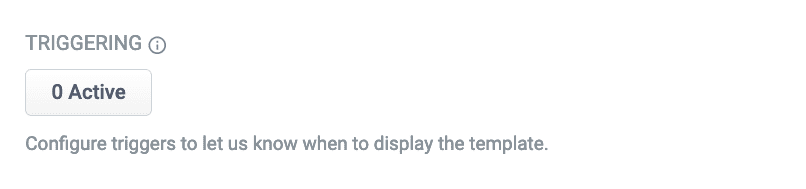 If there are active triggers, this button changes to reflect that number. For example, this button will read **3 Active** when 3 triggers are active.
2. Click the date range selector and select a start and end date. For this example, choose a date range that includes today’s date.
3. Click the **Save** button to save your changes:
### Search terms
1. Click the **0 Active** button under **Triggering**.
2. Click the **Trigger** button:
3. In the **Search Terms** field, enter `cyber monday`.
4. Set the **Match Mode** field to `phrase`.
5. Click the **Add** button.
6. Repeat the process to add a second trigger with **Search Terms** set to `sales event` and **Match Mode** to `phrase`.
7. Click the **Save** button to save your changes:
## Test the template
1. Navigate to the **Merchandiser** screen.
2. Enter one of the [search terms](#search-terms) you configured in the **Set triggering options** instructions above. This example used the search terms `cyber monday` and `sales event`.
If today’s date does not fall within the template’s [date range trigger](#date-range), the template will *not* load.
If everything was configured correctly, you should see the **Cyber Monday** template is loaded. You can now create different rules for both zones, including pinning promoted products in the **Promoted** zone.
### Fusion
* Users can now manage API keys from their browser. See [API Keys](/docs/5/fusion/operations/security/access-control/api-keys) for more information.
* Added a new query pipeline stage, [Graph Security Trimming Stage](/docs/5/fusion/reference/config-ref/pipeline-stages/query-stages/security-trimming-graph-query-stage).\
The Graph Security Trimming stage restricts query results according to the user ID as an alternative to [Security Trimming Stage](/docs/5/fusion/reference/config-ref/pipeline-stages/query-stages/security-trimming-query-stage). Whereas the Security Trimming stage has one Solr filter query per data source, Graph Security Trimming uses a single filter query for all data sources.
### Fusion Connectors
* Added a new connector, the [SharePoint Optimized V2 Connector](/docs/fusion-connectors/connectors/sharepoint-v2-optimized). The SharePoint Optimized V2 connector retrieves content and metadata from an on-premises SharePoint repository. This connector replaces the SharePoint V2 Connector in Fusion 5.6.0.
* Added a new connector, the [LDAP-ACLs Connector](/docs/fusion-connectors/connectors/ad-acl-ldap). This connector replaces the LDAP V2 Connector.
## Bug Fixes
### Fusion
* The Jobs panel no longer refreshes constantly while a job is running.
* The `fieldList` property in Index stages now displays the designated title and description.
* Fixed an issue that caused [Spark jobs](/docs/5/fusion/operations/jobs-and-scheduling/spark-jobs) to fail when Fusion 5 was deployed using Gatekeeper service on Kubernetes.
* Configured [Realms](/docs/5/fusion/operations/security/access-control/security-realms) now maintain sign in information.
* In App Import, the **Import** button is no longer inactive if the wrong file type is selected.
* Fixed an issue that caused the [Job History API](/docs/5/fusion/operations/jobs-and-scheduling/job-history) to display inaccurate job status information.
* Fixed an issue that caused stage information to be deleted after moving them in the pipeline and saving.
* The `f5-monitoring-kube-state-metrics` service tooltip now displays.
* Fixed an issue that caused jobs to not run after adding a new schedule.
* Fixed an issue that caused an internal server error when creating a new app using numbers as an app name.
* Attempting to access the Rules page with a developer role no longer causes a forbidden error.
* Using the pipe symbol as a Field Delimiter in the Apply Rules query pipeline stage no longer causes a forbidden error.
* Fixed an issue that caused the timezone value to not save.
### Predictive Merchandiser
* Fixed an issue that caused published templates to not display when clicking Start Task on the Merchandiser page.
## Removals
* Removed **Selection of Solr Cluster** on the **Create New Collection** screen in the Admin UI.
* Removed support for Apache Pulsar and replaced it with Apache Kafka. As a result:
* Logging via Pulsar has been removed.
* The Log Viewer has been removed from the Admin UI.
* Remote connector support via Pulsar is no longer possible. This functionality will be replaced in a future release.
* The ability to access Pulsar from the Subscriptions API has been removed. You are no longer able to create a custom subscription topic.
* The Send to Message Bus index stage has been removed.
* [LDAP-ACLs V2 Connector](/docs/fusion-connectors/connectors/ad-acl-ldap) replaces the [LDAP V2 Connector](/docs/fusion-connectors/connectors/ad-acl-v2).
* [SharePoint Optimized V2 Connector](/docs/fusion-connectors/connectors/sharepoint-v2-optimized) replaces the [SharePoint V2 Connector](/docs/fusion-connectors/connectors/sharepoint-v2).
## Known issues
* New Kerberos security realms cannot be configured successfully in this version of Fusion.
* A bug was discovered in the Spark 3.2.x component that prevents signal aggregation for signals stored in the cloud in Parquet format. For more information about the issue, see the [Spark bug report](https://issues.apache.org/jira/browse/SPARK-38318).
This issue is fixed in Fusion 5.7.1.
* The link to the [Banana dashboards](/docs/5/fusion/operations/monitoring-and-reporting/banana-dashboards/overview) in the Fusion UI does not work. You can access Banana dashboards using a direct link at `https://FUSION_HOST:FUSION_PORT/admin/banana/index.html#/dashboard/`.
This issue is fixed in Fusion 5.7.0.
If there are active triggers, this button changes to reflect that number. For example, this button will read **3 Active** when 3 triggers are active.
2. Click the date range selector and select a start and end date. For this example, choose a date range that includes today’s date.
3. Click the **Save** button to save your changes:
### Search terms
1. Click the **0 Active** button under **Triggering**.
2. Click the **Trigger** button:
3. In the **Search Terms** field, enter `cyber monday`.
4. Set the **Match Mode** field to `phrase`.
5. Click the **Add** button.
6. Repeat the process to add a second trigger with **Search Terms** set to `sales event` and **Match Mode** to `phrase`.
7. Click the **Save** button to save your changes:
## Test the template
1. Navigate to the **Merchandiser** screen.
2. Enter one of the [search terms](#search-terms) you configured in the **Set triggering options** instructions above. This example used the search terms `cyber monday` and `sales event`.
If today’s date does not fall within the template’s [date range trigger](#date-range), the template will *not* load.
If everything was configured correctly, you should see the **Cyber Monday** template is loaded. You can now create different rules for both zones, including pinning promoted products in the **Promoted** zone.
### Fusion
* Users can now manage API keys from their browser. See [API Keys](/docs/5/fusion/operations/security/access-control/api-keys) for more information.
* Added a new query pipeline stage, [Graph Security Trimming Stage](/docs/5/fusion/reference/config-ref/pipeline-stages/query-stages/security-trimming-graph-query-stage).\
The Graph Security Trimming stage restricts query results according to the user ID as an alternative to [Security Trimming Stage](/docs/5/fusion/reference/config-ref/pipeline-stages/query-stages/security-trimming-query-stage). Whereas the Security Trimming stage has one Solr filter query per data source, Graph Security Trimming uses a single filter query for all data sources.
### Fusion Connectors
* Added a new connector, the [SharePoint Optimized V2 Connector](/docs/fusion-connectors/connectors/sharepoint-v2-optimized). The SharePoint Optimized V2 connector retrieves content and metadata from an on-premises SharePoint repository. This connector replaces the SharePoint V2 Connector in Fusion 5.6.0.
* Added a new connector, the [LDAP-ACLs Connector](/docs/fusion-connectors/connectors/ad-acl-ldap). This connector replaces the LDAP V2 Connector.
## Bug Fixes
### Fusion
* The Jobs panel no longer refreshes constantly while a job is running.
* The `fieldList` property in Index stages now displays the designated title and description.
* Fixed an issue that caused [Spark jobs](/docs/5/fusion/operations/jobs-and-scheduling/spark-jobs) to fail when Fusion 5 was deployed using Gatekeeper service on Kubernetes.
* Configured [Realms](/docs/5/fusion/operations/security/access-control/security-realms) now maintain sign in information.
* In App Import, the **Import** button is no longer inactive if the wrong file type is selected.
* Fixed an issue that caused the [Job History API](/docs/5/fusion/operations/jobs-and-scheduling/job-history) to display inaccurate job status information.
* Fixed an issue that caused stage information to be deleted after moving them in the pipeline and saving.
* The `f5-monitoring-kube-state-metrics` service tooltip now displays.
* Fixed an issue that caused jobs to not run after adding a new schedule.
* Fixed an issue that caused an internal server error when creating a new app using numbers as an app name.
* Attempting to access the Rules page with a developer role no longer causes a forbidden error.
* Using the pipe symbol as a Field Delimiter in the Apply Rules query pipeline stage no longer causes a forbidden error.
* Fixed an issue that caused the timezone value to not save.
### Predictive Merchandiser
* Fixed an issue that caused published templates to not display when clicking Start Task on the Merchandiser page.
## Removals
* Removed **Selection of Solr Cluster** on the **Create New Collection** screen in the Admin UI.
* Removed support for Apache Pulsar and replaced it with Apache Kafka. As a result:
* Logging via Pulsar has been removed.
* The Log Viewer has been removed from the Admin UI.
* Remote connector support via Pulsar is no longer possible. This functionality will be replaced in a future release.
* The ability to access Pulsar from the Subscriptions API has been removed. You are no longer able to create a custom subscription topic.
* The Send to Message Bus index stage has been removed.
* [LDAP-ACLs V2 Connector](/docs/fusion-connectors/connectors/ad-acl-ldap) replaces the [LDAP V2 Connector](/docs/fusion-connectors/connectors/ad-acl-v2).
* [SharePoint Optimized V2 Connector](/docs/fusion-connectors/connectors/sharepoint-v2-optimized) replaces the [SharePoint V2 Connector](/docs/fusion-connectors/connectors/sharepoint-v2).
## Known issues
* New Kerberos security realms cannot be configured successfully in this version of Fusion.
* A bug was discovered in the Spark 3.2.x component that prevents signal aggregation for signals stored in the cloud in Parquet format. For more information about the issue, see the [Spark bug report](https://issues.apache.org/jira/browse/SPARK-38318).
This issue is fixed in Fusion 5.7.1.
* The link to the [Banana dashboards](/docs/5/fusion/operations/monitoring-and-reporting/banana-dashboards/overview) in the Fusion UI does not work. You can access Banana dashboards using a direct link at `https://FUSION_HOST:FUSION_PORT/admin/banana/index.html#/dashboard/`.
This issue is fixed in Fusion 5.7.0.