> ## Documentation Index
> Fetch the complete documentation index at: https://doc.lucidworks.com/llms.txt
> Use this file to discover all available pages before exploring further.
# Fusion 5.9.5
[localhost link]: http://localhost:3000/docs/5/fusion/release-notes/5.9.5-release-notes
[mintlify link]: https://doc.lucidworks.com/docs/5/fusion/release-notes/5.9.5-release-notes
[old doc.lw link]: https://doc.lucidworks.com/fusion/5.9/5wtdd9
Released on November 4, 2024, this [maintenance release](/docs/policies/lifecycle-policies/lw-version-support-lifecycle#maintenance-release-support-policy) includes the new Neural Hybrid Search capability, as well as upgrades to Solr, Kubernetes, Zookeeper, and some bug fixes.
To learn more, skip to the [release notes](#new-features).
**Security patch available for api-gateway: Netty request smuggling vulnerabilities**
A patch is available for the `api-gateway` service to address critical Netty request smuggling vulnerabilities (CVE-2026-42581, CVE-2026-42585, CVE-2026-42587). These vulnerabilities allow attackers to smuggle HTTP requests through the gateway, potentially bypassing security controls.
The `api-gateway` service requires the Netty security patch.
Follow these steps to apply the patched image:
1. Open your Fusion Helm values file.
2. Add or update the `api-gateway` image configuration:
```yaml theme={"dark"}
api-gateway:
image:
repository: lucidworks
name: api-gateway
tag: 5.9.9-SUST-1634-patch
imagePullPolicy: IfNotPresent
```
3. Save the values file.
4. For Fusion Cloud Native deployments, run the `upgrade_fusion.sh` script you used for your current deployment. For Helm deployments, run:
```bash theme={"dark"}
helm upgrade --namespace NAMESPACE RELEASE_NAME PATH_TO_VALUES
```
Replace `NAMESPACE` with your Kubernetes namespace, `RELEASE_NAME` with your Helm release name, and `PATH_TO_VALUES` with the path to your updated values file.
5. Wait for the `api-gateway` pods to restart and verify they are using the patched image.
**Urgent action required by November 26, 2025**
A patch is required by November 26, 2025 for all self-hosted Fusion deployments running on Amazon Elastic Kubernetes Service (EKS). Certain Java versions used by Fusion components reach end of life on this date. Failure to apply the patch will result in compatibility issues.
The following Fusion services require the `cgroupv2` patch:
| Service | Affected Fusion versions | Patch tag |
| ---------------- | ------------------------ | ---------------------------------------------- |
| `insights` | 5.9.4 to 5.9.15 | `lucidworks/insights:5.9-cgroupv2-patch` |
| `spark-solr-etl` | 5.9.4 to 5.9.11 | `lucidworks/spark-solr-etl:5.9-cgroupv2-patch` |
| `keytool-utils` | 5.9.4 to 5.9.10 | `lucidworks/keytool-utils:5.9-cgroupv2-patch` |
Follow these steps to apply the patched images:
1. Open your Fusion Helm values file. For Fusion Cloud Native deployments, use the values file for your current deployment. For Helm deployments, use the values file you used to create the deployment.
2. For each service listed in the following table that applies to your Fusion version, add or update the image configuration:
Expand the following code snippet for the complete image configuration list.
```yaml expandable theme={"dark"}
global:
keytoolUtils:
image:
repository: lucidworks
name: "keytool-utils"
tag: "5.9-cgroupv2-patch"
imagePullPolicy: "IfNotPresent"
sql-service:
keytoolUtils:
image:
repository: lucidworks
name: "keytool-utils"
tag: "5.9-cgroupv2-patch"
imagePullPolicy: "IfNotPresent"
reverse-search:
keytoolUtils:
image:
repository: lucidworks
name: "keytool-utils"
tag: "5.9-cgroupv2-patch"
imagePullPolicy: "IfNotPresent"
solr:
keytoolUtils:
image:
repository: lucidworks
name: "keytool-utils"
tag: "5.9-cgroupv2-patch"
imagePullPolicy: "IfNotPresent"
zookeeper:
keytoolUtils:
image:
repository: lucidworks
name: "keytool-utils"
tag: "5.9-cgroupv2-patch"
imagePullPolicy: "IfNotPresent"
kafka:
keytoolUtils:
image:
repository: lucidworks
name: "keytool-utils"
tag: "5.9-cgroupv2-patch"
imagePullPolicy: "IfNotPresent"
zookeeper:
keytoolUtils:
image:
repository: lucidworks
name: "keytool-utils"
tag: "5.9-cgroupv2-patch"
imagePullPolicy: "IfNotPresent"
ml-model-service:
keytoolUtils:
image:
repository: lucidworks
name: "keytool-utils"
tag: "5.9-cgroupv2-patch"
imagePullPolicy: "IfNotPresent"
fusion-admin:
keytoolUtils:
image:
repository: lucidworks
name: "keytool-utils"
tag: "5.9-cgroupv2-patch"
imagePullPolicy: "IfNotPresent"
fusion-indexing:
keytoolUtils:
image:
repository: lucidworks
name: "keytool-utils"
tag: "5.9-cgroupv2-patch"
imagePullPolicy: "IfNotPresent"
query-pipeline:
keytoolUtils:
image:
repository: lucidworks
name: "keytool-utils"
tag: "5.9-cgroupv2-patch"
imagePullPolicy: "IfNotPresent"
async-parsing:
keytoolUtils:
image:
repository: lucidworks
name: "keytool-utils"
tag: "5.9-cgroupv2-patch"
imagePullPolicy: "IfNotPresent"
admin-ui:
keytoolUtils:
image:
repository: lucidworks
name: "keytool-utils"
tag: "5.9-cgroupv2-patch"
imagePullPolicy: "IfNotPresent"
api-gateway:
keytoolUtils:
image:
repository: lucidworks
name: "keytool-utils"
tag: "5.9-cgroupv2-patch"
imagePullPolicy: "IfNotPresent"
auth-ui:
keytoolUtils:
image:
repository: lucidworks
name: "keytool-utils"
tag: "5.9-cgroupv2-patch"
imagePullPolicy: "IfNotPresent"
classic-rest-service:
keytoolUtils:
image:
repository: lucidworks
name: "keytool-utils"
tag: "5.9-cgroupv2-patch"
imagePullPolicy: "IfNotPresent"
fusion-resources:
keytoolUtils:
image:
repository: lucidworks
name: "keytool-utils"
tag: "5.9-cgroupv2-patch"
imagePullPolicy: "IfNotPresent"
job-config:
keytoolUtils:
image:
repository: lucidworks
name: "keytool-utils"
tag: "5.9-cgroupv2-patch"
imagePullPolicy: "IfNotPresent"
insights:
image:
imagePullPolicy: Always
name: insights
repository: lucidworks
tag: 5.9-cgroupv2-patch
keytoolUtils:
image:
repository: lucidworks
name: "keytool-utils"
tag: "5.9-cgroupv2-patch"
imagePullPolicy: "IfNotPresent"
job-launcher:
keytoolUtils:
image:
repository: lucidworks
name: "keytool-utils"
tag: "5.9-cgroupv2-patch"
imagePullPolicy: "IfNotPresent"
job-rest-server:
keytoolUtils:
image:
repository: lucidworks
name: "keytool-utils"
tag: "5.9-cgroupv2-patch"
imagePullPolicy: "IfNotPresent"
connectors:
keytoolUtils:
image:
repository: lucidworks
name: "keytool-utils"
tag: "5.9-cgroupv2-patch"
imagePullPolicy: "IfNotPresent"
connector-plugin:
keytoolUtils:
image:
repository: lucidworks
name: "keytool-utils"
tag: "5.9-cgroupv2-patch"
imagePullPolicy: "IfNotPresent"
connectors-backend:
keytoolUtils:
image:
repository: lucidworks
name: "keytool-utils"
tag: "5.9-cgroupv2-patch"
imagePullPolicy: "IfNotPresent"
rules-ui:
keytoolUtils:
image:
repository: lucidworks
name: "keytool-utils"
tag: "5.9-cgroupv2-patch"
imagePullPolicy: "IfNotPresent"
pm-ui:
keytoolUtils:
image:
repository: lucidworks
name: "keytool-utils"
tag: "5.9-cgroupv2-patch"
imagePullPolicy: "IfNotPresent"
lwai-gateway:
keytoolUtils:
image:
repository: lucidworks
name: "keytool-utils"
tag: "5.9-cgroupv2-patch"
imagePullPolicy: "IfNotPresent"
webapps:
keytoolUtils:
image:
repository: lucidworks
name: "keytool-utils"
tag: "5.9-cgroupv2-patch"
imagePullPolicy: "IfNotPresent"
apps-manager:
keytoolUtils:
image:
repository: lucidworks
name: "keytool-utils"
tag: "5.9-cgroupv2-patch"
imagePullPolicy: "IfNotPresent"
templating:
keytoolUtils:
image:
repository: lucidworks
name: "keytool-utils"
tag: "5.9-cgroupv2-patch"
imagePullPolicy: "IfNotPresent"
tikaserver:
keytoolUtils:
image:
repository: lucidworks
name: "keytool-utils"
tag: "5.9-cgroupv2-patch"
imagePullPolicy: "IfNotPresent"
argo:
keytoolUtils:
image:
repository: lucidworks
name: "keytool-utils"
tag: "5.9-cgroupv2-patch"
imagePullPolicy: "IfNotPresent"
seldon-core-operator:
keytoolUtils:
image:
repository: lucidworks
name: "keytool-utils"
tag: "5.9-cgroupv2-patch"
imagePullPolicy: "IfNotPresent"
argo-common-workflows:
image:
imagePullPolicy: Always
repository: lucidworks
sparkSolrEtlTag: 5.9-cgroupv2-patch
utilitiesTag: 5.9.11
```
```yaml theme={"dark"}
insights:
image:
name: insights
pullPolicy: IfNotPresent
repository: lucidworks
tag: 5.9-cgroupv2-patch
argo-common-workflows:
image:
imagePullPolicy: IfNotPresent
repository: lucidworks
sparkSolrEtlTag: 5.9-cgroupv2-patch
```
```yaml theme={"dark"}
insights:
image:
name: insights
pullPolicy: IfNotPresent
repository: lucidworks
tag: insights:5.9-cgroupv2-patch
```
3. Save the values file.
4. For Fusion Cloud Native deployments, run the `upgrade_fusion.sh` script you used for your current deployment. For Helm deployments, run the following command:
```bash theme={"dark"}
helm upgrade --namespace NAMESPACE RELEASE_NAME PATH_TO_VALUES
```
Replace `NAMESPACE` with your Kubernetes namespace. Replace `RELEASE_NAME` with your Helm release name. Replace `PATH_TO_VALUES` with the path to your updated values file.
5. Wait for the affected service pods to restart and verify they are using the patched images.
## Platform Support and Component Versions
### Kubernetes platform support
Lucidworks has tested and validated support for the following Kubernetes platforms and versions:
* **Google Kubernetes Engine (GKE):** 1.28, 1.29, 1.30
* **Microsoft Azure Kubernetes Service (AKS):** 1.28, 1.29, 1.30
* **Amazon Elastic Kubernetes Service (EKS):** 1.28, 1.29, 1.30
Support is also offered for Rancher Kubernetes Engine (RKE) and OpenShift 4 versions that are based on Kubernetes 1.28, 1.29, 1.30. OpenStack and customized Kubernetes installations are *not* supported.
For more information on Kubernetes version support, see the [Kubernetes support policy](/docs/policies/lifecycle-policies/lw-version-support-lifecycle#kubernetes-support).
### Component versions
The following table details the versions of key components that may be critical to deployments and upgrades.
| Component | Version |
| ----------------------- | ----------------------------------------------------------------------- |
| **Solr** | fusion-solr 5.9.5 *(based on Solr 9.6.1)* |
| **ZooKeeper** | 3.9.1 |
| **Spark** | 3.2.2 |
| **Ingress Controllers** | Nginx, Ambassador (Envoy), GKE Ingress Controller Istio not supported. |
**More information about support dates can be found at [Lucidworks Fusion Product Lifecycle](/docs/policies/lifecycle-policies/lw-version-support-lifecycle).**
Looking to upgrade?
Upgrading to Fusion 5.9.5 has special considerations, due to changes introduced with Solr 9.6.1 and Lucene 9.10.0. Refer to the **Fusion 5 Upgrade from 5.9.x** for specific details and potential mitigation strategies.
Fusion 5.9.5 introduced changes that affect Spark jobs. If you are upgrading from any Fusion version earlier than 5.9.5 to a version later than 5.9.5, Lucidworks recommends first upgrading to Fusion 5.9.5 before proceeding to the target version.
{/* // Details on the upgrade process and why current vs. target versions matter. */}
This article includes instructions for upgrading Fusion from one version to another. In some cases, the instructions do not vary. Other upgrades require special instructions. Start by checking upgrade details for your target version before continuing to the [General upgrade process](#general-upgrade-process).
Whenever you upgrade Fusion, you must also update your [remote connectors](/docs/fusion-connectors/developers/remote-v2-connectors), if you are running any.
You can download the latest files at [V2 Connectors Downloads](/docs/fusion-connectors/downloads/v2-connectors-downloads).
Fusion values change between releases. Check the [example values](https://github.com/lucidworks/fusion-cloud-native/blob/master/customize_fusion_values.yaml.example) and update values as needed.
{/* [#59x] */}
## Upgrades from 5.9.x
{/* [#59x-59y] */}
### to 5.9.y
Upgrading from 5.9.x to 5.9.y involves using the [General upgrade process](#general-upgrade-process).
If you are using horizontal pod autoscaling, follow the [steps in the Fusion 5.8.1 release notes](/docs/5/fusion/release-notes/more/5.8.1-release-notes). If you have already done this as part of a previous upgrade, you can skip this process.
{/* [#59x-5912] */}
### to 5.9.12
When upgrading to Fusion 5.9.12, add the following to your `values.yaml` file to avoid a known issue that prevents the `kuberay-operator` pod from launching successfully:
```yaml theme={"dark"}
kuberay-operator:
crd:
create: true
```
{/* [#59x-595] */}
### to 5.9.5
Upgrading to Fusion 5.9.5 has special considerations, due to changes introduced with Solr 9.6.1 and Lucene 9.10.0. All upgrades are susceptible to issues from these changes. Follow the upgrade procedures closely to avoid issues with the upgrade.
See the following sections for an overview of the issues, or [skip to the upgrade process](#upgrade-process).
#### Solr 9.6.1 changes
Prior to Fusion 5.9.5, Fusion utilized Solr 9.1.1 or earlier. Due to changes in Solr 9.3, some Solr configuration and collection configurations are no longer compatible. As Fusion 5.9.5 leverages Solr 9.6.1, it’s imperative to address these compatibility issues during the upgrade process.
To address Solr and collection configuration issues, a Docker utility called `fm-upgrade-apps-to-solr-9`, also known as the Fusion migration script, is included in the Fusion 5.9.5 release. This utility performs the following tasks:
* Removes the unused configuration, ``, from `solrconfig.xml`. Solr no longer supports this configuration.
* Removes the query response writer of class `solr.XSLTResponseWriter`.
* Comments out processors of type `solr.StatelessScriptUpdateProcessorFactory`.
* Removes `` element from request handler.
* Changes cache class attribute of elements `"filterCache"`, `"cache"`, `"documentCache"`, `"queryResultCache"` to `solr.search.CaffeineCache`.
* Removes `keepShortTerm` attribute from filter of class `solr.NGramFilterFactory`.
* Updates collection configurations, as needed.
#### Lucene 9.10.0 changes
A Lucene update to 9.10.0 in Fusion 5.9.5 may cause issues with certain collections in Solr. The change to the FST posting format codec (from `Lucene90PostingsWriterDoc` to `Lucene99PostingsWriterDoc`) in Lucene is incompatible with Solr in Fusion. As a result, Solr will not open a new searcher for collections using the `FST50` postings format.
To identify collections potentially affected by the Lucene codec change, examine the field definitions within your Solr schema. Look for fields that specify the `postingsFormat` attribute with a value of `FST50`. Collections containing such fields may experience compatibility issues. For example:
```xml theme={"dark"}
```
The following log excerpt demonstrates a typical error message encountered when an upgrade is impacted by the codec change:
```java theme={"dark"}
Caused by: org.apache.lucene.index.CorruptIndexException: codec mismatch: actual codec=Lucene90PostingsWriterDoc vs expected codec=Lucene99PostingsWriterDoc (resource=ByteBufferIndexInput(path="/var/solr/data/acme_query_rewrite_staging_shard1_replica_t9/data/index/_cn_FST50_0.doc"))
at org.apache.lucene.codecs.CodecUtil.checkHeaderNoMagic(CodecUtil.java:205) ~[?:?]
at org.apache.lucene.codecs.CodecUtil.checkHeader(CodecUtil.java:194) ~[?:?]
at org.apache.lucene.codecs.CodecUtil.checkIndexHeader(CodecUtil.java:254) ~[?:?]
at org.apache.lucene.codecs.lucene99.Lucene99PostingsReader.(Lucene99PostingsReader.java:80) ~[?:?]
at org.apache.lucene.codecs.memory.FSTPostingsFormat.fieldsProducer(FSTPostingsFormat.java:60) ~[?:?]
at org.apache.lucene.codecs.perfield.PerFieldPostingsFormat$FieldsReader.(PerFieldPostingsFormat.java:330) ~[?:?]
at org.apache.lucene.codecs.perfield.PerFieldPostingsFormat.fieldsProducer(PerFieldPostingsFormat.java:392) ~[?:?]
at org.apache.lucene.index.SegmentCoreReaders.(SegmentCoreReaders.java:119) ~[?:?]
at org.apache.lucene.index.SegmentReader.(SegmentReader.java:96) ~[?:?]
at org.apache.lucene.index.ReadersAndUpdates.getReader(ReadersAndUpdates.java:178) ~[?:?]
at org.apache.lucene.index.ReadersAndUpdates.getReadOnlyClone(ReadersAndUpdates.java:220) ~[?:?]
at org.apache.lucene.index.IndexWriter.lambda$getReader$0(IndexWriter.java:542) ~[?:?]
at org.apache.lucene.index.StandardDirectoryReader.open(StandardDirectoryReader.java:138) ~[?:?]
at org.apache.lucene.index.IndexWriter.getReader(IndexWriter.java:604) ~[?:?]
at org.apache.lucene.index.DirectoryReader.open(DirectoryReader.java:112) ~[?:?]
at org.apache.lucene.index.DirectoryReader.open(DirectoryReader.java:91) ~[?:?]
at org.apache.solr.core.StandardIndexReaderFactory.newReader(StandardIndexReaderFactory.java:38) ~[?:?]
at org.apache.solr.core.SolrCore.openNewSearcher(SolrCore.java:2399) ~[?:?]
```
{/* [#run-the-fm-upgrade-query-rewrite-docker-utility] */}
To account for the `postingsFormat="FST50"` codec issue, a Docker utility called `run-the-fm-upgrade-query-rewrite-docker-utility` is provided alongside the Fusion 5.9.5 release. You can pull this image from Docker using `docker pull lucidworks/run-the-fm-upgrade-query-rewrite-docker-utility:2.x`.
This utility performs two actions: `prepare` and `restore`. Use the `prepare` action before the Fusion 5.9.5 upgrade begins. At a high level, the `prepare` action performs the following actions:
1. Removes `postingsFormat="FST50"` from all collections in the environment.
2. Re-indexes documents to new, temporary collections.
3. Compares the original collections to the new, temporary collections to ensure data integrity.
Use the `restore` action after the Fusion 5.9.5 upgrade finishes, which must include the Solr 9.6.1 upgrade. The `restore` action performs the following actions:
1. Restores `postingsFormat="FST50"` to all collections in the environment that were changed with the `prepare` action.
2. Re-indexes documents to new, permanent collections. These collections match the original collections that were in place prior to the `prepare` action.
3. Compares the restored collections to the temporary collections to ensure data integrity.
{/* [#upgrade-process] */}
#### Upgrade process
This section provides a high-level overview of the steps involved in upgrading to Fusion 5.9.5. Follow each step in the order given:
1. [Create a full backup of all Fusion collections](#back-up-your-solr-collections). These backups are intended as an emergency failsafe only.
2. [Run the `fm-upgrade-apps-to-solr-9` Docker utility](#run-the-fm-upgrade-apps-to-solr-9-docker-utility). This updates the Solr configuration and collections for compatibility with Solr 9.6.1.
3. [Run the `run-the-fm-upgrade-query-rewrite-docker-utility` Docker utility](#run-the-fm-upgrade-query-rewrite-docker-utility). Use the `prepare` action to address potential collection compatibility issues with Lucene 9.10.0 codecs.
4. [Upgrade your Fusion environment to version 5.9.5](#general-upgrade-process). Use the upgrade scripts or your own upgrade process.
5. [Re-run the `run-the-fm-upgrade-query-rewrite-docker-utility` Docker utility](#re-run-the-fm-upgrade-query-rewrite-docker-utility). Use the `restore` action to restore collections to their original state.
6. [Validate the upgrade was successful](#validate-the-upgrade). In addition to your usual validations, there are some extra things to check.
To mitigate potential upgrade issues, adhere to the following procedures.
{/* [#backup] */}
#### Back up your Solr collections
Back up all Solr collections in each environment before continuing with the upgrade. For this upgrade, backups are intended as an emergency failsafe.
Performing a rollback after encountering the issue described is a difficult, time-consuming process and is not recommended.
{/* [#run-the-fm-upgrade-apps-to-solr-9-docker-utility] */}
#### Run the `fm-upgrade-apps-to-solr-9` Docker utility
Use the `fm-upgrade-apps-to-solr-9` Docker utility to mitigate issues related to the change from Solr 9.1.1 and earlier to Solr 9.6.1. To begin, run the `fm-upgrade-apps-to-solr-9` Docker utility using the `DRY_RUN` environmental variable:
```bash theme={"dark"}
docker run --rm -v $(pwd):/upgrade-work -e ZK_HOST=zk:2181 -e DRY_RUN=1 lucidworks/fm-upgrade-apps-to-solr-9:1.2.0
```
The `DRY_RUN` variable prints the changes that would occur to the console without performing those actions. Review the changes thoroughly.
If the changes look correct, run the `fm-upgrade-apps-to-solr-9` Docker utility again without using the `DRY_RUN` environmental variable. The updated config files are saved to the `/upgrade-work/updated-configs` directory. The utility also creates backups for all configs in the `/upgrade-work/backup-configs`.
The `fm-upgrade-apps-to-solr-9` Docker utility has another environmental variable, `REVERT`, that allows you to revert any changes you made. To revert your changes, run:
```bash theme={"dark"}
docker run --rm -v $(pwd):/upgrade-work -e ZK_HOST=zk:2181 -e REVERT=1 lucidworks/fm-upgrade-apps-to-solr-9:1.2.0
```
{/* [#run-the-fm-upgrade-query-rewrite-docker-utility] */}
#### Run the `fm-upgrade-query-rewrite` Docker utility
Next, mitigate codec issues related to the Lucene 9.10.0 update. Run the `run-the-fm-upgrade-query-rewrite-docker-utility` Docker utility `prepare` action:
```bash theme={"dark"}
kubectl run \
--image="lucidworks/fm-upgrade-query-rewrite:2.x" \
--restart=Never \
--env="HELM_RELEASE=FUSION_NAMESPACE" \
--env="TARGET_SOLR_VERSION=9.6.1" \
--env="ACTION=prepare" prepare-595-upgrade
--namespace=FUSION_NAMESPACE
```
Change `FUSION_NAMESPACE` to the name of your application namespace for the Fusion installation. You can find this value using `helm list` against your Fusion namespace. Locate the release using the `fusion` chart, and find the value in the `name` column. Typically, the release name is the same as your namespace name.
Including `--namespace=FUSION_NAMESPACE` lets the update pod runs in the correct application namespace.
The `prepare` action removes `postingsFormat="FST50"` from all collections in the environment before re-indexing data to temporary collections. When the `prepare-595-upgrade` pod shows the status `Completed`, the process is finished.
{/* [#general-upgrade-process] */}
#### Upgrade your Fusion environment
Upgrade Fusion to version 5.9.5. Before beginning, ensure the Fusion admin is running and all collections are healthy. Then, [complete the General upgrade process](#general-upgrade-process) before returning to the [next step in the process](#re-run-the-fm-upgrade-query-rewrite-docker-utility).
Alternatively, your organization may use a custom upgrade process. In either case, ensure you have successfully upgraded to Solr 9.6.1 as part of the Fusion upgrade.
**Do not** make changes to the `signals` collection with the Rules Editor during the upgrade process. For production clusters, upgrade during a maintenance window.
{/* [#re-run-the-fm-upgrade-query-rewrite-docker-utility] */}
#### Re-run the `fm-upgrade-query-rewrite` Docker utility
Use the `run-the-fm-upgrade-query-rewrite-docker-utility` utility’s `restore` action to restore the data from the temporary collections created by the `prepare` action. Before you begin, verify all collections appended with `_temp_fix` are online and healthy.
```bash theme={"dark"}
kubectl run \
--image="lucidworks/fm-upgrade-query-rewrite:2.x" \
--restart=Never \
--env="HELM_RELEASE=FUSION_NAMESPACE" \
--env="TARGET_SOLR_VERSION=9.6.1" \
--env="ACTION=restore" restore-595-upgrade
--namespace=FUSION_NAMESPACE
```
Change `FUSION_NAMESPACE` to the name of your application namespace for the Fusion installation. You can find this value using `helm list` against your Fusion namespace. Locate the release using the `fusion` chart, and find the value in the `name` column. Typically, the release name is the same as your namespace name.
Including `--namespace=FUSION_NAMESPACE` lets the update pod runs in the correct application namespace.
When the `restore-595-upgrade` pod shows the status `Completed`, the process is finished.
For a complete summary of what this action does, refer to [Upgrade Utility](#run-the-fm-upgrade-query-rewrite-docker-utility).
{/* [#validate-the-upgrade] */}
#### Validate the upgrade
In addition to your typical validation process, ensure Solr collections are healthy:
1. Log into Fusion as the admin.
2. Access the Solr Admin UI at `https://FUSION_HOST:FUSION_PORT/api/solrAdmin/default/#/`.
3. Watch for error messages. For example, the following message reports errors for the query rewrite staging collections Acme1, Acme2, Acme3, and Acme4:
 4. Navigate to the **Cloud graph** screen at `https://FUSION_HOST:FUSION_PORT/api/solrAdmin/default/#/~cloud?view=graph`.
5. Review each collection for errors.
After you have completed validations, delete the temporary `prepare` and `restore` pods that were created by the upgrade utility:
```bash theme={"dark"}
kubectl delete po prepare-595-upgrade
kubectl delete po restore-595-upgrade
```
#### Resolving post-upgrade issues
If you followed the previous instructions, and you are still experiencing issues with the codec, you need to re-feed the affected data. Contact [Lucidworks Support](https://support.lucidworks.com/hc/en-us) for further support.
{/* [#59x-510y] */}
### to 5.10.y
Upgrading from 5.9.x to 5.10.y involves using the [General upgrade process](#general-upgrade-process).
{/* // General upgrade instructions using Helm. */}
{/* [#general-upgrade-process] */}
## General upgrade process
Fusion natively supports deployments on supported Kubernetes platforms, including AKS, EKS, and GKE.
Fusion includes an upgrade script for AKS, EKS, and GKE. This script is not generated for other Kubernetes deployments.
Upgrades differ from platform to platform. See below for more information about upgrading on your platform of choice.
Whenever you upgrade Fusion, you must also update your [remote connectors](/docs/fusion-connectors/developers/remote-v2-connectors), if you are running any.
You can download the latest files at [V2 Connectors Downloads](/docs/fusion-connectors/downloads/v2-connectors-downloads).
### Natively supported deployment upgrades
| Deployment type | Platform |
| ------------------------------------------- | -------- |
| **Azure Kubernetes Service (AKS)** | `aks` |
| **Amazon Elastic Kubernetes Service (EKS)** | `eks` |
| **Google Kubernetes Engine (GKE)** | `gke` |
Fusion includes upgrade scripts for natively supported deployment types. To upgrade:
1. Open the `___upgrade_fusion.sh` upgrade script file for editing.
2. Update the `CHART_VERSION` to your target Fusion version, and save your changes.
3. Run the `___upgrade_fusion.sh` script. The `` value is the same as your namespace, unless you overrode the default value using the `-r` option.
{/* // During installation, Fusion creates a YAML file that is used to customize Fusion settings in future upgrades: `___fusion_values.yaml`. */}
After running the upgrade, use `kubectl get pods` to see the changes applied to your cluster. It may take several minutes to perform the upgrade, as new Docker images are pulled from DockerHub. To see the versions of running pods, do:
```
kubectl get po -o jsonpath='{..image}' | tr -s '[[:space:]]' '\n' | sort | uniq
```
## New Features
### Neural Hybrid Search
Fusion 5.9.5 introduces [Neural Hybrid Search](/docs/5/fusion/hybrid-search/overview), a capability that combines lexical and semantic vector search. This feature includes:
* A new index pipeline to vectorize fields with [Lucidworks AI](/docs/lw-platform/lw-ai/overview). See **Configure the LWAI Vectorize pipeline**.
* A new query pipeline to set up Neural Hybrid Search with Lucidworks AI. See **Configure the LWAI Neural Hybrid Search pipeline**.
* Query and index stages for vectorizing text using Lucidworks AI. See [LWAI Vectorize Query stage](/docs/5/fusion/reference/config-ref/pipeline-stages/query-stages/lwai-vectorize-query) and [LWAI Vectorize Field stage](/docs/5/fusion/reference/config-ref/pipeline-stages/index-stages/lwai-vectorize-field).
* Query and index stages for vectorizing text with Seldon. See [Seldon Vectorize Query stage](/docs/5/fusion/reference/config-ref/pipeline-stages/query-stages/vectorize-query-via-seldon-query-stage) and [Seldon Vectorize Field stage](/docs/5/fusion/reference/config-ref/pipeline-stages/index-stages/vectorize-field-via-seldon-index-stage).
* A new query stage for hybrid search that works with Lucidworks AI or Seldon. See [Hybrid Query stage](/docs/5/fusion/reference/config-ref/pipeline-stages/query-stages/hybrid-search-query).
* A new service, `lwai-gateway`, provides a secure, authenticated connection between Fusion and your Lucidworks AI-hosted models.\
See [Lucidworks AI Gateway](/docs/lw-platform/lw-ai/lw-ai-gateway) for details.
* Solr config changes to support dense vector dynamic fields.
* A custom Solr plugin containing a new `vectorSimilarity` QParser that will not be available in Apache Solr until 9.7.
The course for **Neural Hybrid Search** focuses on how neural hybrid search combines lexical and semantic search to improve the relevance and accuracy of results.
#### Configure use case for embedding
In the LWAI Vectorize Field stage, you can specify the use case for your embedding model.
To learn how to configure your embedding use case, see the following demonstration:
#### Fine tune lexical and semantic settings
The Hybrid Query stage is highly customizable. You can lower the **Min Return Vector Similarity** threshold for vector results to include more semantic results. For example, a lower threshold would return "From Dusk Till Dawn" when querying `night` against a movie dataset. A higher threshold prioritizes high scoring results and in this case only returns movie names with `night` in the title.
To learn how to configure the Hybrid Query stage, see the following demonstration:
#### Vector dimension size
There is no limitation on vector dimension sizes. If you’re setting up vector search and Neural Hybrid Search with an embedding model with large dimensions, simply configure your managed-schema to support the appropriate dimension. See **Configure Neural Hybrid Search**.
{/* // tag::intro[] */}
Neural Hybrid Search combines lexical-semantic search with semantic vector search.
{/* // end::intro[] */}
To use semantic vector search in Fusion, you need to configure Neural Hybrid Search.
Then you can choose the balance between lexical and semantic vector search that works best for your use case.
Before you begin, see [Neural Hybrid Search](/docs/5/fusion/hybrid-search/overview) for conceptual information that can help you understand how to configure this feature.
This feature is currently only available to clients who have contracted with Lucidworks for features related to Neural Hybrid Search and Lucidworks AI.
This feature is available starting in Fusion 5.9.5 and in all subsequent Fusion 5.9 releases.
Lucidworks recommends setting up Neural Hybrid Search with Lucidworks AI, but you can instead use Ray or Seldon vector search. If using Lucidworks AI, you may use the default LWAI Neural Hybrid Search pipeline.
## Configure vector search
This section explains how to configure vector search using Lucidworks AI, but you can also configure it using Ray or Seldon.
Before you set up the Lucidworks AI index and query stages, make sure you have set up your Lucidworks AI Gateway integration.
### Configure the LWAI Vectorize Field index stage
To vectorize the index pipeline fields:
1. Sign in to Fusion and click **Indexing > Index Pipelines**.
2. Click the pipeline you want to use.
3. Click **Add a new pipeline stage**.
4. In the AI section, click **LWAI Vectorize Field**.
5. In the **Label** field, enter a unique identifier for this stage.
6. In the **Condition** field, enter a script that results in true or false, which determines if the stage should process.
7. In the **Account Name** field, select the Lucidworks AI API account name defined in the Lucidworks AI Gateway service.
If you do not see your account name, check that your Lucidworks AI Gateway integration is correctly configured.
8. In the **Model** field, select the Lucidworks AI model to use for encoding.
If you do not see any models names and you are a non-admin Fusion user, check that you have these permissions: `PUT,POST,GET:/LWAI-ACCOUNT-NAME/**`
Your Fusion account name must match the name of the account that you selected in the **Account Name** dropdown.
For more information about models, see:
* [Pre-trained embedding models](/docs/lw-platform/lw-ai/lw-ai-pre-trained-embedding-models)
* [Custom embedding model training](/docs/lw-platform/lw-ai/lw-ai-custom-embedding-model-training/overview)
9. In the **Source** field, enter the name of the string field where the value should be submitted to the model for encoding. If the field is blank or does not exist, this stage is not processed. Template expressions are supported.
10. In the **Destination** field, enter the name of the field where the vector value from the model response is saved.
{/* // tag::lwai-prediction-query-stage[] */}
If a value is entered in this field, the following information is added to the document:
* `{Destination Field}` is the vector field.
* `{Destination Field}_b` is the boolean value if the vector has been indexed.
{/* // end::lwai-prediction-query-stage[] */}
11. In the **Use Case Configuration** section, click the **+** sign to enter the parameter name and value to send to Lucidworks AI. The `useCaseConfig` parameter that is common to embedding use cases is `dataType`, but each use case may have other parameters. The value for the query stage is `query`.
12. Optionally, you can use the **Model Configuration** section for any additional parameters you want to send to Lucidworks AI.
Several `modelConfig` parameters are common to generative AI use cases.
For more information, see [Prediction API](/docs/lw-platform/lw-ai/lw-ai-apis/lw-ai-prediction-api/overview).
13. Select the **Fail on Error** checkbox to generate an exception if an error occurs while generating a prediction for a document.
14. Click **Save**.
15. Index data using the new pipeline. Verify the vector field is indexed by confirming the field is present in documents.
For reference information, see [Lucidworks AI Vectorize Field](/docs/lw-platform/lw-ai/lw-ai-stages/vectorize-field-via-lucidworks-ai-index-stage).
### Configure the LWAI Vectorize Query stage
To vectorize the query in the query pipeline:
1. Sign in to Fusion and click **Querying > Query Pipelines**.
2. Select the pipeline you want to use.
3. Click **Add a new pipeline stage**.
4. Click **LWAI Vectorize Query**.
5. In the **Label** field, enter a unique identifier for this stage.
6. In the **Condition** field, enter a script that results in true or false, which determines if the stage should process.
7. Select **Asynchronous Execution Config** if you want to run this stage asynchronously. If this field is enabled, complete the following fields:
1. Select **Enable Async Execution**. Fusion automatically assigns an **Async ID** value to this stage. Change this to a more memorable string that describes the asynchronous stages you are merging, such as `signals` or `access_control`.
2. Copy the **Async ID** value.
For detailed information, see [Asynchronous query pipeline processing](/docs/5/fusion/getting-data-out/query-basics/query-pipelines/overview).
8. In the **Account Name** field, select the name of the Lucidworks AI account.
9. In the **Model** field, select the Lucidworks AI model to use for encoding.
If you do not see any model names and you are a non-admin Fusion user, verify with a Fusion administrator that your user account has these permissions: `PUT,POST,GET:/LWAI-ACCOUNT-NAME/**`
Your Fusion account name must match the name of the account that you selected in the **Account Name** dropdown.
For more information about models, see:
* [Pre-trained embedding models](/docs/lw-platform/lw-ai/lw-ai-pre-trained-embedding-models)
* [Custom embedding model training](/docs/lw-platform/lw-ai/lw-ai-custom-embedding-model-training/overview)
10. In the **Query Input** field, enter the location from which the query is retrieved.
11. In the **Output context variable** field, enter the name of the variable where the vector value from the response is saved.
12. In the **Use Case Configuration** section, click the **+** sign to enter the parameter name and value to send to Lucidworks AI. The `useCaseConfig` parameter that is common to embedding use cases is `dataType`, but each use case may have other parameters. The value for the query stage is `query`.
13. Optionally, you can use the **Model Configuration** section for any additional parameters you want to send to Lucidworks AI.
Several `modelConfig` parameters are common to generative AI use cases.
For more information, see [Prediction API](/docs/lw-platform/lw-ai/lw-ai-apis/lw-ai-prediction-api/overview).
14. Select the **Fail on Error** checkbox to generate an exception if an error occurs during this stage.
15. Click **Save**.
The **Top K** setting is 100 by default, but a value as high as 1000 provides better recall if you have fewer than one million indexed documents.
You can raise it even higher, but keep in mind that higher recall also causes higher latency.\
When raising this value, we recommend also setting a higher **Min Return Vector Similarity** value, in the 0.7-0.85 range.
This query stage must be placed *before* the **[Solr Query stage](/docs/5/fusion/reference/config-ref/pipeline-stages/query-stages/solr-query-stage)**.
**Using additional pipeline stages**
For optimal vector search functionality, use the following stages in the order specified: either the LWAI Vectorize Query or Ray/Seldon Vectorize Field, Query Fields (if present), Neural Hybrid Query, and Solr Query. Other stages can be used, but must be placed in the correct processing order in relation to these stages.
## Modify Solr managed-schema (5.9.4 and earlier)
This step is required if you’re migrating a collection from a version of Fusion that does not support Neural Hybrid Search. If creating a new collection in Fusion 5.9.5 and later, you can continue to [Configure Hybrid Query stage](#configure-neural-hybrid-queries).
1. Go to **System** > **Solr Config** and then click **managed-schema** to edit it.
2. Comment out `` and add `` below it. This will concatenate and index all `*_t fields`.
3. Add the following code block to the **managed-schema** file:
```xml theme={"dark"}
```
This example uses 512 vector dimension. If your model uses a different dimension, modify the code block to match your model. For example, `_1024v`. There is no limitation on supported vector dimensions.
## Configure neural hybrid queries
In Fusion 5.9.10 and later, you use the Neural Hybrid Query stage to configure neural hybrid queries.
In Fusion 5.9.9 and earlier, you use the Hybrid Query stage.
### Configure Neural Hybrid Query stage (5.9.10 and later)
1. In the same query pipeline where you configured vector search, click **Add a new pipeline stage**, then select **Neural Hybrid Query**.
{/* // tag::configure-neural-hybrid-queries[] */}
2. In the **Label** field, enter a unique identifier for this stage or leave blank to use the default value.
3. In the **Condition** field, enter a script that results in true or false, which determines if the stage should process, or leave blank.
4. In the **Lexical Query Input** field, enter the location from which the lexical query is retrieved. For example, **\**. Template expressions are supported.
5. In the **Lexical Query Weight** field, enter the relative weight of the lexical query. For example, **0.3**. If this value is **0**, no re-ranking will be applied using the lexical query scores.
6. In the **Lexical Query Squash Factor** field, enter a value that will be used to squash the lexical query score.
The squash factor controls how much difference there is between the top-scoring documents and the rest.
It helps ensure that documents with slightly lower scores still have a chance to show up near the top.
For this value, Lucidworks recommends entering the inverse of the lexical maximum score across all queries for the given collection.
7. In the **Vector Query Field**, enter the name of the Solr field for k-nearest neighbor (KNN) vector search.
8. In the **Vector Input** field, enter the location from which the vector is retrieved. Template expressions are supported. For example, a value of `` evaluates the context variable resulting from a previous stage, such as the [LWAI Vectorize Query](/docs/5/fusion/reference/config-ref/pipeline-stages/query-stages/lwai-vectorize-query) stage.
9. In the **Vector Query Weight** field, enter the relative weight of the vector query. For example, **0.7**.
10. In the **Min Return Vector Similarity** field, enter the minimum vector similarity value to qualify as a match from the Vector portion of the hybrid query.
11. In the **Min Traversal Vector Similarity** field, enter the minimum vector similarity value to use when walking through the graph during the Vector portion of the hybrid query.
12. When enabled, the **Compute Vector Similarity for Lexical-Only Matches** setting computes vector similarity scores for documents in lexical search results but not in the initial vector search results. Select the checkbox to enable this setting.
13. If you want to use pre-filtering:
1. Uncheck **Block pre-filtering**.
In the Javascript context (`ctx`), the `preFilterKey` object becomes available.
2. Add a [Javascript stage](/docs/5/fusion/reference/config-ref/pipeline-stages/query-stages/javascript-query-stage) *after* the Neural Hybrid Query stage and use it to configure your pre-filter.
The `preFilter` object adds both the top-level `fq` and `preFilter` to the parameters for the vector query.
You do not need to manually add the top level `fq` in the javascript stage.
See the example below:
```js theme={"dark"}
var QueryRequestAndResponse = Java.type('com.lucidworks.apollo.pipeline.query.QueryRequestAndResponse');
if(ctx.hasProperty("preFilterKey")) {
var preFilter = ctx.getProperty("preFilterKey");
var wrapper = QueryRequestAndResponse.create(request,response,0)
preFilter.addFilter(wrapper, 'id:* OR foo_s:bar');
}
```
14. Click **Save**.
{/* // end::configure-neural-hybrid-queries[] */}
Make sure the **Hybrid Query** stage is ordered before the **Solr Query** stage.
Be aware that the Neural Hybrid Query stage uses new query parsers, so if you are *not* setting up a new collection, the following must be added to `solrconfig.xml` within the `` tag:
```xml theme={"dark"}
```
### Configure Hybrid Query stage (5.9.9 and earlier)
If you’re setting up Neural Hybrid Search in Fusion 5.9.9 and earlier, use the Hybrid Query stage.
If you’re using Fusion 5.9.10 or later, use the [Neural Hybrid Query stage](#configure-neural-hybrid-queries).
1. In the same query pipeline where you configured vector search, click **Add a new pipeline stage**, then select **Hybrid Query**.
{/* // tag::configure-hybrid-query-stage[] */}
2. In the **Label** field, enter a unique identifier for this stage or leave blank to use the default value.
3. In the **Condition** field, enter a script that results in true or false, which determines if the stage should process, or leave blank.
4. In the **Lexical Query Input** field, enter the location from which the lexical query is retrieved. For example, **\**. Template expressions are supported.
5. In the **Lexical Query Weight** field, enter the relative weight of the lexical query. For example, **0.3**. If this value is **0**, no re-ranking will be applied using the lexical query scores.
6. In the **Number of Lexical Results** field, enter the number of lexical search results to include in re-ranking. For example, **1000**. A value is **0** is ignored.
7. In the **Vector Query Field**, enter the name of the Solr field for k-nearest neighbor (KNN) vector search.
8. In the **Vector Input** field, enter the location from which the vector is retrieved. Template expressions are supported. For example, a value of `` evaluates the context variable resulting from a previous stage, such as the [LWAI Vectorize Query](/docs/5/fusion/reference/config-ref/pipeline-stages/query-stages/lwai-vectorize-query) stage.
9. In the **Vector Query Weight** field, enter the relative weight of the vector query. For example, **0.7**.
10. Select the **Use KNN Query** checkbox to use the **knn** query parser and configure its options. This option cannot be selected if **Use VecSim Query** checkbox is selected. In addition, **Use KNN Query** is used if neither **Use KNN Query** or **Use VecSim Query** is selected.
1. If the **Use KNN Query checkbox** is selected, enter a value in the **Number of Vector Results** field. For example, **1000**.
11. Select the **Use VecSim Query** checkbox to use the **vecSim** query parser and configure its options. This option cannot be selected if **Use KNN Query** checkbox is selected.
If the **Use VecSim Query** checkbox is selected, enter values in the following fields:
* **Min Return Vector Similarity**. Enter the minimum vector similarity value to qualify as a match from the Vector portion of the hybrid query.
* **Min Traversal Vector Similarity**. Enter the minimum vector similarity value to use when walking through the graph during the Vector portion of the hybrid query. The value must be lower than, or equal to, the value in the Min Return Vector Similarity field.
12. In the **Minimum Vector Similarity Filter**, enter the value for a minimum similarity threshold for filtering documents. This option applies to all documents, regardless of other score boosting such as rules or signals.
13. Click **Save**.
{/* // end::configure-hybrid-query-stage[] */}
Make sure the **Hybrid Query** stage is ordered before the **Solr Query** stage.
## Perform hybrid searches
After setting up the stages, you can perform hybrid searches via the [`knn` query parser](https://solr.apache.org/guide/solr/latest/query-guide/dense-vector-search.html#knn-query-parser) as you would with Solr.
Specify the search vector and include it in the query.
For example, change the `q` parameter to a `knn` query parser string.
You can also preview the results in the [Query Workbench](/docs/5/fusion/getting-data-out/query-basics/query-workbench).
Try a few different queries, and adjust the weights and parameters in the Hybrid Query stage to find the best balance between lexical and semantic vector search for your use case.
You can also disable and re-enable the Neural Hybrid Query stage to compare results with and without it.
`XDenseVectorField` is not supported in Fusion 5.9.5 and above. Instead, use `DenseVectorField`.
## Troubleshoot inconsistent results
Neural Hybrid Search leverages Solr semantic vector search, which has known behaviors which can be inconsistent at query time.
These behaviors include score fluctuations with re-querying, documents showing and disappearing on re-querying, and (when SVS is configured without Hybrid stages) completely unfindable documents.
This section outlines possible reasons for inconsistent behavior and resolutions steps.
### NRT replicas and HNSW graph challenges
Lucidworks recommends using PULL and TLOG replicas. These replica types copy the index of the leader replica, which results in the same HNSW graph on every replica. When querying, the HNSW approximation query will be consistent given a static index.
In contrast, NRT replicas have their own index, so they will also have their own HNWS graph. HNSW is an Approximate Nearest Neighbor (ANN) algorithm, so it will not return exactly the same results for differently constructed graphs. This means that queries performed can and will return different results per HNWS graph (number of NRT replicas in a shard) which can lead to noticeable result shifts. When using NRT replicas, the shifts can be made less noticeable by increasing the `topK` parameter. Variation will still occur, but it should be lower in the documents. Another way to mitigate shifts is to use Neural Hybrid Search with a vector similarity cutoff.
For more information, refer to [Solr Types of Replicas](https://solr.apache.org/guide/solr/latest/deployment-guide/solrcloud-shards-indexing.html#types-of-replicas).
In the case of Neural Hybrid Search, lexical BM25 & TF-IDF score differences that can occur with NRT replicas because of index differences for deleted documents, can also affect combined [Hybrid score](/docs/5/fusion/hybrid-search/overview).
If you choose to use NRT replicas then it is possible that any lexical and/or semantic vectors variations can and will be exacerbated.
### Orphaning (Disconnected Nodes)
Solr’s implementation of dense vector search depends on the Lucene implementation of HNSW ANN.
The Lucene implementation has a known issue where, in some collections, nodes in the HNSW graph become unreachable via graph traversal, essentially becoming disconnected or “orphaned.”
#### Identify orphaning
Run the following command to identify orphaning:
```bash theme={"dark"}
curl -sS -u 'USERNAME:PASSWORD' 'https://FUSION_HOST:FUSION_PORT/api/solrAdmin/default/COLLECTION_NAME/select'\
--form-string 'fl=id,vecSim:$vecSim' \
--form-string 'rows=1' \
--form-string 'q=(*:* -{!knn f=VECTOR_FIELD topK=999999 v=$vec})' \
--form-string 'vecSim=vectorSimilarity(VECTOR_FIELD,$vec)' \
--form-string 'vec=COMPATIBLE_VECTOR'
```
If the collection doesn’t have a vector for every document, include a filter so only the documents that have vectors are included. Filter on the boolean vector, as in this example: `--form-string 'fq=VECTOR_FIELD_b:true' \`
Construct a KNN exclusion query where topK is higher than the number of vectors in your collection
If the number of vectors in your collection exceeds 999,999 then increase the value to be at least equal to that value.
If any are documents returned, there are orphans, and the `ids` you see are the orphans.
Proceed to [Resolving orphans](#resolving-orphans).
If no documents are returned, there are likely no orphans.
You can try a few varying vectors to be certain.
{/* [#resolve] */}
#### Resolving orphans
To resolve orphans, do the following:
1. Increase the HNSW Solr schema parameters `hnswBeamWidth` and `hnswMaxConnections` per the [Suggested values](#suggested-values) below.
2. Save the schema.
3. Clear the index.
4. Re-index your collection.
{/* [#suggested] */}
##### Suggested values
| Orphaning rate | `hnswBeamWidth` | `hnswMaxConnections` |
| -------------- | --------------- | -------------------- |
| 5% or less | 300 | 64 |
| 5% - 25% | 500 | 100 |
| 25% or more | 3200 | 512 |
## Improvements
* Fusion now supports Kubernetes 1.30 for GKE. Refer to Kubernetes documentation at [Kubernetes v1.30](https://kubernetes.io/blog/2024/04/17/kubernetes-v1-30-release/) for more information.
* Solr has been upgraded to 9.6.1.
* Zookeeper has been upgraded to 3.9.1.
* The default value for `kafka.logRetentionBytes` is increased to 5 GB. This improvement helps prevent failed datasource jobs due to full disk space. Refer to **Troubleshoot failed datasource jobs**.
When indexing large files, or large quantities of files, you may encounter issues such as datasource jobs failing or documents not making it into Fusion.
## Overview
When data flows into Fusion, it passes through a Kafka topic first.
When the number of documents being created by a connector is large, or when the connector is pulling data into the Kafka topic faster than it can be indexed, the topic fills up and the datasource job fails.
For example, if your connector is inputting a large CSV file where every row is imported as a separate Solr document, the indexing processing can time out before the document is fully ingested.
## Identify the cause
If you experience failed datasource jobs or notice your connector isn’t grabbing all the documents it should, check the logs for the Kafka pod.
Look for a message containing the phrases `resetting offset` and `is out of range`, which indicate data has been dropped.
```bash theme={"dark"}
2024-05-28T11:49:40.812Z - INFO [pool-140-thread-3:org.apache.kafka.clients.consumer.internals.Fetcher@1413] - [Consumer clientId=example_Products-irdcsn, groupId=index-pipeline--example_Products--fusion.connectors.datasource-products_S3_Load] Fetch position FetchPosition{offset=6963199, offsetEpoch=Optional[0], currentLeader=LeaderAndEpoch{leader=Optional[fusion5-kafka-0.fusion5-kafka-headless.fusion5.svc.cluster.local:9092 (id: 0 rack: null)], epoch=0}} is out of range for partition fusion.connectors.datasource-products_S3_Load-2, resetting offset
```
## Adjust indexing settings
If you determine that your datasource job is failing due to an issue in Kafka, there are a few options to try.
### Adjust retention parameters
One solution is to increase the Kafka data retention parameters to allow for larger documents.
You can configure these settings in your `values.yaml` file in the Helm chart.
1. The default value for `kafka.logRetentionBytes` is `1073741824` bytes (1 GB).
Try increasing this value to `2147483648` bytes (2 GB) or `3221225472` (3 GB), or larger depending on the size of your documents.
In Fusion 5.9.5, the default value is increased to 5 GB.
You can also set this to `-1` to remove the size limit.
If you do this, be sure to set an appropriate limit for `logRetentionHours` instead.
2. The default value for `kafka.logRetentionHours` is `168` (7 days).
If you increase `kafka.logRetentionBytes` by a significant amount (for example, 20 GB), you might need to decrease this setting to prevent running out of disk space.
However, because older log entries are deleted when either limit is reached, you should set it high enough to ensure the data remains available until it’s no longer needed.
3. In Fusion, go to **Indexing > Datasources** and create a new datasource to trigger a new Kafka topic that incorporates these settings.
### Adjust fetch settings
Another option is to decrease the values for number of fetch threads and request page size in your datasource settings.
1. In Fusion, go to **Indexing > Datasources** and click your datasource.
2. Click the **Advanced** slider to show more settings.
3. Reduce the number of **Fetch Threads**.
4. Navigate to the **Cloud graph** screen at `https://FUSION_HOST:FUSION_PORT/api/solrAdmin/default/#/~cloud?view=graph`.
5. Review each collection for errors.
After you have completed validations, delete the temporary `prepare` and `restore` pods that were created by the upgrade utility:
```bash theme={"dark"}
kubectl delete po prepare-595-upgrade
kubectl delete po restore-595-upgrade
```
#### Resolving post-upgrade issues
If you followed the previous instructions, and you are still experiencing issues with the codec, you need to re-feed the affected data. Contact [Lucidworks Support](https://support.lucidworks.com/hc/en-us) for further support.
{/* [#59x-510y] */}
### to 5.10.y
Upgrading from 5.9.x to 5.10.y involves using the [General upgrade process](#general-upgrade-process).
{/* // General upgrade instructions using Helm. */}
{/* [#general-upgrade-process] */}
## General upgrade process
Fusion natively supports deployments on supported Kubernetes platforms, including AKS, EKS, and GKE.
Fusion includes an upgrade script for AKS, EKS, and GKE. This script is not generated for other Kubernetes deployments.
Upgrades differ from platform to platform. See below for more information about upgrading on your platform of choice.
Whenever you upgrade Fusion, you must also update your [remote connectors](/docs/fusion-connectors/developers/remote-v2-connectors), if you are running any.
You can download the latest files at [V2 Connectors Downloads](/docs/fusion-connectors/downloads/v2-connectors-downloads).
### Natively supported deployment upgrades
| Deployment type | Platform |
| ------------------------------------------- | -------- |
| **Azure Kubernetes Service (AKS)** | `aks` |
| **Amazon Elastic Kubernetes Service (EKS)** | `eks` |
| **Google Kubernetes Engine (GKE)** | `gke` |
Fusion includes upgrade scripts for natively supported deployment types. To upgrade:
1. Open the `___upgrade_fusion.sh` upgrade script file for editing.
2. Update the `CHART_VERSION` to your target Fusion version, and save your changes.
3. Run the `___upgrade_fusion.sh` script. The `` value is the same as your namespace, unless you overrode the default value using the `-r` option.
{/* // During installation, Fusion creates a YAML file that is used to customize Fusion settings in future upgrades: `___fusion_values.yaml`. */}
After running the upgrade, use `kubectl get pods` to see the changes applied to your cluster. It may take several minutes to perform the upgrade, as new Docker images are pulled from DockerHub. To see the versions of running pods, do:
```
kubectl get po -o jsonpath='{..image}' | tr -s '[[:space:]]' '\n' | sort | uniq
```
## New Features
### Neural Hybrid Search
Fusion 5.9.5 introduces [Neural Hybrid Search](/docs/5/fusion/hybrid-search/overview), a capability that combines lexical and semantic vector search. This feature includes:
* A new index pipeline to vectorize fields with [Lucidworks AI](/docs/lw-platform/lw-ai/overview). See **Configure the LWAI Vectorize pipeline**.
* A new query pipeline to set up Neural Hybrid Search with Lucidworks AI. See **Configure the LWAI Neural Hybrid Search pipeline**.
* Query and index stages for vectorizing text using Lucidworks AI. See [LWAI Vectorize Query stage](/docs/5/fusion/reference/config-ref/pipeline-stages/query-stages/lwai-vectorize-query) and [LWAI Vectorize Field stage](/docs/5/fusion/reference/config-ref/pipeline-stages/index-stages/lwai-vectorize-field).
* Query and index stages for vectorizing text with Seldon. See [Seldon Vectorize Query stage](/docs/5/fusion/reference/config-ref/pipeline-stages/query-stages/vectorize-query-via-seldon-query-stage) and [Seldon Vectorize Field stage](/docs/5/fusion/reference/config-ref/pipeline-stages/index-stages/vectorize-field-via-seldon-index-stage).
* A new query stage for hybrid search that works with Lucidworks AI or Seldon. See [Hybrid Query stage](/docs/5/fusion/reference/config-ref/pipeline-stages/query-stages/hybrid-search-query).
* A new service, `lwai-gateway`, provides a secure, authenticated connection between Fusion and your Lucidworks AI-hosted models.\
See [Lucidworks AI Gateway](/docs/lw-platform/lw-ai/lw-ai-gateway) for details.
* Solr config changes to support dense vector dynamic fields.
* A custom Solr plugin containing a new `vectorSimilarity` QParser that will not be available in Apache Solr until 9.7.
The course for **Neural Hybrid Search** focuses on how neural hybrid search combines lexical and semantic search to improve the relevance and accuracy of results.
#### Configure use case for embedding
In the LWAI Vectorize Field stage, you can specify the use case for your embedding model.
To learn how to configure your embedding use case, see the following demonstration:
#### Fine tune lexical and semantic settings
The Hybrid Query stage is highly customizable. You can lower the **Min Return Vector Similarity** threshold for vector results to include more semantic results. For example, a lower threshold would return "From Dusk Till Dawn" when querying `night` against a movie dataset. A higher threshold prioritizes high scoring results and in this case only returns movie names with `night` in the title.
To learn how to configure the Hybrid Query stage, see the following demonstration:
#### Vector dimension size
There is no limitation on vector dimension sizes. If you’re setting up vector search and Neural Hybrid Search with an embedding model with large dimensions, simply configure your managed-schema to support the appropriate dimension. See **Configure Neural Hybrid Search**.
{/* // tag::intro[] */}
Neural Hybrid Search combines lexical-semantic search with semantic vector search.
{/* // end::intro[] */}
To use semantic vector search in Fusion, you need to configure Neural Hybrid Search.
Then you can choose the balance between lexical and semantic vector search that works best for your use case.
Before you begin, see [Neural Hybrid Search](/docs/5/fusion/hybrid-search/overview) for conceptual information that can help you understand how to configure this feature.
This feature is currently only available to clients who have contracted with Lucidworks for features related to Neural Hybrid Search and Lucidworks AI.
This feature is available starting in Fusion 5.9.5 and in all subsequent Fusion 5.9 releases.
Lucidworks recommends setting up Neural Hybrid Search with Lucidworks AI, but you can instead use Ray or Seldon vector search. If using Lucidworks AI, you may use the default LWAI Neural Hybrid Search pipeline.
## Configure vector search
This section explains how to configure vector search using Lucidworks AI, but you can also configure it using Ray or Seldon.
Before you set up the Lucidworks AI index and query stages, make sure you have set up your Lucidworks AI Gateway integration.
### Configure the LWAI Vectorize Field index stage
To vectorize the index pipeline fields:
1. Sign in to Fusion and click **Indexing > Index Pipelines**.
2. Click the pipeline you want to use.
3. Click **Add a new pipeline stage**.
4. In the AI section, click **LWAI Vectorize Field**.
5. In the **Label** field, enter a unique identifier for this stage.
6. In the **Condition** field, enter a script that results in true or false, which determines if the stage should process.
7. In the **Account Name** field, select the Lucidworks AI API account name defined in the Lucidworks AI Gateway service.
If you do not see your account name, check that your Lucidworks AI Gateway integration is correctly configured.
8. In the **Model** field, select the Lucidworks AI model to use for encoding.
If you do not see any models names and you are a non-admin Fusion user, check that you have these permissions: `PUT,POST,GET:/LWAI-ACCOUNT-NAME/**`
Your Fusion account name must match the name of the account that you selected in the **Account Name** dropdown.
For more information about models, see:
* [Pre-trained embedding models](/docs/lw-platform/lw-ai/lw-ai-pre-trained-embedding-models)
* [Custom embedding model training](/docs/lw-platform/lw-ai/lw-ai-custom-embedding-model-training/overview)
9. In the **Source** field, enter the name of the string field where the value should be submitted to the model for encoding. If the field is blank or does not exist, this stage is not processed. Template expressions are supported.
10. In the **Destination** field, enter the name of the field where the vector value from the model response is saved.
{/* // tag::lwai-prediction-query-stage[] */}
If a value is entered in this field, the following information is added to the document:
* `{Destination Field}` is the vector field.
* `{Destination Field}_b` is the boolean value if the vector has been indexed.
{/* // end::lwai-prediction-query-stage[] */}
11. In the **Use Case Configuration** section, click the **+** sign to enter the parameter name and value to send to Lucidworks AI. The `useCaseConfig` parameter that is common to embedding use cases is `dataType`, but each use case may have other parameters. The value for the query stage is `query`.
12. Optionally, you can use the **Model Configuration** section for any additional parameters you want to send to Lucidworks AI.
Several `modelConfig` parameters are common to generative AI use cases.
For more information, see [Prediction API](/docs/lw-platform/lw-ai/lw-ai-apis/lw-ai-prediction-api/overview).
13. Select the **Fail on Error** checkbox to generate an exception if an error occurs while generating a prediction for a document.
14. Click **Save**.
15. Index data using the new pipeline. Verify the vector field is indexed by confirming the field is present in documents.
For reference information, see [Lucidworks AI Vectorize Field](/docs/lw-platform/lw-ai/lw-ai-stages/vectorize-field-via-lucidworks-ai-index-stage).
### Configure the LWAI Vectorize Query stage
To vectorize the query in the query pipeline:
1. Sign in to Fusion and click **Querying > Query Pipelines**.
2. Select the pipeline you want to use.
3. Click **Add a new pipeline stage**.
4. Click **LWAI Vectorize Query**.
5. In the **Label** field, enter a unique identifier for this stage.
6. In the **Condition** field, enter a script that results in true or false, which determines if the stage should process.
7. Select **Asynchronous Execution Config** if you want to run this stage asynchronously. If this field is enabled, complete the following fields:
1. Select **Enable Async Execution**. Fusion automatically assigns an **Async ID** value to this stage. Change this to a more memorable string that describes the asynchronous stages you are merging, such as `signals` or `access_control`.
2. Copy the **Async ID** value.
For detailed information, see [Asynchronous query pipeline processing](/docs/5/fusion/getting-data-out/query-basics/query-pipelines/overview).
8. In the **Account Name** field, select the name of the Lucidworks AI account.
9. In the **Model** field, select the Lucidworks AI model to use for encoding.
If you do not see any model names and you are a non-admin Fusion user, verify with a Fusion administrator that your user account has these permissions: `PUT,POST,GET:/LWAI-ACCOUNT-NAME/**`
Your Fusion account name must match the name of the account that you selected in the **Account Name** dropdown.
For more information about models, see:
* [Pre-trained embedding models](/docs/lw-platform/lw-ai/lw-ai-pre-trained-embedding-models)
* [Custom embedding model training](/docs/lw-platform/lw-ai/lw-ai-custom-embedding-model-training/overview)
10. In the **Query Input** field, enter the location from which the query is retrieved.
11. In the **Output context variable** field, enter the name of the variable where the vector value from the response is saved.
12. In the **Use Case Configuration** section, click the **+** sign to enter the parameter name and value to send to Lucidworks AI. The `useCaseConfig` parameter that is common to embedding use cases is `dataType`, but each use case may have other parameters. The value for the query stage is `query`.
13. Optionally, you can use the **Model Configuration** section for any additional parameters you want to send to Lucidworks AI.
Several `modelConfig` parameters are common to generative AI use cases.
For more information, see [Prediction API](/docs/lw-platform/lw-ai/lw-ai-apis/lw-ai-prediction-api/overview).
14. Select the **Fail on Error** checkbox to generate an exception if an error occurs during this stage.
15. Click **Save**.
The **Top K** setting is 100 by default, but a value as high as 1000 provides better recall if you have fewer than one million indexed documents.
You can raise it even higher, but keep in mind that higher recall also causes higher latency.\
When raising this value, we recommend also setting a higher **Min Return Vector Similarity** value, in the 0.7-0.85 range.
This query stage must be placed *before* the **[Solr Query stage](/docs/5/fusion/reference/config-ref/pipeline-stages/query-stages/solr-query-stage)**.
**Using additional pipeline stages**
For optimal vector search functionality, use the following stages in the order specified: either the LWAI Vectorize Query or Ray/Seldon Vectorize Field, Query Fields (if present), Neural Hybrid Query, and Solr Query. Other stages can be used, but must be placed in the correct processing order in relation to these stages.
## Modify Solr managed-schema (5.9.4 and earlier)
This step is required if you’re migrating a collection from a version of Fusion that does not support Neural Hybrid Search. If creating a new collection in Fusion 5.9.5 and later, you can continue to [Configure Hybrid Query stage](#configure-neural-hybrid-queries).
1. Go to **System** > **Solr Config** and then click **managed-schema** to edit it.
2. Comment out `` and add `` below it. This will concatenate and index all `*_t fields`.
3. Add the following code block to the **managed-schema** file:
```xml theme={"dark"}
```
This example uses 512 vector dimension. If your model uses a different dimension, modify the code block to match your model. For example, `_1024v`. There is no limitation on supported vector dimensions.
## Configure neural hybrid queries
In Fusion 5.9.10 and later, you use the Neural Hybrid Query stage to configure neural hybrid queries.
In Fusion 5.9.9 and earlier, you use the Hybrid Query stage.
### Configure Neural Hybrid Query stage (5.9.10 and later)
1. In the same query pipeline where you configured vector search, click **Add a new pipeline stage**, then select **Neural Hybrid Query**.
{/* // tag::configure-neural-hybrid-queries[] */}
2. In the **Label** field, enter a unique identifier for this stage or leave blank to use the default value.
3. In the **Condition** field, enter a script that results in true or false, which determines if the stage should process, or leave blank.
4. In the **Lexical Query Input** field, enter the location from which the lexical query is retrieved. For example, **\**. Template expressions are supported.
5. In the **Lexical Query Weight** field, enter the relative weight of the lexical query. For example, **0.3**. If this value is **0**, no re-ranking will be applied using the lexical query scores.
6. In the **Lexical Query Squash Factor** field, enter a value that will be used to squash the lexical query score.
The squash factor controls how much difference there is between the top-scoring documents and the rest.
It helps ensure that documents with slightly lower scores still have a chance to show up near the top.
For this value, Lucidworks recommends entering the inverse of the lexical maximum score across all queries for the given collection.
7. In the **Vector Query Field**, enter the name of the Solr field for k-nearest neighbor (KNN) vector search.
8. In the **Vector Input** field, enter the location from which the vector is retrieved. Template expressions are supported. For example, a value of `` evaluates the context variable resulting from a previous stage, such as the [LWAI Vectorize Query](/docs/5/fusion/reference/config-ref/pipeline-stages/query-stages/lwai-vectorize-query) stage.
9. In the **Vector Query Weight** field, enter the relative weight of the vector query. For example, **0.7**.
10. In the **Min Return Vector Similarity** field, enter the minimum vector similarity value to qualify as a match from the Vector portion of the hybrid query.
11. In the **Min Traversal Vector Similarity** field, enter the minimum vector similarity value to use when walking through the graph during the Vector portion of the hybrid query.
12. When enabled, the **Compute Vector Similarity for Lexical-Only Matches** setting computes vector similarity scores for documents in lexical search results but not in the initial vector search results. Select the checkbox to enable this setting.
13. If you want to use pre-filtering:
1. Uncheck **Block pre-filtering**.
In the Javascript context (`ctx`), the `preFilterKey` object becomes available.
2. Add a [Javascript stage](/docs/5/fusion/reference/config-ref/pipeline-stages/query-stages/javascript-query-stage) *after* the Neural Hybrid Query stage and use it to configure your pre-filter.
The `preFilter` object adds both the top-level `fq` and `preFilter` to the parameters for the vector query.
You do not need to manually add the top level `fq` in the javascript stage.
See the example below:
```js theme={"dark"}
var QueryRequestAndResponse = Java.type('com.lucidworks.apollo.pipeline.query.QueryRequestAndResponse');
if(ctx.hasProperty("preFilterKey")) {
var preFilter = ctx.getProperty("preFilterKey");
var wrapper = QueryRequestAndResponse.create(request,response,0)
preFilter.addFilter(wrapper, 'id:* OR foo_s:bar');
}
```
14. Click **Save**.
{/* // end::configure-neural-hybrid-queries[] */}
Make sure the **Hybrid Query** stage is ordered before the **Solr Query** stage.
Be aware that the Neural Hybrid Query stage uses new query parsers, so if you are *not* setting up a new collection, the following must be added to `solrconfig.xml` within the `` tag:
```xml theme={"dark"}
```
### Configure Hybrid Query stage (5.9.9 and earlier)
If you’re setting up Neural Hybrid Search in Fusion 5.9.9 and earlier, use the Hybrid Query stage.
If you’re using Fusion 5.9.10 or later, use the [Neural Hybrid Query stage](#configure-neural-hybrid-queries).
1. In the same query pipeline where you configured vector search, click **Add a new pipeline stage**, then select **Hybrid Query**.
{/* // tag::configure-hybrid-query-stage[] */}
2. In the **Label** field, enter a unique identifier for this stage or leave blank to use the default value.
3. In the **Condition** field, enter a script that results in true or false, which determines if the stage should process, or leave blank.
4. In the **Lexical Query Input** field, enter the location from which the lexical query is retrieved. For example, **\**. Template expressions are supported.
5. In the **Lexical Query Weight** field, enter the relative weight of the lexical query. For example, **0.3**. If this value is **0**, no re-ranking will be applied using the lexical query scores.
6. In the **Number of Lexical Results** field, enter the number of lexical search results to include in re-ranking. For example, **1000**. A value is **0** is ignored.
7. In the **Vector Query Field**, enter the name of the Solr field for k-nearest neighbor (KNN) vector search.
8. In the **Vector Input** field, enter the location from which the vector is retrieved. Template expressions are supported. For example, a value of `` evaluates the context variable resulting from a previous stage, such as the [LWAI Vectorize Query](/docs/5/fusion/reference/config-ref/pipeline-stages/query-stages/lwai-vectorize-query) stage.
9. In the **Vector Query Weight** field, enter the relative weight of the vector query. For example, **0.7**.
10. Select the **Use KNN Query** checkbox to use the **knn** query parser and configure its options. This option cannot be selected if **Use VecSim Query** checkbox is selected. In addition, **Use KNN Query** is used if neither **Use KNN Query** or **Use VecSim Query** is selected.
1. If the **Use KNN Query checkbox** is selected, enter a value in the **Number of Vector Results** field. For example, **1000**.
11. Select the **Use VecSim Query** checkbox to use the **vecSim** query parser and configure its options. This option cannot be selected if **Use KNN Query** checkbox is selected.
If the **Use VecSim Query** checkbox is selected, enter values in the following fields:
* **Min Return Vector Similarity**. Enter the minimum vector similarity value to qualify as a match from the Vector portion of the hybrid query.
* **Min Traversal Vector Similarity**. Enter the minimum vector similarity value to use when walking through the graph during the Vector portion of the hybrid query. The value must be lower than, or equal to, the value in the Min Return Vector Similarity field.
12. In the **Minimum Vector Similarity Filter**, enter the value for a minimum similarity threshold for filtering documents. This option applies to all documents, regardless of other score boosting such as rules or signals.
13. Click **Save**.
{/* // end::configure-hybrid-query-stage[] */}
Make sure the **Hybrid Query** stage is ordered before the **Solr Query** stage.
## Perform hybrid searches
After setting up the stages, you can perform hybrid searches via the [`knn` query parser](https://solr.apache.org/guide/solr/latest/query-guide/dense-vector-search.html#knn-query-parser) as you would with Solr.
Specify the search vector and include it in the query.
For example, change the `q` parameter to a `knn` query parser string.
You can also preview the results in the [Query Workbench](/docs/5/fusion/getting-data-out/query-basics/query-workbench).
Try a few different queries, and adjust the weights and parameters in the Hybrid Query stage to find the best balance between lexical and semantic vector search for your use case.
You can also disable and re-enable the Neural Hybrid Query stage to compare results with and without it.
`XDenseVectorField` is not supported in Fusion 5.9.5 and above. Instead, use `DenseVectorField`.
## Troubleshoot inconsistent results
Neural Hybrid Search leverages Solr semantic vector search, which has known behaviors which can be inconsistent at query time.
These behaviors include score fluctuations with re-querying, documents showing and disappearing on re-querying, and (when SVS is configured without Hybrid stages) completely unfindable documents.
This section outlines possible reasons for inconsistent behavior and resolutions steps.
### NRT replicas and HNSW graph challenges
Lucidworks recommends using PULL and TLOG replicas. These replica types copy the index of the leader replica, which results in the same HNSW graph on every replica. When querying, the HNSW approximation query will be consistent given a static index.
In contrast, NRT replicas have their own index, so they will also have their own HNWS graph. HNSW is an Approximate Nearest Neighbor (ANN) algorithm, so it will not return exactly the same results for differently constructed graphs. This means that queries performed can and will return different results per HNWS graph (number of NRT replicas in a shard) which can lead to noticeable result shifts. When using NRT replicas, the shifts can be made less noticeable by increasing the `topK` parameter. Variation will still occur, but it should be lower in the documents. Another way to mitigate shifts is to use Neural Hybrid Search with a vector similarity cutoff.
For more information, refer to [Solr Types of Replicas](https://solr.apache.org/guide/solr/latest/deployment-guide/solrcloud-shards-indexing.html#types-of-replicas).
In the case of Neural Hybrid Search, lexical BM25 & TF-IDF score differences that can occur with NRT replicas because of index differences for deleted documents, can also affect combined [Hybrid score](/docs/5/fusion/hybrid-search/overview).
If you choose to use NRT replicas then it is possible that any lexical and/or semantic vectors variations can and will be exacerbated.
### Orphaning (Disconnected Nodes)
Solr’s implementation of dense vector search depends on the Lucene implementation of HNSW ANN.
The Lucene implementation has a known issue where, in some collections, nodes in the HNSW graph become unreachable via graph traversal, essentially becoming disconnected or “orphaned.”
#### Identify orphaning
Run the following command to identify orphaning:
```bash theme={"dark"}
curl -sS -u 'USERNAME:PASSWORD' 'https://FUSION_HOST:FUSION_PORT/api/solrAdmin/default/COLLECTION_NAME/select'\
--form-string 'fl=id,vecSim:$vecSim' \
--form-string 'rows=1' \
--form-string 'q=(*:* -{!knn f=VECTOR_FIELD topK=999999 v=$vec})' \
--form-string 'vecSim=vectorSimilarity(VECTOR_FIELD,$vec)' \
--form-string 'vec=COMPATIBLE_VECTOR'
```
If the collection doesn’t have a vector for every document, include a filter so only the documents that have vectors are included. Filter on the boolean vector, as in this example: `--form-string 'fq=VECTOR_FIELD_b:true' \`
Construct a KNN exclusion query where topK is higher than the number of vectors in your collection
If the number of vectors in your collection exceeds 999,999 then increase the value to be at least equal to that value.
If any are documents returned, there are orphans, and the `ids` you see are the orphans.
Proceed to [Resolving orphans](#resolving-orphans).
If no documents are returned, there are likely no orphans.
You can try a few varying vectors to be certain.
{/* [#resolve] */}
#### Resolving orphans
To resolve orphans, do the following:
1. Increase the HNSW Solr schema parameters `hnswBeamWidth` and `hnswMaxConnections` per the [Suggested values](#suggested-values) below.
2. Save the schema.
3. Clear the index.
4. Re-index your collection.
{/* [#suggested] */}
##### Suggested values
| Orphaning rate | `hnswBeamWidth` | `hnswMaxConnections` |
| -------------- | --------------- | -------------------- |
| 5% or less | 300 | 64 |
| 5% - 25% | 500 | 100 |
| 25% or more | 3200 | 512 |
## Improvements
* Fusion now supports Kubernetes 1.30 for GKE. Refer to Kubernetes documentation at [Kubernetes v1.30](https://kubernetes.io/blog/2024/04/17/kubernetes-v1-30-release/) for more information.
* Solr has been upgraded to 9.6.1.
* Zookeeper has been upgraded to 3.9.1.
* The default value for `kafka.logRetentionBytes` is increased to 5 GB. This improvement helps prevent failed datasource jobs due to full disk space. Refer to **Troubleshoot failed datasource jobs**.
When indexing large files, or large quantities of files, you may encounter issues such as datasource jobs failing or documents not making it into Fusion.
## Overview
When data flows into Fusion, it passes through a Kafka topic first.
When the number of documents being created by a connector is large, or when the connector is pulling data into the Kafka topic faster than it can be indexed, the topic fills up and the datasource job fails.
For example, if your connector is inputting a large CSV file where every row is imported as a separate Solr document, the indexing processing can time out before the document is fully ingested.
## Identify the cause
If you experience failed datasource jobs or notice your connector isn’t grabbing all the documents it should, check the logs for the Kafka pod.
Look for a message containing the phrases `resetting offset` and `is out of range`, which indicate data has been dropped.
```bash theme={"dark"}
2024-05-28T11:49:40.812Z - INFO [pool-140-thread-3:org.apache.kafka.clients.consumer.internals.Fetcher@1413] - [Consumer clientId=example_Products-irdcsn, groupId=index-pipeline--example_Products--fusion.connectors.datasource-products_S3_Load] Fetch position FetchPosition{offset=6963199, offsetEpoch=Optional[0], currentLeader=LeaderAndEpoch{leader=Optional[fusion5-kafka-0.fusion5-kafka-headless.fusion5.svc.cluster.local:9092 (id: 0 rack: null)], epoch=0}} is out of range for partition fusion.connectors.datasource-products_S3_Load-2, resetting offset
```
## Adjust indexing settings
If you determine that your datasource job is failing due to an issue in Kafka, there are a few options to try.
### Adjust retention parameters
One solution is to increase the Kafka data retention parameters to allow for larger documents.
You can configure these settings in your `values.yaml` file in the Helm chart.
1. The default value for `kafka.logRetentionBytes` is `1073741824` bytes (1 GB).
Try increasing this value to `2147483648` bytes (2 GB) or `3221225472` (3 GB), or larger depending on the size of your documents.
In Fusion 5.9.5, the default value is increased to 5 GB.
You can also set this to `-1` to remove the size limit.
If you do this, be sure to set an appropriate limit for `logRetentionHours` instead.
2. The default value for `kafka.logRetentionHours` is `168` (7 days).
If you increase `kafka.logRetentionBytes` by a significant amount (for example, 20 GB), you might need to decrease this setting to prevent running out of disk space.
However, because older log entries are deleted when either limit is reached, you should set it high enough to ensure the data remains available until it’s no longer needed.
3. In Fusion, go to **Indexing > Datasources** and create a new datasource to trigger a new Kafka topic that incorporates these settings.
### Adjust fetch settings
Another option is to decrease the values for number of fetch threads and request page size in your datasource settings.
1. In Fusion, go to **Indexing > Datasources** and click your datasource.
2. Click the **Advanced** slider to show more settings.
3. Reduce the number of **Fetch Threads**.
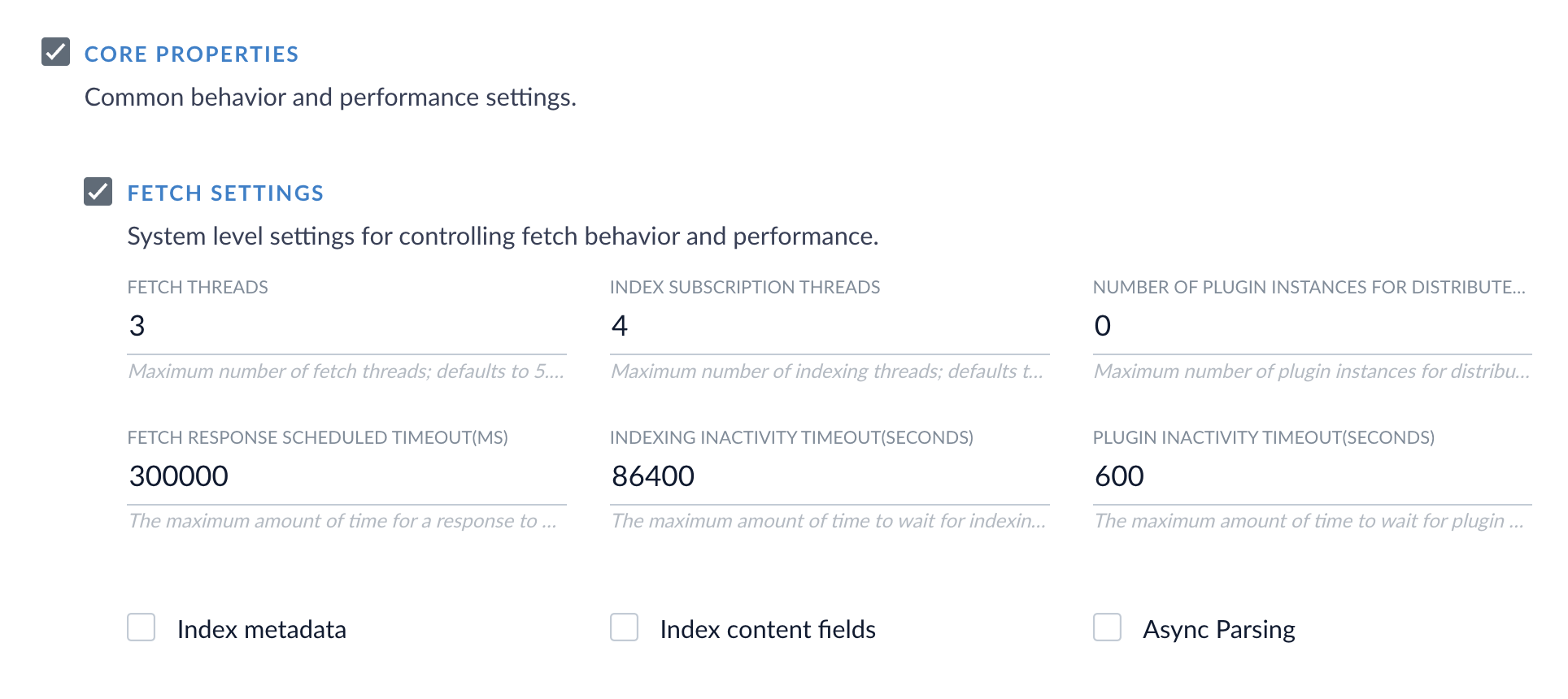 4. Reduce the **Request Page Size**.
 This setting might not be available in every connector.
* There is a new AI category in the **Add a new pipeline stage** dropdown for Query and Index Pipelines. This category contains the new stages for Neural Hybrid Search, as well as existing machine learning and AI stages.
This setting might not be available in every connector.
* There is a new AI category in the **Add a new pipeline stage** dropdown for Query and Index Pipelines. This category contains the new stages for Neural Hybrid Search, as well as existing machine learning and AI stages.
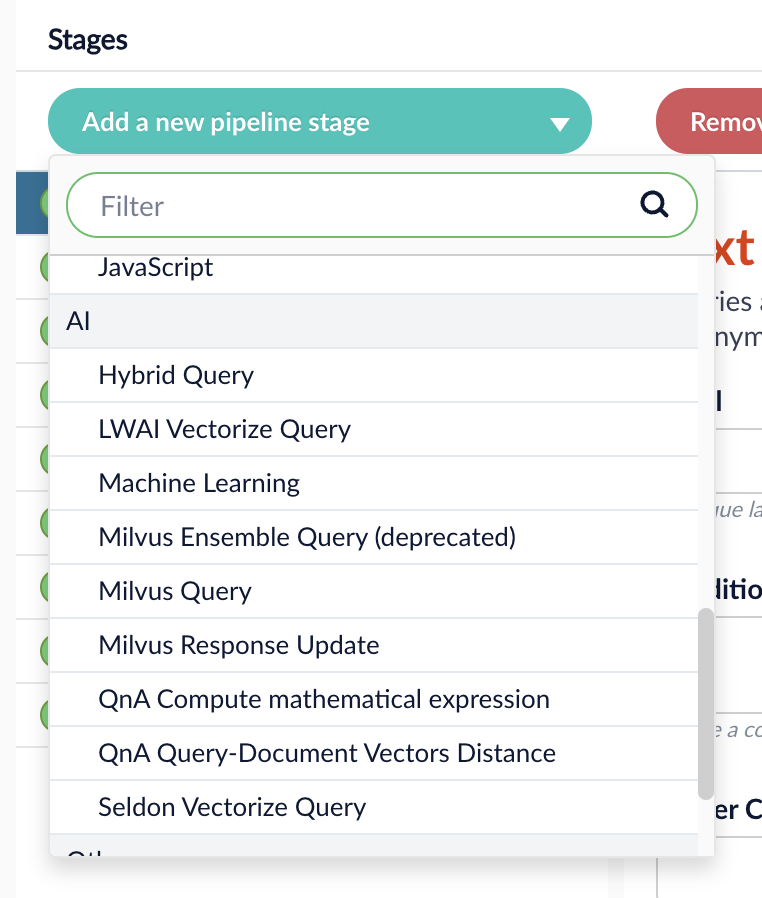 * The Fusion migration script is updated to align with changes from the Solr upgrade. The migration script:
* Removes the unused configuration, ``, from `solrconfig.xml`. Solr no longer supports this configuration.
* Removes the query response writer of class `solr.XSLTResponseWriter`.
* Comments out processors of type `solr.StatelessScriptUpdateProcessorFactory`.
* Removes `` element from request handler.
* Changes cache class attribute of elements `"filterCache"`, `"cache"`, `"documentCache"`, `"queryResultCache"` to `solr.search.CaffeineCache`.
* Removes `keepShortTerm` attribute from filter of class `solr.NGramFilterFactory`.
* Added the parameter `job-expiration-duration-seconds` for remote connectors that lets you configure the timeout value. Refer to **Configure Remote V2 Connectors**.
If you need to index data from behind a firewall, you can configure a V2 connector to run remotely on-premises using TLS-enabled gRPC.
## Prerequisites
Before you can set up an on-prem V2 connector, you must configure the egress from your network to allow HTTP/2 communication into the Fusion cloud. You can use a [forward proxy server](#egress-and-proxy-server-configuration) to act as an intermediary between the connector and Fusion.
The following is required to run V2 connectors remotely:
* The [plugin zip file and the connector-plugin-standalone JAR](https://plugins.lucidworks.com/).
* A configured connector backend gRPC endpoint.
* Username and password of a user with a `remote-connectors` or `admin` role.
* If the host where the remote connector is running is not configured to trust the server’s TLS certificate, you must configure the file path of the trust certificate collection.
If your version of Fusion doesn’t have the `remote-connectors` role by default, you can create one. No API or UI permissions are required for the role.
## Connector compatibility
Only V2 connectors are able to run remotely on-premises.
You also need the remote connector client JAR file that matches your Fusion version.
You can download the latest files at [V2 Connectors Downloads](/docs/fusion-connectors/downloads/v2-connectors-downloads).
Whenever you upgrade Fusion, you must also update your remote connectors to match the new version of Fusion.
The gRPC connector backend is not supported in Fusion environments deployed on AWS.
## System requirements
The following is required for the on-prem host of the remote connector:
* (Fusion 5.9.0-5.9.10) JVM version 11
* (Fusion 5.9.11) JVM version 17
* Minimum of 2 CPUs
* 4GB Memory
Note that memory requirements depend on the number and size of ingested documents.
## Enable backend ingress
In your `values.yaml` file, configure this section as needed:
```yaml theme={"dark"}
ingress:
enabled: false
pathtype: "Prefix"
path: "/"
#host: "ingress.example.com"
ingressClassName: "nginx" # Fusion 5.9.6 only
tls:
enabled: false
certificateArn: ""
# Enable the annotations field to override the default annotations
#annotations: ""
```
* Set `enabled` to `true` to enable the backend ingress.
* Set `pathtype` to `Prefix` or `Exact`.
* Set `path` to the path where the backend will be available.
* Set `host` to the host where the backend will be available.
* In Fusion 5.9.6 *only*, you can set `ingressClassName` to one of the following:
* `nginx` for Nginx Ingress Controller
* `alb` for AWS Application Load Balancer (ALB)
* Configure TLS and certificates according to your CA’s procedures and policies.
TLS must be enabled in order to use AWS ALB for ingress.
## Connector configuration example
```yaml theme={"dark"}
kafka-bridge:
target: mynamespace-connectors-backend.lucidworkstest.com:443 # mandatory
plain-text: false # optional, false by default.
proxy-server: # optional - needed when a forward proxy server is used to provide outbound access to the standalone connector
host: host
port: some-port
user: user # optional
password: password # optional
trust: # optional - needed when the client's system doesn't trust the server's certificate
cert-collection-filepath: path1
proxy: # mandatory fusion-proxy
user: admin
password: password123
url: https://fusiontest.com/ # needed only when the connector plugin requires blob store access
plugin: # mandatory
path: ./fs.zip
type: #optional - the suffix is added to the connector id
suffix: remote
```
### Minimal example
```yaml theme={"dark"}
kafka-bridge:
target: mynamespace-connectors-backend.lucidworkstest.com:443
proxy:
user: admin
password: "password123"
plugin:
path: ./testplugin.zip
```
### Logback XML configuration file example
```xml theme={"dark"}
%d - %-5p [%t:%C{3.}@%L] - %m{nolookups}%n
utf8
${LOGDIR:-.}/connector.log
${LOGDIR:-.}/connector-%d{yyyy-MM-dd}.%i.log.gz
50MB
10GB
%d - %-5p [%t:%C{3.}@%L] - %m{nolookups}%n
utf8
```
## Run the remote connector
```java theme={"dark"}
java [-Dlogging.config=[LOGBACK_XML_FILE]] \
-jar connector-plugin-client-standalone.jar [YAML_CONFIG_FILE]
```
The `logging.config` property is optional. If not set, logging messages are sent to the console.
## Test communication
You can run the connector in communication testing mode. This mode tests the communication with the backend without running the plugin, reports the result, and exits.
```java theme={"dark"}
java -Dstandalone.connector.connectivity.test=true -jar connector-plugin-client-standalone.jar [YAML_CONFIG_FILE]
```
## Encryption
In a deployment, communication to the connector’s backend server is encrypted using TLS. You should only run this configuration without TLS in a testing scenario. To disable TLS, set `plain-text` to `true`.
## Egress and proxy server configuration
One of the methods you can use to allow outbound communication from behind a firewall is a proxy server. You can configure a proxy server to allow certain communication traffic while blocking unauthorized communication. If you use a proxy server at the site where the connector is running, you must configure the following properties:
* **Host.** The hosts where the proxy server is running.
* **Port.** The port the proxy server is listening to for communication requests.
* **Credentials.** Optional proxy server user and password.
When you configure egress, it is important to disable any connection or activity timeouts because the connector uses long running gRPC calls.
## Password encryption
If you use a login name and password in your configuration, run the following utility to encrypt the password:
1. Enter a user name and password in the connector configuration YAML.
2. Run the standalone JAR with this property:
```java theme={"dark"}
-Dstandalone.connector.encrypt.password=true
```
3. Retrieve the encrypted passwords from the log that is created.
4. Replace the clear password in the configuration YAML with the encrypted password.
## Connector restart (5.7 and earlier)
The connector will shut down automatically whenever the connection to the server is disrupted, to prevent it from getting into a bad state. Communication disruption can happen, for example, when the server running in the `connectors-backend` pod shuts down and is replaced by a new pod. Once the connector shuts down, connector configuration and job execution are disabled. To prevent that from happening, you should restart the connector as soon as possible.
You can use Linux scripts and utilities to restart the connector automatically, such as [Monit](https://mmonit.com/monit/).
## Recoverable bridge (5.8 and later)
If communication to the remote connector is disrupted, the connector will try to recover communication and gRPC calls. By default, six attempts will be made to recover each gRPC call. The number of attempts can be configured with the `max-grpc-retries` bridge parameters.
## Job expiration duration (5.9.5 only)
The timeout value for irresponsive backend jobs can be configured with the `job-expiration-duration-seconds` parameter. The default value is `120` seconds.
## Use the remote connector
Once the connector is running, it is available in the Datasources dropdown. If the standalone connector terminates, it disappears from the list of available connectors. Once it is re-run, it is available again and configured connector instances will not get lost.
## Enable asynchronous parsing (5.9 and later)
To separate document crawling from document parsing, enable Tika Asynchronous Parsing on remote V2 connectors.
* Added additional diagnostics between the `connectors-backend` and `fusion-indexing` services.
* Added more detail to the messages that appear in the Fusion UI when a connector job fails.
* Added the `reset` action parameter to the `subscriptions/{id}/refresh?action=some-action` POST API endpoint. Calling `reset` will clear the subscription indexing topic from pending documents. See the [Indexing API](/api-reference/subscriptions-api/refresh-a-subscription).
## Bug fixes
* Fixed an issue that prevented successful configuration of new Kerberos security realms for authentication of external applications.
## Deprecations and removals
For full details on deprecations, see [Deprecations and Removals](/docs/5/fusion/deprecations-and-removals).
### Bitnami removal
Fusion 5.9.5 will be re-released with the same functionality but updated image references.
In the meantime, Lucidworks will self-host the required images while we work to replace Bitnami images with internally built open-source alternatives.
If you are a self-hosted Fusion customer, *you must upgrade before August 28* to ensure continued access to container images and prevent deployment issues.
You can reinstall your current version of Fusion or upgrade to Fusion 5.9.14, which includes the updated Helm chart and prepares your environment for long-term compatibility.
See [Prevent image pull failures due to Bitnami deprecation in Fusion 5.9.5 to 5.9.13](https://support.lucidworks.com/hc/en-us/articles/33966125467799-Prevent-image-pull-failures-due-to-Bitnami-deprecation-in-Fusion-5-9-5-to-5-9-13) for more information on how to prevent image pull failures.
### Milvus deprecation
With the release of Solr supported embeddings and Solr Semantic Vector Search, Lucidworks is deprecating Milvus. The following Milvus query stages are deprecated and will be removed in a future release:
* Milvus Ensemble Query Stage
* Milvus Query Stage
* Milvus Response Update Query Stage
Use [Seldon](/docs/5/fusion/reference/config-ref/pipeline-stages/query-stages/vectorize-query-via-seldon-query-stage) or [Lucidworks AI](/docs/5/fusion/reference/config-ref/pipeline-stages/query-stages/lwai-vectorize-query) vector query stages instead.
For more information, see [Deprecations and Removals](/docs/5/fusion/deprecations-and-removals).
* The Fusion migration script is updated to align with changes from the Solr upgrade. The migration script:
* Removes the unused configuration, ``, from `solrconfig.xml`. Solr no longer supports this configuration.
* Removes the query response writer of class `solr.XSLTResponseWriter`.
* Comments out processors of type `solr.StatelessScriptUpdateProcessorFactory`.
* Removes `` element from request handler.
* Changes cache class attribute of elements `"filterCache"`, `"cache"`, `"documentCache"`, `"queryResultCache"` to `solr.search.CaffeineCache`.
* Removes `keepShortTerm` attribute from filter of class `solr.NGramFilterFactory`.
* Added the parameter `job-expiration-duration-seconds` for remote connectors that lets you configure the timeout value. Refer to **Configure Remote V2 Connectors**.
If you need to index data from behind a firewall, you can configure a V2 connector to run remotely on-premises using TLS-enabled gRPC.
## Prerequisites
Before you can set up an on-prem V2 connector, you must configure the egress from your network to allow HTTP/2 communication into the Fusion cloud. You can use a [forward proxy server](#egress-and-proxy-server-configuration) to act as an intermediary between the connector and Fusion.
The following is required to run V2 connectors remotely:
* The [plugin zip file and the connector-plugin-standalone JAR](https://plugins.lucidworks.com/).
* A configured connector backend gRPC endpoint.
* Username and password of a user with a `remote-connectors` or `admin` role.
* If the host where the remote connector is running is not configured to trust the server’s TLS certificate, you must configure the file path of the trust certificate collection.
If your version of Fusion doesn’t have the `remote-connectors` role by default, you can create one. No API or UI permissions are required for the role.
## Connector compatibility
Only V2 connectors are able to run remotely on-premises.
You also need the remote connector client JAR file that matches your Fusion version.
You can download the latest files at [V2 Connectors Downloads](/docs/fusion-connectors/downloads/v2-connectors-downloads).
Whenever you upgrade Fusion, you must also update your remote connectors to match the new version of Fusion.
The gRPC connector backend is not supported in Fusion environments deployed on AWS.
## System requirements
The following is required for the on-prem host of the remote connector:
* (Fusion 5.9.0-5.9.10) JVM version 11
* (Fusion 5.9.11) JVM version 17
* Minimum of 2 CPUs
* 4GB Memory
Note that memory requirements depend on the number and size of ingested documents.
## Enable backend ingress
In your `values.yaml` file, configure this section as needed:
```yaml theme={"dark"}
ingress:
enabled: false
pathtype: "Prefix"
path: "/"
#host: "ingress.example.com"
ingressClassName: "nginx" # Fusion 5.9.6 only
tls:
enabled: false
certificateArn: ""
# Enable the annotations field to override the default annotations
#annotations: ""
```
* Set `enabled` to `true` to enable the backend ingress.
* Set `pathtype` to `Prefix` or `Exact`.
* Set `path` to the path where the backend will be available.
* Set `host` to the host where the backend will be available.
* In Fusion 5.9.6 *only*, you can set `ingressClassName` to one of the following:
* `nginx` for Nginx Ingress Controller
* `alb` for AWS Application Load Balancer (ALB)
* Configure TLS and certificates according to your CA’s procedures and policies.
TLS must be enabled in order to use AWS ALB for ingress.
## Connector configuration example
```yaml theme={"dark"}
kafka-bridge:
target: mynamespace-connectors-backend.lucidworkstest.com:443 # mandatory
plain-text: false # optional, false by default.
proxy-server: # optional - needed when a forward proxy server is used to provide outbound access to the standalone connector
host: host
port: some-port
user: user # optional
password: password # optional
trust: # optional - needed when the client's system doesn't trust the server's certificate
cert-collection-filepath: path1
proxy: # mandatory fusion-proxy
user: admin
password: password123
url: https://fusiontest.com/ # needed only when the connector plugin requires blob store access
plugin: # mandatory
path: ./fs.zip
type: #optional - the suffix is added to the connector id
suffix: remote
```
### Minimal example
```yaml theme={"dark"}
kafka-bridge:
target: mynamespace-connectors-backend.lucidworkstest.com:443
proxy:
user: admin
password: "password123"
plugin:
path: ./testplugin.zip
```
### Logback XML configuration file example
```xml theme={"dark"}
%d - %-5p [%t:%C{3.}@%L] - %m{nolookups}%n
utf8
${LOGDIR:-.}/connector.log
${LOGDIR:-.}/connector-%d{yyyy-MM-dd}.%i.log.gz
50MB
10GB
%d - %-5p [%t:%C{3.}@%L] - %m{nolookups}%n
utf8
```
## Run the remote connector
```java theme={"dark"}
java [-Dlogging.config=[LOGBACK_XML_FILE]] \
-jar connector-plugin-client-standalone.jar [YAML_CONFIG_FILE]
```
The `logging.config` property is optional. If not set, logging messages are sent to the console.
## Test communication
You can run the connector in communication testing mode. This mode tests the communication with the backend without running the plugin, reports the result, and exits.
```java theme={"dark"}
java -Dstandalone.connector.connectivity.test=true -jar connector-plugin-client-standalone.jar [YAML_CONFIG_FILE]
```
## Encryption
In a deployment, communication to the connector’s backend server is encrypted using TLS. You should only run this configuration without TLS in a testing scenario. To disable TLS, set `plain-text` to `true`.
## Egress and proxy server configuration
One of the methods you can use to allow outbound communication from behind a firewall is a proxy server. You can configure a proxy server to allow certain communication traffic while blocking unauthorized communication. If you use a proxy server at the site where the connector is running, you must configure the following properties:
* **Host.** The hosts where the proxy server is running.
* **Port.** The port the proxy server is listening to for communication requests.
* **Credentials.** Optional proxy server user and password.
When you configure egress, it is important to disable any connection or activity timeouts because the connector uses long running gRPC calls.
## Password encryption
If you use a login name and password in your configuration, run the following utility to encrypt the password:
1. Enter a user name and password in the connector configuration YAML.
2. Run the standalone JAR with this property:
```java theme={"dark"}
-Dstandalone.connector.encrypt.password=true
```
3. Retrieve the encrypted passwords from the log that is created.
4. Replace the clear password in the configuration YAML with the encrypted password.
## Connector restart (5.7 and earlier)
The connector will shut down automatically whenever the connection to the server is disrupted, to prevent it from getting into a bad state. Communication disruption can happen, for example, when the server running in the `connectors-backend` pod shuts down and is replaced by a new pod. Once the connector shuts down, connector configuration and job execution are disabled. To prevent that from happening, you should restart the connector as soon as possible.
You can use Linux scripts and utilities to restart the connector automatically, such as [Monit](https://mmonit.com/monit/).
## Recoverable bridge (5.8 and later)
If communication to the remote connector is disrupted, the connector will try to recover communication and gRPC calls. By default, six attempts will be made to recover each gRPC call. The number of attempts can be configured with the `max-grpc-retries` bridge parameters.
## Job expiration duration (5.9.5 only)
The timeout value for irresponsive backend jobs can be configured with the `job-expiration-duration-seconds` parameter. The default value is `120` seconds.
## Use the remote connector
Once the connector is running, it is available in the Datasources dropdown. If the standalone connector terminates, it disappears from the list of available connectors. Once it is re-run, it is available again and configured connector instances will not get lost.
## Enable asynchronous parsing (5.9 and later)
To separate document crawling from document parsing, enable Tika Asynchronous Parsing on remote V2 connectors.
* Added additional diagnostics between the `connectors-backend` and `fusion-indexing` services.
* Added more detail to the messages that appear in the Fusion UI when a connector job fails.
* Added the `reset` action parameter to the `subscriptions/{id}/refresh?action=some-action` POST API endpoint. Calling `reset` will clear the subscription indexing topic from pending documents. See the [Indexing API](/api-reference/subscriptions-api/refresh-a-subscription).
## Bug fixes
* Fixed an issue that prevented successful configuration of new Kerberos security realms for authentication of external applications.
## Deprecations and removals
For full details on deprecations, see [Deprecations and Removals](/docs/5/fusion/deprecations-and-removals).
### Bitnami removal
Fusion 5.9.5 will be re-released with the same functionality but updated image references.
In the meantime, Lucidworks will self-host the required images while we work to replace Bitnami images with internally built open-source alternatives.
If you are a self-hosted Fusion customer, *you must upgrade before August 28* to ensure continued access to container images and prevent deployment issues.
You can reinstall your current version of Fusion or upgrade to Fusion 5.9.14, which includes the updated Helm chart and prepares your environment for long-term compatibility.
See [Prevent image pull failures due to Bitnami deprecation in Fusion 5.9.5 to 5.9.13](https://support.lucidworks.com/hc/en-us/articles/33966125467799-Prevent-image-pull-failures-due-to-Bitnami-deprecation-in-Fusion-5-9-5-to-5-9-13) for more information on how to prevent image pull failures.
### Milvus deprecation
With the release of Solr supported embeddings and Solr Semantic Vector Search, Lucidworks is deprecating Milvus. The following Milvus query stages are deprecated and will be removed in a future release:
* Milvus Ensemble Query Stage
* Milvus Query Stage
* Milvus Response Update Query Stage
Use [Seldon](/docs/5/fusion/reference/config-ref/pipeline-stages/query-stages/vectorize-query-via-seldon-query-stage) or [Lucidworks AI](/docs/5/fusion/reference/config-ref/pipeline-stages/query-stages/lwai-vectorize-query) vector query stages instead.
For more information, see [Deprecations and Removals](/docs/5/fusion/deprecations-and-removals).