> ## Documentation Index
> Fetch the complete documentation index at: https://doc.lucidworks.com/llms.txt
> Use this file to discover all available pages before exploring further.

# Text Tagger Stage

export const schema = {
  "type": "object",
  "title": "Text Tagger",
  "description": "Queries a Solr text tagger request handler to perform spell correction, phrase boosting, and synonym expansion.",
  "properties": {
    "skip": {
      "type": "boolean",
      "title": "Skip This Stage",
      "description": "Set to true to skip this stage.",
      "default": false,
      "hints": ["advanced"]
    },
    "label": {
      "type": "string",
      "title": "Label",
      "description": "A unique label for this stage.",
      "hints": ["advanced"],
      "maxLength": 255
    },
    "condition": {
      "type": "string",
      "title": "Condition",
      "description": "Define a conditional script that must result in true or false. This can be used to determine if the stage should process or not.",
      "hints": ["code", "code/javascript", "advanced"]
    },
    "legacy": {
      "type": "boolean",
      "title": "Legacy",
      "description": "True if this stage only supports legacy mode",
      "hints": ["readonly", "hidden"]
    },
    "taggerCollectionId": {
      "type": "string",
      "title": "Tagger Collection",
      "description": "Collection to send the tagger request to; defaults to the query_rewrite collection for the application in context. Collection must contain only one shard, as the underlying Text Tagger in Solr doesn't currently support multi-shard collections. Supports template expressions.",
      "minLength": 1
    },
    "paramToTag": {
      "type": "string",
      "title": "Param to Tag",
      "description": "Name of the parameter in the request containing text to tag, defaults to 'q'.  Ignored on DSL requests.",
      "default": "q"
    },
    "taggedOutputParam": {
      "type": "string",
      "title": "Tagged Output Param",
      "description": "Apply the matching tags to the 'paramToTag' value and set the parameter specified by this option; defaults to the value of the 'paramToTag' setting.  Ignored on DSL requests."
    },
    "saveTagsInContextKey": {
      "type": "string",
      "title": "Save Tags in Context",
      "description": "Save tags in context instead of applying directly to the incoming query in this stage; allows downstream stages to apply the tags after doing other processing.  Ignored on DSL requests."
    },
    "spell_corrections_enabled": {
      "type": "boolean",
      "title": "Spell Correction",
      "description": "If checked, then this stage will perform spell corrections on the incoming query.",
      "default": true
    },
    "phrase_boosting_enabled": {
      "type": "boolean",
      "title": "Phrase Boosting",
      "description": "If checked, then this stage will perform phrase boosting on the incoming query.",
      "default": true
    },
    "synonym_expansion_enabled": {
      "type": "boolean",
      "title": "Synonym Expansion",
      "description": "If checked, then this stage will perform synonym expansion on the incoming query.",
      "default": true
    },
    "remove_words_enabled": {
      "type": "boolean",
      "title": "Remove Words",
      "description": "If checked, then this stage will perform applicable Remove Words rewrites on the incoming query.",
      "default": true
    },
    "tail_rewrites_enabled": {
      "type": "boolean",
      "title": "Tail Rewrites",
      "description": "If checked, then this stage will perform tail rewrites on the incoming query.",
      "default": true
    },
    "filterOverride": {
      "type": "string",
      "title": "Filter Override",
      "description": "Use this option to override filtering for built-in tagger doc types with your own filter."
    },
    "synonymExpansionBoost": {
      "type": "number",
      "title": "Original Term Boost for Synonyms",
      "description": "Boost applied to the original term when doing synonym expansion; set to -1 to disable this behavior.",
      "default": 2
    },
    "phraseBoost": {
      "type": "number",
      "title": "Default Phrase Boost",
      "description": "Default boost to be applied to phrases that don't have a boost set; set to -1 to disable this behavior.",
      "default": 2
    },
    "phraseSlop": {
      "type": "integer",
      "title": "Default Phrase Slop",
      "description": "Default phrase slop to be applied to detected phrases.",
      "default": 10
    },
    "overlaps": {
      "type": "string",
      "title": "Overlapping Tag Policy",
      "description": "Choose the algorithm to determine which tags in an overlapping set should be retained, versus being pruned away. Ignored on DSL requests (longest_dominant_right is always used). The available options correspond to Solr Tagger Handler overlaps: all, no_sub, longest_dominant_right; defaults to longest_dominant_right, which ensures the retained tags have no overlaps. Setting this to all or no_sub allows more rewrites to potentially be applied to a query, but can increase the chance of producing undesirable rewrites.",
      "enum": ["longest_dominant_right", "all", "no_sub"],
      "default": "longest_dominant_right"
    },
    "params": {
      "type": "array",
      "title": "Additional Params to be Included in the Text Tagger Request. ",
      "items": {
        "type": "object",
        "required": ["key"],
        "properties": {
          "key": {
            "type": "string",
            "title": "Parameter Name"
          },
          "value": {
            "type": "string",
            "title": "Parameter Value"
          }
        }
      }
    },
    "maxWaitMs": {
      "type": "integer",
      "title": "Max Wait for Lookup (ms)",
      "description": "Max time to wait for call to remote tagger collection to return; set to -1 to disable.",
      "default": 500
    },
    "skipQueryRegex": {
      "type": "string",
      "title": "Skip Query Regex",
      "description": "Pattern to find queries to skip matching on, such as single term queries with wildcards."
    }
  },
  "category": "Other",
  "categoryPriority": 1,
  "unsafe": false
};

export const SchemaParamFields = ({schema}) => {
  const sanitize = str => {
    if (typeof str !== "string") return str;
    return str.replace(/^"(.*)"$/s, "$1").replace(/\\/g, "").replace(/"/g, "'");
  };
  const formatDescription = str => {
    const s = sanitize(str);
    return (/[.!?]\)*$/).test(s) ? s : `${s}.`;
  };
  const {description, properties = {}, required: requiredProps = []} = schema;
  const visibleProps = useMemo(() => Object.entries(properties).filter(([, prop]) => !prop.hints?.includes("hidden")), [properties]);
  return <div>
      {description && <p>{formatDescription(description)}</p>}

      {visibleProps.map(([name, prop]) => {
    const isRequired = requiredProps.includes(name);
    const hasDefault = prop.default !== undefined;
    const rawDefault = prop.default;
    const isComplexDefault = hasDefault && (typeof rawDefault === "object" || typeof rawDefault === "string" && (rawDefault.length > 20 || rawDefault.includes('"')));
    const fieldProps = {
      key: name,
      body: prop.title || name,
      type: prop.type,
      ...prop.title && ({
        post: [<><span className="text-stone-400 dark:text-stone-500">API property: </span>{name}</>]
      }),
      ...isRequired && ({
        required: true
      }),
      ...!isComplexDefault && hasDefault ? {
        default: sanitize(String(rawDefault))
      } : {}
    };
    const isObject = prop.type === "object" && prop.properties;
    const isArrayOfObjects = prop.type === "array" && prop.items?.type === "object" && prop.items.properties;
    return <ParamField {...fieldProps}>
            {prop.description && <p>{formatDescription(prop.description)}</p>}

            {isComplexDefault && <div className="flex">
                <p>
                  <strong>Default:</strong>
                </p>
                <pre className="!my-0">
                  <code>
                    {JSON.stringify(rawDefault, null, 2)}
                  </code>
                </pre>
              </div>}

            {isArrayOfObjects && <div className="flex">
              <p>
                <strong>Object attributes:</strong>
              </p>
              <pre className="!my-0">
                <code>
                  {'{\n'}
                  {Object.entries(prop.items.properties).map(([iname, iprop]) => <>
                      {`  ${iname}`}
                      {prop.items?.required?.includes(iname) && <span style={{
      color: 'red'
    }}> required</span>}
                      {`: {\n    display name: ${sanitize(iprop.title || '')}\n    type: ${iprop.type}\n  }\n`}
                    </>)}
                  {'}'}
                </code>
              </pre>
              </div>}

            {isObject && <Expandable title="properties">
                <SchemaParamFields schema={{
      properties: prop.properties,
      required: prop.required
    }} />
              </Expandable>}
          </ParamField>;
  })}
    </div>;
};

export const LwTemplate = ({title = "Key questions to get you started", icon = "sparkles", cta = "Powered by Agent Studio", linkHref = "https://lucidworks.com/demo/?utm_source=docs&utm_medium=referral&utm_campaign=docs_cta_ai"}) => {
  const [isLoaded, setIsLoaded] = useState(false);
  useEffect(() => {
    const timer = setTimeout(() => {
      setIsLoaded(true);
    }, 500);
    return () => clearTimeout(timer);
  }, []);
  return <div className="lw-template-container">
      <Card title={title} icon={icon}>
        {isLoaded && <span dangerouslySetInnerHTML={{
    __html: `<lw-template id="a029c1a9-28be-427e-b0e1-5d918920246a"></lw-template
            >`
  }} />}
        <Link href={linkHref} className="agent-studio-link text-left text-gray-600 gap-2 dark:text-gray-400 text-sm font-medium flex flex-row items-center hover:text-primary dark:hover:text-primary-light group-hover:text-primary group-hover:dark:text-primary-light">Powered by Lucidworks Agent Studio</Link>
      </Card>
    </div>;
};

[localhost link]: http://localhost:3000/docs/5/fusion/reference/config-ref/pipeline-stages/query-stages/text-tagger-query-stage

[mintlify link]: https://doc.lucidworks.com/docs/5/fusion/reference/config-ref/pipeline-stages/query-stages/text-tagger-query-stage

[old doc.lw link]: https://doc.lucidworks.com/fusion/5.9/520

This stage uses the [SolrTextTagger](https://solr.apache.org/guide/solr/latest/query-guide/tagger-handler.html) handler to identify known entities in the query by searching the [`COLLECTION_NAME_query_rewrite` collection](/docs/5/fusion/getting-data-in/indexing/collections/overview). See **Manage Collections in the Fusion UI** for more information.

<Accordion title="Manage Collections in the Fusion UI">
  Collections can be created or removed using the Fusion UI or the REST API.

  For information about using the REST API to manage collections, see [Collections API](/api-reference/collections/get-collections-service-status).

  <LwTemplate />

  ## Creating a Collection

  When you create an app, by default Fusion Server creates a collection and associated objects.

  To create a new collection in the Fusion UI:

  1. From within an app, click **Collections > Collections Manager**.
  2. At the upper right of the panel, click **New**.
  3. Enter a **Collection name**. This name cannot be changed later.
  4. To create the collection in the default Solr cluster and with other default settings, click **Save Collection**.

  ## Creating a Collection with Advanced Options

  To access advanced options for creating a collection in the Fusion UI:

  1. From within an app, click **Collections > Collections Manager**.
  2. At the upper right of the panel, click **New**.
  3. Enter a **Collection name**. This name cannot be changed later.
  4. Click **Advanced**.
  5. Configure advanced options. The options are described below.
  6. Click **Save Collection**.

  ### Solr Cluster

  By default, a new collection is associated with the Solr instance that is associated with the `default` Solr cluster.

  If Fusion has multiple Solr clusters, choose from the list which cluster you want to associate your collection with.
  The cluster must exist first.

  ### Solr Cluster Layout

  The next section lets you define a **Replication Factor** and **Number of Shards**.
  Define these options only if you are creating a new collection in the Solr cluster.
  If you are linking Fusion to an existing Solr collection, you can skip these settings.

  ### Solr Collection Import

  Import a Solr collection to associate the new Fusion collection with an existing Solr collection.
  Enter a **Solr Collection Name** to associate the collection with an existing Solr collection.
  Then, enter a **Solr Config Set** to tell ZooKeeper to use the configurations from an existing collection in Solr when creating this collection.

  ## Configuring Collections

  The Collections menu lets you configure your existing collection, including datasources, fields, jobs, stopwords, and synonyms.

  In the Fusion UI, from any app, the Collections icon displays on the left side of the screen.

  Some tasks related to managing a collection are available in other menus:

  * Configure a profile in **Indexing > Indexing Profiles** or **Querying > Query Profiles**.
  * View reports about your collection’s activity in **Analytics > Dashboards**.

  ### Collections Manager

  The Collections Manager page displays details about the collection, such as how many datasources are configured, how many documents are in the index, and how much disk space the index consumes.

  This page also lets you [create a new collection](#creating-a-collection), disable search logs or signals, enable recommendations, issue a commit command to Solr, or clear a collection.

  #### Disable search logs

  When you first create a collection, the search logs are created by default. The search logs populate the panels in **Analytics > Dashboards**.

  1. Hover over your collection name until the gear icon appears at the end of the line.
  2. Click the gear icon.
  3. Click **Disable Search Logs**.
  4. On the confirmation screen, click **Disable Search Logs**.

  Note that if you disable search logs, you cannot see any data for this collection in **Analytics > Dashboards**.

  See [Dashboards](/docs/5/fusion/operations/monitoring-and-reporting/banana-dashboards/overview) for more information.

  #### Disable signals

  When you first create a collection, the signals and aggregated signals collections are created by default.

  1. Hover over your collection name until the gear icon appears at the end of the line.
  2. Click the gear icon.
  3. Click **Disable Signals**.
  4. On the confirmation screen, click **Disable Signals**.

  #### Hard commit a collection

  1. Hover over your collection name until the gear icon appears at the end of the line.
  2. Click the gear icon.
  3. Click  **Hard Commit Collection**.
  4. On the confirmation screen, click **Hard Commit Collection**.

  Read internal details about how Solr processes commits on [the Lucidworks blog](https://lucidworks.com/post/understanding-transaction-logs-softcommit-and-commit-in-sorlcloud/).

  ### Datasources

  To access the Datasources page, click **Indexing > Datasources**. By default, there are no datasources configured right after installation.

  To add a new datasource, click **New** at the upper right of the panel.

  See the [Connectors and Datasources Reference](/docs/fusion-connectors/connectors/overview) for details on how to configure a datasource. Options vary depending on the repository you would like to index.

  After you configure a datasource, it appears in a list on this screen. Click the name of a datasource to edit its properties. Click **Start** to start the datasource. Click **Stop** to stop the datasource before it completes.
  To the right, view information on the last completed job, including the date and time started and stopped, and the number of documents found as new, skipped, or failed.

  <Note>When you stop a datasource, Fusion attempts to safely close connector threads, finishing processing documents through the pipeline and indexing documents to Solr. Some connectors take longer to complete these processes than others, so might stay in a "stopping" state for several minutes.</Note>

  To stop a datasource immediately, choose **Abort** instead of **Stop**.

  There is also a REST API for [connector datasources](/api-reference/datasource-configuration-v2-api/list-all-v2-datasources).

  ### Stopwords

  The Stopwords page lets you edit a stopwords list for your collection.

  To add or delete stop words:

  1. Click the name of the text file you wish to edit.
  2. Add a new word on a new line.
  3. When you are done with your changes, click **Save**.

  To import a stop words list:

  1. Click **System > Import Fusion Objects**.
  2. Choose the file to upload.
  3. Click **Import >>**.

  Read more about [stopwords](/docs/5/fusion/getting-data-out/query-enhancement/stopwords-files).

  ### Synonyms

  Fusion has the same synonym functionality that Solr supports. This includes a list of words that are synonyms (where the synonym list expands on the terms entered by the user), as well as a full mapping of words, where a word is substituted for what the user has entered (that is, the term the user has entered is replaced by a term in the synonym list).

  See more about [synonyms](/docs/5/fusion/getting-data-out/query-enhancement/synonyms/overview).

  You can edit the synonyms list for your collection.

  To access the Synonyms page in the Fusion UI, in any app, click **Collections > Synonyms**.

  Filter the list of synonym definitions by typing in the **Filter...** box.

  To import a synonyms list:

  1. From the Synonyms page, click **Import and Save**. A dialog box opens.
  2. Choose the file to import.

  To edit a synonyms list:

  * Enter new synonym definitions one per line.
    * To enter a string of terms that expand on the terms the user entered, enter the terms separated by commas, like `Television, TV`.
    * To enter a term that should be mapped to another term, enter the terms separated by an equal sign then a right angle bracket, `=>`, like `i-pod=>ipod`.
  * Remove a line by clicking the **x** at the end of the line.
  * Once you are finished with edits, click **Save**.

  To export the synonyms list, click **Export**. This downloads the list to your computer using your browser download capability.

  ### Profiles

  Profiles allow you to create an alias for an index or query pipeline.
  This allows you to send documents or queries to a consistent endpoint and change the underlying pipeline or collection as needed.

  Read about profiles in [Index Profiles](/docs/4/fusion-server/concepts/indexing/datasources/index-profiles) and [Query Profiles](/docs/4/fusion-server/concepts/querying/pipelines/query-profiles).

  To access the Solr Config page, from any app, click **System > Solr Config**.

  ## Learn more

  <Card title="Collections Menu Tour" class="note-image" href="https://academy.lucidworks.com/collections-menu-tour" cta="Take this course on the LucidAcademy." icon="graduation-cap" iconType="duotone">
    The quick learning for **Collections Menu Tour** focuses on the Collections Menu features and functionality along with a brief description of each screen available in the menu.
  </Card>
</Accordion>

<Note>
  For organizations that do *not* have a Predictive Merchandiser license, the Solr Text Tagger handler also searches the `COLLECTION_NAME_query_rewrite_staging` collection in the case of the Fusion query rewriting [Simulator](/docs/4/fusion-ai/concepts/query-rewriting/simulator)).
</Note>

The purpose of the search is to perform [query rewriting](/docs/5/fusion/getting-data-out/query-enhancement/query-rewriting) using matches from the following items:

* [Spelling corrections](/docs/5/fusion/getting-data-out/query-enhancement/misspelling-detection)
* [Phrase boosts](/docs/5/fusion/getting-data-out/query-enhancement/phrase-detection)
* [Head/Tail Analysis (Underperforming query improvements)](/docs/5/fusion/getting-data-out/query-enhancement/underperforming-queries)
* [Synonym expansions](/docs/5/fusion/getting-data-out/query-enhancement/synonyms/overview)

<Note>
  The jobs that automatically generate query rewrites are deprecated in Fusion 5.9.15 and will be removed in a future release.
  Lucidworks recommends using [Neural Hybrid Search](/docs/5/fusion/hybrid-search/overview), which achieves superior relevance compared to legacy machine learning methods.
</Note>

When the query rewrite entails boosting, the boosting is applied later in the pipeline, during the [Solr Query stage](/docs/5/fusion/reference/config-ref/pipeline-stages/query-stages/solr-query-stage).

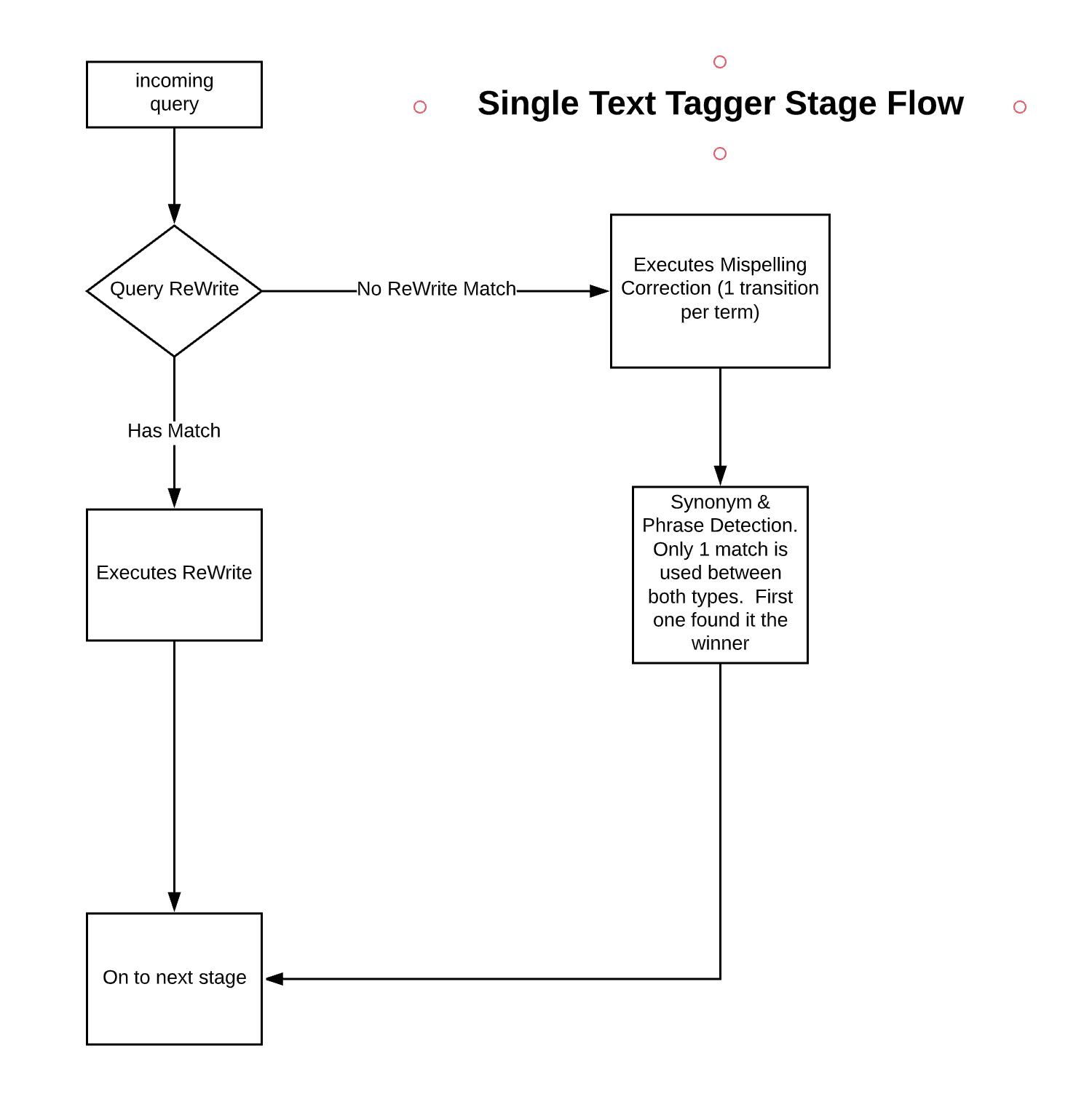
The below diagram shows the process flow for the Text Tagger Stage:

<img src="https://mintcdn.com/lucidworks/L5PMnIeZ03zhv8Ti/assets/images/5.4/stage-text-tagger-flow.png?fit=max&auto=format&n=L5PMnIeZ03zhv8Ti&q=85&s=6b1158c5d930523d9b092d36dfa560d7" alt="Text Tagger Stage Process" width="1500" height="1536" data-path="assets/images/5.4/stage-text-tagger-flow.png" />

<Danger>
  The underlying SolrTextTagger currently only supports *single-shard collections*. Fusion users should ensure their `COLLECTION_NAME_query_rewrite` collection, or whatever collection the Text Tagger stage is configured to use, is single-sharded before enabling this stage.
</Danger>

<Note>
  Although this stage is available without a Fusion license, it is only effective after running Fusion jobs or creating Fusion rules. See [Query Rewriting](/docs/5/fusion/getting-data-out/query-enhancement/query-rewriting) for details.
</Note>

## Query pipeline stage condition examples

Stages can be triggered conditionally when a script in the **Condition** field evaluates to true.
Some examples are shown below.

Run this stage only for mobile clients:

```js wrap  theme={"dark"}
params.deviceType === "mobile"
```

Run this stage when debugging is enabled:

```js wrap  theme={"dark"}
params.debug === "true"
```

Run this stage when the query includes a specific term:

```js wrap  theme={"dark"}
params.q && params.q.includes("sale")
```

Run this stage when multiple conditions are met:

```js wrap  theme={"dark"}
request.hasParam("fusion-user-name") && request.getFirstParam("fusion-user-name").equals("SuperUser");
!request.hasParam("isFusionPluginQuery")
```

The first condition checks that the request parameter "fusion-user-name" is present and has the value "SuperUser".
The second condition checks that the request parameter "isFusionPluginQuery" is not present.

## Configuration

<Tip>
  When entering configuration values in the UI, use *unescaped* characters, such as `\t` for the tab character. When entering configuration values in the API, use *escaped* characters, such as `\\t` for the tab character.
</Tip>

<SchemaParamFields schema={schema} />