> ## Documentation Index
> Fetch the complete documentation index at: https://doc.lucidworks.com/llms.txt
> Use this file to discover all available pages before exploring further.

# Graph Security Trimming Stage

export const schema = {
  "type": "object",
  "title": "Graph Security Trimming",
  "description": "Graph security trimming stage is an alternative to the general \"Security Trimming Stage\". Unlike the general filter, the Graph security trimming stage performs all of the security trimming within a single filter query. You should always prefer this filter over the general Security Trimming filter when you are not trimming legacy data sources. If you have the _lw_acl_ss acl field present on all of your trimmed content documents, you should be using this filter.",
  "required": ["userIdentitySource", "userIdentityKey"],
  "properties": {
    "skip": {
      "type": "boolean",
      "title": "Skip This Stage",
      "description": "Set to true to skip this stage.",
      "default": false,
      "hints": ["advanced"]
    },
    "label": {
      "type": "string",
      "title": "Label",
      "description": "A unique label for this stage.",
      "hints": ["advanced"],
      "maxLength": 255
    },
    "condition": {
      "type": "string",
      "title": "Condition",
      "description": "Define a conditional script that must result in true or false. This can be used to determine if the stage should process or not.",
      "hints": ["code", "code/javascript", "advanced"]
    },
    "legacy": {
      "type": "boolean",
      "title": "Legacy",
      "description": "True if this stage only supports legacy mode",
      "hints": ["readonly", "hidden"]
    },
    "aclSolrCollection": {
      "type": "string",
      "title": "ACL solr collection",
      "description": "This is the Solr collection that contains the User and Group ACLs. It is typically the same as the content collection.",
      "hints": ["advanced", "hidden"]
    },
    "userIdentitySource": {
      "type": "string",
      "title": "User ID source",
      "description": "Specify whether the value comes from an http header or query parameter. Must be either query_param or header.",
      "default": "query_param"
    },
    "userIdentityKey": {
      "type": "string",
      "title": "User ID key",
      "description": "The value of the header or query parameter that contains the User ID. E.g. username, userID, etc.",
      "default": "username"
    },
    "joinField": {
      "type": "string",
      "title": "Join Field",
      "description": "The field to use to match acls to content. Should be set to \"id\" if ACLs are in a separate collection than content collection. If your acls are stored in the content collection, use \"_lw_acl_ss\".",
      "default": "_lw_acl_ss",
      "hints": ["hidden"]
    },
    "excludeDatasources": {
      "type": "string",
      "title": "Exclude Data Source ID(s)",
      "description": "Comma separated datasource IDs - security trimming will not be performed on documents from these data sources and therefore they will be public."
    },
    "includeDatasources": {
      "type": "string",
      "title": "Inclusive Data Source ID(s)",
      "description": "Comma separated datasource IDs - security trimming will be performed only on documents from these data sources. Other datasources will be public."
    },
    "joinMethod": {
      "type": "string",
      "title": "Join method",
      "description": "The Solr join query method parameter. Can be index or topLevelDV.",
      "default": "topLevelDV",
      "hints": ["advanced", "hidden"]
    },
    "treatExternalContentAsPublic": {
      "type": "boolean",
      "title": "Treat external content as public",
      "description": "If a content document does not have a _lw_data_source_s field, treat it as public."
    }
  },
  "category": "Set Up",
  "categoryPriority": 8,
  "unsafe": false
};

export const SchemaParamFields = ({schema}) => {
  const sanitize = str => {
    if (typeof str !== "string") return str;
    return str.replace(/^"(.*)"$/s, "$1").replace(/\\/g, "").replace(/"/g, "'");
  };
  const formatDescription = str => {
    const s = sanitize(str);
    return (/[.!?]\)*$/).test(s) ? s : `${s}.`;
  };
  const {description, properties = {}, required: requiredProps = []} = schema;
  const visibleProps = useMemo(() => Object.entries(properties).filter(([, prop]) => !prop.hints?.includes("hidden")), [properties]);
  return <div>
      {description && <p>{formatDescription(description)}</p>}

      {visibleProps.map(([name, prop]) => {
    const isRequired = requiredProps.includes(name);
    const hasDefault = prop.default !== undefined;
    const rawDefault = prop.default;
    const isComplexDefault = hasDefault && (typeof rawDefault === "object" || typeof rawDefault === "string" && (rawDefault.length > 20 || rawDefault.includes('"')));
    const fieldProps = {
      key: name,
      body: prop.title || name,
      type: prop.type,
      ...prop.title && ({
        post: [<><span className="text-stone-400 dark:text-stone-500">API property: </span>{name}</>]
      }),
      ...isRequired && ({
        required: true
      }),
      ...!isComplexDefault && hasDefault ? {
        default: sanitize(String(rawDefault))
      } : {}
    };
    const isObject = prop.type === "object" && prop.properties;
    const isArrayOfObjects = prop.type === "array" && prop.items?.type === "object" && prop.items.properties;
    return <ParamField {...fieldProps}>
            {prop.description && <p>{formatDescription(prop.description)}</p>}

            {isComplexDefault && <div className="flex">
                <p>
                  <strong>Default:</strong>
                </p>
                <pre className="!my-0">
                  <code>
                    {JSON.stringify(rawDefault, null, 2)}
                  </code>
                </pre>
              </div>}

            {isArrayOfObjects && <div className="flex">
              <p>
                <strong>Object attributes:</strong>
              </p>
              <pre className="!my-0">
                <code>
                  {'{\n'}
                  {Object.entries(prop.items.properties).map(([iname, iprop]) => <>
                      {`  ${iname}`}
                      {prop.items?.required?.includes(iname) && <span style={{
      color: 'red'
    }}> required</span>}
                      {`: {\n    display name: ${sanitize(iprop.title || '')}\n    type: ${iprop.type}\n  }\n`}
                    </>)}
                  {'}'}
                </code>
              </pre>
              </div>}

            {isObject && <Expandable title="properties">
                <SchemaParamFields schema={{
      properties: prop.properties,
      required: prop.required
    }} />
              </Expandable>}
          </ParamField>;
  })}
    </div>;
};

export const LwTemplate = ({title = "Key questions to get you started", icon = "sparkles", cta = "Powered by Agent Studio", linkHref = "https://lucidworks.com/demo/?utm_source=docs&utm_medium=referral&utm_campaign=docs_cta_ai"}) => {
  const [isLoaded, setIsLoaded] = useState(false);
  useEffect(() => {
    const timer = setTimeout(() => {
      setIsLoaded(true);
    }, 500);
    return () => clearTimeout(timer);
  }, []);
  return <div className="lw-template-container">
      <Card title={title} icon={icon}>
        {isLoaded && <span dangerouslySetInnerHTML={{
    __html: `<lw-template id="a029c1a9-28be-427e-b0e1-5d918920246a"></lw-template
            >`
  }} />}
        <Link href={linkHref} className="agent-studio-link text-left text-gray-600 gap-2 dark:text-gray-400 text-sm font-medium flex flex-row items-center hover:text-primary dark:hover:text-primary-light group-hover:text-primary group-hover:dark:text-primary-light">Powered by Lucidworks Agent Studio</Link>
      </Card>
    </div>;
};

[localhost link]: http://localhost:3000/docs/5/fusion/reference/config-ref/pipeline-stages/query-stages/security-trimming-graph-query-stage

[mintlify link]: https://doc.lucidworks.com/docs/5/fusion/reference/config-ref/pipeline-stages/query-stages/security-trimming-graph-query-stage

[old doc.lw link]: https://doc.lucidworks.com/fusion/5.9/zdzlfu

The Graph Security Trimming stage restricts query results according to the user ID as an alternative to [Security Trimming Stage](/docs/5/fusion/reference/config-ref/pipeline-stages/query-stages/security-trimming-query-stage). Whereas the Security Trimming stage has one Solr filter query per data source, Graph Security Trimming uses a single filter query for all data sources.

<LwTemplate />

## Stage setup

When using this stage with [SharePoint Optimized V2](/docs/fusion-connectors/connectors/sharepoint-v2-optimized) or [LDAP ACLs V2](/docs/fusion-connectors/connectors/ad-acl-ldap) connectors, configure the following settings:

| Field          | Value                             |
| -------------- | --------------------------------- |
| User ID source | `query_param` or `header`         |
| User ID key    | The key that contains the User ID |

If you are using Fusion 5.9.3 or earlier, configure the following additional fields, which were removed in Fusion 5.9.4:

| Field               | Value               |
| ------------------- | ------------------- |
| ACL solr collection | `contentCollection` |
| Join method         | `topLevelDV`        |
| Join Field          | `_lw_acl_ss`        |

<AccordionGroup>
  <Accordion title="Configure Security Trimming for SharePoint Optimized V2">
    {/* // https://lucidworks.atlassian.net/wiki/spaces/FPO/pages/2218524965/How+to+use+the+Graph+Security+Trimming#Use-the-Security-Trimming: */}

    You can configure the SharePoint Optimized V2 connector to use security trimming so that query results are filtered based on the roles and permissions assigned to the user.

    To configure security trimming, you’ll need to set up and run a SharePoint Optimized V2 datasource, an LDAP ACLs V2 datasource, and a Graph Security Trimming query stage in the same app and collection.

    When a crawl is run, the SharePoint Optimized V2 and LDAP ACLs V2 datasources must index the content documents and ACL documents to the same collection.

    * **ACL documents**: Users, Groups, and their Role Assignments.
    * **Content documents**: The SharePoint objects with metadata and content (Sites, Lists, Items). These documents have `_lw_acl_ss` fields which determines who can see the docs when searching.

    ## Set up the SharePoint datasource

    1. Navigate to **Indexing > Datasources**.
    2. Install the datasource connector if not already installed.
    3. Click **Add** and select **SharePoint Optimized V2**.
    4. Fill in all required fields.
    5. Configure only one authentication method. Enable **NLTM Authentication Settings** or **SharePoint Online Authentication** and configure the fields as explained below.

    ### NTLM Authentication

    This method connects to SharePoint on-premises server instances, such as SharePoint Server 2013, 2016, and 2019.
    When using this authentication method, the connector will index `contentDocuments` and the following `aclDocuments`: `sharepointGroups`, `siteAdmins`, `roleDefinition`, and `roleAssignment`.

    To use this authentication method, in your **SharePoint Optimized V2** datasource, select the **NTLM Authentication Settings** checkbox and configure the following fields:

    * **User**
    * **Password**
    * **Domain**
    * **Workstation**

    ### SharePoint Online Authentication

    These methods connect to SharePoint Online server instances. When using one of these methods, the connector will index `contentDocuments` and the following `aclDocuments`: `sharepointGroups`, `siteAdmins`, `roleDefinition`, `roleAssignment` and `sharepointUsers` in which `loginName` ends with `onmicrosoft.com`.

    #### Basic

    To use this authentication method, in your **SharePoint Optimized V2** datasource, select the **SharePoint Online Authentication** checkbox and configure the following fields:

    * **SharePoint online account**
    * **Password**

    #### App only (OAuth protocol)

    To use this authentication method, in your **SharePoint Optimized V2** datasource, select the **SharePoint Online Authentication** checkbox and configure the following fields:

    * **Azure AD client ID**
    * **Azure AD tenant**
    * **Azure AD Client Secret**
    * **Azure AD login endpoint (advanced)**
    * **Azure AD Refresh Token (advanced)**

    #### App only with private key

    To use this authentication method, in your **SharePoint Optimized V2** datasource, select the **SharePoint Online Authentication** checkbox and configure the following fields:

    * **Azure AD client ID**
    * **Azure AD tenant**
    * **Azure AD login endpoint**
    * **Azure AD PKCS12 Base64 Keystore**
    * **Azure AD PKCS12 Keystore Password**

    ## Set up the LDAP datasource

    1. Navigate to **Indexing > Datasources**.
    2. Install the datasource connector if not already installed.
    3. Click **Add** and select **LDAP and Azure ACLs Connector (V2)**.
    4. Fill in all required fields.
    5. Configure authentication methods. Enter LDAP login credentials and/or enable **Azure AD Properties** and configure the fields as explained below.

    ### LDAP Authentication

    This method connects to an LDAP AD server. When using this method, the connector will index the following `aclDocuments`: `ldapUsers`, and `ldapGroups`.

    To use this authentication method, in your **LDAP and Azure ACLs Connector (V2)** datasource, configure the following fields:

    * **Login User Principal**
    * **Login Password**

    ### Azure AD Authentication

    This method connects to an Azure AD server. When using this method, the connector will index the following `aclDocuments`: `azureUsers`, and `azureGroups`

    To use this authentication method, in your **LDAP and Azure ACLs Connector (V2)** datasource, select the **Azure AD Properties** checkbox and configure the following fields:

    * **Azure AD Tenant ID**
    * **Azure AD Client ID**
    * **Azure AD Client Secret**

    ## Supported authentication methods for security trimming

    |                            | LDAP AD                                     | Azure AD                                                                |
    | -------------------------- | ------------------------------------------- | ----------------------------------------------------------------------- |
    | **SharePoint On-Premises** | NTLM Authentication and LDAP Authentication | NTLM Authentication and Azure AD Authentication                         |
    | **SharePoint Online**      | N/A                                         | Any SharePoint Online authentication method and Azure AD Authentication |

    {/* // Configure the [SharePoint Optimized V2 connector](/fusion-connectors/3qqudu/share-point-optimized-v-2) to send the access-control documents to the content collection (not to the acl-collection). The SharePoint Optimized V2 connector relies on the [LDAP ACLs V2 connector](/fusion-connectors/4selgx/ldap-ac-ls-v-2) to crawl LDAP Active Directory/Azure Active Directory. The SharePoint connector does not crawl active directory user/groups. */}

    {/* // Configure the [LDAP ACLs V2 connector](/fusion-connectors/4selgx/ldap-ac-ls-v-2) to only include the field `_lw_acl_ss` when the acl-collection is the same as the app collection. */}

    {/* // The LDAP ACLs V2 connector populates the solr_collection (the same used to index the SharePoint documents) that will be used in Graph Security Trimming queries. */}

    ## Configure ACL collection

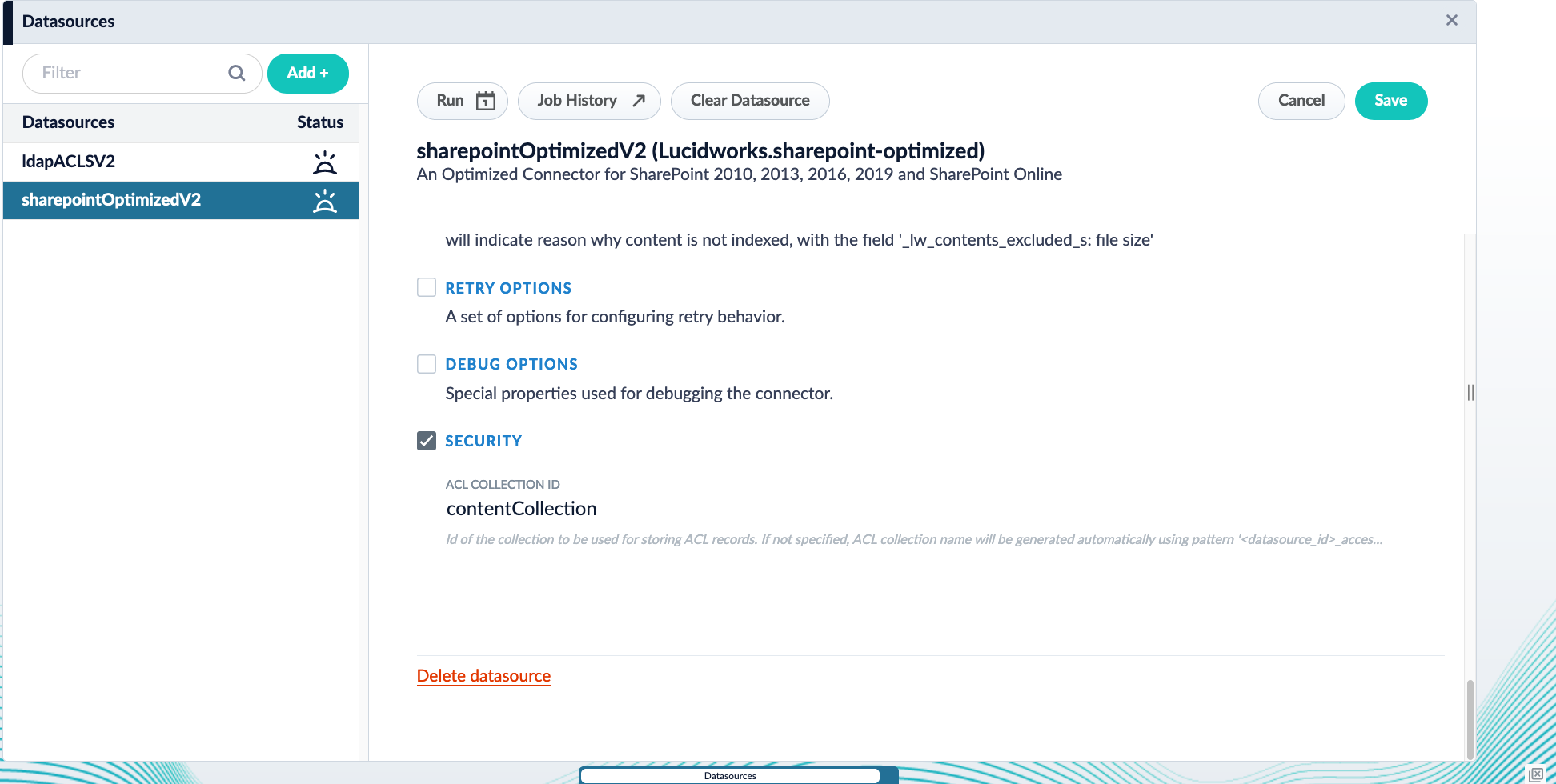
    The SharePoint Optimized V2 and LDAP ACLs V2 datasources must index the content documents and ACL documents to the same collection. Ensure both datasources use the same value, `contentCollection`, for the field **ACL Collection ID**.

    #### If using SharePoint-Optimized and LDAP-ACLs \< v2.0.0

    Update the **ACL Collection Id** in the datasource configuration.

    The SharePoint-Optimized and LDAP-ACLs datasources must index their `content_documents` and `acl_documents` to the same collection. Make sure the property **Security** -> **ACL Collection**  in both datasources have the same value. In both datasources, SharePoint-Optimized and LDAP-ACLs, check the property **Security** -> **ACL Collection Id** and make sure it points to the same content-collection.

    1. Navigate to **Indexing > Datasources**.
    2. Open your SharePoint Optimized V2 or LDAP ACLs V2 datasource.
    3. Under **Security**, update the configuration to use `contentCollection` as the **ACL Collection ID**.

           <img src="https://mintcdn.com/lucidworks/VKnUHJXP6sWH55ak/assets/images/5.8/sharepointConfigGraphSec.png?fit=max&auto=format&n=VKnUHJXP6sWH55ak&q=85&s=ad02d6bef7e2b7465f2a747caf0b5c82" alt="Datasource config for Fusion 5.8 with Graph Security Trimming" width="1944" height="980" data-path="assets/images/5.8/sharepointConfigGraphSec.png" />

       <Tip>   The **Security** checkbox must be checked for this field to appear.</Tip>
    4. Save the configuration.

    Repeat this process for all required datasources.

    #### If using SharePoint-Optimized and LDAP-ACLs >= v2.0.0

    Recreate or update the datasources. If only updated, it is not possible to go back to the configuration of a previous plugin version.

    By default, the LDAP-ACLs and SharePoint-Optimized V2 datasources will index the `content_documents` and `acl_documents` to the same collection.

    1. Navigate to **Indexing > Datasources**.
    2. Open your SharePoint Optimized V2 or LDAP ACLs V2 datasource.
    3. Under **Graph Security Filtering Configuration**, select **Enable security trimming**.

    Repeat this process for all required datasources.

    ## Set up Graph Security Trimming

    A [Graph Security Trimming stage](/docs/5/fusion/reference/config-ref/pipeline-stages/query-stages/security-trimming-graph-query-stage) is used to pull all nested groups for a user. Then the Solr join query takes those ACL IDs found in the graph query and filters out everything that does not match one of the ACLs.

    1. Navigate to **Querying** > **Query Pipelines**.

    2. Open the query pipeline associated with your SharePoint Optimized V2 or LDAP ACLs V2 data.

    3. Click **Add a new pipeline stage** and select **Graph Security Trimming**.

    4. Configure the stage with the following settings:

       |                    |                                   |
       | ------------------ | --------------------------------- |
       | Field              | Value                             |
       | **User ID source** | `query_param` or `header`         |
       | **User ID key**    | The key that contains the User ID |

    5. If you are using Fusion 5.9.3 or earlier, configure the following additional fields, which were removed in Fusion 5.9.4:

    | Field                   | Value               |
    | ----------------------- | ------------------- |
    | **ACL solr collection** | `contentCollection` |
    | **Join method**         | `topLevelDV`        |
    | **Join Field**          | `_lw_acl_ss`        |

    ## Test the configuration

    To confirm that security trimming works as configured, run the following test:

    1. First, run the SharePoint Optimized V2 and LDAP ACLs V2 datasources.
    2. Run a series of queries to test user permissions are working as intended:
       1. Run a query using a User ID key with no permissions. You should see no search results.
       2. Run a query using a User ID key that has access to some documents. You should see some search results.
       3. Run a query using a User ID key that has access to all documents. You should see all documents.

          <Note>      Facet by `_lw_document_type_s: contentDocument` to see only the SharePoint docs, otherwise aclDocuments will be also shown.</Note>
  </Accordion>

  <Accordion title="Migrate older Fusion Graph Security Trimming stage setups to Fusion 5.9">
    This describes how to migrate your pre-Fusion 5.8 Graph Security Trimming query pipeline stage setup to Fusion 5.8 or later. It applies to deployments using:

    * SharePoint Optimized V2 connector v1.1.0 or later
    * LDAP ACLs V2 connector v1.4.0 or later to crawl Active Directory in Azure
    * The LDAP ACLs V2 connector v1.2.0 or later to crawl Active Directory in LDAP

    ## Migration

    To migrate a deployment that is crawling Active Directory to Fusion 5.8 or later, follow these steps.

    ### Update the datasource configurations

    The SharePoint Optimized V2 and LDAP ACLs V2 datasources must index the content documents and ACL documents to the same collection. Ensure both datasources use the same value, `contentCollection`, for the field **ACL Collection ID**.

    #### If using SharePoint-Optimized and LDAP-ACLs \< v2.0.0

    Update the **ACL Collection Id** in the datasource configuration.

    The SharePoint-Optimized and LDAP-ACLs datasources must index their `content_documents` and `acl_documents` to the same collection. Make sure the property **Security** -> **ACL Collection**  in both datasources have the same value. In both datasources, SharePoint-Optimized and LDAP-ACLs, check the property **Security** -> **ACL Collection Id** and make sure it points to the same content-collection.

    1. Navigate to **Indexing > Datasources**.
    2. Open your SharePoint Optimized V2 or LDAP ACLs V2 datasource.
    3. Under **Security**, update the configuration to use `contentCollection` as the **ACL Collection ID**. The **Security** checkbox must be checked for this field to appear.
    4. Save the configuration.

    Repeat this process for all required datasources.

    #### If using SharePoint-Optimized and LDAP-ACLs >= v2.0.0

    Recreate or update the datasources. If only updated, it is not possible to go back to the configuration of a previous plugin version.

    By default, the LDAP-ACLs and SharePoint-Optimized V2 datasources will index the `content_documents` and `acl_documents` to the same collection.

    1. Navigate to **Indexing > Datasources**.
    2. Open your SharePoint Optimized V2 or LDAP ACLs V2 datasource.
    3. Under **Graph Security Filtering Configuration**, select **Enable security trimming**.

    Repeat this process for all required datasources.

    ### Clear the datasources and perform a full crawl

    1. Navigate to **Indexing > Datasources**.
    2. Open your SharePoint Optimized V2 or LDAP ACLs V2 datasource.
    3. Click the **Clear Datasource** button, and choose yes.
    4. Navigate to **Collections > Collections Manager**.
    5. Verify that the `job_state` collection is empty.
    6. Return to your datasource.
    7. Click **Run > Start** to reindex your data.

    Repeat this process for all required datasources.
  </Accordion>
</AccordionGroup>

<Card title="Configuring Graph Security Trimming" class="note-image" href="https://academy.lucidworks.com/configuring-graph-security-trimming" cta="Take this course on the LucidAcademy." icon="graduation-cap" iconType="duotone">
  The quick learning for **Configuring Graph Security Trimming** focuses on how to set up security trimming.
</Card>

## Query pipeline stage condition examples

Stages can be triggered conditionally when a script in the **Condition** field evaluates to true.
Some examples are shown below.

Run this stage only for mobile clients:

```js wrap  theme={"dark"}
params.deviceType === "mobile"
```

Run this stage when debugging is enabled:

```js wrap  theme={"dark"}
params.debug === "true"
```

Run this stage when the query includes a specific term:

```js wrap  theme={"dark"}
params.q && params.q.includes("sale")
```

Run this stage when multiple conditions are met:

```js wrap  theme={"dark"}
request.hasParam("fusion-user-name") && request.getFirstParam("fusion-user-name").equals("SuperUser");
!request.hasParam("isFusionPluginQuery")
```

The first condition checks that the request parameter "fusion-user-name" is present and has the value "SuperUser".
The second condition checks that the request parameter "isFusionPluginQuery" is not present.

## Configuration

<Tip>
  When entering configuration values in the UI, use *unescaped* characters, such as `\t` for the tab character. When entering configuration values in the API, use *escaped* characters, such as `\\t` for the tab character.
</Tip>

<SchemaParamFields schema={schema} />
