> ## Documentation Index
> Fetch the complete documentation index at: https://doc.lucidworks.com/llms.txt
> Use this file to discover all available pages before exploring further.
# Built-in SQL Aggregation Jobs
export const LwTemplate = ({title = "Key questions to get you started", icon = "sparkles", cta = "Powered by Agent Studio", linkHref = "https://lucidworks.com/demo/?utm_source=docs&utm_medium=referral&utm_campaign=docs_cta_ai"}) => {
const [isLoaded, setIsLoaded] = useState(false);
useEffect(() => {
const timer = setTimeout(() => {
setIsLoaded(true);
}, 500);
return () => clearTimeout(timer);
}, []);
return
{isLoaded && `
}} />}
Powered by Lucidworks Agent Studio
;
};
[localhost link]: http://localhost:3000/docs/5/fusion/reference/config-ref/jobs/aggregations/built-in-sql-aggregation-jobs
[mintlify link]: https://doc.lucidworks.com/docs/5/fusion/reference/config-ref/jobs/aggregations/built-in-sql-aggregation-jobs
[old doc.lw link]: https://doc.lucidworks.com/fusion/5.9/585
SQL aggregation jobs can also be set up using source files in Cloud Storage buckets.
Built-in SQL aggregation jobs can be set up to use source files in Cloud storage buckets.
This process can be used with the following data types and Cloud storage systems:
* File formats such as `.parquet` and `.orc` files
* Cloud storage systems such as Google Cloud Storage (GCS), Amazon Web Services (AWS), and Azure Kubernetes Service (AKS).
## Configure Parameters
The examples in this subsection use placeholder values:
* ``: name of the Solr GCS service account key.
* ``: path to the Solr GCS service account key.
### Google Cloud Storage (GCS)
1. Create a Kubernetes secret with the necessary credentials.
2. Create a secret containing the credentials JSON file:
```bash wrap theme={"dark"}
kubectl create secret generic --from-file=//.json
```
For more information, see [Creating and managing service account keys](https://cloud.google.com/iam/docs/creating-managing-service-account-keys).
3. Create an extra config map in Kubernetes.
1. Create a properties file:
```bash wrap theme={"dark"}
cat gcp-launcher.properties
spark.kubernetes.driverEnv.GOOGLE_APPLICATION_CREDENTIALS=/mnt/gcp-secrets/.json
spark.kubernetes.driver.secrets.=/mnt/gcp-secrets
spark.kubernetes.executor.secrets.=/mnt/gcp-secrets
spark.executorEnv.GOOGLE_APPLICATION_CREDENTIALS=/mnt/gcp-secrets/.json
spark.hadoop.google.cloud.auth.service.account.json.keyfile=/mnt/gcp-secrets/.json
```
2. Create the config map:
```bash theme={"dark"}
kubectl create configmap gcp-launcher --from-file=gcp-launcher.properties
```
4. Add the config map to `values.yaml`:
```yaml theme={"dark"}
configSources:
- gcp-launcher
```
5. When the secret is successfully created, set the following parameters.
Example value: `gs:///*.parquet`
URI path that contains the desired signal data files. This example returns all `.parquet` files in the specified directory using the `gs` scheme to access Google Cloud Storage (GCS).
Example value: `parquet`
File type of the input files. Valid values include `parquet` and `orc`.
Example value: `/mnt/gcp-secrets`
The `{secret-name}` obtained during configuration. Example: `example-serviceaccount-key`.
Example value: `/mnt/gcp-secrets`
The `{secret-name}` obtained during configuration. Example: `example-serviceaccount-key`.
Example value: `/mnt/gcp-secrets/{secret-name}.json`
Path to the `.json` file used to create the `{secret-name}`. Example: `example-serviceaccount-key.json`.
Example value: `/mnt/gcp-secrets/{secret-name}.json`
Path to the `.json` file used to create the `{secret-name}`. Example: `example-serviceaccount-key.json`.
Example value: `/mnt/gcp-secrets/{secret-name}.json`
Path to the `.json` file used to create the `{secret-name}`. Example: `example-serviceaccount-key.json`.
### Amazon Web Services (AWS)
1. Create a secret:
```bash wrap theme={"dark"}
kubectl create secret generic aws-secret --from-literal=key='' --from-literal=secret=''
```
2. Create AWS properties:
```bash wrap theme={"dark"}
cat aws-launcher.properties
spark.kubernetes.driver.secretKeyRef.AWS_ACCESS_KEY_ID=aws-secret:key
spark.kubernetes.driver.secretKeyRef.AWS_SECRET_ACCESS_KEY=aws-secret:secret
spark.kubernetes.executor.secretKeyRef.AWS_ACCESS_KEY_ID=aws-secret:key
spark.kubernetes.executor.secretKeyRef.AWS_SECRET_ACCESS_KEY=aws-secret:secret
```
3. Create the config map:
```bash theme={"dark"}
kubectl create configmap aws-launcher --from-file=aws-launcher.properties
```
4. Add the config map to `values.yaml`:
```yaml theme={"dark"}
configSources:
- aws-launcher
```
5. When the secret is successfully created, set the following parameters.
Example value: `s3a:///*.parquet`
URI path that contains the desired signal data files. This example returns all `.parquet` files in the specified directory using the `s3a` scheme to access AWS S3.
Example value: `parquet`
File type of the input files. Valid values include `parquet` and `orc`.
Example value: `{aws-secret-key}`
The `aws-secret:key` obtained during configuration.
Example value: `{aws-secret-secret}`
The `aws-secret:secret` obtained during configuration.
Example value: `{aws-secret-key}`
The `aws-secret:key` obtained during configuration.
Example value: `{aws-secret-secret}`
The `aws-secret:secret` obtained during configuration.
### Azure Data Lake
1. Manually upload the `core-site.xml` file into the `job-launcher` pod at `/app/spark-dist/conf`:
```xml theme={"dark"}
dfs.adls.oauth2.access.token.provider.typeClientCredentialdfs.adls.oauth2.refresh.url Insert Your OAuth 2.0 Endpoint URL Value Here dfs.adls.oauth2.client.id Insert Your Application ID Here dfs.adls.oauth2.credentialInsert the Secret Key Value Herefs.adl.implorg.apache.hadoop.fs.adl.AdlFileSystemfs.AbstractFileSystem.adl.implorg.apache.hadoop.fs.adl.Adl
```
At this time, only Data Lake Gen 1 is supported.
2. When the secret is successfully created, set the following parameters.
Example value: `wasbs:///*.parquet`
URI path that contains the desired signal data files. This example returns all Parquet files in the directory. `wasbs` is used for Azure data.
Example value: `parquet`
File type of the input files. Valid values include `parquet` and `orc`.
Example value: `org.apache.hadoop.fs.azure.NativeAzureFileSystem`
Makes the system file available inside the Spark job.
Example value: `{access-key-value}`
Obtain the values for `{storage-account-name}` and `{access-key-value}` from the Azure UI.
When you create a new Fusion app, Fusion automatically creates the `COLLECTION_NAME_signals` and `COLLECTION_NAME_signals_aggr` collections, plus the aggregation jobs described below. You can view these jobs at **collections** > **jobs**.
| Job | Default input collection | Default output collection | Default schedule |
| ----------------------------------------------------------------------------------------- | ------------------------- | ------------------------------ | ---------------- |
| [`COLLECTION_NAME_click_signals_aggregation`](#collection-name-click-signals-aggregation) | `COLLECTION_NAME_signals` | `COLLECTION_NAME_signals_aggr` | Every 15 minutes |
| [`COLLECTION_NAME_session_rollup`](#collection-name-session-rollup) | `COLLECTION_NAME_signals` | `COLLECTION_NAME_signals` | Every 15 minutes |
When you [enable recommendations](/docs/5/fusion/getting-data-out/query-enhancement/recommendations/getting-started#enable-recommendations), Fusion automatically creates these additional aggregation jobs:
| Job | Default input collection | Default output collection | Default schedule |
| ------------------------------------------------------------------------------------------- | ------------------------- | ------------------------------ | ---------------- |
| [`COLLECTION_NAME_user_item_prefs_agg`](#collection-name-user-item-preferences-aggregation) | `COLLECTION_NAME_signals` | `COLLECTION_NAME_recs_aggr` | Once per day |
| [`COLLECTION_NAME_user_query_history_agg`](#collection-name-user-query-history-aggregation) | `COLLECTION_NAME_signals` | `COLLECTION_NAME_signals_aggr` | Once per day |
## COLLECTION\_NAME\_click\_signals\_aggregation
The `COLLECTION_NAME_click_signals_aggregation` job computes a time-decayed weight for each document, query, and filters group in the signals collection. Fusion computes the weight for each group using an exponential time-decay on signal count (30 day half-life) and a weighted sum based on the signal type. This approach gives more weight to a signal that represents a user purchasing an item than to a user just clicking on an item.
| | query | count\_i | type | timestamp\_tdt | user\_id | doc\_id | session\_id | fusion\_query\_id |
| ------------------------ | ----- | -------- | ---- | -------------- | -------- | ------- | ----------- | ----------------- |
| Required signals fields: | ✅ | ✅ | ✅ | ✅ | | ✅ | | See note below. |
**Note:** Required if you are using response signals.
You can customize the signal types and weights for this job by changing the `signalTypeWeights` SQL parameter in the Fusion Admin UI.
When the SQL aggregation job runs, Fusion translates the `signalTypeWeights` parameter into a `WHERE IN` clause to filter signals by the specified types (click, cart, purchase), and also passes the parameter into the `weighted_sum` SQL function. Notice that Fusion only displays the SQL parameters and not the actual SQL for this job. This is to simplify the configuration because, in most cases, you only need to change the parameters and not worry about the actual SQL. However, if you need to change the SQL for this job, you can edit it under the **Advanced** toggle on the form.
A user can configure the `COLLECTION_NAME_click_signals_aggregation` job to use a parquet file as the source of raw signals instead of a signal Fusion collection.
## COLLECTION\_NAME\_session\_rollup
The `COLLECTION_NAME_session_rollup` job aggregates related user activity into a session signal that contains activity count, duration, and keywords (based on user search terms).
The Fusion App Insights application uses this job to show reports about user sessions.
Use the `elapsedSecsSinceLastActivity` and `elapsedSecsSinceSessionStart` parameters to determine when a user session is considered to be complete. You can edit the SQL using the **Advanced** toggle.
The `COLLECTION_NAME_session_rollup` job uses signals as the input collection and output collection. Unlike other aggregation jobs that write aggregated documents to the `COLLECTION_NAME_signals_aggr` collection, the `COLLECTION_NAME_session_rollup` job creates session signals and saves them to the `COLLECTION_NAME_signals` collection.
## COLLECTION\_NAME\_user\_item\_prefs\_agg
The `COLLECTION_NAME_user_item_preferences_aggregation` job computes an aggregated weight for each user/item combination found in the signals collection. The weight for each group is computed using an exponential time-decay on signal count (30 day half-life) and a weighted sum based on the signal type.
| | query | count\_i | type | timestamp\_tdt | user\_id | doc\_id | session\_id | fusion\_query\_id |
| ------------------------ | ----- | -------- | ---- | -------------- | -------- | ------- | ----------- | ----------------- |
| Required signals fields: | | ✅ | ✅ | ✅ | ✅ | ✅ | | |
This job is a prerequisite for the [BPR Recommender job](/docs/5/fusion/reference/config-ref/jobs/bpr-recommender).
**Job configuration tips:**
* In the job configuration panel, click **Advanced** to see all of the available options.
* When aggregating signals for the first time, uncheck the **Aggregate and Merge with Existing** checkbox. In production, once the jobs are running automatically then this box can be checked. Note that if you want to discard older signals then by unchecking this box those old signals will essentially be replaced completely by the new ones.
* If the original signal data has missing fields, edit the SQL query to fill in missing values for fields such as “count\_i” (the number of times a user interacted with an item in a session).
* Sometimes the aggregation job can run faster by unchecking the **Job Skip Check Enabled** box. Do this when first loading the signals.
* Use the `signalTypeWeights` SQL parameter to set the correct signal types and weights for your dataset. Its value is a comma-delimited list of signal types and their stakeholder-defined level of importance. Think of this numeric value as a weight that tells which type of signal is most important for determining a user’s interest in an item. An example of how to weight the signal types is shown below:
```sql theme={"dark"}
signal_type_1:1.0, signal_type_2: 3.0, signal_type_3: 20.0
```
[Rank your signal types](/docs/5/fusion/getting-data-out/query-enhancement/signals/overview) to determine which types should be added. Add only the signal types that are significant. Signal types that are not added to the list will not be included in the aggregation job, and for some signal types this is fine.\
The weights should be within orders of magnitude of each other. The spread of values should not be wide. For instance, `click:1.0, cart:100000.0` is too wide of a spread. The values of `click:1.0` and `cart:50.0` would be a reasonable setting, indicating that the signal type of `cart` is 50 times more important for measuring a user’s interest in an item.
* The Time Range field value is used in a weight decay function that reduces the importance of signals the older they are. This time range is in days and the default is 30 days. If you want to increase this time because the time duration of your signals is greater than 30 days, edit the SQL query to reflect the desired number of days. The SQL query is visible when you click **Advanced** in the job configuration panel. Modify the following line in the SQL query, changing "30 days" to your desired timeframe:
```sql wrap theme={"dark"}
time_decay(count_i, timestamp_tdt, "30 days", ref_time, weight_d) AS typed_weight_d
```
If recommendations are enabled for your collection, then the ALS recommender job is automatically created with the name `COLLECTION_NAME_item_recommendations` and scheduled to run after this job completes. Consequently, you should only run this aggregation once or twice a day, because training a recommender model is a complex, long-running job that requires significant resources from your Fusion cluster.
## COLLECTION\_NAME\_user\_query\_history\_agg
The `COLLECTION_NAME_user_query_history_aggregation` job computes an aggregated weight for each user/query combination found in the signals collection. The weight for each group is computed using an exponential time-decay on signal count (30 day half-life) and a weighted sum based on the signal type. Use the `signalTypeWeights` parameter to set the correct signal types and weights for your dataset. You can use the results of this job to boost queries for a user based on their past query activity.
| | query | count\_i | type | timestamp\_tdt | user\_id | doc\_id | session\_id | fusion\_query\_id |
| ------------------------ | ----- | -------- | ---- | -------------- | -------- | ------- | ----------- | ----------------- |
| Required signals fields: | ✅ | ✅ | ✅ | ✅ | ✅ | | | |
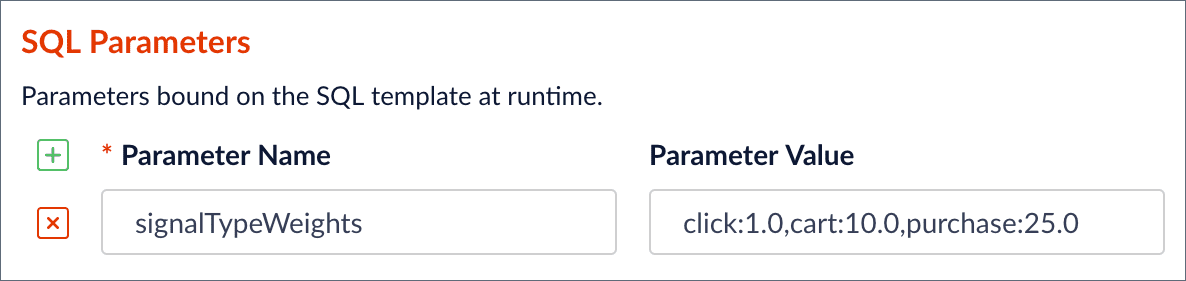 When the SQL aggregation job runs, Fusion translates the `signalTypeWeights` parameter into a `WHERE IN` clause to filter signals by the specified types (click, cart, purchase), and also passes the parameter into the `weighted_sum` SQL function. Notice that Fusion only displays the SQL parameters and not the actual SQL for this job. This is to simplify the configuration because, in most cases, you only need to change the parameters and not worry about the actual SQL. However, if you need to change the SQL for this job, you can edit it under the **Advanced** toggle on the form.