> ## Documentation Index
> Fetch the complete documentation index at: https://doc.lucidworks.com/llms.txt
> Use this file to discover all available pages before exploring further.
# Multiple Zones for High Availability
export const LwTemplate = ({title = "Key questions to get you started", icon = "sparkles", cta = "Powered by Agent Studio", linkHref = "https://lucidworks.com/demo/?utm_source=docs&utm_medium=referral&utm_campaign=docs_cta_ai"}) => {
const [isLoaded, setIsLoaded] = useState(false);
useEffect(() => {
const timer = setTimeout(() => {
setIsLoaded(true);
}, 500);
return () => clearTimeout(timer);
}, []);
return
{isLoaded && `
}} />}
Powered by Lucidworks Agent Studio
;
};
export const InlineImage = ({src, alt = '', height = '2em'}) => {
return ;
};
[localhost link]: http://localhost:3000/docs/5/fusion/operations/survival-guide/high-availability
[mintlify link]: https://doc.lucidworks.com/docs/5/fusion/operations/survival-guide/high-availability
[old doc.lw link]: https://doc.lucidworks.com/fusion/5.9/151
Fusion relies on ZooKeeper to keep quorum. As a result, you need at least three ZooKeeper pods in an ensemble. ZooKeeper deploys as a StatefulSet in the Fusion Helm chart. With GKE, you can launch a [regional cluster](https://cloud.google.com/kubernetes-engine/docs/concepts/regional-clusters) that distributes nodes across three availability zones. With a multi-zone setup, your cluster can withstand the loss of one zone without experiencing downtime. However, you may experience degraded performance from losing one third of your total compute capacity, assuming your pods are evenly distributed. The multi-zone cluster also ensures higher availability for the Kubernetes control plane services.
Lucidworks provides affinity rules to ensure multiple pods per service get distributed across multiple zones. See **Configure Pod Affinity** for details on configuring.
Affinity rules govern how Kubernetes schedules pods for Fusion components across the cluster. All components have the same affinity setup, which follows this logic:
* When scheduling, prefer to put a pod on a node in an availability zone that doesn’t have a running instance of this component.
* Require that pods are deployed on a host that doesn’t have a running instance of the component that is being scheduled.
With this logic, the loss of a host can only bring down one component at most. However, the cluster must be at least as large as the number of replicas in the largest deployment.
To run a large number of a component, consider relaxing the "required" policy by changing it to a "preferred" policy on the hostname for the `kubernetes.io/hostname` policies:
| | |
| ------ | ------------------------------------------------ |
| Before | requiredDuringSchedulingIgnoredDuringExecution: |
| After | preferredDuringSchedulingIgnoredDuringExecution: |
If you used the `--with-affinity-rules` option when running the `./customize_fusion_values.sh` script, the pod affinity rules are configured for your cluster. Alternatively, copy [`affinity.yaml`](https://github.com/lucidworks/fusion-cloud-native/blob/master/example-values/affinity.yaml), and rename it using the following naming convention: `___fusion_affinity.yaml`.
To implement the file, append the following to your upgrade script:
```
MY_VALUES="${MY_VALUES} --values gke_search_f5_fusion_affinity.yaml"
```
When running in a multi-zone cluster, each Solr node has a `solr_zone` system property set to the zone it is running in, such as `-Dsolr_zone=us-west1-a`. This guide covers how to use the `solr_zone` property to distribute replicas across zones in the **Deploy Fusion at Scale** section. Setting the `solr_zone` property for Solr pods requires the Solr service account to have a ClusterRoleBinding that allows it to get node metadata from the Kubernetes API service.
Before you begin, see [Fusion Server Deployment](/docs/5/fusion/operations/deployment) to understand the architecture and requirements.
This article explains how to plan and execute a Fusion deployment at the scale required for staging or production.
While the `setup_f5_*.sh` scripts are handy for getting started and proof-of-concept purposes, this article covers the planning process for building a production-ready environment.
The course for **Preparing for Fusion Implementation** focuses on the key elements for a successful implementation, defining your business requirements, preparing clean data, and involving the right personnel.
## Prerequisites
You must meet the following prerequisites before you can customize your Fusion cluster:
* A local copy of the [fusion-cloud-native repository](https://github.com/lucidworks/fusion-cloud-native). This must be up-to-date with the latest master branch.
* Any cloud provider-specific **command line tools**, such as `gcloud` or `aws`, and `kubectl`.\
See the platform-specific instructions linked above, or check with your cloud provider.
* Helm v3
* To install on a Mac:
```bash theme={"dark"}
brew upgrade kubernetes-helm
```
* For other operating systems, download from [Helm Releases](https://github.com/helm/helm/releases).
* Verify your installation:
```bash theme={"dark"}
helm version --short
v3.0.0+ge29ce2a
```
* Kubernetes namespace
* Collect the following information about your Kubernetes environment:
* **CLUSTER**: Cluster name (passed to our setup scripts using the `-c` arg)
* **NAMESPACE**: Kubernetes namespace where to install Fusion; a namespace should only contain lowercase letters (a-z), digits (0-9), or dash. No periods or underscores allowed.
* *(optional)* Clarify your organization’s DockerHub policy. The Fusion Helm chart points to public Docker images on DockerHub. Your organization may not allow Kubernetes to pull images directly from DockerHub or may require extra security scanning before loading images into production clusters.\
Consult your Kubernetes and Docker admin team to find how to get the Fusion images loaded into a registry that’s accessible to your cluster. You can update the image for each service using the [custom values YAML file](#custom-values-yaml-file).
**Kubernetes namespace tips**
* Fusion 5 service discovery requires all services for the same release be deployed in the same namespace. Moreover, you should only run one instance of Fusion in a namespace. If you need multiple instances of Fusion running in the same Kubernetes cluster, then you need to deploy them in separate namespaces.
* If your organization requires CPU / Memory quotas for namespaces, you can start with a minimum of 12 CPU and 45GB of RAM (such as 3 x n1-standard-4 on GKE), but you will need to increase the quotas once you start load testing Fusion with production workloads and real datasets.
* Fusion requires at least 3 ZooKeeper nodes and 2 Solr nodes to achieve high availability.
## Custom values YAML file
1. Clone the `fusion-cloud-native` repository: `git clone https://github.com/lucidworks/fusion-cloud-native`
2. Run the `customize_fusion_values.sh` script.
```bash theme={"dark"}
./customize_fusion_values.sh --provider -c -n \
--num-solr 3 \
--solr-disk-gb 100 \
--node-pool \
--prometheus true \
--with-resource-limits \
--with-affinity-rules
```
Pass the `--help` parameter to see script usage details.
The script creates the following files:
| File | Description |
| --------------------------------------------------------- | ------------------------------------------------------------------------------------------------------------------ |
| `___fusion_values.yaml` | Main custom values YAML used to override Helm chart defaults for Fusion microservices. |
| `___monitoring_values.yaml` | Custom values yaml used to configure Prometheus and Grafana. |
| `___fusion_resources.yaml` | Resource requests and limits for all Microservices. |
| `___fusion_affinity.yaml` | Pod affinity rules to ensure multiple replicas for a single service are evenly distributed across zones and nodes. |
| `___upgrade_fusion.sh` | Script used to install and/or upgrade Fusion using the aforementioned custom values YAML files. |
For an explanation of these placeholder values, see [Configuration Values](#custom-values-yaml-file) below.
3. Add the new files to version control. You will make changes to it over time as you fine-tune your Fusion installation. You will also need it to perform upgrades. If you try to upgrade your Fusion installation and don’t provide the custom values YAML, your deployment will revert to chart defaults.\
Review the `___fusion_values.yaml` file to familiarize yourself with its structure and contents. Notice it contains a separate section for each of the Fusion microservices. The example configuration of the `query-pipeline` service below illustrates some important concepts about the custom values YAML file.
```yaml highlight={1,2,3,5,6} theme={"dark"}
query-pipeline:
enabled: true
nodeSelector:
cloud.google.com/gke-nodepool: default-pool
javaToolOptions: "..."
pod:
annotations:
prometheus.io/port: "8787"
prometheus.io/scrape: "true"
prometheus.io/path: "/actuator/prometheus"
```
4. Service-specific setting overrides under the top-level heading
5. Every Fusion service has an implicit enabled flag that defaults to true, set to false to remove this service from your cluster
6. Node selector identifies the label find nodes to schedule pods on
7. Used to pass JVM options to the service
8. Pod annotations to allow Prometheus to scrape metrics from the service
Once we go through all of the configuration topics in this topic, you’ll have a well-configured custom values YAML file for your Fusion 5 installation. You’ll then use this file during the Helm v3 installation at the end of this topic.
### Deployment-specific values
The script creates a custom values YAML file using the naming convention: `___fusion_values.yaml`. For example, `gke_search_f5_fusion_values.yaml`.
| Parameter | Description |
| ----------------- | -------------------------------------------------------------------------- |
| `` | The K8s platform you’re running on, such as `gke`. |
| `` | The name of your cluster. |
| `` | The K8s namespace where you want to install Fusion. |
| `` | Specifies a `nodeSelector` label to find nodes to schedule Fusion pods on. |
Providing the correct `--node-pool ` label is very important. Using the wrong value will cause your pods to be stuck in the `pending` state. If you’re not sure about the correct value for your cluster, pass ’{}'\` to let Kubernetes decide which nodes to schedule Fusion pods on.
Default `nodeSelector` labels are provider-specific. The `fusion-cloud-native` scripts use the following defaults for GKE and EKS:
| Provider | Default node selector |
| -------- | ------------------------------------------------ |
| GKE | cloud.google.com/gke-nodepool: default-pool |
| EKS | alpha.eksctl.io/nodegroup-name: standard-workers |
If you are deploying Fusion 5.9.12, add the following to your `values.yaml` file to avoid a known issue that prevents the `kuberay-operator` pod from launching successfully: `yaml kuberay-operator: crd: create: true `
### Flags
The script provides flags for additional configuration:
| Flag | Description |
| ------------------------ | ------------------------------------------------- |
| `--node-pool` | Add a Fusion specific label to your nodes. |
| `--with-resource-limits` | Configure resource requests/limits. |
| `--with-replicas` | Configure replica counts. |
| `--with-affinity-rules` | Configure pod affinity rules for Fusion services. |
Use `--node-pool` to add a Fusion specific label to your nodes by doing:
```bash theme={"dark"}
kubectl label fusion_node_type=
```
Then, pass `--node-pool 'fusion_node_type: '`.
## Configure Solr sizing
When you’re ready to build a production-ready setup for Fusion 5, you need to customize the Fusion Helm chart to ensure Fusion is well-configured for production workloads.
You’ll be able to scale the number of nodes for Solr up and down after building the cluster, but you need to establish the initial size of the nodes (memory and CPU) and the size and type of disks you need.
See the example config below to learn which parameters to change in the custom values YAML file.
```yaml expandable theme={"dark"}
solr:
resources: # Set resource limits for Solr to help K8s pod scheduling;
limits: # these limits are not just for the Solr process in the pod,
cpu: "7700m" # so allow ample memory for loading index files into the OS cache (mmap)
memory: "26Gi"
requests:
cpu: "7000m"
memory: "25Gi"
logLevel: WARN
nodeSelector:
fusion_node_type: search # Run this Solr StatefulSet in the "search" node pool
exporter:
enabled: true # Enable the Solr metrics exporter (for Prometheus) and
# schedule on the default node pool (system partition)
podAnnotations:
prometheus.io/scrape: "true"
prometheus.io/port: "9983"
prometheus.io/path: "/metrics"
nodeSelector:
cloud.google.com/gke-nodepool: default-pool
image:
tag: 8.4.1
updateStrategy:
type: "RollingUpdate"
javaMem: "-Xmx3g -Dfusion_node_type=system" # Configure memory settings for Solr
solrGcTune: "-XX:+UseG1GC -XX:-OmitStackTraceInFastThrow -XX:+UseStringDeduplication -XX:+PerfDisableSharedMem -XX:+ParallelRefProcEnabled -XX:MaxGCPauseMillis=150 -XX:+UseLargePages -XX:+AlwaysPreTouch"
volumeClaimTemplates:
storageSize: "100Gi" # Size of the Solr disk
replicaCount: 6 # Number of Solr pods to run in this StatefulSet
zookeeper:
nodeSelector:
cloud.google.com/gke-nodepool: default-pool
replicaCount: 3 # Number of Zookeepers
persistence:
size: 20Gi
resources: {}
env:
ZK_HEAP_SIZE: 1G
ZOO_AUTOPURGE_PURGEINTERVAL: 1
```
To be clear, you can tune GC settings and number of replicas after the cluster is built. But changing the size of the persistent volumes is more complicated so you should try to pick a good size initially.
### Configure storage class for Solr pods (optional)
If you wish to run with a storage class other than the default you can create a storage class for your Solr pods before you install. For example, to create regional disks in GCP you can create a file called `storageClass.yaml` with the following contents:
```yaml theme={"dark"}
kind: StorageClass
apiVersion: storage.k8s.io/v1
metadata:
name: solr-gke-storage-regional
provisioner: kubernetes.io/gce-pd
parameters:
type: pd-standard
replication-type: regional-pd
zones: us-west1-b, us-west1-c
```
and then provision into your cluster by calling:
```bash theme={"dark"}
kubectl apply -f storageClass.yaml
```
to then have Solr use the storage class by adding the following to the custom values YAML:
```yaml theme={"dark"}
solr:
volumeClaimTemplates:
storageClassName: solr-gke-storage-regional
storageSize: 250Gi
```
We’re not advocating that you must use regional disks for Solr storage, as that would be redundant with Solr replication. We’re just using this as an example of how to configure a custom storage class for Solr disks if you see the need. For instance, you could use regional disks without Solr replication for write-heavy type collections.
## Configure multiple node pools
Lucidworks recommends isolating search workloads from analytics workloads using multiple node pools. The included scripts do not do this for you; this is a manual process.
See the example script for GKE, see [create\_gke\_cluster\_node\_pools.sh](https://github.com/lucidworks/fusion-cloud-native/blob/master/additional_environments/create_gke_cluster_node_pools.sh).
In the custom values YAML file, you can add additional Solr StatefulSets by adding their names to the list under the `nodePools` property. If any property for that statefulset needs to be changed from the default set of values, then it can be set directly on the object representing the node pool, any properties that are omitted are defaulted to the base value. See the following example (additional whitespace added for display purposes only):
```yaml expandable highlight={3,4,9,17,22,31} theme={"dark"}
solr:
nodePools:
- name: ""
- name: "analytics"
javaMem: "-Xmx6g"
replicaCount: 6
storageSize: "100Gi"
nodeSelector:
fusion_node_type: analytics
resources:
requests:
cpu: 2
memory: 12Gi
limits:
cpu: 3
memory: 12Gi
- name: "search"
javaMem: "-Xms11g -Xmx11g"
replicaCount: 12
storageSize: "50Gi"
nodeSelector:
fusion_node_type: search
resources:
limits:
cpu: "7700m"
memory: "26Gi"
requests:
cpu: "7000m"
memory: "25Gi"
nodeSelector:
cloud.google.com/gke-nodepool: default-pool
...
```
1. The empty string `""` is the suffix for the default partition.
2. Overrides the settings for the **analytics** Solr pods.
3. Assigns the **analytics** Solr pods to the node pool and attaches the label `fusion_node_type=analytics`. You can use the `fusion_node_type` property in Solr auto-scaling policies to govern replica placement during collection creation.
4. Overrides the settings for the **search** Solr pods.
5. Assigns the **search** Solr pods to the node pool and attaches the label `fusion_node_type=search`.
6. Sets the default settings for all Solr pods, if not specifically overridden in the `nodePools` section above.
Do not edit the `nodePools` value `""`.
In the example above, the **analytics** partition `replicaCount`, or number of Solr pods, is six. The **search** partition `replicaCount` is twelve.
Each nodePool is automatically be assigned the -Dfusion\_node\_type property of ``, ``, or ``. This value matches the name of the nodePool. For example, `-Dfusion_node_type=`.
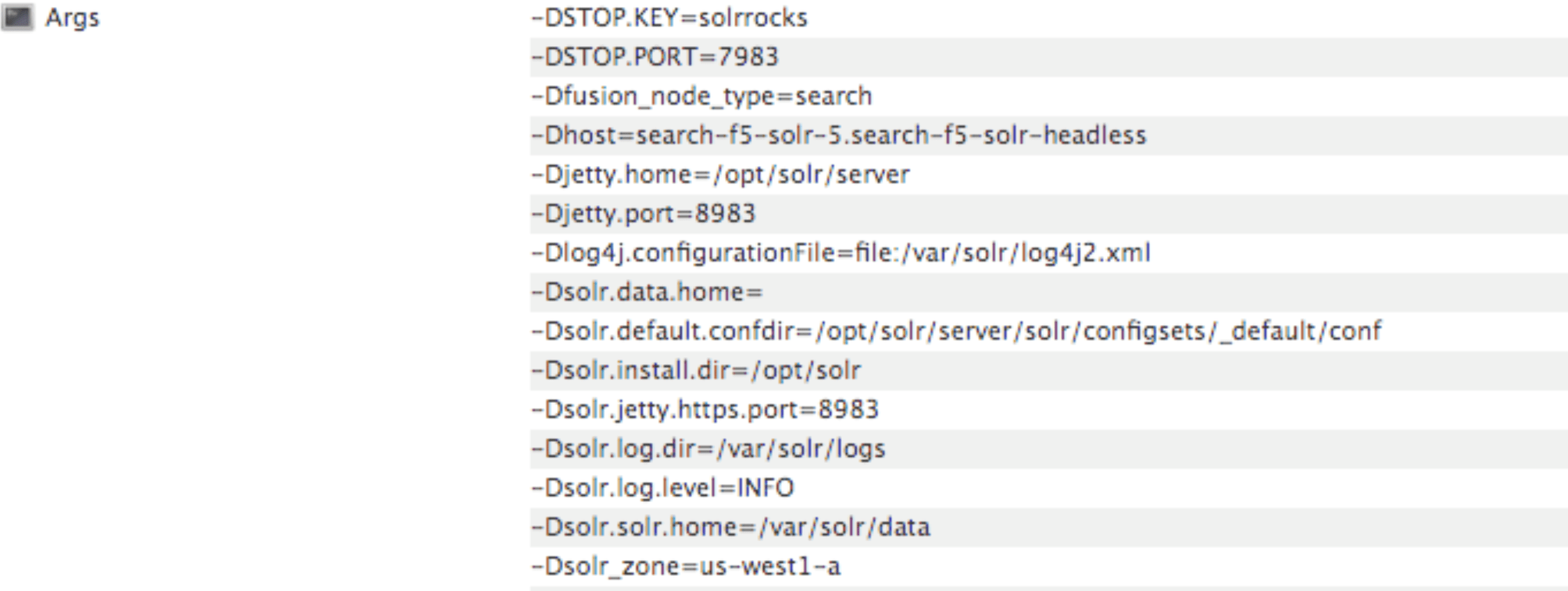
The Solr pods have a `fusion_node_type` system property, as shown below:
## Solr auto-scaling policy
Use [replica placement plugins](https://solr.apache.org/guide/solr/latest/configuration-guide/replica-placement-plugins.html) to control how replicas are placed in Solr.
## Pod network policy
A Kubernetes network policy governs how groups of pods communicate with each other and other network endpoints. With Fusion, all incoming traffic flows through the API Gateway service. All Fusion services in the same namespace expect an internal JWT, which is supplied by the Gateway, as part of the request. As a result, Fusion services enforce a basic level of API security and don’t need an additional network policy to protect them from other pods in the cluster.
To install the network policy for Fusion services, pass `--set global.networkPolicyEnabled=true` when installing the Fusion Helm chart.
## On-premises private Docker registries
For on-premises Kubernetes deployments, your organization may not allow Kubernetes to pull [Fusion’s Docker images from DockerHub](https://hub.docker.com/u/lucidworks/). See the instructions below for details on using a private Docker registry with Fusion. These are general instructions that may need to be adapted to work within your organization’s security policies:
1. Transfer the public images from DockerHub to your private Docker registry.
2. Establish a workstation that has access to [DockerHub](https://hub.docker.com). This workstation must connect to your internal Docker registry, most likely via VPN connection. In this example, the workstation is referred to as `envoy`.
3. Install Docker on `envoy`. You need at least 100GB of free disk for Docker.
4. Pull all of the images from DockerHub to `envoy`’s local registry. For example, to pull the query pipeline image, run `docker pull lucidworks/query-pipeline:5.9.0`. See `docker pull --help` for more information about pulling Docker images.
5. Establish a connection from `envoy` to the private Docker registry, most likely via a VPN connection. In this example, the private Docker registry is referred to as ``.
6. Push the images from `envoy`’s Docker registry to the private registry. This will take a long time.
1. You’ll need to re-tag all images for the internal registry. For example, to tag the query-pipeline image, run:
```bash theme={"dark"}
docker tag lucidworks/query-pipeline:5.9.0 /query-pipeline:5.9.0
```
2. Push each image to the internal repo:
```bash theme={"dark"}
docker push /query-pipeline:5.9.0
```
7. Install the Docker registry secret in Kubernetes. Create the Docker registry secret in the Kubernetes namespace where you want to install Fusion:
```bash theme={"dark"}
SECRET_NAME=
REPO=
kubectl create secret docker-registry "${SECRET_NAME}" \
--namespace "${NAMESPACE}" \
--docker-server="${REPO}" \
--docker-username=${REPO_USER} \
--docker-password=${REPO_PASS} \
--docker-email=${REPO_USER}
```
For details, see the Kubernetes article [Pull an Image from a Private Registry](https://kubernetes.io/docs/tasks/configure-pod-container/pull-image-private-registry/).
8. Update the custom values YAML for your cluster to point to your private registry and secret to allow Kubernetes to pull images. For example:
```yaml theme={"dark"}
query-pipeline:
image:
imagePullSecrets:
- name:
repository:
```
Repeat the process for all Fusion services.
### Customize Helm Chart
Every Fusion service allows you to override the `imagePullSecrets` setting using custom values YAML. However, other 3rd party services--including Zookeeper, Pulsar, Prometheus, and Grafana--don’t allow you to supply the pull secret using the custom values YAML.
To patch the default service account for your namespace and add the pull secret, run the following:
```bash theme={"dark"}
kubectl patch sa default -n $NAMESPACE \
-p '"imagePullSecrets": [{"name": "" }]'
```
In Windows using PowerShell or another CLI, you might have to escape the double quotes with a backslash (`\`) or reverse the order of single and double quotes:
```bash theme={"dark"}
kubectl patch sa default -n $NAMESPACE \
-p "'imagePullSecrets': [{'name': ''}]"
```
Replace `` with the name of the secret you created in the steps above.
This allows the default service account to pull images from the private registry without specifying the pull secret on the resources directly.
## Add additional trusted certificate(s) to Fusion’s indexing and querying services *(optional)*
You can add custom trusted certificates to support Fusion’s indexing and querying services. You may want to use custom trusted certificates if, for example, you have specific security requirements for data handling or need to support an existing infrastructure and its security needs. This method involves updating your Helm chart.
If you want to add custom trusted certificates for both the indexing and querying services, follow these instructions twice: once for the indexing service, and once for the querying service. To add different certificates to the indexing and querying services, create one YAML file with the indexing service certificates and one YAML file for the querying service certificates before following these instructions.
You may use the same YAML file if you want to use the same certificates for both services.
To add custom trusted certificates:
1. Create a new YAML file for your custom trusted certificates. The `customcerts.yaml` file is the example file in these instructions.
2. Add the custom certificate(s) in the YAML file created in the previous step. For example:
```yaml theme={"dark"}
trustedCertificates:
enabled: true
files:
some.cert: |-
-----BEGIN CERTIFICATE-----
MIIDeTCCAmGgAwIBAgIJAPziuikCTox4MA0GCSqGSIb3DQEBCwUAMGIxCzAJBgNV
(...)
EVA0pmzIzgBg+JIe3PdRy27T0asgQW/F4TY61Yk=
-----END CERTIFICATE-----
other.cert: |-
-----BEGIN CERTIFICATE-----
MIIDeTCCAmGgAwIBAgIJAPziuikCTox4MA0GCSqGSIb3DQEBCwUAMGIxCzAJBgNV
(...)
EVA0pmzIzgBg+JIe3PdRy27T0asgQW/F4TY61Yk=
-----END CERTIFICATE---------
```
3. Update the indexing or querying service by running the following Helm command. Replace `EXAMPLE-VALUES-FILE.yaml` with your previous values file.
```bash theme={"dark"}
helm upgrade --install --namespace ${EXAMPLE-NAMESPACE} ${HELM-RELEASE} ${HELM-CHART-PATH} --values EXAMPLE-VALUES-FILE.yaml --values customcerts.yaml
```
4. Verify the indexing or querying pod has a new `init-container` with the name `import-certs`.
## Add additional trusted certificate(s) for connectors to allow crawling of web resources with SSL/TLS enabled *(optional)*
To crawl a datasource which for some reason is using a self-signed certificate, add arbitrary certificates to connectors. For example:
```yaml wrap expandable theme={"dark"}
classic-rest-service:
trustedCertificates:
enabled: true
files:
some.cert: |-
-----BEGIN CERTIFICATE-----
MIIDeTCCAmGgAwIBAgIJAPziuikCTox4MA0GCSqGSIb3DQEBCwUAMGIxCzAJBgNV
(...)
EVA0pmzIzgBg+JIe3PdRy27T0asgQW/F4TY61Yk=
-----END CERTIFICATE-----
other.cert: |-
-----BEGIN CERTIFICATE-----
MIIDeTCCAmGgAwIBAgIJAPziuikCTox4MA0GCSqGSIb3DQEBCwUAMGIxCzAJBgNV
(...)
EVA0pmzIzgBg+JIe3PdRy27T0asgQW/F4TY61Yk=
-----END CERTIFICATE---------
connector-plugin:
trustedCertificates:
enabled: true
files:
some.cert: |-
-----BEGIN CERTIFICATE-----
MIIDeTCCAmGgAwIBAgIJAPziuikCTox4MA0GCSqGSIb3DQEBCwUAMGIxCzAJBgNV
(...)
EVA0pmzIzgBg+JIe3PdRy27T0asgQW/F4TY61Yk=
-----END CERTIFICATE-----
other.cert: |-
-----BEGIN CERTIFICATE-----
MIIDeTCCAmGgAwIBAgIJAPziuikCTox4MA0GCSqGSIb3DQEBCwUAMGIxCzAJBgNV
(...)
EVA0pmzIzgBg+JIe3PdRy27T0asgQW/F4TY61Yk=
-----END CERTIFICATE---------
```
### Generating the certificate on linux command line
Use the following command to generate a `.crt` file in `$fusion_home/apps/jetty/connectors/etc/yourcertname.crt`:
```bash theme={"dark"}
openssl s_client -servername remote.server.net -connect remote.server.net:443 $fusion_home/apps/jetty/connectors/etc/yourcertname.crt
```
### Generating the certificate using Firefox web browser
1. Navigate to the SharePoint host.
2. Click the in the address bar, then click the icon.
3. Next, navigate to **More Information** > **View Certificate** > **Export**.\
Save the file to the following folder:
`$fusion_home/apps/jetty/connectors/etc/yourcertname.crt`
### Generating the certificate using Chrome web browser
1. Navigate to **Chrome menu** > **More Tools** > **Developer Tools** > **Security Tab**.
This will display the **Security overview**.
2. Click the **View certificate** button.
3. Save the file to the following folder:
`$fusion_home/apps/jetty/connectors/etc/yourcertname.crt`
### Generating the certificate using powershell
Use the following script to generate a `.crt`` file in `\$fusion\_home\apps\jetty\connectors\etc\yourcertname.crt\`\`:
```bash theme={"dark"}
$fusion_home = c:\your\fusion\install\directory
$webRequest = [Net.WebRequest]::Create("https://your-hostname")
try { $webRequest.GetResponse() } catch {}
$cert = $webRequest.ServicePoint.Certificate
$bytes = $cert.Export([Security.Cryptography.X509Certificates.X509ContentType]::Cert)
set-content -value $bytes -encoding byte -path "$fusion_home\apps\jetty\connectors\etc\yourcertname.binary.crt"
certutil -encode "$fusion_home\apps\jetty\connectors\etc\yourcertname.binary.crt" "$fusion_home\apps\jetty\connectors\etc\yourcertname.crt"
rm "$fusion_home\apps\jetty\connectors\etc\yourcertname.binary.crt" -f
```
## Install Fusion 5 on Kubernetes
At this point, you’re ready to install Fusion 5 using the custom values YAML files and upgrade script. If you used the `customize_fusion_values.sh` script, run it using BASH:
```bash theme={"dark"}
./gke_search_f5_upgrade_fusion.sh
```
Once the installation is complete, verify your Fusion installation is running correctly.
## Monitoring Fusion with Prometheus and Grafana
Lucidworks recommends using Prometheus and Grafana for monitoring the performance and health of your Fusion cluster. Your operations team may already have these services installed. If not, install them into the Fusion namespace.
The [Custom values YAML file shown above](#custom-values-yaml-file) activates the Solr metrics exporter service and adds pod annotations so Prometheus can scrape metrics from Fusion services.
1. Run the `customize_fusion_values.sh` script with the `--prometheus true` option. This creates an extra custom values YAML file for installing Prometheus and Grafana, `___monitoring_values.yaml`. For example: `gke_search_f5_monitoring_values.yaml`.
2. Commit the YAML file to version control.
3. Review its contents to ensure that the settings suit your needs. For example, decide how long you want to keep metrics. The default is 36 hours.\
See the [Prometheus documentation](https://github.com/helm/charts/tree/master/stable/prometheus) and [Grafana documentation](https://github.com/helm/charts/tree/master/stable/grafana) for details.
4. Run the `install_prom.sh` script to install Prometheus & Grafana in your namespace. Include the provider, cluster name, namespace, and helm release as in the example below:
```bash theme={"dark"}
./install_prom.sh --provider gke -c search -n f5 -r 5-5-1
```
Pass the `--help` parameter to see script usage details.
The Grafana dashboards from [monitoring/grafana](https://github.com/lucidworks/fusion-cloud-native/tree/master/monitoring/grafana) are installed automatically by the `install_prom.sh` script.
 ## Solr auto-scaling policy
Use [replica placement plugins](https://solr.apache.org/guide/solr/latest/configuration-guide/replica-placement-plugins.html) to control how replicas are placed in Solr.
## Pod network policy
A Kubernetes network policy governs how groups of pods communicate with each other and other network endpoints. With Fusion, all incoming traffic flows through the API Gateway service. All Fusion services in the same namespace expect an internal JWT, which is supplied by the Gateway, as part of the request. As a result, Fusion services enforce a basic level of API security and don’t need an additional network policy to protect them from other pods in the cluster.
To install the network policy for Fusion services, pass `--set global.networkPolicyEnabled=true` when installing the Fusion Helm chart.
## On-premises private Docker registries
For on-premises Kubernetes deployments, your organization may not allow Kubernetes to pull [Fusion’s Docker images from DockerHub](https://hub.docker.com/u/lucidworks/). See the instructions below for details on using a private Docker registry with Fusion. These are general instructions that may need to be adapted to work within your organization’s security policies:
1. Transfer the public images from DockerHub to your private Docker registry.
2. Establish a workstation that has access to [DockerHub](https://hub.docker.com). This workstation must connect to your internal Docker registry, most likely via VPN connection. In this example, the workstation is referred to as `envoy`.
3. Install Docker on `envoy`. You need at least 100GB of free disk for Docker.
4. Pull all of the images from DockerHub to `envoy`’s local registry. For example, to pull the query pipeline image, run `docker pull lucidworks/query-pipeline:5.9.0`. See `docker pull --help` for more information about pulling Docker images.
5. Establish a connection from `envoy` to the private Docker registry, most likely via a VPN connection. In this example, the private Docker registry is referred to as `
## Solr auto-scaling policy
Use [replica placement plugins](https://solr.apache.org/guide/solr/latest/configuration-guide/replica-placement-plugins.html) to control how replicas are placed in Solr.
## Pod network policy
A Kubernetes network policy governs how groups of pods communicate with each other and other network endpoints. With Fusion, all incoming traffic flows through the API Gateway service. All Fusion services in the same namespace expect an internal JWT, which is supplied by the Gateway, as part of the request. As a result, Fusion services enforce a basic level of API security and don’t need an additional network policy to protect them from other pods in the cluster.
To install the network policy for Fusion services, pass `--set global.networkPolicyEnabled=true` when installing the Fusion Helm chart.
## On-premises private Docker registries
For on-premises Kubernetes deployments, your organization may not allow Kubernetes to pull [Fusion’s Docker images from DockerHub](https://hub.docker.com/u/lucidworks/). See the instructions below for details on using a private Docker registry with Fusion. These are general instructions that may need to be adapted to work within your organization’s security policies:
1. Transfer the public images from DockerHub to your private Docker registry.
2. Establish a workstation that has access to [DockerHub](https://hub.docker.com). This workstation must connect to your internal Docker registry, most likely via VPN connection. In this example, the workstation is referred to as `envoy`.
3. Install Docker on `envoy`. You need at least 100GB of free disk for Docker.
4. Pull all of the images from DockerHub to `envoy`’s local registry. For example, to pull the query pipeline image, run `docker pull lucidworks/query-pipeline:5.9.0`. See `docker pull --help` for more information about pulling Docker images.
5. Establish a connection from `envoy` to the private Docker registry, most likely via a VPN connection. In this example, the private Docker registry is referred to as `