> ## Documentation Index
> Fetch the complete documentation index at: https://doc.lucidworks.com/llms.txt
> Use this file to discover all available pages before exploring further.
# Object Explorer
export const LwTemplate = ({title = "Key questions to get you started", icon = "sparkles", cta = "Powered by Agent Studio", linkHref = "https://lucidworks.com/demo/?utm_source=docs&utm_medium=referral&utm_campaign=docs_cta_ai"}) => {
const [isLoaded, setIsLoaded] = useState(false);
useEffect(() => {
const timer = setTimeout(() => {
setIsLoaded(true);
}, 500);
return () => clearTimeout(timer);
}, []);
return
{isLoaded && `
}} />}
Powered by Lucidworks Agent Studio
;
};
export const InlineImage = ({src, alt = '', height = '2em'}) => {
return ;
};
[localhost link]: http://localhost:3000/docs/5/fusion/intro/ui-tour/object-explorer
[mintlify link]: https://doc.lucidworks.com/docs/5/fusion/intro/ui-tour/object-explorer
[old doc.lw link]: https://doc.lucidworks.com/fusion/5.9/121
Object Explorer lets you easily find and manage Fusion *objects* within a specific app and across multiple apps in an entire Fusion deployment.
The quick learning for **Object Explorer Quick Learning** focuses on a brief overview of the Object Explorer.
The course for **The Object Explorer** focuses on how to view and manage objects such as collections, datasources, index and query pipelines, index and query profiles, and parsers within apps and share them to other applications.
## Fusion apps and objects
*Fusion apps* provide tailored search functionality to specific groups of users.
An app is a named set of linked *objects*, including collections, datasources, index and query pipelines, index and query profiles, parsers, and more.
You can define security on a per-app basis using [roles](/docs/5/fusion/operations/security/access-control/roles) and
[security realms](/docs/5/fusion/operations/security/access-control/security-realms).
The **Create App** modal can be accessed by clicking Create App. When naming an app, the name must start with a letter and can include letters, numbers, dashes (`-`), or underscores (`_`), with a maximum length of 128 characters.
**To edit an app, access the **Edit App** modal by clicking on the settings cog icon on the app tile. Click on the pencil icon by the app name in the modal to edit the app name.**
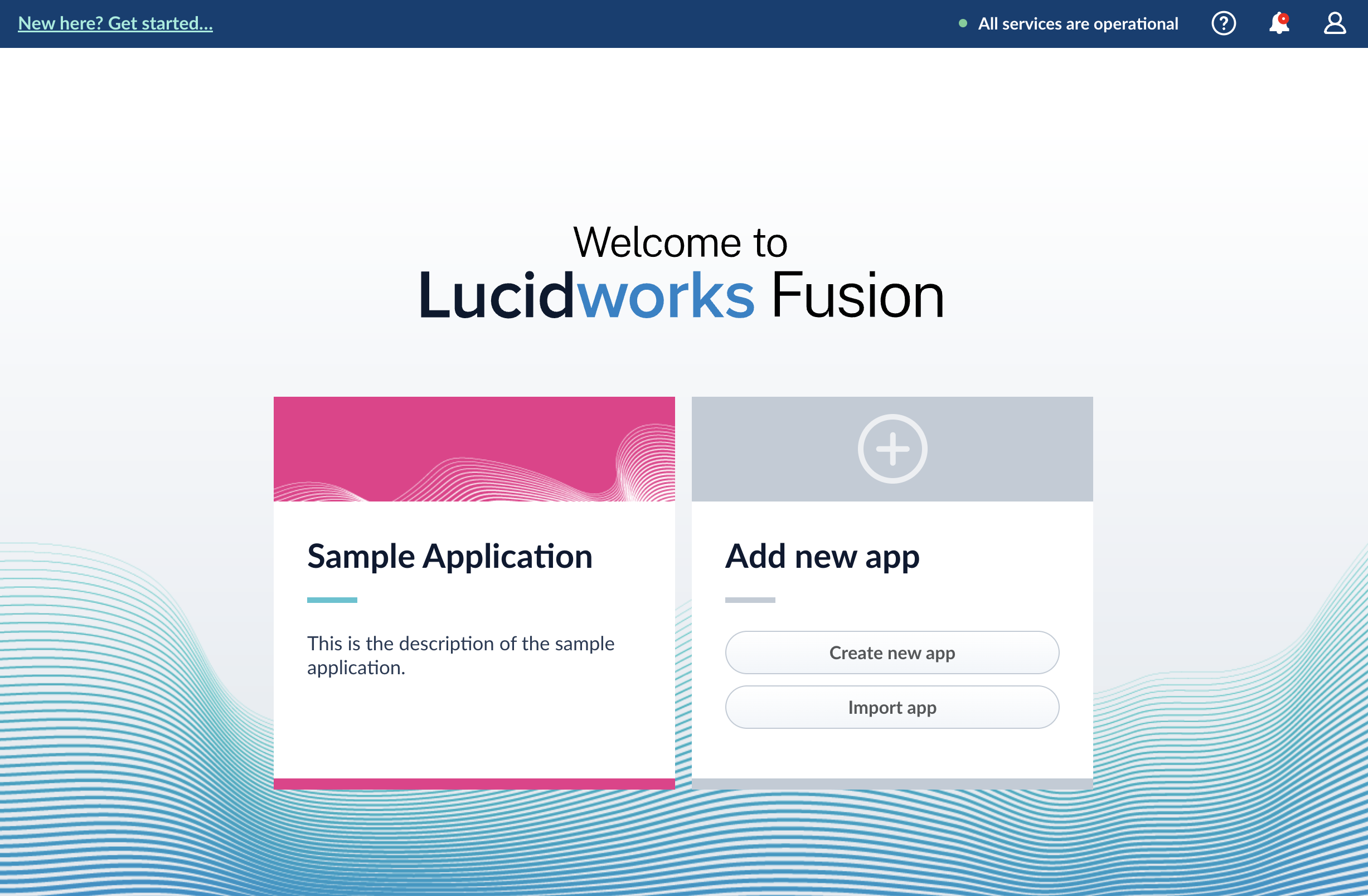
Generally, you will create multiple apps for different purposes. You can view all of your apps in the launcher when you log in to the Fusion UI:
To enter the Fusion workspace for any app, click the app name.
In the Fusion workspace, you can hover over to switch to another app, create a new app, or return to the launcher:
An object is something that has a specific function in a Fusion app, such as an index pipeline or Spark job. It is often something that you configure. An app is an object. Several object types are *groups* that group other objects. For more information about object types, see [Object types](#object-types).
## What you can do in Object Explorer
In Object Explorer, you can explore objects.
Which objects you can explore depends on the [permissions](/docs/5/fusion/operations/security/access-control/permissions) that your security realm and user definition grant you. As the user `admin`, you can explore all objects supported by Object Explorer.
* **Determine which objects are in which apps.** You can determine which objects are in the current app, in any app, in no apps, and in any app or no apps. When you navigate to an object, you can display the apps that the object is in.
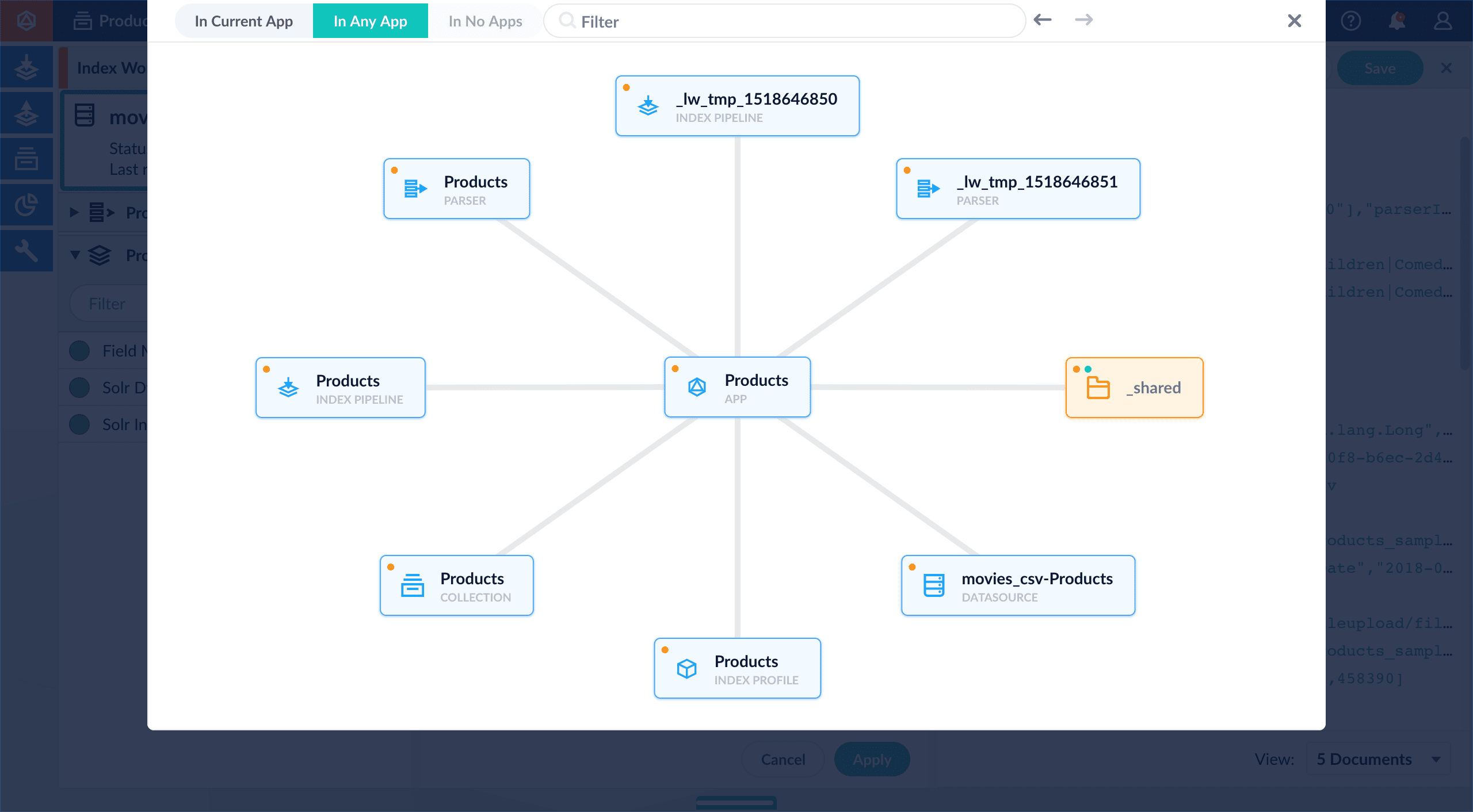
* **View and navigate between related objects.** In Object Explorer, related objects are connected by lines. Clicking an object moves it to the center of the Object Explorer window and displays related objects around it.
* **View related objects.** When you select an object, Object Explorer centers and displays related objects around it, connected by lines, for example:
* **Perform some management tasks.** You can perform some management tasks inside Object Explorer. For example, you can schedule jobs and tasks from Object Explorer. For other management tasks, Object Explorer takes you to where you need to be.
* **Add and remove objects** (*Advanced feature*) - When you create an app, it consists of objects. When you create additional apps, Fusion can *share* some objects across apps. Shared objects are in the `_shared` system group, and they have multiple dots on them, one for each app they are in.\
In some cases, you might want to remove an object from an app (undo sharing) or add an object to an app. For example, after configuring a parser in one app, you could share the parser with other apps, *without having to share things you do not want to share*, for example, the collection.
## Object types
You can explore these types of objects with Object Explorer:
| |
| --------------------------------------------------------------------------------------------------------------------------------------------------------------------- |
| App |
| Spark job or task |
| Collection |
| Datasource |
| Index pipeline |
| Parser |
| Query pipeline |
| A generic icon that is currently used for query profiles, index profiles, blobs, and experiments |
| Recommendations group |
| System group |
| User-defined group or Fusion-defined group that is not a system group |
 To enter the Fusion workspace for any app, click the app name.
In the Fusion workspace, you can hover over
To enter the Fusion workspace for any app, click the app name.
In the Fusion workspace, you can hover over 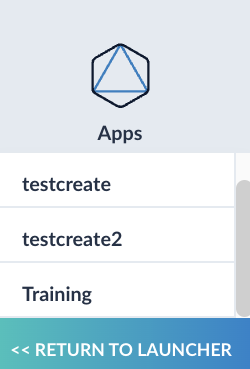 An object is something that has a specific function in a Fusion app, such as an index pipeline or Spark job. It is often something that you configure. An app is an object. Several object types are *groups* that group other objects. For more information about object types, see [Object types](#object-types).
## What you can do in Object Explorer
In Object Explorer, you can explore objects.
An object is something that has a specific function in a Fusion app, such as an index pipeline or Spark job. It is often something that you configure. An app is an object. Several object types are *groups* that group other objects. For more information about object types, see [Object types](#object-types).
## What you can do in Object Explorer
In Object Explorer, you can explore objects.
 * **Perform some management tasks.** You can perform some management tasks inside Object Explorer. For example, you can schedule jobs and tasks from Object Explorer. For other management tasks, Object Explorer takes you to where you need to be.
* **Add and remove objects** (*Advanced feature*) - When you create an app, it consists of objects. When you create additional apps, Fusion can *share* some objects across apps. Shared objects are in the `_shared` system group, and they have multiple dots on them, one for each app they are in.\
In some cases, you might want to remove an object from an app (undo sharing) or add an object to an app. For example, after configuring a parser in one app, you could share the parser with other apps, *without having to share things you do not want to share*, for example, the collection.
## Object types
You can explore these types of objects with Object Explorer:
| |
| --------------------------------------------------------------------------------------------------------------------------------------------------------------------- |
|
* **Perform some management tasks.** You can perform some management tasks inside Object Explorer. For example, you can schedule jobs and tasks from Object Explorer. For other management tasks, Object Explorer takes you to where you need to be.
* **Add and remove objects** (*Advanced feature*) - When you create an app, it consists of objects. When you create additional apps, Fusion can *share* some objects across apps. Shared objects are in the `_shared` system group, and they have multiple dots on them, one for each app they are in.\
In some cases, you might want to remove an object from an app (undo sharing) or add an object to an app. For example, after configuring a parser in one app, you could share the parser with other apps, *without having to share things you do not want to share*, for example, the collection.
## Object types
You can explore these types of objects with Object Explorer:
| |
| --------------------------------------------------------------------------------------------------------------------------------------------------------------------- |
|